Add document link references to a RAG application
This guide describes how to extend the Magic Pen chat component to add document references.
Prerequisites
You have obtained an API key. For more information, see Obtain an API key.
A new topic, Introduction to application types, has been added.
Obtain the APP_ID (Alibaba Cloud Model Studio application ID). You can find the ID on the application card on the My Applications page.
Procedure
Create an Alibaba Cloud Model Studio integration
For more information, see Build an Alibaba Cloud Model Studio RAG application.
Create and configure the page content
Configure integration resources
Integration name:
bailianapp.Prompt:
{{chat1.currentMessage.message}}.session_id:
{{bailianapp.rawData?.session_id}}.
Configure variables
Name:
currentDocRefs.Type:
array.Value:
[].
Configure the chat and integration
The response configuration is complete.
let currentDataSource = JSON.stringify(chat1.chats)

currentDataSource = JSON.parse(currentDataSource)

console.log(bailianapp)

const thoughts = bailianapp.rawData?.thoughts;

const doc_references = bailianapp.rawData?.doc_references;

currentDataSource[currentDataSource.length - 1].thoughts = thoughts;

currentDataSource[currentDataSource.length - 1].doc_references = doc_references;


chat1.setChats(currentDataSource)
Configure extra information
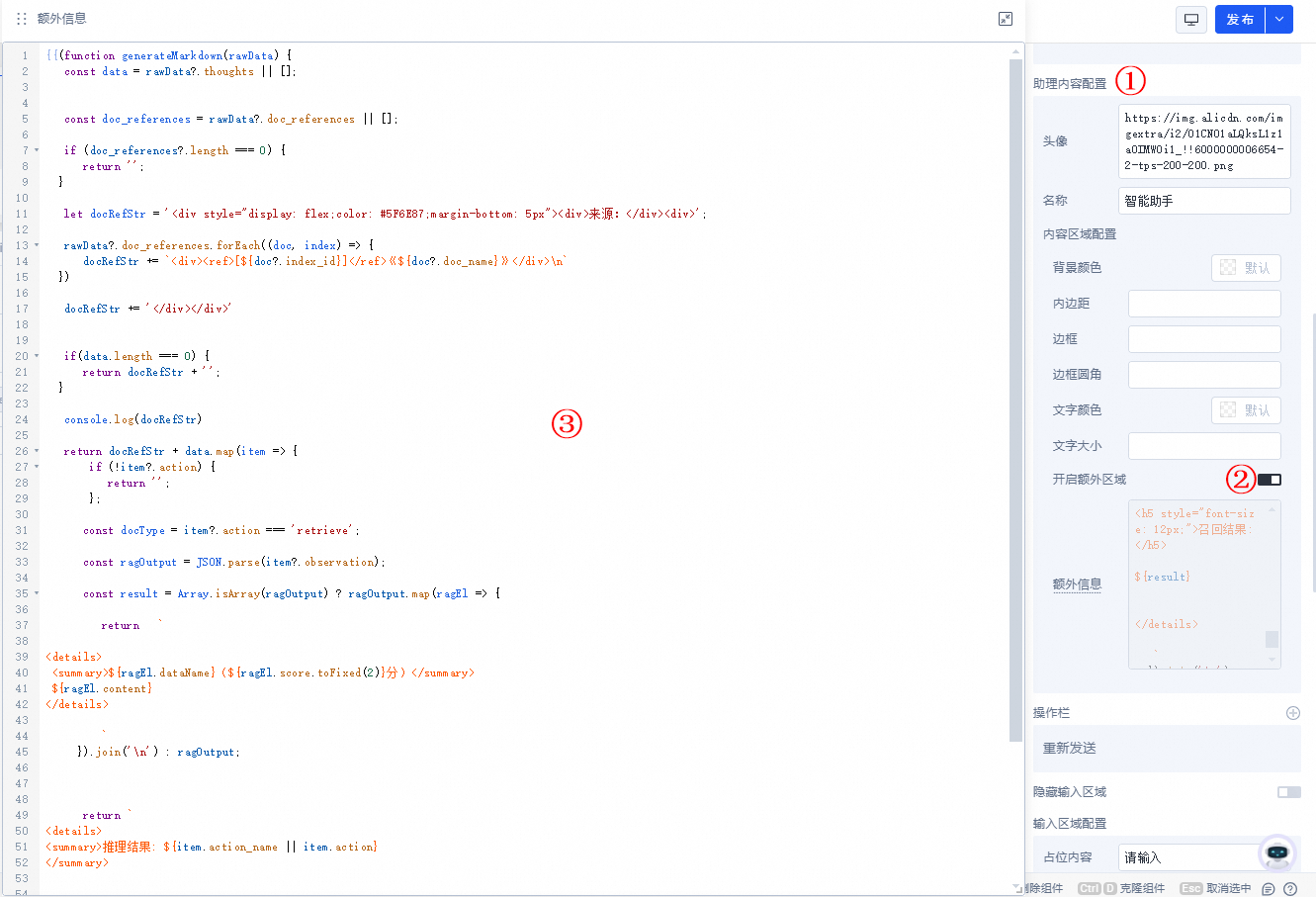
{{(function generateMarkdown(rawData) {
  const data = rawData?.thoughts || [];


  const doc_references = rawData?.doc_references || [];

  if (doc_references?.length === 0) {
    return '';
  }

  let docRefStr = '<div style="display: flex;color: #5F6E87;margin-bottom: 5px"><div>Source: </div><div>';

  rawData?.doc_references.forEach((doc, index) => {
    docRefStr += `<div><ref>[${doc?.index_id}]</ref>${doc?.doc_name}</div>\n`
  })

  docRefStr += '</div></div>'


  if(data.length === 0) {
    return docRefStr + '';
  }

  console.log(docRefStr)

  return docRefStr + data.map(item => {
     if (!item?.action) {
       return '';
     };

    const docType = item?.action === 'retrieve';

    const ragOutput = JSON.parse(item?.observation);

    const result = Array.isArray(ragOutput) ? ragOutput.map(ragEl => {

      return  `

<details>
 <summary>${ragEl.dataName} (Score: ${ragEl.score.toFixed(2)})</summary>
 ${ragEl.content}
</details>

      `
    }).join('\n') : ragOutput;


    return `
<details>
<summary>Inference result: ${item.action_name || item.action}
</summary>


<h5 style="font-size: 12px;">Retrieval result:</h5>

${result}


</details>

  `
  }).join('\n');
})(currentItem)}}
Configure references
function extractArrayFromString(input) {
  // Define a regular expression to match numbers in square brackets.
  const regex = /\[(\d+)\]/g;

  // Create an array to store the matched numbers.
  const resultArray = [];

  // Use the regular expression to find matches and store the results in the array.
  let match;
  while ((match = regex.exec(input)) !== null) {
    resultArray.push(Number(match[1]));
  }

  return resultArray;
}


if (child?.[0] && typeof child[0] === 'string') {

  console.log(currentItem,child)

  const refIndex = extractArrayFromString(child[0]);
  const doc = (refIndex || []).map(el => currentItem?.doc_references[el - 1])
  currentDocRefs.setValue(doc)

  if (doc && doc.length) {
    RAGBasicInfo.show()
  }

}
Create a pop-up window
Pop-up name:
RAGBasicInfo.Add a list to the drawer and set its data source to
{{currentDocRefs.value}}.Enter a Q&A pair in the chat
Click ① in the reply.
ImportantIf clicking does not work, refresh the page and try again.
Change the text content to the following:
{{currentItem.doc_name}}
{{currentItem.text}}
Set Height to Auto.
Set Overflow to Visible.