How to develop applications that support anonymous access
On the Mobi low-code development platform, applications that support anonymous access allow unauthenticated users to access specific features or pages. This allows the application to display non-sensitive information to the public while protecting core business data. This document describes how to develop an application that supports anonymous access on the Mobi platform.
Step 1: Plan and build the application architecture
Before developing an application that supports anonymous access, you must plan the application architecture to ensure the security of sensitive data and features. Determine which pages and data can be public and which must be reserved for authenticated users.
Assume that you want to develop an information display application. The application displays the titles of current hot spot news to the public. Users must log on to view the full news content. For this scenario, you can build the application architecture as follows:
First, create the basic page structure for the application:
Home page: This is the application's entry point. It displays a list of hot spot news titles to all visitors.
Details page: This page displays the detailed content of a selected hot spot news item. It is only available to logged-on users.
Because this is an example, you can use global variables to simulate data from a backend API. The home page and details page will use this data.
Create global variables that contain simulated hot spot news data.
Next, you can build the basic content for the home page and details page:
Home page setup: Use a list component to display the simulated hot spot news data. Bind a click event to each item. This allows users to click an item to navigate to the details page and view the full news title.
Details page setup: Configure the details page to display the corresponding hot spot news title based on the query parameter in the URL.
Step 2: Configure access permissions for the anonymous user permission group
After you plan and build the application architecture, you must configure the correct access permissions for anonymous users. This step defines which application content is publicly accessible. To configure the permissions, perform the following steps:
In the , edit the anonymous user permission group.
Add access permissions for the target application to the anonymous user permission group. Then, click the permission settings on the right to configure page-specific access permissions.
After the configuration is complete, click Save to apply the settings.
Step 3: Enable the anonymous access switch for the application
After you configure the anonymous user permission group, you must enable the anonymous access feature in the target application. This ensures that users who are not logged on can access the application based on the permission rules that you set. Perform the following steps:
Return to your target application's interface.
Go to the interface.
Turn on Allow anonymous access.
After you enable the "Allow anonymous access" feature, the application automatically grants the access permissions of the anonymous user permission group to users who are not logged on.
Step 4: Verify and publish the application
After you complete the preceding steps, you can publish the application and verify the results in the development environment.
Access the application without logging on. You can see all the content on the home page.
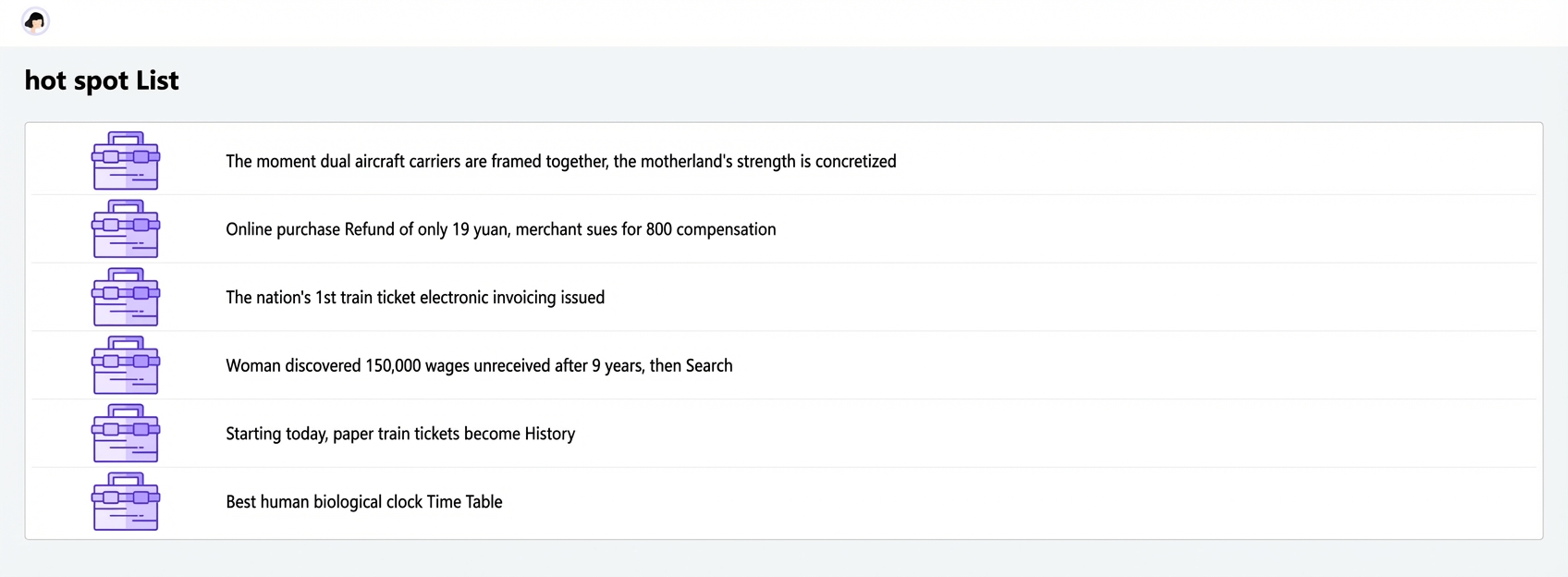
When a user tries to click an item in the list to view details, the application hides the target page. A logon prompt appears to guide the user to log on.
After the user logs on, the application automatically redirects them to the page they tried to access before logging on. The user can now view the details of the hot spot news they clicked.

In some cases, an application might need more complex logic for handling anonymous users. If your business requires more customization, follow the steps in the "Advanced configuration" section to implement custom access logic for anonymous users.
Advanced configuration: Customize anonymous user access logic
Customize the redirection logic
In the event configuration for the list item, find the "Redirect to Page" event that was originally used for page redirection.
Replace this event with an "Execute Script" event.
In the script, add logic to check if the current user is an anonymous user. If the user is anonymous, execute your custom logic, such as displaying an information pop-up window. If the current user is not anonymous, use the
navigateTofunction to redirect to the page.
Customize the pop-up window content
In the pop-up window, add a message to inform users that they must log on to view more content.
Configure the "OK" button in the pop-up window to trigger a user logon event.
Publish and verify the application
Access the application and try to click an item in the list as an anonymous user.
Check that the custom pop-up window appears and that the OK button triggers the logon flow.
After logging on, when the user clicks a list item again, they are successfully redirected to the details page.