Periodically delete files in a specified folder
This document describes how to delete files in a specified folder on a schedule. You will write Python code for an integration stream, use the Mobi Python software development kit (SDK), and configure a scheduled task trigger.
Step 1. Create an integration stream and configure an API key
Create a Mobi integration stream. In the navigation pane on the left, select Global Configuration, and then configure a global API key. For more information, see Manage API keys.
Step 2. Create a Python node and write code
Create an integration operation node. Set Operation Type to Script and Language to Python.
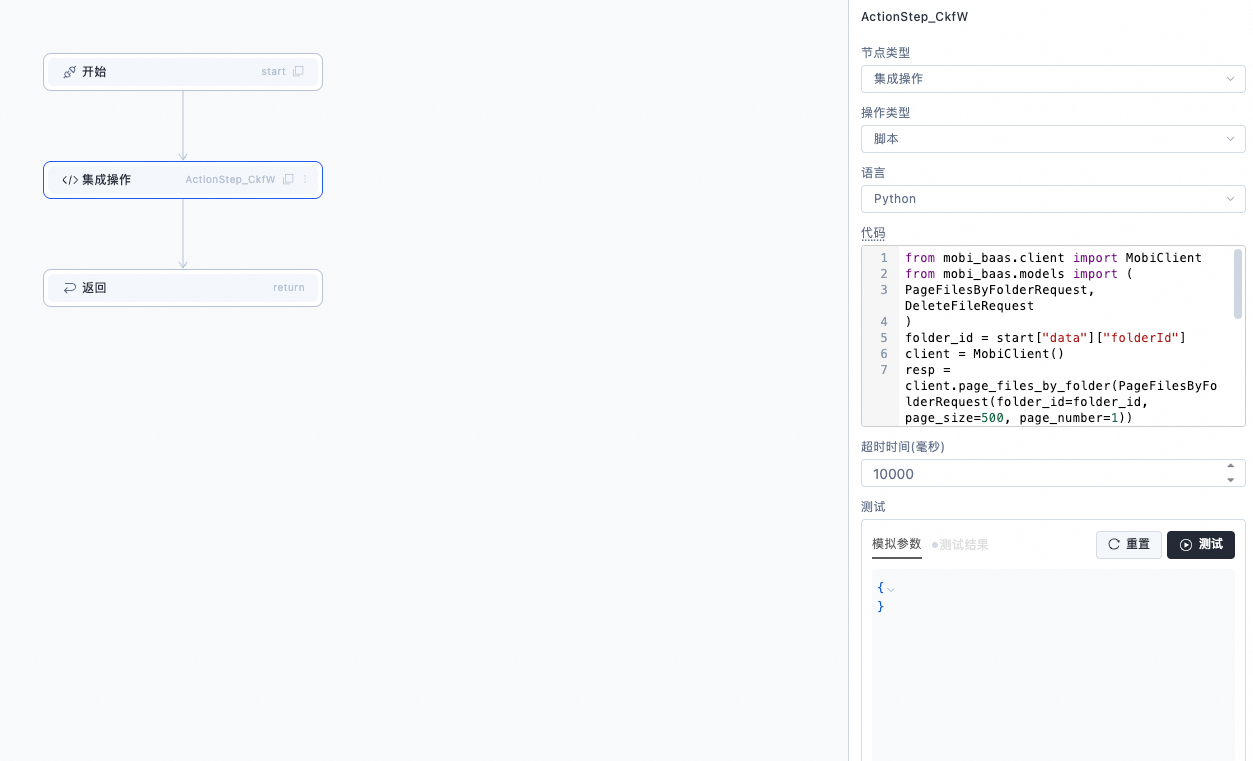
Enter the following code:
# Import the Mobi Python SDK
from mobi_baas.client import MobiClient
from mobi_baas.models import PageFilesByFolderRequest, DeleteFileRequest
# Get the input parameter folderId from the data of the start node
folder_id = start["data"]["folderId"]
# Create a MobiClient instance
client = MobiClient()
# Call the page_files_by_folder API
resp = client.page_files_by_folder(PageFilesByFolderRequest(folder_id=folder_id, page_size=500, page_number=1))
# Failed to get the file list
if not resp.success:
    return "Page files by folder failed, reason: " + resp.get_data()['message']
# Get all file objects in the folder
files = resp.get_data()["items"]
# Store the IDs of all files that failed to be deleted
file_deleted_failed_list = []
for file in files:
    del_resp =client.delete_file(DeleteFileRequest(file_id=file["fileId"]))
    if not del_resp.success:
        file_deleted_failed_list.append(file["fileId"])
if len(file_deleted_failed_list) > 0:
    return file_deleted_failed_list
else:
    return "All files deleted"
Step 3. Configure the start and return nodes
Configure the input parameter folderId for the start node.
In the return node, set the return value to the data from the previous node. For example, if the previous node is the integration operation node ActionStep_CkfW, set the return value to ActionStep_CkfW.data.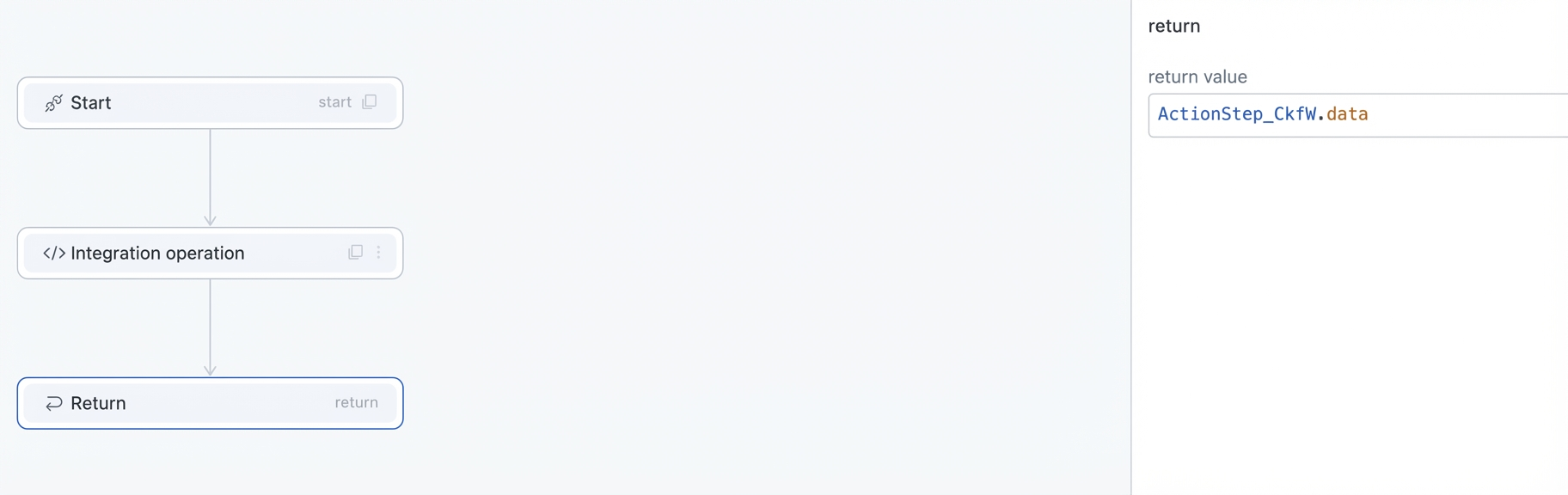
Step 4. Test the integration stream
In Mobi file resources, select a folder to delete. Click More Options and select Copy Folder ID.
In the start node of the integration stream, set the simulation parameter folderId to the folder ID that you just copied.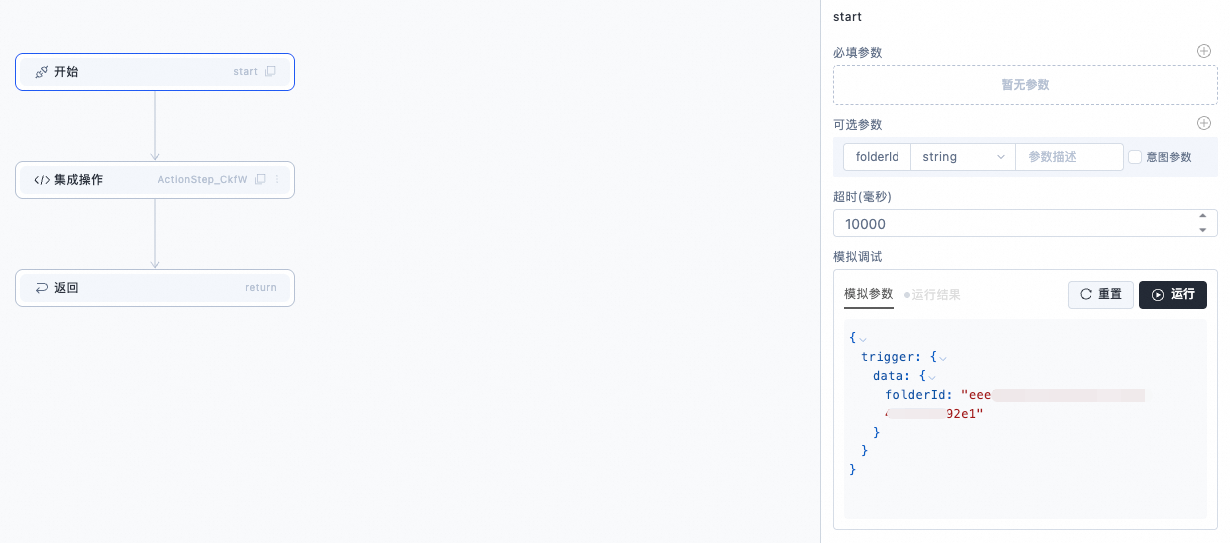
Click Run to test the integration stream.
Step 5. Configure a scheduled task trigger
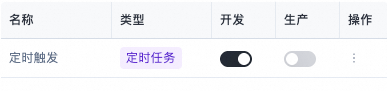
Publish the integration stream. Add a trigger and select the Scheduled Task type. Set the input parameters in JSON format to {"folderId":"your_folder_id"}. Configure the schedule using a CRON expression. For example, the configuration shown in the figure triggers the task to run at 23:59 every day.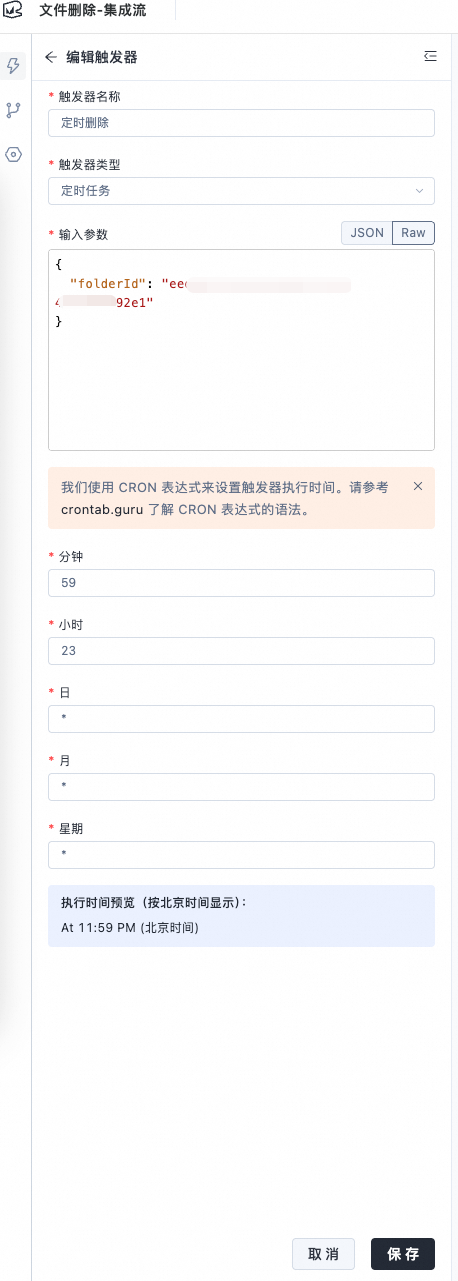
After you complete the configuration, click Save. Enable the environment switch for the published integration stream, and then start the trigger.