Integrate DingTalk APIs
The Moflow platform provides a powerful DingTalk API integration feature. With simple configurations, you can seamlessly connect to DingTalk API services and exchange data. This topic describes how to create and use DingTalk API integrations.
Features
The DingTalk integration feature on the Moflow platform provides the following capabilities:
Custom trigger methods: You can set integration operations to trigger manually or run automatically to meet the requirements of different business scenarios.
Callbacks and data transformation: You can execute specific integration operation events when a query succeeds or fails. You can also perform custom processing on the returned data.
Advanced settings: You can use advanced configurations for debounce and execution prohibition conditions to optimize the execution of integration operations.
For more information about events, see Integration operation events.
Use a DingTalk API integration
Step 1: Create a DingTalk API integration
Log on to the Moflow platform and go to the console.
Navigate to Resources > Integration and click Create Integration.
Select DingTalk API Configuration and enter a name and description for the integration.
Configure the DingTalk API integration information for different environments, including the
appKeyandappSecret.Click OK to create the DingTalk API integration.
Step 2: Create an integration operation in an application
Open the Code panel, click the plus sign (+) next to the corresponding scope, and select Integration Operation.
Select the DingTalk API integration that you created as the resource. Select an operation type, enter parameters as needed, and choose a trigger method for the integration operation. Then, add more detailed configurations.
Click Run to preview the query results.
Configuration panel details
Integration configuration
appKey and appSecret: These are the access credentials for the DingTalk developer platform. In the developer console, find the application's Client ID (formerly AppKey for internal enterprise apps) and Client Secret (formerly AppSecret for internal enterprise apps). For more information, see Obtain the accessToken for an internal application.
Ensure that your application has the required API permissions. For more information about how to add permissions to an application, see Add API call permissions.
General configurations
Call API (New Version): Corresponds to the APIs available in the new version of the software development kit (SDK) on the DingTalk developer platform. The authentication parameter is `x-acs-dingtalk-access-token`.
method: The HTTP method.
path: The path parameter. Enter the part of the URL after
https://api.dingtalk.com. For example, forhttps://api.dingtalk.com/v2.0/wiki/mineWorkspaces, enter/v2.0/wiki/mineWorkspaces.query: The query parameters of the API.
Header: The header parameters of the API. Do not enter `x-acs-dingtalk-access-token`. This parameter is automatically calculated and added.
body: The body parameters of the API. For JSON format, use double curly braces as shown below.
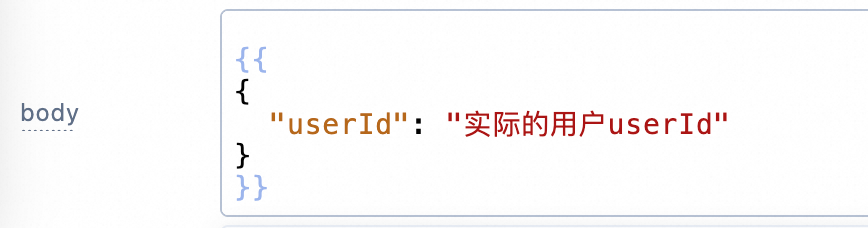
Call API (Old Version): Corresponds to the APIs available in the old version of the SDK on the DingTalk developer platform. The authentication parameter is `access_token`.
method: The HTTP method.
path: The path parameter. Enter the part of the URL after
https://oapi.dingtalk.com. For example, for the URLhttps://oapi.dingtalk.com/topapi/user/getbyunionid, enter/topapi/user/getbyunionid.query: The query parameters of the API. Do not enter `access_token`. This parameter is automatically calculated and added.
Header: The header parameters of the API.
body: The body parameters of the API. For JSON format, use double curly braces as shown below.
Callback configuration
Data transformation: Processes the data returned by the API. The default value is
return data, which means that no processing is performed.Stream reception callback: Configures the event that is triggered when chunk data is retrieved from a streaming API call.
Success callback: Configures the event that is triggered when the API call succeeds.
Failure callback: Configures the event that is triggered when the API call fails.
Advanced configuration
Debounce: Sets a debounce expression to prevent frequent API calls.
Execution prohibition condition: Determines whether to execute this integration operation based on a conditional expression.
Manually trigger an integration
Event trigger
In the component where you want to trigger the integration operation, configure an event handler.
Set the action type to Integration Operation and select the corresponding integration.
Enter the configured parameters as an object.
API trigger
If the name of the integration operation is action1, you can use the action1.trigger() method to trigger the operation anywhere a script can be executed. If the integration operation has configured parameters, you must enter them as an object.