Build a RAG application based on a local knowledge base
This topic describes how to build a retrieval-augmented generation (RAG) application based on a local knowledge base and a large language model in the cloud. This is useful for scenarios such as private domain Q&A and customer support.
If you want to deploy your knowledge base locally for flexible document chunking and embedding model selection, follow the steps in this topic.
If you want to deploy your knowledge base in the cloud to quickly and intuitively create a RAG application, you can use the build a RAG application with zero code feature provided by Alibaba Cloud Model Studio.
Solution overview
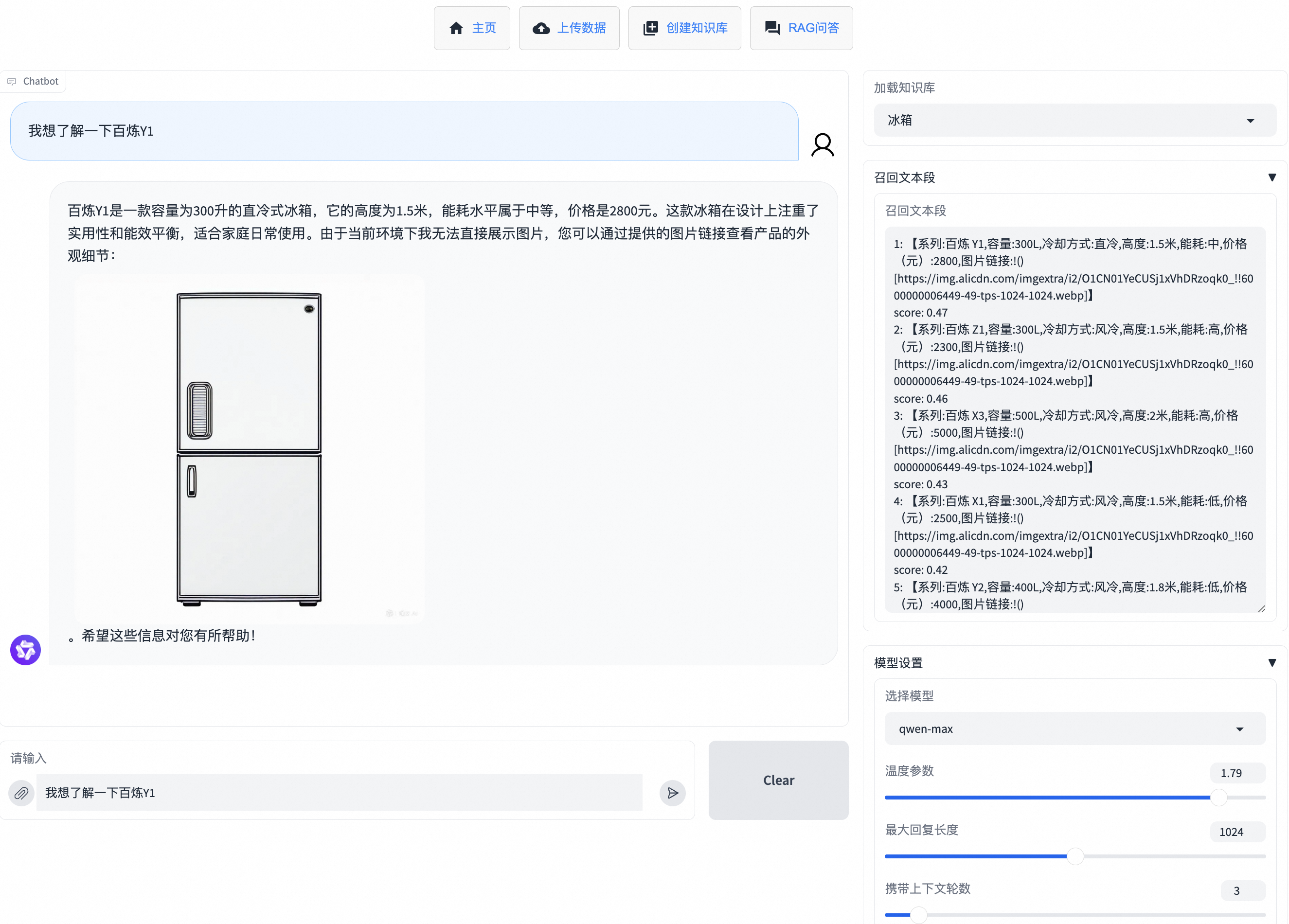
This topic helps you achieve the following result:
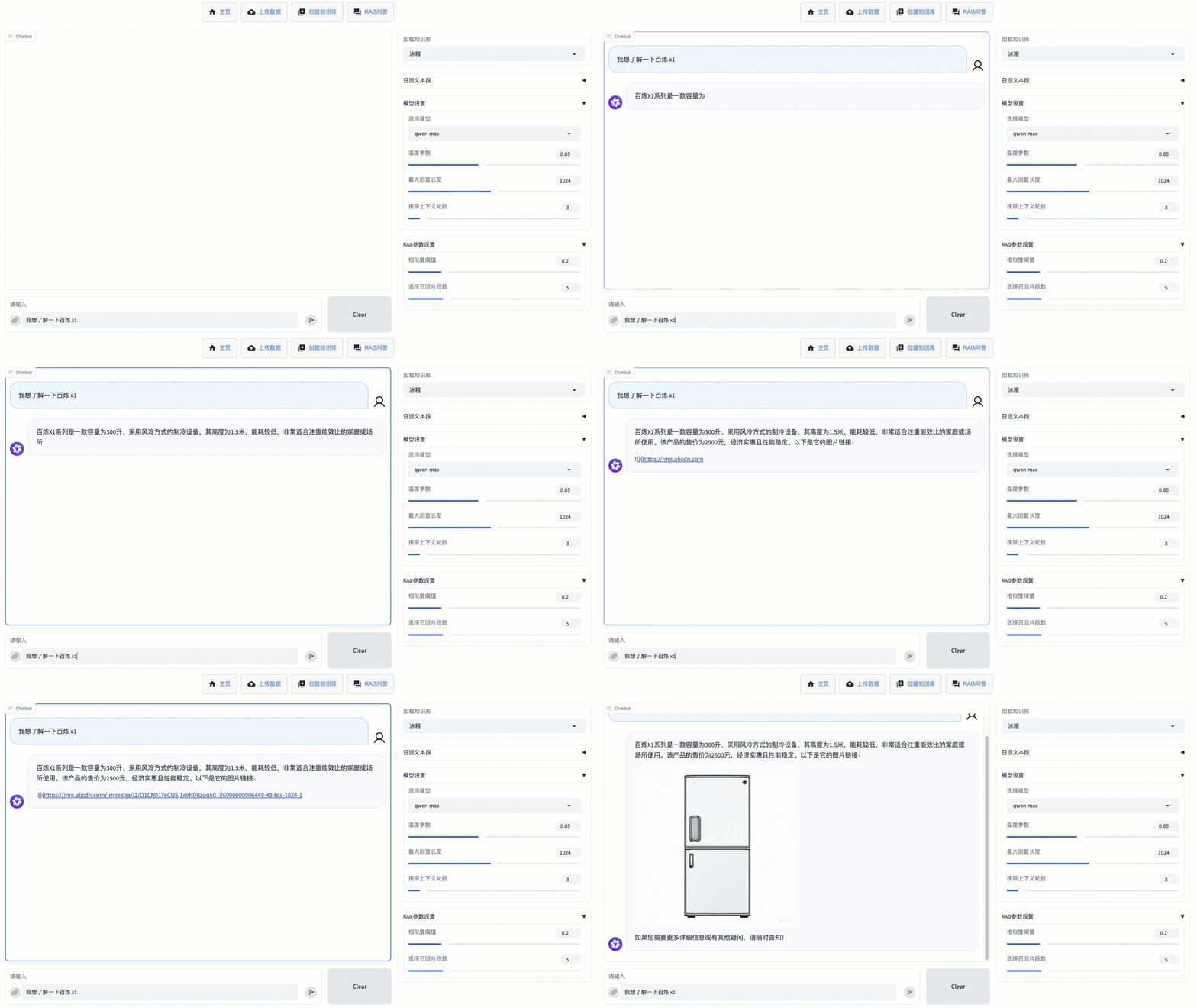
A RAG application can generate responses based on user-provided documents. This effectively addresses the limitations of large models when dealing with private domain questions. The process is divided into two stages: retrieval and generation.
In this application, the retrieval stage runs locally. This lets you easily manage and maintain knowledge documents and flexibly define document chunking methods. It also prevents upload failures caused by large file sizes. The generation stage calls the Qwen API provided by Alibaba Cloud Model Studio. You do not need to worry about local computing resources or environment configuration. You can obtain higher-quality responses compared to open source models.
The overall framework of this application is shown in the following figure:

Build a sample application
You can build the sample application in just three steps:
1. Unzip the file
Download local_rag.zip and unzip it. You will see the following directory structure: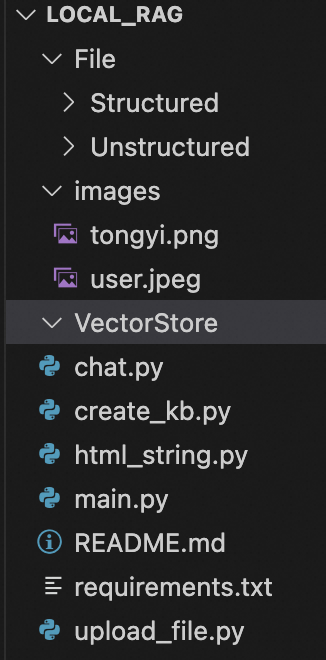
The File/Structured folder stores structured data uploaded by the user. The File/Unstructured folder stores unstructured data uploaded by the user. The two images in the images folder are used to set the profile pictures for the conversation roles. The VectorStore folder stores the knowledge bases created by the user.
2. Configure the computing environment
Python 3.8 to 3.12 is required. In the unzipped local_rag directory, run the following command to install the required dependencies for this application: pip install -r requirements.txt.
By default, this application uses the embedding model API provided by Alibaba Cloud Model Studio to create a knowledge base. If you plan to use a local embedding model, uncomment the commented section in
requirements.txtbefore you run thepip install -r requirements.txtcommand.
Obtain an Alibaba Cloud Model Studio API key. Then, configure the API key as an environment variable. For more information, see Configure an API key as an environment variable.
Modify the embedding model configuration (Optional)
By default, this application uses the embedding model API provided by Alibaba Cloud Model Studio. If you plan to use a locally deployed embedding model, see the following instructions:
Use a locally deployed embedding model
-
In the
local_ragdirectory, run the following command to download the embedding model to thelocal_rag/modelscopefolder. This example uses the GTE text embedding-Chinese-general-large model provided by Tongyi Lab.If you use Windows and the Microsoft Visual C++ Redistributable package is missing, download it from the Microsoft Visual C++ Redistributable download link.
modelscope download --model 'iic/nlp_gte_sentence-embedding_chinese-large' --local_dir 'modelscope/iic/nlp_gte_sentence-embedding_chinese-large'modelscope download --model iic/nlp_gte_sentence-embedding_chinese-large --local_dir modelscope/iic/nlp_gte_sentence-embedding_chinese-large -
Change the embedding model configuration in
chat.pyandcreate_kb.py. Uncomment the following section:
# from langchain_community.embeddings import ModelScopeEmbeddings
# from llama_index.embeddings.langchain import LangchainEmbedding
# embeddings = ModelScopeEmbeddings(model_id="modelscope/iic/nlp_gte_sentence-embedding_chinese-large")
# EMBED_MODEL = LangchainEmbedding(embeddings)
3. Run the application
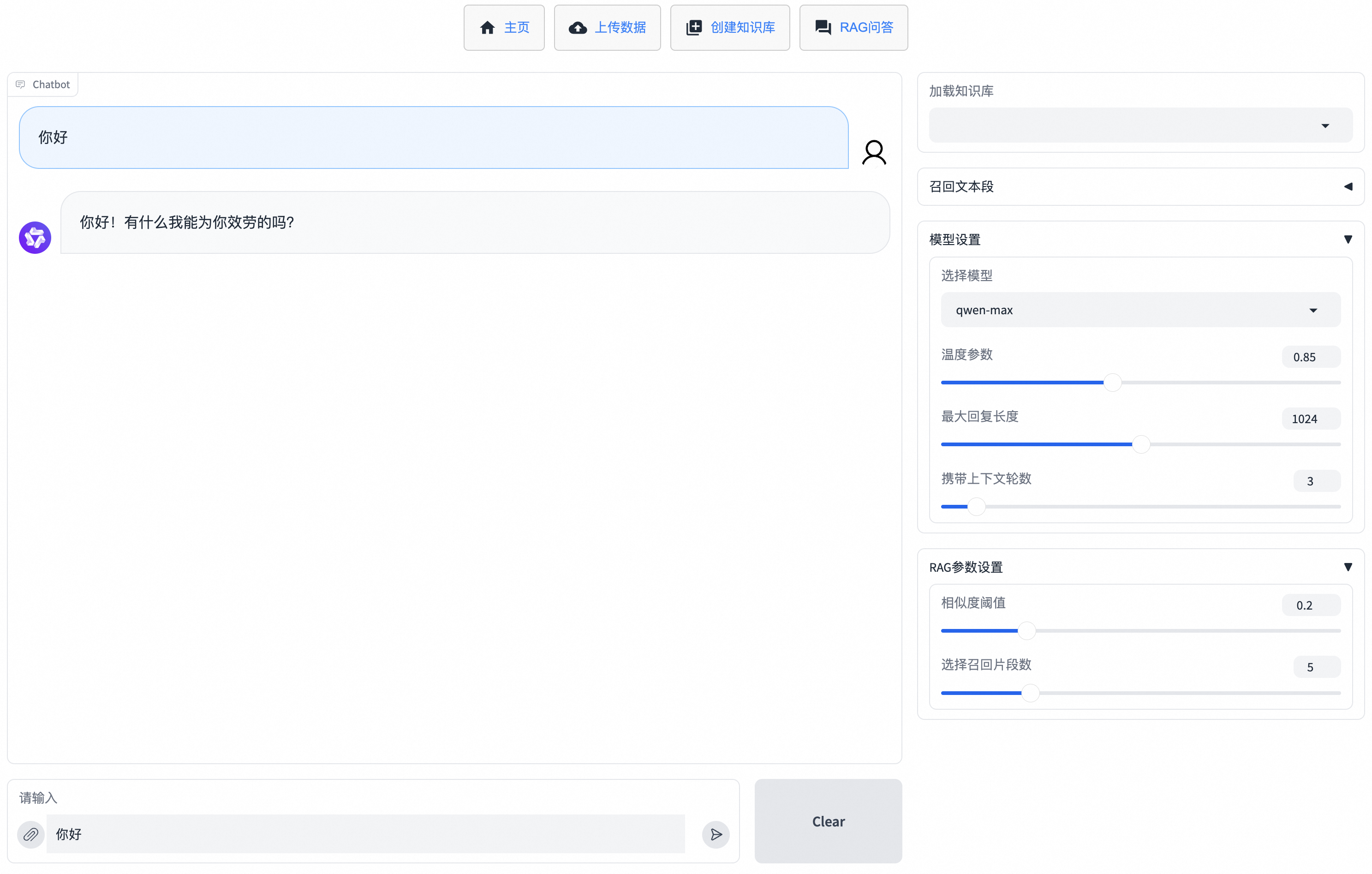
Open a new terminal session. In the local_rag directory, run the following command: uvicorn main:app --port 7866. After the message INFO: Uvicorn running on http://127.0.0.1:7866 (Press CTRL+C to quit) appears in the terminal, you can access http://127.0.0.1:7866 to open the web page for the RAG application. Click RAG Q&A to start a conversation.
If you use Windows and the page reports the error
DLL load failed while importing _cext:, run the commandpip install msvc-runtimebefore you run the application.
Provide knowledge files
You can provide knowledge files to the RAG application in one of the following two ways:
If you use both methods, the RAG application prioritizes temporary files.
Provide temporary files
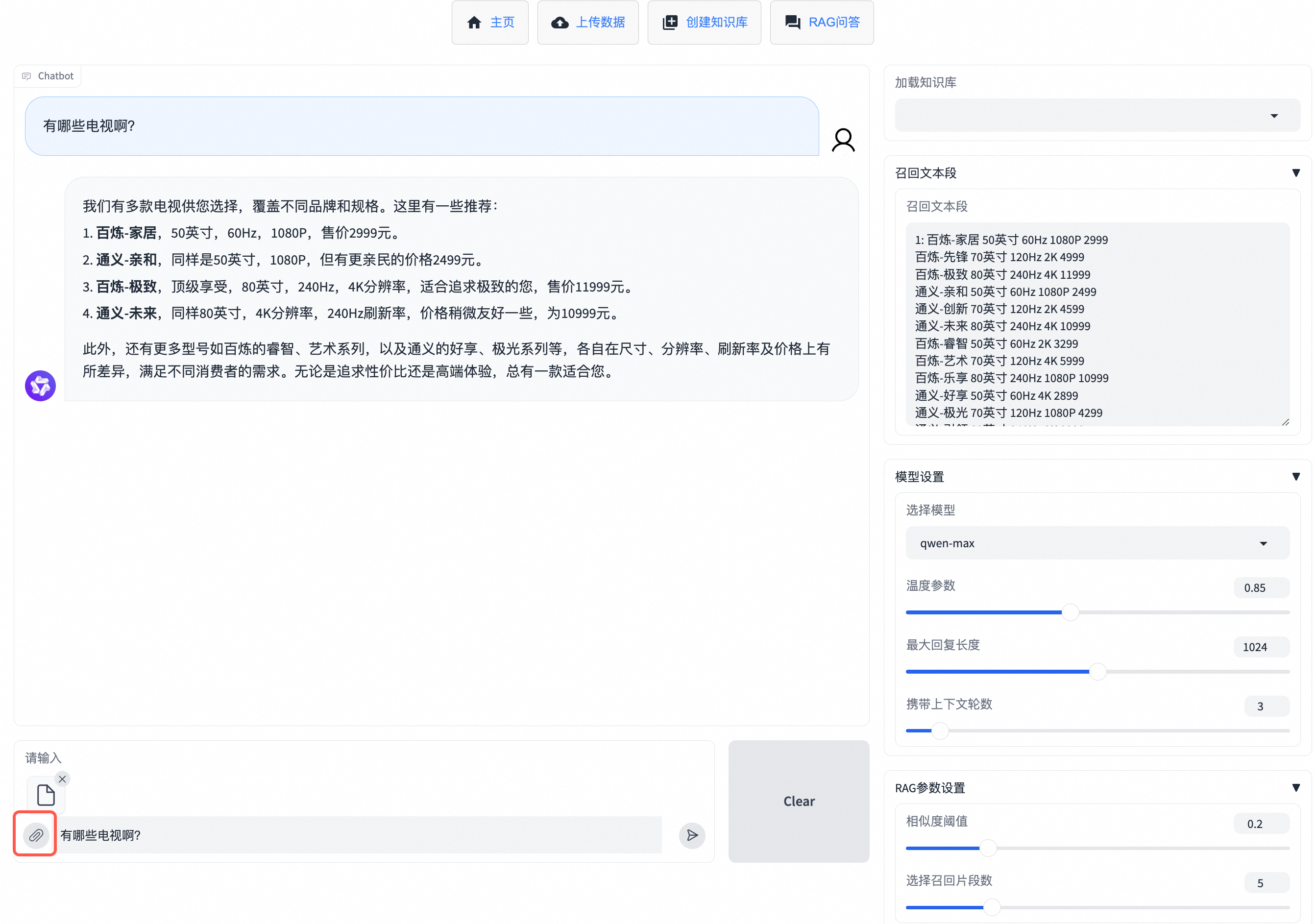
To upload a file directly in the dialog box and ask questions based on it, go to the RAG Q&A page and click the  icon next to the input box to upload a temporary knowledge base file. You can then enter a question to obtain a response. The uploaded file is lost after the page is refreshed.
Supported file types include pdf, docx, txt, xlsx, and csv.
Upload data and create a knowledge base
To use specific knowledge base files for a long time, you can create a knowledge base to provide the files. This requires two steps:
-
Upload data
On the Upload Data page, you can upload unstructured data (pdf and docx are currently supported) or structured data (xlsx or csv). Unstructured data is uploaded to a category that you specify. A folder with the category name is created in
File/Unstructuredto store your uploaded files. Structured data is uploaded to a data table that you specify. A folder with the data table name is created inFile/Structuredto store your uploaded data.To delete a category or data table, you can perform the operation on the Manage Categories or Manage Tables in a Data Source page.
-
Create a knowledge base
On the Create Knowledge Base page, you can use the category or data table created in the previous step to create a knowledge base. You can select multiple categories or data tables, set a name for the knowledge base, and click Confirm to Create Knowledge Base. When the message
Knowledge base created successfully. You can go to RAG Q&A to ask questions.appears, the knowledge base has been created. The knowledge base files are stored in a folder underVectorStorewith the name you specified for the knowledge base. Go to the RAG Q&A page, select the created knowledge base from the Load Knowledge Base list, and then you can ask questions.To delete a knowledge base, you can perform the operation on the Manage Knowledge Bases page.
Due to the rate limits of the embedding model API, uploading large files may cause a long creation time. Do not upload files larger than 100 MB.

Optimize response quality
You can use the following methods to optimize the response quality of the RAG application.
Modify model and RAG parameters
For model parameters, you can adjust the following:
-
Model selection
You can choose from three commercial Qwen models: qwen-max, qwen-plus, or qwen-turbo. In general, qwen-max provides excellent performance. qwen-turbo offers faster generation at a lower price. qwen-plus provides a balance of quality, speed, and cost between qwen-max and qwen-turbo.
-
Temperature parameter
This parameter controls the randomness of the model's generation. A higher temperature value results in higher randomness.
-
Maximum response length
This parameter controls the maximum number of tokens the model can generate. Increase this value for detailed descriptions. Decrease it for short answers.
-
Number of context turns
This parameter controls the number of previous conversation turns the model references. A value of 1 means the model does not reference conversation history when generating a response.
For RAG parameters, you can adjust the following:
-
Number of retrieved segments
This parameter controls the number of most relevant text segments selected based on the user input. A larger value provides the model with more reference information, but may also introduce irrelevant information. A smaller value provides less reference information, but may reduce irrelevant information.
-
Similarity threshold
This parameter filters out selected relevant text segments that have a similarity score below this value. A larger value provides the model with less reference information, but may reduce irrelevant information. A value of 0 means no segments are filtered from the retrieved segments.
Optimize the chunking method
The RAG application chunks documents. Different documents have different optimal chunking strategies. During knowledge base creation, this application optimizes chunking for structured data. For unstructured data, the application uses the default chunking strategy of LlamaIndex. You can customize the chunking based on your document content.
Change the embedding model
The embedding model is crucial for the retrieval process. Different embedding models may perform differently on the same knowledge file. You can try changing the embedding model and check the retrieval results to select the model that best suits your business scenario.
Optimize the prompt
You can find the prompt_template parameter in chat.py and modify it according to your use case. This makes the large model's responses better align with your business expectations.
By API Call
To make API calls, click Use via API at the bottom of the Gradio interface. You can use the API reference automatically generated by Gradio to integrate the local RAG application into your business scenario.
Summary
The preceding section describes the following:
- How to build a RAG application based on a local knowledge base and the Qwen API, and interact with it through the Gradio interface.
- How to optimize response quality from both retrieval and generation aspects.
- How to call the local RAG application through an API.