User Guide
Application Activation
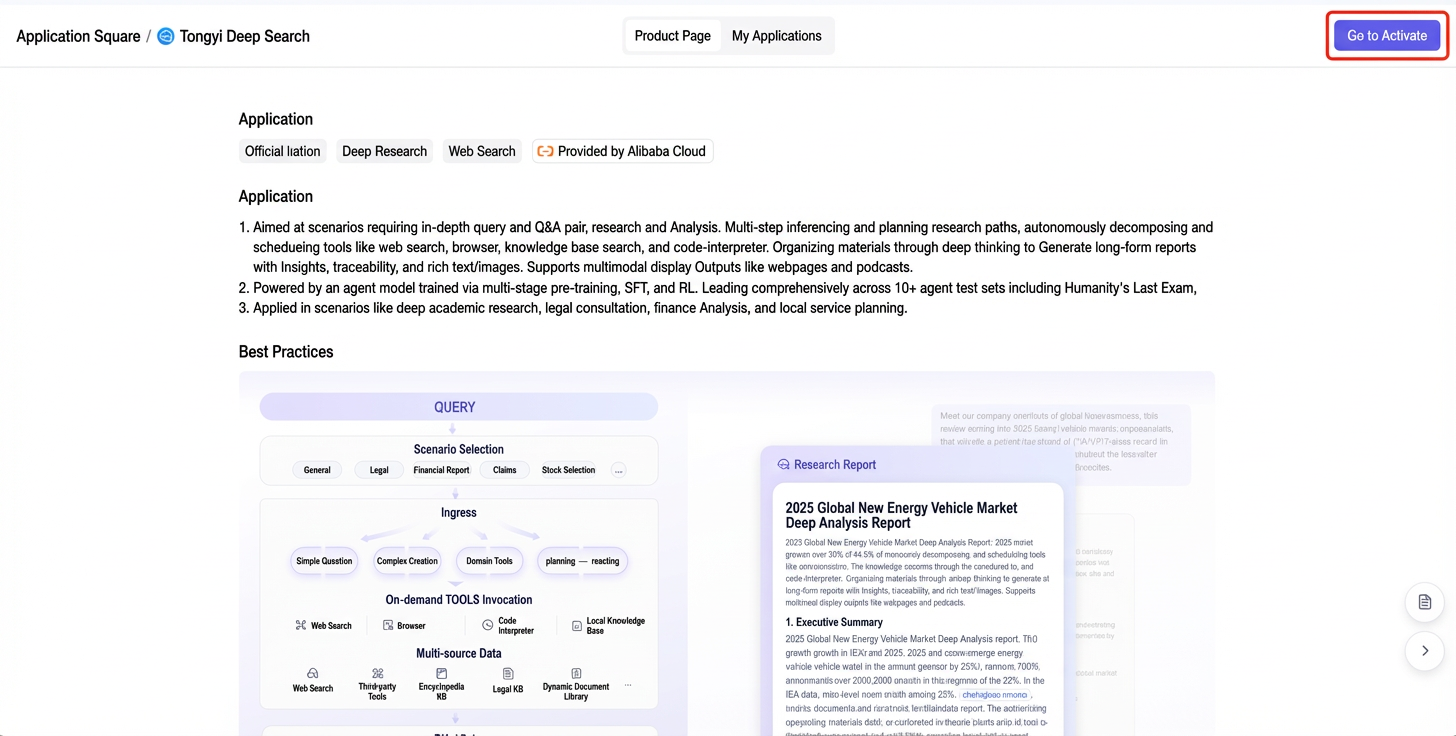
- In the Application Marketplace of the Alibaba Cloud Model Studio console, click the Tongyi Deep Search card. This opens the Application Details page.

- To activate the application for the first time, click Activate for Free in the top right corner.
Application Management
Click My Applications to open the Application Management page. This page displays all created applications and application keys. For first-time users, add a new application.
Application Configuration
Click an application card or add a new application to open the application configuration interface.

General Scenarios
1. Internet Retrieval Configuration
Enabling this feature supports real-time, full-stack Internet information retrieval, which improves the accuracy and timeliness of model responses.
1.1 Retrieval Strategies
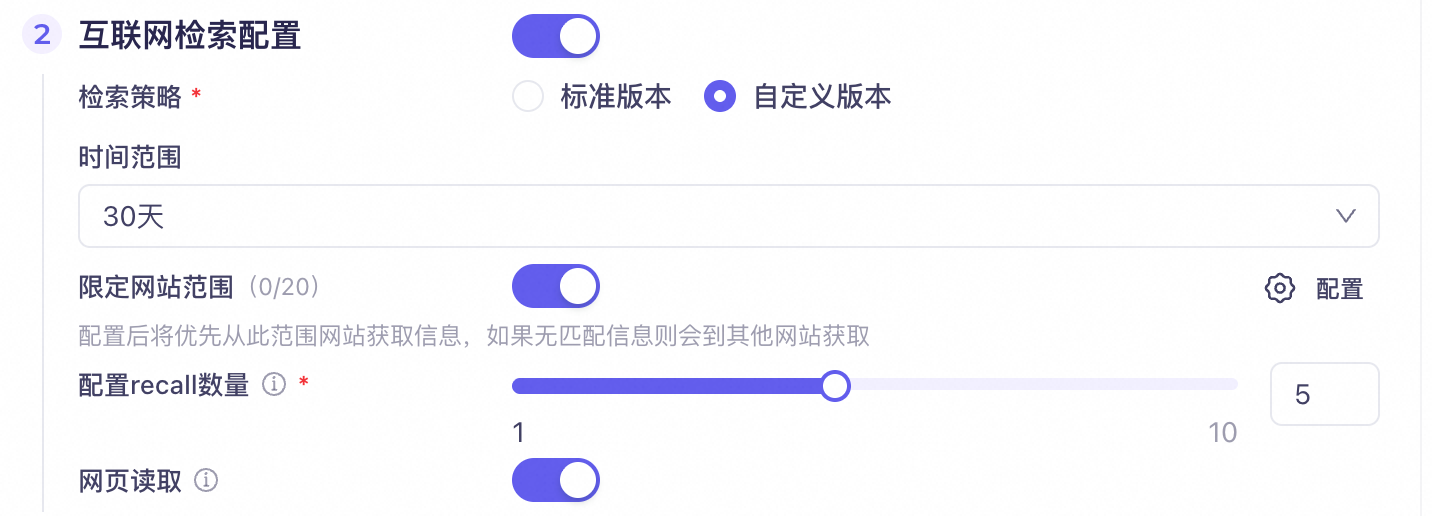
For retrieval strategies, choose between the Standard Edition and custom versions.
Standard Edition
This is a standard retrieval strategy. When you select the Standard Edition, choose a performance version based on your preference for search effectiveness or response time.
- Max version: Prioritizes effectiveness. It performs deeper retrieval and provides more comprehensive results but has a longer response time.
- Turbo version: Prioritizes speed. It offers a short response time and is suitable for scenarios requiring high real-time performance.
Custom Version
When you select a custom retrieval strategy, additional configuration items become available for fine-grained tuning.
- Supports limiting the retrieval time range.
- Supports limiting the website scope. You can add up to 20 websites. After configuration, the system prioritizes retrieving information from websites within this scope. If no matching information is found, it expands to full network retrieval. Websites are automatically deduplicated upon entry.
- Supports configuring the recall quantity. A higher quantity yields more comprehensive information but consumes more resources and increases response time.
- Supports configuring the web page reading switch. When enabled, search results are more detailed but take longer to generate.
1.2 Strategy Selection
Choose between the Max and Turbo versions based on your preference for search effectiveness or response time.
2. Self-Owned Knowledge Base Configuration
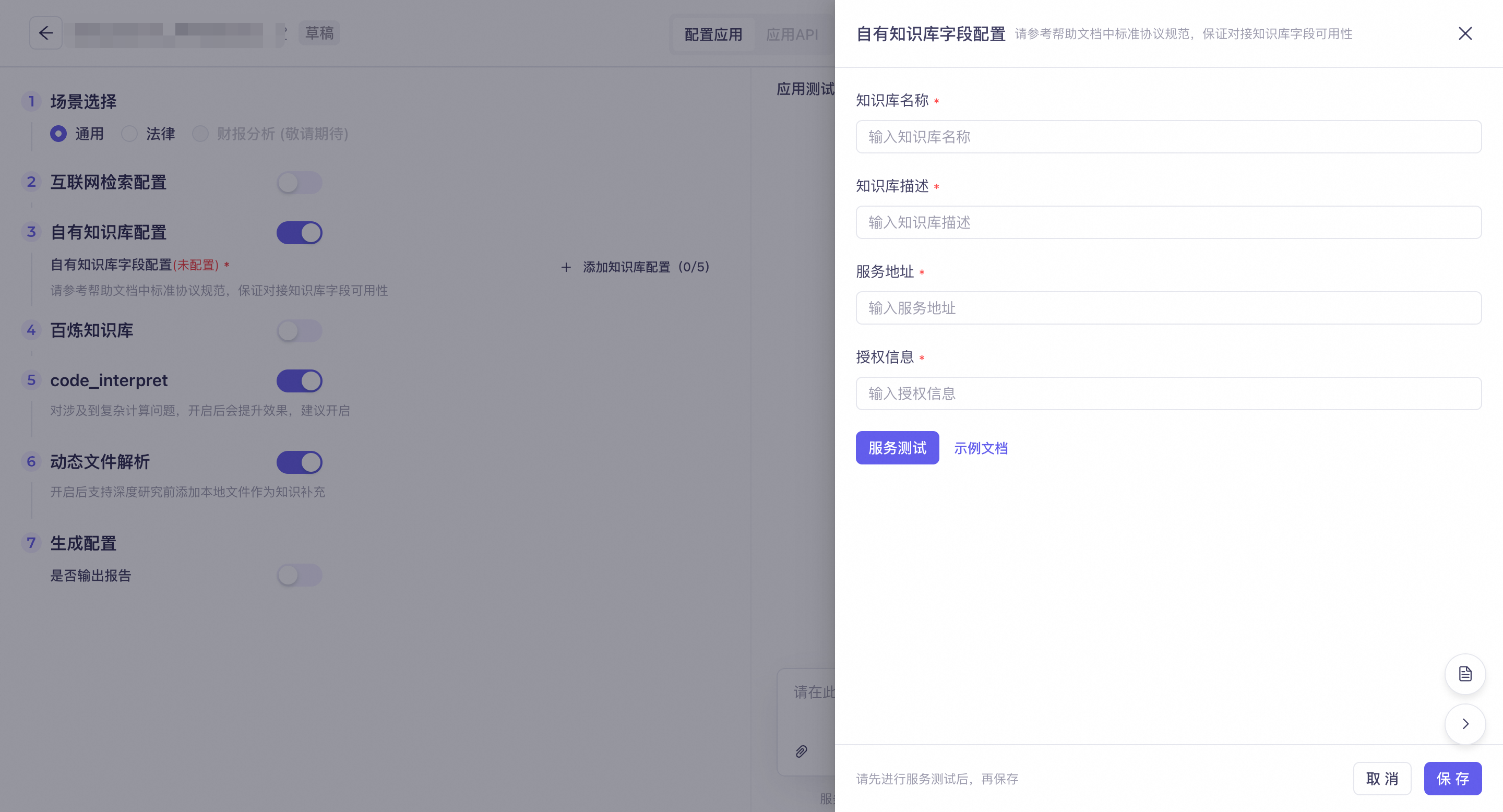
You can connect to self-owned knowledge bases outside of Model Studio as a search source. After enabling this option, configure it by clicking to add a knowledge base configuration.
Enter the knowledge base name, description, service endpoint, and authorization information. Click Service Test, and after validation succeeds, click Save to complete the addition. For more information about configuring knowledge base integration, see the example document.
3. Model Studio Knowledge Base
You can integrate with the Alibaba Cloud Model Studio knowledge base. Select a configured knowledge base. If no Alibaba Cloud Model Studio knowledge base exists, create one first in the Alibaba Cloud Model Studio console. Add a knowledge base description, and ensure the description is clear to help the model better understand the knowledge base.
4. code_interpret
Enabling this feature improves performance on complex computational problems.
5. Dynamic File Parsing
After enabling dynamic file parsing, you can upload local files as temporary contextual knowledge when entering a query. You can upload up to 10 files per conversation, with each file not exceeding 10 MB. Supported formats include .docx, .doc, .pdf, .txt, and .md.
6. Generation Configuration
When report output is enabled, the conversation generates a report file. If disabled, no report is generated.
Legal Scenarios
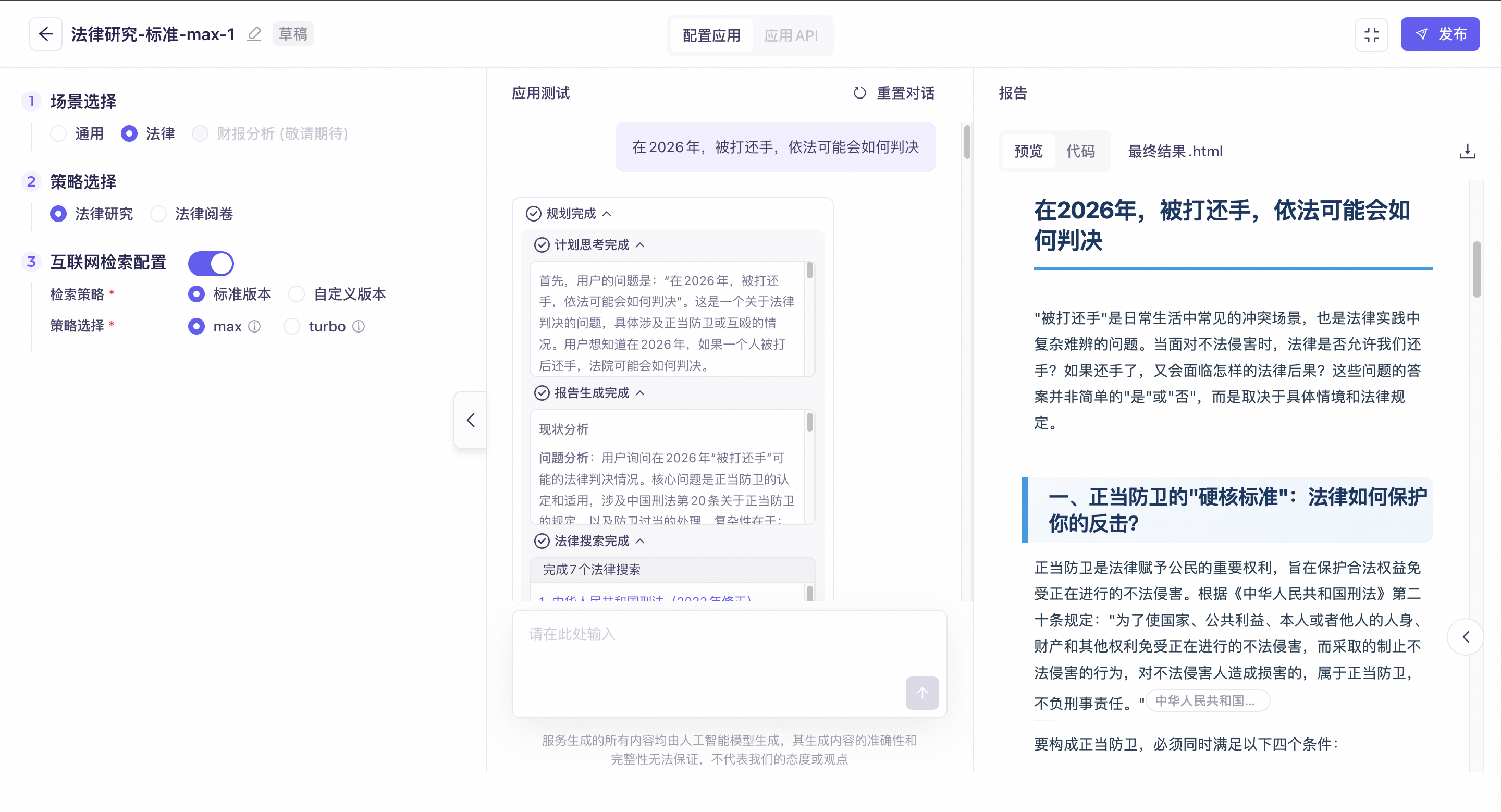
1. Strategy Selection
Select specific research strategies tailored for legal scenarios.
1.1 Legal Research
Performs in-depth analysis of case or judgment content and generates detailed research reports.
1.2 Legal Review
Parses and interprets uploaded case files, extracts key elements, and performs judgment analysis.
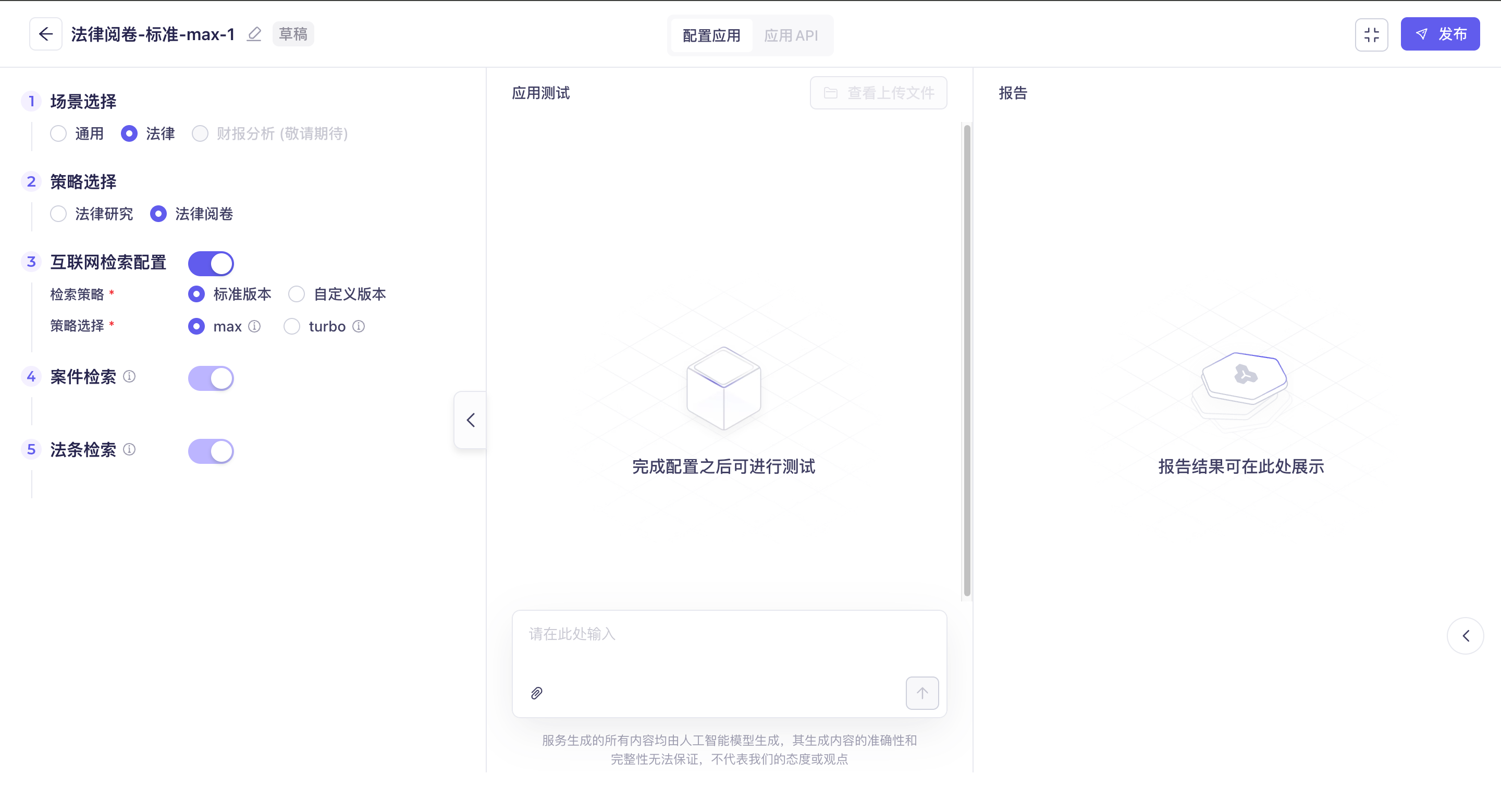
1.2.1 Case Retrieval
This feature integrates with the latest case database for retrieval and is continuously and automatically updated. It is enabled by default and cannot be disabled.
1.2.2 Legal Provision Retrieval
It uses the latest official national regulations as the retrieval source and updates automatically and continuously. This feature is enabled by default and cannot be disabled.
1.2.3 Conversation Test
Application Testing
ImportantNote: Testing on the configuration page calculates usage and incurs charges.
General Scenarios
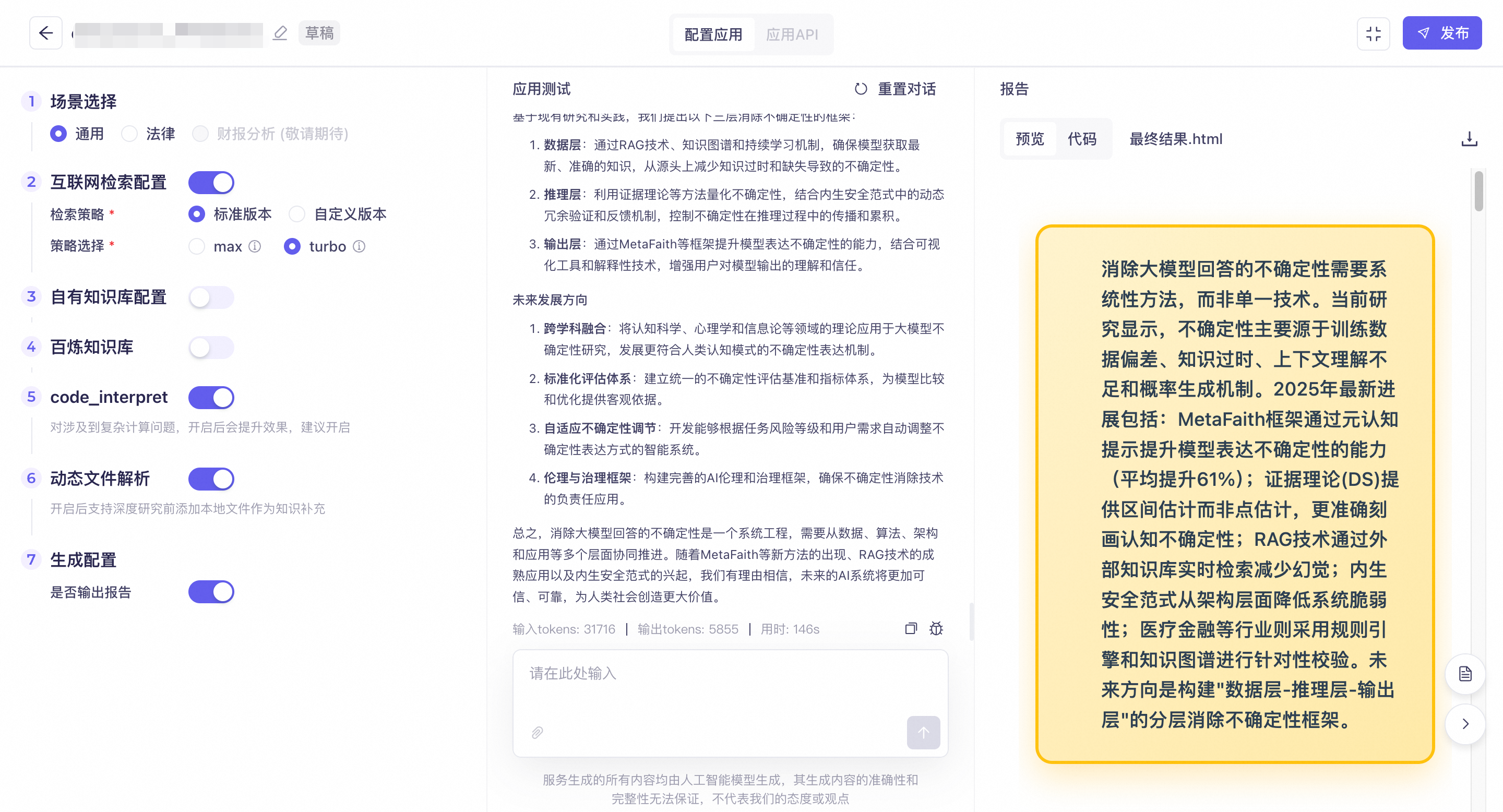
After the configuration is complete, you can enter a query in the input box to run a test. The dialog box displays the deep search steps, such as chat content, planning, thinking process, retrieval process, and tool calling process. A report file is generated when the process is complete. The report area on the right supports Preview and Code modes. You can switch to Code mode to view the original Markdown text used to generate the report. The file is also available for download.
Legal Scenarios
Legal Research
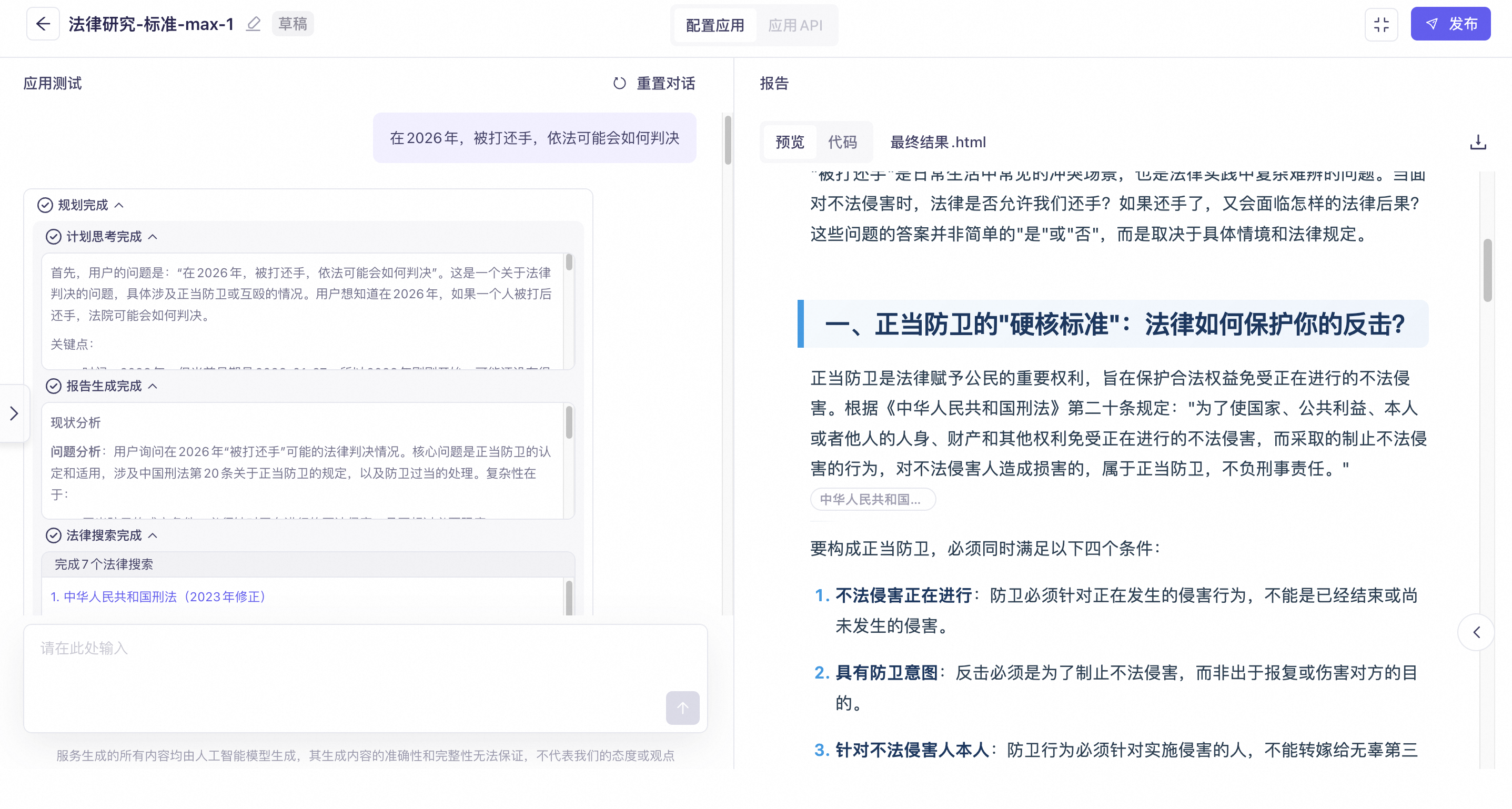
After the configuration is complete, you can enter a query in the input box to run a test. The dialog box displays the deep search steps, such as chat content, planning, thinking process, retrieval process, and tool calling process. A report file is generated when the process is complete. The report area on the right supports Preview and Code modes. You can switch to Code mode to view the original Markdown text used to generate the report. The file is also available for download.
Legal Review
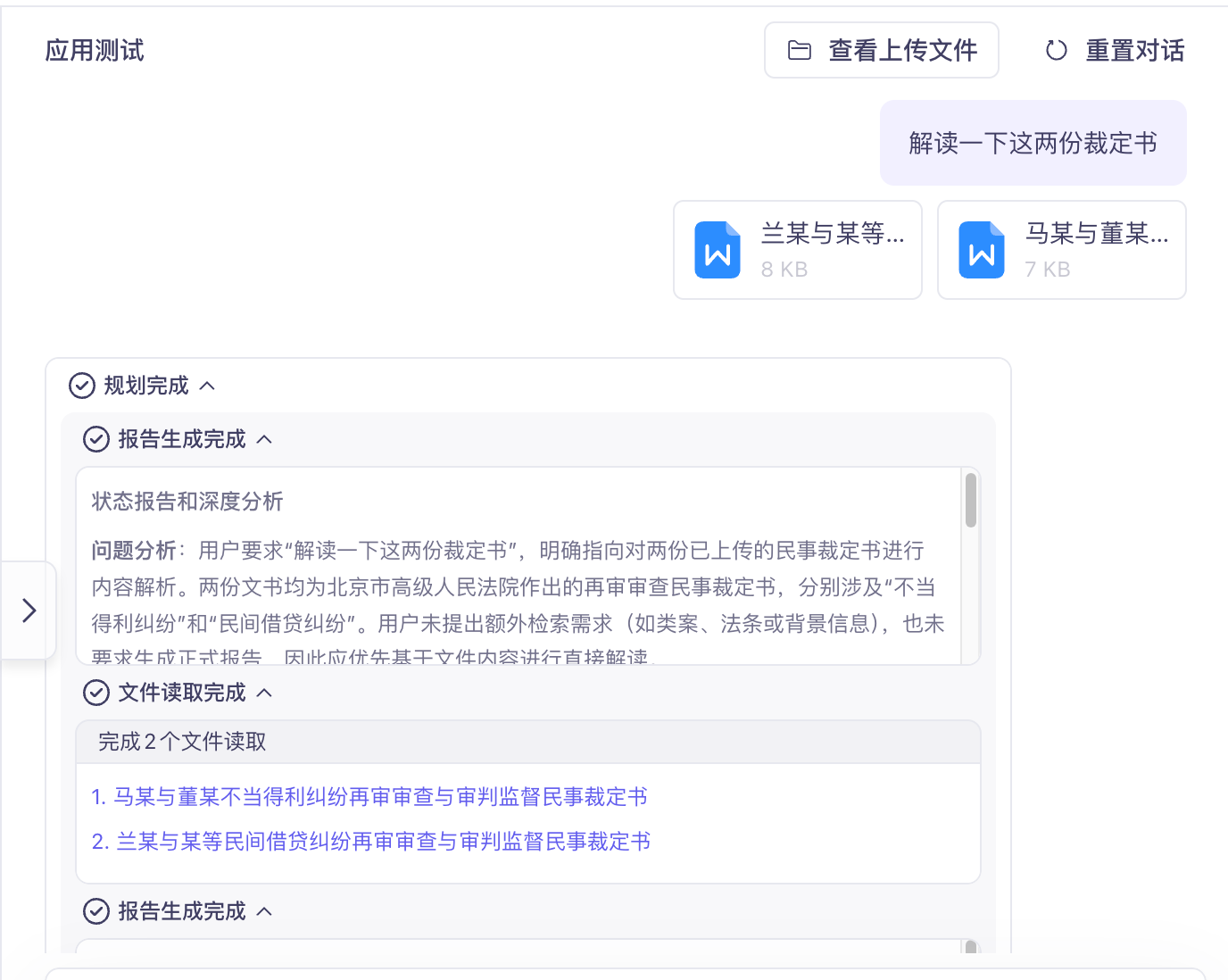
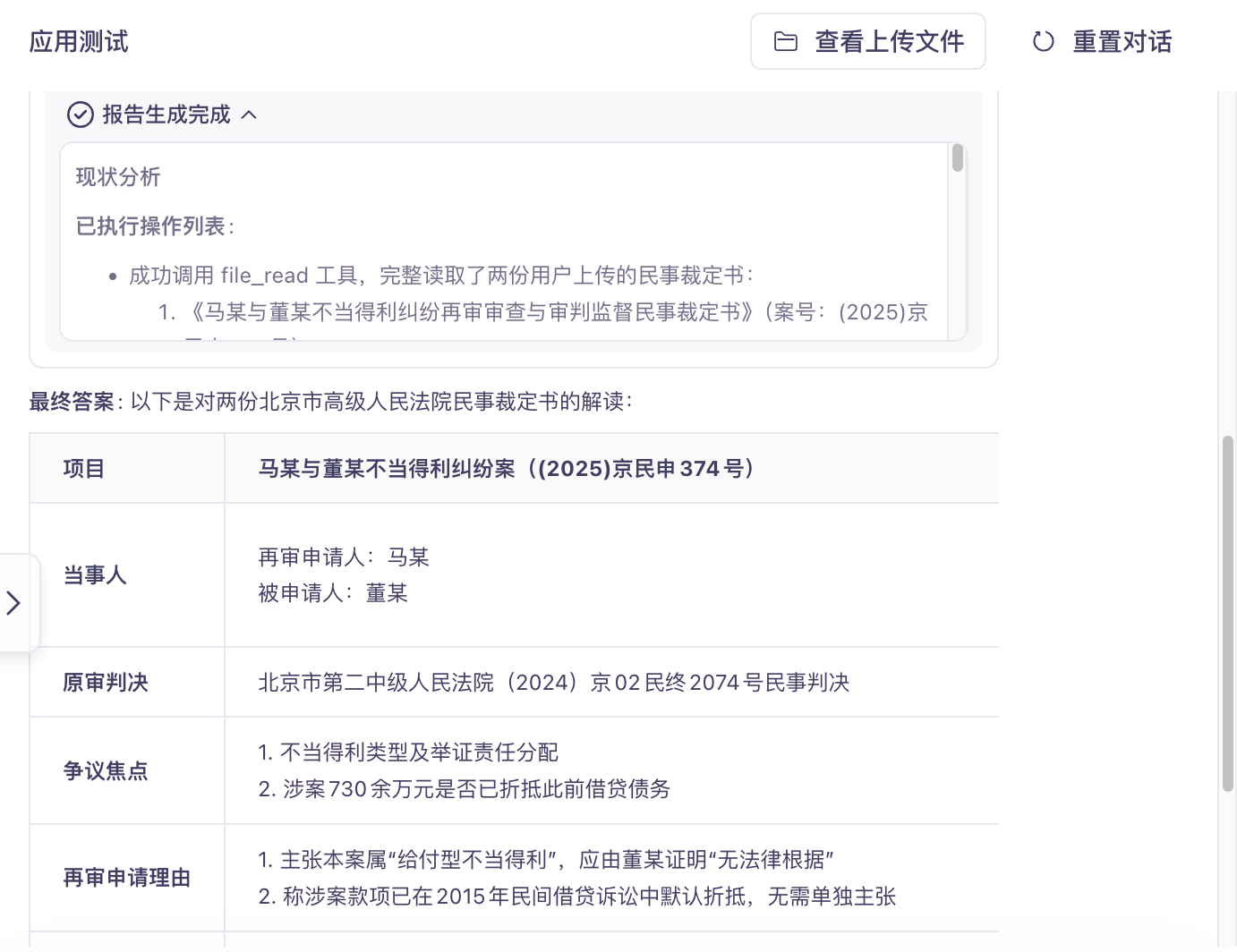
You can upload multiple legal files or entire folders for parsing. After the upload is complete, click "View Uploaded Files" to view and manage them. You can perform operations on the uploaded files, such as drag-and-drop, folder management, viewing details, and deletion.
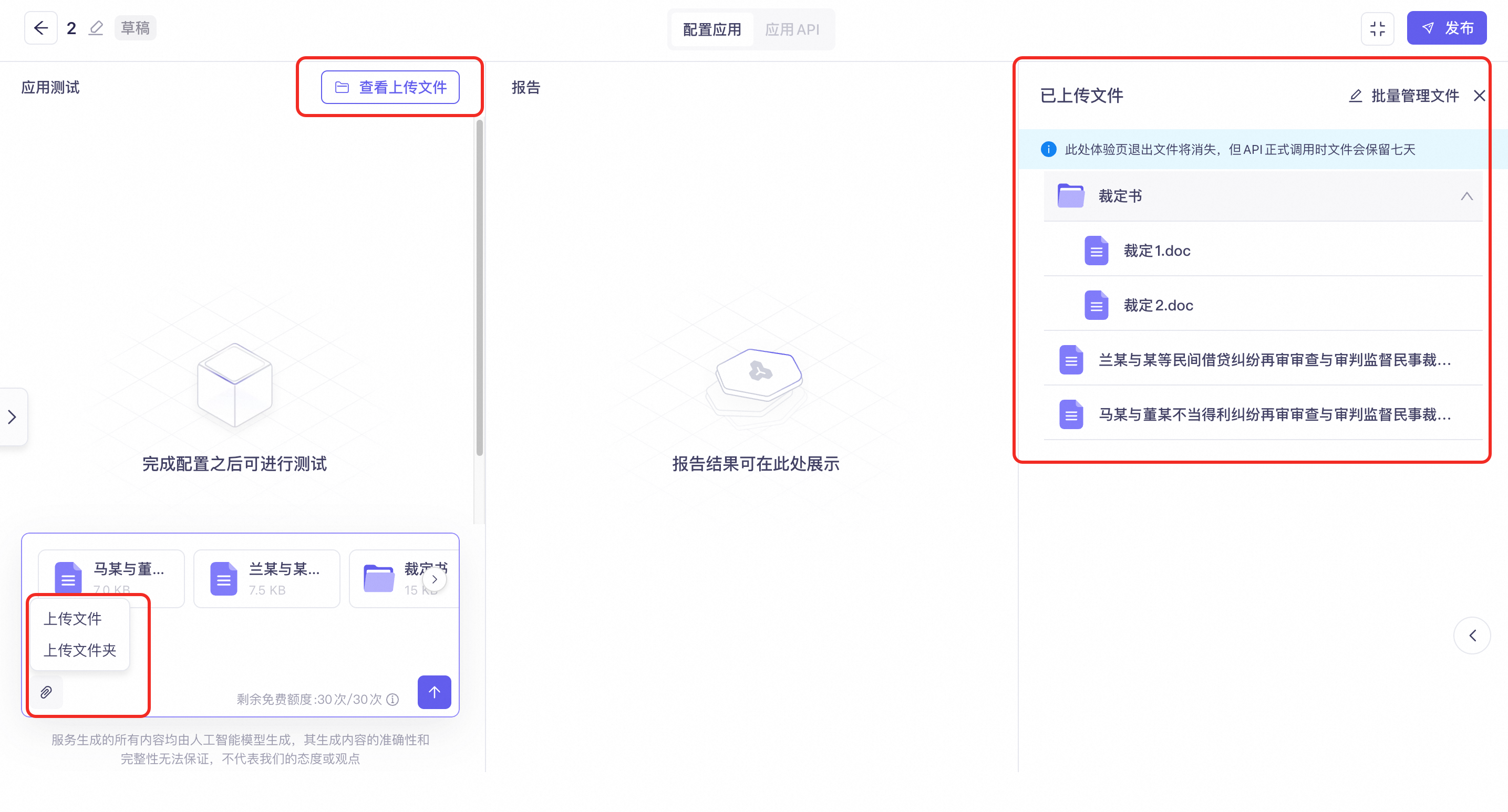
You can interact with the application based on the uploaded files. The application can review the files, organize the information, and provide legal analysis.
Application Publishing
After completing the configuration and testing, click Publish. You can then refer to the API documentation to start using the application.