This topic describes how to use the Xiyan GBI API to implement an intelligent data Q&A feature in the DingTalk client. This guide shows you how to use the Xiyan GBI API and apply it to common clients in your projects.
Prerequisites
-
You have activated the Alibaba Cloud Model Studio service.
-
You have obtained a Workspace ID.
-
You have authorized a database connection in Data Table Management of Xiyan GBI. For more information, see Database connection.
-
You have registered a DingTalk enterprise.
-
You have registered as a DingTalk developer.
Step 1: Create a DingTalk application
-
Log on to the DingTalk Open Platform console.
-
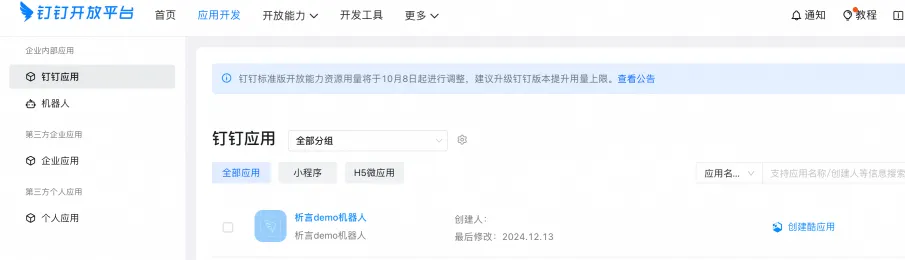
Create an internal enterprise application.
-
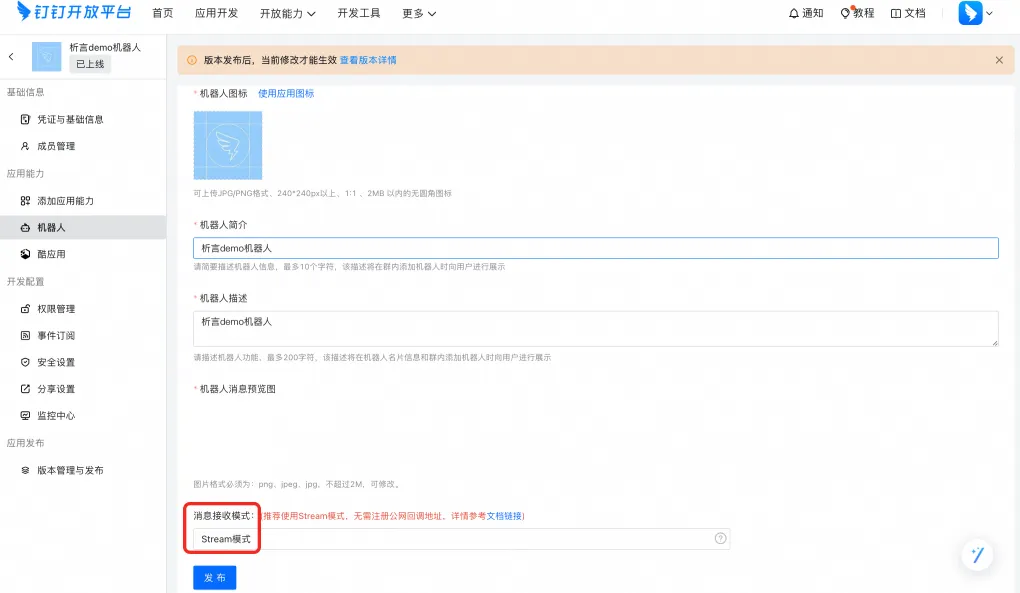
Under , add a Robot.
-
Set Message Receiving Mode for the robot to Stream Mode.
-
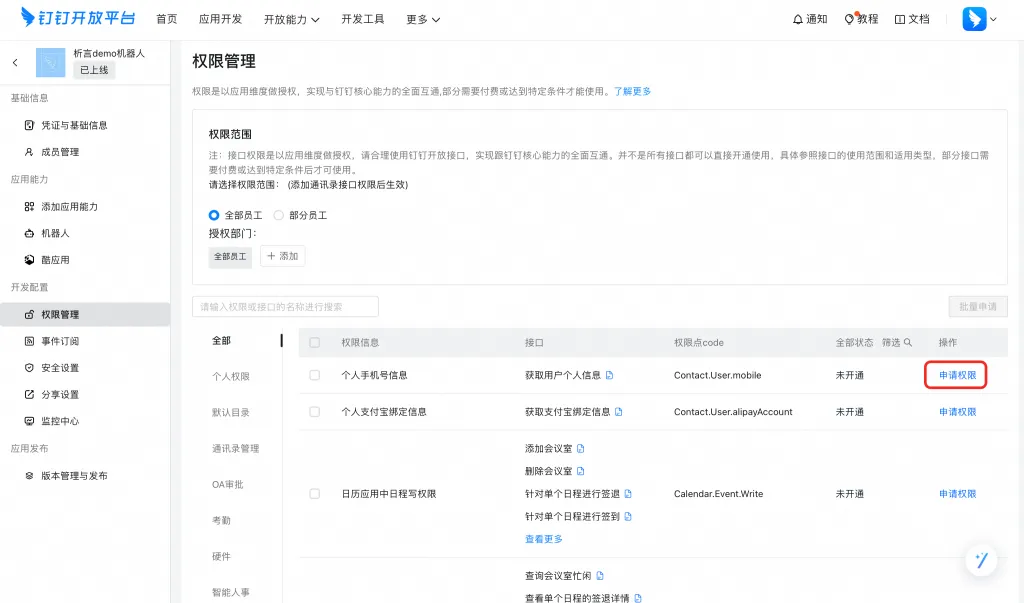
Enable the following permissions: Basic Permissions to Call Server-side APIs, Permission to Send Messages from Internal Bots, Write Permission for Interactive Card Instances, and Stream Update Permission for AI Cards.
-
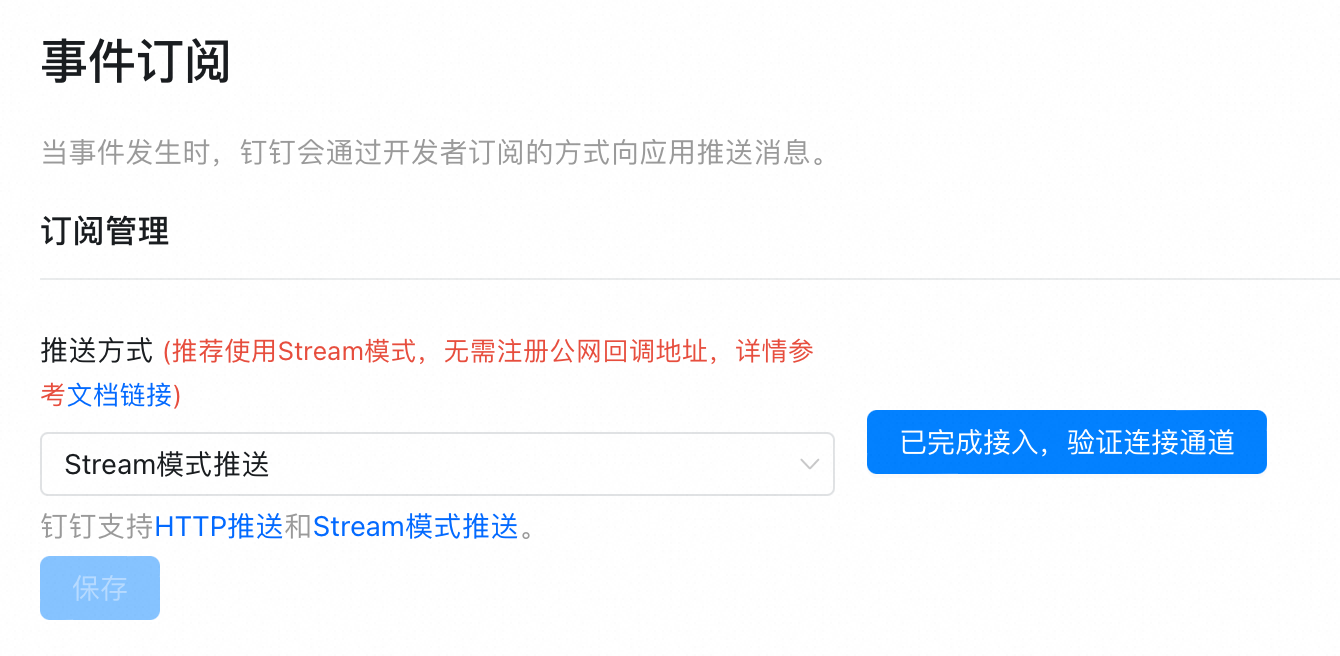
Set the to Stream Mode Push. Save the settings and complete the access verification.
-
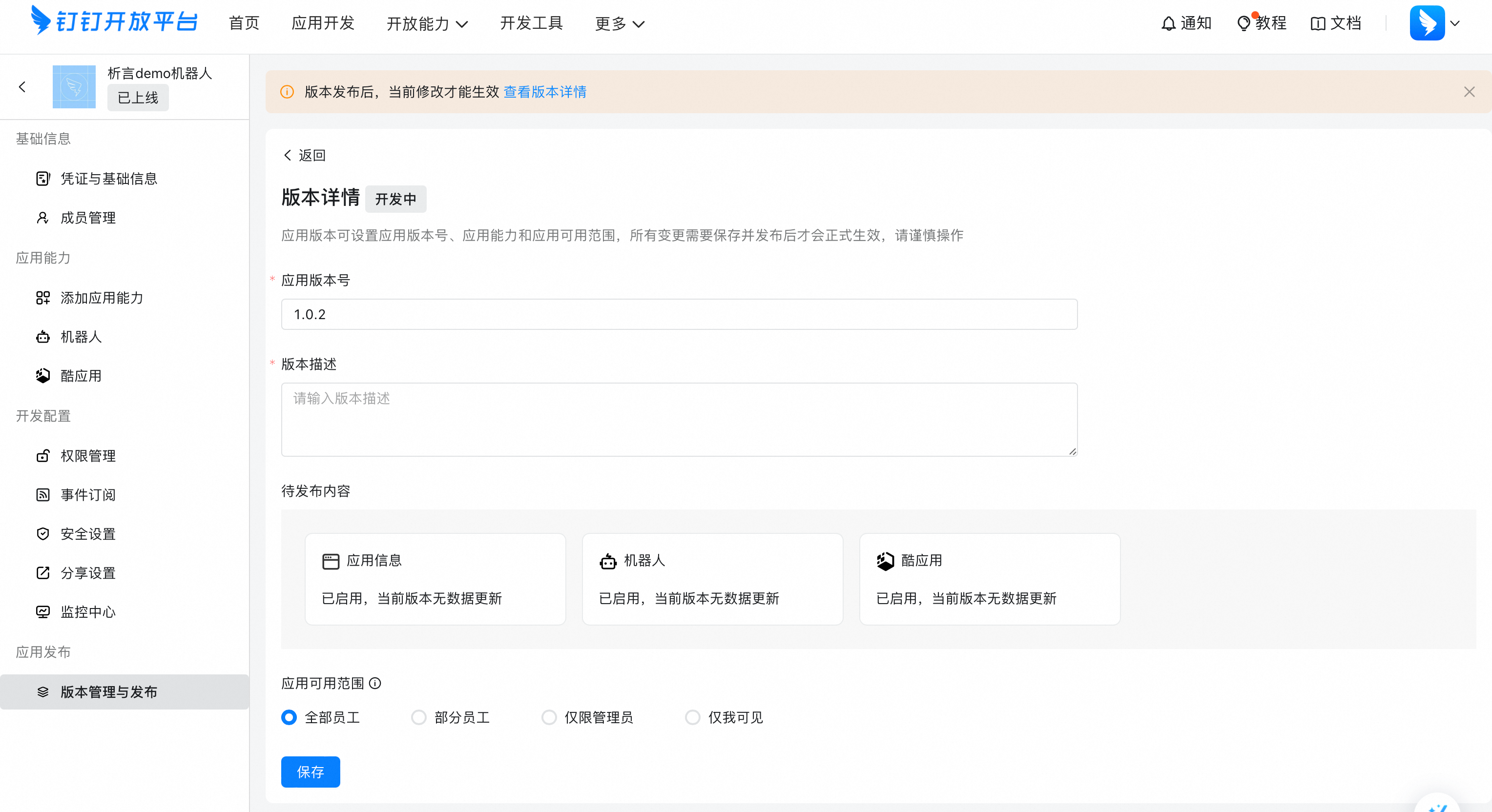
Go to and click Publish Application. Create and publish a new version.
Step 2: Create a card template
-
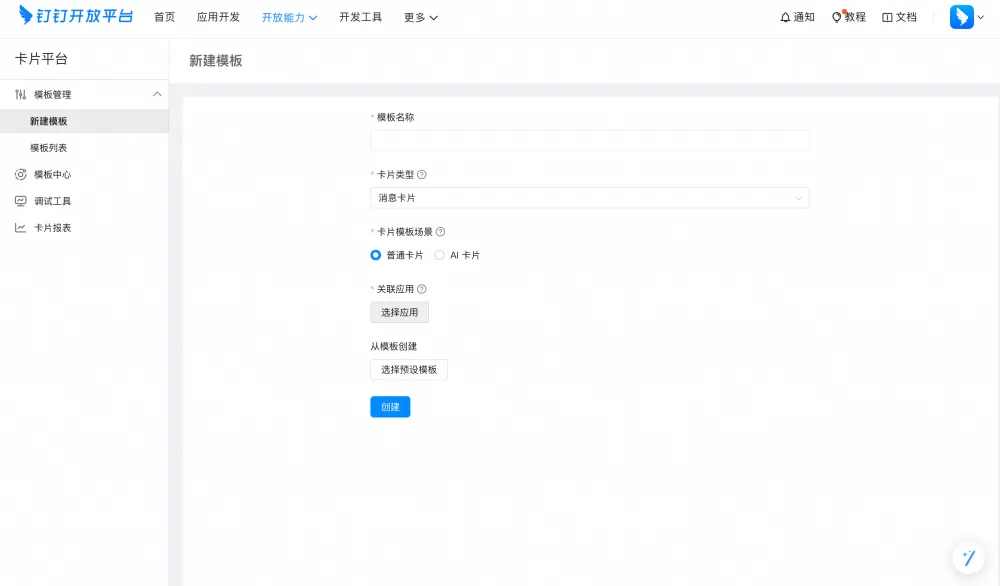
Log on to the DingTalk Card Platform.
-
Click .

-
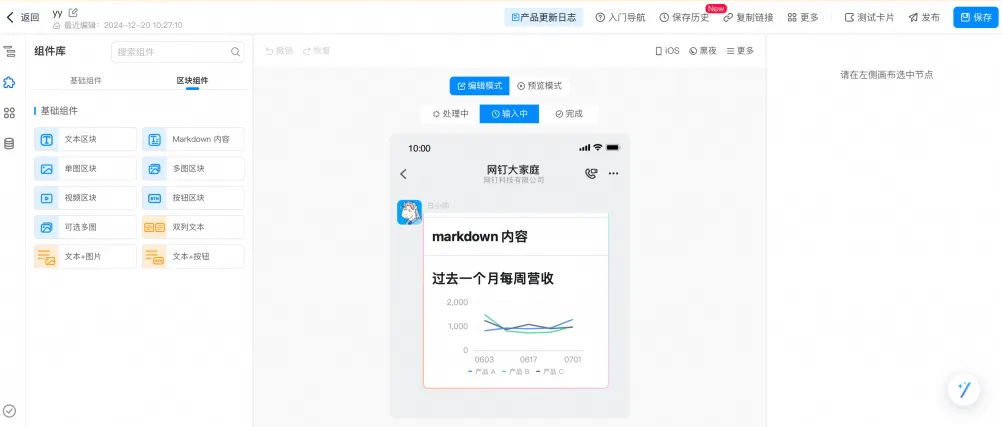
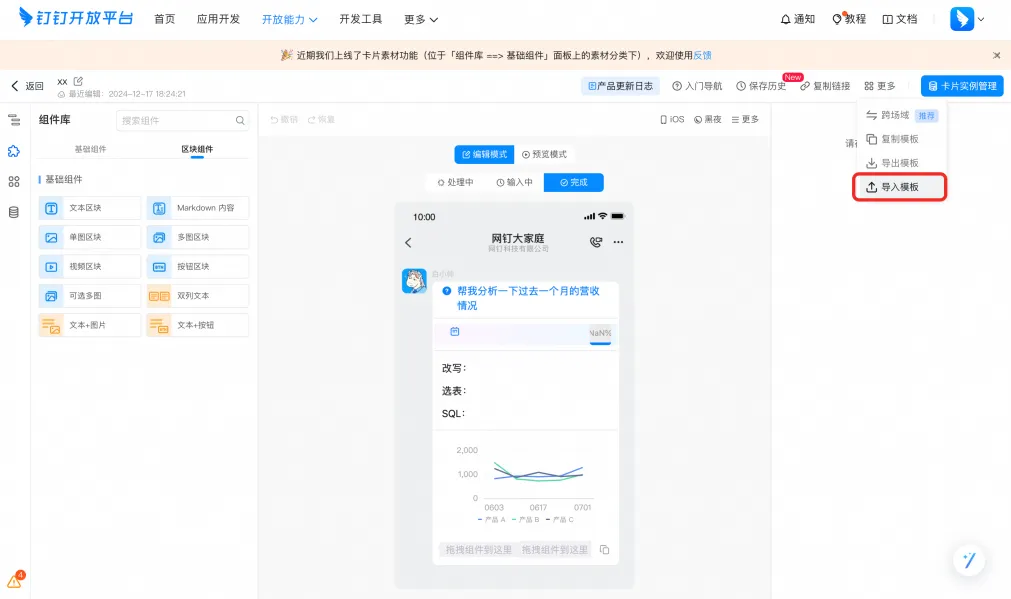
Click Import Template. Import the template file and save it.
Step 3: Develop the DingTalk robot backend application
This step describes how to use Java to integrate the DingTalk backend robot, the Xiyan Q&A service software development kit (SDK), and DingTalk cards.
-
Two methods are available to obtain the project code.
-
Refer to the official DingTalk file and modify the code as needed.
-
Use the test file provided by Xiyan.
-
-
If you use the test file provided by Xiyan, replace the
client-idandclient-secretparameters in thePropertiesfile, and thetemplateIdparameter in the code.xiyan.access-key-id=xx xiyan.access-key-secret=xx xiyan.workspace-id=xxx dingtalk.app.client-id=xx dingtalk.app.client-secret=xx openApiHost=https://api.dingtalk.com-
Obtain the
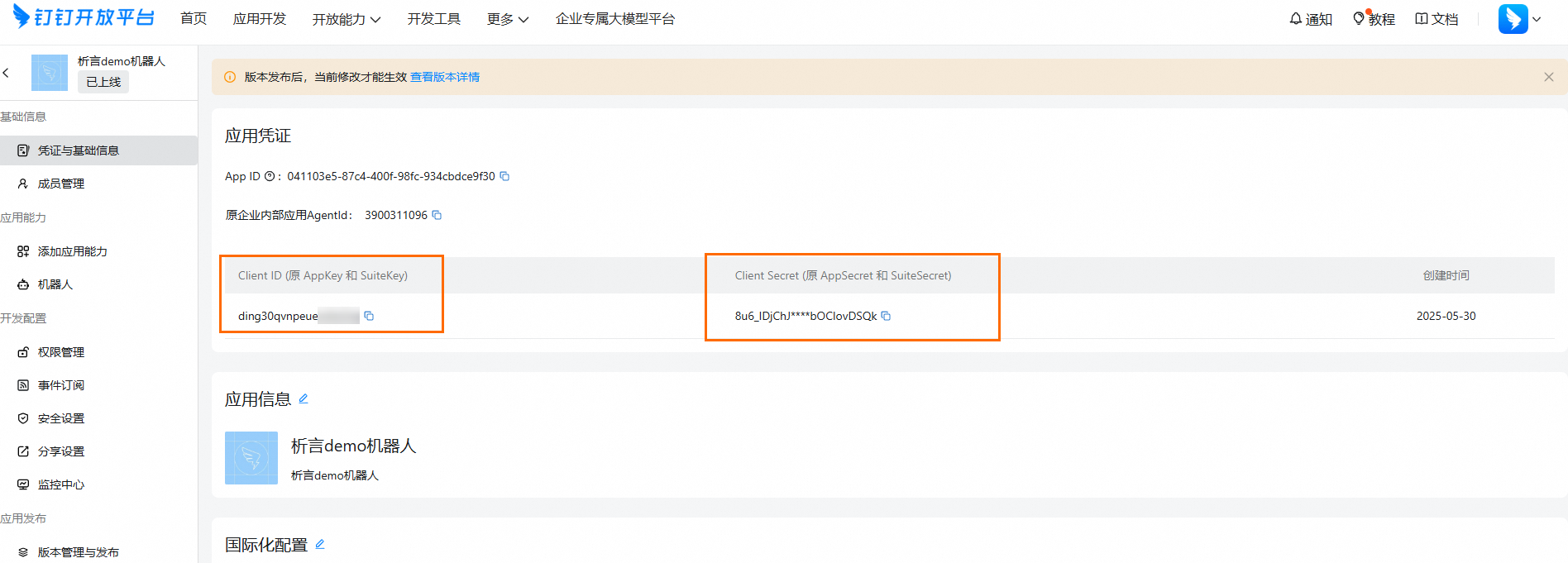
client-idandclient-secretfrom the Credentials and Basic Information page of the application that you created in **Step 1: Create a DingTalk application**. -
Obtain the
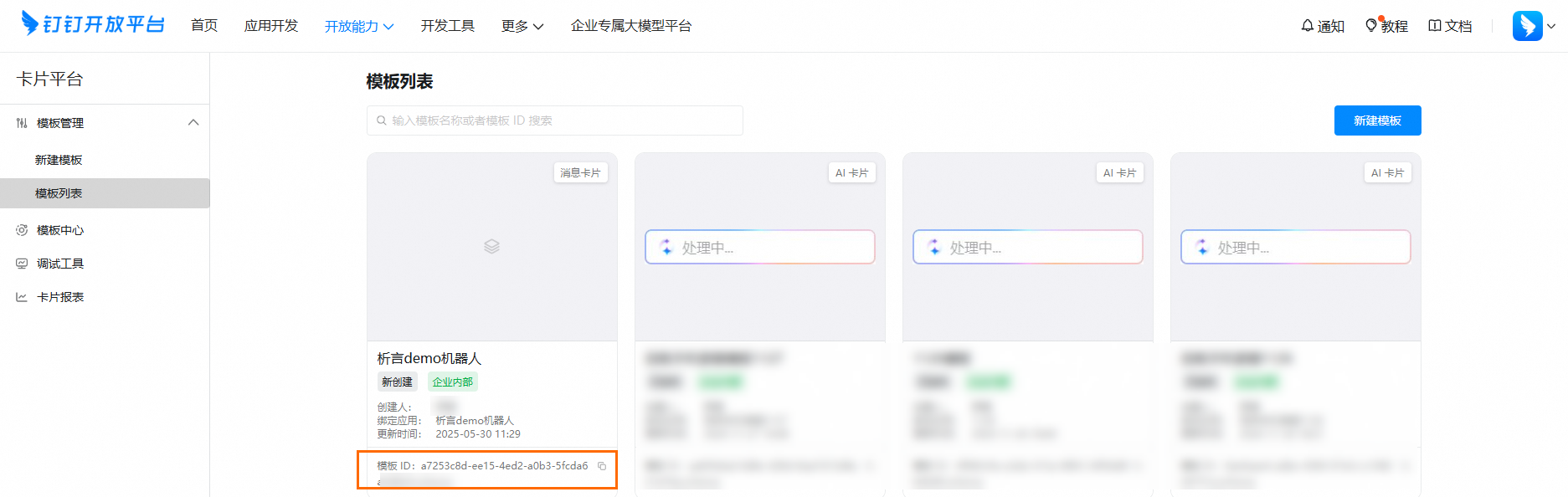
templateIdfrom the Template List page, as described in **Step 2: Create a card template**.
-
-
Run the Java project. Verify that the application initialization and network connectivity are normal.
2024-12-26 15:30:04.004  INFO 48685 --- [ection-pool-2-1] .d.o.a.s.n.w.WebsocketTransportConnector : [DingTalk] start websocket connection, uri=wss://wss-open-connection.dingtalk.com:443/connect
2024-12-26 15:30:04.472  INFO 48685 --- [           main] o.s.b.a.e.web.EndpointLinksResolver      : Exposing 2 endpoint(s) beneath base path '/actuator'
2024-12-26 15:30:04.556  INFO 48685 --- [           main] o.s.b.w.embedded.tomcat.TomcatWebServer  : Tomcat started on port(s): 8080 (http) with context path ''
2024-12-26 15:30:04.589  INFO 48685 --- [           main] com.aliyun.xiyan.demo.Application        : Started Application in 5.972 seconds (JVM running for 6.717)
2024-12-26 15:30:04.984  INFO 48685 --- [ection-pool-2-1] c.d.o.a.s.n.core.DefaultSessionPool      : [DingTalk] connection is established, connectionId=xxxx-xxx-xxx-xxx-xxx
Step 4: Verify the result
-
Log on to the DingTalk app and mention
@botin the message box to ask a question. Then, check the Java application log to confirm that an event notification was received.2024-12-26 15:31:32.758 INFO 48685 --- [lk-Consumer-1-1] com.aliyun.xiyan.demo.ChatBotHandler : received message: monthly visitor count trend -
You can view the card rendering in the DingTalk app chat window.
References
For more information about how to use Xiyan GBI, see the User Guide.
For more information about how to apply Xiyan GBI, see the Xiyan GBI best practices for accessing a database from an Alibaba Cloud service.