General enterprise VOC mining
The General Enterprise Voice of the Customer (VOC) Mining tool uses a Large Language Model (LLM) to intelligently tag unstructured VOC data from sources such as reviews, forums, and customer service chats and calls. It supports both predefined tag selection and custom tag creation. Compared with manual or rule-based tagging, this tool delivers higher accuracy and faster response times. It also adapts quickly to dynamic business tagging requirements.
Access the feature
Log on to Alibaba Cloud Model Studio. On the Application Gallery page, click General Enterprise VOC Mining to open the application console.
Function Introduction
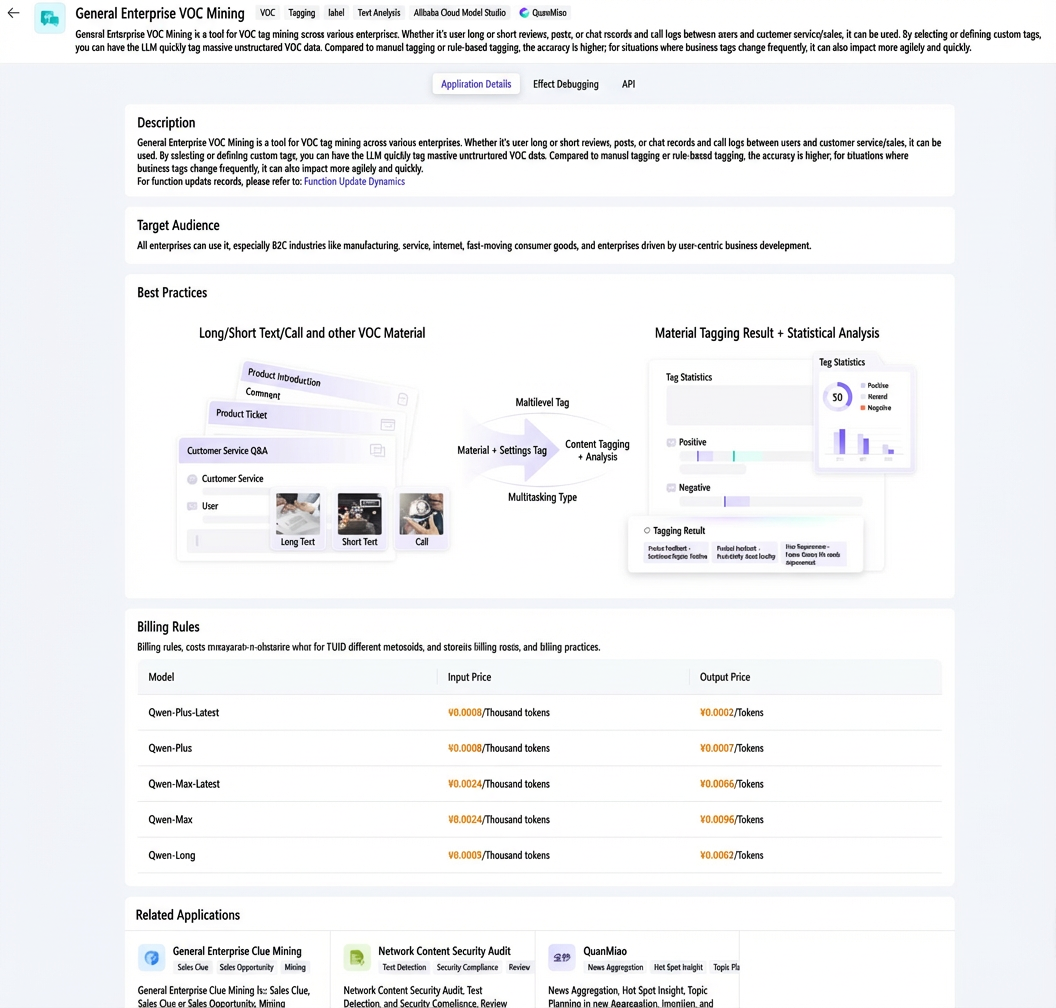
Application details
On the General Enterprise VOC Mining application's Application Details tab, you can view five sections: Function Description, Target Audience, Best practices, Billing rule, and Quanmiao-related Application Recommendations.
Test and debug
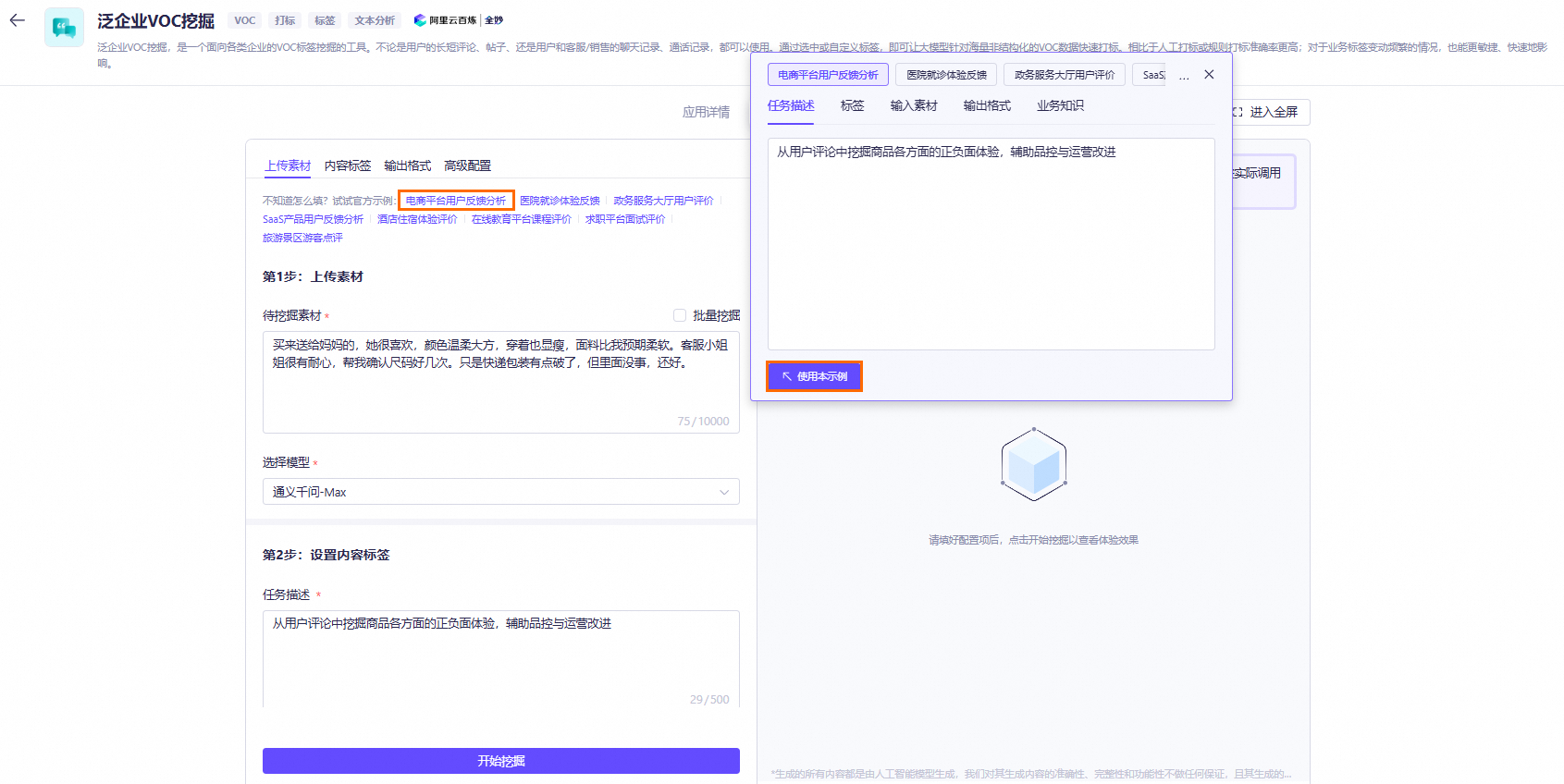
On the Test and debug tab, if this is your first time using the application, you can use the official example to fill in the configuration. This topic uses the E-commerce Platform User Feedback Analysis example.
Click E-commerce Platform User Feedback Analysis. In the text box that appears, click Use this example to automatically fill in a single example. You can also click Batch Mining, and the system will automatically fill in the batch mining example.

Step 1: Upload materials
-
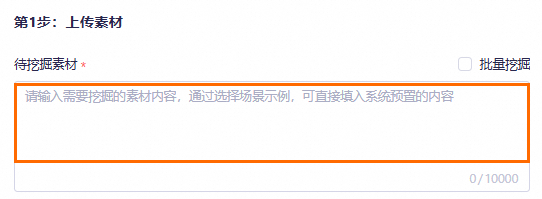
Enter the content for Materials to Mine. You can choose one of the following two input methods:
-
Single material: Enter a single VOC entry for a quick trial.
-
Batch materials: Analyze multiple data entries at the same time. To improve efficiency, first click Batch Mining, then click Download Template and upload the file.

Supported file formats are .xlsx, .xls, .txt, .csv, .pdf, .docx, and .md. The maximum file size is 20 MB.
-
-
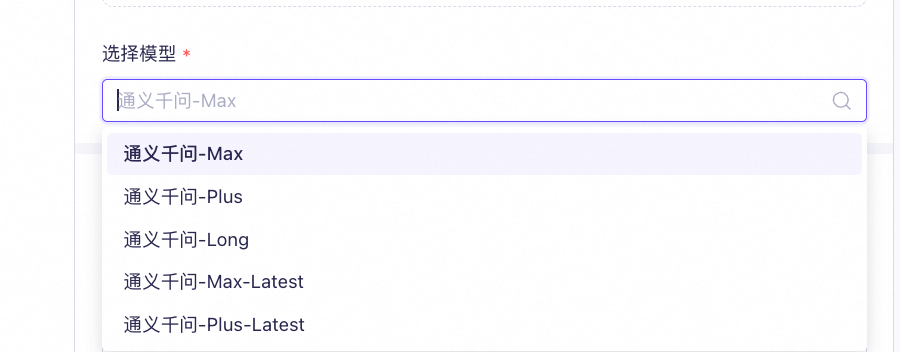
Select a model. The default is Qwen-Max.

Step 2:Set content tags
-
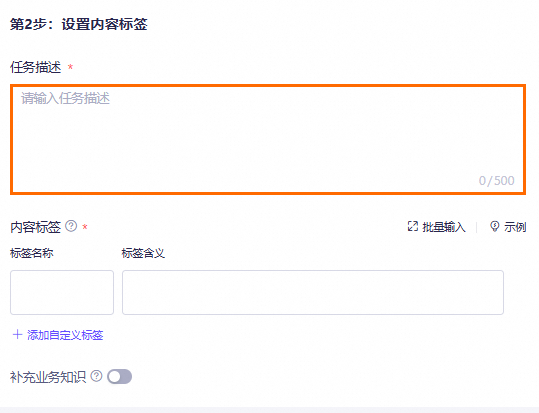
Enter a Task Description to help the model understand the content.
-
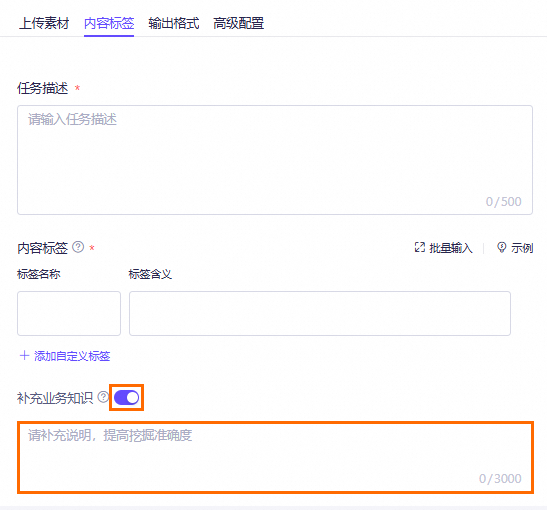
Set Content Tags:
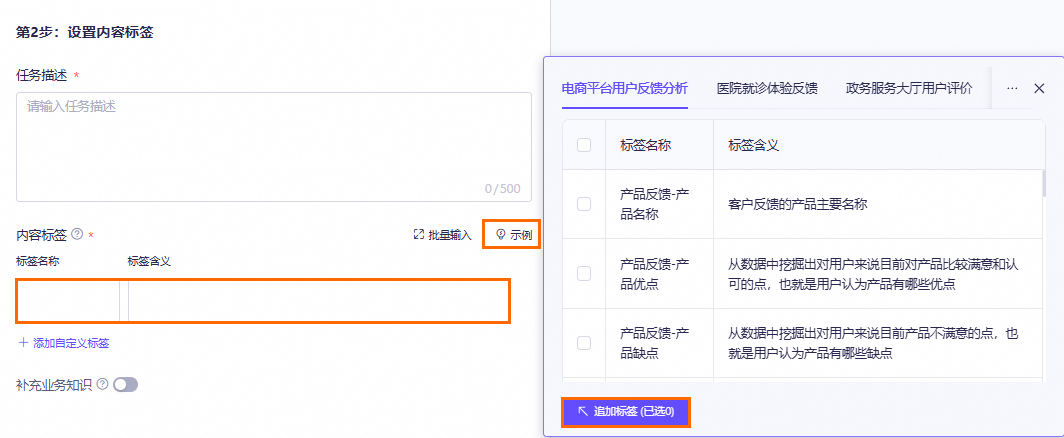
Enter the Tag Name and Tag Meaning in the specified format. Both single and batch input are supported. You can refer to the official example for guidance.
Add custom content tags: Click Add Custom Tag to create custom tags for precise information mining.
Multi-level tags are supported. Currently, up to two levels are supported. Use a hyphen (-) to separate levels, for example: Brand Name-Product Feature.
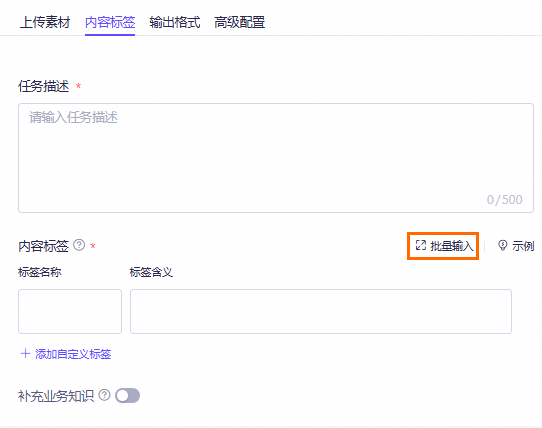
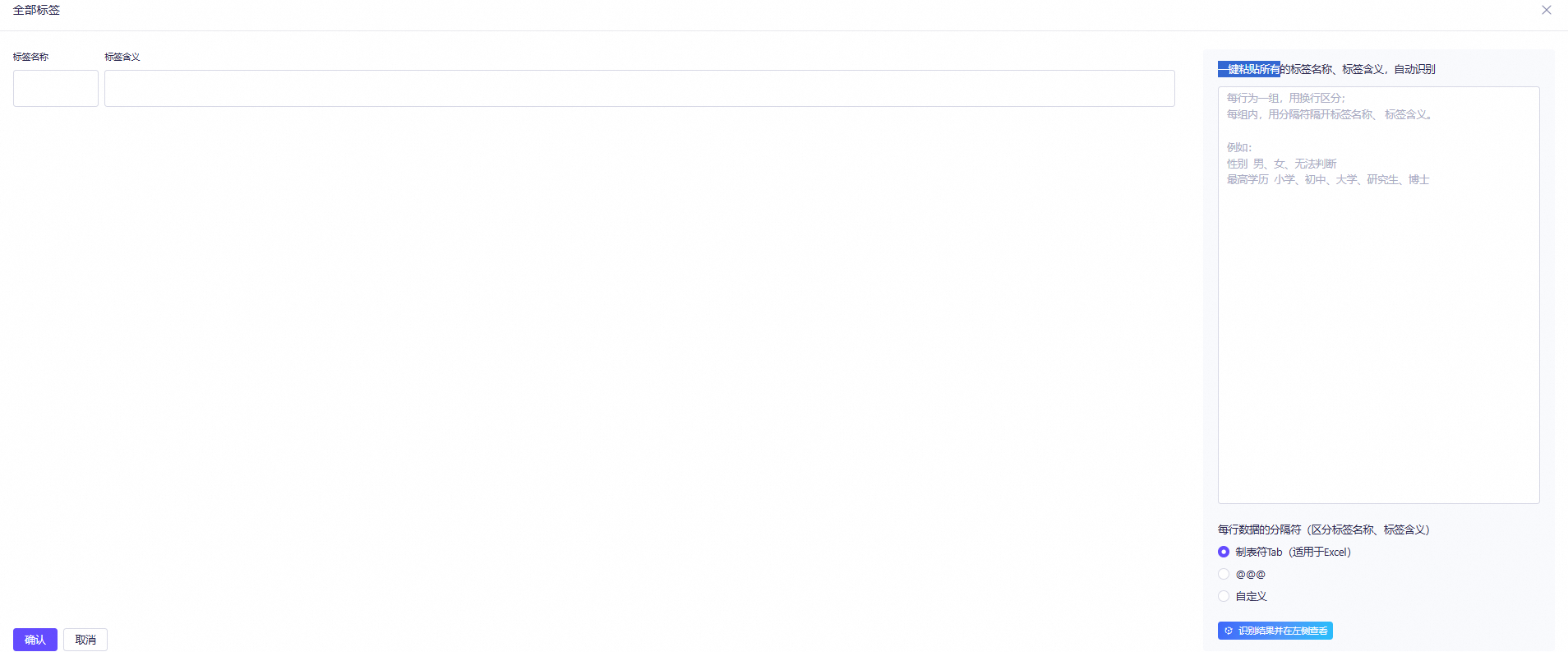
Enter multiple custom content tags in a batch: Click Batch Input to paste all tag names and meanings at once for automatic detection.
-
Each line represents one group and is separated by a line break.
-
Within each group, use a separator to distinguish the tag name from its meaning. For example:
Gender Male, Female, Undetermined
Highest Education Primary School, Middle School, University, Master, PhD
-
-
Optional: Add business knowledge.
In this text box, enter supplementary information such as the business background, notes for this task, or task examples.

Optional: Step 3:Set the output format
Use the json format for the output. Ensure that the keys correspond one-to-one with the tags you want to mine. You can modify the example as needed.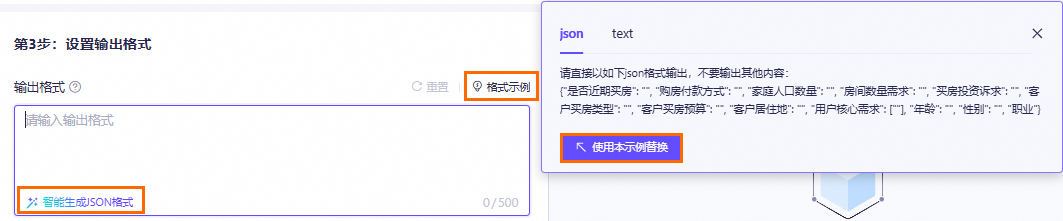
- After you complete Step 1 and Step 2, click Intelligently Generate JSON Format. The model generates a sample output format based on the current data. Review and confirm the final output format.
- You can also click Reset to clear the output format.
Optional: Step 4: Set advanced features
- Turn on the Set Filter Dimensions switch. The model then filters the VOC data first. Only data that meets your specified conditions is mined, which narrows the scope for more precision. You can enter one or more filter dimensions.

You can also click Add Custom Tag or Batch Input to add filter dimensions. For more information, see Set content tags.
-
Select Save Input Items.
When selected, the system saves the current filter conditions, tags, and tag content by default.
If you switch accounts or clear the local storage of your browser, the saved configuration data is lost.
Step 5: Start mining
Click Start Mining. The results appear on the right after the mining is complete.
View API examples
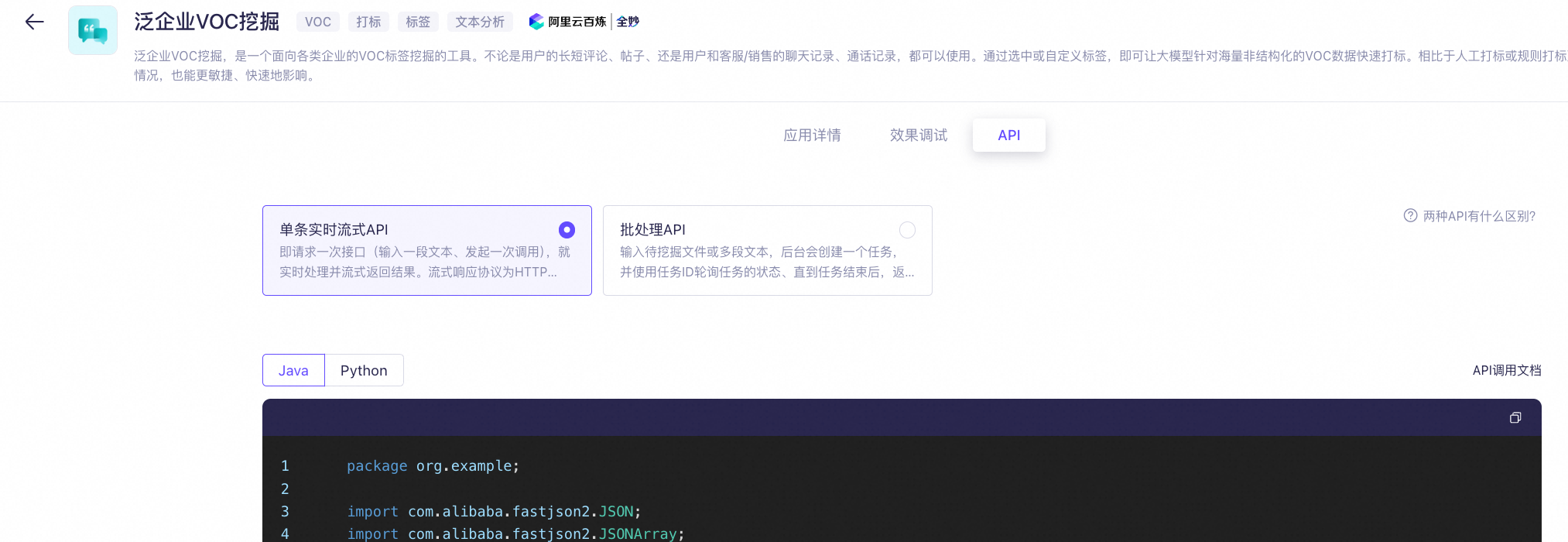
After you finish testing and debugging, click the API tab to view the corresponding API examples.
NoteThe API supports two invocation methods:
- Real-time streaming API: Processes a single request (one text input per call) and returns the result in real time as a stream. The streaming response protocol is Server-Sent Events (SSE).
- Batch processing API: Processes a submitted file or multiple text segments. A background task is created, and you must poll the task status by using the task ID. The results are returned after the task is complete.