User guide
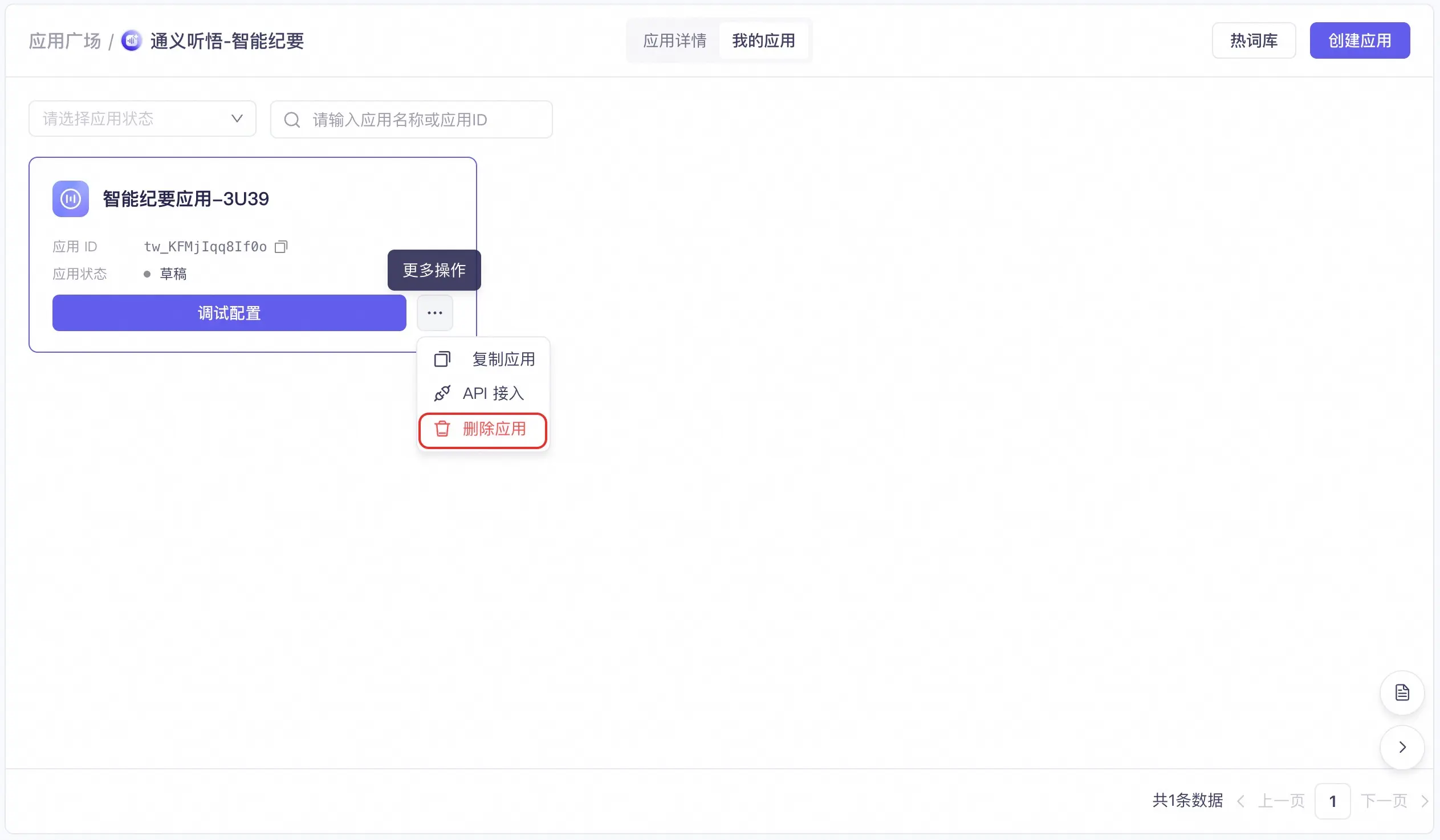
This topic describes how to configure and use the Tingwu Intelligent Summary Agent.
Preparations
Activate the Tingwu Agent service.
NoteAfter activation, you can use all Tingwu Agent services on the Alibaba Cloud Model Studio platform.
1. Create an application
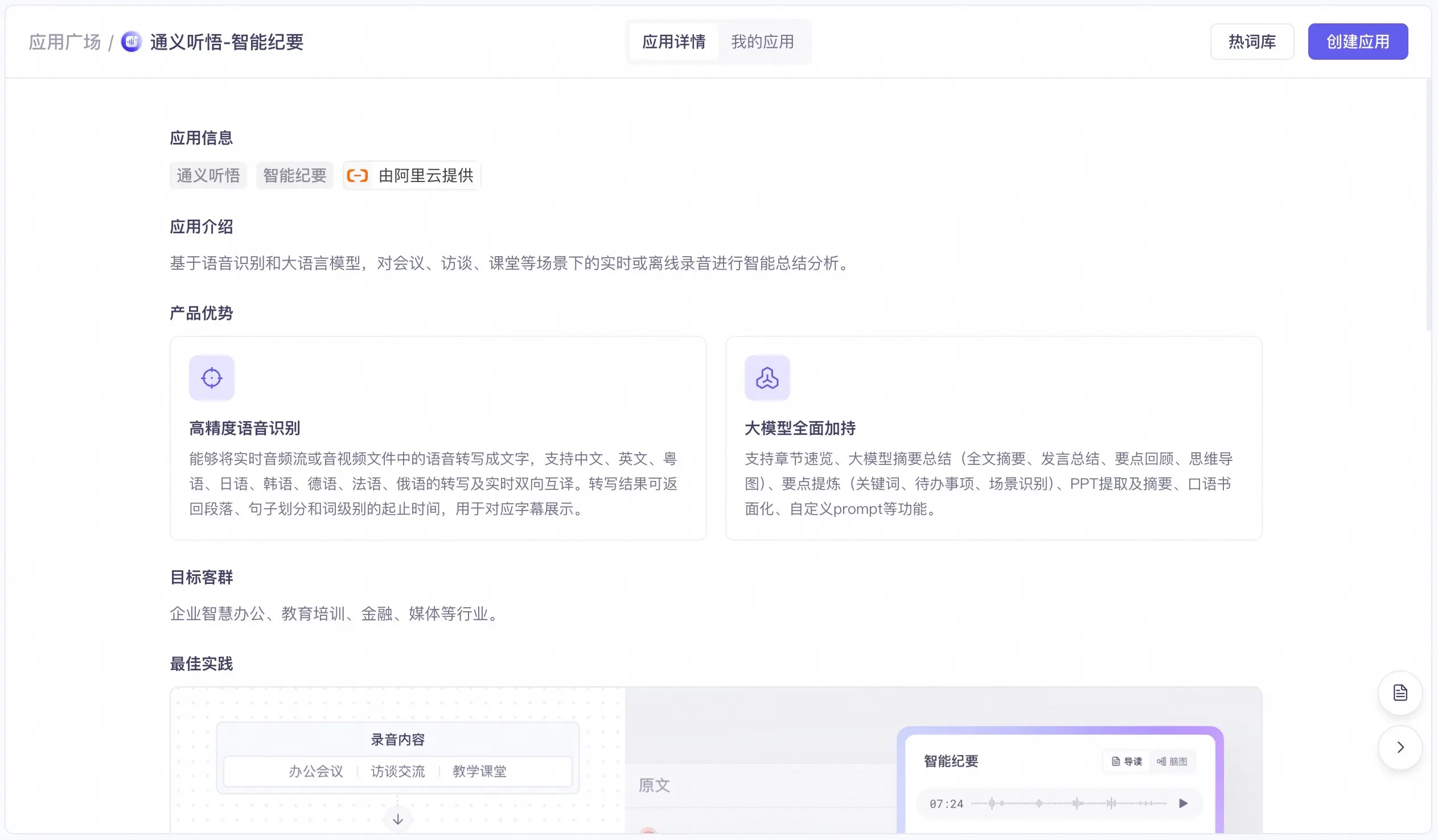
Click the Create Application button in the center or upper-right corner of the console to create an application. You can create up to 100 applications.
2. Configure and test
After you configure and test the application, you can experience the results multiple times. After you confirm that the results meet your expectations, publish the application. Then, see API integration for information about making API calls.
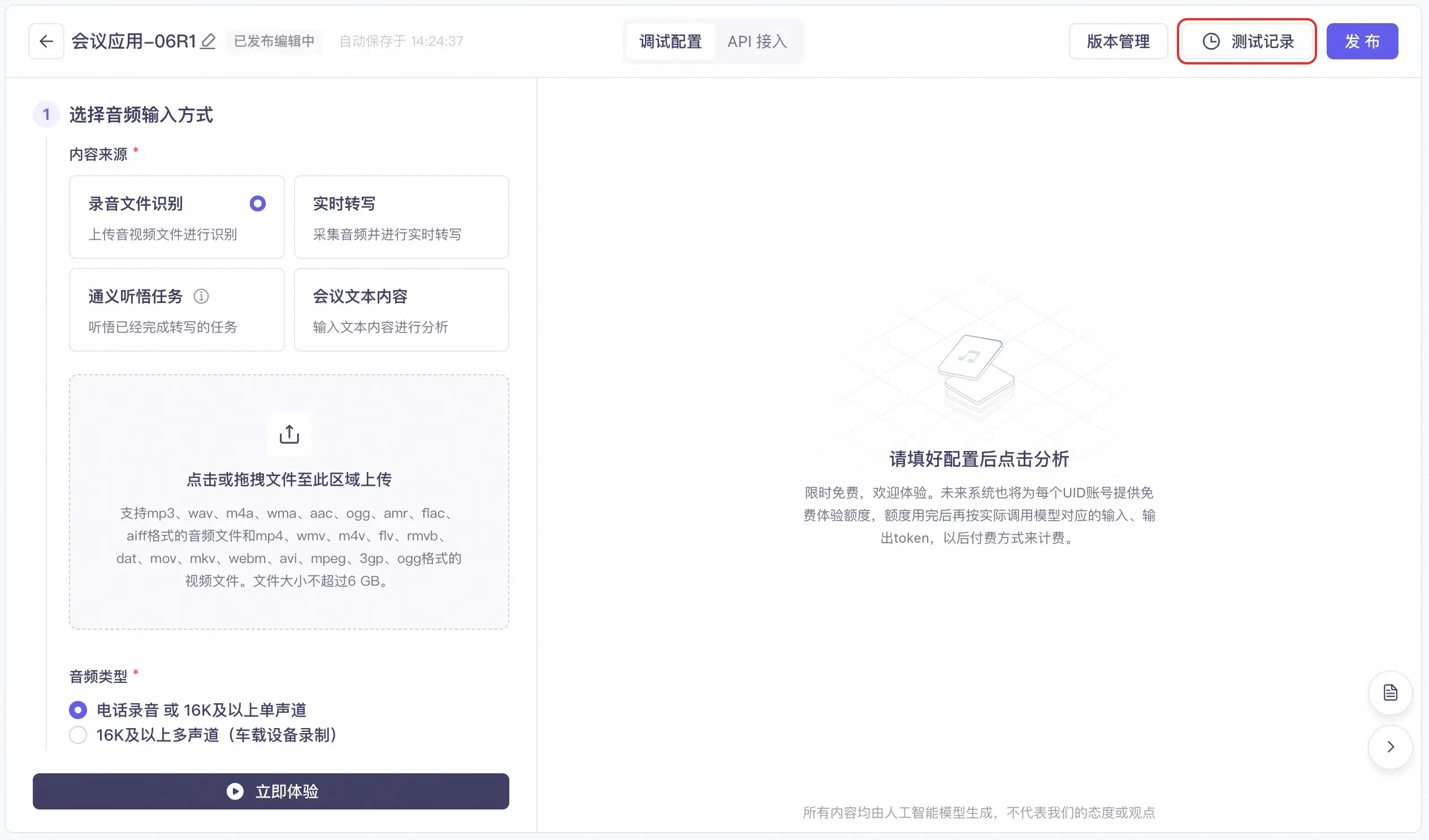
1. Select an audio input method
Content Source
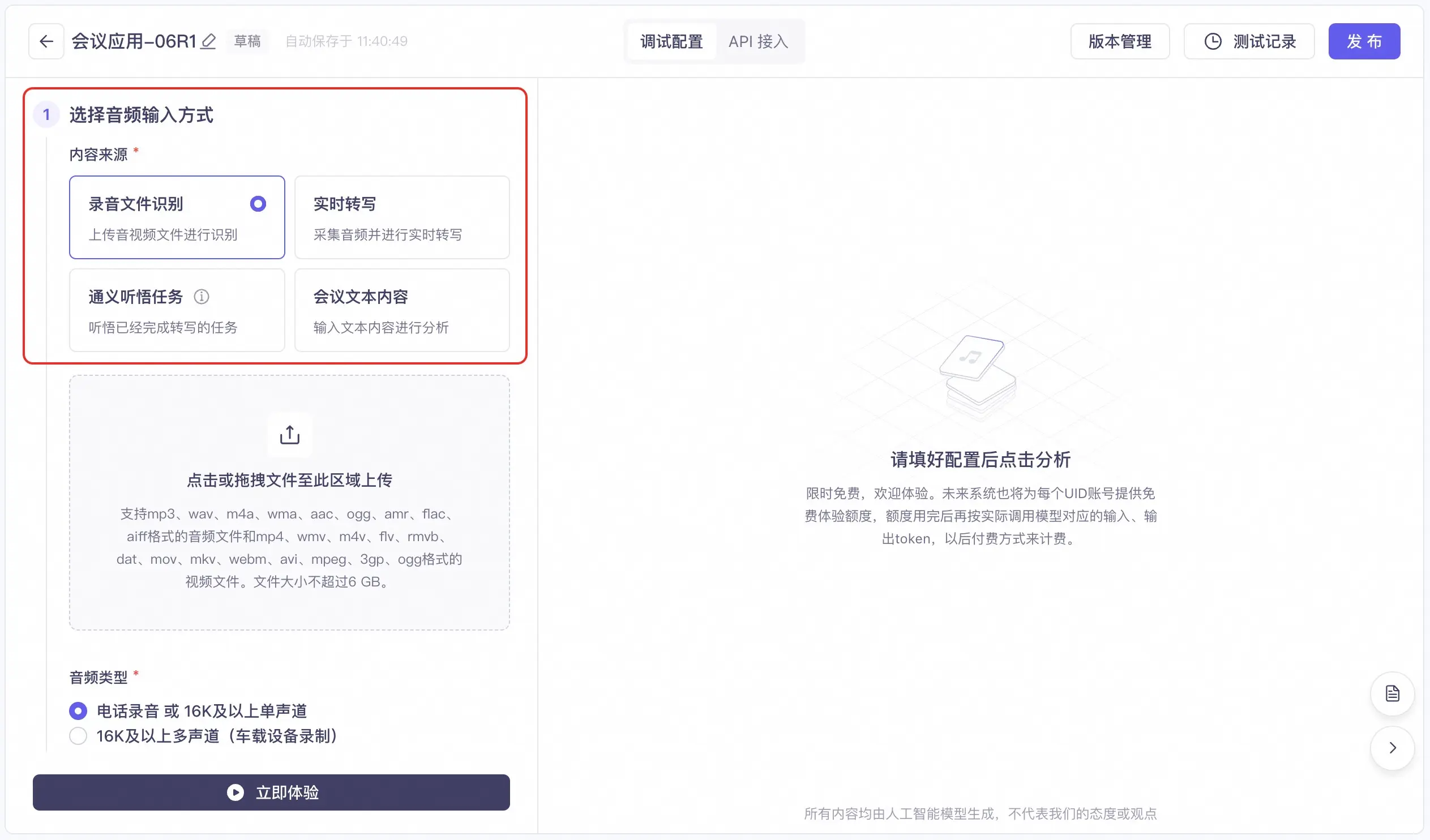
Select one of the following content sources:
-
Recorded file recognition: Supports audio files in MP3, WAV, M4A, WMA, AAC, OGG, AMR, FLAC, and AIFF formats, and video files in MP4, WMV, M4V, FLV, RMVB, DAT, MOV, MKV, WEBM, AVI, MPEG, 3GP, and OGG formats. The file size cannot exceed 6 GB.
-
Real-time transcription: Captures and transcribes audio in real time.
-
Tingwu task: Enter the task ID of a completed transcription task for the current application. This can reduce speech-to-text costs.
NoteAfter a task is created, the system returns the TaskID field in the response.
-
Meeting text content: Enter the dialogue text in the specified format. This can also reduce speech-to-text costs.
Example 1:
Speaker 1: Dialogue content.
Speaker 2: Dialogue content.
Example 2:
Sales: Dialogue content.
Customer: Dialogue content.
Audio type
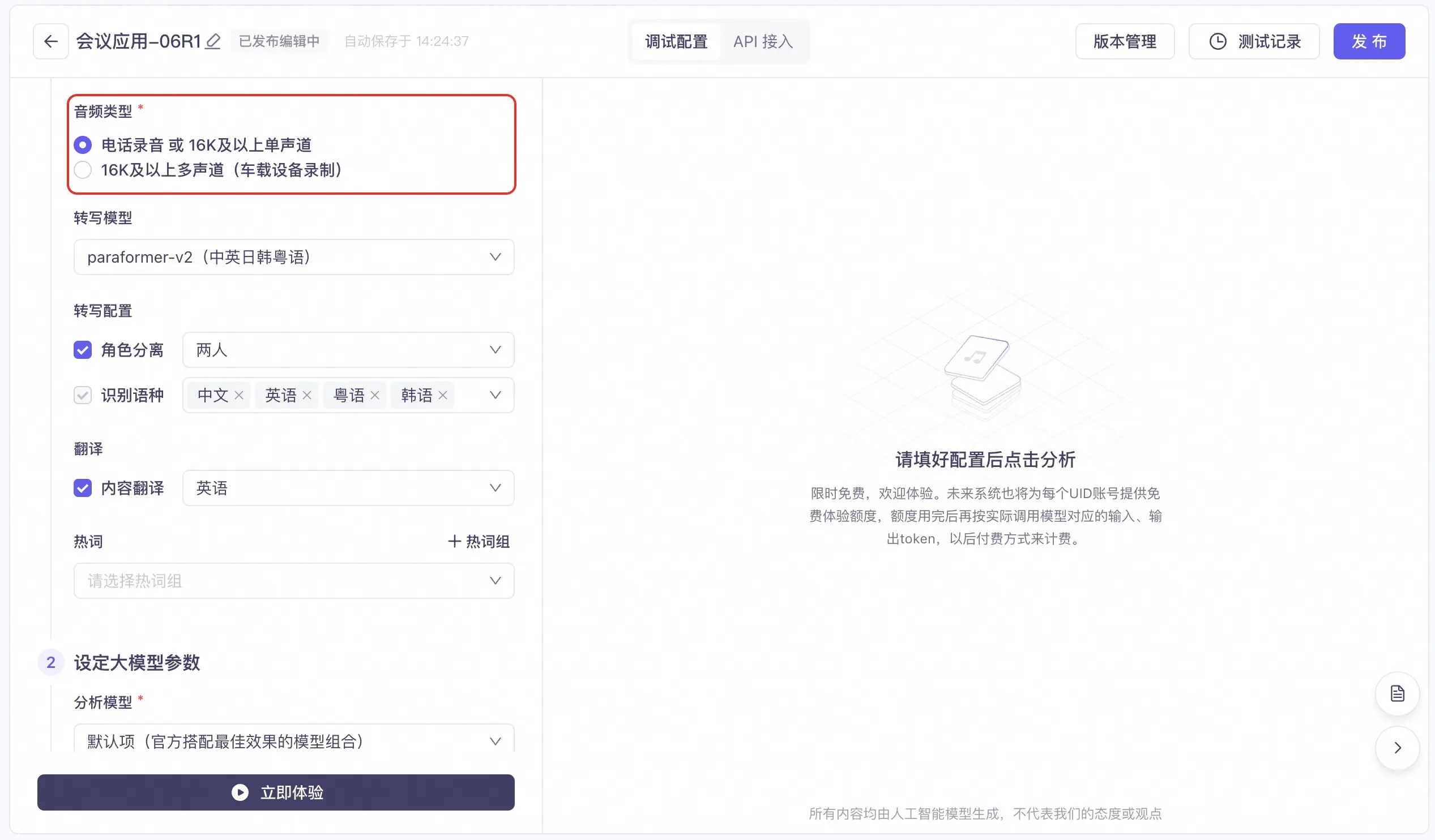
This setting applies only when the content source is Recorded file recognition:
- Phone recording or 16 kHz and higher single-channel audio
- 16 kHz and higher multi-channel audio (recorded by in-vehicle devices)
Transcription model
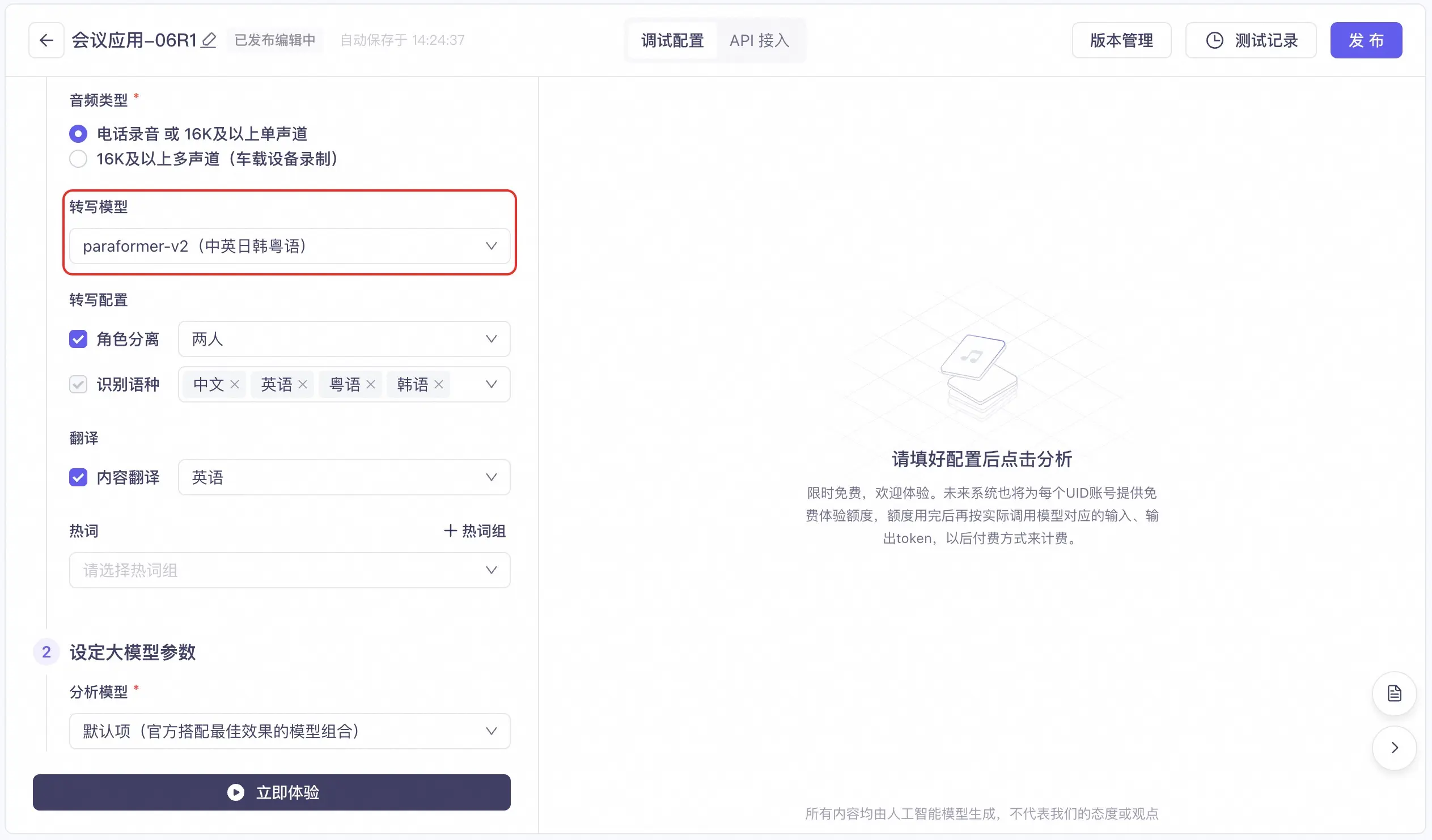
This setting applies only when the content source is Recorded file recognition or Real-time transcription:
- paraformer-v2 (Chinese and English)
- paraformer-v2 (Chinese, English, Japanese, Korean, and Cantonese)
- paraformer-v2 (English)
- paraformer-v2 (Cantonese)
- paraformer-v2 (Japanese)
- paraformer-v2 (Korean)
- Education domain model (Chinese and English)
- Automotive domain model (Chinese, English, and Cantonese)
Transcription Configuration
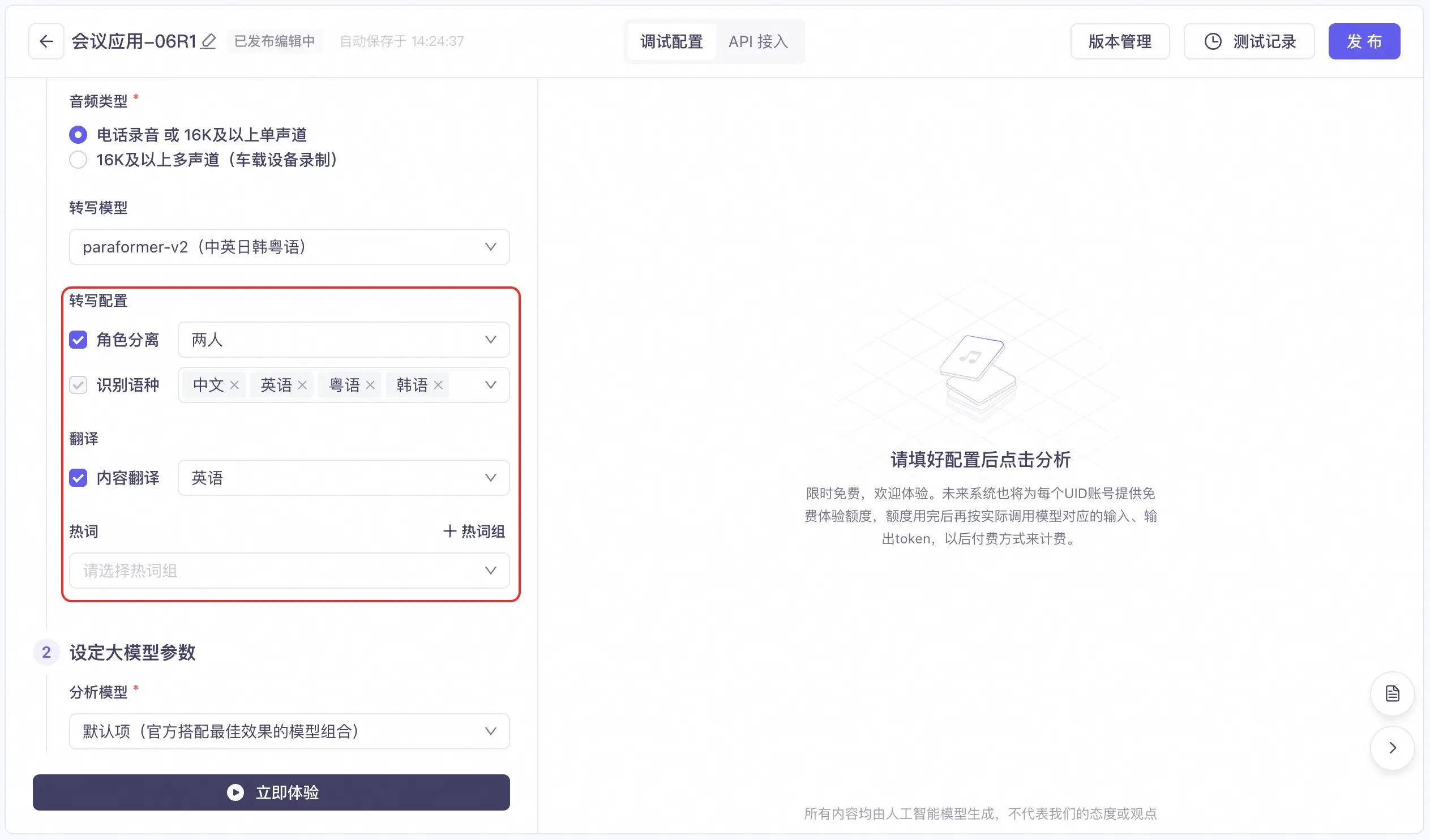
These settings apply only when the content source is Recorded file recognition or Real-time transcription:
Speaker separation: Supports separation for two or more speakers.
Recognition language: The available language options depend on the selected transcription model.
Translation: Supports translating the original recognized text. Supported languages include Chinese, English, Japanese, Korean, German, French, and Russian.
Hotwords: Supports adding and managing hotword groups. Using hotwords can effectively improve speech recognition accuracy.
2. Set large model parameters
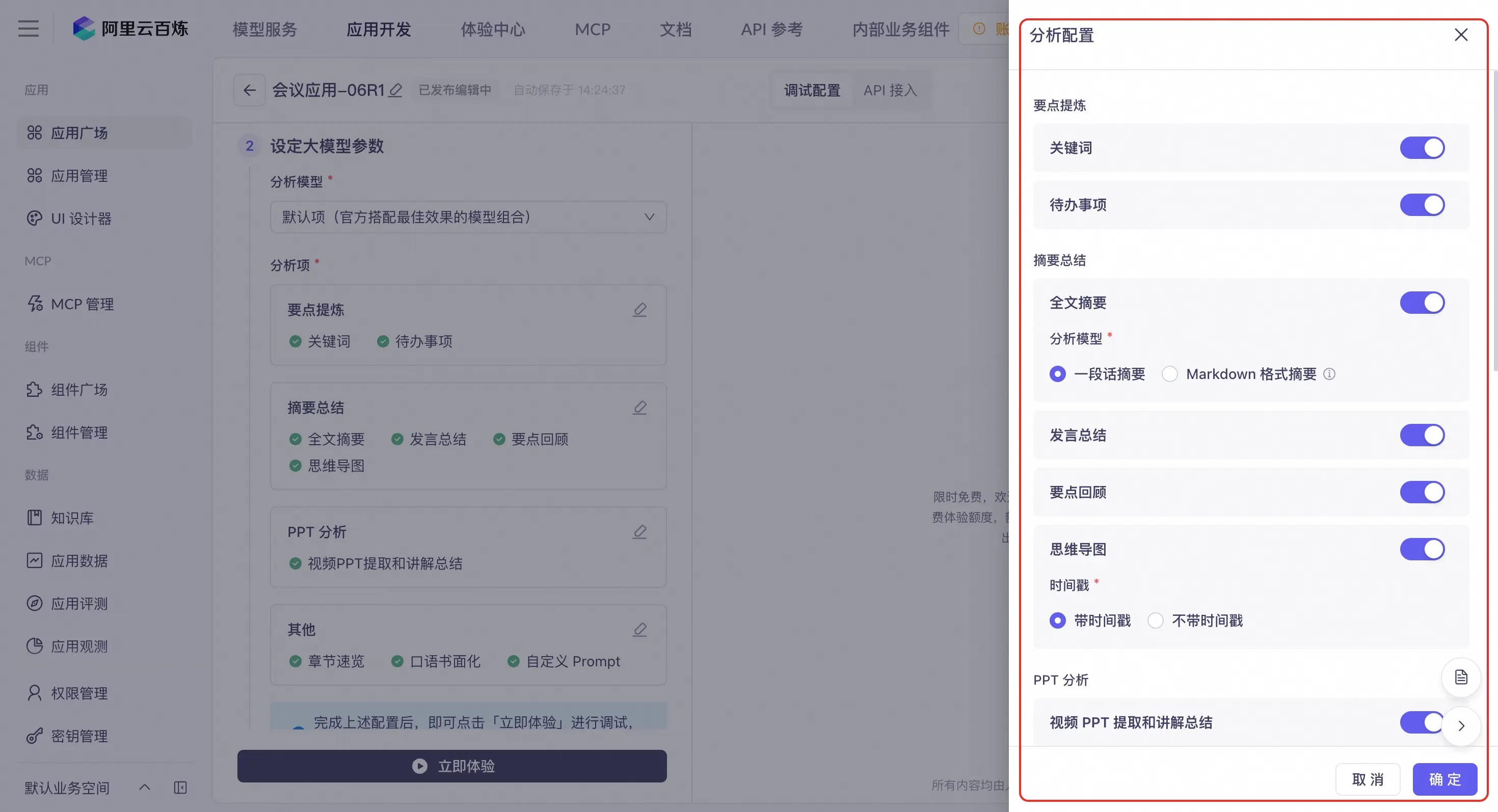
Analytical Model
The following models are currently supported:
- Default (official model combination for optimal results)
- tingwu-plus
- qwen-plus
- qwq
Analysis options
Configure the large model analysis options, which include the following capabilities:
Key point extraction: Supports extracting keywords and to-do items.
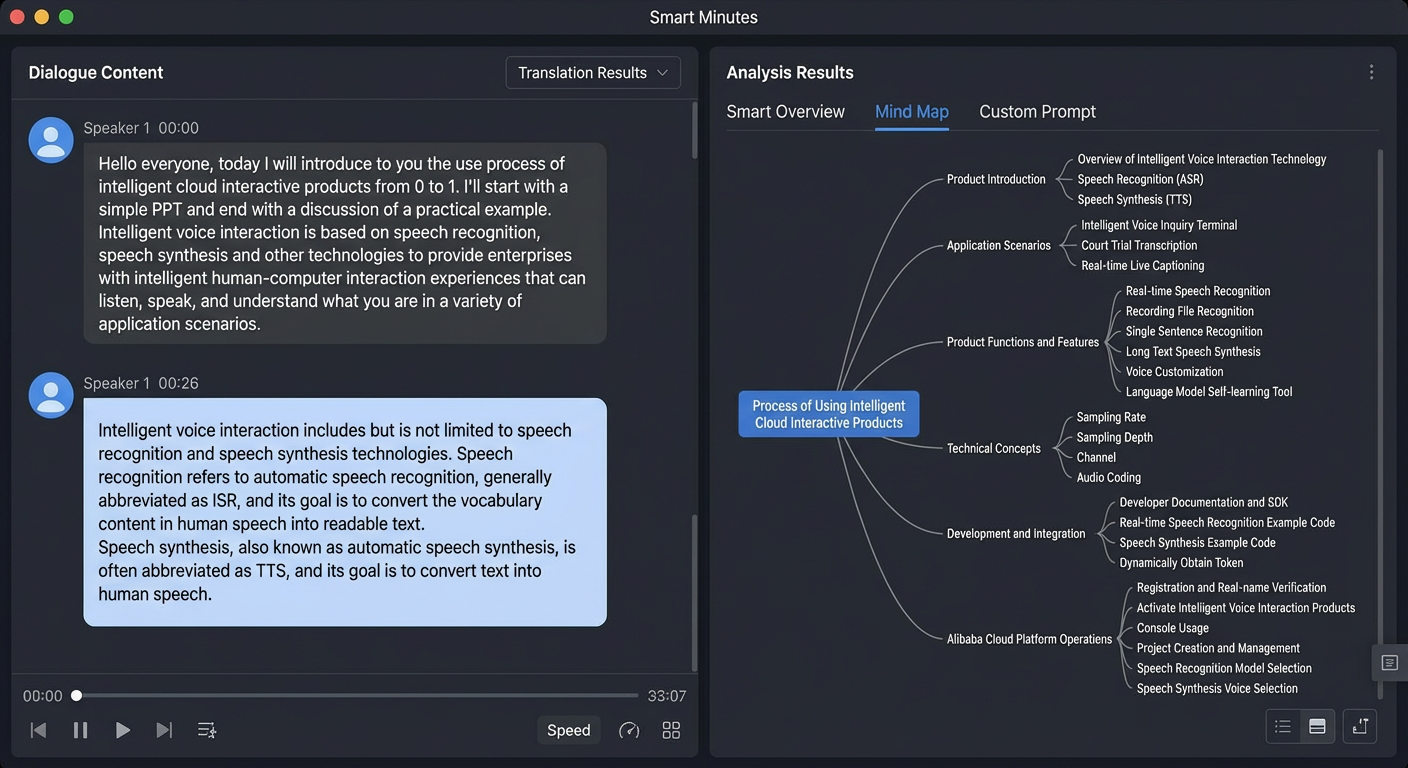
Summarization: Supports extracting a full-text summary, speaker summaries, key point reviews, and a mind map.
- Full-text summary: Choose between a paragraph summary or a Markdown-formatted summary.
- Mind map: Choose whether to include timestamps.
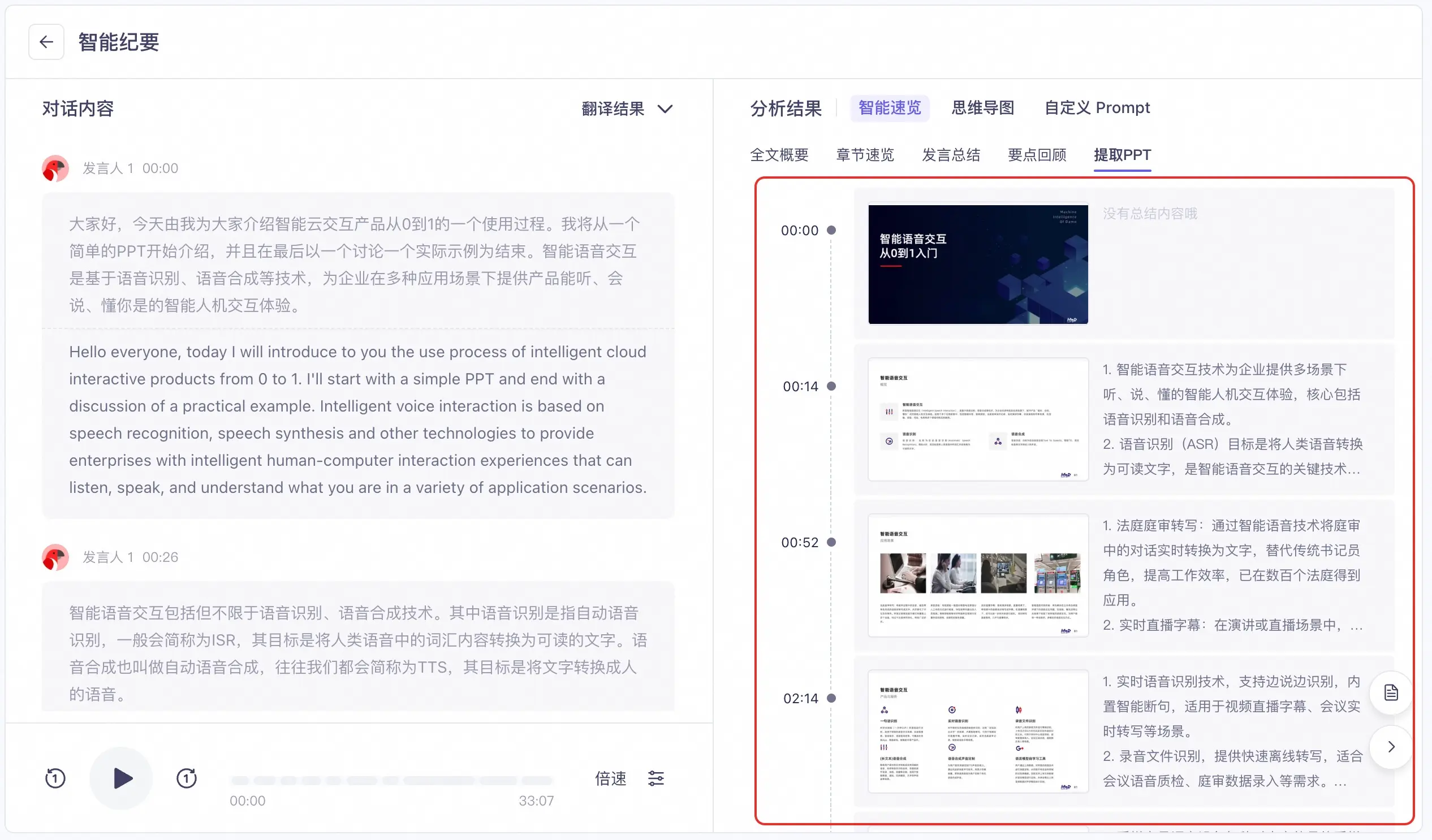
PPT analysis: When the content source is Recorded file recognition and the file is a video, this feature supports extracting and summarizing the presentation from the PowerPoint (PPT) slides in the video.
Others: Includes chapter overview, spoken-to-written text conversion, and custom prompt features.
- Chapter overview: Set the overview granularity (fine, medium, or coarse) and title length (long, medium, or short).
- Custom Prompt: Define your own large model prompts to guide the model in completing various custom tasks. The custom prompt model can be selected separately and does not conflict with the chosen analysis model. When using the custom prompt feature, you can set the large model's output format. The available formats are: speaker information and transcription results only, sentence number with speaker information and transcription results, or transcription results only.
NoteApplication configurations made on the interface apply to API calls. You can also update parameters in an API call to overwrite the interface configurations.
After completing the configurations, click the Analyze Now button to start testing. The 3. API call configuration step is required only if you are making API calls.
To view the test results and test records, see Experience the results.
3. API call configuration
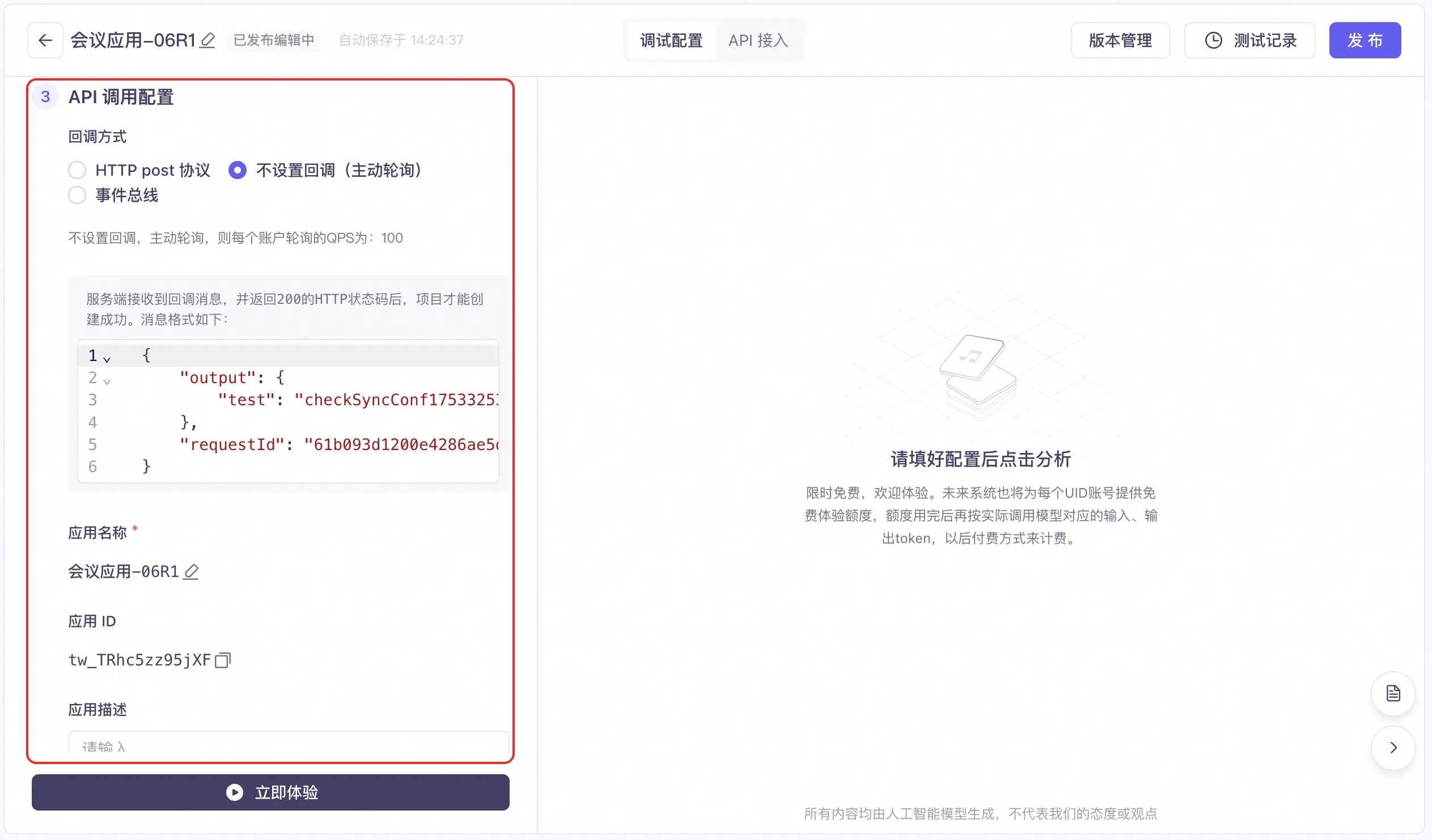
Callback Method
NoteFor more information about setting the callback method, see How to obtain asynchronous task results through callbacks.
- HTTP POST protocol: Enter the corresponding URL. Tingwu sends a POST request to the configured HTTP URL. The check is successful if the server returns an HTTP status code of 200.
- No callback (active polling): If you choose not to set a callback, you can actively poll for results using the getTask API for the Agent task. The default number of queries per second (QPS) for polling for each account is 100.
- EventBridge: The processing results are sent to your service based on the default configuration of EventBridge in the China (Beijing) region. You must activate Alibaba Cloud EventBridge first.
A project is created for the application only after the server-side receives the callback message and returns an HTTP status code of 200. The message format is as follows:
{
  "output": {
      "transcriptionPath": "https://***.oss-cn-hangzhou.aliyuncs.com/***",
      "status": 0
  },
  "requestId": "***",
  "taskInfo": {
      "dataId": "***",
      "userSpaceId": "llm-***",
      "appId": "***",
      "model": "tingwu-***",
      "userId": "***"
  }
}
Application name
You can copy or modify the application name here.
Application ID
You can view or copy the application ID here.
Application Description
You can add a description for the application here.
3. Experience the results
Click the Experience Now button and wait a moment. You can then view the dialogue content and the intelligent summary's analysis results.
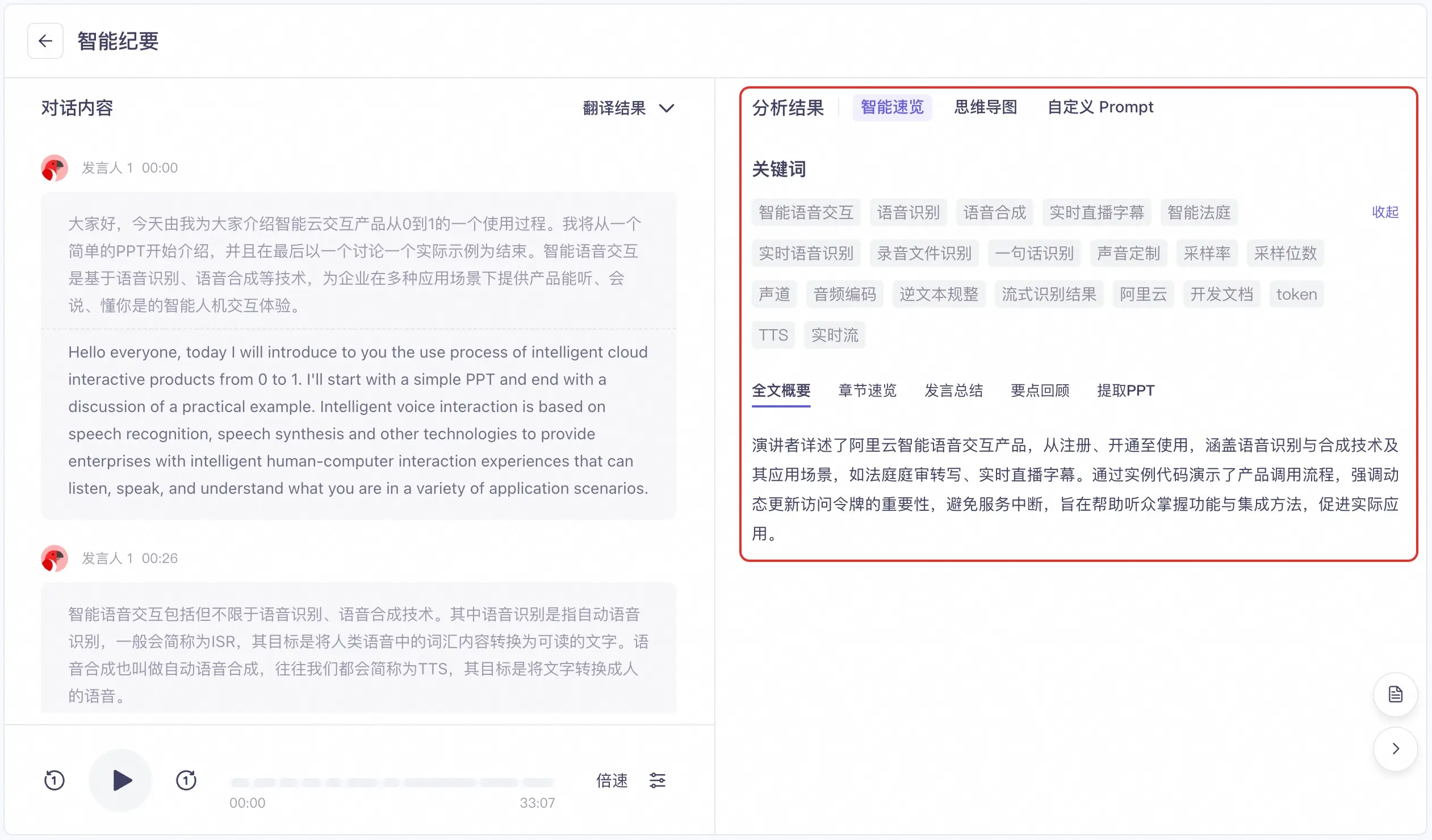
Conversation content
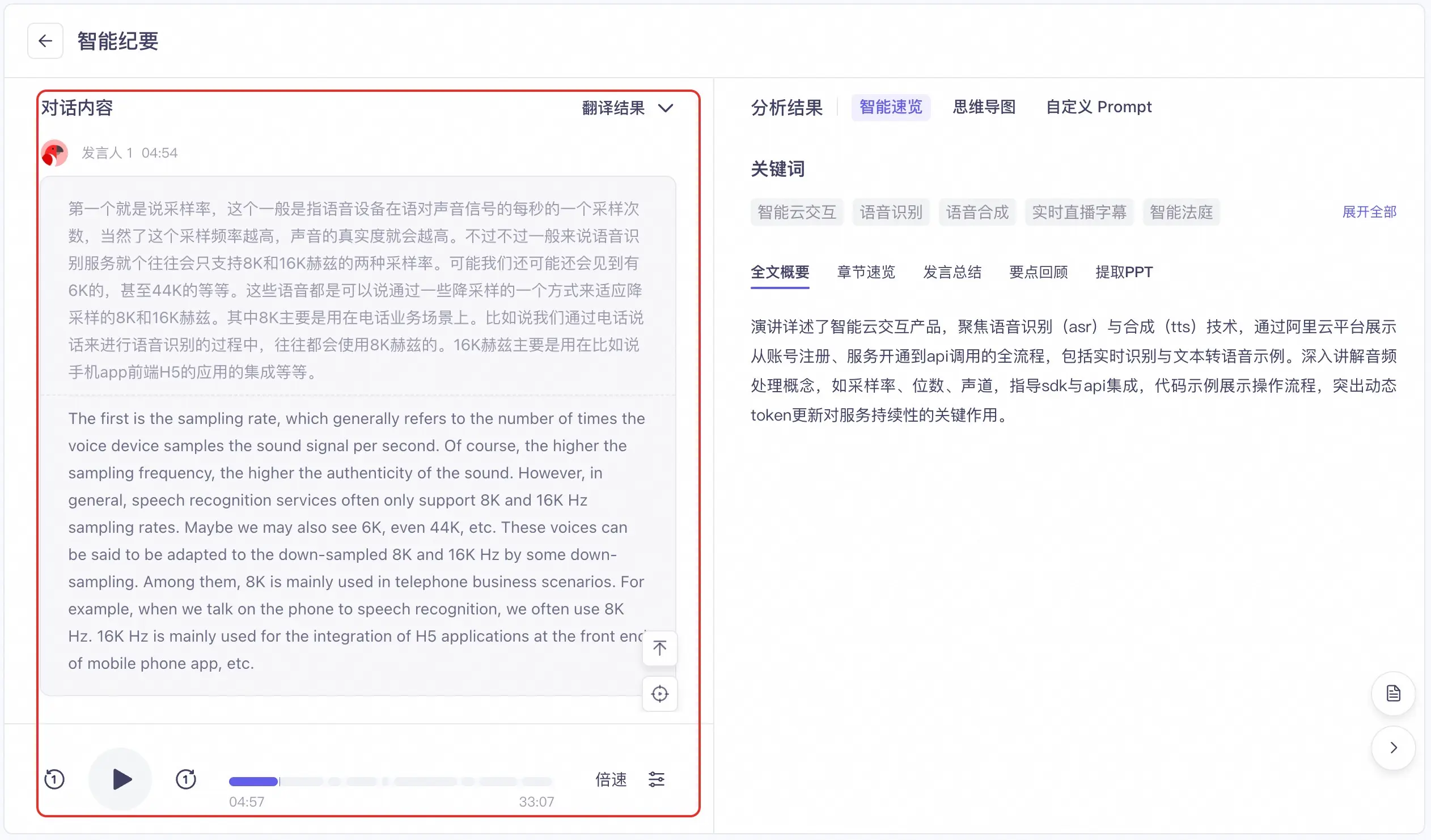
- If the content source is Recorded file recognition, Real-time transcription, or Tingwu task, the conversation content box displays the corresponding audio or video transcription results. The box also shows the speaker ID and dialogue timestamp. You can play the audio file for comparison.
- If the content source is Meeting text content, the dialogue timestamp information may not be displayed. However, this does not affect the analysis results.
Analysis results
In the analysis results box, you can view the analysis results for intelligent overview, mind map, and custom prompts. You can configure the analysis items on the left. For more information, see Configure and test.
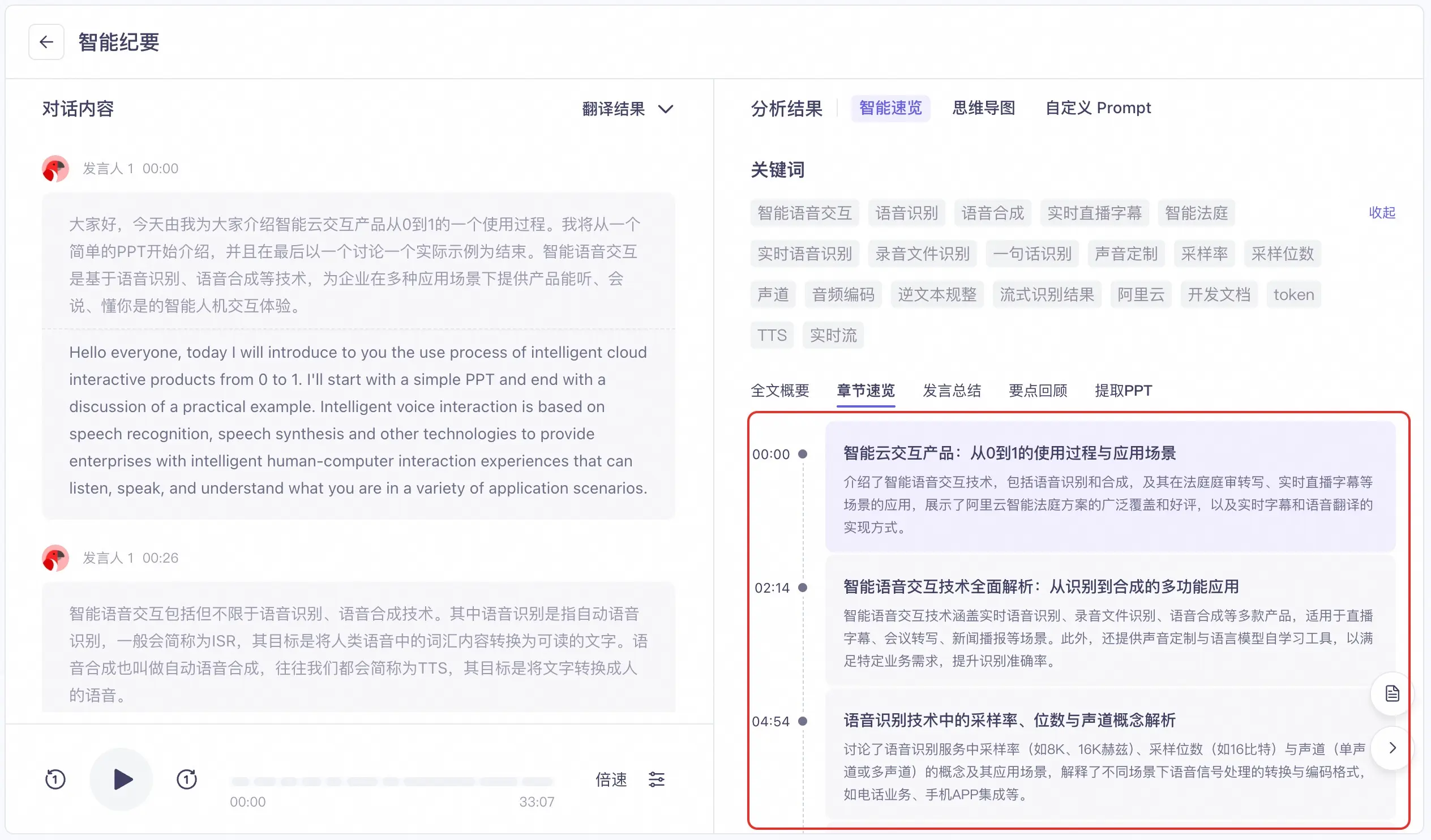
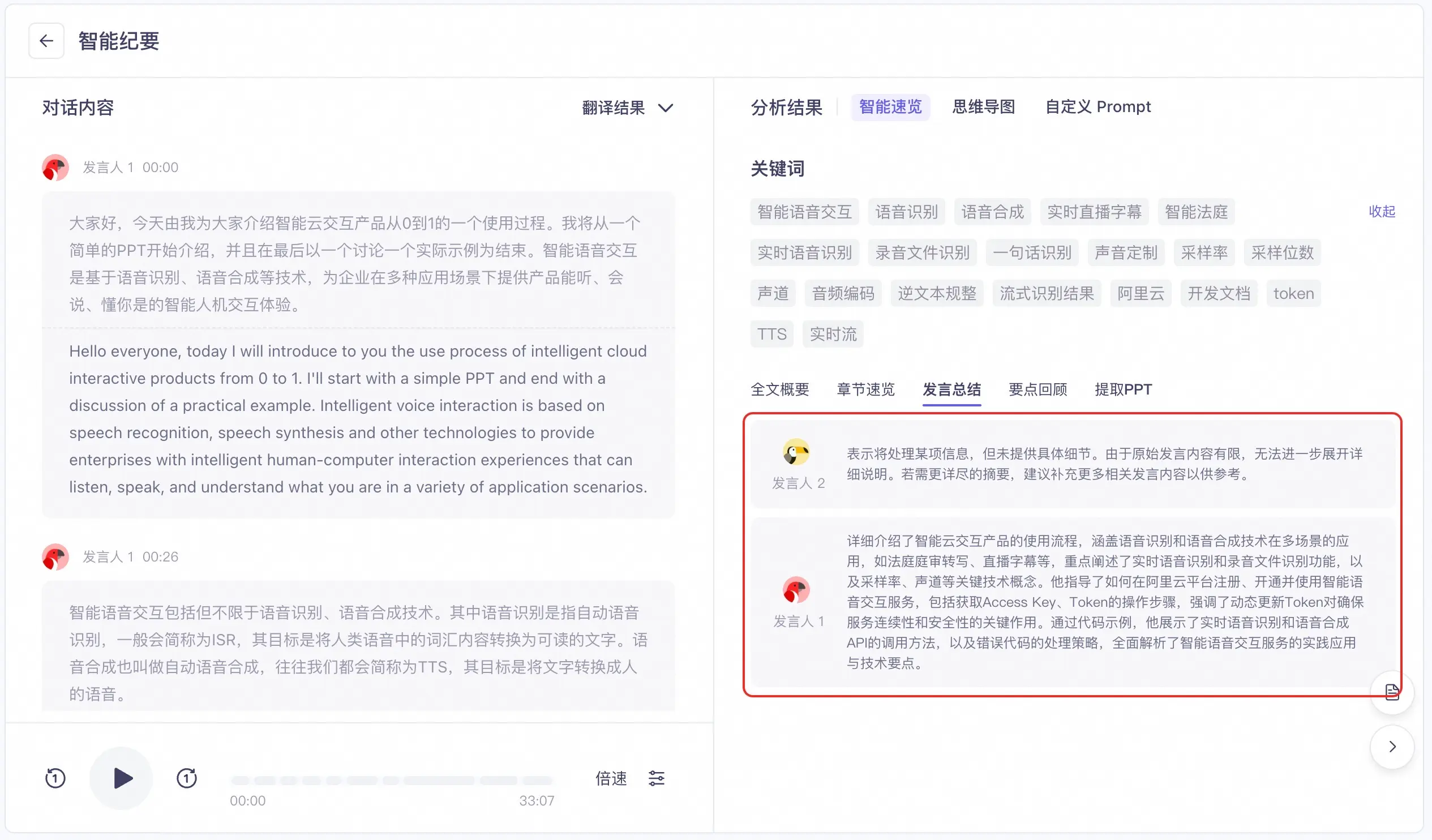
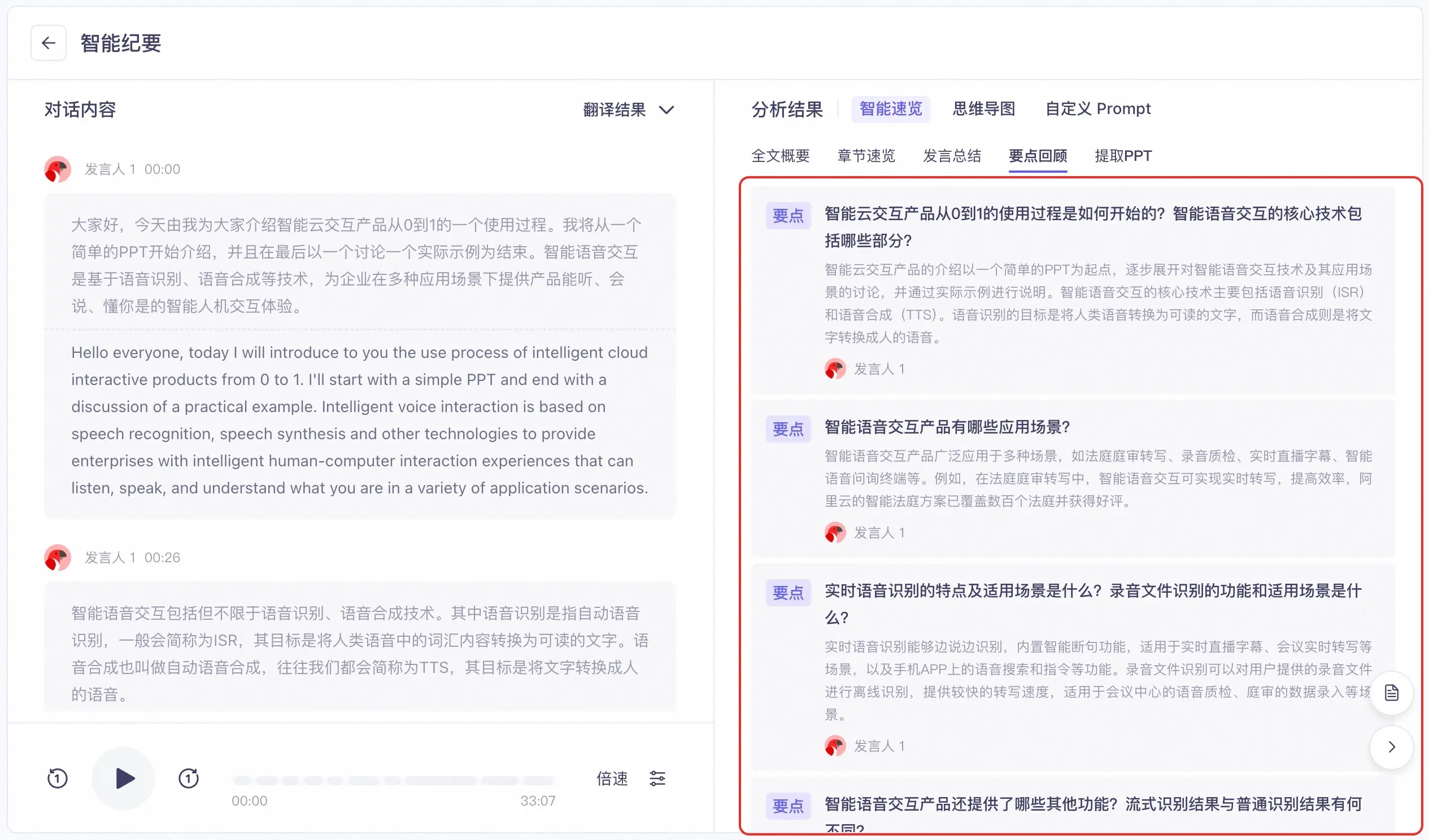
The intelligent overview page includes results such as keywords, full-text summary, chapter overview, speaker summaries, key point review, and extracted PPT content.
Chapter overview example:
Speech summary:
Key takeaways:
Retrieve PPT effects:
Extracted mind map:
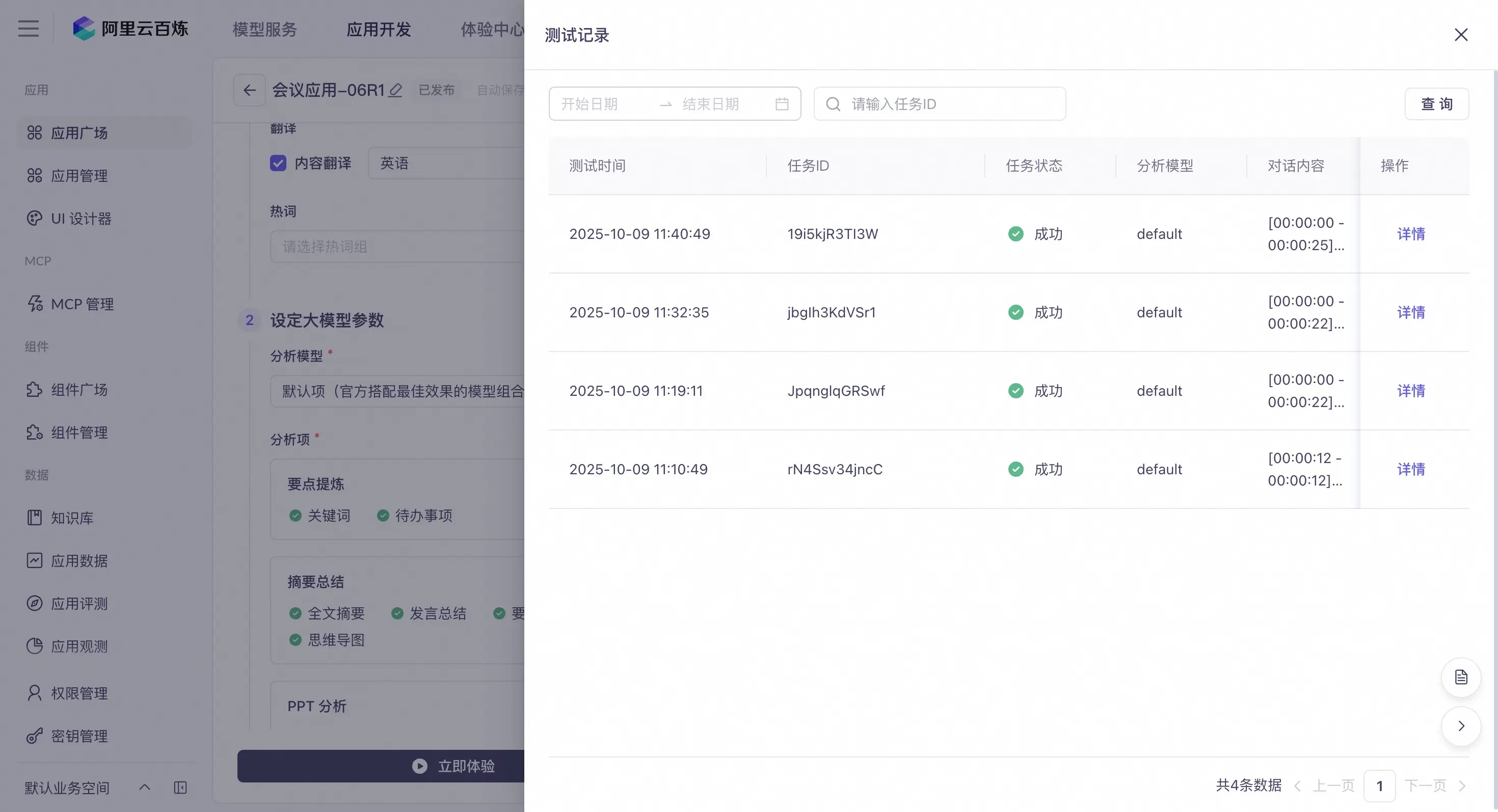
Test Records
All test results for the current application are saved. Click the Test Records button in the upper-right corner of the console to view them.
The test records list displays various details. These details include the test time, task ID, task status, analysis model, dialogue content, and a Details button.
Click the Details button in a test record's entry to view the complete meeting content and analysis results.
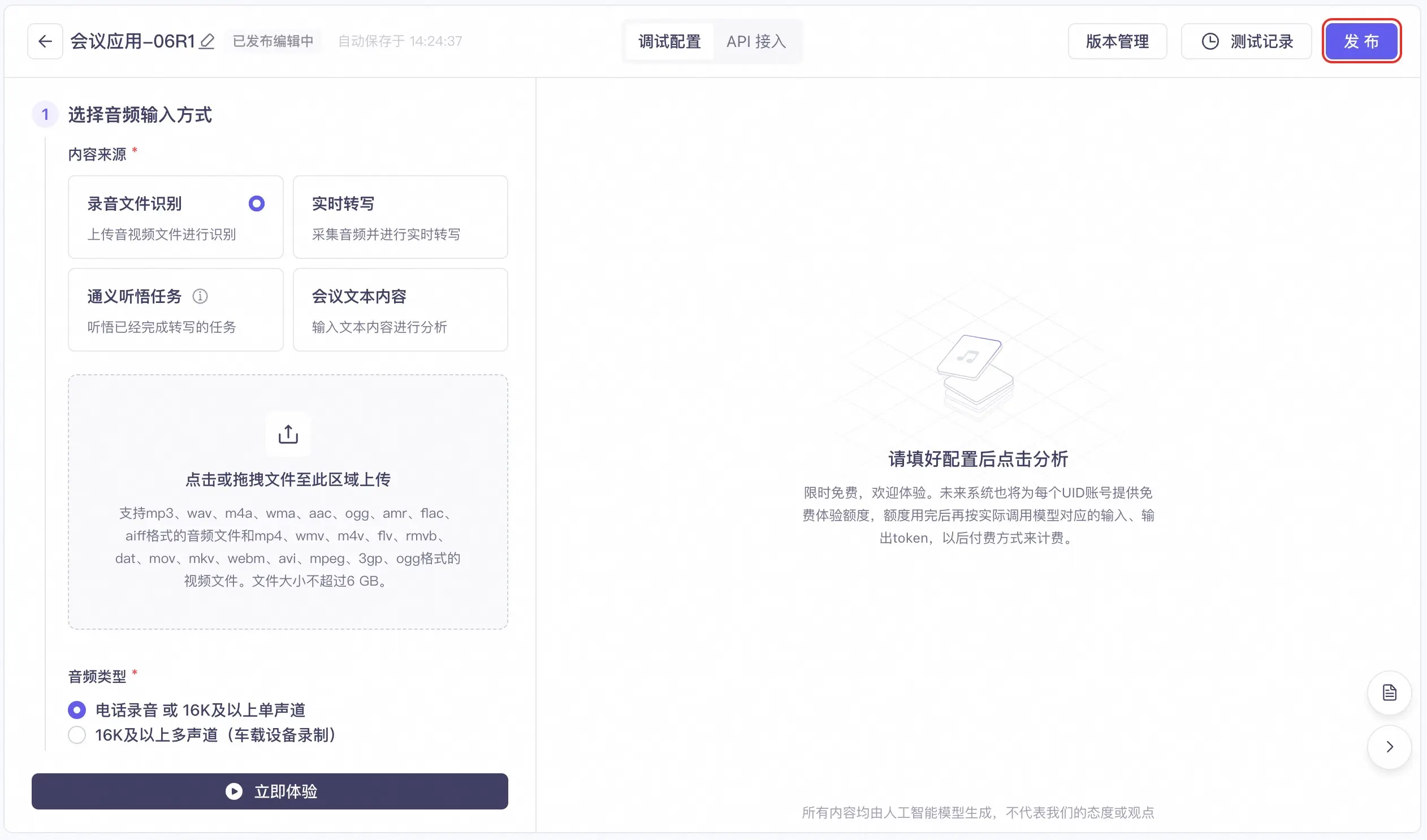
4. Publish the application
Click the Publish button in the upper-right corner of the console and enter a version description to publish the application. The application takes effect online immediately after publication.
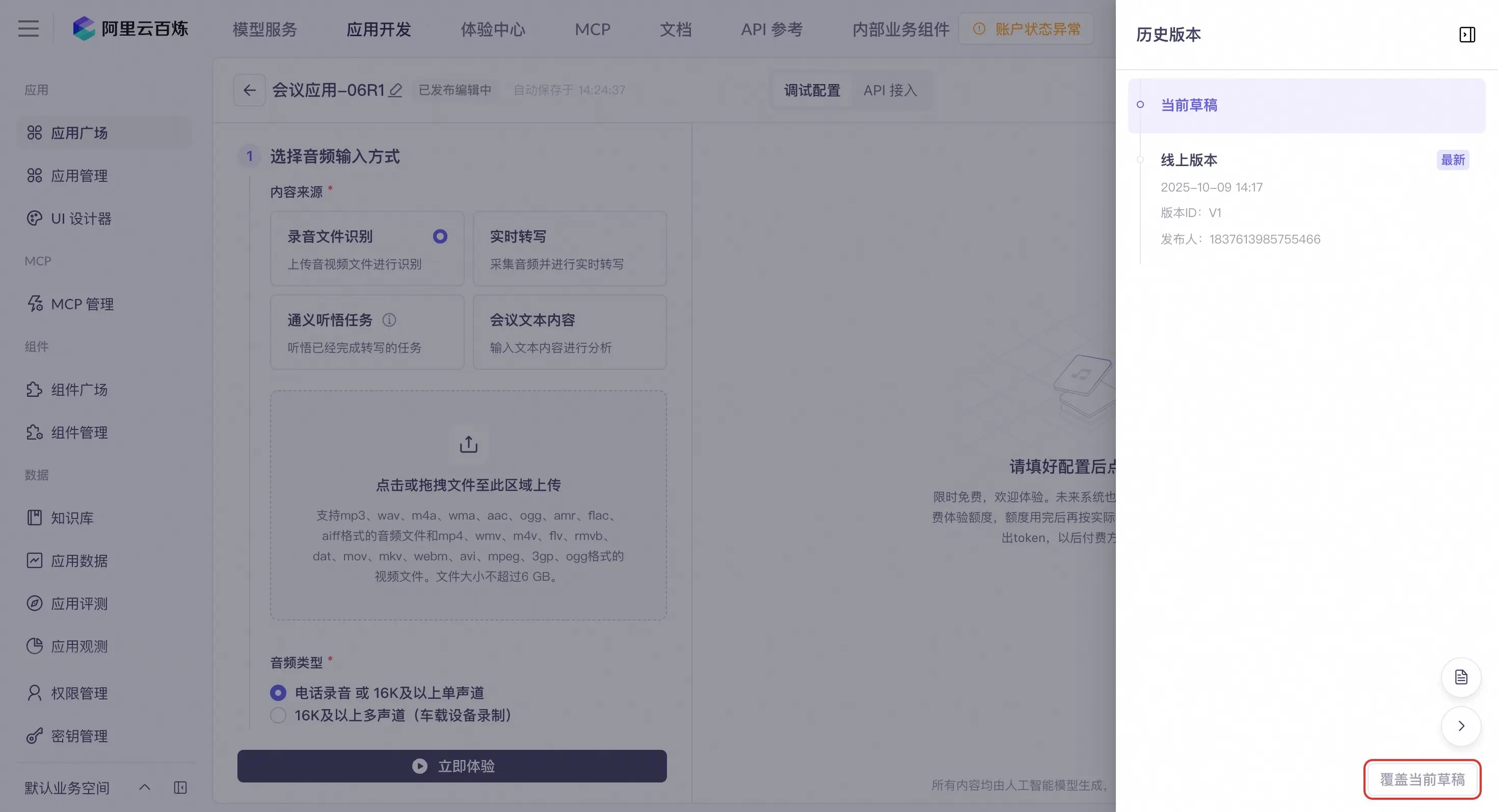
Version control
After the application is published, you can view its historical versions in Version Control in the upper-right corner of the console. Select a historical version and click the Overwrite Current Draft button in the lower-right corner. This applies the configuration of the selected version to the current draft.
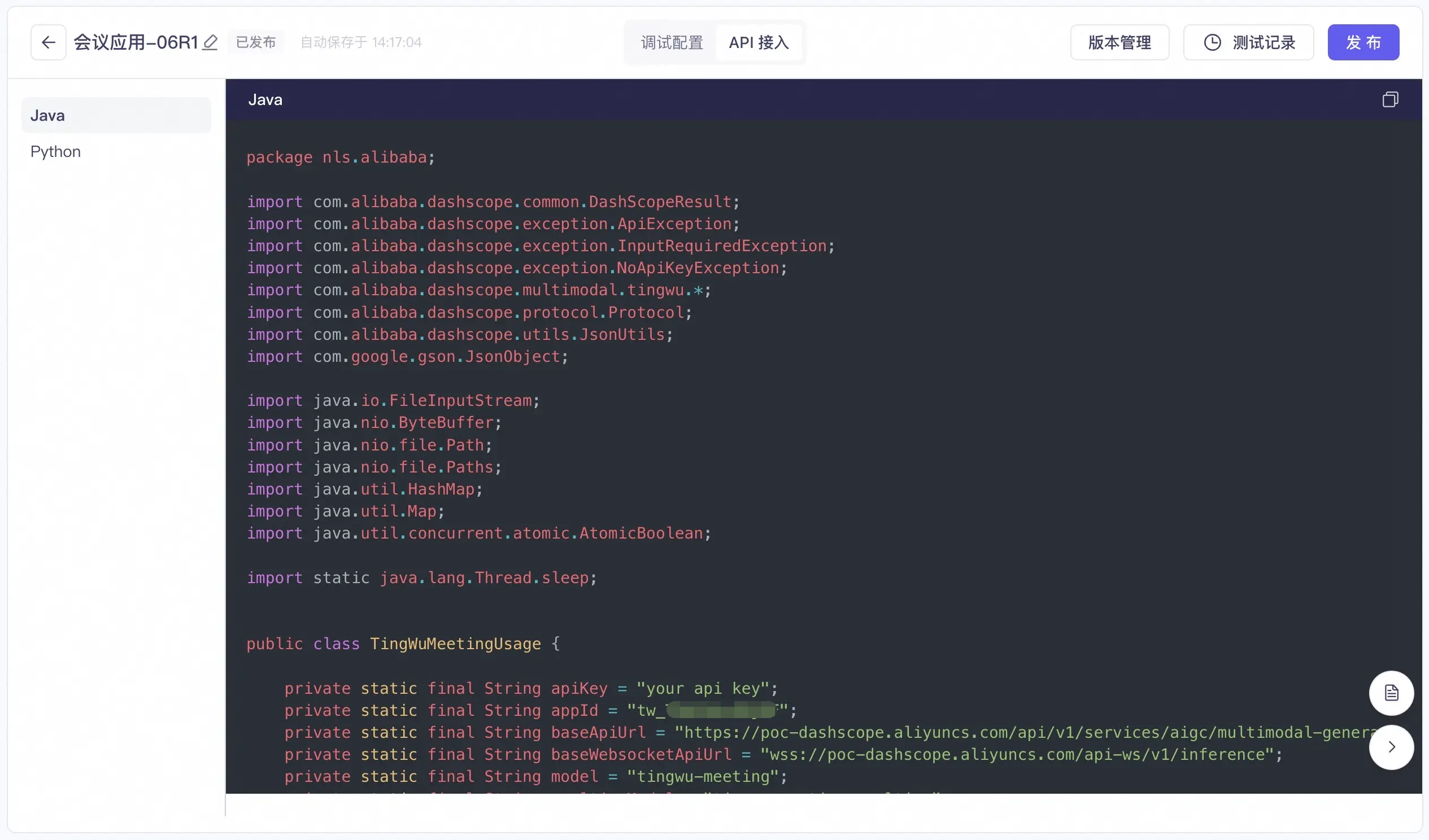
5. API integration
After the application is published, wait a moment for it to take effect. Then, click the API Integration button at the top of the console to view reference code for Java and Python. You can use this code to integrate the service into your business system.
6. Delete the application
In the My Applications list, you can delete an application.
Deletion is irreversible. Proceed with caution to avoid affecting your online business.