Vidu Video Generation Prompt Guide
A comprehensive guide to writing Vidu prompts, covering prompt formula, keyword reference, and advanced examples.
Getting Started
Prompt Formula
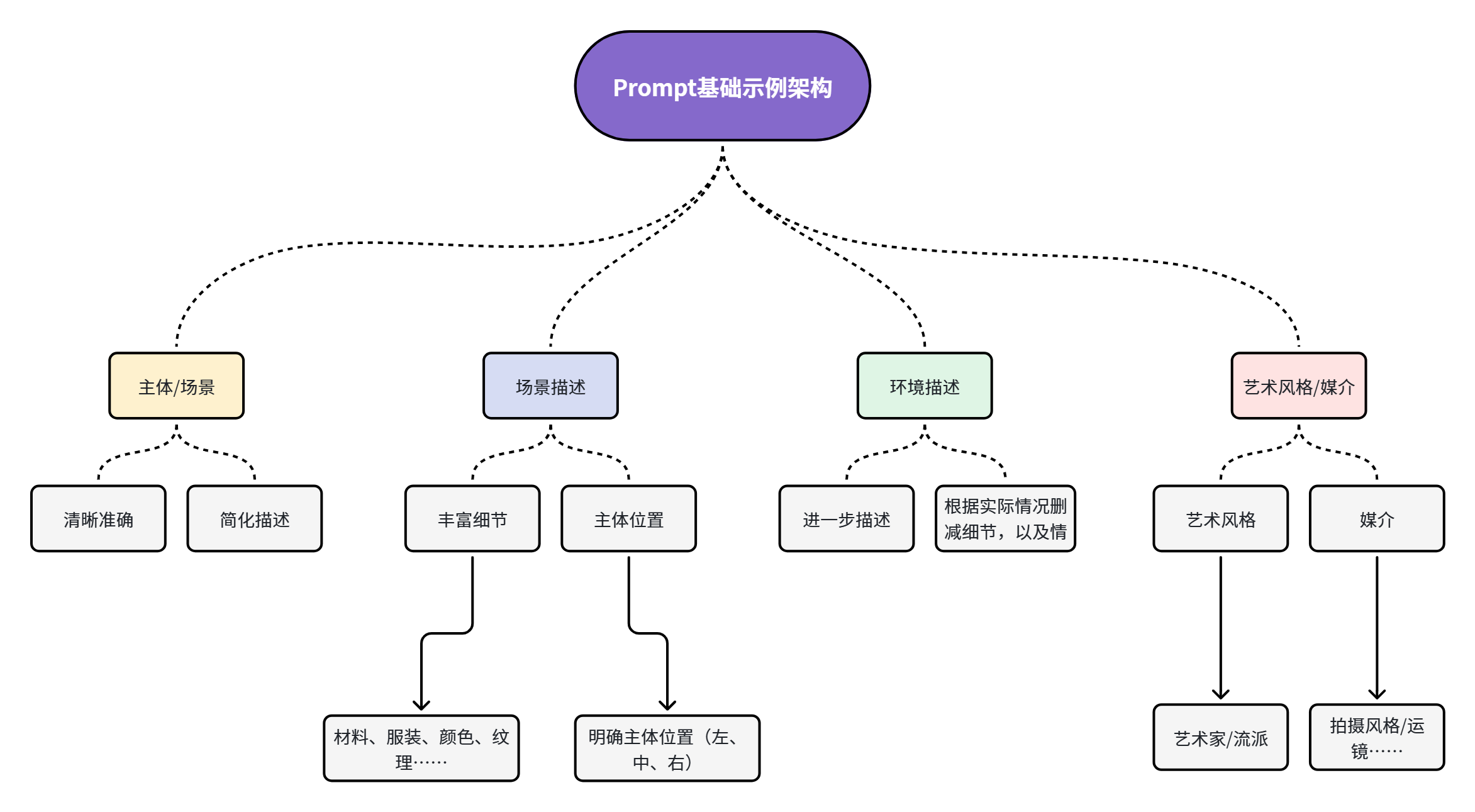
Subject/Scene + Scene Description + Environment Description + Art Style/Medium- Adjust sentence structure and word order to avoid having too many/complex subjects or scattered subject placement.
- Avoid ambiguous terms; be as specific as possible.
- Use fluent, natural phrasing and avoid overly literary descriptions.
- Rich, accurate, and complete descriptions are essential for generating videos that match your desired art style and requirements.
Examples
Following the basic structure of "Subject/Scene + Scene Description + Environment Description + Art Style/Medium" improves video generation quality. Repeating and reinforcing key style descriptions across different parts of the prompt helps maintain consistent output style and enriches the visual result.
Using a "Corgi swimming" prompt as an example, the expanded version focuses on creating a warm, innocent cinematic visual effect.
Expanded prompt analysis: Start with the subject + scene + action, then layer in lighting, color tone, texture, and camera feel. Use aligned atmospheric words (gentle, soft, elegant, serene) at the beginning, middle, and end without mechanical repetition. The overall direction is warm, innocent, and cinematic.
Prompt: A corgi puppy swimming in a large pool | Expanded prompt (following the formula): Capture a serene moment of a corgi pup gracefully swimming in a sunlit pool. The underwater perspective reveals the puppy's gentle smile as soft golden light filters through the water surface, creating dancing shadows on the pool floor. The scene is rendered in soft pink tones, creating a dreamlike ethereal atmosphere. High-resolution cinematography captures every delicate detail of the water texture and the corgi's joyful expression, creating a simple yet cinematic portrait of tranquility and innocence. This minimalist, emotionally resonant setting conveys a sense of calm and happiness — an ideal cinematic shot that is both visually striking and deeply peaceful. |
Prompt Keyword Reference
Specific keywords trigger different generation effects in Vidu. For example, adding "high motion" to the prompt increases the movement intensity in the generated video.
| Category | Subcategory | Supported Interfaces | Keywords |
|---|---|---|---|
| Subject Motion | Motion Intensity | Text-to-Video | High motion: high motion, fast movement, extra-large motion |
Medium motion: medium motion, moderate motion effect | |||
Low motion: subtle motion, slight movement | |||
| Camera Movement | Basic Camera Movement | Text-to-Video | Pan left: camera pans left, camera move left, left pan, camera track left, etc. |
Pan right: camera pans right, camera move right, right pan, camera track right, etc. | |||
Tilt up: camera tilts up, camera move up, upward tilt, etc. | |||
Tilt down: camera tilts down, camera move down, downward tilt, etc. | |||
Zoom in: camera zooms in, camera zoom in, zoom-in shot, etc. | |||
Zoom out: camera zooms out, camera zoom out, zoom-out shot, etc. | |||
Static: camera stays still, static shot, fixed camera, etc. | |||
| Special Shooting Techniques | Text-to-Video | Time-lapse: time-lapse photography, time-lapse shot | |
Macro: macro lens, macro shot | |||
First-person: first-person perspective, FPV shot | |||
Aerial: aerial shot, drone shot | |||
Shot Size 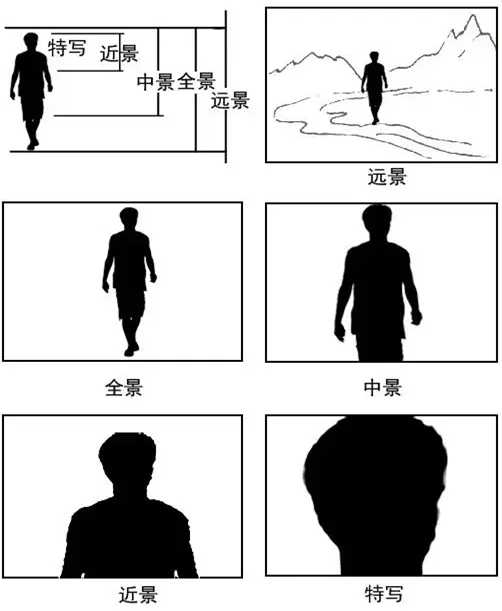 | Text-to-Video | Long shot | |
Full shot | |||
Medium shot | |||
Close-up | |||
Extreme close-up | |||
Camera Angle | Text-to-Video | Low angle | |
High angle | |||
Eye-level | |||
Bird's-eye view | |||
Composition | Text-to-Video | Diagonal composition | |
Rule of thirds | |||
Symmetrical composition | |||
Over-the-shoulder: over-the-shoulder shot, over shoulder shot | |||
Dutch angle: Dutch angle shot, tilted frame | |||
| Video Style | Visual Style | Text-to-Video | 2D anime: 2D anime style, anime illustration |
3D render: 3D rendering style, 3D CG style | |||
Realistic: realistic | |||
Ink wash: ink wash painting style, traditional ink style | |||
Line art: line art style, outline illustration | |||
Pixel art: pixel art style, retro pixel | |||
Oil painting: oil painting style, painterly | |||
Director Style
| Text-to-Video | Hayao Miyazaki style | |
Makoto Shinkai style | |||
Katsuhiro Otomo style | |||
Mamoru Hosoda style | |||
Goro Miyazaki style | |||
Masaaki Yuasa style | |||
Shin'ichiro Ushijima style | |||
Naoko Yamada style | |||
Takeshi Ishidate style | |||
Isao Takahata style, Yoshiaki Nishimura style | |||
| Visual Effects | Effects | Text-to-Video | Explosion: explosion effect, explodes |
Vortex: vortex effect, swirling | |||
Shatter: shatter effect, shatters | |||
Warp: warp effect, warps | |||
Melt: melt effect, melts | |||
Disappear: disappears into bubbles, dissolves into snowflakes, etc. | |||
Petrify: turns into stone | |||
| Atmosphere | Atmosphere | Text-to-Video | Joyful: bright colors Melancholy: cool tones Serene: soft tones Tense: dark lighting Warm and romantic: warm tones, soft lighting |
Prompt Optimization
First draft prompts often don't yield ideal results. Identifying issues and iteratively refining the prompt is an essential optimization step.
Image-to-Video
Optimization analysis: The original prompt sometimes produces a visual effect where the train appears to move backward. The optimized version uses the size ratio between the subject and background to create a clear sense of forward motion.
| Intended Effect | Input Image | Original Prompt | Original Video Result | Optimized Prompt | Optimized Video Result |
|---|---|---|---|---|---|
Train moving forward | 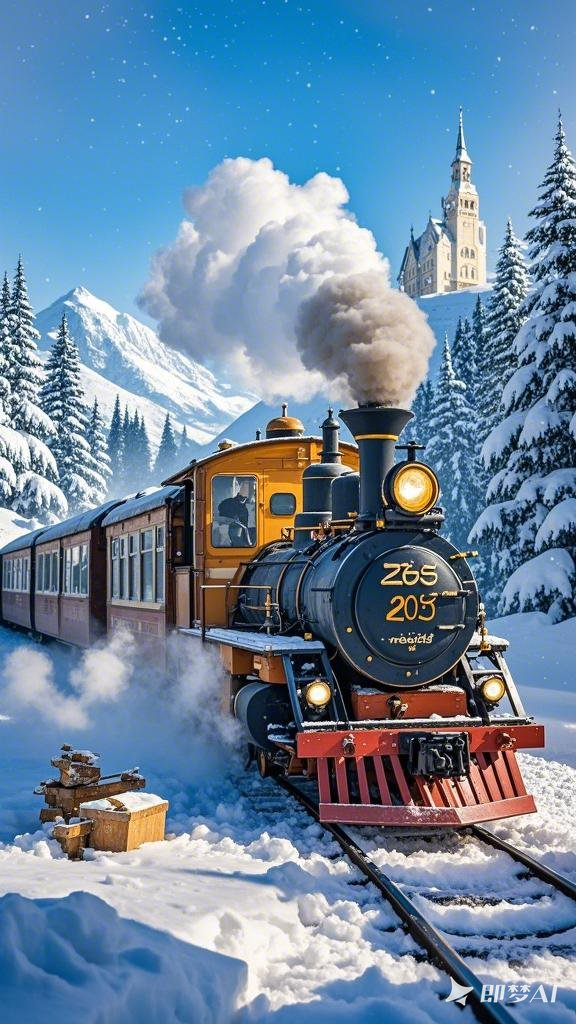 | The train starts moving forward | # Subject The train starts moving forward, the front of the train gradually gets larger, smoke continuously billows from the chimney, and pine trees shrink into the distance. # Requirements:
|
Reference-to-Video
Optimization analysis: The walking motion in the original prompt looks unnatural, possibly due to a static camera. The optimized version adds camera control (zoom out), which makes the character's movements look more natural when combined with camera motion. If you need the prompt to work with various input images, continue adjusting using the techniques described above.
Original prompt example:| Intended Effect | Input Image | Prompt and Result |
|---|---|---|
Nature-style dynamic portrait - solo | 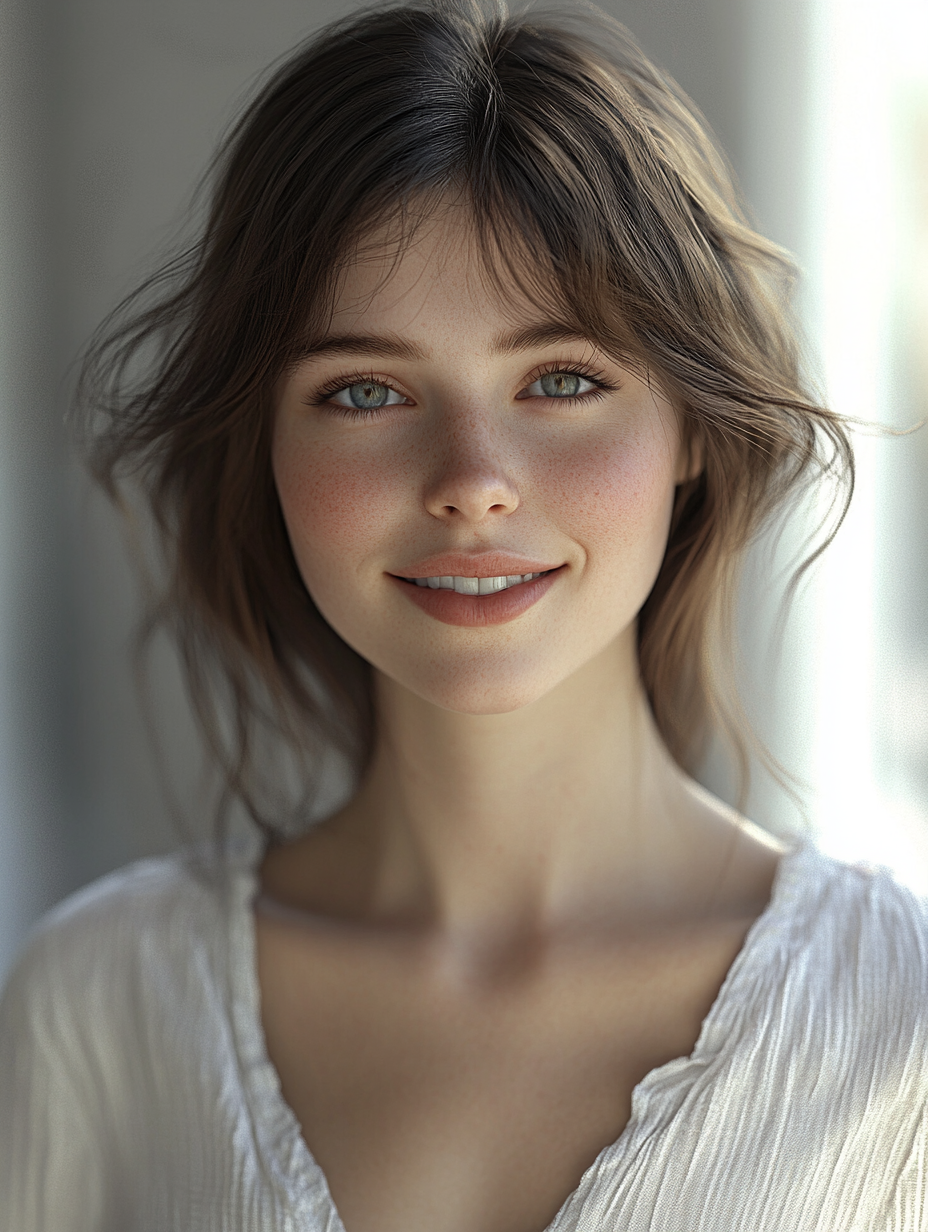 | Original prompt: The woman walks lightly toward the camera, her steps firm and graceful. On a forest path, sunlight filters through dappled tree shadows onto her shoulders. A gentle breeze stirs her skirt as leaves flutter softly with each step, conveying a sense of ease and composure. Optimized prompt# Subject The woman walks lightly toward the camera, her steps firm and graceful. On a forest path, sunlight filters through dappled tree shadows onto her shoulders. A gentle breeze stirs her skirt as leaves flutter softly with each step, conveying a sense of ease and composure. # Requirements
|
Advanced Guide
Maintaining Subject Consistency in Reference-to-Video
Vidu maintains subject consistency across multiple perspectives, supporting complex character designs, facial expressions, and multi-subject interaction scenarios.
Example 1: Precise Control of Complex Subjects
For complex 3D animated characters, Vidu consistently preserves head shape, costume details, and full-angle consistency regardless of viewpoint changes.
Example 2: Natural Facial Feature and Expression Consistency
In close-up portraits, Vidu naturally and smoothly maintains facial feature and expression continuity, avoiding stiffness or distortion. Fine facial control gives Vidu a significant advantage for creating nuanced, realistic characters.
Example 3: Multi-Subject Consistency
Vidu supports uploading multiple subject images (characters, props, environments, etc.) to create interactive scenes. For example, uploading images of a character, an object, and an environment lets you generate a scene with a custom character performing actions in a custom space.
Vidu also supports fusing features from different subjects — for example, seamlessly combining the front of character A with the back of character B to create an entirely new character or object.
AI Manga Drama Prompt Examples
The prompt writing principles are the same as the getting started guide (avoid too many/complex subjects, avoid ambiguous terms, use natural phrasing, keep descriptions rich and accurate).
Manga drama prompt structure:-
Part 1. Style / Shot Size / Camera Position / Composition / Camera Movement (optional)
Style: 2D manga, realistic, 3D anime, Korean webtoon, Lolita, otome game, game concept art, medieval, ancient Chinese, martial arts, cartoon, picture book, blind-box collectible, cyberpunk, tech, metallic, dark horror, etc.
Shot Size: Long shot, full shot, medium shot, close-up, extreme close-up
Camera Position: Left of axis, right of axis, low angle, high angle, looking up, looking down, eye-level, bird's-eye, drone, etc.
Composition: Rule of thirds, horizon line, center, Dutch angle, etc.
Camera Movement: Static, up/down/left/right, diagonals, zoom in, pan/tilt, zoom out, clockwise/counterclockwise orbit, rotation. Movements can be combined (e.g., "zoom in + clockwise orbit").
-
Part 2. Scene Description
Describe the action, scene, or visual effects in simple natural language.
-
Part 3. Image Reference
Image 1 is [scene]; Image 2 is [character xx]; Image 3 is [prop xx]
Prompt Examples
| Prompt Example | Reference Images | Result |
|---|---|---|
2D anime style, medium shot, action freeze, static camera; horizon line composition, right of axis, Xiao Lan, Xiao Hong, and Xiao Ming are walking through the peach blossom valley (Image 1), smiling, when suddenly their smiles freeze. Image 1 is [scene]; Image 2 is character [Xiao Lan]; Image 3 is character [Xiao Hong]; Image 4 is character [Xiao Ming]. | Images 1-4 in sequence: 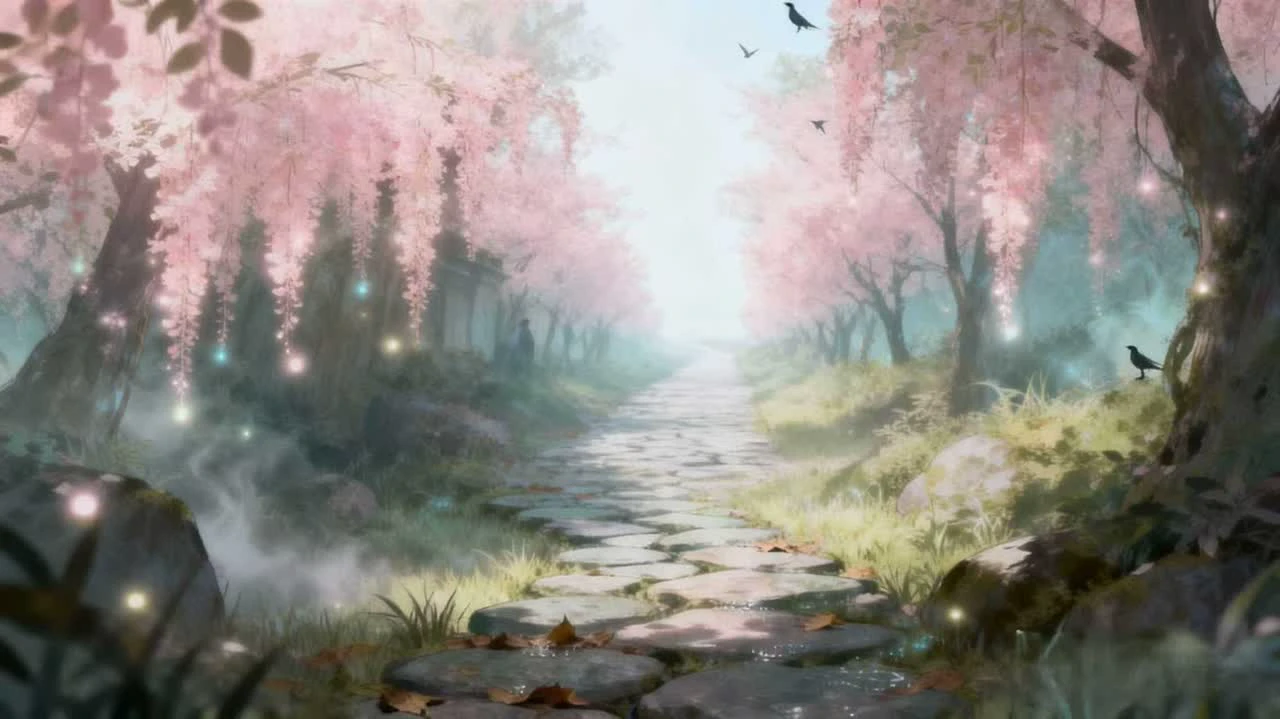 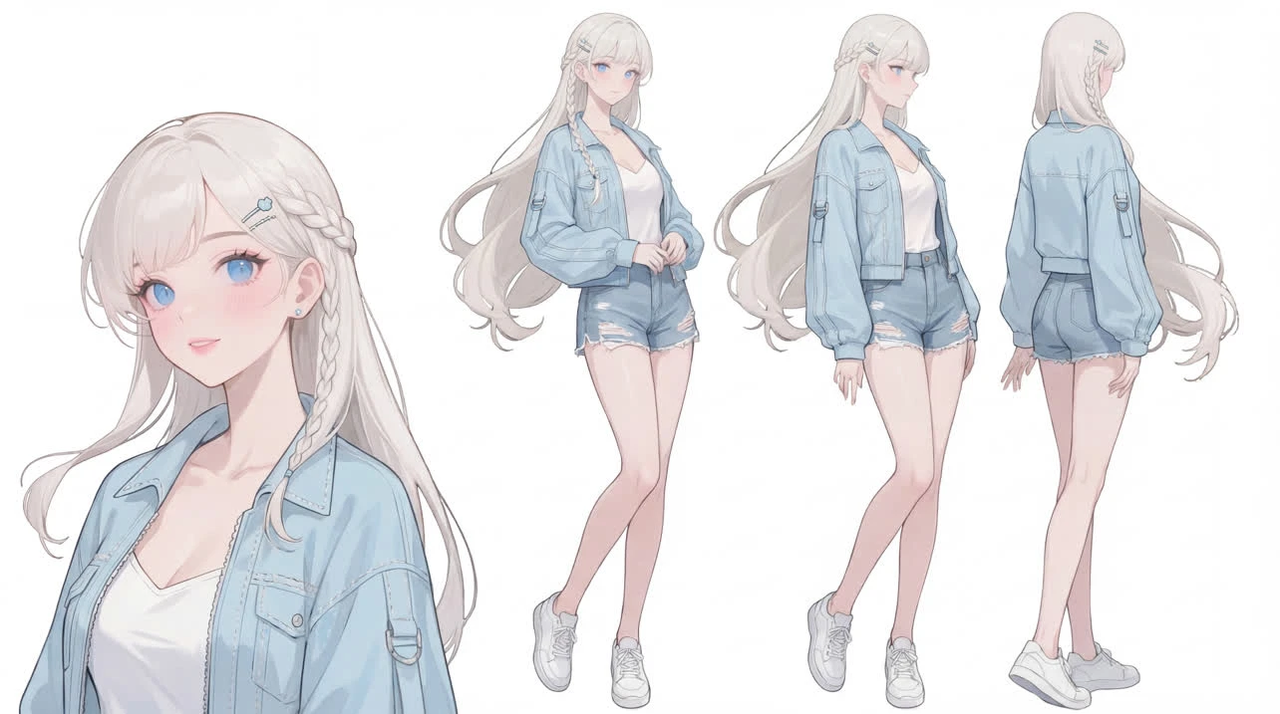 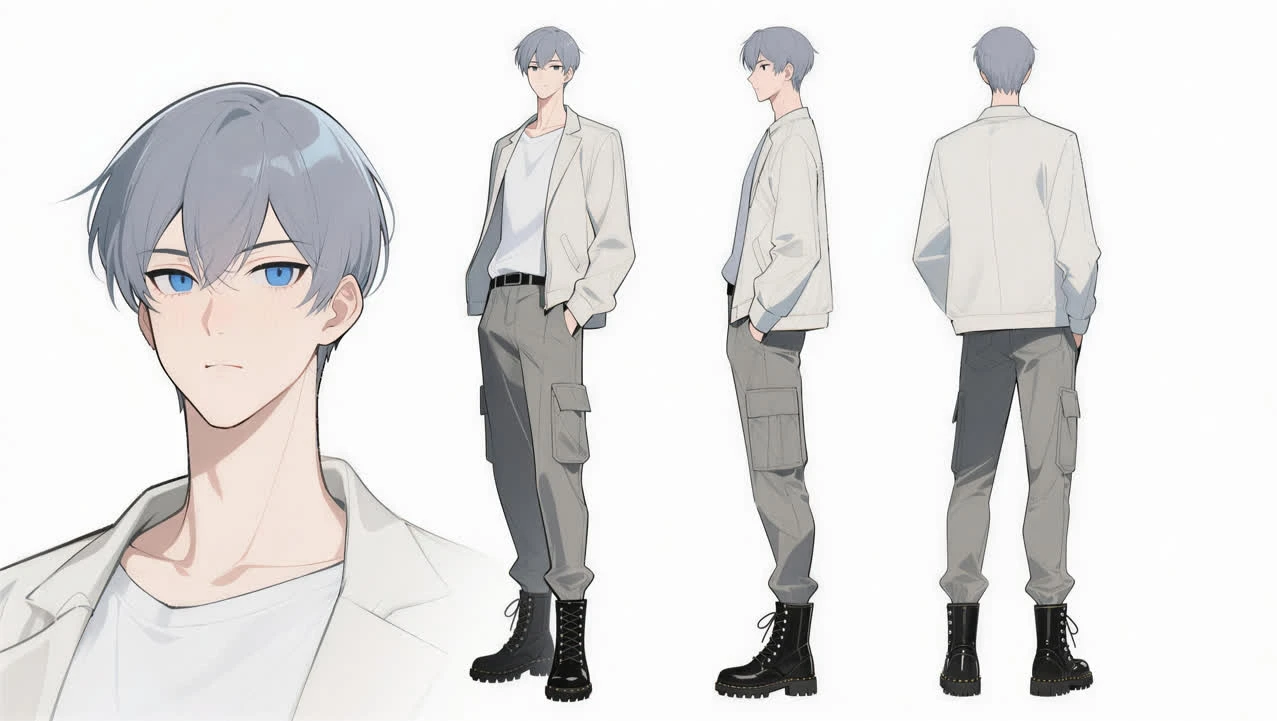 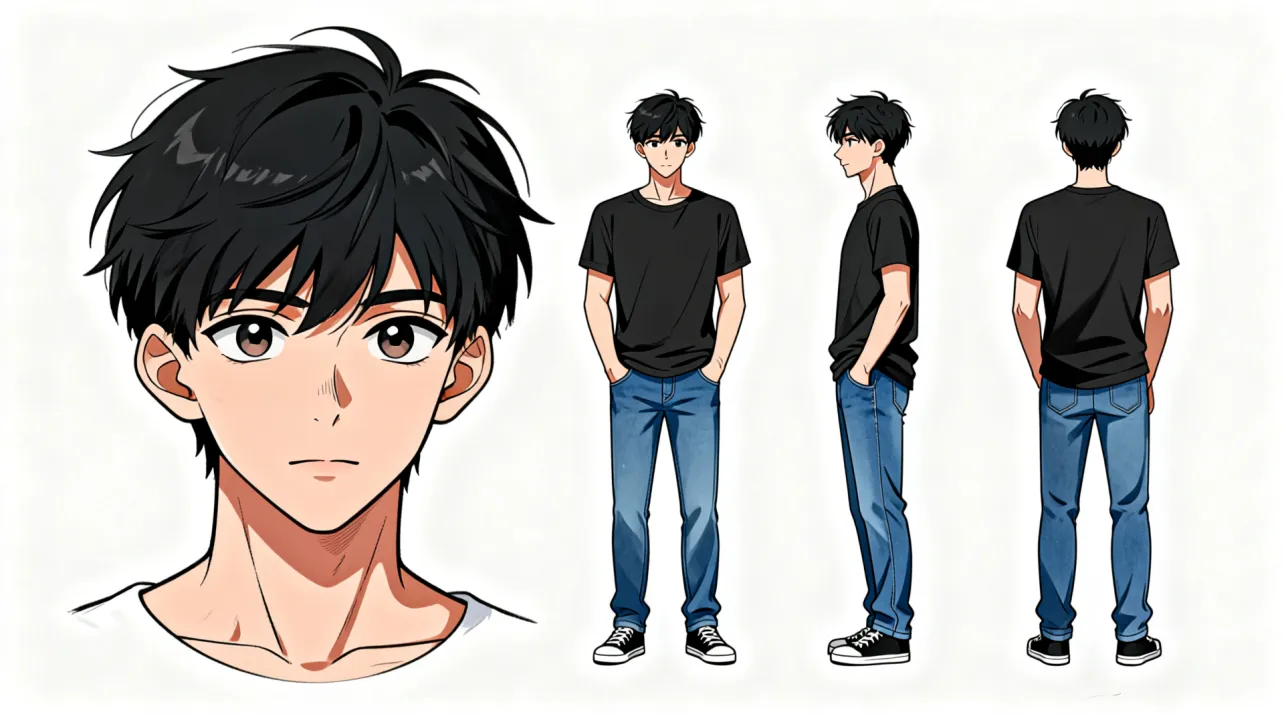 | |
2D anime style, camera moves from bottom to top, avoiding the face — starts with a close-up of footsteps stepping forward, then slowly pans up to the chest without revealing the face; static camera, in Image 1, a massive beam of light slowly reveals the true form of the evil old man as he walks out, radiating an eerie and sinister energy. Image 1 is [scary, eerie, awe-inspiring environment]; Image 2 is [evil old man]. | Images 1-2 in sequence: 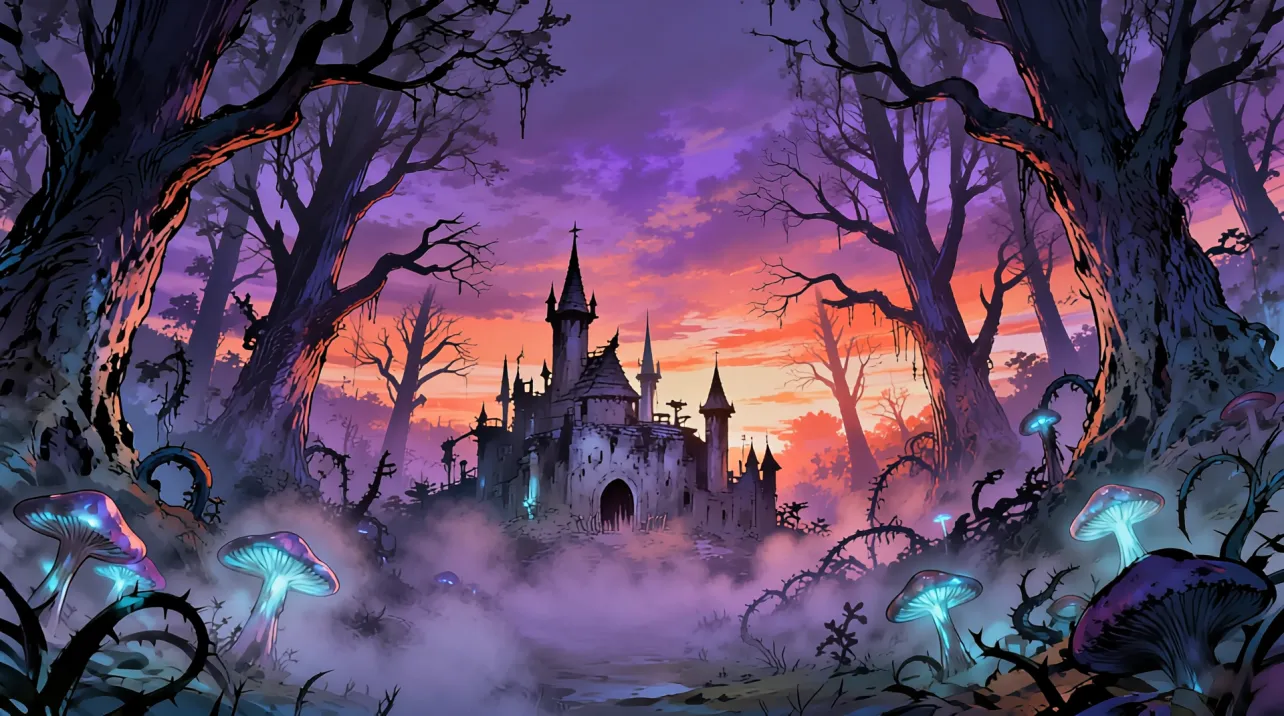 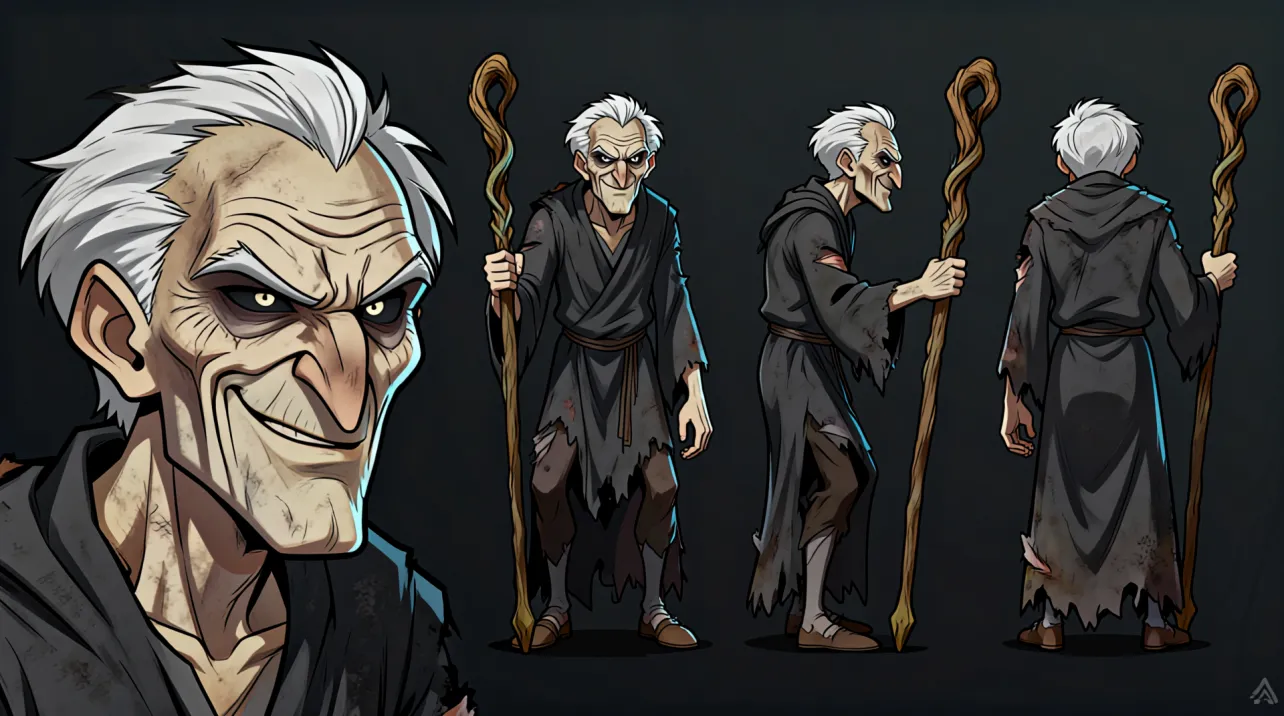 | |
3D anime style, close-up, eye-level, left of axis, rule of thirds, Xiao Fei is lifted into the air by a swirling vortex, his hands desperately gripping a rock jutting from the ground. In the fierce wind, Xiao Fei struggles to look back and shouts behind him, his expression fierce, mouth constantly moving, the camera shaking violently. Image 1 is the scene; Image 2 is character [Xiao Fei]. | 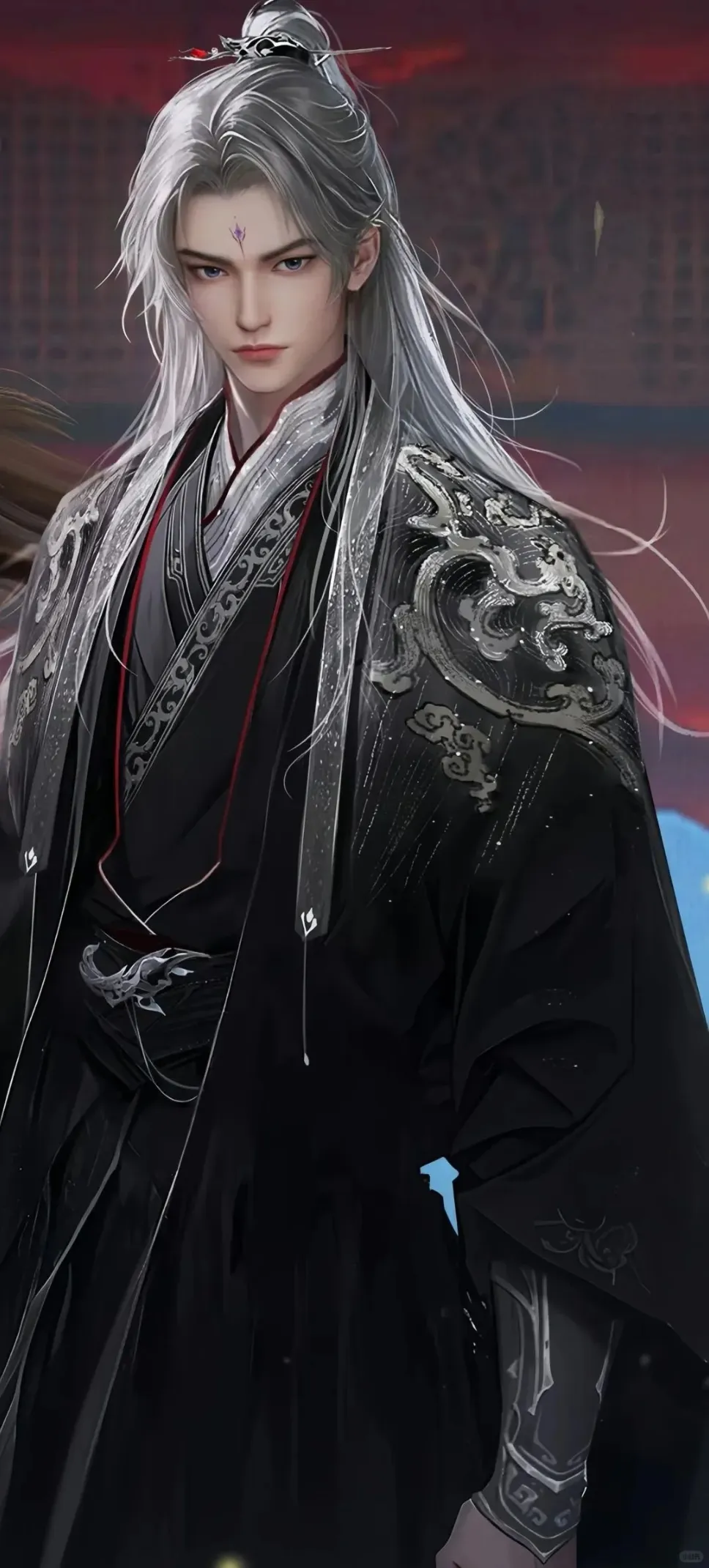 |
Image Input Guide
Image Input | Example |
|---|---|
Characters
|
|
Environments
|
|
Props
|
|
Effects
|
|