This topic describes how to use the WebSocket protocol to send requests directly to a visual Q&A agent and receive the results as text-to-speech (TTS) synthesized audio.
Direct agent access means sending requests directly to the agent, bypassing speech recognition (ASR) and intent recognition.
The following diagram shows the standard flow for real-time multimodal interaction. To use a visual Q&A agent in this complete flow, such as in a smart glasses scenario where you ask, "Help me see what this is", see Visual Q&A and Connect to the visual module of RTOS SDK (License Mode).

If you only need direct agent access without TTS synthesis, see Connect to a visual Q&A agent using the HTTP protocol. The following diagram shows this flow.
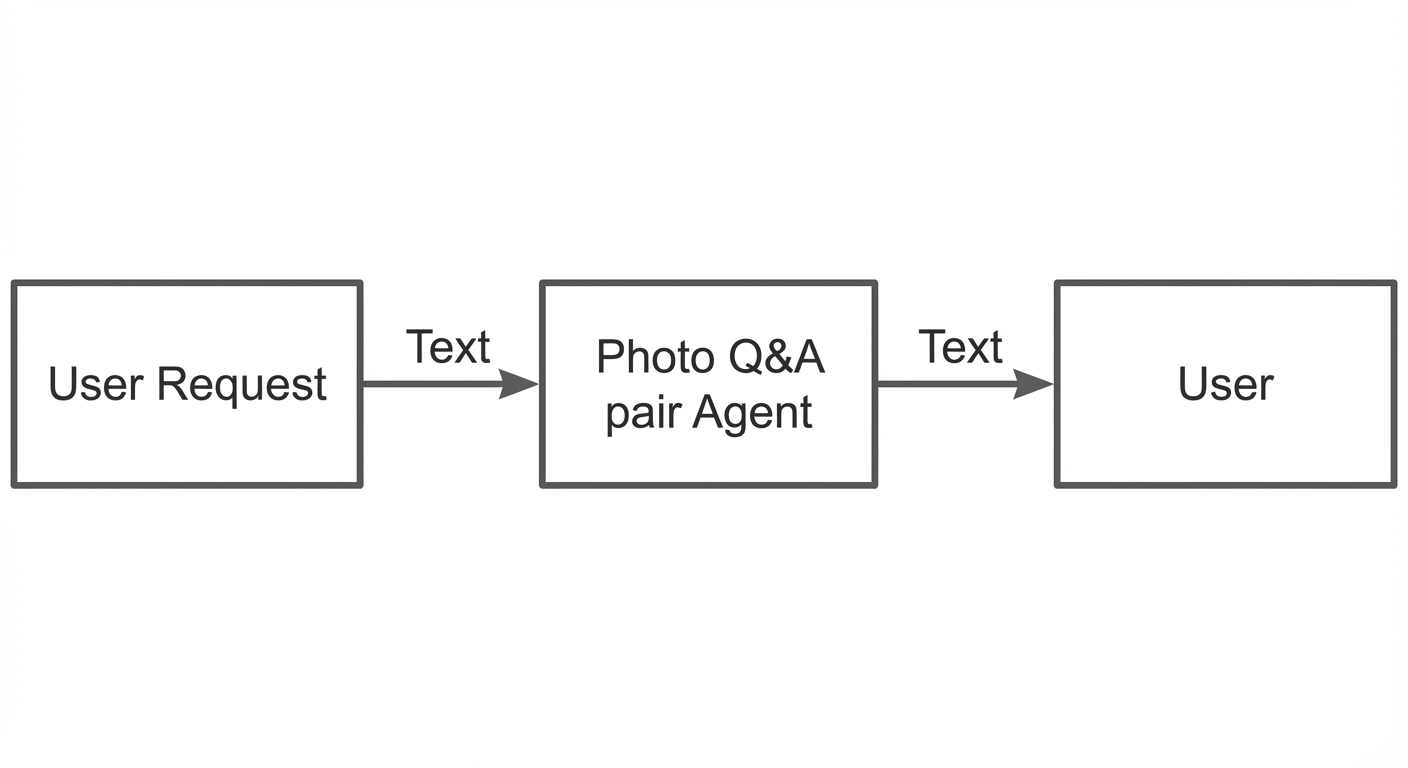
This topic describes the following flow:
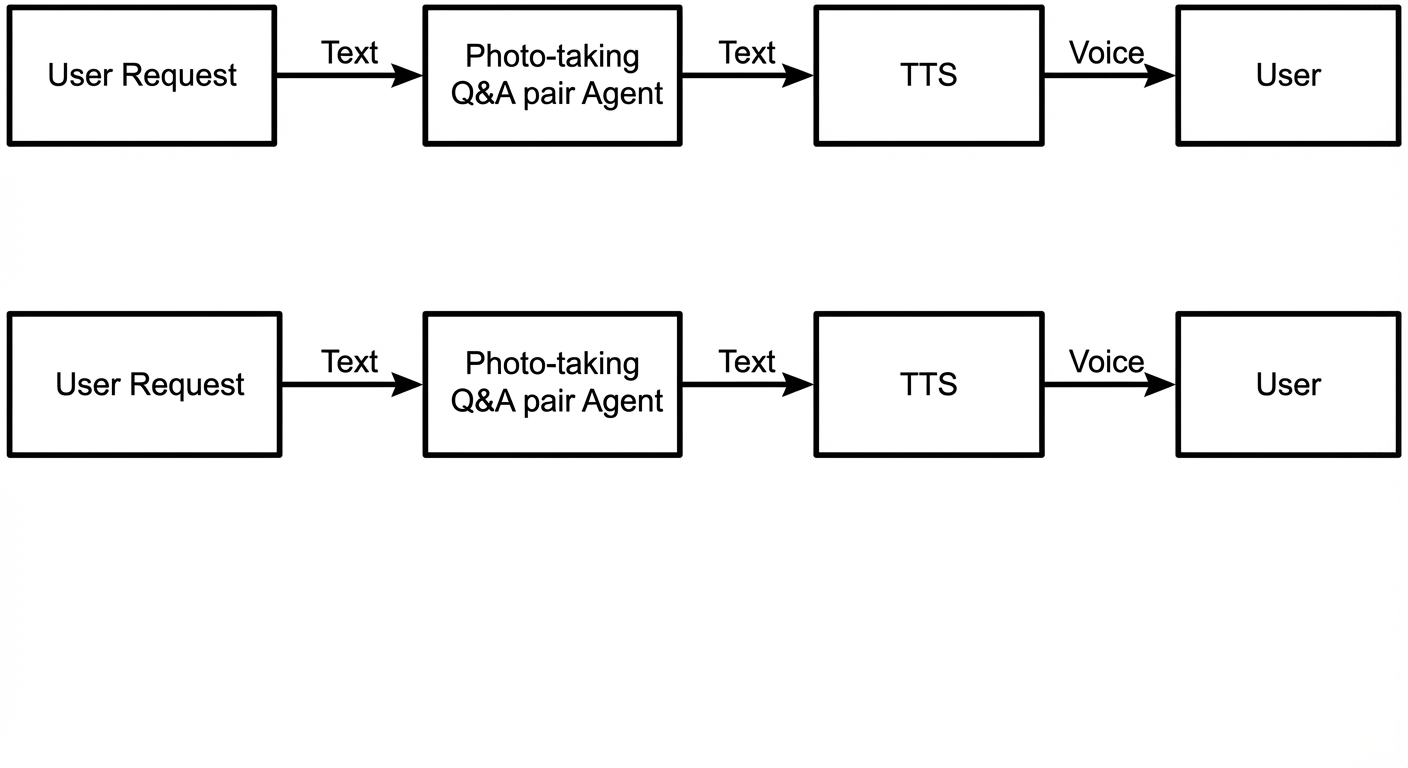
Prerequisites
Read Real-time multimodal interaction protocol (WebSocket) to understand the overall WebSocket protocol for real-time multimodal interaction.
Activate Alibaba Cloud Model Studio and obtain an API key
For more information, see Obtain an API key. The API key is used as the authentication credential for Alibaba Cloud Model Studio services.
Enable the direct access link for visual Q&A in the console
-
In the Multimodal Development Suite, create a multimodal interaction application. For the template, select the **All-in-One** version instead of the **Visual** version. Disable **Speech Recognition** and enable **Speech Synthesis**.
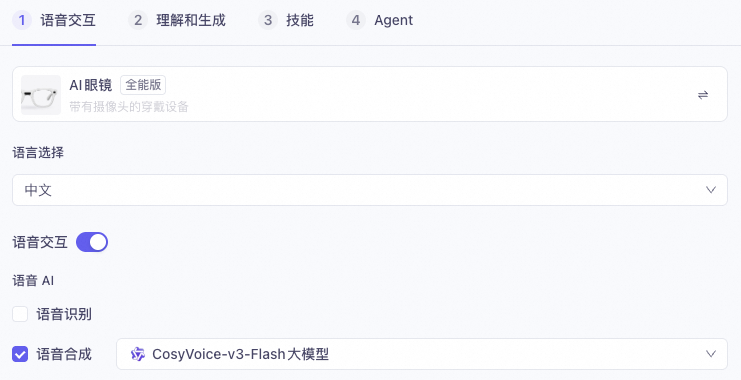
Both the **Intent Recognition Configuration** and **Text Model Configuration** must be enabled. With the configuration in this topic, using visual Q&A does not incur fees for intent recognition or the text model.
-
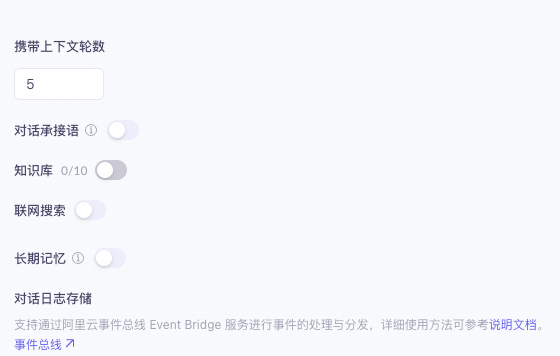
Disable the **Dialogue Context**, **Knowledge Base**, **Web Search**, and **Long-term Memory** configurations.
-
In the **Agent Configuration**, clear all **Skill Configurations** and retain only **Visual Q&A**.
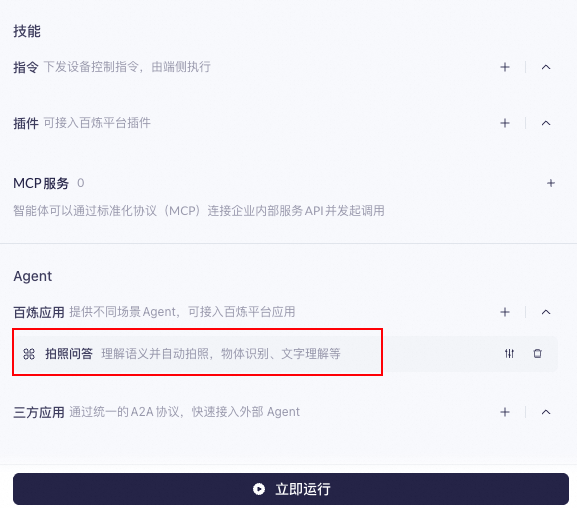
-
Configure the visual Q&A agent. Leave the **Start Instruction** field empty. For the model, select **Visual Understanding - Balanced**. Configure the prompt based on your requirements.
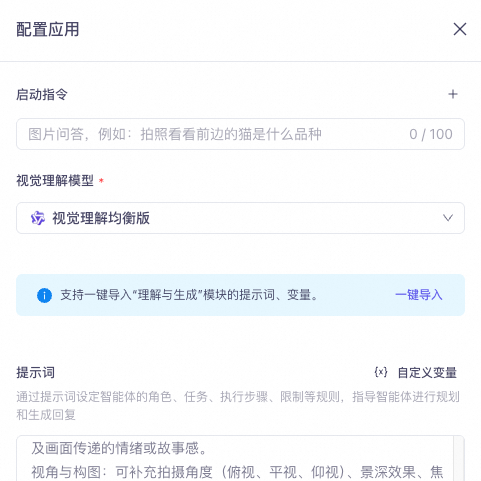
For a test scenario involving image description, you can use the following example prompt. This prompt is for demonstration purposes only and must be edited to fit your scenario.
You are a professional image analysis and description assistant. Generate a concise, accurate, and informative text description based on the image content. Ensure the description covers the following key points:
Main objects and scene: Clearly identify the core elements in the image, including their position, color, shape, and quantity. Specify the scene type (such as indoor, outdoor, urban, natural).
People's features and actions (if any): Describe the clothing, expressions, postures, actions, interactions, and possible identities or roles of any people present.
Text information (if any): Describe any text that appears in the image, including its font style, meaning, or purpose (such as signs, advertisements, titles).
Environment and atmosphere: Explain background details (such as weather, lighting, season), the overall color tone, and the mood or story conveyed by the image.
Perspective and composition: You can add details about the shooting angle (high-angle, eye-level, low-angle), depth of field effect, and focal point.
Do not make subjective judgments. Provide only objective, observable facts.
Description requirements:
Use concise and clear language. Avoid lengthy and vague words.
Ensure key information is highlighted while also covering details.
If there are clear relationships between elements in the image (such as cause and effect or action chains), describe them.
Do not include personal subjective guesses or emotional judgments (unless the atmosphere is obvious).-
After you complete the configuration, click **Publish** in the upper-right corner. The application must be published before it can be tested.
Sequence diagram
[Key flow] The server-side returns a Started message to indicate that the session was created successfully. However, the client must not send the audio immediately. The client must wait to receive the DialogStateChanged event and can start sending the audio stream only after the state becomes Listening.
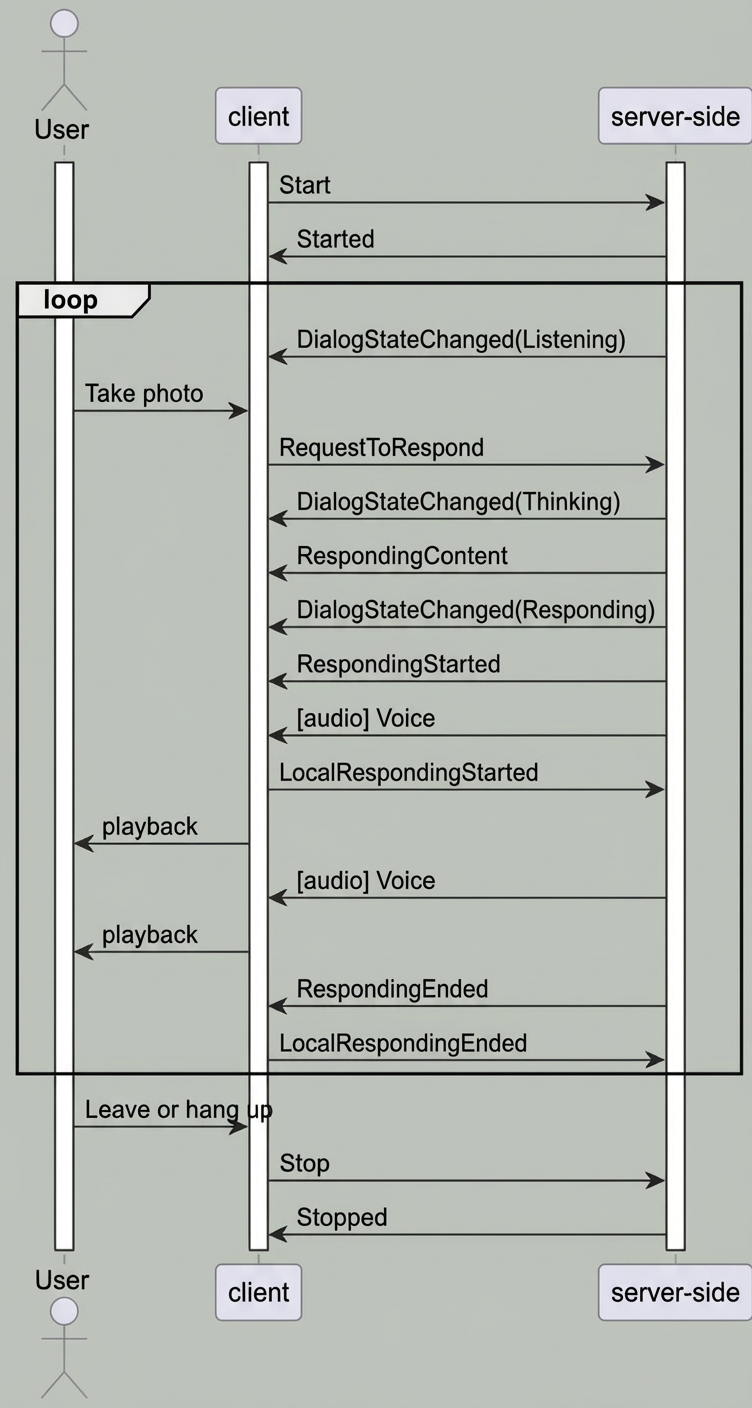
-
The server-side returns a
Startedmessage to indicate that the session was created successfully. However, the client must not send the request immediately. The client must wait to receive theDialogStateChangedevent and can start sending the request only after thestatebecomesListening. -
The flow in this topic differs from a standard voice conversation. In a standard voice conversation, after the server-side enters the
Listeningstate, you send audio upstream and listen for Voice Activity Detection (VAD) events such as `SpeechStarted` and `SpeechEnded`. In the flow described in this topic, you instead send a request directly to the server-side using `RequestToRespond`.
Send a request using RequestToRespond
RequestToRespond
When the session is in the Listening state, you can use this instruction to notify the server-side to interact with the user. You can upload text to call the agent. The returned result is then converted to speech and sent downstream.
|
Top-level parameter |
Second-level parameter |
Type |
Required |
Description |
|
input |
directive |
string |
Yes |
Instruction name: RequestToRespond |
|
dialog_id |
string |
Yes |
The session ID. It identifies the session context. This must be the same as the dialog_id included when the server-side returns the Listening state. |
|
|
type |
string |
Yes |
The type of interaction the service should perform: `transcript` indicates that the text is directly converted to speech. `prompt` indicates that the text is sent to the Large Language Model (LLM) for a response. In this topic, this is set to `prompt`. |
|
|
text |
string |
Yes |
The text to process. This can be an empty string ("") or a specific text request. |
|
|
parameters |
images |
list[] |
No |
Information about the image to be analyzed. Currently, only a single image can be uploaded. |
|
biz_params |
object |
No |
Same as `biz_params` in the `Start` message. It passes custom parameters for the dialogue system. The `biz_params` parameter in `RequestToRespond` is valid only for the current request. |
parameters.images parameter description
|
Top-level parameter |
Type |
Required |
Description |
|
type |
string |
Yes |
The image type. Supported values are `base64` and `url`. |
|
value |
string |
Yes |
The image content.
|
parameters.biz_params parameter description
|
Top-level parameter |
Second-level parameter |
Type |
Required |
Description |
|
commands[i] |
name |
string |
Yes |
Indicates direct access to the agent. For this practice, this is fixed to "agent_command". Copy and use this value directly. |
|
exec_params |
object |
Yes |
Specifies the agent. This is fixed for this practice. For more information, see the description of the commands.exec_params parameter. |
commands.exec_params parameter description
|
Top-level parameter |
Second-level parameter |
Type |
Required |
Description |
|
exec_params |
app_id |
string |
Yes |
Specifies the agent. For this practice, this is fixed to "visual_qa". Copy and use this value. |
|
intent |
string |
Yes |
Specifies the agent's action. For this practice, this is fixed to "open_visual_qa". Copy and use this value. |
Example:
{
    "header": {
        "action":"continue-task",
        "task_id": "xxx",
        "streaming":"duplex"
    },
    "payload": {
        "input":{
          "directive": "RequestToRespond",
          "dialog_id": "xxx",
          "type": "prompt",
          "text": ""
        },
        "parameters":{
          "images":[{
              "type": "url",
              "value": "img_url"
          }],
          "biz_params":{
            "commands": [
                {
                    "name": "agent_command",
                    "exec_params": {
                        "app_id": "visual_qa",
                        "intent": "open_visual_qa"
                    }
                }
            ]
          }
        }
    }
}-
For definitions of the parameters in the header, see Real-time multimodal interaction protocol (WebSocket).
-
For details about other flows in the sequence diagram, see Real-time multimodal interaction protocol (WebSocket).