Fine-tune image generation models
When using Wan for image generation , if Text-to-video/image-to-video prompt guide cannot meet your customization needs for specific styles, IP characters, or visual effects , use model fine-tuning .
Scope
-
Supported deployment mode and region: This document applies only to the Beijing region under the Regions and access domains. You must use an API key from this region.
-
Account permissions: If you use an Permission management (Overview), you must grant the sub-account Authorize a sub-workspace to call, train, and deploy models for model invocation, training, and deployment.
-
Supported fine-tuning method: SFT-LoRA efficient fine-tuning.
-
Supported models:
- Wan image generation (text-to-image/image-to-image): wan2.7-image-pro, wan2.7-image.
- Qwen image generation (text-to-image/image-to-image): qwen-image-2.0, qwen-image-2.0-pro.
NoteWan and Qwen models share the same fine-tuning workflow and dataset format. They differ only in hyperparameters and the training billing formula: Wan controls training by the number of steps (max_steps), whereas Qwen controls it by the number of epochs (n_epochs). Both model families support text-to-image, image-to-image, and multi-image-to-image training. The examples in this topic use Wan models by default. Differences for Qwen are called out in the relevant sections.
How to fine-tune a model
Text-to-image
Fine-tuning objective: Train a character LoRA model.
Expected result: Given a text prompt, the model generates images of a specific character in the scene described by the prompt.
| Input prompt A person in a crowded morning rush hour subway car, holding onto the handrail, with blurred passengers in the background and tunnel lights visible through the windows, wearing an ordinary office worker white shirt and black trousers, standing facing the camera, half-body shot, realistic candid feel. | Output image (before fine-tuning - text-to-image)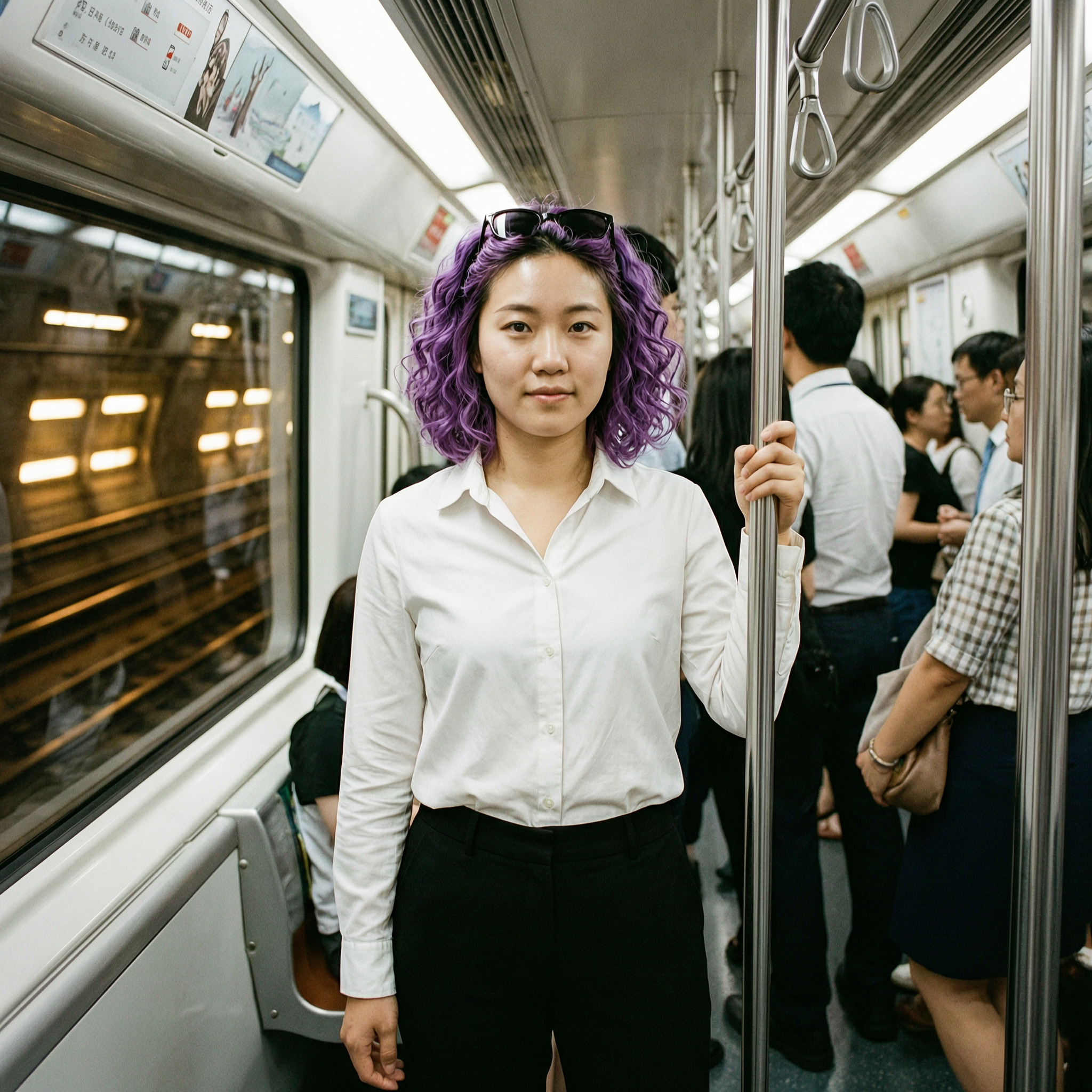
| Output image (after fine-tuning)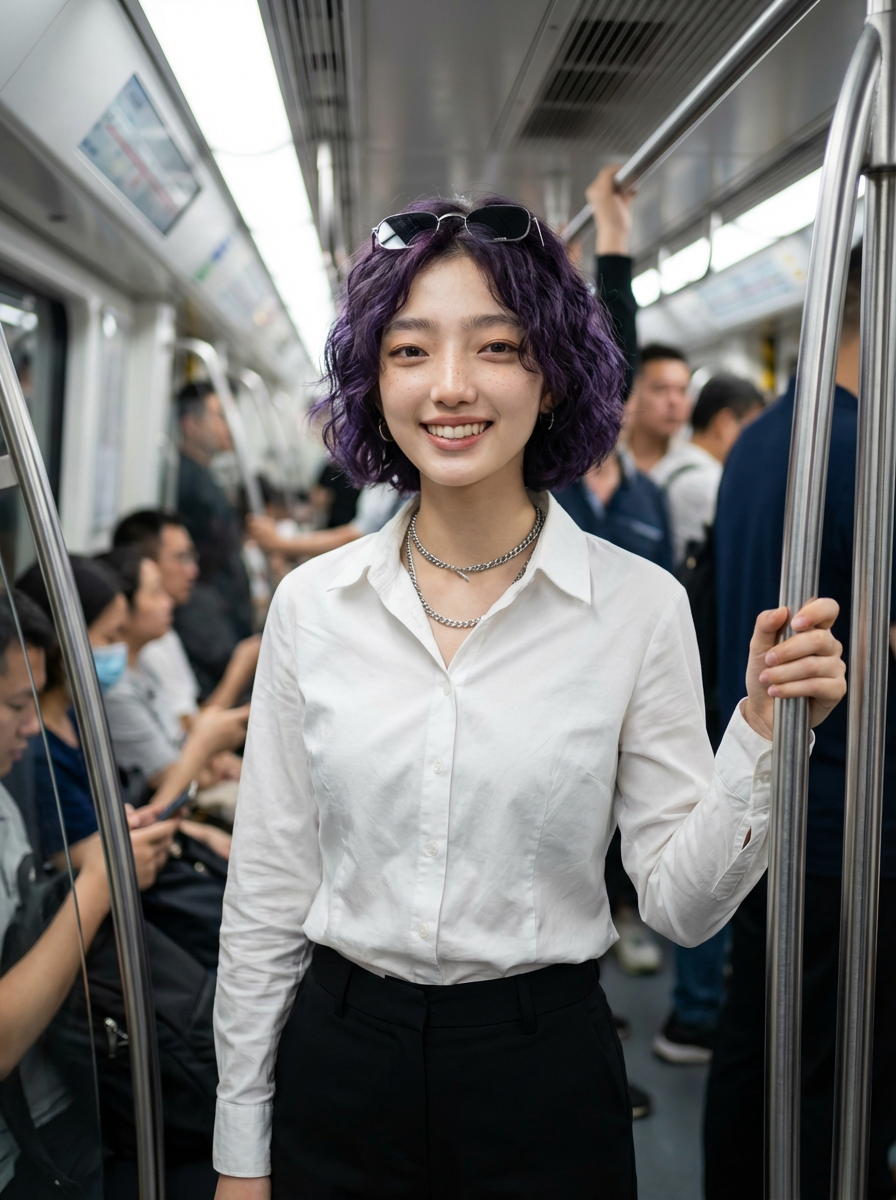
|
Image-to-image
Fine-tuning objective: Train a "post-apocalyptic red-black mech armor + skeleton pose" LoRA model.Expected result: Given a character image and a pose skeleton image the model generates a "post-apocalyptic red-black mech armor" stylized version of the character without requiring a text prompt.
Input image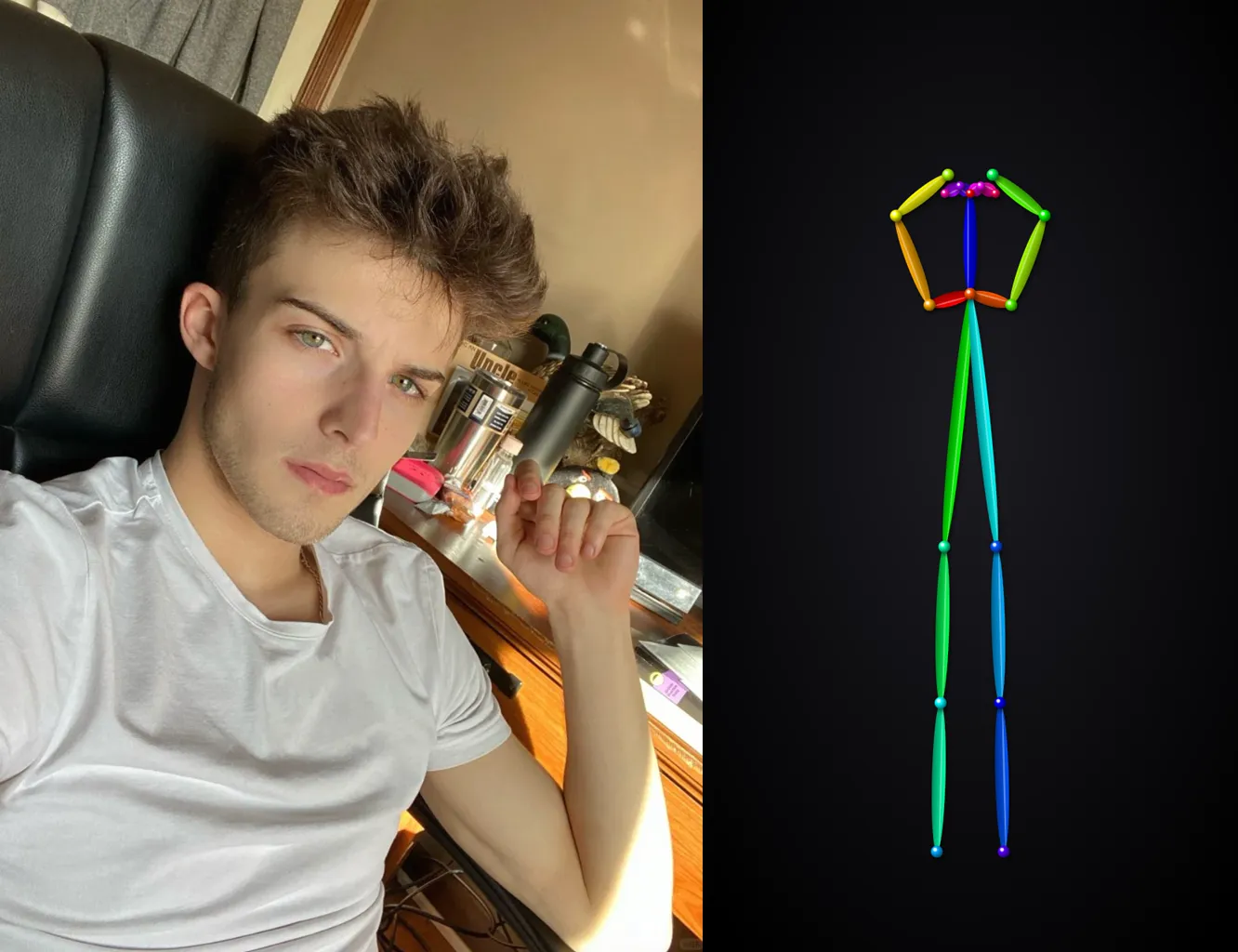 | Output image (before fine-tuning)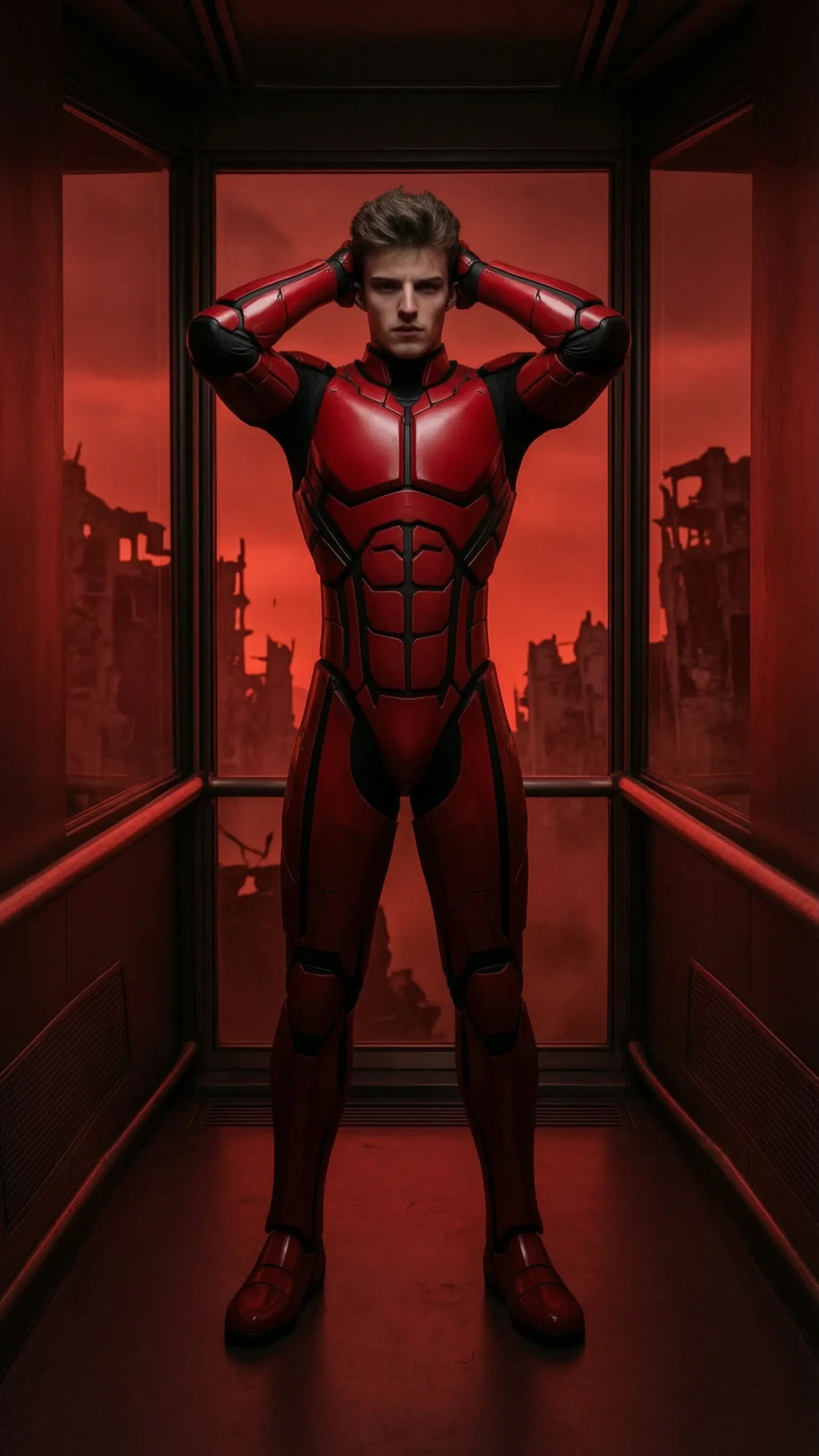
| Output image (after fine-tuning)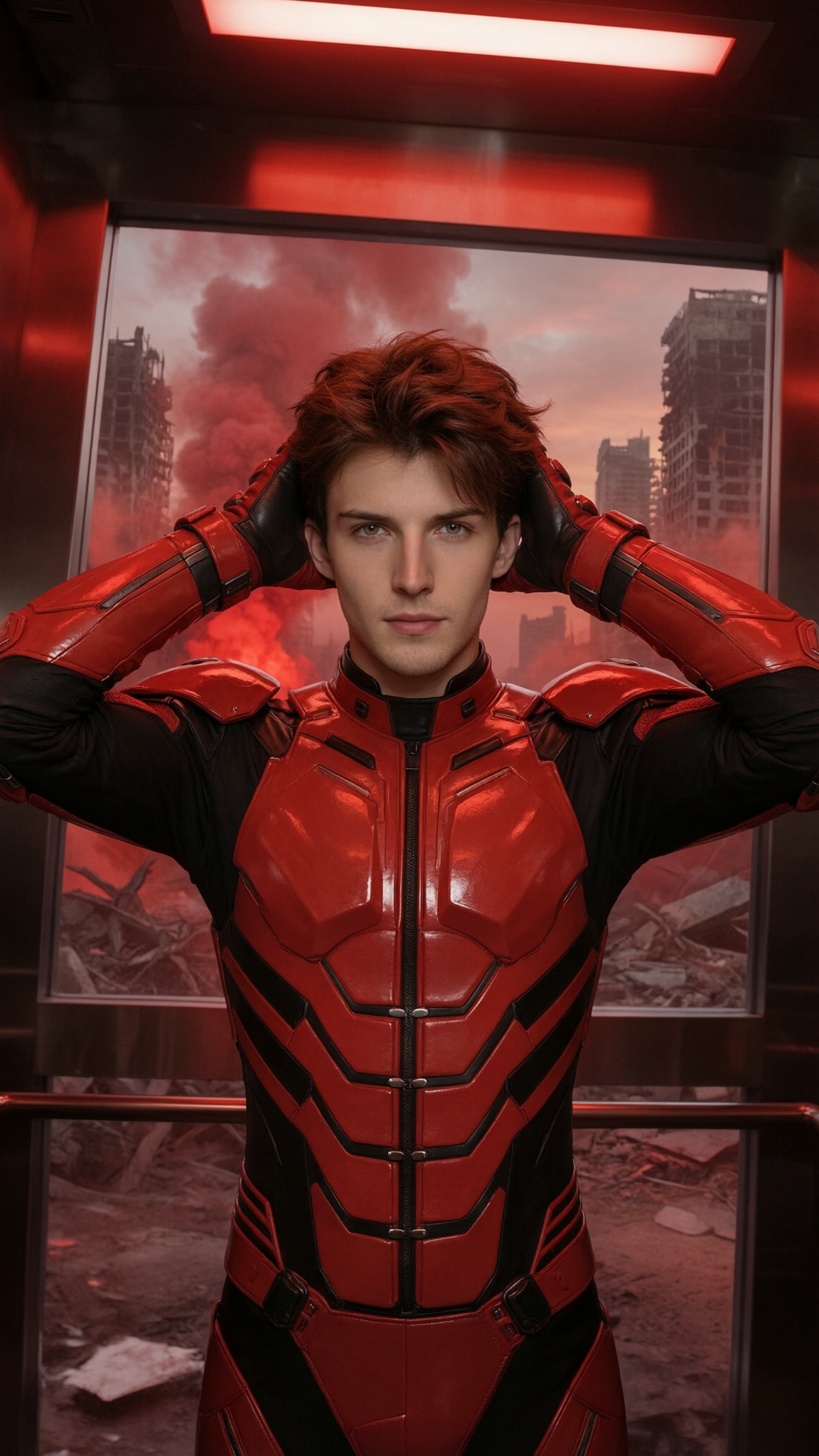
|
Before running the following code, Obtain an API key and Configure API key as an environment variable.
Step 1: Upload the dataset
Upload your local dataset (in .zip format) to the Alibaba Cloud Model Studio platform and obtain the file ID (file_id).
Sample training data: For the format, see Training set.
- Image generation - text-to-image: wan-image-t2i-training-dataset.zip
- Image generation - image-to-image: wan-image-i2i-training-dataset.zip
This example uses text-to-image and uploads only the training set. The system automatically splits a portion of the training set as the validation set.
curl --location --request POST 'https://dashscope.aliyuncs.com/api/v1/files' \
--header "Authorization: Bearer $DASHSCOPE_API_KEY" \
--form 'files=@"./wan-image-t2i-training-dataset.zip"' \
--form 'purpose="fine-tune"' \
--form 'descriptions="a fine-tune training data file for wan"'
Save the file_id. This is the unique identifier for the uploaded dataset.
{
    "data": {
        "uploaded_files": [
            {
                "name": "wan-image-t2i-training-dataset.zip",
                "file_id": "3bff1ef7-f72d-4285-bb75-xxxxxx"
            }
        ],
        "failed_uploads": []
    },
    "request_id": "1f3f1c5b-7418-4976-aaea-xxxxxx"
}
Step 2: Fine-tune the model
Step 2.1: Create a fine-tuning job
Use the file ID from Step 1 to start a training job.
Request exampleReplace <replace_with_training_dataset_file_id> with the file_id obtained in the previous step. For the complete parameter reference and format constraints, see Hyperparameters.
Hyperparameters
Wan
Parameter | Type | Required | Description | Recommended value |
|---|---|---|---|---|
max_steps | int | Yes | Total training steps. A core parameter that determines the total number of training iterations. We recommend at least 500 steps to ensure model convergence, and a higher value for larger datasets. | 800 |
eval_steps | int | Yes | Validation interval. The value must be ≥ 0. Specifies the frequency (in steps) at which to evaluate the model during training. A checkpoint is also saved at each interval. | 200 |
learning_rate | float | Yes | learning rate. Controls the magnitude of model weight updates. A value that is too high can degrade model performance, while a value that is too low may result in insignificant changes. We recommend using the default value. | 3e-5 |
generation_type | string | Yes | generation mode. Use | t2i |
max_pixels | string | Yes | Maximum resolution for training images. For example, "1k" or "2k" (1K = 1024×1024, 2K = 2048×2048). Sets an upper limit on the total number of pixels (width × height) for images in the training set. The system only scales down images that exceed this value; images below the limit remain unchanged. We recommend keeping the three resolution-related parameters ( | text-to-image: "2k" |
val_img_size | string | Yes | Validation image generation resolution. For example, "1k" or "2k" (1K = 1024×1024, 2K = 2048×2048). The target resolution for images generated during validation evaluation. | text-to-image: "2k" |
max_token_length | string | Yes | Maximum token length per step. For example, "1k" or "2k". This parameter, along with | text-to-image: "2k" |
gradient_clip | float | Yes | gradient clipping. The threshold for global gradient norm clipping across all trainable parameters, used to prevent exploding gradients. Set to -1 to disable clipping. | 0.5 |
weight_decay | float | Yes | weight decay. The decoupled weight decay coefficient for the AdamW optimizer. It applies to all trainable parameters and is used for regularization to prevent overfitting. | 0.02 |
lora_rank | int | Yes | LoRA rank. The rank (dimension) of the LoRA low-rank matrices. This value determines the number of trainable parameters for fine-tuning. A larger value increases the model's fitting capability but slows down training. The value must be a power of 2 (e.g., 16, 32, 64). | 32 |
save_total_limit | int | No | Checkpoint save limit. The maximum number of model checkpoints to save. The system keeps only the N most recent checkpoints, where N is this value. | 10 |
split | float | No | Training set split ratio. The value range is (0, 1). This parameter takes effect only when | 0.9 |
Qwen
qwen-image-2.0 and qwen-image-2.0-pro control the training process by the number of epochs (n_epochs). They do not support the Wan parameters max_steps, eval_steps, or max_token_length. The two models share the same hyperparameters, except for the recommended learning rate: 5e-5 for qwen-image-2.0 and 1e-4 for qwen-image-2.0-pro.
Parameter | Type | Required | Description | Recommended value | Valid values |
|---|---|---|---|---|---|
n_epochs | int | Yes | Number of training epochs. The number of complete passes over the training set. More epochs improve fitting but can cause overfitting, and training token consumption and cost increase proportionally. | 10 | [1, 10000] |
eval_epochs | int | Yes | Validation interval in epochs. Specifies the frequency (in epochs) at which to evaluate the model during training. A checkpoint is also saved at each interval. | 10 | [1, 1000] |
batch_size | int | No | Batch size. The number of samples used for each parameter update. | 8 | [1, 2048] |
learning_rate | float | Yes | Learning rate. Controls the magnitude of model weight updates. A value that is too high can degrade model performance, while a value that is too low may result in insignificant changes. We recommend using the default value. | qwen-image-2.0: 5e-5 | — |
generation_type | string | Yes | Generation mode. Use | i2i | ["t2i", "i2i"] |
max_pixels | string | Yes | Maximum resolution for training images. A string tier: "1k" = 1024×1024, "2k" = 2048×2048. Sets an upper limit on the total number of pixels (width × height) for images in the training set. The system only scales down images that exceed this value; images below the limit remain unchanged. This parameter directly affects training token consumption and cost. | 2k | ["1k", "2k"] |
val_img_size | string | Yes | Validation image generation resolution. The target resolution for images generated during validation evaluation. Same valid values as max_pixels. | 2k | ["1k", "2k"] |
gradient_clip | float | Yes | Gradient clipping. The threshold for global gradient norm clipping across all trainable parameters, used to prevent exploding gradients. | 0.5 | [0, 10.0] |
weight_decay | float | Yes | Weight decay. The decoupled weight decay coefficient for the AdamW optimizer. It applies to all trainable parameters and is used for regularization to prevent overfitting. | 0.02 | [0, 1.0] |
lora_rank | int | Yes | LoRA rank. The rank (dimension) of the LoRA low-rank matrices. This value determines the number of trainable parameters for fine-tuning. A larger value increases the model's fitting capability but slows down training. | 32 | [8, 128] |
save_total_limit | int | No | Checkpoint save limit. The maximum number of model checkpoints to save. The system keeps only the N most recent checkpoints, where N is this value. | 20 | [1, 40] |
split | float | No | Training set split ratio. This parameter takes effect only when | 0.9 | [0, 1] |
Wan (wan2.7-image-pro)
curl --location 'https://dashscope.aliyuncs.com/api/v1/fine-tunes' \
--header "Authorization: Bearer $DASHSCOPE_API_KEY" \
--header 'Content-Type: application/json' \
--data '{
    "model": "wan2.7-image-pro",
    "training_datasets": [
        {
            "data_source_type": "file_id",
            "file_id": "<replace_with_training_dataset_file_id>"
        }
    ],
    "training_type": "efficient_sft",
    "hyper_parameters": {
        "learning_rate": 3e-5,
        "max_steps": 800,
        "eval_steps": 200,
        "max_token_length": "1k",
        "gradient_clip": 0.5,
        "weight_decay": 0.02,
        "max_pixels": "1k",
        "val_img_size": "1k",
        "generation_type": "t2i",
        "lora_rank": 32,
        "save_total_limit": 10
    }
}'
Qwen (qwen-image-2.0)
curl --location 'https://dashscope.aliyuncs.com/api/v1/fine-tunes' \
--header "Authorization: Bearer $DASHSCOPE_API_KEY" \
--header 'Content-Type: application/json' \
--data '{
    "model": "qwen-image-2.0",
    "training_datasets": [
        {
            "data_source_type": "file_id",
            "file_id": "<replace_with_training_dataset_file_id>"
        }
    ],
    "training_type": "efficient_sft",
    "hyper_parameters": {
        "learning_rate": 5e-5,
        "n_epochs": 10,
        "eval_epochs": 10,
        "batch_size": 8,
        "gradient_clip": 0.5,
        "weight_decay": 0.02,
        "max_pixels": "2k",
        "val_img_size": "2k",
        "generation_type": "t2i",
        "lora_rank": 32,
        "save_total_limit": 20
    }
}'
Qwen (qwen-image-2.0-pro)
curl --location 'https://dashscope.aliyuncs.com/api/v1/fine-tunes' \
--header "Authorization: Bearer $DASHSCOPE_API_KEY" \
--header 'Content-Type: application/json' \
--data '{
    "model": "qwen-image-2.0-pro",
    "training_datasets": [
        {
            "data_source_type": "file_id",
            "file_id": "<replace_with_training_dataset_file_id>"
        }
    ],
    "training_type": "efficient_sft",
    "hyper_parameters": {
        "learning_rate": 1e-4,
        "n_epochs": 10,
        "eval_epochs": 10,
        "batch_size": 8,
        "gradient_clip": 0.5,
        "weight_decay": 0.02,
        "max_pixels": "2k",
        "val_img_size": "2k",
        "generation_type": "t2i",
        "lora_rank": 32,
        "save_total_limit": 20
    }
}'
NoteTraining duration reference (Wan models):
- Text-to-image (t2i): approximately 77 minutes for 300 steps.
- Image-to-image (i2i): approximately 110 minutes for 300 steps.
Pay attention to three key parameters in the output field:
job_id: The job ID, used to query progress.finetuned_output: The name of the fine-tuned model. You must use this name for subsequent deployment and invocation.status: The training status. After creating a fine-tuning job, the initial status is PENDING, indicating that training has not yet started.
{
    ...
    "output": {
        "job_id": "ft-202511111122-xxxx",
        "status": "PENDING",
        "finetuned_output": "xxxx-ft-202511111122-xxxx",
        ...
    }
}
Step 2.2: Query the fine-tuning job status
Use the job_id obtained in Step 2.1 to query the job progress. Poll the following API until the status changes to SUCCEEDED.
Replace <replace_with_fine_tuning_job_id> in the URL with the value of job_id.
curl --location 'https://dashscope.aliyuncs.com/api/v1/fine-tunes/<replace_with_fine_tuning_job_id>' \
--header "Authorization: Bearer $DASHSCOPE_API_KEY" \
--header 'Content-Type: application/json'
Pay attention to two parameters in the output field:
status: When its value changes to SUCCEEDED, the model training is complete and you can proceed with model deployment.usage: The total number of tokens consumed during model training, used for billing purposes.
{
    ...
    "output": {
        "job_id": "ft-202511111122-xxxx",
        "status": "SUCCEEDED",
        "usage": 432000,
        ...
    }
}
Step 3: Deploy the fine-tuned model
Step 3.1: Deploy the model as an online service
After the fine-tuning job status changes to SUCCEEDED, deploy the model as an online service.
Request exampleReplace <replace_with_model_name> with the finetuned_output value from the Create a fine-tuning job output.
curl --location 'https://dashscope.aliyuncs.com/api/v1/deployments' \
--header "Authorization: Bearer $DASHSCOPE_API_KEY" \
--header 'Content-Type: application/json' \
--data '{
    "model_name": "<replace_with_model_name>",
    "capacity": 1,
    "plan": "lora"
}'
Pay attention to two parameters in the output field:
deployed_model: The deployed model name, used to query the deployment status and invoke the model.status: The model deployment status. After deploying the fine-tuned model, the initial status is PENDING, indicating that deployment has not yet started.
{
    ...
    "output": {
        "deployed_model": "wan2.7-image-pro-xxxxxxxxxxxx",
        "status": "PENDING",
        ...
    }
}
Step 3.2: Query the deployment status
Query the deployment status. Poll the following API until the status changes to RUNNING.
NoteFor the fine-tuned model in this example, the deployment process takes approximately 5-10 minutes.
Replace <replace_with_deployed_model> with the deployed_model value from the Step 3.1 output.
curl --location 'https://dashscope.aliyuncs.com/api/v1/deployments/<replace_with_deployed_model>' \
--header "Authorization: Bearer $DASHSCOPE_API_KEY" \
--header 'Content-Type: application/json'
Pay attention to two parameters in the output field:
status: When the status changes to RUNNING, the model has been deployed successfully and you can start invoking it.deployed_model: The deployed model name.
{
    ...
    "output": {
        "status": "RUNNING",
        "deployed_model": "wan2.7-image-pro-xxxxxxxxxxxx",
        ...
    }
}
Step 4: Invoke the model to generate images
After the model is deployed successfully (deployment status is RUNNING), you can start making invocations.
Note
- Wan: The currently deployed model only supports asynchronous calls, and there is no
typefield inmessage.content. The following examples use Wan models. - Qwen: A fine-tuned qwen-image-2.0 or qwen-image-2.0-pro model is invoked in the same way as the base model, and only the synchronous API is supported:
POST https://dashscope.aliyuncs.com/api/v1/services/aigc/multimodal-generation/generation. For the request and response formats, see Qwen-Image API reference, and replacemodelwith thedeployed_modelvalue returned by the deployment operation.
Step 4.1: Create an image generation task and obtain the task_id
Replace <replace_with_deployed_model> with the deployed_model value from the previous step.
Text-to-image
Provide a text description containing the trigger word. The model generates images matching the trained style.
curl --location 'https://dashscope.aliyuncs.com/api/v1/services/aigc/image-generation/generation' \
--header 'Content-Type: application/json' \
--header "Authorization: Bearer $DASHSCOPE_API_KEY" \
--header "X-DashScope-Async: enable" \
--data '{
    "model": "<replace_with_deployed_model>",
    "input": {
        "messages": [
            {
                "role": "user",
                "content": [
                    {"text": "s86b5p, A person in a crowded morning rush hour subway car, holding onto the handrail, with blurred passengers in the background and tunnel lights visible through the windows, wearing an ordinary office worker white shirt and black trousers, standing facing the camera, half-body shot, realistic candid feel."}
                ]
            }
        ]
    },
    "parameters": {
        "size": "2K",
        "n": 1
    }
}'
Image-to-image
Provide a reference image and editing instructions. The model generates images based on the reference image in the trained style.
curl --location 'https://dashscope.aliyuncs.com/api/v1/services/aigc/image-generation/generation' \
--header 'Content-Type: application/json' \
--header "Authorization: Bearer $DASHSCOPE_API_KEY" \
--header "X-DashScope-Async: enable" \
--data '{
    "model": "<replace_with_deployed_model>",
    "input": {
        "messages": [
            {
                "role": "user",
                "content": [
                    {"image": "<replace_with_reference_image_URL>"},
                    {"text": "s86b5p, Change the background to an elevator with red lighting. Change the character clothing to red tight-fitting mech armor with black stripe decorations."}
                ]
            }
        ]
    },
    "parameters": {
        "size": "2K",
        "n": 1
    }
}'
Copy and save the task_id for querying the result in the next step.
{
    "request_id": "4909100c-7b5a-9f92-bfe5-xxxxxx",
    "output": {
        "task_id": "0385dc79-5ff8-4d82-bcb6-xxxxxx",
        "task_status": "PENDING"
    }
}
NoteWhen invoking a fine-tuned LoRA model, the input parameters are the same as those for the Wan2.7 - image generation and editing.
The following table lists only the key parameters for LoRA model invocation.
Field | Type | Required | Description | Example |
|---|---|---|---|---|
model | string | Yes | The model name. You must use a fine-tuned model that has been successfully deployed with a status of RUNNING. | wan2.7-image-pro-xxxxxxxxxxxx |
input.messages[].content[].text | string | Yes | The text prompt. We recommend including the trigger word to activate the LoRA style. | s86b5p, A person in a quiet private library on a peaceful afternoon... |
parameters.size | string | No | The output image resolution.
| 2K |
parameters.n | integer | No | The number of images to generate. Valid values: 1-4. Default: 1. | 1 |
Step 4.2: Query results by task_id
Poll the task status using the task_id until task_status changes to SUCCEEDED. Retrieve the image URL from output.choices[].message.content[].image.
Replace
86ecf553-d340-4e21-xxxxxxxxxwith your actual task_id.
curl -X GET https://dashscope.aliyuncs.com/api/v1/tasks/86ecf553-d340-4e21-xxxxxxxxx \
--header "Authorization: Bearer $DASHSCOPE_API_KEY"
The image URL is valid for 24 hours. Download the image promptly.
{
    "request_id": "3f2ebb4e-3d47-97b5-xxxx-xxxxxx",
    "output": {
        "task_id": "aeea547c-e24e-4acb-xxxx-xxxxxx",
        "task_status": "SUCCEEDED",
        "submit_time": "2026-05-29 17:35:23.826",
        "scheduled_time": "2026-05-29 17:35:23.865",
        "end_time": "2026-05-29 17:36:32.498",
        "finished": true,
        "choices": [
            {
                "finish_reason": "stop",
                "message": {
                    "role": "assistant",
                    "content": [
                        {
                            "image": "https://dashscope-7c2c.oss-accelerate.aliyuncs.com/xxx.png?Expires=xxxxxx"
                        }
                    ]
                }
            }
        ]
    },
    "usage": {
        "size": "2048*2048",
        "total_tokens": 770,
        "image_count": 1,
        "output_tokens": 691,
        "input_tokens": 79
    }
}
Build custom datasets
In addition to using the sample data in this document to experience the fine-tuning workflow, you can also build your own datasets for fine-tuning. The dataset format and scale limits in this section apply to both Wan and Qwen image generation models.
A dataset should contain a training set (required) and a validation set (optional; supports automatic splitting from the training set). Package all files in .zipformat. File names should contain only English characters, digits, underscores, or hyphens.
Dataset format
Training set: Required
Text-to-image
The training set includes training target images and an annotation file (data.jsonl).
- Training set sample: wan-image-t2i-training-dataset.zip
- Zip package directory structure:
wan-image-t2i-training-dataset.zip
├── data.jsonl      # Must be named data.jsonl, maximum 20MB
├── 1_0.png         # Training target image, max resolution 4096*4096, max 20MB per image, supports PNG/JPG/JPEG/WEBP/BMP
├── 1_1.png         # File names support only English characters, flat structure (no subdirectories)
└── 1_2.png
- Annotation file (data.jsonl): Each line represents one training sample and must be a JSON object.
{
  "prompt": "s86b5p, A person in a quiet private library on a peaceful afternoon, with tall dark walnut bookshelves behind them, sunlight streaming through venetian blinds casting striped shadows, wearing a soft beige cable-knit sweater, standing facing the camera, half-body shot, the image has a delicate film grain texture.",
  "img_path": "./1_0.png"
}
Image-to-image
The training set includes reference images (input), training target images (output), and an annotation file (data.jsonl).
- Training set sample: wan-image-i2i-training-dataset.zip
- Zip package directory structure:
wan-image-i2i-training-dataset.zip
├── data.jsonl      # Must be named data.jsonl, maximum 20MB
├── 1_0.jpg         # Training target image (output)
├── 1_1.jpg         # Reference image (input)
├── 6_0.jpg         # Training target image (output)
└── 6_1.jpg         # Reference image (input)
- Annotation file (data.jsonl): Each line represents one training sample and must be a JSON object.
{
  "prompt": "s86b5p, Change the background to an elevator with red lighting, featuring large floor-to-ceiling windows. Change the character's clothing to red tight-fitting mech armor with black stripe decorations.",
  "input_img": "./1_1.jpg",
  "img_path": "./1_0.jpg"
}
Multi-image-to-image
The training set includes multiple reference images (input), training target images (output), and an annotation file (data.jsonl). Unlike single image-to-image, multi-image-to-image supports inputting multiple reference images simultaneously (e.g., a character photo + a pose image). The model generates the target image based on the combined information from all reference images. The maximum number of reference images depends on the model: up to 9 for Wan and up to 3 for Qwen (qwen-image-2.0, qwen-image-2.0-pro), matching the base model.
- Training set sample: wan-image-i2i-training-dataset.zip
- Zip package directory structure:
wan-image-multi-i2i-training-dataset.zip
├── data.jsonl      # Must be named data.jsonl, maximum 20MB
├── 1_0.jpg         # Training target image (output)
├── 1_ref.jpg       # Reference image 1 (e.g., character photo)
├── 1_pose.jpg      # Reference image 2 (e.g., pose image)
├── 6_0.jpg         # Training target image (output)
├── 6_ref.jpg       # Reference image 1
└── 6_pose.jpg      # Reference image 2
- Annotation file (data.jsonl): Each line represents one training sample and must be a JSON object. Use the
input_imgsfield (array type) to pass multiple reference image paths.
{
  "prompt": "s86b5p, Change the background to an elevator with red lighting, featuring large floor-to-ceiling windows. Outside the windows, there is a post-apocalyptic scene with red mist. Change the character's clothing to red tight-fitting mech armor with black stripe decorations. Standing with both arms stretched horizontally to form a T-shape.",
  "input_imgs": ["./1_ref.jpg", "./1_pose.jpg"],
  "img_path": "./1_0.jpg"
}
Note
- Multi-image-to-image uses
input_imgs(array), while single image-to-image usesinput_img(string). Please note the difference. - The order of images in the
input_imgsarray should be consistent with the training intent (e.g., the first image as character reference, the second as pose reference). input_imgssupports up to 9 reference images.
Note
- data.jsonl must be in line-delimited JSONL format (one independent JSON object per line). Using JSON array format (where the first character of the file is
[) is not allowed. - Files within the zip package must be placed in a flat structure. Subdirectories are not allowed. File names support only English characters (Chinese characters, spaces, and special characters are not allowed).
Validation set: Optional
The validation set includes an annotation file (data.jsonl) and optional reference images (required for image-to-image mode). Target images are not needed. At each evaluation checkpoint, the training job automatically invokes the model service to generate preview images using the prompts (and reference images) from the validation set.
-
Validation set:
- Text-to-image: wan-image-t2i-valid-dataset.zip
- Image-to-image: wan-image-i2i-vaild-dataset.zip
-
Zip package directory structure:
wan-image-i2i-valid-dataset.zip
├── data.jsonl       # Must be named data.jsonl, maximum 20MB
├── input_001.png    # Optional, reference image for image-to-image mode
└── input_002.png
-
Annotation file (data.jsonl): Each line represents one validation sample and must be a JSON object.
Text-to-image
{
    "prompt": "s86b5p, A person in a crowded morning rush hour subway car, holding onto the handrail, with blurred passengers in the background and tunnel lights visible through the windows, wearing an ordinary office worker white shirt and black trousers, standing facing the camera, half-body shot, realistic candid feel."
}
Image-to-image
{
    "prompt": "s86b5p, Change the background to an elevator with red lighting, featuring large floor-to-ceiling windows. Change the character's clothing to red tight-fitting mech armor with black stripe decorations.",
    "input_img": "./input_001.png"
}
Multi-image-to-image
The multi-image-to-image validation set uses
input_imgs(array) to pass multiple reference image paths. The limit matches the training set: up to 9 images for Wan and up to 3 for Qwen (qwen-image-2.0, qwen-image-2.0-pro).{ "prompt": "s86b5p, Change the background to an elevator with red lighting, featuring large floor-to-ceiling windows. Outside the windows, there is a post-apocalyptic scene with red mist. Change the character's clothing to red tight-fitting mech armor with black stripe decorations. Standing with both arms stretched horizontally to form a T-shape.", "input_imgs": ["./input_001.png", "./input_002.png"] }
Data scale and limits
-
Data volume: We recommend providing at least 25 images (50 or more is recommended for better results). Use the same character or style across multiple scenes and angles with consistent content descriptions.
-
Zip package: When uploading via API, the total package size must be no larger than 1 GB.
-
Training image requirements:
- Supported image formats: BMP, JPEG, PNG, and WEBP.
- Image resolution must be no larger than 4096×4096.
- Individual image file size must be no larger than 20 MB.
Data collection and cleaning
1. Determine the fine-tuning scenario
Wan supports the following fine-tuning scenarios for image generation:
- IP character stylization: Train the model to learn the drawing style of a specific IP character, such as anime characters or mascot images.
- Fixed visual style: Improve the model's ability to reproduce a specific art style, such as flat illustration, ink painting, or pixel art.
- Specific scene generation: Replicate specific composition patterns or scene templates, such as product display images or poster layouts.
2. Obtain raw materials
- AI generation and selection: Use the Wan base model to generate images in bulk, then manually select the high-quality samples that best match the target effect. This is the most commonly used method.
- Real photography: If your goal is to achieve highly realistic scenes (such as real product photos or portrait photography), using real-shot footage is the best choice.
- 3D software rendering: For scenes that require fine detail control or 3D rendering styles, we recommend using 3D software (such as Blender or C4D) to create source materials.
3. Clean the data
Dimension | Best practice | Anti-pattern |
|---|---|---|
Consistency | Core features must be highly consistent. For example: When training a "flat illustration style", all images must share the same line thickness and color scheme. | Mixed styles. The dataset contains both impasto style and flat style images. The model cannot determine which style to learn. |
Diversity | The more diverse the subjects and scenes, the better. Cover different subjects (men, women, elderly, children, cats, dogs, buildings) and different compositions (long shot, close-up, extreme close-up). Resolution and aspect ratios should also be as varied as possible. | Single scene or subject. All images show "a person in red clothes against a white wall". The model may mistakenly learn that "red clothes" and "white wall" are part of the style, and fail to generate correctly in different scenes. |
Balance | Balanced proportions across data types. If multiple styles are included, the quantity should be roughly equal. | Severely imbalanced proportions. 90% are portrait images and 10% are landscape images. The model may perform poorly when generating landscape images. |
Cleanliness | Clean and clear images. Use original materials without distractions. | Contains distracting elements. Images contain watermarks, obvious black borders, or noise. The model may learn the watermarks as part of the style. |
Resolution | Moderate resolution. We recommend that training image resolution does not exceed 2048×2048. Excessively large images increase training time. | Resolution varies too widely. Having both 256×256 small images and 4096×4096 large images in the training set affects training stability. |
Image annotation: Writing prompts for images
In the dataset annotation file (data.jsonl), each image has a corresponding prompt. The prompt describes the content of the target image. The quality of the prompt directly determines what the model learns.
Prompt writing formula
Prompt = [Subject description] + [Background description] + [Trigger word] + [Style description]Prompt component | Description | Recommendation | Example |
|---|---|---|---|
Subject description | Describes the people or objects in the image | Required | A young woman wearing a red Chinese-style long shirt... |
Background description | Describes the environment where the subject is located | Required | The background is a brick wall covered with green vines... |
Trigger word | A rare word with no actual meaning | Recommended | s86b5p or m01aa |
Style description | Describes the art style and visual characteristics of the target image in detail | Recommended | Rendered in flat illustration style with clean flowing lines and vivid flat colors to emphasize three-dimensionality and modern design aesthetics. |
Evaluate models with validation sets
Specify the validation set
A fine-tuning job must include a training set, while a validation set is optional. You can choose to have the system automatically split or manually upload a validation set. The specific methods are as follows:
Method 1: No validation set uploaded (system automatic split)
When Video and image generation model fine-tuning API, if no validation set is uploaded separately (i.e., the validation_file_ids parameter is not provided), the system splits a validation set from the training set based on split, which defaults to 0.9. This means 90% is used for training and 10% for validation.
Method 2: Manually upload a validation set (specified via validation_file_ids)
If you want to use your own prepared data to evaluate checkpoints instead of relying on system random splitting, you can upload a custom validation set.
Note: Once you choose to upload manually, the system completely ignores the automatic split rules above and uses only the data you uploaded for validation.
Select the best checkpoint for deployment
During training, the system periodically saves model "snapshots" (i.e., checkpoints). By default, the system outputs the last checkpoint as the final fine-tuned model. However, checkpoints produced during intermediate stages may perform better than the final version. You can select the most satisfactory one for deployment.
The system runs checkpoints on the validation set and generates preview images at intervals set by the Hyperparameters (hyper_parameters) eval_steps.
- How to evaluate: Judge the results by directly observing the generated preview images.
- Selection criteria: Find the checkpoint with the best results and the most closely matching style.
Procedure
Step 1: View preview results generated by checkpoints
Step 1.1: Query the list of validated checkpoints
This API only returns checkpoints that have passed validation and successfully generated preview images. Checkpoints that failed validation are not listed.
Request example<replace_with_fine_tuning_job_id>: Replace entirely with thejob_idoutput parameter from the Video and image generation model fine-tuning API.
curl --location 'https://dashscope.aliyuncs.com/api/v1/fine-tunes/<replace_with_fine_tuning_job_id>/validation-results' \
--header "Authorization: Bearer $DASHSCOPE_API_KEY" \
--header 'Content-Type: application/json'
This API returns a list containing only the names of checkpoints that have successfully passed validation.
{
    "request_id": "da1310f5-5a21-4e29-99d4-xxxxxx",
    "output": [
        {
            "checkpoint": "checkpoint-160"
        },
        ...
    ]
}
Step 1.2: Query the validation set results for a checkpoint
Select a checkpoint from the list returned in the previous step (for example, "checkpoint-160") and view the generated image results.
Request example<replace_with_fine_tuning_job_id>: Replace entirely with thejob_idvalue from the Create a fine-tuning job output.<replace_with_checkpoint_to_export>: Replace entirely with the checkpoint value, for example "checkpoint-160".
curl --location 'https://dashscope.aliyuncs.com/api/v1/fine-tunes/<replace_with_fine_tuning_job_id>/validation-details/<replace_with_checkpoint_to_export>?page_no=1&page_size=10' \
--header "Authorization: Bearer $DASHSCOPE_API_KEY"
The preview image URL is in the img_path field and is valid for 24 hours. Download the images promptly to review the results. Repeat this step to compare the results of multiple checkpoints and find the most satisfactory one.
{
    "request_id": "375b3ad0-d3fa-451f-b629-xxxxxxx",
    "output": {
        "page_no": 1,
        "page_size": 10,
        "total": 5,
        "list": [
            {
                "img_path": "https://finetune-result.oss-cn-wulanchabu.aliyuncs.com/xxx.png?Expires=xxxxxx",
                "prompt": "s86b5p, Change the background to an elevator equipped with a white ceiling lighting, featuring large floor-to-ceiling windows. Change the character's clothing to red tight-fitting mech armor with black stripe decorations.",
                "input_img": "https://finetune-result.oss-cn-wulanchabu.aliyuncs.com/val_dataset/input_001.png?Expires=xxxxxx"
            },
            ...
        ]
    }
}
Step 2: Export the checkpoint and obtain the model name for deployment
Step 2.1: Export the model
Assuming "checkpoint-160" has the best results, the next step is to export it.
Request example<replace_with_fine_tuning_job_id>: Replace entirely with thejob_idvalue from the Create a fine-tuning job output.<replace_with_checkpoint_to_export>: Replace entirely with the checkpoint value, for example "checkpoint-160".<replace_with_exported_model_display_name>: Replace entirely with a custom model name used only for console display, for example "wan2.5-checkpoint-160". This name must be globally unique. Exporting with duplicate names is not supported. For parameter details, see 3. Export a checkpoint.
curl --location 'https://dashscope.aliyuncs.com/api/v1/fine-tunes/<replace_with_fine_tuning_job_id>/export/<replace_with_checkpoint_to_export>?model_name=<replace_with_exported_model_display_name>' \
--header "Authorization: Bearer $DASHSCOPE_API_KEY"
The response parameter output=true indicates that the export request has been successfully created.
{
    "request_id": "0817d1ed-b6b6-4383-9650-xxxxx",
    "output": true
}
Step 2.2: Query the new model name for deployment
Query the status of all checkpoints, confirm that the export is complete, and obtain the dedicated new model name (model_name) for deployment.
<replace_with_fine_tuning_job_id>: Replace entirely with thejob_idvalue from the Create a fine-tuning job output.
curl --location 'https://dashscope.aliyuncs.com/api/v1/fine-tunes/<replace_with_fine_tuning_job_id>/checkpoints' \
--header "Authorization: Bearer $DASHSCOPE_API_KEY"
Locate the exported checkpoint (such as checkpoint-160) in the returned list. When its status changes to SUCCEEDED, the export is successful. The model_name field returned at this point is the new model name after export.
{
    "request_id": "b0e33c6e-404b-4524-87ac-xxxxxx",
    "output": [
         ...,
        {
            "create_time": "2025-11-11T13:27:29",
            "full_name": "ft-202511111122-496e:checkpoint-160",
            "job_id": "ft-202511111122-496e",
            "checkpoint": "checkpoint-160",
            "model_name": "xxxx-ft-202511111122-xxxx-c160", // Important field, used for model deployment and invocation
            "model_display_name": "xxxx-ft-202511111122-xxxx",
            "status": "SUCCEEDED" // Successfully exported checkpoint
        },
        ...

    ]
}
Step 3: Deploy and invoke the model
After successfully exporting the checkpoint and obtaining the model_name, follow these steps for subsequent operations:
- Model deployment: Fill in the
model_nameinput parameter with the specific value obtained after export. - Model invocation: Follow the API documentation to invoke the deployed model.
Billing
-
Model training: Charged.
- Cost = Total training tokens × Unit price. See Training and deployment pricing.
- After training is complete, check the total number of tokens consumed during training in the
usagefield of the Retrieve a fine-tuning job API.
The following table lists the training step counts and estimated costs for wan2.7-image, wan2.7-image-pro. This data is for reference only. The actual training results are subject to the final delivery, and the costs are subject to the official bill. For detailed billing formulas, see Training and deployment pricing.
generation_type
Image Resolution
Common Step Count
Estimated Token Consumption
Estimated Cost (CNY)
t2i (text-to-image)
1K
500
6,400,000
512
1,000
12,800,000
1,024
2,000
25,600,000
2,048
2K
500
11,610,000
928.8
1,000
23,220,000
1,857.6
2,000
46,440,000
3,715.2
i2i (image-to-image)
1K
500
11,610,000
928.8
1,000
23,220,000
1,857.6
2,000
46,440,000
3,715.2
2K
500
16,000,000
1,280
1,000
32,000,000
2,560
2,000
64,000,000
5,120
For qwen-image-2.0 and qwen-image-2.0-pro, total training tokens are calculated as n_epochs × Number of images in the training set × (max_pixels / Compression ratio) × GPU coefficient, and the training price is CNY 0.02 per 1,000 tokens. The compression ratio is the fixed VAE compression ratio (1024), and the GPU coefficient is dynamically adjusted based on job scheduling.
batch_sizedoes not affect billing or the total training tokens. For the complete formula and a calculation example, see Training and deployment pricing.The following table estimates token consumption and fees for qwen-image-2.0 and qwen-image-2.0-pro per training image, assuming a GPU coefficient of 8. For a training set of N images, multiply the values by N. These values are estimates only. Your bill is the final authority on fees.
max_pixels
n_epochs
Estimated tokens
Estimated fee (CNY)
1k
800
6,553,600
131.07
1,000
8,192,000
163.84
2,000
16,384,000
327.68
2k
800
26,214,400
524.29
1,000
32,768,000
655.36
2,000
65,536,000
1,310.72
-
Model deployment and invocation: Deployment is free. Invocations are billed at the standard rate of the fine-tuned base model.
Model ID
LoRA Deployment & Invocation Price
wan2.7-image-pro
CNY 0.50/image
wan2.7-image
CNY 0.20/image
qwen-image-2.0
CNY 0.20/image
qwen-image-2.0-pro
CNY 0.50/image
API reference
Video and image generation model fine-tuning API
FAQ
Q: How do I design a good trigger word?
A: The rules are as follows:
- We recommend using rare character combinations with no actual semantic meaning, such as s86b5p, m01aa, or EVEAven638123. Ensure there is no semantic meaning in the base model's vocabulary.
- Avoid using common English words (such as beautiful, fire, or dance), as this would pollute the model's original understanding of these words.