Qwen Web Search Agent overview
The Qwen Web Search Agent retrieves real-time information from diverse online sources, automatically filters for authoritative content, and extracts key points. It supports traceable citations and multi-turn follow-up questions to generate reliable answers, enhancing decision-making and efficiency.
Billing
Billing for this service begins on July 3, 2026.
Billing method
This service uses a pay-as-you-go billing method. After you enable the service, you are charged based on usage. Both tests on the configuration page and API calls count as usage.
Billing rules
The final cost for each web search is calculated based on the specific services used.
Service type | Service name | Description | Price per 1,000 calls |
|---|---|---|---|
Basic service | Qwen Web Search Agent calls | Provides the basic web search capability. Supports text-only input and output. | CNY 22.00 |
Value-added services | Baidu Baike entry retrieval | Returns Baidu Baike entries with links in the output. | CNY 16.00 |
Image or video retrieval | Returns relevant images and videos in the output. | CNY 20.00 | |
Local Life card retrieval | Returns structured information cards for points of interest such as hotels and restaurants. | CNY 10.00 | |
Image understanding | Processes and retrieves information from image inputs. | CNY 4.00 |
Get started
Enable the application
-
In the Alibaba Cloud Model Studio console, go to the App Center and click the Qwen Web Search Agent card to view the application details.
-
To enable the application for the first time, click Go to Enable in the upper-right corner.
Manage applications
Click My Applications to open the application management page. This page lists all created applications and their application keys. If this is your first time, you must create a new application.
Configure the application
Click an application card or create a new application to open the configuration page.
1. Basic information
- Application introduction: A brief overview of the application's purpose and core capabilities. This field is required and has a 200-character limit.
- Opening message: The initial message the system sends when a user starts a conversation. This field is optional and has a 500-character limit.
2. Retrieval
-
Scene enhancement: Select multiple scenarios to combine their enhancement effects.
- Local Life: When enabled, the system can perform precise searches for nearby hotels, restaurants, and public facilities based on your current location. If you also enable 'rich content with images and text', the output can include POI cards with images.
-
Intelligent query rewriting: The model refactors the original query to improve search relevance. We recommend enabling this option.
-
Vertical domain tools: Configure vertical domain tools to allow the model to automatically select the optimal search source based on the query context. This feature improves both timeliness and high-precision recall.
-
Search period limit: Define a custom time frame to restrict the search to a specific period.
-
Specify retrieval scope: After you enable this option, click Configure. In the Specify Retrieval Scope dialog box, click + Add Website and enter the target domain names (up to 100), such as
tieba.baidu.comandbaike.baidu.com. Click OK to save the configuration. The system prioritizes retrieving information from these specified websites. If no matching information is found, the system performs a general web search. This ensures that the system first attempts a precise search before falling back to a general web search. -
Number of items per retrieval: A higher value returns more comprehensive information but consumes more resources and increases processing time.
-
In-depth web page reading: Enabling this option improves retrieval quality but increases response time.
3. Strategy
- Automatic determination: The model independently determines whether a web search is necessary to generate a response.
- Think-and-search mode: The model automatically determines the search scope and number of retrieval rounds based on query complexity.
- Express Mode: The system prioritizes minimizing response time (RT). This mode is suitable for high-concurrency, low-latency scenarios. Enable this mode only when response time is critical and lower recall and precision are acceptable.
- Custom search trigger strategy: Use natural language to precisely control the search scope, such as by topic or region. When a query matches the preset scope, the system triggers an external data retrieval. If the model deems the query unrelated to the scope, it uses its internal knowledge to respond.
- Forced search: Every query automatically triggers a web search.
4. Generation
- System prompt: The model uses this information to constrain retrieval and generation. This field has a 10,000-character limit.
- Baidu entry underline: When enabled, the model parses the semantic structure of the generated result and automatically underlines representative entries without manual intervention.
- Rich content with images and text: When enabled, the generated response includes text with relevant, interspersed images.
- Related videos: When enabled, the system appends relevant video content to the bottom of the response.
- Follow-up question: When enabled, the system suggests one to three related questions after each response. If you select a suggested question, the model generates an answer based on the conversation history and the system prompt.
- Citation: When enabled, the system automatically adds numerical citation markers to the response, linking statements to their original sources.
- Citation marker style: Customize the visual style of the citation markers as needed.
Test the application
After configuring the application, you can enter a query in the input box to test it. The test results display the generated answer, links to reference sources, token counts for input and output, total processing time, and recommended follow-up questions.
-
Attachment upload:
Quantity limit: Up to 10 images per upload.
File size: 4 MB maximum per image.
Supported formats: JPG/JPEG, PNG, WebP, BMP, JPE.
-
Location information: The system supports both automatic location detection and manual entry. Based on the provided location, it offers a wide range of services, from searches for nearby amenities and citywide food and entertainment guides to end-to-end travel planning.
Here are some examples:
-
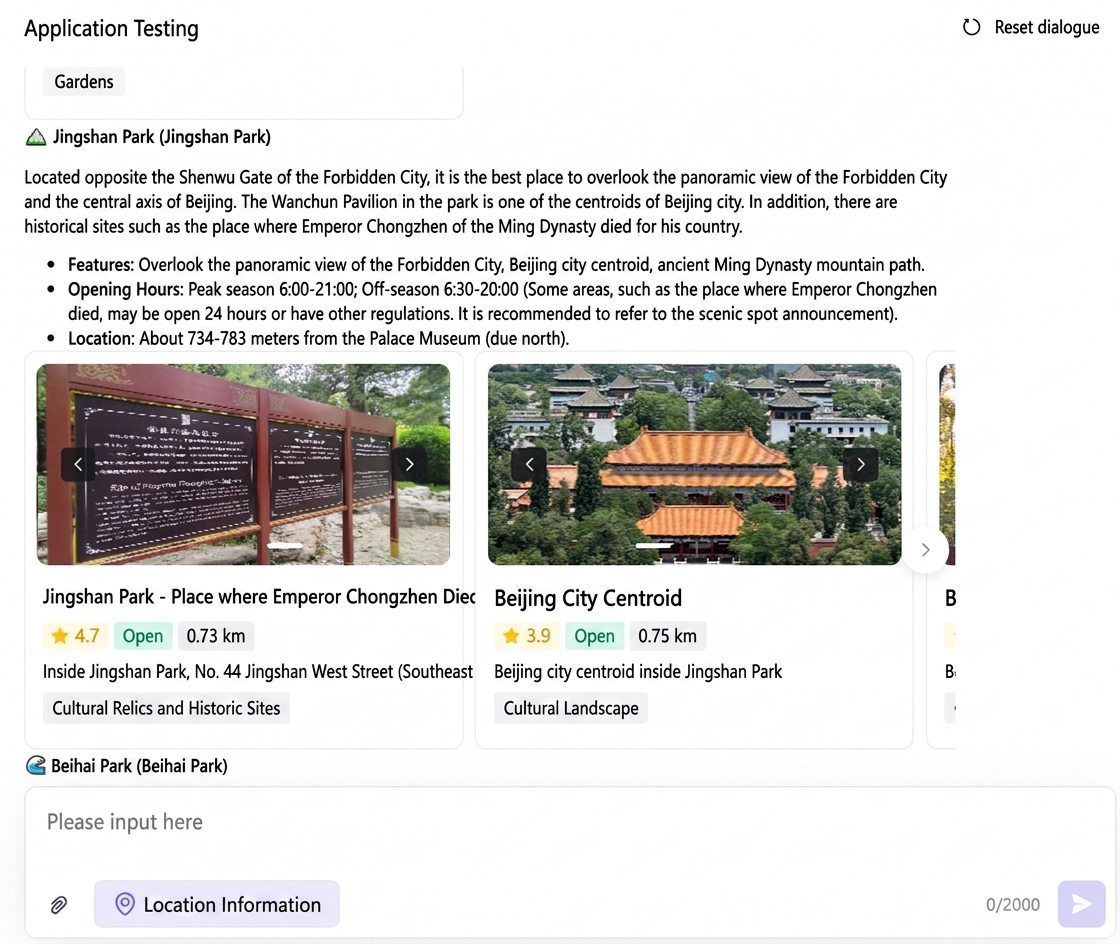
Location-based POI search
You can search for nearby facilities, such as parks, based on your location. Required configuration: Enable Local Life and rich content with images and text.
The results page provides a comprehensive overview:
Basic information: Distance, address, and business status.
Decision support: Ratings and feature tags.
Visual preview: Real-world photos.
-
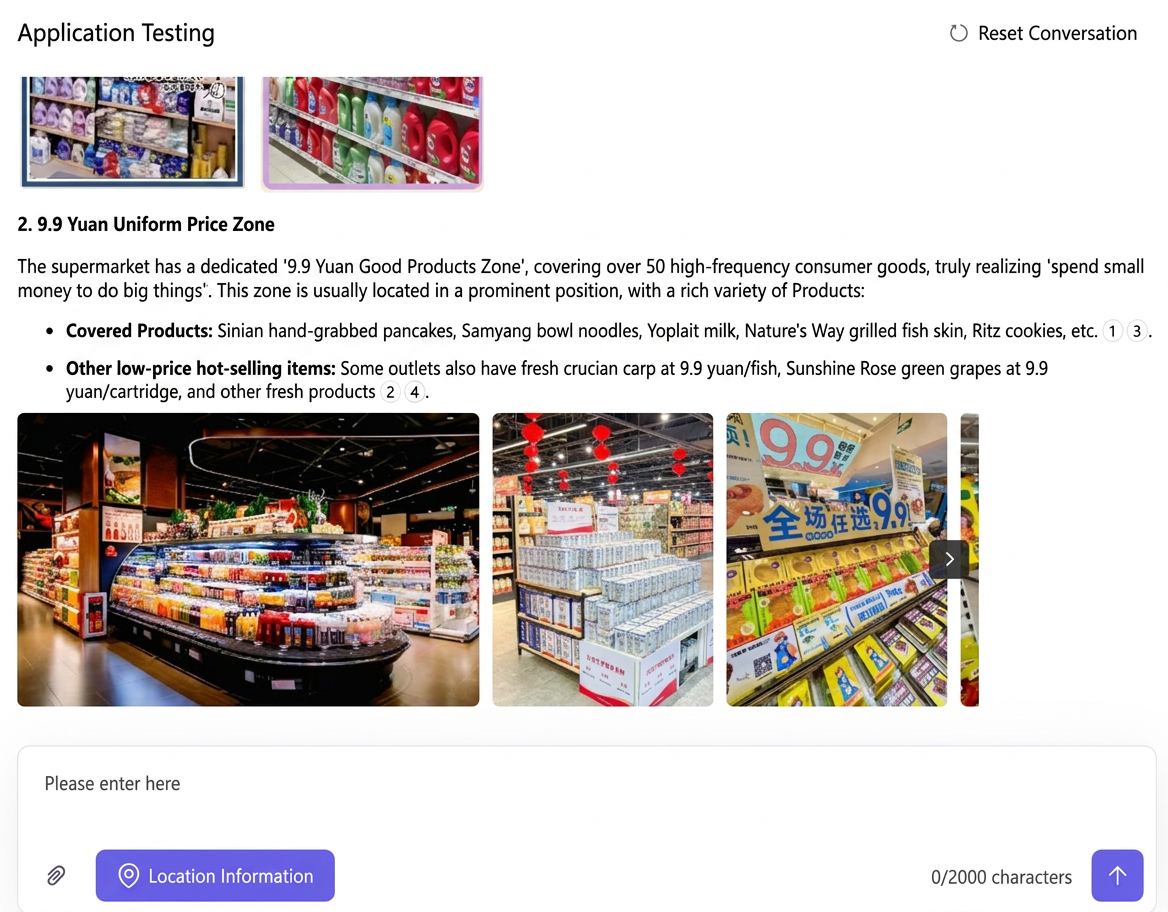
Image carousel and preview
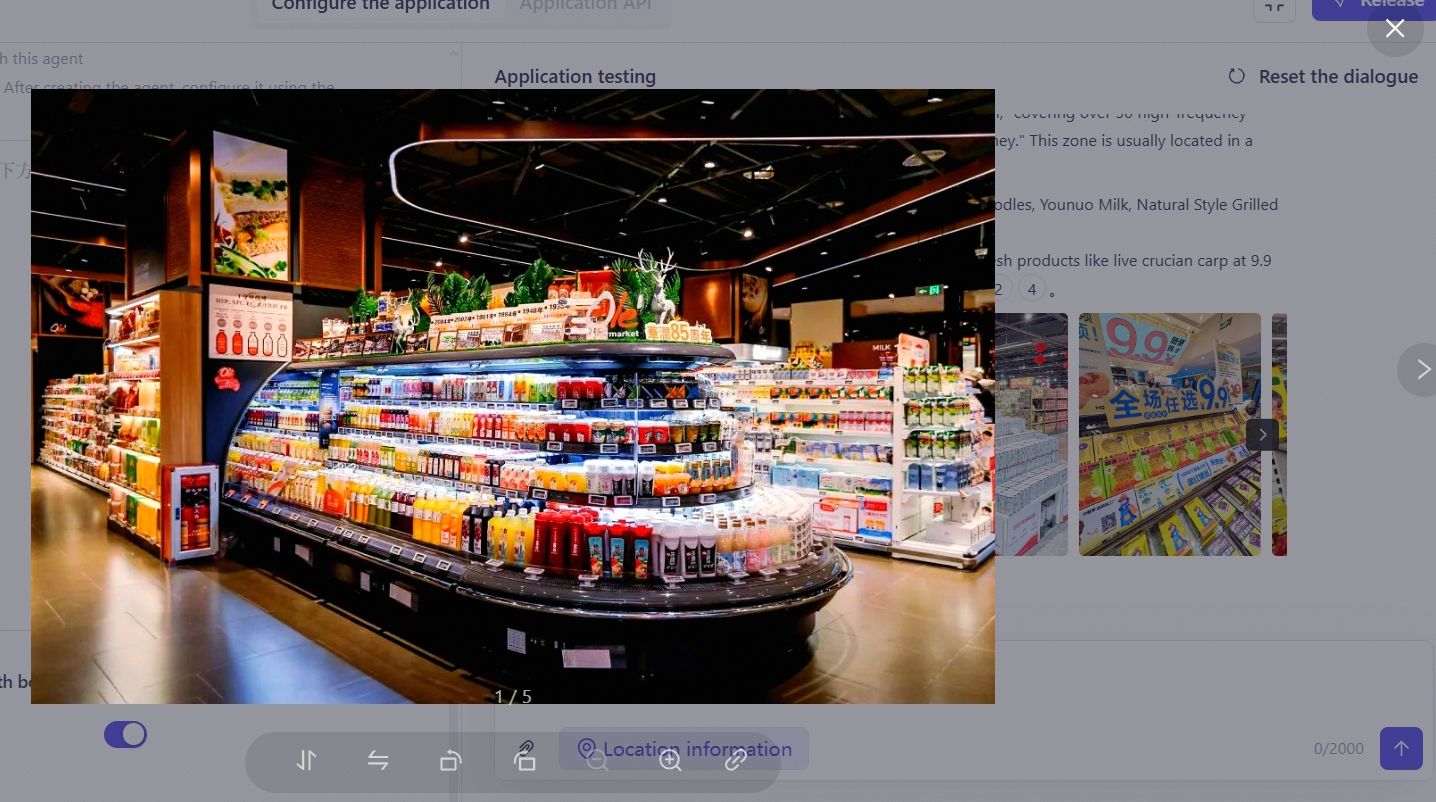
The system supports displaying multiple images in a carousel. You can use the left and right arrows to browse through the images. Click any image to open a larger preview where you can view high-definition details.
Publish the application
After you finish configuring and testing your application, you can click Publish. After the application is published, you can integrate it into your production environment by referring to the API documentation.