Read-only nodes
ApsaraDB for MongoDB read-only nodes have independent connection string URIs, allowing separate systems to connect directly and offload heavy read traffic from primary and secondary nodes.
In read-heavy scenarios, the primary and secondary nodes can become overloaded by read requests, which may impact your services. You can create one or more read-only nodes to handle high read volumes and increase application throughput.
Read-only node architecture
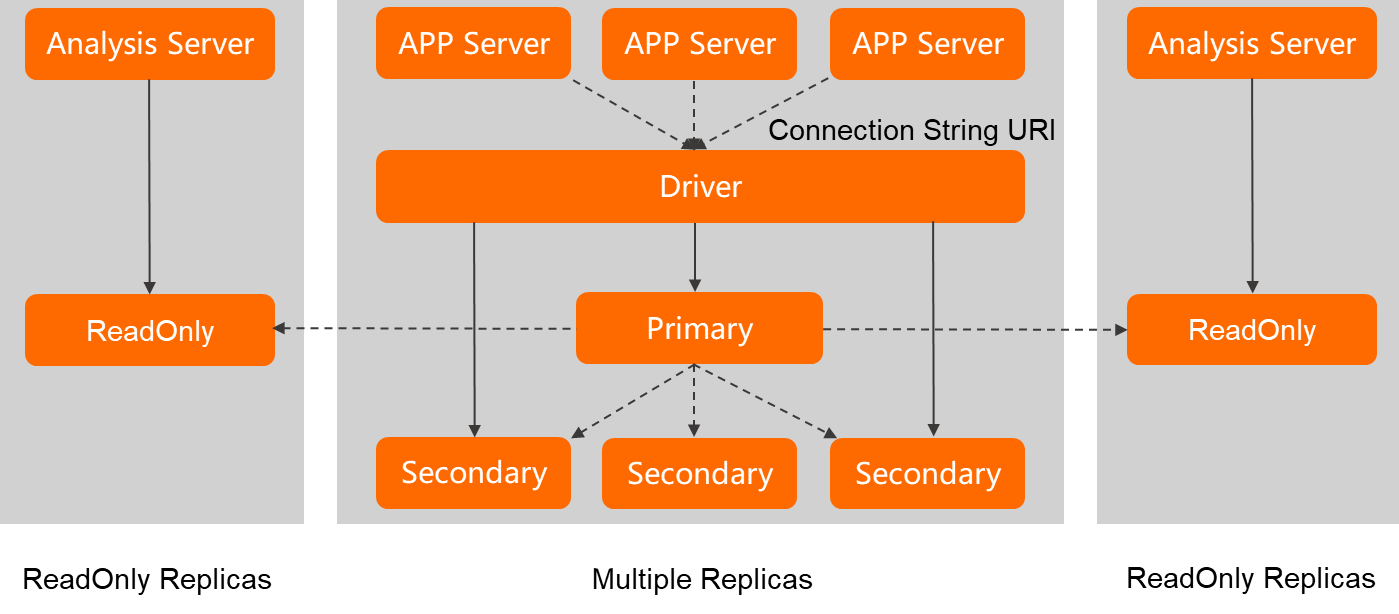
Read-only nodes have the following characteristics:
-
A read-only node synchronizes data from the primary or secondary node with the lowest latency by using the oplog. This reduces the read load on the primary and secondary nodes in read-heavy scenarios.
-
A read-only node has an independent connection string URI, suitable for direct connections from analytics applications such as an analysis server. Connecting to a read-only node does not interfere with existing connections to the primary and secondary nodes.
-
If you have two or more read-only nodes, you can use the ReadOnly ConnectionStringURI to implement load balancing for read requests.
Differences between read-only nodes and secondary nodes
|
Node |
Similarities |
Differences |
Use cases |
|
read-only node |
|
|
If you have two or more read-only nodes, you can use the ReadOnly ConnectionStringURI to implement load balancing for read requests. This is suitable for scenarios that require reading large amounts of data, such as business intelligence (BI) and big data analytics. |
|
secondary node |
|
You can use the connection string URI of the primary and secondary nodes to implement read/write splitting. This is suitable for concurrent scenarios with more reads than writes, allowing you to scale performance while protecting your services from node failures. |
Benefits
-
You can change the number of read-only nodes at any time to manage costs.
-
Read-only nodes have independent connection string URIs, suitable for direct connections from separate systems and applications. They do not interfere with existing connections to primary and secondary nodes.
-
Read-only nodes share the same specifications as primary and secondary nodes. They automatically synchronize data from the primary or secondary node with the lowest latency, eliminating maintenance overhead.
-
Read-only nodes serve only read requests and do not consume the resources of the primary node. Adding or removing read-only nodes does not interfere with the workloads on the primary and secondary nodes or interrupt their connections.
-
ApsaraDB for MongoDB provides a unified address (ReadOnly ConnectionStringURI) for a replica set instance to connect to all of its read-only nodes. You can scale out read capacity by increasing the number of read-only nodes, without requiring any changes to your application.
NoteFor more information about the ReadOnly ConnectionStringURI, see Connection description for a replica set instance.
Limitations
-
Read-only nodes are supported only for ApsaraDB for MongoDB replica set instances and sharded cluster instances.
-
Read-only nodes can process only read requests and do not participate in primary node elections.
-
You can add a maximum of five read-only nodes to a replica set instance.
-
You can add a maximum of five read-only nodes to each shard in a sharded cluster instance.
-
Data is asynchronously replicated from the primary or secondary node to read-only nodes. The replication latency is typically in the millisecond range but can increase to seconds when the primary node handles a heavy write load.
Billing
A read-only node is priced the same as a single node in its parent instance, whether the parent is a replica set instance or a shard in a sharded cluster instance.
Related documentation
-
Set the number of read-only nodes when you create an instance:
-
Create a replica set instance: Set the Read-only Nodes parameter.
-
Create a sharded cluster instance: Set the Shard Read-only Nodes parameter.
-
-
To change the number of read-only nodes for an existing instance:
-
Change the configurations of a replica set instance
-
For a pay-as-you-go instance, select Change configuration.
-
For a subscription instance, select Upgrade or Downgrade.
-
-
Change the configurations of one or more shards
-
For a pay-as-you-go instance, select Change configuration.
-
For a subscription instance, to change a single shard, select Upgrade or Downgrade. To change multiple shards, select Batch Upgrade or Batch Downgrade.
-
-