Watermark templates
Create a watermark template in the ApsaraVideo Media Processing (MPS) console to define the size and position of image watermarks for your videos.
Background
Adding a visible image overlay, such as a company logo or channel icon, to your videos can help reinforce your brand, protect copyrights, and increase content recognition.
A watermark template is a reusable set of parameters that defines a watermark's size and position. Templates simplify applying a consistent watermark across multiple videos.
-
Watermark templates are for image watermarks only. To add a text watermark, specify the WaterMarks parameter when you submit a transcoding job.
-
A watermark template defines only the watermark's position and size. It does not include the watermark image itself. You must provide the image file when you submit a job.
-
You can create a watermark template in the console or by calling the AddWatermarkTemplate API operation.
Limitations
By default, you can create up to 10 watermark templates per Alibaba Cloud account in each region. To request a higher limit, submit a ticket.
Procedure
Log on to the MPS console.
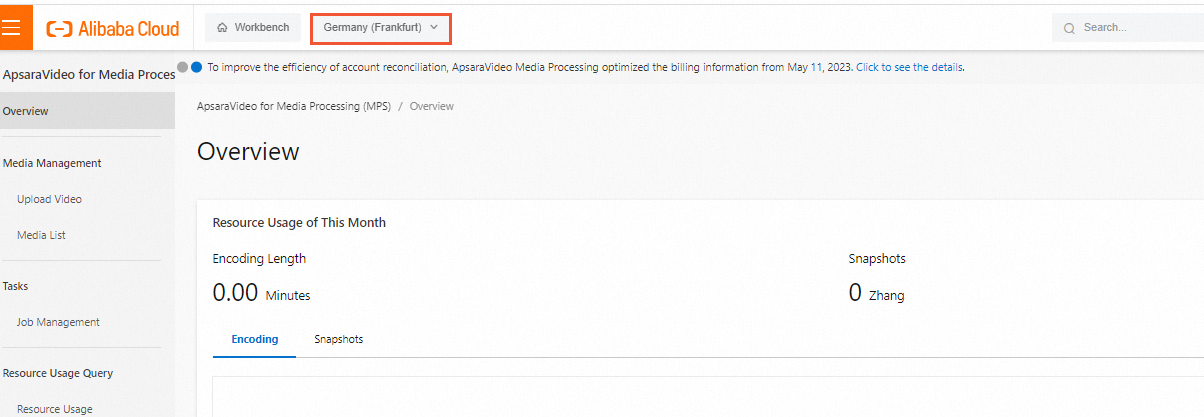
In the top navigation bar, select a region from the drop-down list.
-
In the navigation pane on the left, choose .
-
Click Create Watermark Template.
-
Configure the watermark template parameters.
Parameter
Description
Watermark template name
Enter a descriptive name for the watermark template.
Size (width × height)
The width and height of the watermark in pixels. Valid values are even numbers from 8 to 4096.
Note-
If you leave both width and height blank, the width defaults to 12% of the output video's width. The height is then scaled to maintain the image's original aspect ratio.
-
If you specify only the width or only the height, the other dimension scales automatically to maintain the original aspect ratio.
-
If you specify both width and height, the watermark is resized to those exact dimensions.
Location
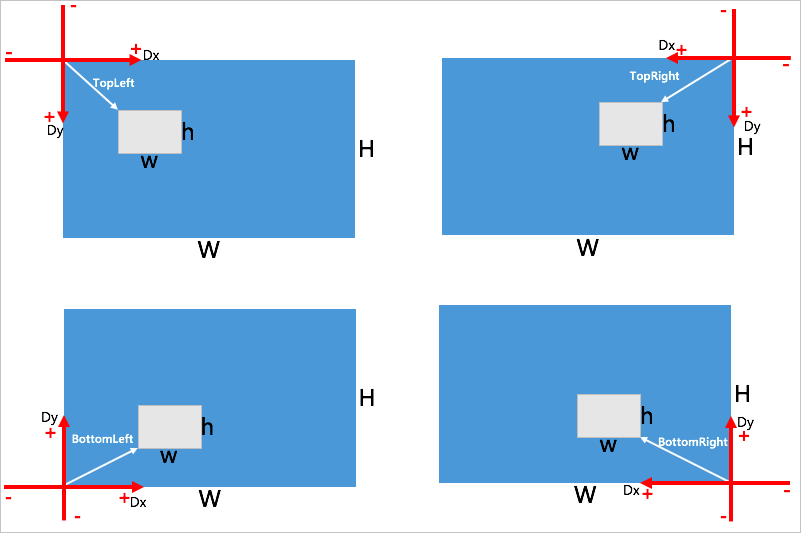
The corner of the video frame used to anchor the watermark. Supported options: Top-right, Top-left, Bottom-right, and Bottom-left.
Horizontal offset
The distance in pixels from the reference corner. Enter an integer from 8 to 4096. The default is 0. The following diagram shows how offsets position the watermark:
Vertical offset
-
-
Click Create.
Next steps
-
View templates: Your new template appears in the list on the Watermark Templates page.
-
To edit or delete a template, click Edit or Delete in the Actions column.
-
Use a template: When you create a transcoding job or create a workflow, enable the watermark option, select your template, and upload the watermark image file.
API reference
For API operations such as creating, deleting, updating, and querying watermark templates, see Watermark template management.