This topic describes how to use MSE Sync to migrate persistent data from a self-managed ZooKeeper to an MSE ZooKeeper instance.
Prerequisites
You have deployed MSE Sync. For more information, see Introduction to MSE Sync.
You have created an MSE ZooKeeper instance. For more information, see Create a ZooKeeper engine.
Limitations
If MSE Sync fails, the synchronization service is interrupted. We recommend that you deploy at least two nodes for high availability. After you start the migration, complete it as soon as possible.
Ensure that your self-managed ZooKeeper, MSE Sync, and MSE ZooKeeper instance can communicate over the network.
Do not use this method to synchronize service data, distributed locks, or ephemeral nodes.
Procedure
The following figure shows the deployment architecture.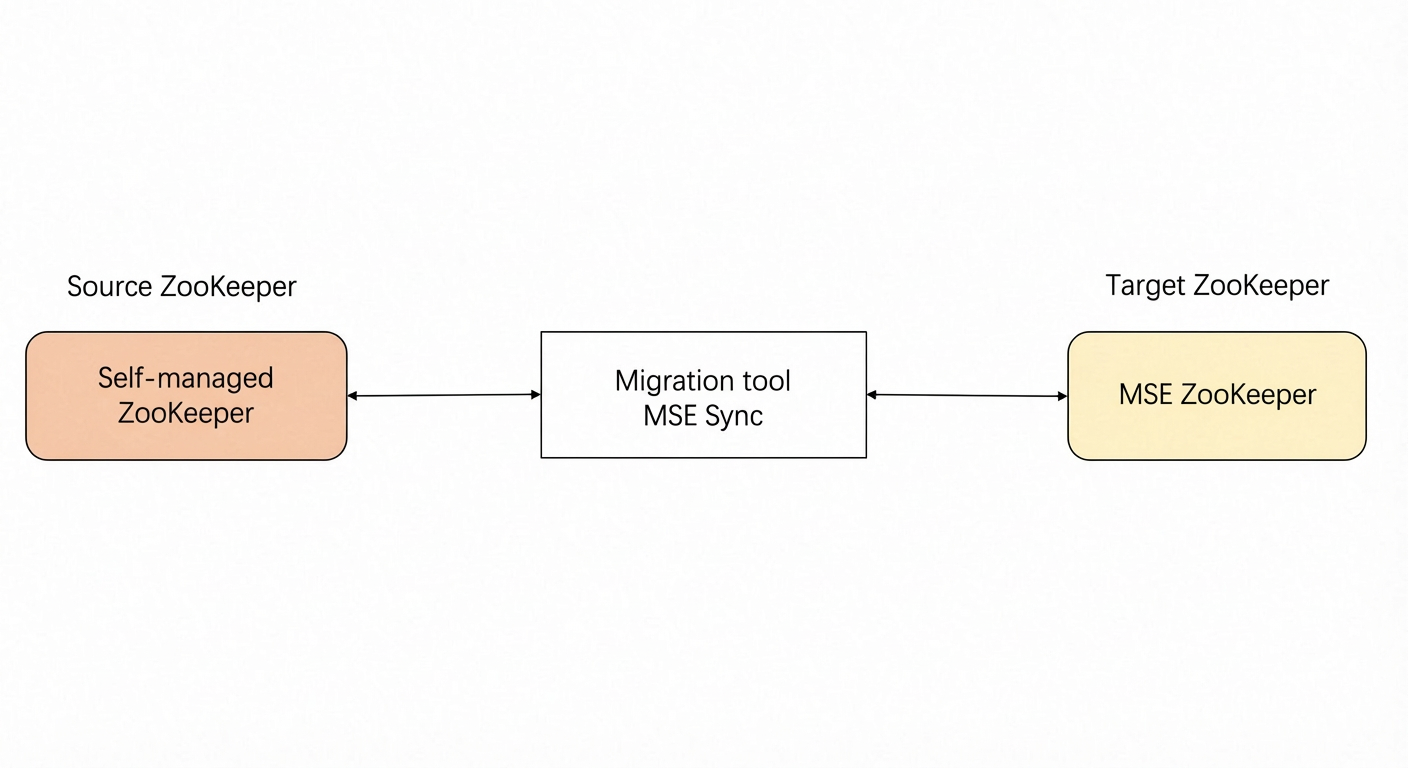
Step 1: Add the cluster information
In the MSE Sync left-side navigation pane, click Cluster configuration and then Add Cluster. In the Add Cluster dialog box, enter the information for the source ZooKeeper cluster and click OK.
Parameter
Description
Cluster Name
A custom cluster name.
Cluster type
ZK
Cluster IP address list
Enter the IP addresses and ports of the source ZooKeeper servers. Place each entry on a new line. The default port is 2181. For example:
127.0.0.1:2181
127.0.0.2:2181
127.0.0.3:2181
If the source cluster uses a Server Load Balancer (SLB) instance, enter the IP address and port of the SLB instance in the Cluster IP address list field.
Click Add Cluster again to add the target ZooKeeper cluster information.
Cluster type: Select ZK.
Cluster IP address list: Enter the endpoint and service port of the destination MSE ZooKeeper instance. For example, mse-8b7de****-p.zk.mse.aliyuncs.com:2181.
Click Add Cluster, enter a cluster name (for example,
MSE zk), and click OK after you complete all configurations.In the left-side navigation pane, click Service Synchronization. Then, click New Sync to add the ZooKeeper path that you want to migrate.
Synchronously: Select bidirectional synchronization. In this mode, changes made on either cluster are synchronized to the other.
ImportantWith bidirectional synchronization, data from the destination cluster is also synchronized back to the source, which can alter your original data. Concurrently modifying data or synchronizing ephemeral nodes can cause data corruption or deletion in the source cluster. Proceed with caution.
Synchronization Type: Select Configuration. MSE Sync automatically lists all services from the source cluster. You can select the required services.
Path: Enter the specific ZooKeeper path.
Click OK.
On the Service synchronization page in the MSE Sync console, you can view the paths that are being synchronized.
Step 2: Verify the synchronization
-
Log on to the MSE console, and select a region in the top navigation bar.
-
In the left-side navigation pane, choose Microservices Registry > Instances.
-
On the Instances page, click the name of the instance.
In the navigation pane on the left, choose . Verify that data from the source cluster has synchronized to the destination instance.
Step 3: Decommission the self-managed ZooKeeper cluster
Stop the self-managed ZooKeeper cluster.
Stop MSE Sync.