Configure a canary release
Microservices Engine (MSE) supports canary release, which allows you to deploy configuration changes to a small subset of instances for verification before a full rollout. This practice minimizes the risk of pushing flawed configurations. This topic describes how to configure a canary release for a Nacos instance in MSE.
Prerequisites
-
We recommend using Nacos Client version 2.x or later.
Background information
When you manage cluster configurations centrally, modifying a configuration typically overwrites the old one and pushes the update to all instances in the cluster. This full-push approach is risky because a single configuration error can cause the entire cluster to fail.
Therefore, when editing configurations, we recommend performing a canary release first. This pushes the new configuration to a small subset of machines for initial validation. If the changes are verified, you can gradually expand the release until it covers all instances, reducing the risk associated with configuration changes. The following figure shows the standard process of a canary release for a configuration.
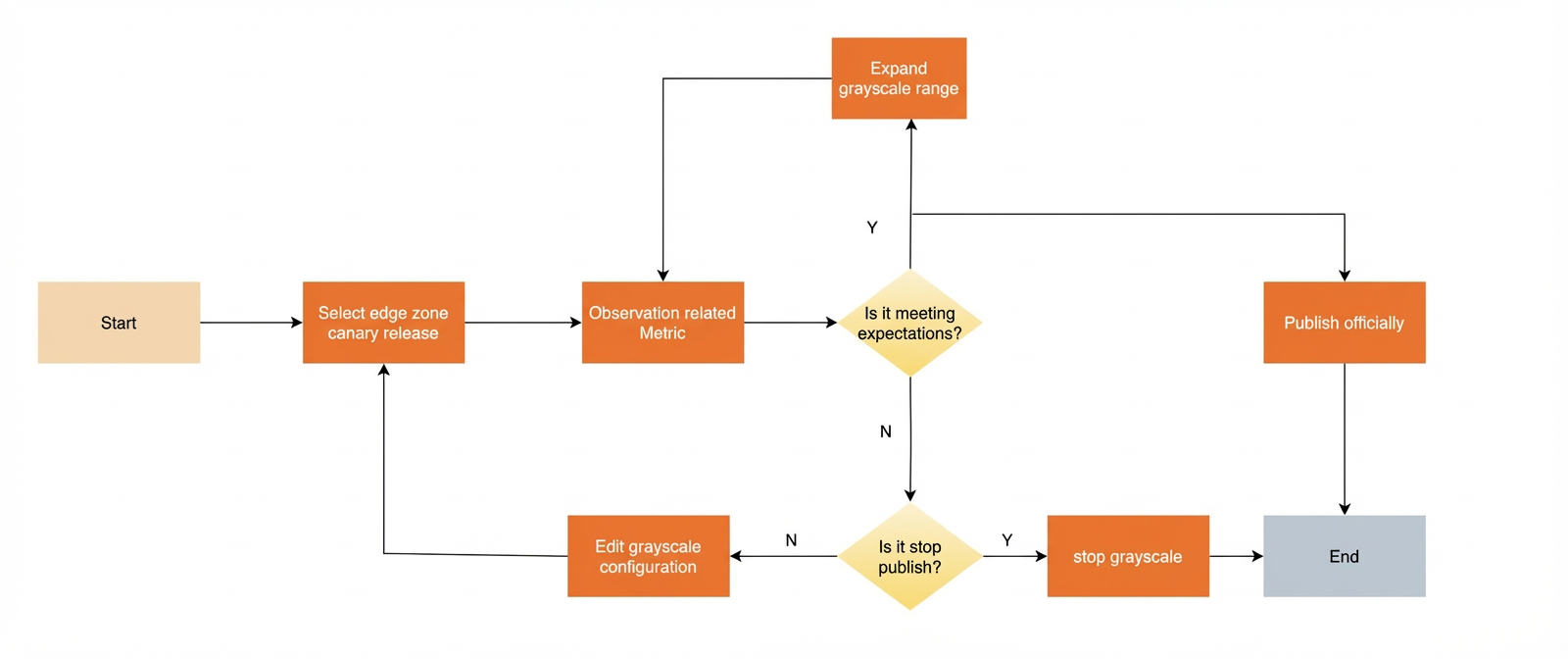
During a configuration change, you select specific nodes for the canary release. MSE Nacos supports two methods for canary releases: IP address-based canary release and tag-based canary release.
IP address-based canary release
For smaller systems, this method is often sufficient and significantly reduces the risk of deployment failures from configuration errors.
Create a canary configuration
-
Log on to the MSE console, and select a region in the top navigation bar.
-
In the left-side navigation pane, choose Microservices Registry > Instances.
-
On the Instances page, click the name of the instance.
-
In the left-side navigation pane, choose Configuration Management > Configurations.
-
In the Actions column of the target configuration, click Edit. In the Edit Configuration panel, set Release Type to IP-based Canary Release.
-
Click the Application Node IP Address input box and select the IP addresses for the canary release from the list.
You can also enter IP addresses manually. Autocompletion is supported.
NoteThe IP addresses specify the machines that subscribe to the configuration. Use commas (,) to separate multiple addresses.
-
After modifying the configuration, click Canary Release. In the Comparison of Configuration Content dialog box, review the Current Official Version Content and Current Release Content, and then click Release.
View the canary configuration
-
Log on to the MSE console, and select a region in the top navigation bar.
-
In the left-side navigation pane, choose Microservices Registry > Instances.
-
On the Instances page, click the name of the instance.
-
In the left-side navigation pane, choose Configuration Management > Configurations.
-
Find the configuration currently in a canary release, and in the Actions column, click Edit.
-
In the Edit Configuration panel, click the Beta(IP) tab to view the canary release information.
The Beta(IP) tab displays the details of the canary release: the release type is ip address-based canary release, the application node IP is
172.16, the configuration format is Properties, and the configuration content isuseLocalCache=false. At the bottom of the page, you can find the Canary Release, Stop Canary Release, and Full Release buttons.
Other operations
-
Stop Canary Release: On the Beta(IP) tab of the Edit Configuration panel, click Stop Canary Release to cancel the canary release.
-
Full Release: On the Beta(IP) tab of the Edit Configuration panel, click Full Release. In the Comparison of Configuration Content dialog box that appears, confirm the configuration information and click Full Release. The canary configuration becomes the new official version, terminating the canary release.
IP address-based canary release has the following issues:
-
For clients using Nacos 1.x, the server cannot accurately obtain the client's IP address because traffic is routed through a Server Load Balancer (SLB) instance.
-
In a Kubernetes-based architecture, rebuilding a node can change its IP address, causing an IP address-based canary version to become invalid.
Tag-based canary release
MSE Nacos 2.2.3.3 and later support tag-based canary release. You can set tags on client application nodes and then target these tags for a canary release.
-
Tag-based canary release is supported in MSE Nacos 2.2.3.3 and later. You must upgrade your engine to version 2.2.3.3 or later.
-
Custom application tags for canary release are supported in open-source Nacos Client 2.3.2 and later. You must upgrade your client to version 2.3.2 or later.
-
To inject tags by using environment variables, you must upgrade the Nacos Client to version 2.4.2 or later.
Set client application tags
You can set application tags, which are in key-value format, by using properties, JVM parameters, or environment variables. If a key is specified in multiple locations, the priority is: properties > JVM parameters > environment variables. The nacos.config.gray.label is the default built-in tag for configuration canary releases in Nacos.
//1. Pass using properties.
Properties properties = new Properties();
properties.put(PropertyKeyConst.SERVER_ADDR, "your endpoint");
properties.put("project.name", "your app name");
properties.put("nacos.config.gray.label","yourgrayname");
//2. Set using JVM parameters.
// Set the startup parameter -Dnacos.config.gray.label=yourgrayname
//3. Specify using environment variables.
// Set the environment variable nacos_config_gray_label=yourgrayname
 String dataId = "gray_test_dataid";
 String group = "test-group";
 configService.addListener(dataId, group, new Listener() {
        @Override
        public Executor getExecutor() {
            return null;
        }
        @Override
        public void receiveConfigInfo(String configInfo) {
            System.out.println("receiveConfig:" + configInfo);
        }
 });
Publish a tag-based canary release
-
View listener tags
After you inject application tags on the client, you can view the list of configuration listeners on the server to check the tags of each listener.
Click the Listening Query tab. You can see that the listener's application node tag is
nacos.config.gray.label:yourgraynameand the push status is Push succeeded. -
Publish a tag-based canary configuration
Click Edit Configuration, select Tag-based Canary Release, and then select the key-value pairs of the existing tags on your application nodes. You can see the number of nodes that match the selected tags. On the Edit Configuration page, enter a Data ID (such as
nacos-config-example-demo) and Group (such asyang-group). Set Release Type to tag-based canary release, selectnacos.config.gray.labelfor Application Node Tag Key, add a canary tag (such asyourgrayname) to Application Node Tag Value, and select Properties for Configuration Format. Then, click Canary Release.
After publishing the tag-based canary version, you can view the configuration version that matches the current client on the Configuration Listening Query tab. You can view details of the current canary version in the Configuration details.
After observing the initial canary group, you can expand the scope of the release by editing the tag values until you are ready for a full release. Clicking Full Release stops the corresponding canary version. If the canary release causes business exceptions, click Stop Canary Release to roll back the changes.
Related questions
Advanced usage of application tags
In addition to setting a single tag like nacos.config.gray.label, Nacos lets you set multiple tags and use a custom tag Collector Service Provider Interface (SPI). This provides more flexibility in defining and retrieving tags.
-
Set multi-value tags.
Nacos supports injecting multiple key-value pairs as application tags. You can specify the
nacos.app.conn.labelsparameter (for example,nacos.app.conn.labels="k1=v1,k2=v2,k3=v3") in properties or as a JVM parameter. Alternatively, you can specify the nacos_app_conn_labels parameter as an environment variable.//1. Pass using properties. Properties properties = new Properties(); properties.put(PropertyKeyConst.SERVER_ADDR, "your endpoint"); properties.put("project.name", "your app name"); properties.put("nacos.app.conn.labels","app=demo,site=hangzhou-c,otherkey=othervaue"); //2. Set using JVM parameters. // Set the startup parameter -Dnacos.app.conn.labels="app=demo,site=hangzhou-c,otherkey=othervaue" //3. Specify using environment variables. // Set the environment variable nacos_app_conn_labels="app=demo,site=hangzhou-c,otherkey=othervaue" NacosConfigService configService = new NacosConfigService(properties); String dataId = "gray_test_dataid"; String group = "test-group"; configService.addListener(dataId, group, new Listener() { @Override public Executor getExecutor() { return null; } @Override public void receiveConfigInfo(String configInfo) { System.out.println("receiveConfig:" + configInfo); } }); -
Custom application tag SPI
Nacos Client defines an SPI for custom application tags. You can implement the
com.alibaba.nacos.common.labels.LabelsCollectorinterface and publish your implementation class as a service to create a custom application tag SPI.package your.demo.test; import com.alibaba.nacos.common.labels.LabelsCollector; import java.util.HashMap; import java.util.Map; import java.util.Properties; /** * TestLabelsCollector. * * @author yourname */ public class TestLabelsCollector implements LabelsCollector { @Override public String getName() { return "testlables"; } @Override public Map<String, String> collectLabels(Properties properties) { Map<String, String> labels = new HashMap<>(); labels.put("test", "implements your lables logic"); return labels; } @Override public int getOrder() { return 1; } }
Parallel canary versions
A single configuration can have multiple versions, including an official version, an IP address-based canary version, and multiple tag-based canary versions. When multiple versions exist, the Nacos server uses the following priority order to match and push configurations: IP address-based canary version > tag-based canary version > official version.
When multiple tag-based canary versions exist, they are sorted by the value of the priority field. A higher value indicates a higher priority. If priorities are equal, the versions are sorted by name. We recommend setting a clear priority for each canary version.
When the server receives a request from a tagged application node, it first checks for a matching IP address-based canary version. If a match is found, that version is returned. Otherwise, the server attempts to match a tag-based canary version by priority. If a tag-based version matches, that configuration is returned. If no canary versions match, the server returns the official version. You can view which configuration version is matched to each application node on the Listening Query page in the MSE console.
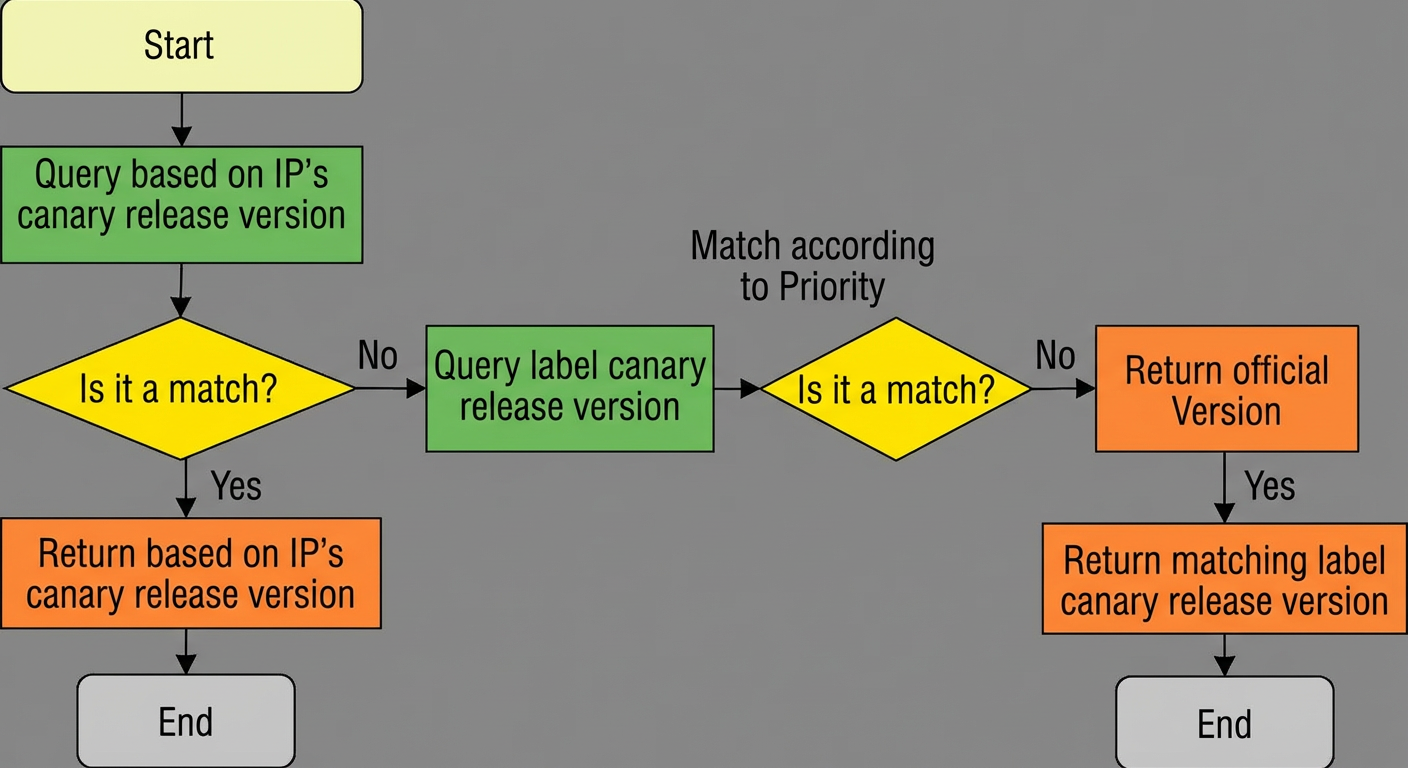
MSE Nacos 2.3.0 and later support parallel canary versions. The number of canary versions for a single configuration is limited. By default, you can have a maximum of five tag-based canary versions. Attempts to create more will be blocked.
Application tag planning
When planning tags for your application nodes, define them based on business impact to enable gradual rollouts and reduce change risk. The following are common best practices:
-
Use application names as tags. Start the canary release on non-critical applications. After confirming there are no issues, expand the release to include core applications.
-
You can isolate traffic for upstream and downstream machines at the traffic ingress layer. For example, you can identify a batch of machines for internal user testing and assign them a unique canary tag. This allows you to create a canary release targeted specifically at internal users.
Application tag format
Tag keys and values can contain only uppercase and lowercase letters, digits, underscores (_), hyphens (-), and periods (.). Tags in any other format are ignored. If you specify multiple key-value pairs by using the nacos.app.conn.labels parameter, you must follow the "k1=v1,k2=v2,k3=v3" format. If you pass a malformed value such as "k1=v1,k2", the k2 portion is ignored, and the input is parsed as k1=v1.