Workflow instance
A workflow instance retains the records of recent workflow executions. The Developer Edition retains the 30 most recent records per workflow, while the Professional Edition retains the 300 most recent records.
Workflow
Workflow statuses
-
running: At least one task is running.
-
failed: All tasks have completed, and at least one has failed.
-
success: All tasks have completed, and all are in the
successorskippedstate. -
suspended: Indicates that an operator has manually suspended a running workflow.
Operations
Log on to the MSE XXL-JOB console, and select a region in the top navigation bar.
In the left navigation bar, select .
-
Click the target instance. In the left-side navigation pane, choose .
-
In the Actions column, perform one of the following actions:
-
To rerun all failed tasks in the workflow, click Log.
-
To mark all failed tasks in the workflow as successful, click Mark success.
-
To stop all running tasks in the workflow, click Stop.
-
To suspend all unstarted tasks, click Suspend. This changes their state to
held. -
To resume all held tasks and return them to the
waitingstate, click Unhold. -
To view the execution details for each node in the workflow, click Details to open the DAG view.
-
DAG view
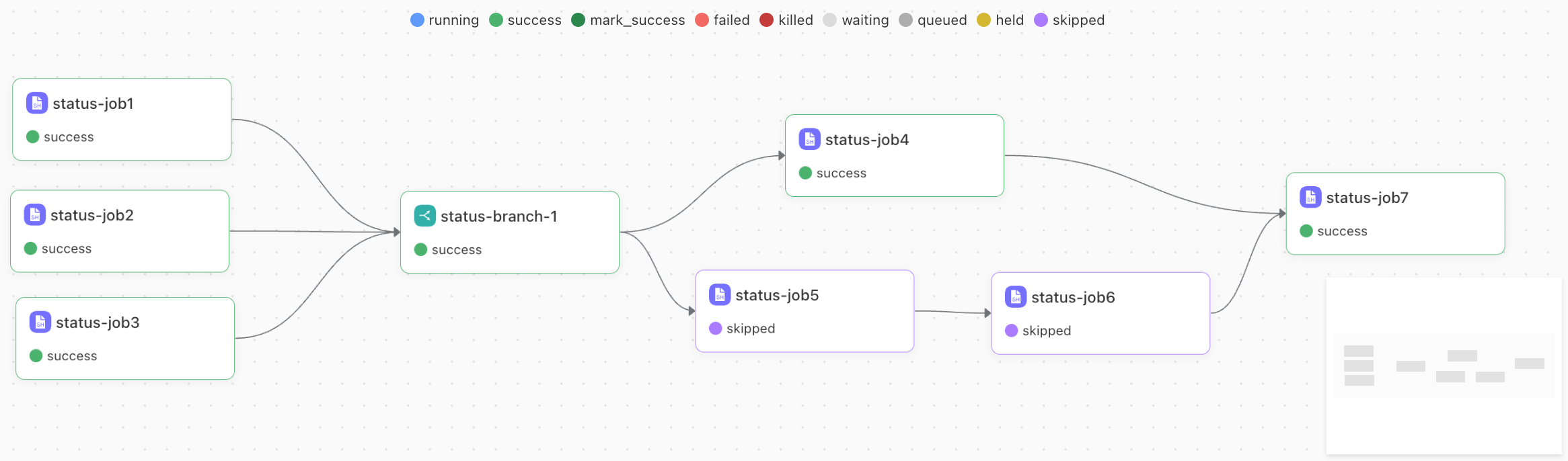
For any workflow instance, you can click Details to open the DAG view, which shows the workflow's execution topology.
Task statuses
-
waiting: An upstream dependency is not met, or the scheduled start time has not arrived.
-
queued: After dependencies are met, the task enters a queue, waiting for the resource scheduler to assign it to an executor.
-
running: The task is running after being assigned to an executor.
-
success: Indicates that the task executed without errors.
-
failed: Indicates that the task encountered an error during execution.
-
marked as success: Indicates that an operator manually changed the state of a failed task to
success. -
killed: Indicates that an operator manually stopped a running task.
-
held: An operator manually puts a
waitingtask on hold. The workflow execution pauses when it reaches aheldnode. -
skipped: A task enters the
skippedstate in any of the following scenarios:-
An operator manually marks an unstarted task as
skipped, causing the workflow to ignore this node. -
In a branching workflow, downstream nodes on branches that are not executed are automatically marked as
skipped. -
If a task with a calendar-based schedule is not supposed to run on the current day, it is automatically marked as
skipped. -
If a task is disabled, the workflow automatically skips its corresponding node.
-
Task operations
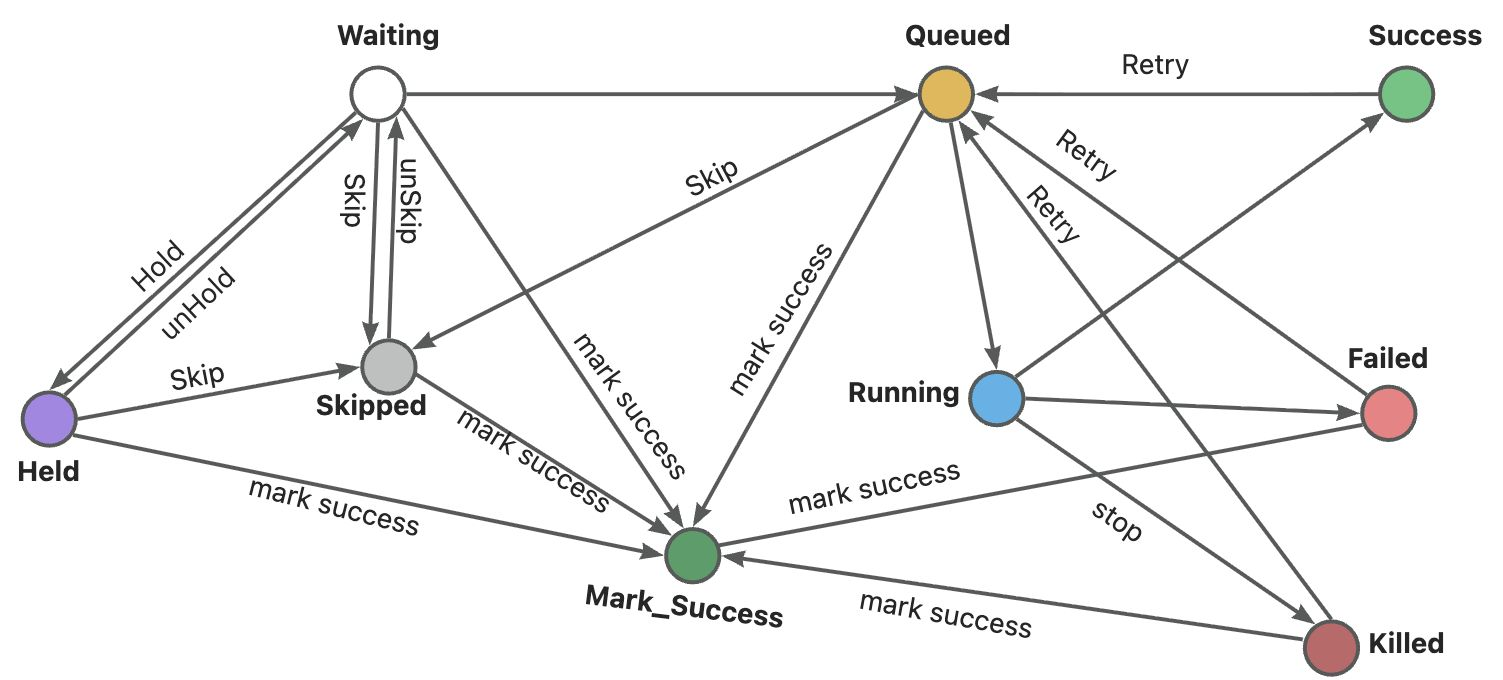
In the DAG view, you can right-click a node to manually change its status, as shown in the figure below.
Node information
In the DAG view, double-click a node to view its basic information, inputs, outputs, and execution logs.