VPC traffic analysis
After you enable flow logs for a virtual private cloud (VPC), the Network Intelligence Service (NIS) Traffic Analyzer automatically analyzes VPC traffic and generates traffic analysis charts. You can monitor VPC network usage and performance in real time, including VPC bandwidth, packet rate, top N traffic details, and VPC-to-public-network traffic over a specified time period. The charts also help you quickly identify high-traffic ECS instances, abnormal public network traffic, or access records from suspicious IP addresses.
Filter traffic
You can focus your analysis by specifying the resource region, resource scope, traffic direction, bucket precision, time range, and aggregation dimension.
Specifically:
The maximum time range you can select depends on the storage duration configured for the Traffic Analyzer.
Bucket precision supports two modes: high precision (such as 1 minute) or long period (such as 1 day). The specific precision is determined by the create or edit a Traffic Analyzer of either High-precision Traffic Statistics or Long-period Traffic Statistics when you Traffic Analysis Sampling Interval.
The availability of 1-tuple, 2-tuple, or 5-tuple traffic analysis data depends on the tuple types you selected when configuring the traffic analysis storage duration.
The resource scope lets you filter traffic at different resource levels, dimensions, and scenarios based on the selected aggregation dimension.
Traffic analysis aggregation dimension
Supported filter conditions (you can select multiple conditions simultaneously))
Description
1-tuple
VPC, vSwitch, Elastic Network Interface (ENI), Elastic Compute Service (ECS), cloud IP
Selecting VPC filters traffic for all VPCs by default. Specifying a VPC ID narrows the filter to that VPC.
The same logic applies to other filter conditions. Use the traffic path or network protocol filters to isolate traffic for specific scenarios or protocols.
After you apply filters, active conditions appear as tags at the bottom—for example, traffic path set to VPC private network traffic—system route, network protocol set to ICMP, and VPC set to a specific VPC-connected instance. Click Clear filters to remove all conditions at once.
NoteSupported network protocols are as displayed in the console.
2-tuple
VPC, vSwitch, ENI, ECS, source IP, destination IP, traffic path, client country, client city, client ASN, client carrier
NoteClient country, city, ASN, and carrier are available only when viewing public network traffic.
5-tuple
VPC, vSwitch, ENI, ECS, source IP, destination IP, traffic path, source port, destination port, network protocol, client country, client city, client ASN, client carrier
Click to view supported traffic paths.
View all traffic analysis charts
These two pages display analysis data for all access traffic—including public network traffic—for specified VPC resources or scenarios.
Traffic Distribution page displays only analytical data for traffic that is allowed through.
Access Control Block Analysis page shows only analytical data for traffic intercepted by access control rules. For example, traffic denied by network ACLs or security group rules.
View traffic distribution
Log on to the NIS console.
In the navigation pane on the left, select Traffic Analyzer.
On the Traffic Analyzer page, click the target NIS Traffic Analyzer ID.
In the navigation pane on the left of the NIS Traffic Analyzer product page, select , specify filter criteria, and view the corresponding Traffic Trend Chart and Traffic Analysis table.
Chart
Description
Traffic trend chart
Bandwidth: The traffic transmission rate of the resource during the current period. Unit: bit/s.
Packet Rate: The data packet transmission rate of the resource during the current period. Unit: pps.
TCP RTT: Round-trip delay for TCP connection establishment during the current period. Unit: ms.
Traffic analysis
After you select the 1-tuple, 2-tuples, or 5-tuples tab at the top of the page, the system automatically displays the corresponding traffic TOP N analysis table:
1-tuple: Shows collector-side VPC ID, vSwitch ID, ENI ID, ECS ID, traffic path, traffic direction, destination IP (inbound only), source IP (outbound only), packet count, TCP RTT (ms), traffic (bytes), and traffic percentage for the current period.
2-tuple: Shows source IP, destination IP, collector-side VPC ID, vSwitch ID, ENI ID, ECS ID, traffic path, traffic direction, packet count, TCP RTT (ms), traffic (bytes), and traffic percentage for the current period.
5-tuple: Shows source IP, source port, protocol, destination IP, destination port, collector-side VPC ID, vSwitch ID, ENI ID, ECS ID, traffic path, traffic direction, packet count, TCP RTT (ms), traffic (bytes), and traffic percentage for the current period.
You can filter TOP N traffic data by aggregation dimension, traffic byte range, and TOP N range. Export is supported.
Results appear as a VPC TOP N traffic list containing ordinal number, source IP, destination IP, VPC ID, trend chart, trend comparison, and traffic drill-down columns. In the trend comparison column, remove a TOP N traffic trend. In the traffic drill-down column, view 5-tuple details.
Trend Chart
To view the trend of a specific traffic entry, click in the View Trend column. The system automatically displays the trend chart for that traffic during the current time period, including the Bandwidth trend chart, Packet Rate trend chart, and TCP RTT trend chart.
Trend Comparison
VPC Top Traffic Trend displays traffic trend comparisons for all list items by default. You can click or Add to Top Traffic Trend in the Remove from Trend column of the target list item to add or remove the corresponding trend chart from the VPC Top Traffic Trend below. Supported comparison metrics include Bandwidth, Packet Rate, and RTT.
Traffic Drill-down
If your Traffic Analyzer supports multiple aggregation dimensions, you can drill down from a TOP N traffic entry to view more details. From 1-tuple traffic, drill down to 2-tuple TOP N data. From 2-tuple traffic, drill down to 5-tuple TOP N data.
View access control interception analysis
Log on to the NIS console.
In the navigation pane on the left, select Traffic Analyzer.
On the Traffic Analyzer page, click the target NIS Traffic Analyzer ID.
In the navigation pane on the left of the NIS Traffic Analyzer detail page, select , specify filter criteria to view the corresponding interception traffic trend graph and detailed interception traffic table.
Chart
Description
Trend Chart of Blocked Traffic
Bandwidth: During the current period, the rate of blocked traffic. Unit: bit/s.
Packet Rate: The rate of intercepted data packets during the current period. Unit: pps.
Blocked Traffic Details
After you select the 1-tuple, 2-tuples, or 5-tuples tab at the top of the page, the system automatically displays the corresponding blocked traffic TOP N analysis table:
1-tuple: Shows collector-side VPC ID, vSwitch ID, ENI ID, ECS ID, traffic path, traffic direction, destination IP (inbound only), source IP (outbound only), packet count, traffic (bytes), and traffic percentage for the current period.
2-tuple: Shows source IP, destination IP, collector-side VPC ID, vSwitch ID, ENI ID, ECS ID, traffic path, traffic direction, packet count, traffic (bytes), and traffic percentage for the current period.
5-tuple: Shows source IP, source port, protocol, destination IP, destination port, collector-side VPC ID, vSwitch ID, ENI ID, ECS ID, traffic path, traffic direction, packet count, traffic (bytes), and traffic percentage for the current period.
You can filter TOP N intercepted traffic data by aggregation dimension, traffic byte range, and TOP N range.
Results appear as a VPC TOP N traffic list containing columns for ordinal number, source IP, destination IP, VPC ID, and support for View trend, Trend comparison, and 5-tuple drill-down operations.
Trend Chart
To view the trend of a specific traffic entry, click in the View Trend column. The system automatically displays the trend chart for that traffic during the current time period, including the Bandwidth trend chart, Packet Rate trend chart, and TCP RTT trend chart.
Trend Comparison
VPC Top Traffic Trend displays traffic trend comparisons for all list items by default. You can click or Add to Top Traffic Trend in the Remove from Trend column of the target list item to add or remove the corresponding trend chart from the VPC Top Traffic Trend below. Supported comparison metrics include Bandwidth, Packet Rate, and RTT.
Traffic Drill-down
If your Traffic Analyzer supports multiple aggregation dimensions, you can drill down from a TOP N traffic entry to view more details. From 1-tuple traffic, drill down to 2-tuple TOP N data. From 2-tuple traffic, drill down to 5-tuple TOP N data.
View public network traffic analysis charts
These two pages display analysis data for public network access traffic for specified VPC resources or scenarios.
Internet Traffic Distribution page only displays analytical data for allowed Internet traffic.
Internet Access Control Block Analysis page only displays analytical data for public network traffic intercepted by access control rules, such as public network traffic denied by network ACLs or security group rules.
View public network traffic distribution
Log on to the NIS console.
In the navigation pane on the left, select Traffic Analyzer.
On the Traffic Analyzer page, click the target NIS Traffic Analyzer ID.
In the navigation pane on the left of the Traffic Analyzer detail page, select , specify filter conditions, and view the corresponding Internet traffic trend graph, Internet traffic analysis table, and traffic map (displayed only on the tuple page).
Chart
Description
Traffic trend chart
Bandwidth: The Internet traffic transmission rate of the resource during the current period. Unit: bit/s.
Packet Rate: the public network packet transmission rate of the resource during the current period. Unit: pps.
TCP RTT: Round-trip delay for TCP connection establishment during the current period. Unit: ms.
Top of Inbound Alibaba Cloud IP Address Traffic: The top N public IP addresses accessing Alibaba Cloud during the current period.
ImportantOnly the 2-tuple page displays Internet Coverage, Top of Inbound Alibaba Cloud IP Address Traffic statistics.
Traffic analysis
After you select the 1-tuple, 2-tuples, or 5-tuples tab at the top of the page, the system automatically displays the corresponding Internet traffic TOP N analysis table:
1-tuple: Shows Alibaba Cloud VPC ID, vSwitch ID, ENI ID, ECS ID, traffic path, traffic direction, destination IP (inbound only), source IP (outbound only), packet count, TCP RTT (ms), traffic (bytes), and traffic percentage for the current period.
2-tuple: Shows city, country, carrier, ASN, source IP, destination IP, Alibaba Cloud VPC ID, vSwitch ID, ENI ID, ECS ID, traffic path, traffic direction, packet count, TCP RTT (ms), traffic (bytes), and traffic percentage for the current period.
5-tuple: Shows city, country, carrier, ASN, source IP, source port, protocol, destination IP, destination port, Alibaba Cloud VPC ID, vSwitch ID, ENI ID, ECS ID, traffic path, traffic direction, packet count, TCP RTT (ms), traffic (bytes), and traffic percentage for the current period.
You can filter public network TOP N traffic data by aggregation dimension, traffic byte range, and TOP N range. Export is supported.
Results appear as a VPC TOP N traffic list with two groups of columns: client location (city, country, carrier, ASN, source IP) and traffic observation (trend chart, trend comparison, traffic drill-down). Each row supports View trend, Remove TOP N traffic trend, and 5-tuple operations.
Trend Chart
To view the trend of a specific traffic entry, click in the View Trend column. The system automatically displays the trend chart for that traffic during the current time period, including the Bandwidth trend chart, Packet Rate trend chart, and TCP RTT trend chart.
Trend Comparison
VPC Top Traffic Trend displays traffic trend comparisons for all list items by default. You can click or Add to Top Traffic Trend in the Remove from Trend column of the target list item to add or remove the corresponding trend chart from the VPC Top Traffic Trend below. Supported comparison metrics include Bandwidth, Packet Rate, and RTT.
Traffic Drill-down
If your Traffic Analyzer supports multiple aggregation dimensions, you can drill down from a TOP N traffic entry to view more details. From 1-tuple traffic, drill down to 2-tuple TOP N data. From 2-tuple traffic, drill down to 5-tuple TOP N data.
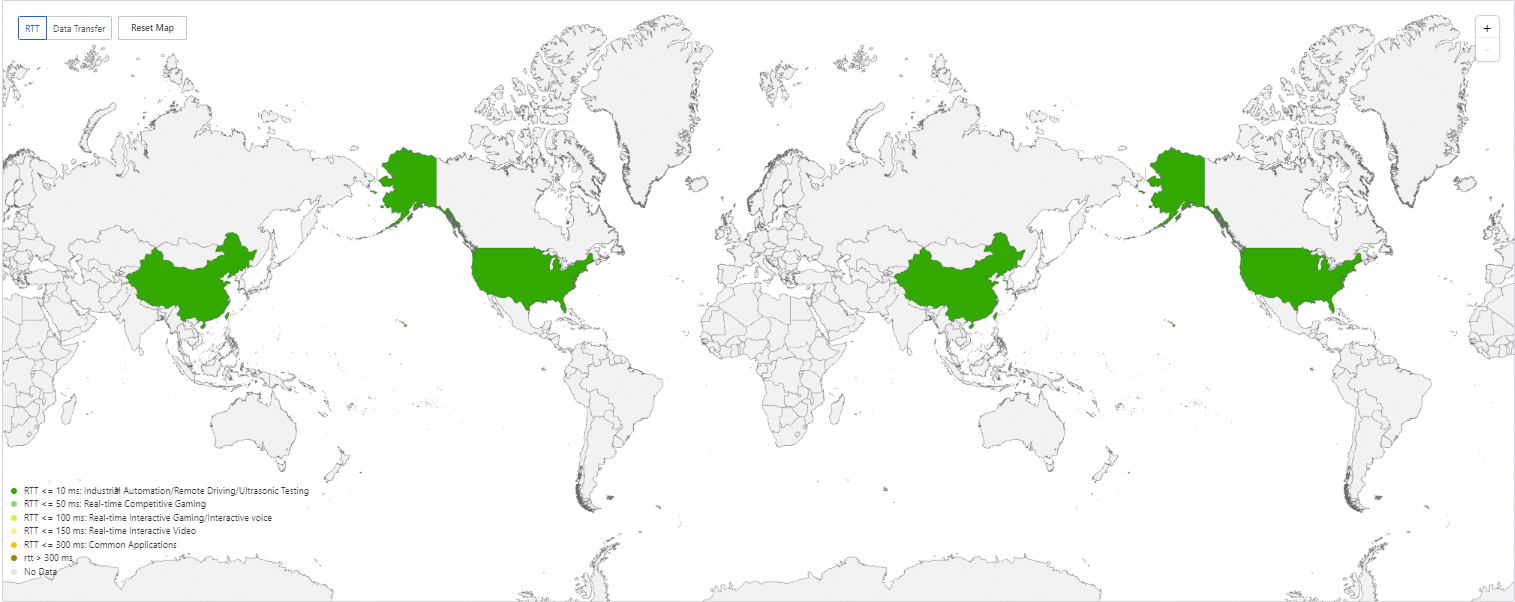
Traffic Map
2-tuples page displays a traffic map with the following Internet traffic metrics:
RTT: Round-trip time (RTT) for public network traffic in the current region during the current period. Unit: ms.
Data Transfer: The volume of Internet traffic exchanged between various countries and VPC resources during the current period. Unit: byte.
View public network access control interception analysis
Log on to the NIS console.
In the navigation pane on the left, select Traffic Analyzer.
On the Traffic Analyzer page, click the target NIS Traffic Analyzer ID.
In the navigation pane on the left of the NIS Traffic Analyzer product page, select , specify filter conditions, and view the corresponding interception traffic trend graph and interception traffic details table.
Chart
Description
Intercepted traffic trend chart
Bandwidth: the rate of intercepted Internet traffic during the current period. Unit: bit/s.
Packet Rate: the rate of intercepted public network data packets during the current period. Unit: pps.
Intercepted traffic details
After you select the 1-tuple, 2-tuples, or 5-tuples tab at the top of the page, the system automatically displays the corresponding blocked traffic TOP N analysis table:
1-tuple: Shows Alibaba Cloud VPC ID, vSwitch ID, ENI ID, ECS ID, traffic path, traffic direction, destination IP (inbound only), source IP (outbound only), packet count, traffic (bytes), and traffic percentage for the current period.
2-tuple: Shows city, country, carrier, ASN, source IP, destination IP, Alibaba Cloud VPC ID, vSwitch ID, ENI ID, ECS ID, traffic path, traffic direction, packet count, traffic (bytes), and traffic percentage for the current period.
5-tuple: Shows city, country, carrier, ASN, source IP, source port, protocol, destination IP, destination port, Alibaba Cloud VPC ID, vSwitch ID, ENI ID, ECS ID, traffic path, traffic direction, packet count, traffic (bytes), and traffic percentage for the current period.
You can filter TOP N intercepted traffic data by aggregation dimension, traffic byte range, and TOP N range.
Results appear as a VPC TOP N traffic list containing client location (city, country, carrier, ASN, source IP) and traffic observation (View trend, Remove TOP N traffic trend, 5-tuple) columns.
Trend Chart
To view the trend of a specific traffic entry, click in the View Trend column. The system automatically displays the trend chart for that traffic during the current time period, including the Bandwidth trend chart, Packet Rate trend chart, and TCP RTT trend chart.
Trend Comparison
VPC Top Traffic Trend displays traffic trend comparisons for all list items by default. You can click or Add to Top Traffic Trend in the Remove from Trend column of the target list item to add or remove the corresponding trend chart from the VPC Top Traffic Trend below. Supported comparison metrics include Bandwidth, Packet Rate, and RTT.
Traffic Drill-down
If your Traffic Analyzer supports multiple aggregation dimensions, you can drill down from a TOP N traffic entry to view more details. From 1-tuple traffic, drill down to 2-tuple TOP N data. From 2-tuple traffic, drill down to 5-tuple TOP N data.
Limits
A single query can scan up to 10 million raw log entries. If this limit is exceeded, the system returns a QuotaExceeded.CheckRowReadLimit error. To reduce scan volume:
Shorten the query time range: Focus on the business activity period, as longer time spans scan more logs.
Refine the traffic scope: Filter by specific traffic parameters, or start with 2-tuple analysis to identify target traffic ranges, then drill down to 5-tuple analysis.
FAQ
Can I view detailed historical traffic?
No. Only after creating a Traffic Analyzer and connecting VPC flow logs as the data source can you view information such as the access source IP, port, and protocol details of traffic in the target VPC.
Why is there a significant difference between the traffic statistics in Nginx logs and the ECS billing traffic?
Nginx logs only record Web application-layer traffic handled by specific rules (such as ports 80/443), while ECS billing traffic includes all outbound network-layer traffic of the instance (including other port services, system updates, background processes, and so on). You can enable flow logs for the VPC where the ECS resides and connect it to the Traffic Analyzer to analyze the full traffic in and out of the ECS, enabling visual monitoring and tracing.