This document describes how company administrators can enable the Weimi mobile collaboration application for public cloud services that require multi-device collaboration.
Background
The Weimi mobile collaboration application was created to extend the functionality of the O&M Event Center to mobile devices, supporting remote work and O&M tasks.
Mobile application product positioning:
Support core O&M Event Center tasks on mobile devices, such as responding to events, changing event owners, and closing events during key stages of the event lifecycle.
Enable information exchange between PCs and mobile devices. Currently, DingTalk and WeCom are supported, but Lark is not. This connectivity helps users perform O&M tasks across multiple devices and in various scenarios, ensuring a timely and reliable emergency response.
Before you can use the mobile application, you must complete the enablement process. This process associates RAM users in the Alibaba Cloud console with your mobile application's organization and account system. After the association is successful, the event stream can notify the correct owners. This allows them to receive and handle events on their mobile devices and ensures that data is correctly merged for statistical analysis.
Enablement process
Video demo of the enablement process (DingTalk example)
You can follow the video above to enable the mobile application. If you cannot watch the video, refer to the text instructions below.
Enablement process in the O&M Event Center console
The enablement process for the mobile application starts in the O&M Event Center console.
Log on to the Alibaba Cloud O&M Event Center console.
In the navigation pane on the left, choose Personnel Management > Mobile App Enablement to open the Mobile App Enablement page.
The page displays three channel options: DingTalk, Lark, and WeCom. Currently, you can choose DingTalk or WeCom. You can select only one collaboration channel. Choose the channel that best suits your company's needs.
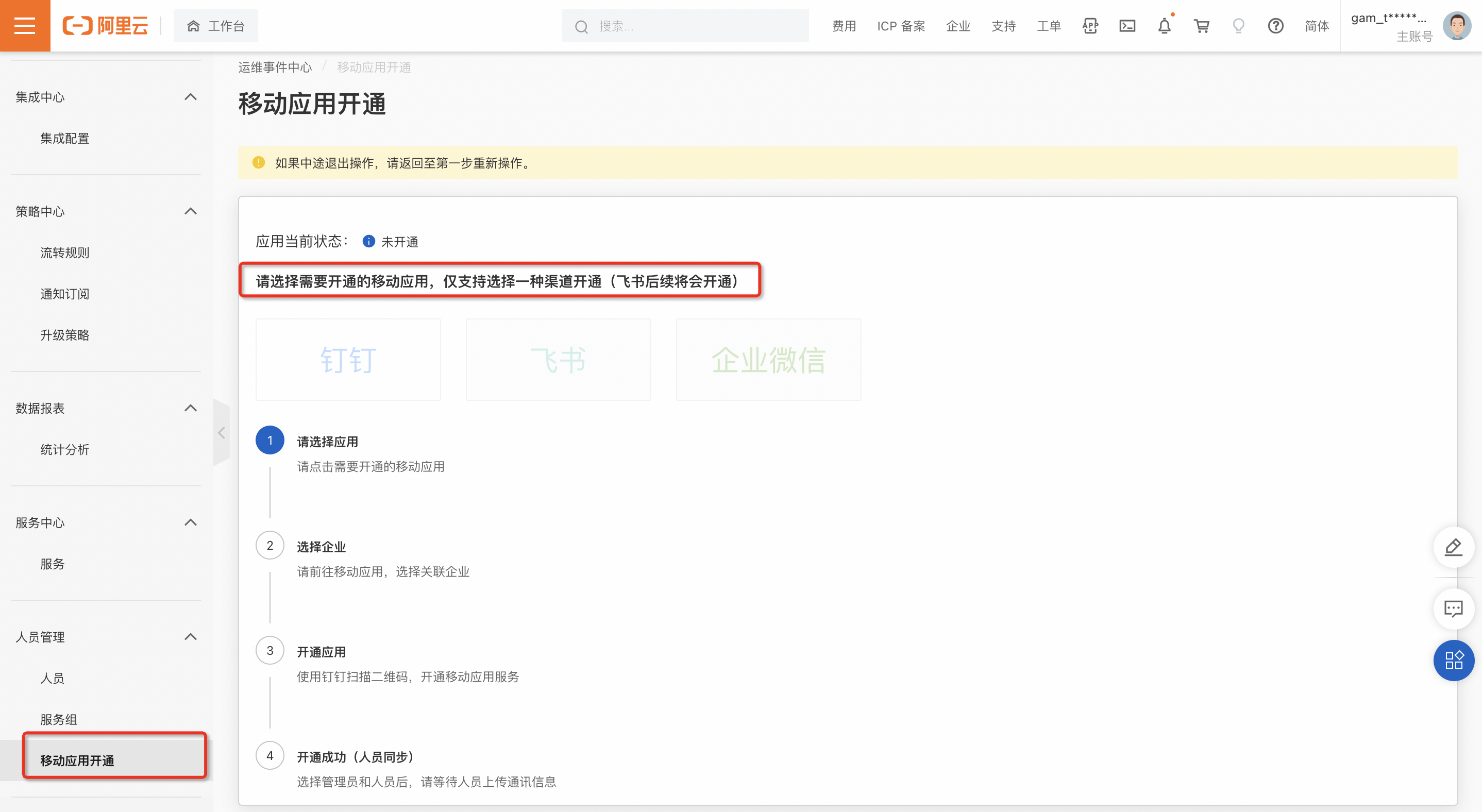
4. After you confirm your selection, the enablement process for the Weimi mobile application begins for the selected channel.
Enable the Weimi application (DingTalk)
Complete the enablement steps on this gateway page:
1. Scan the QR code to select your company
Open DingTalk on your mobile phone and scan the QR code in the first step. 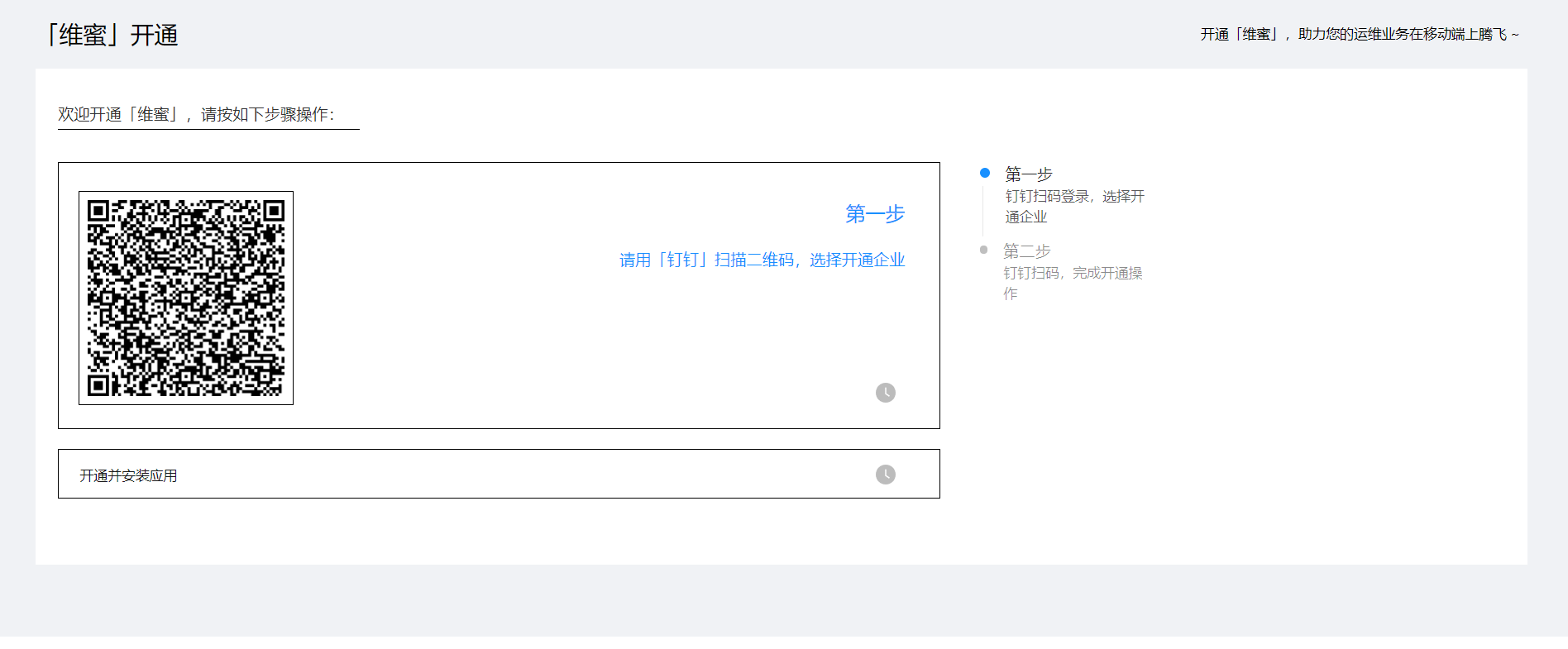 Log on to DingTalk and select the company for which you want to enable the application.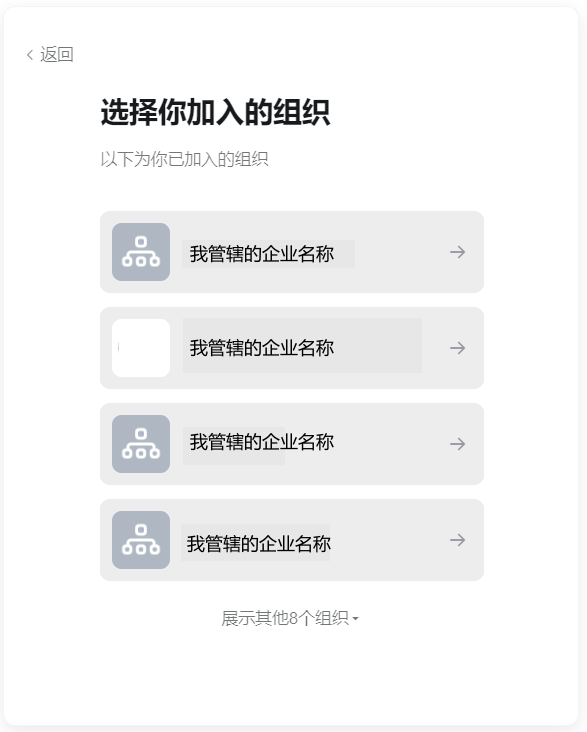
After you select the company, the page on your PC refreshes. A dialog box appears that shows the selected company ID. Confirm the ID to load the second QR code.
Currently, only company administrators can enable Weimi. Regular users cannot.
2. Scan the QR code to complete the enablement
Scan the second QR code with DingTalk on your phone to enable the Weimi DingTalk application. Then, select the users who will have visibility of the application. We recommend that you select all users.
After the company administrator successfully enables the application on their phone, the results page appears as shown in the following figure:
After enablement, the application is listed in the organization's workbench. It will be visible to the users you selected during the process.
3. Add members to Weimi
After Weimi is enabled, add users to the application. These users can include O&M team members and application administrators.
The users selected during enablement only have visibility of the application and cannot access it. This is an initial configuration step. The members that you add in this step are the actual users of the application. They perform tasks in Weimi and require permissions that are managed through Weimi's access control.
To prevent leaks of customer or business data related to events and faults, Weimi checks user permissions during logon. Users who do not have the required permissions cannot log on to or use the application.
Before O&M members can use this application for emergency collaboration, an administrator must add them and send them an invitation link. The person who enabled the application is the initial administrator. Added members can then invite other company members from DingTalk, up to a limit of 1,000.
Members access the application through the link, select their company, and grant authorization for their personal information. After this, they can use the application.
Add members
After the administrator, who is initially the person that enabled the application, successfully enables Weimi and logs on to the application console, they can select the departments and members to add to Weimi.
Invitation notification
DingTalk sends a work notification with a link to the selected members. Users can click the link to access the application.
The person who enabled the application must be the one to add the first members. Immediately after the application is enabled, select the departments and members to sync in the Weimi console.
The work notification sent to each member appears as shown in the following figure:
Each member clicks this link, is redirected to the Weimi application, and can use it after granting authorization.
On their phone, the user opens the notification in DingTalk, clicks the access link, and is redirected to the Weimi application.
After logging on to DingTalk, the invited user selects their company organization:
You must select the organization for which the application was enabled. Otherwise, personal information authorization may fail.
After the authorization is complete, you can close the authorization page and exit Weimi.
Set administrators
To make user account configuration more efficient and reduce the workload for company administrators, Weimi lets you assign administrator roles. These administrators can then manage tasks such as adding members and setting permissions.
After the company administrator adds the first members, they can assign the administrator role to any member on the member's details page. This new administrator can then perform account management tasks, such as adding or deleting members, enabling or disabling accounts, and assigning other administrators. The permission to add members is also expanded, allowing all current members to invite new members.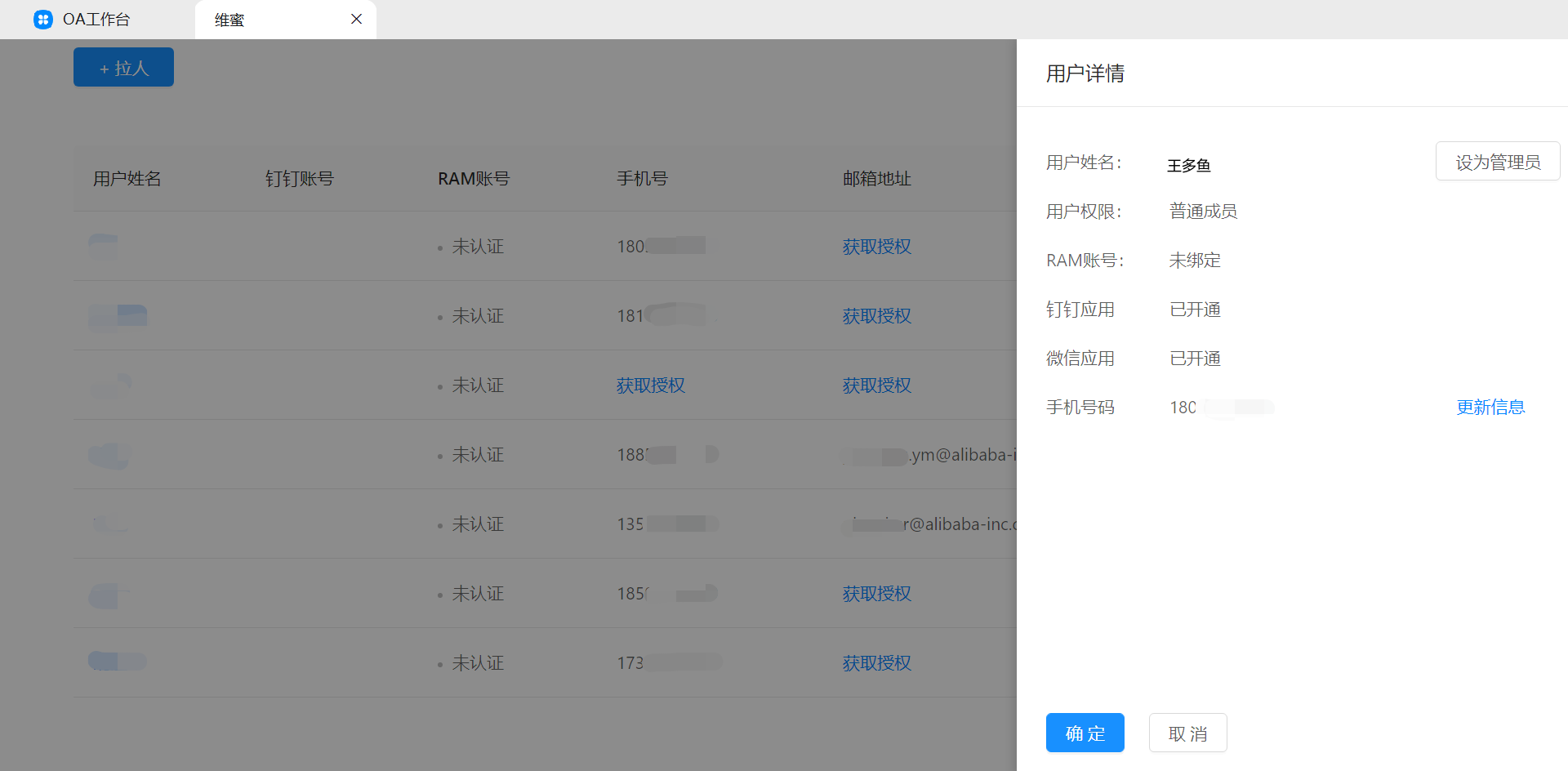
End of enablement process
This completes the enablement process for the Weimi mobile application. O&M engineers can now perform emergency collaboration on their mobile devices. The progress bar for the enablement process in the O&M Event Center is now complete.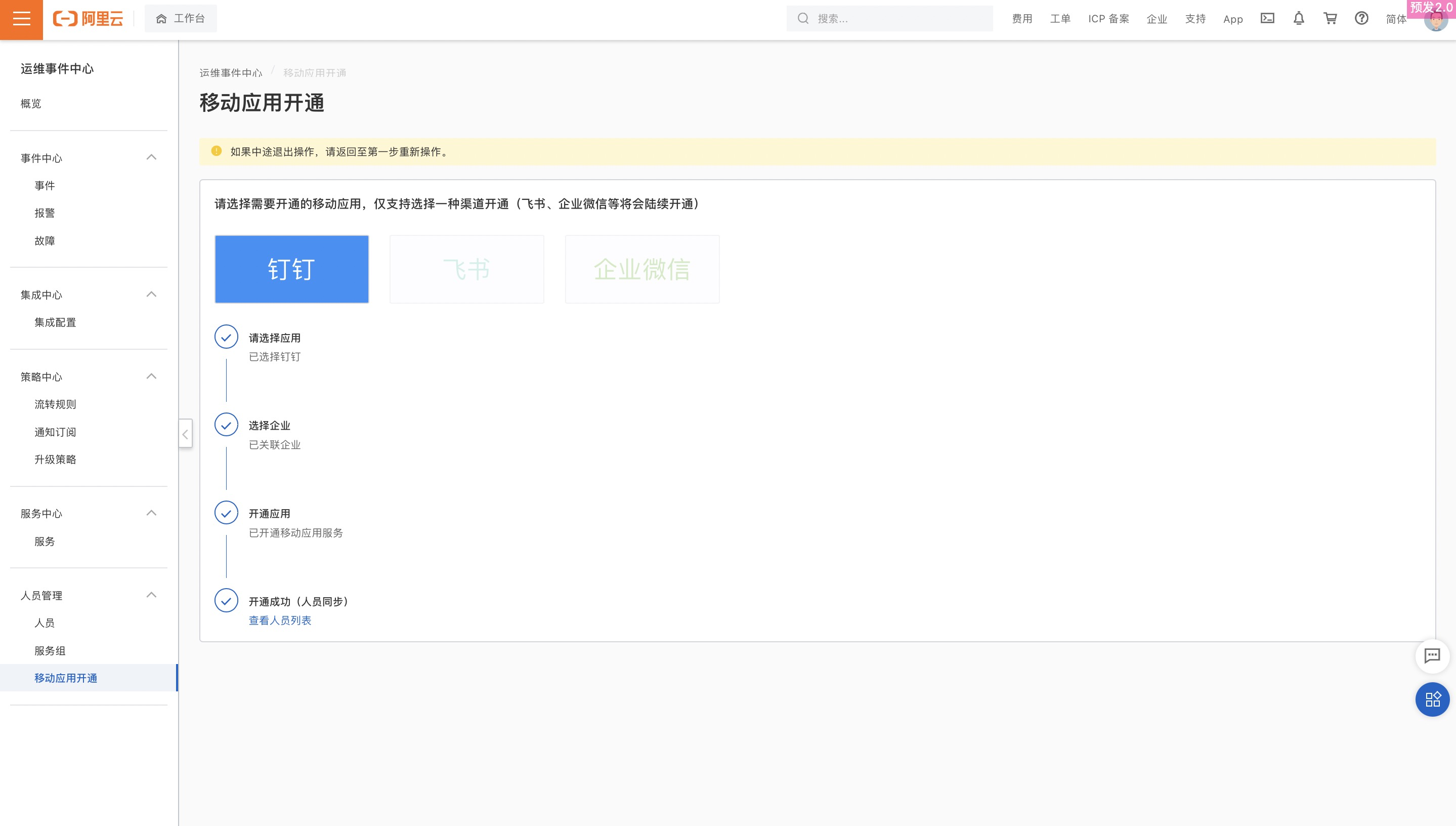
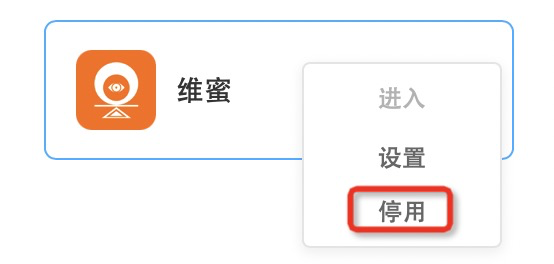
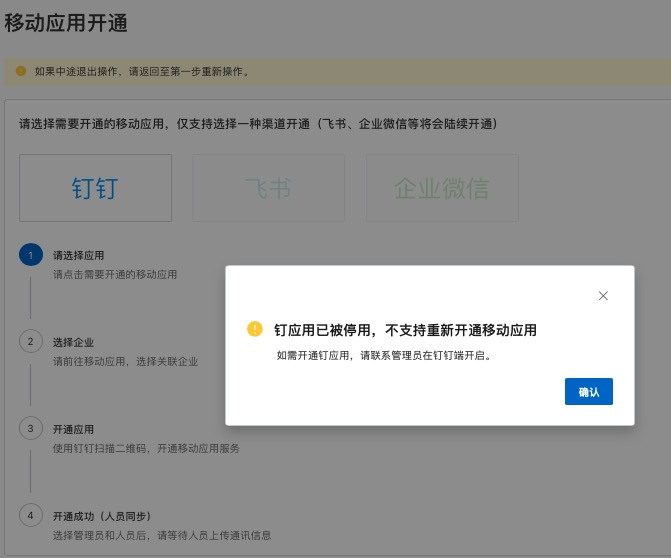
You can enable or disable Weimi from the DingTalk workbench. If you disable Weimi, you cannot re-enable the DingTalk application from the O&M Event Center platform.
Enable the Weimi application (WeCom)
1. Select WeCom
First, navigate to the mobile application enablement page, select WeCom, and enter your company's CorpID.
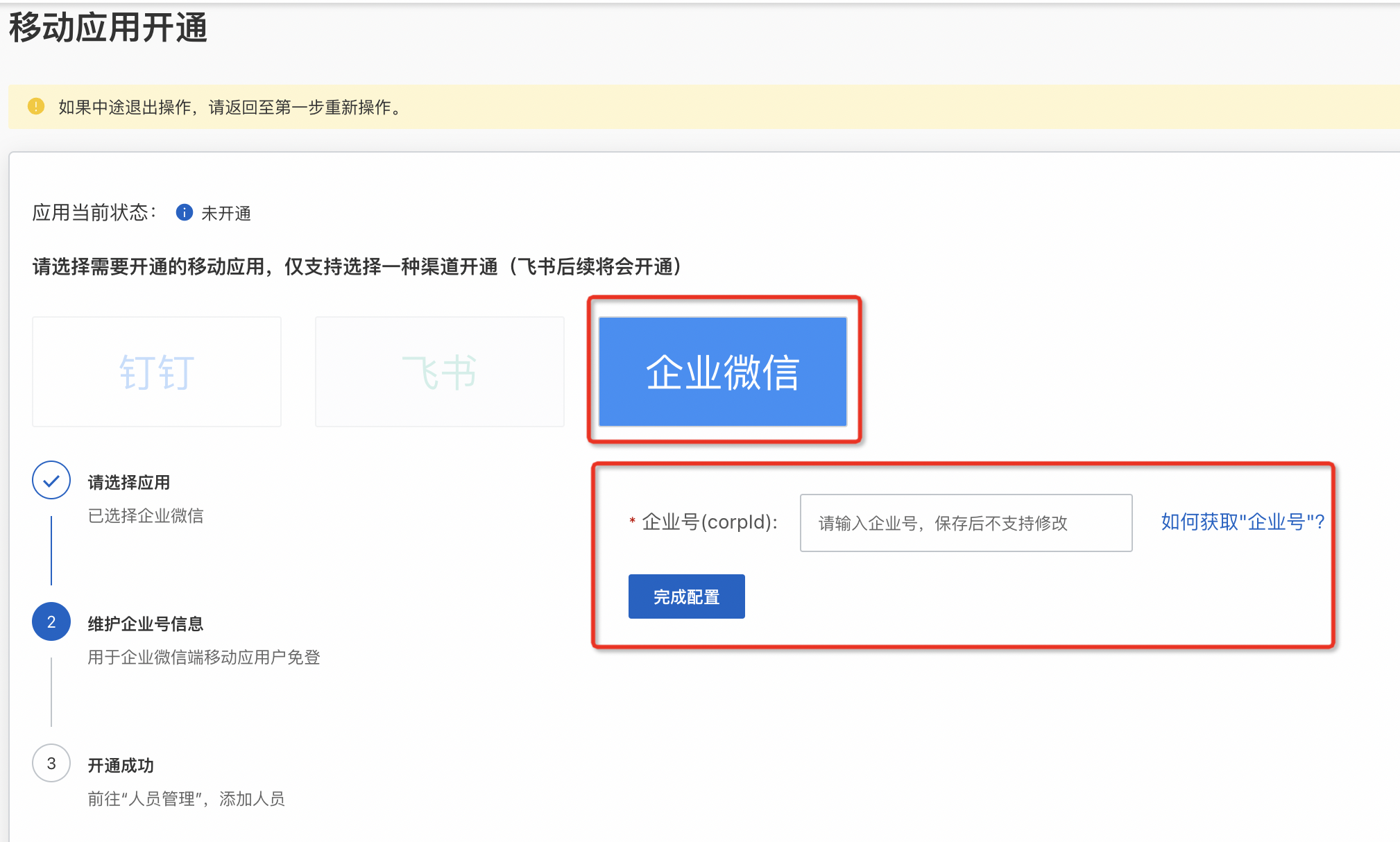
How to find your company's CorpID: 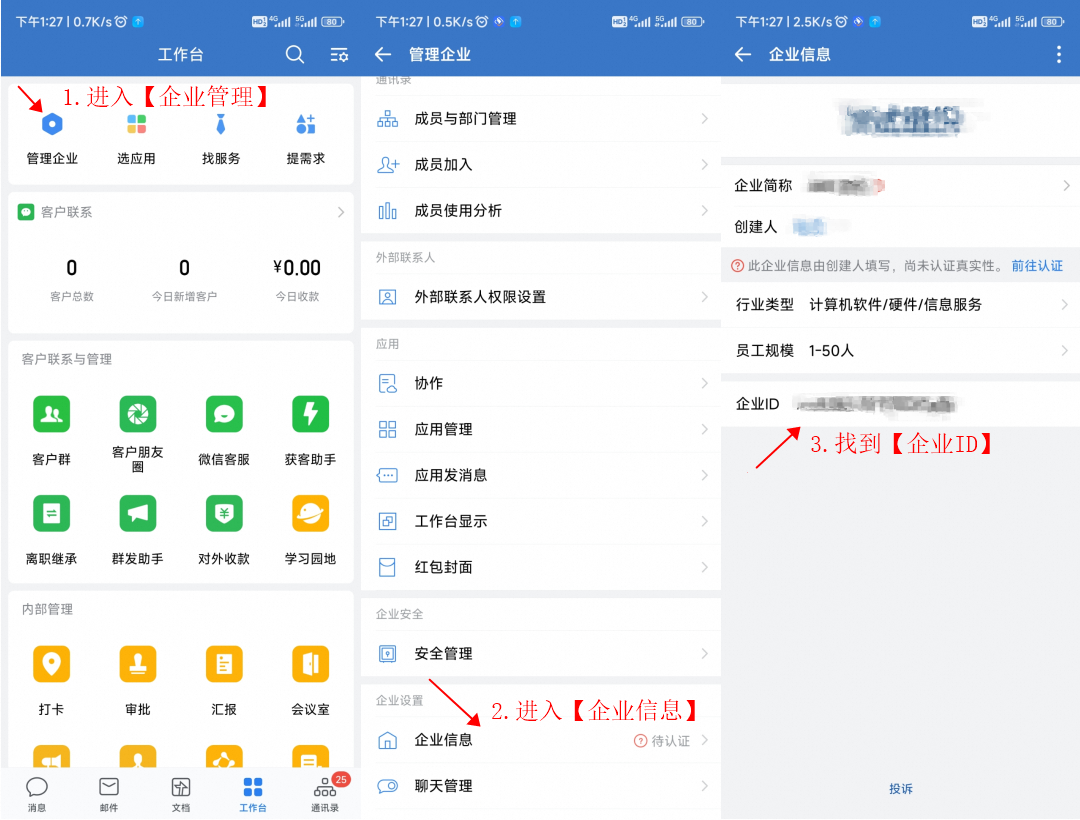
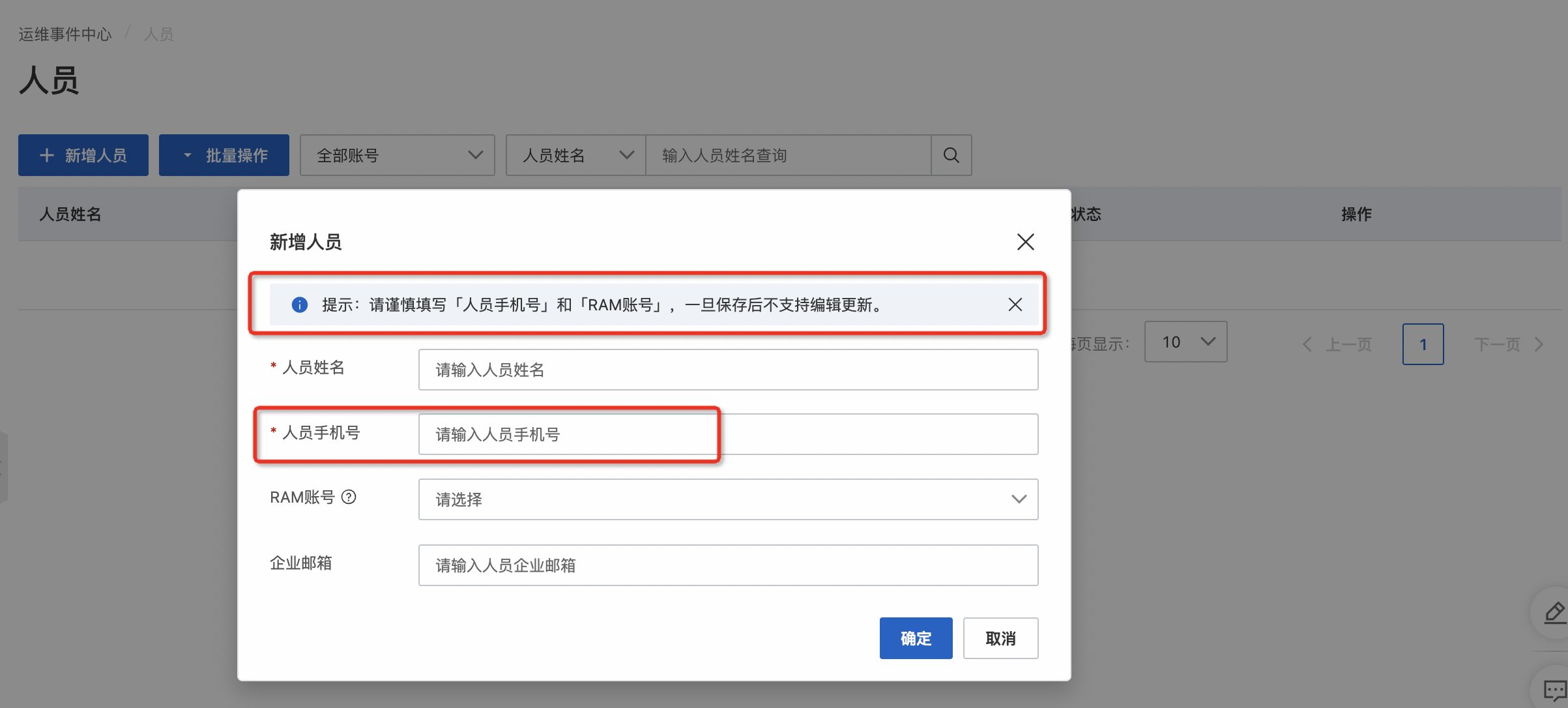
2. Add new personnel
Navigate to the personnel management interface and manually add a new user. Enter their name, mobile number, RAM user, and business email. The mobile number is used to associate the RAM user with the WeCom account, so it must be accurate and unique.
Previously added users do not affect the WeCom Weimi enablement. When you add users, ensure that the mobile number is accurate and unique.
3. Subscribe to Weimi
Before a user can use Weimi, they must be added to the user list in the O&M Event Center, as described in Step 2. To use Weimi, users must manually associate their O&M Event Center RAM user with their WeCom account. In WeCom, navigate to Workbench, add the Weimi application, and open it. You can then link your mobile number.
Figure 1) Add and enable the Weimi miniapp.
Figure 2) Log on to Weimi, navigate to the miniapp introduction page, and click the Pending Events button to begin linking your mobile number.
Figure 3) Enter your name and mobile number, and then click the Send Captcha button. If the mobile number has not been added to the O&M Event Center, a dialog box appears that prompts you to first add the user in the O&M Event Center.
Figure 4) Enter your name and mobile number, and then click the Send Captcha button. If the mobile number has already been added to the O&M Event Center, a dialog box appears that lets you select the RAM user associated with this mobile number. Proceed with caution.
Figure 5) After selecting the RAM user, you must also select the corresponding WeCom account. This is the name displayed in the Weimi miniapp.
Figure 6) After selecting the name, a Captcha is sent to your mobile phone for verification.
Figure 7) After the mobile number is verified, you are redirected to the Pending Events page. Here, you can view all events from the O&M Event Center platform.