Scheduled O&M
Background
To perform O&M operations at a specific time, use the Scheduled O&M feature of Operation Orchestration Service (OOS) to automate tasks. You can schedule a task to run once at a specified time or on a recurring basis.
Procedure
-
Log on to the OOS console.
-
In the left-side navigation pane, select . On the "Scheduled tasks" page, click Create.
-
Select a Scheduled Task Type.
-
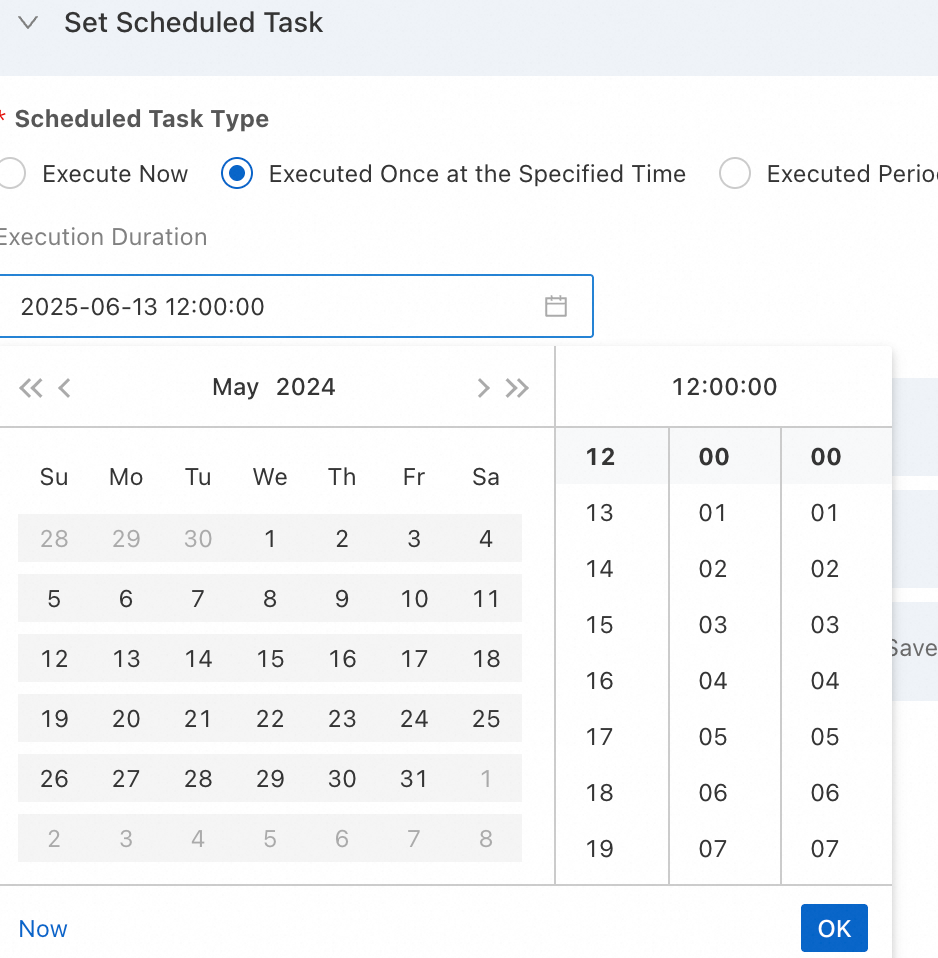
Select Executed Once at the Specified Time to run the task a single time.
-
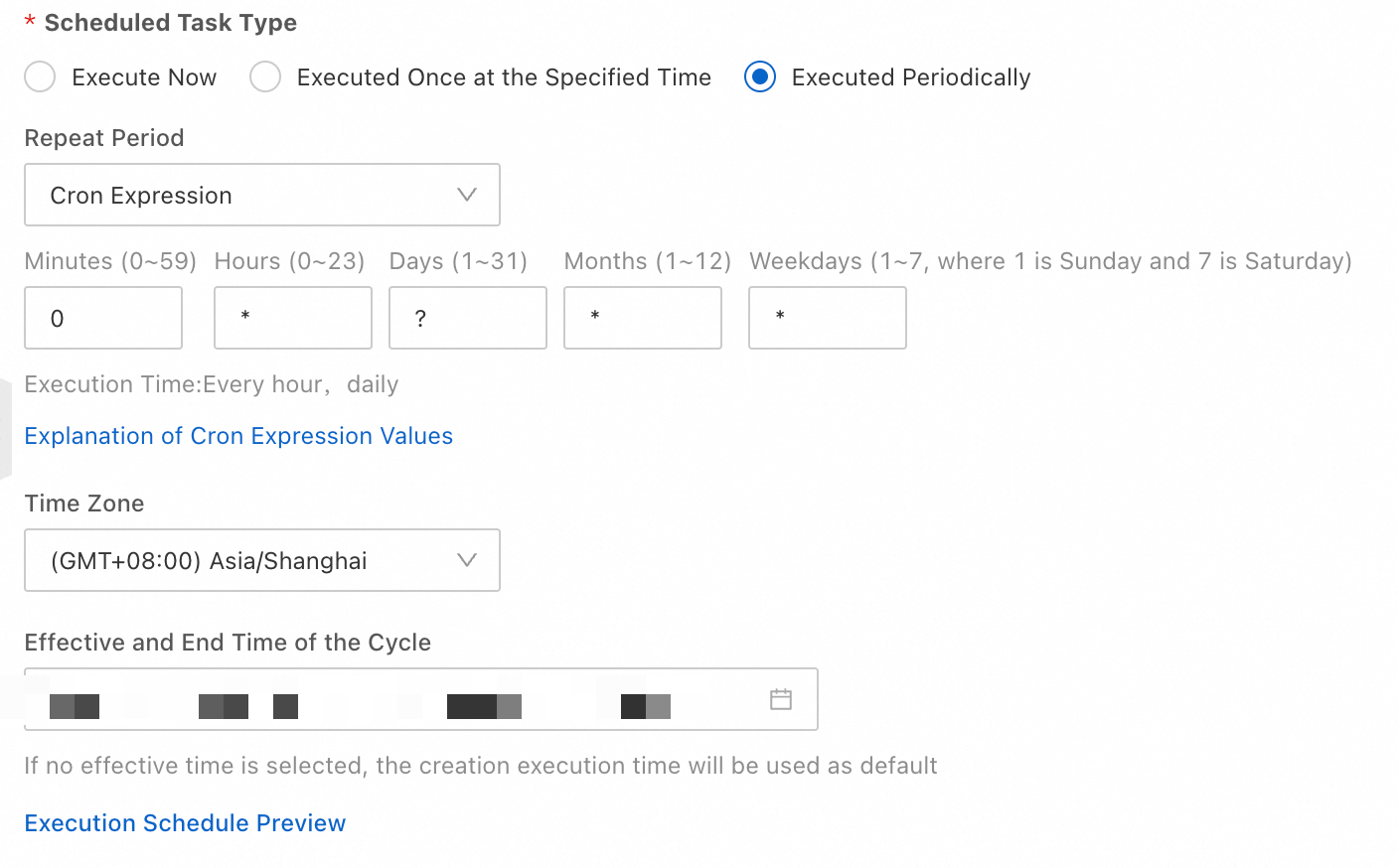
To run the task on a recurring schedule, set the repetition period and Period Effective And End Time.
-
repetition period: Specify a custom CRON expression to define the schedule. To learn more about CRON expressions in OOS, see Using CRON expressions.
-
Period Effective and End Time: This defines the active period for the scheduled task.
-
-
-
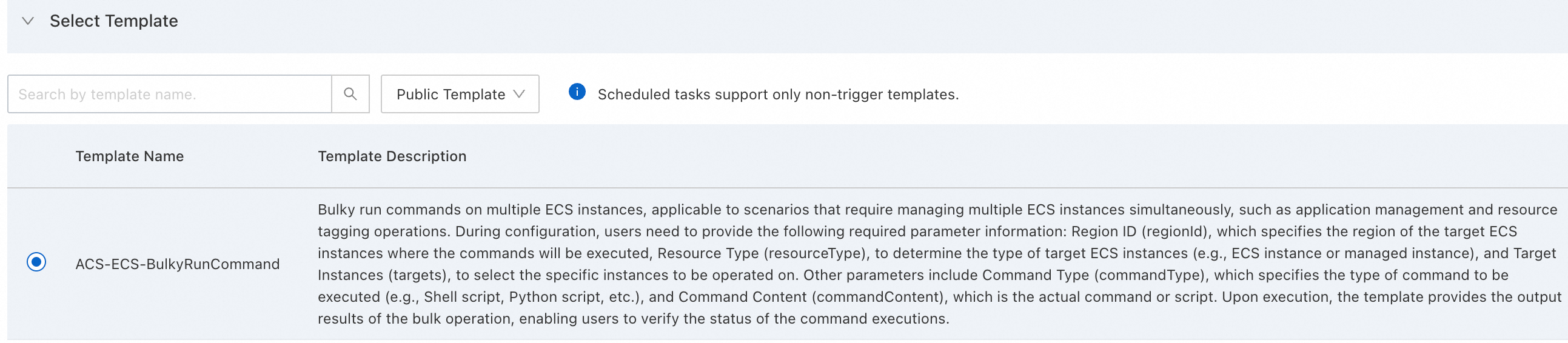
Then, Select Template. You can Select Template from two types: public template and my template. This example selects a public template.
-
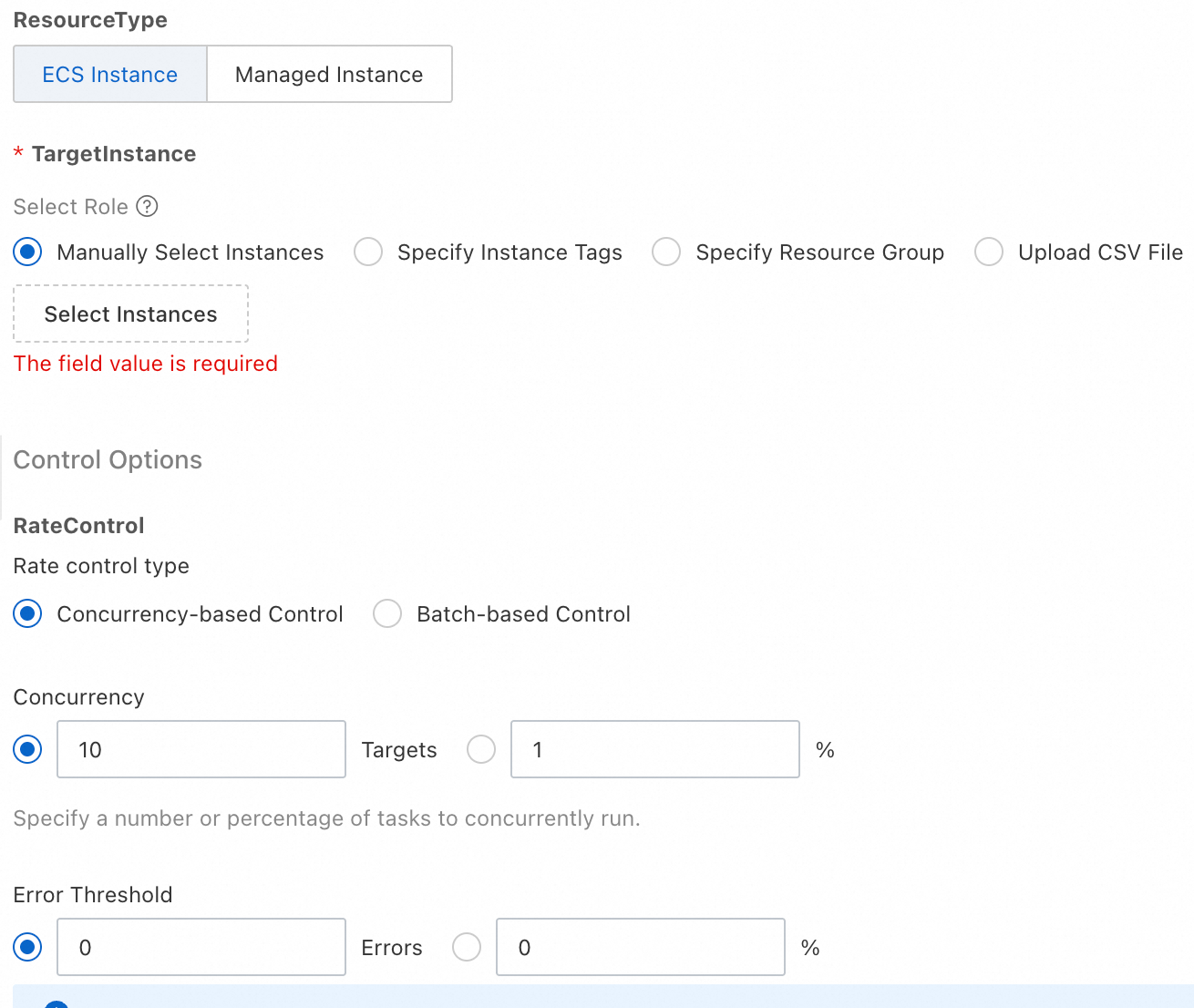
In the Configure Template Parameters section, set the parameters for the template. The process is the same as for any other template.
-
For Permissions, select Specified RAM role.
-
Click Create. In the dialog box that appears, confirm the parameter settings and click OK.
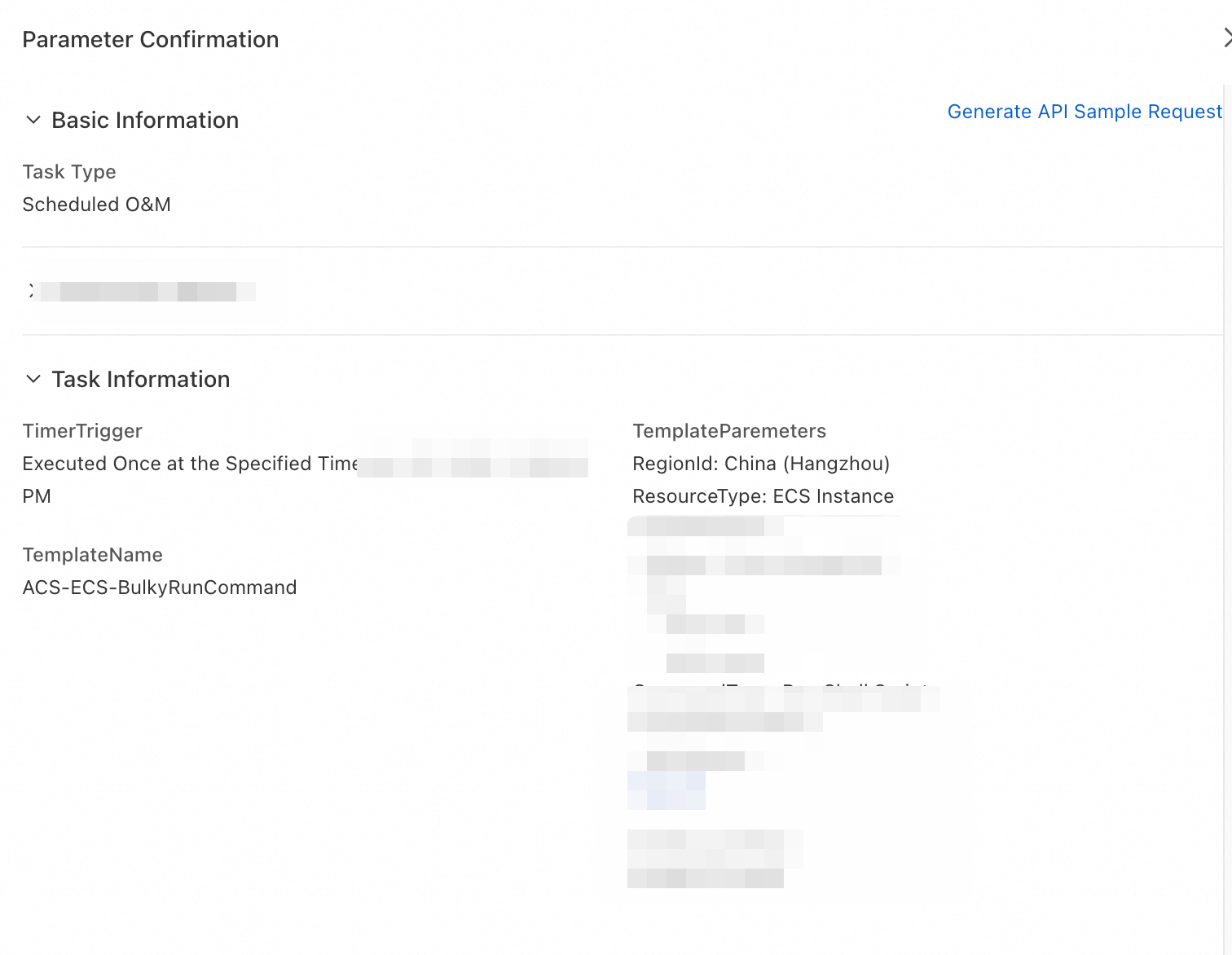
-
On the Task Execution Management page, view the new execution. A status of 'Waiting' confirms that the scheduled O&M task was created successfully.
-
To learn more about an execution, click Details to view its Execution Logs.