Quickly configure cross-region O&M tasks using Quick Setup
Use Quick Setup in CloudOps Orchestration Service (OOS) to configure and deploy O&M tasks across multiple regions in a few clicks, with built-in drift prevention.
1. Introduction
What is CloudOps Orchestration Service (OOS)?
CloudOps Orchestration Service (OOS) is an Alibaba Cloud service that automates O&M task management and execution. You design templates that define task content, execution order, required inputs, and expected outputs, and then run them to automate O&M operations.
What is Quick Setup?
Quick Setup is a feature in OOS that helps you configure and deploy common O&M capabilities based on best practices. Key advantages:
1. Simplified configuration: Quick Setup provides a wizard-driven process that follows best practices to automate the configuration. This eliminates manual, step-by-step setup for OOS and related services. You can monitor configuration and deployment status in real time on the control panel.
2. Cross-region automatic deployment: Select multiple regions for configuration and deployment at once. This ensures consistent O&M configurations across regions and eliminates the need to repeat configurations in each region.
3. Configuration drift prevention: If a Quick Setup configuration is modified through other methods, Quick Setup periodically checks the configuration status and attempts to fix any drift automatically. This ensures ongoing accuracy and stability.
4. Target users: Quick Setup is designed for users who have experience with Alibaba Cloud services and want to deploy standardized O&M configurations quickly. If you are new to a specific service, we recommend that you read its user guide before using Quick Setup.
With Quick Setup, you can perform O&M tasks such as batch installing the CloudMonitor agent, collecting configuration inventory, and scheduling regular patch scans and fixes. This helps prevent issues caused by manual configuration errors or omissions and improves O&M efficiency and resource management consistency.
2. Procedure
Create a configuration
-
Log on to the CloudOps Orchestration Service console.
-
In the navigation pane, choose Quick Setup. The Quick Setup library page appears and displays the supported configuration types.
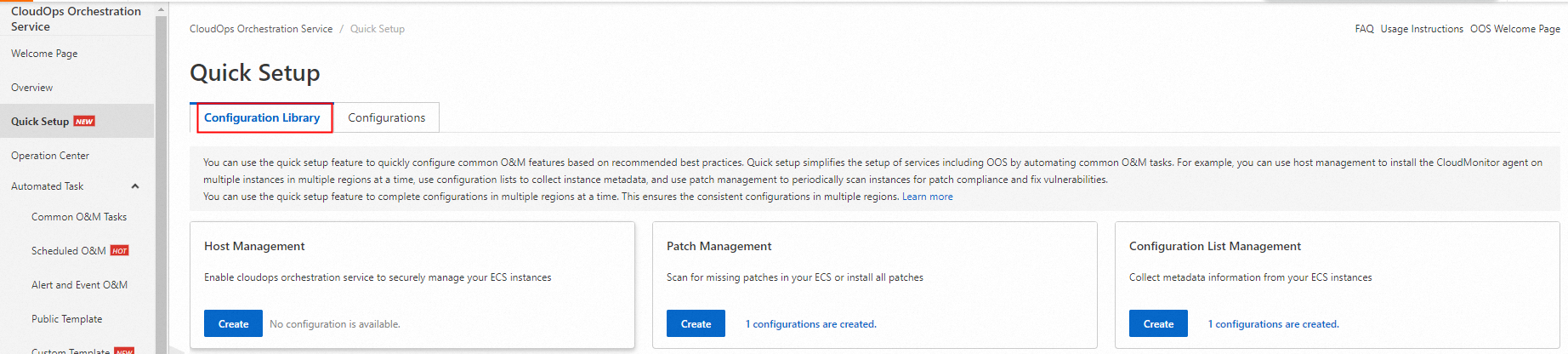
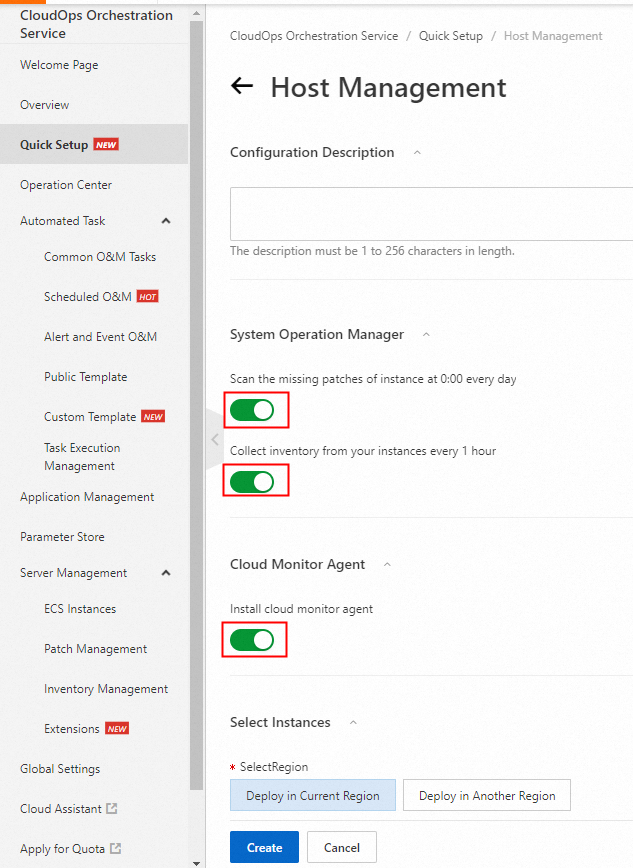
3. This topic uses Host Management as an example. On the Host Management card, click Create. In the Configuration options section, select the options that you want to enable for the configuration:
-
Scan instances for missing patches at 00:00 every day
Enables Patch Management in OOS to scan ECS instances daily and generate a compliance report based on the default patch baseline. The report shows the number of compliant nodes and lists each node with its compliance status. For more information about patching operations and patch baselines, see Patch Management overview. To view patch compliance information, go to the Patch Management page in the OOS console. For more information about patching managed nodes in multiple regions within a single configuration, see Patch Management with Quick Setup.
-
Collect configuration inventory from instances every 1 hour: Collects the following types of metadata:
-
Applications: application name, publisher, version, and more.
-
Network configuration: IP address, MAC address, DNS, gateway, subnet mask, and more.
-
Services: name, display name, status, related services, service type, startup type, and more.
-
Windows Roles: name, display name, path, feature type, installation status, and more (Windows Server nodes only).
-
Windows Updates: patch ID, installer, installation date, and more (Windows Server nodes only).
-
Instance details: system name, operating system name, operating system version, DNS, domain name, and more.
-
For more information about the configuration inventory feature of OOS, see Configuration inventory overview.
The inventory collection can take up to 30 minutes to complete, even if you select only a few nodes.
-
Install the CloudMonitor agent
Installs the basic configuration of the unified CloudMonitor agent on ECS instances. The CloudMonitor agent provides system monitoring for your hosts. For more information, see Plug-in overview.
In this example, all options are selected.
-
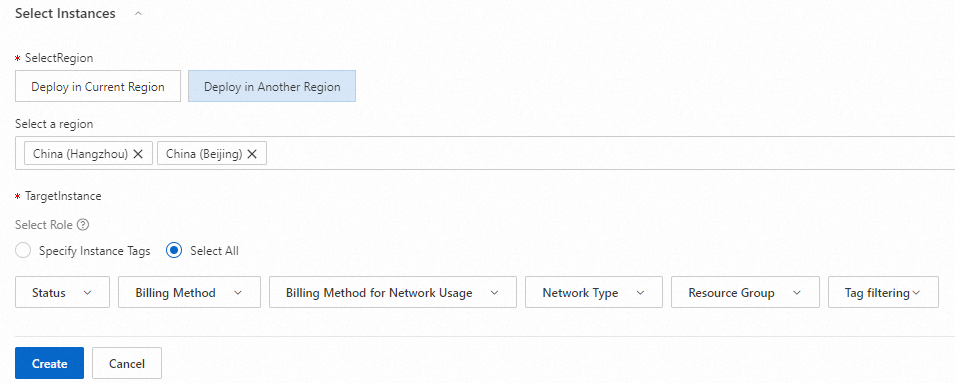
Select the regions where you want to deploy the configuration and the target resources.
-
For Deployment regions, select one of the following options:
-
Current region: Deploys the configuration only to the managed nodes in the region that is selected in the console.
-
Select the regions where you want to apply the patch policy.
-
-
For Targets, you can select the target nodes in the following ways:
-
If you deploy in the current region, you can select instances manually, specify tags, specify a resource group, or select all instances.
-
If you deploy in specific regions, you can select instances by specifying tags or select all instances.
-
In this example, the Beijing and Hangzhou regions are selected, and all ECS instances are selected as targets.
-
Click Create and then Confirm. The host management configuration is created for the Beijing and Hangzhou regions.
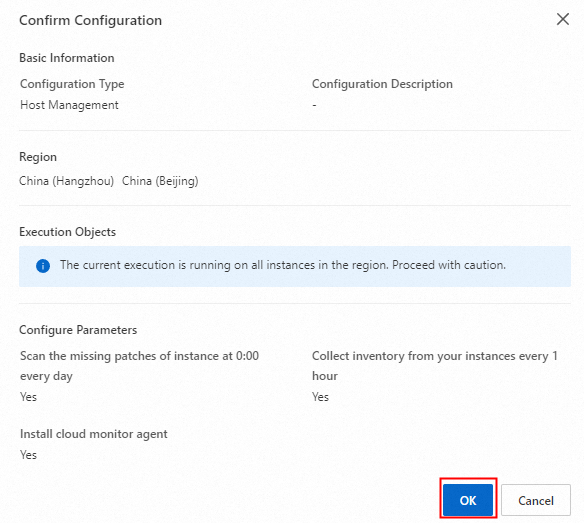
Return to the Configuration list tab on the Quick Setup page. If the Region configuration status is Failed or Configuring, the configuration is in progress.

After a few moments, refresh the page. The status changes to Successful for all regions.

View a configuration
After the O&M configuration is created, go to the Configuration list tab on the Quick Setup page. In the Actions column, click Details to view the configuration.

You can view the basic information of the configuration.
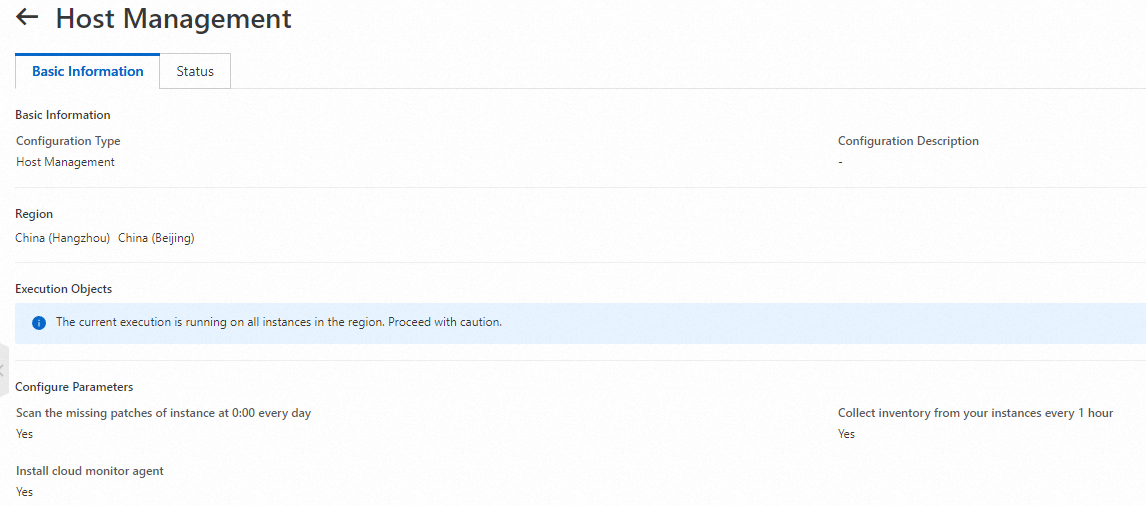
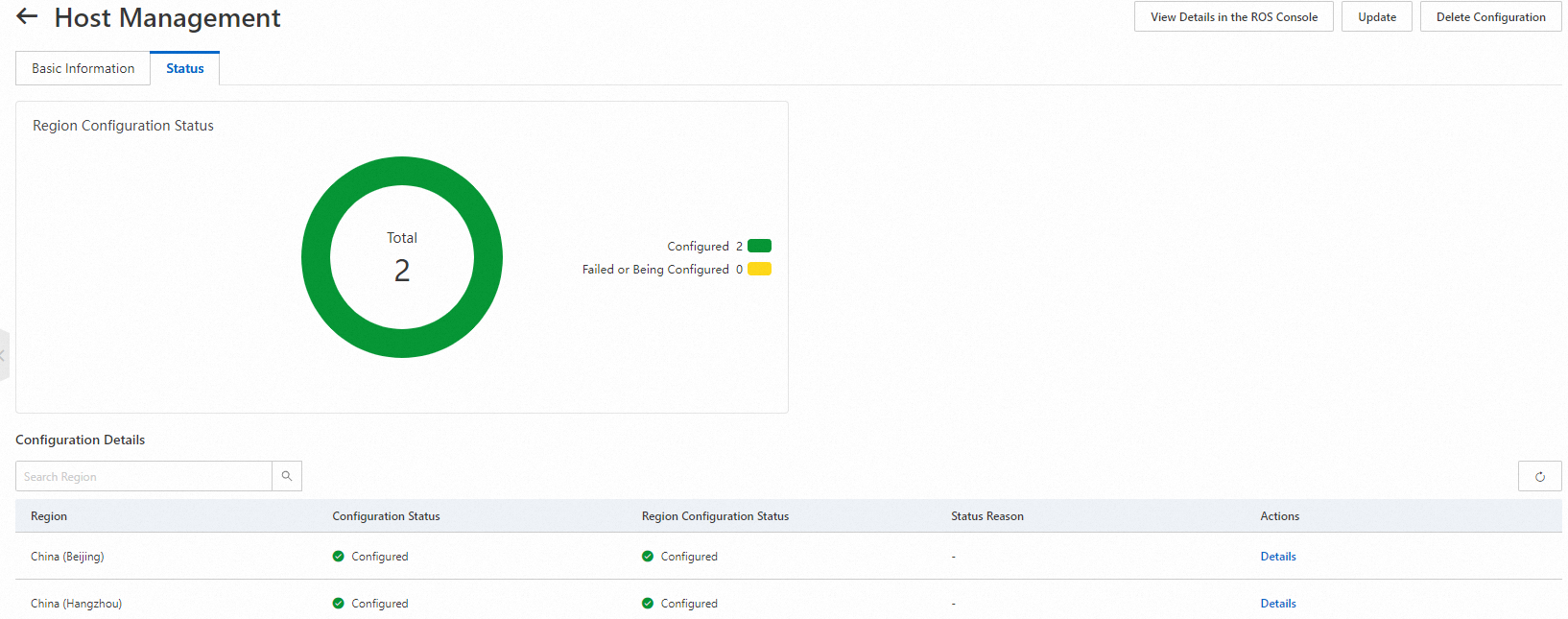
Click the Current Status tab to view the status and details of the configuration in each region, such as the error status and the cause of an error.
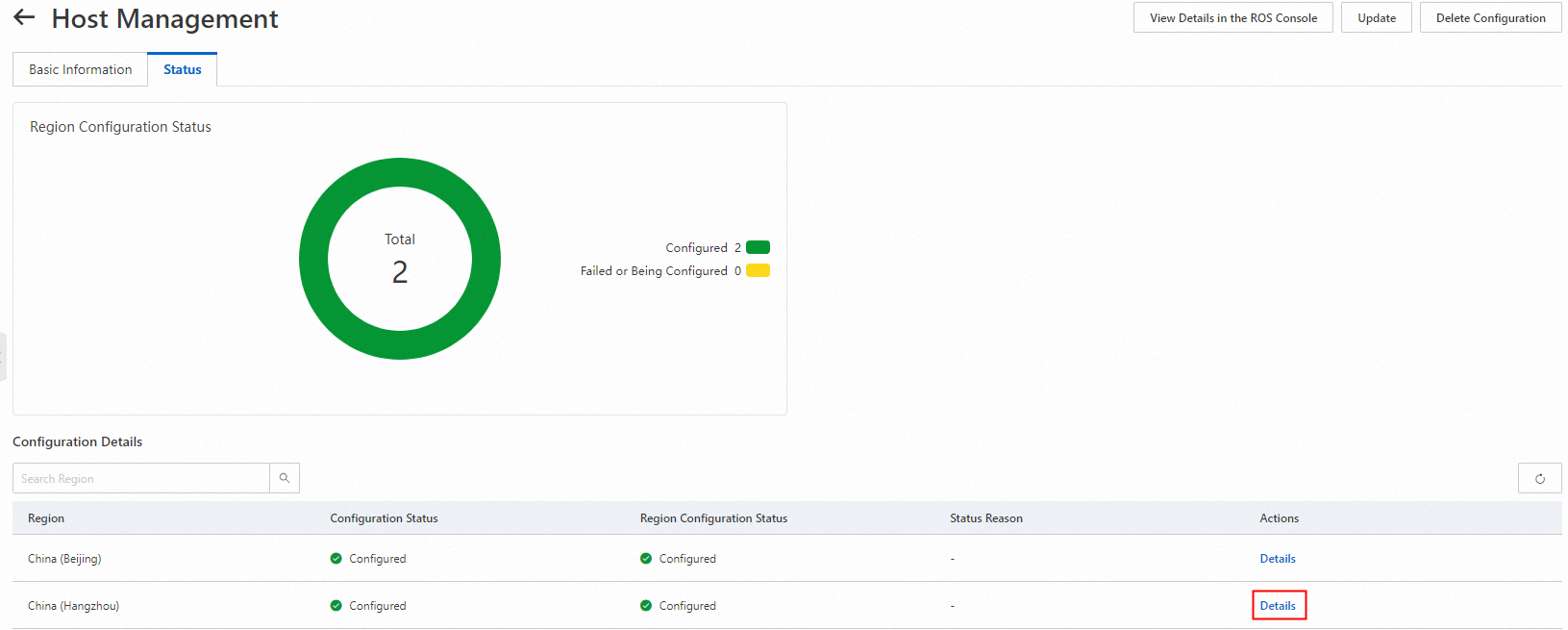
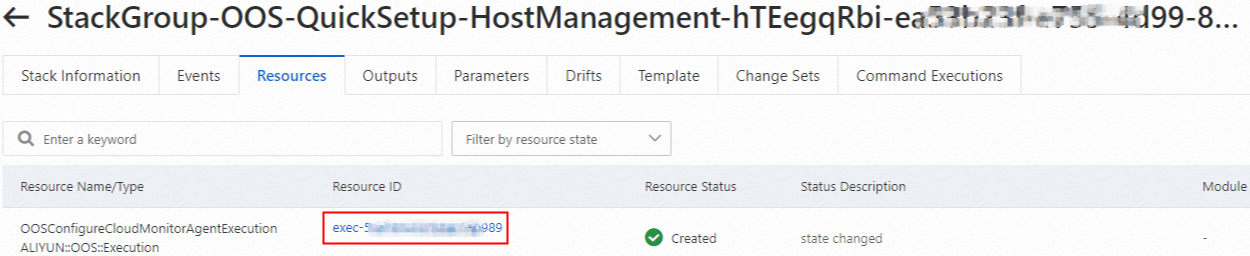
Click Details to go to the Resource Orchestration Service (ROS) console and view the deployed resources.
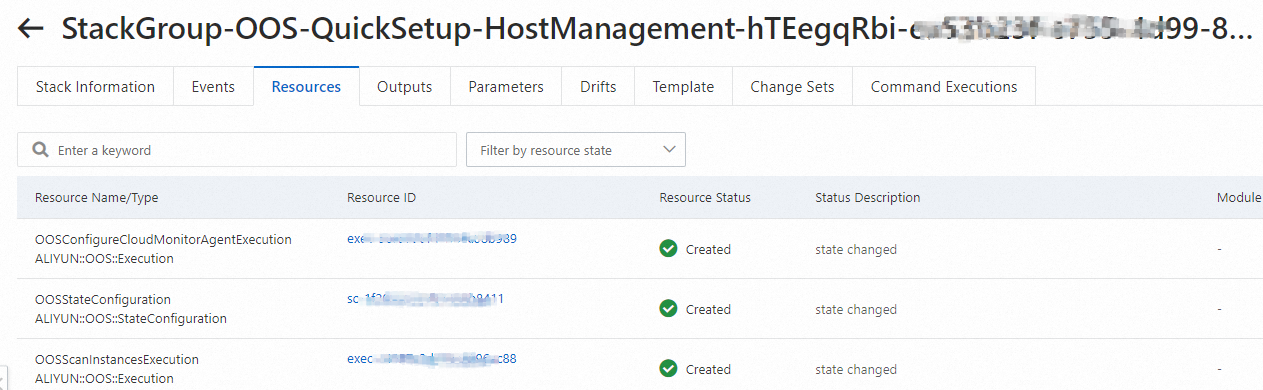
Click a Resource ID to go to the OOS execution details page or the Configuration Inventory edit page for more detailed information.
Update a configuration
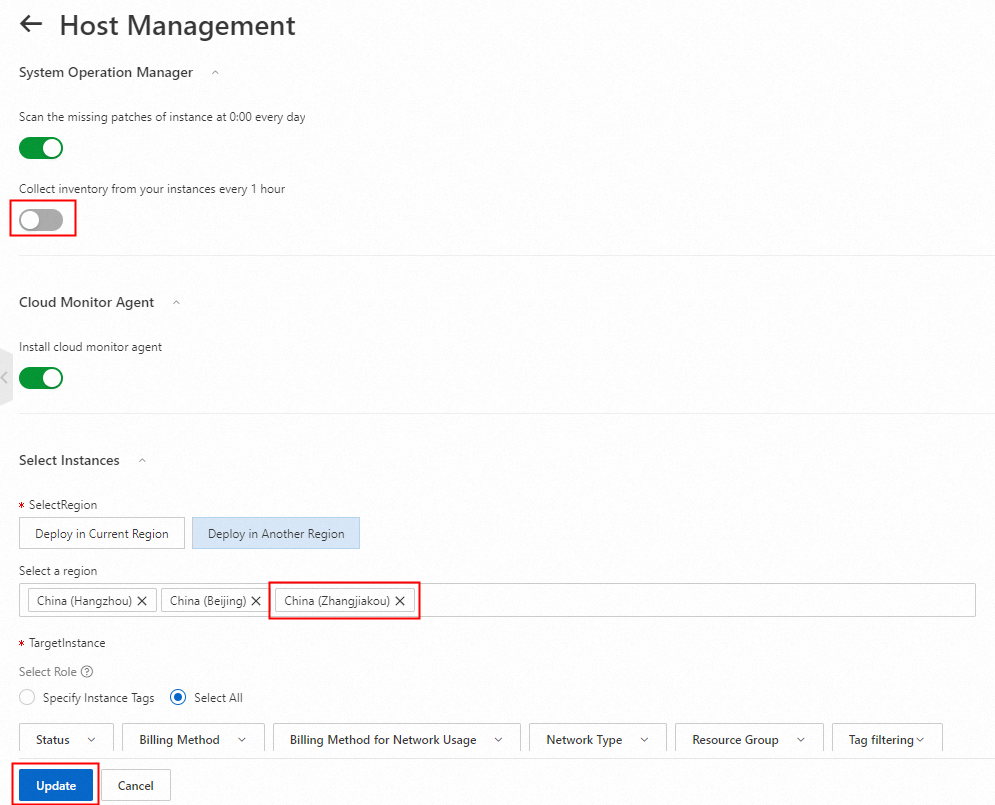
If you want to update a configuration after it is created, go to the Configuration list tab on the Quick Setup page. In the Actions column, click Update.

In this example, the option for collecting configuration inventory is disabled, and a new deployment region, Zhangjiakou, is added. After you make the changes, click Update to redeploy the configuration.
Delete a configuration
If you no longer need to run a configuration, go to the Configuration list tab on the Quick Setup page. In the Actions column, click Delete.

A confirmation message appears. Click Confirm to delete the configuration.

Summary
This topic described how to use Quick Setup in OOS to configure features across multiple regions, including installing the CloudMonitor agent, collecting configuration inventory, and scanning for missing patches. It also covered how to view, update, and delete configurations. Quick Setup simplifies the process to a few selections in the console and provides a centralized way to apply the same configuration across regions, ensuring consistency.