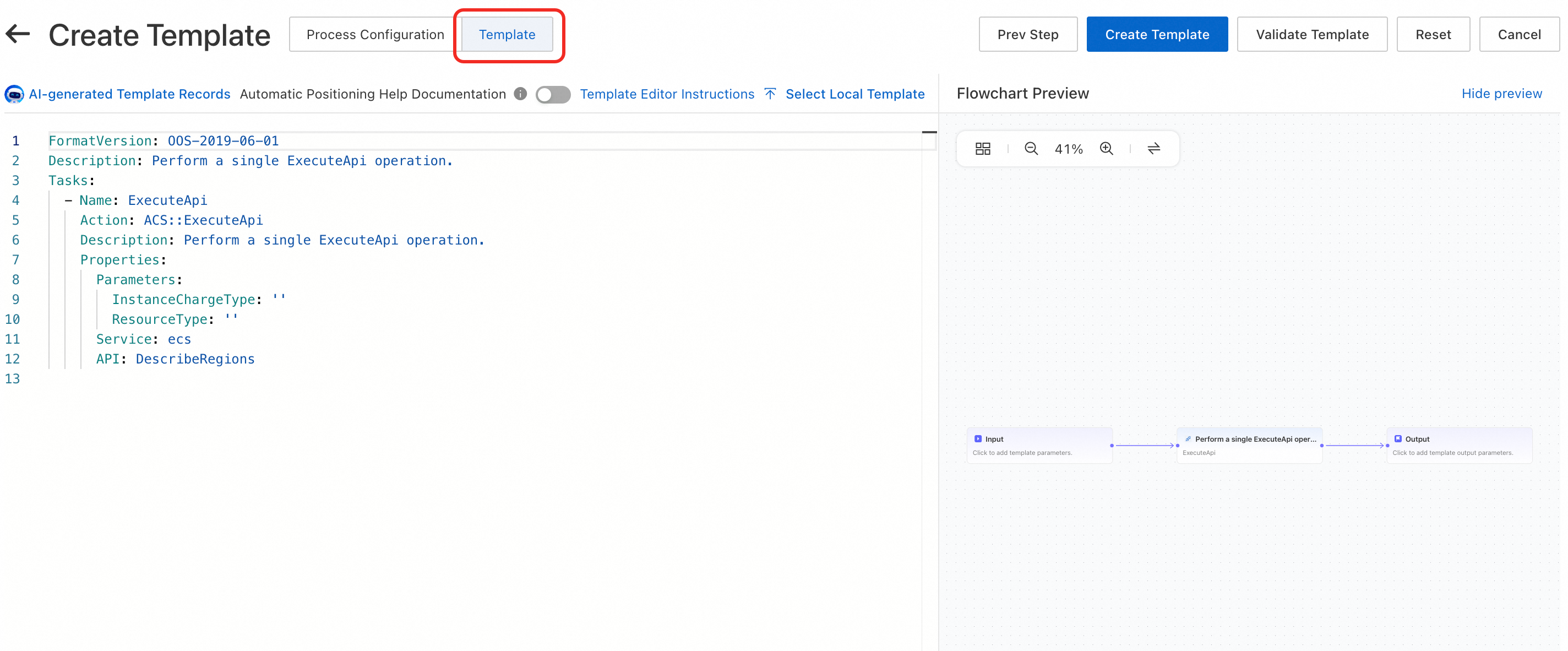
Write OOS templates with the Flow Configuration Editor
The Flow Configuration Editor lets you build OOS templates visually through drag-and-drop, replacing manual syntax authoring with an intuitive canvas.
Procedure
-
Log on to the CloudOps Orchestration Service (OOS) console.
-
In the left navigation pane, choose Automated Tasks > Custom Task Templates.
-
On the Custom Task Templates page, click Create Template.
-
The Create Template page opens in Flow Configuration Editor mode by default. Build your template workflow on this page.
Using the Flow Configuration Editor
Interface Overview
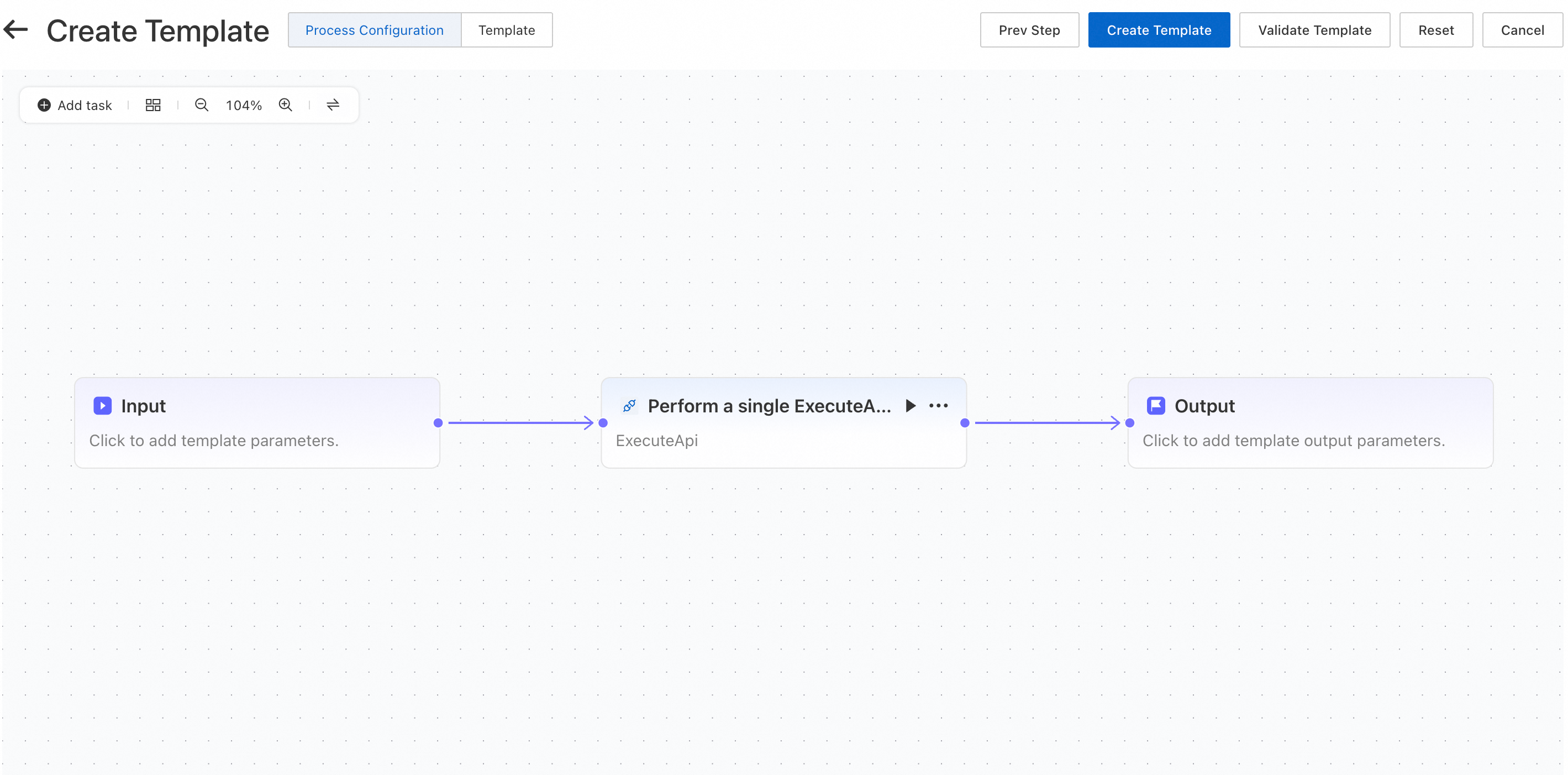
Top taskbar (from left to right):
-
Add task: Add the task type you need.
-
Fit view: Auto-scales the canvas to fit all nodes.
-
Zoom out: Shrinks the view.
-
View scale: Displays the current zoom level.
-
Zoom in: Enlarges the view.
-
Connection legend: Shows or hides the symbol legend.
Workspace canvas (drag and connect freely):
-
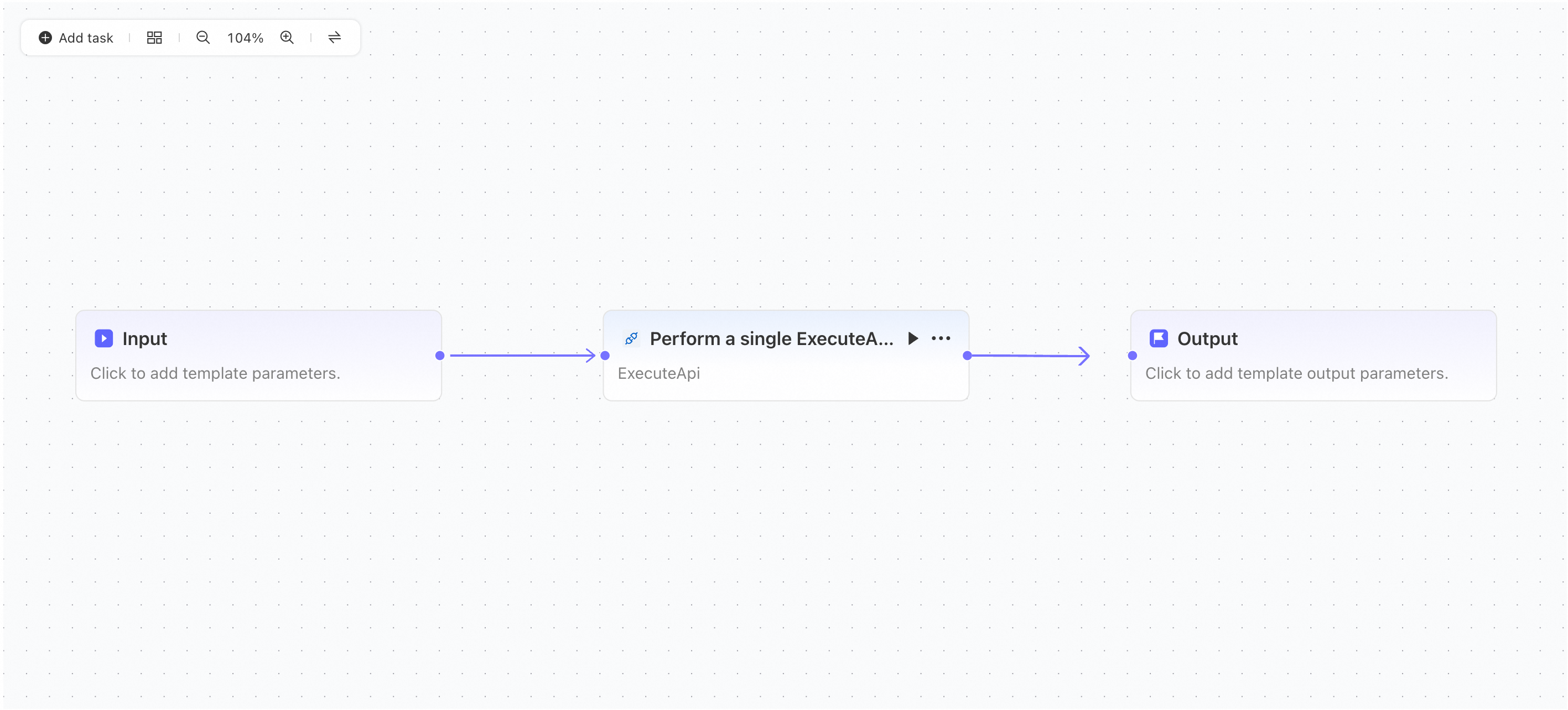
Input node: The template start point. Configure input parameters here.
-
Task node: A workflow task. Add multiple task nodes as needed.
-
Output node: A key point of the template. Configure output parameters here.
Parameters
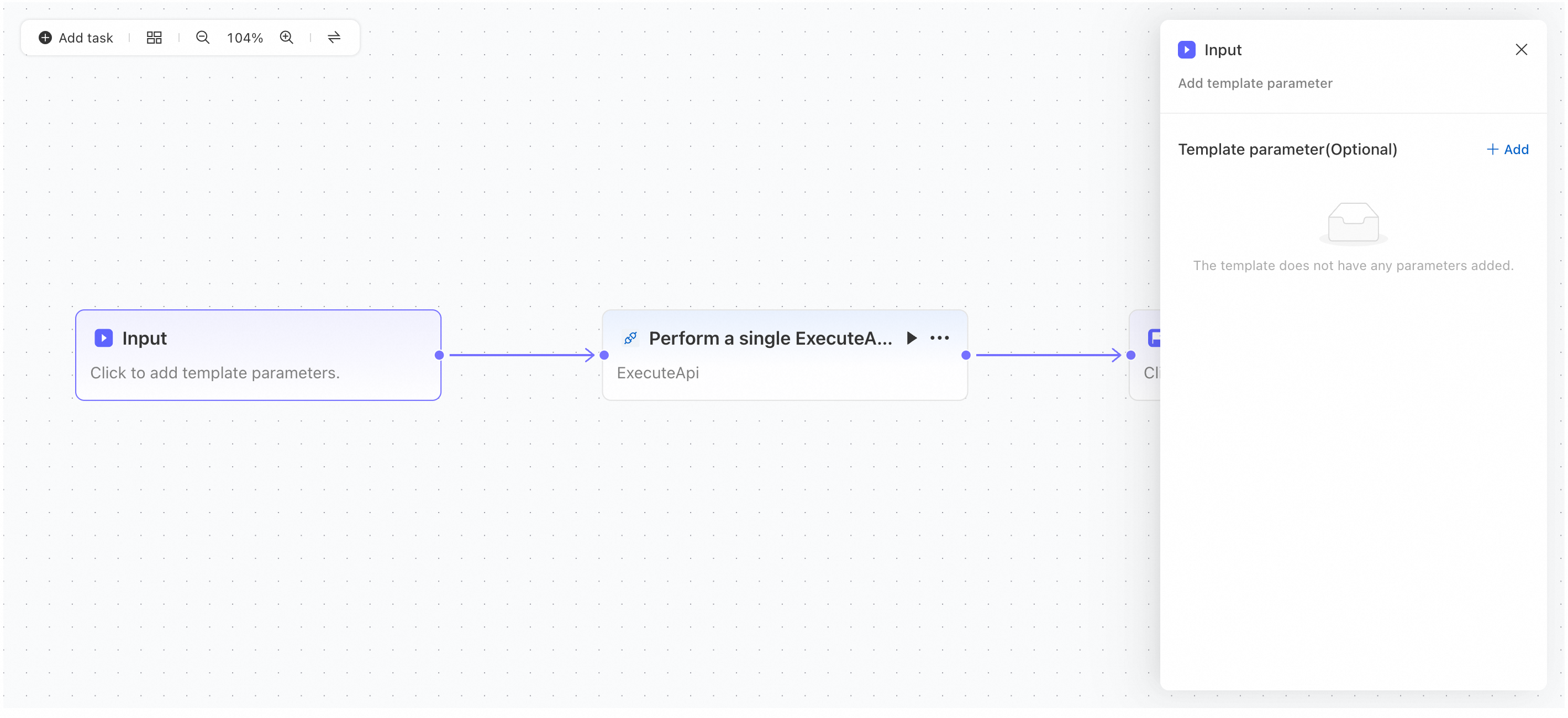
Enter the parameter name, type, default value, business component, parameter label, and description.
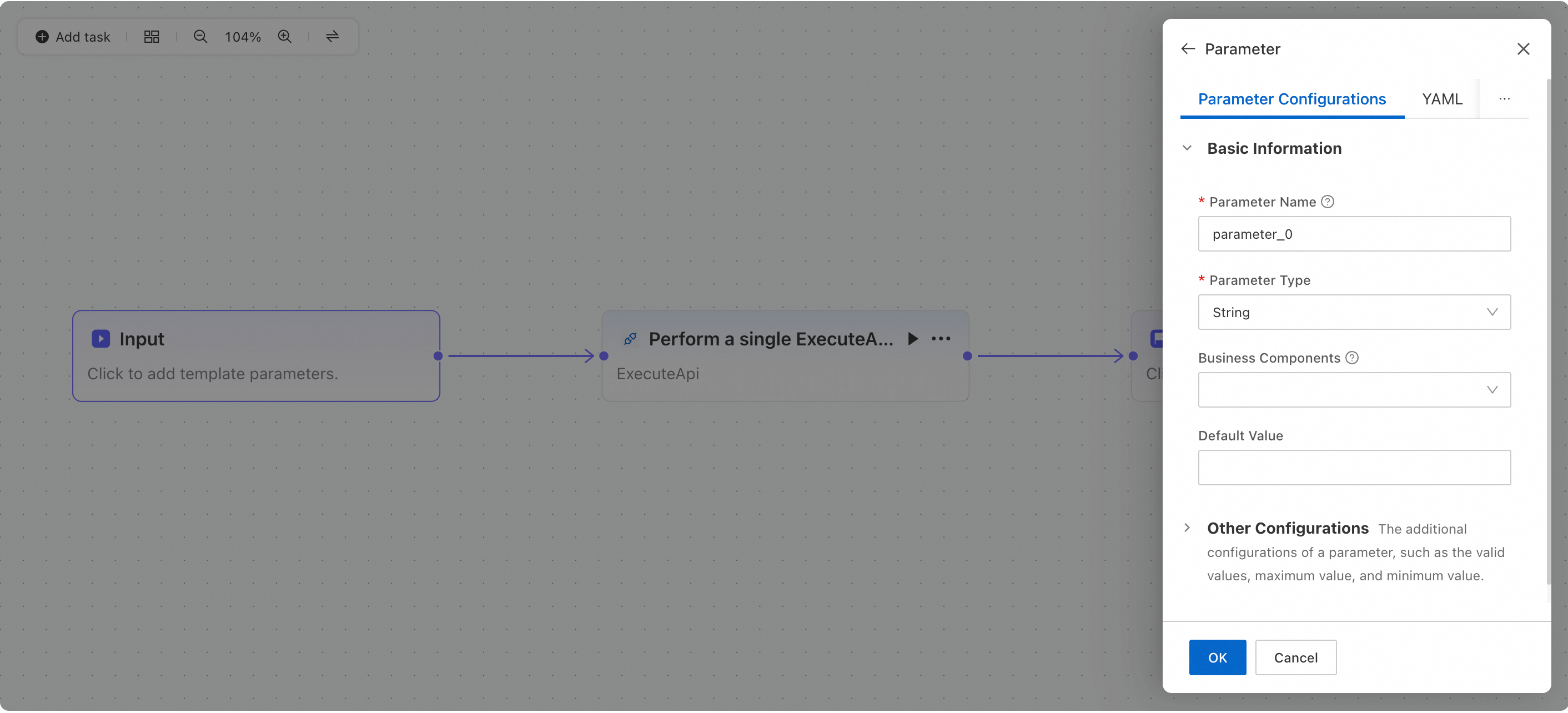
Tasks
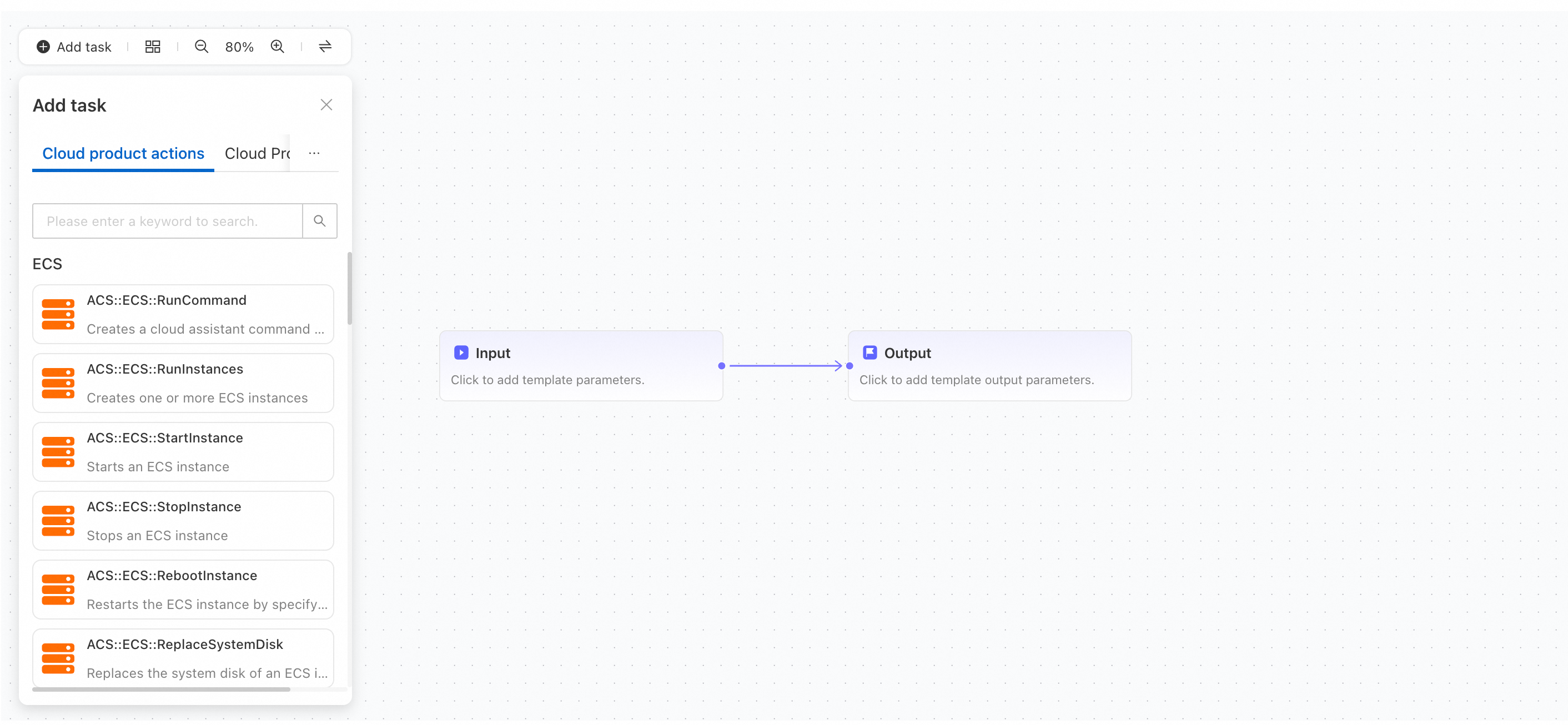
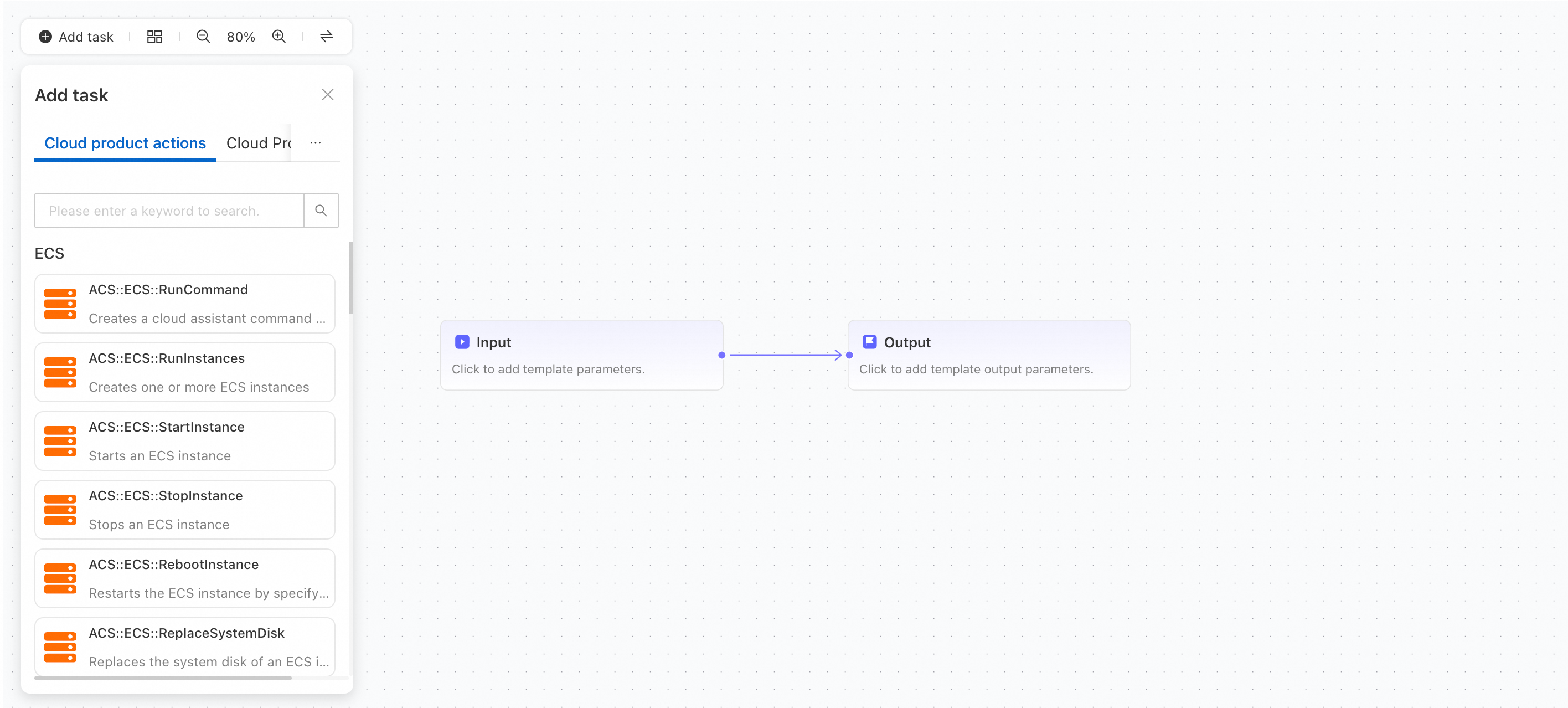
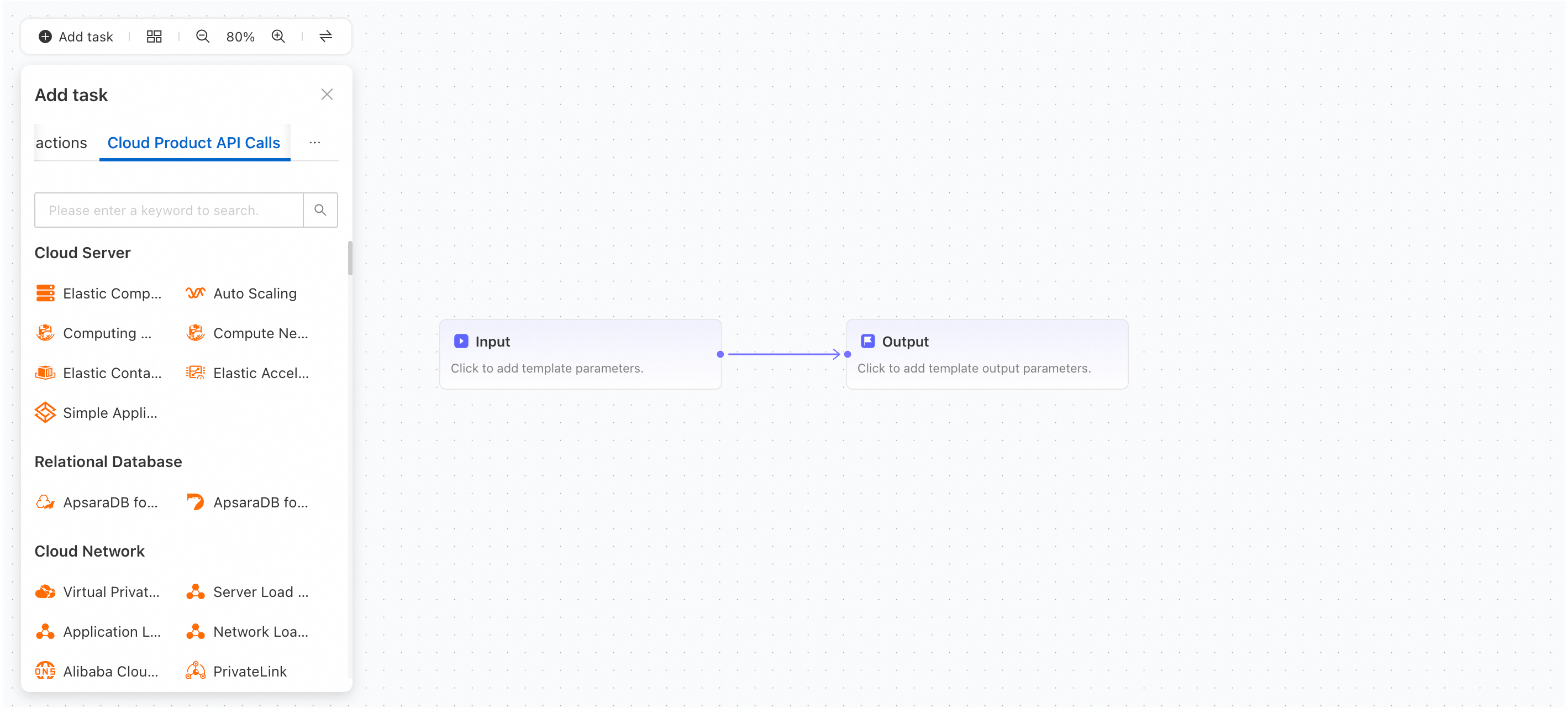
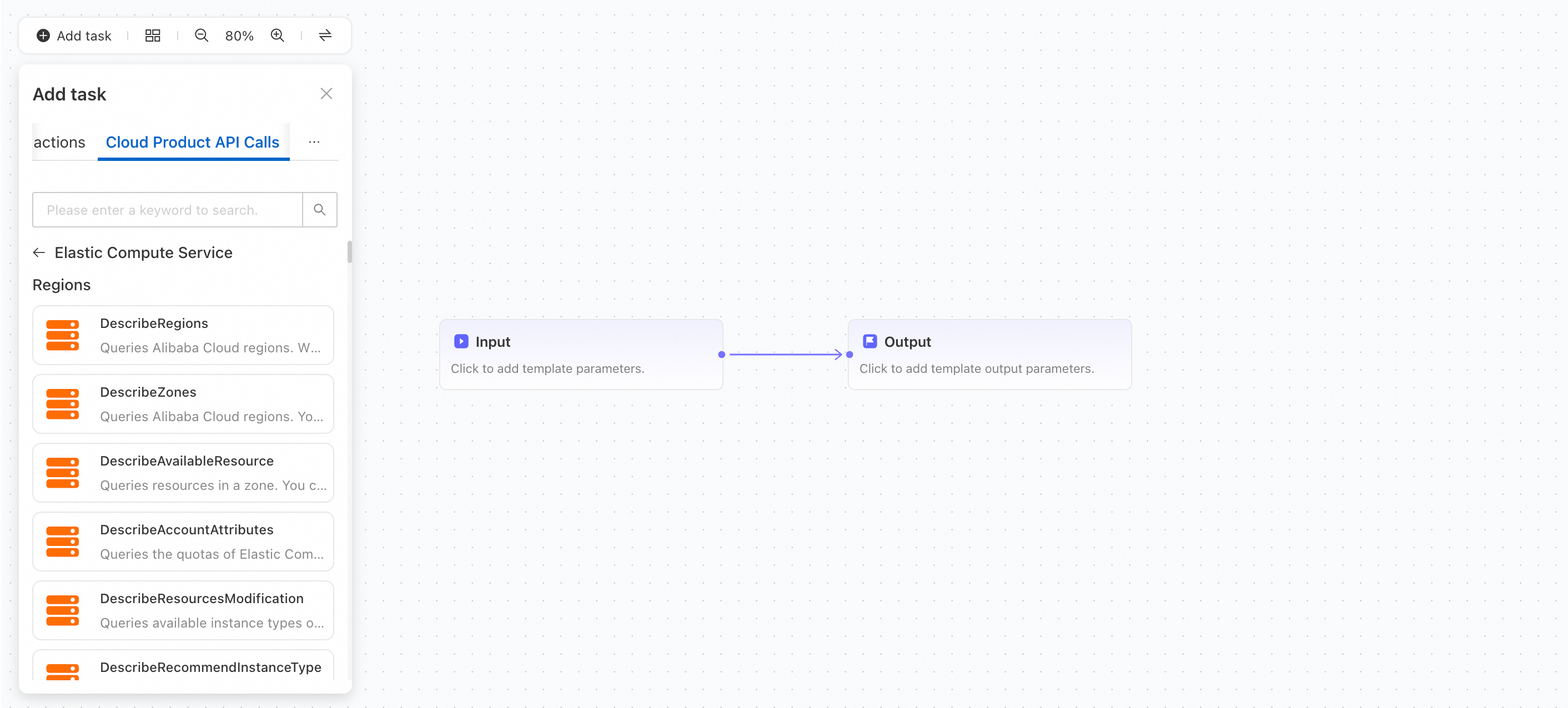
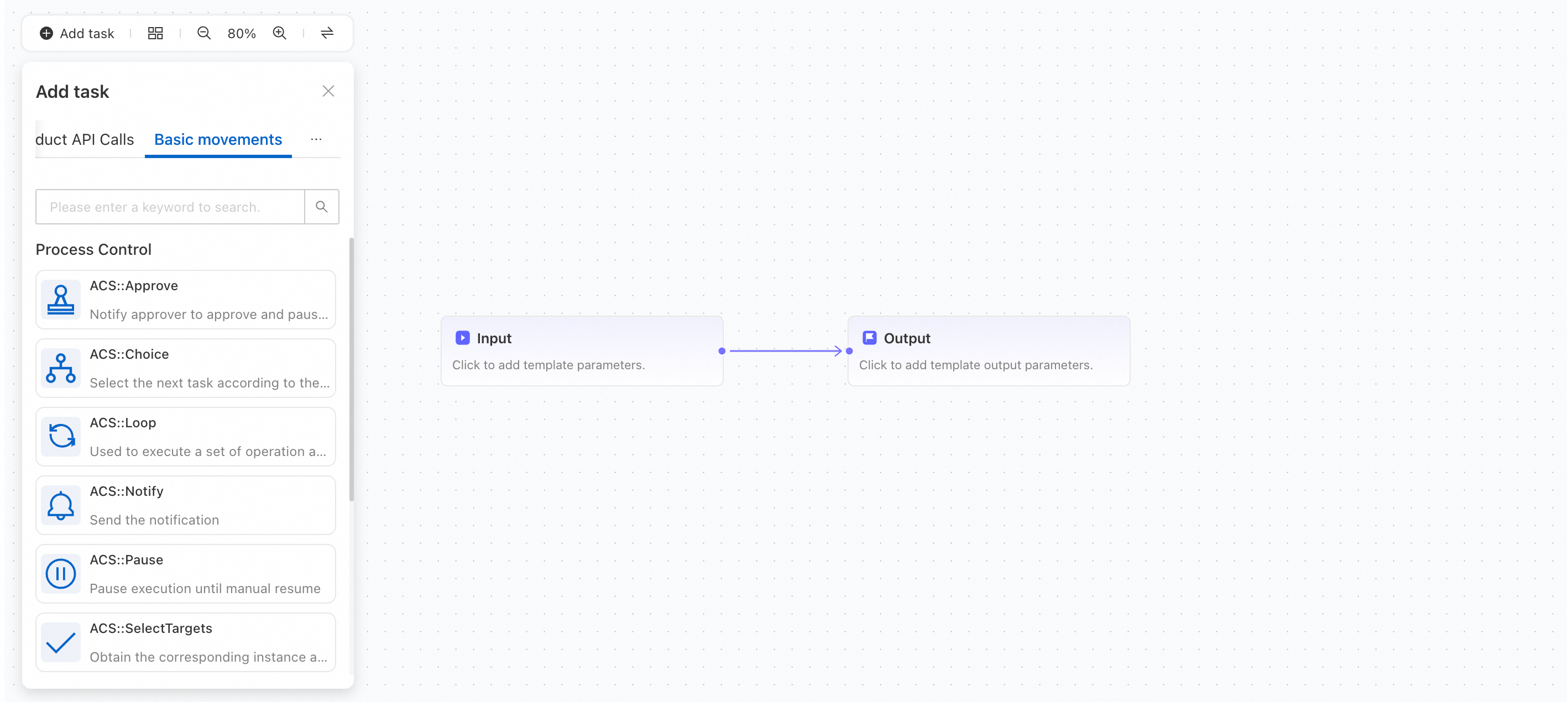
Select a task type from the editor. Click a cloud product action to view its details. You can rename the task.
-
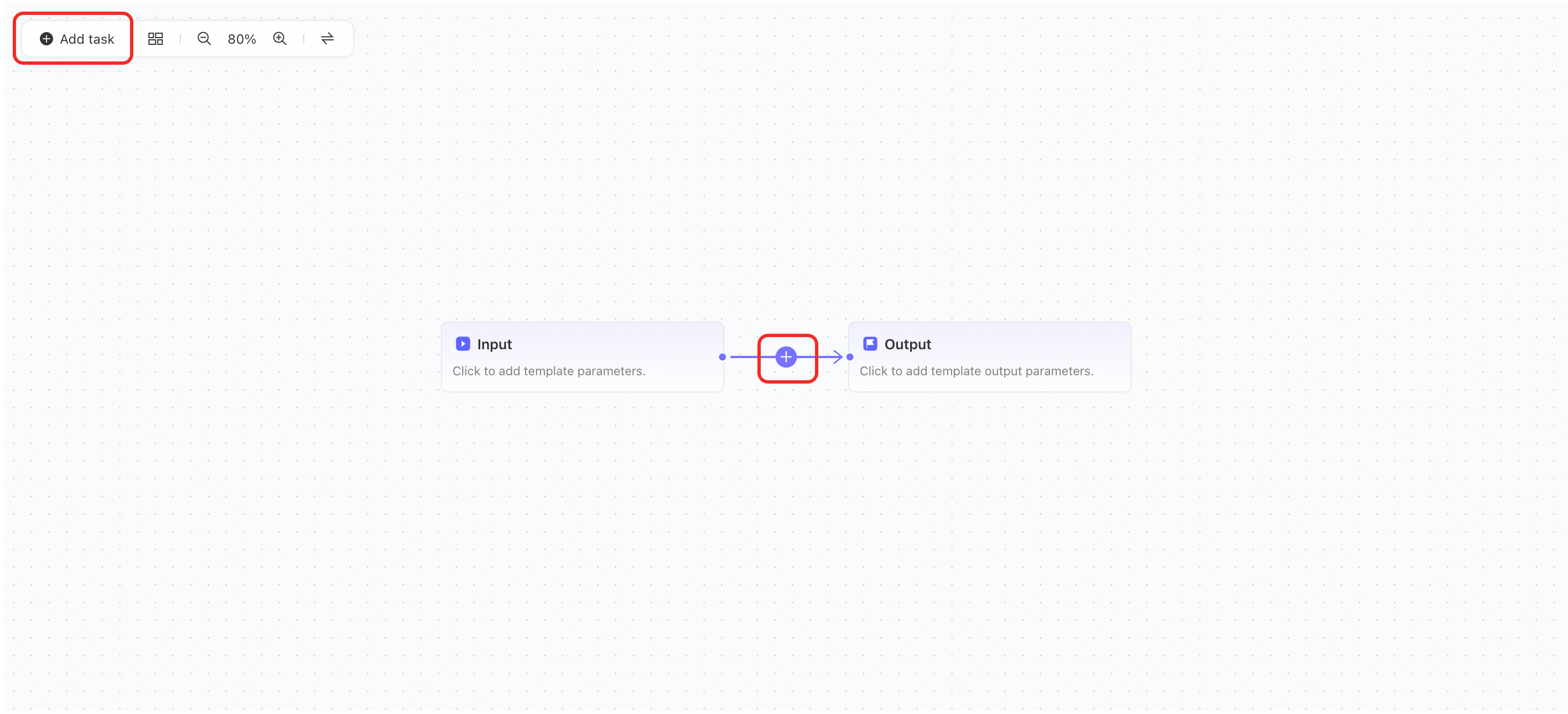
Click Add task to select a task. Manually connect it to preceding or following nodes.
-
Click the + on a connection line to insert a task between nodes.
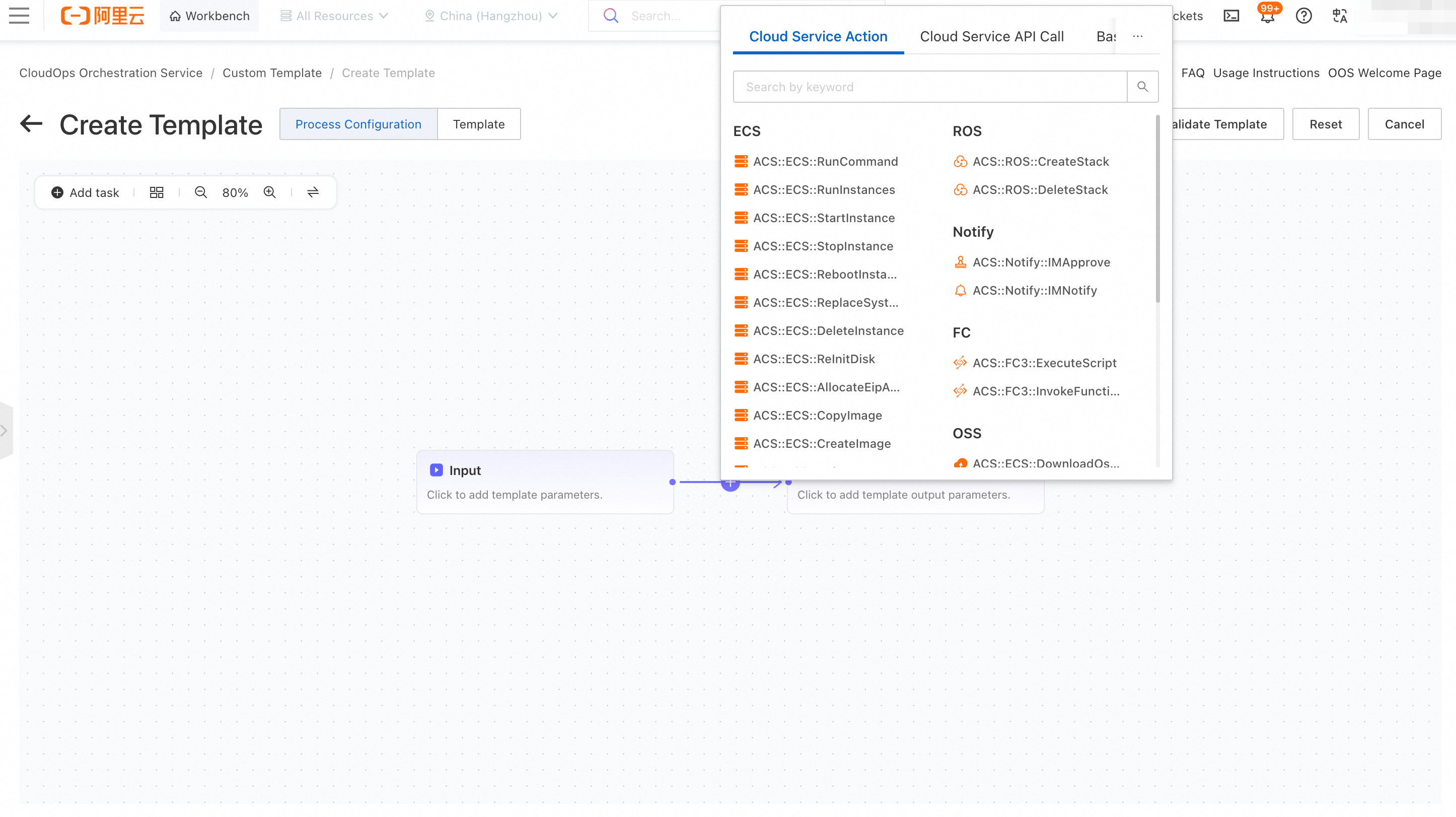
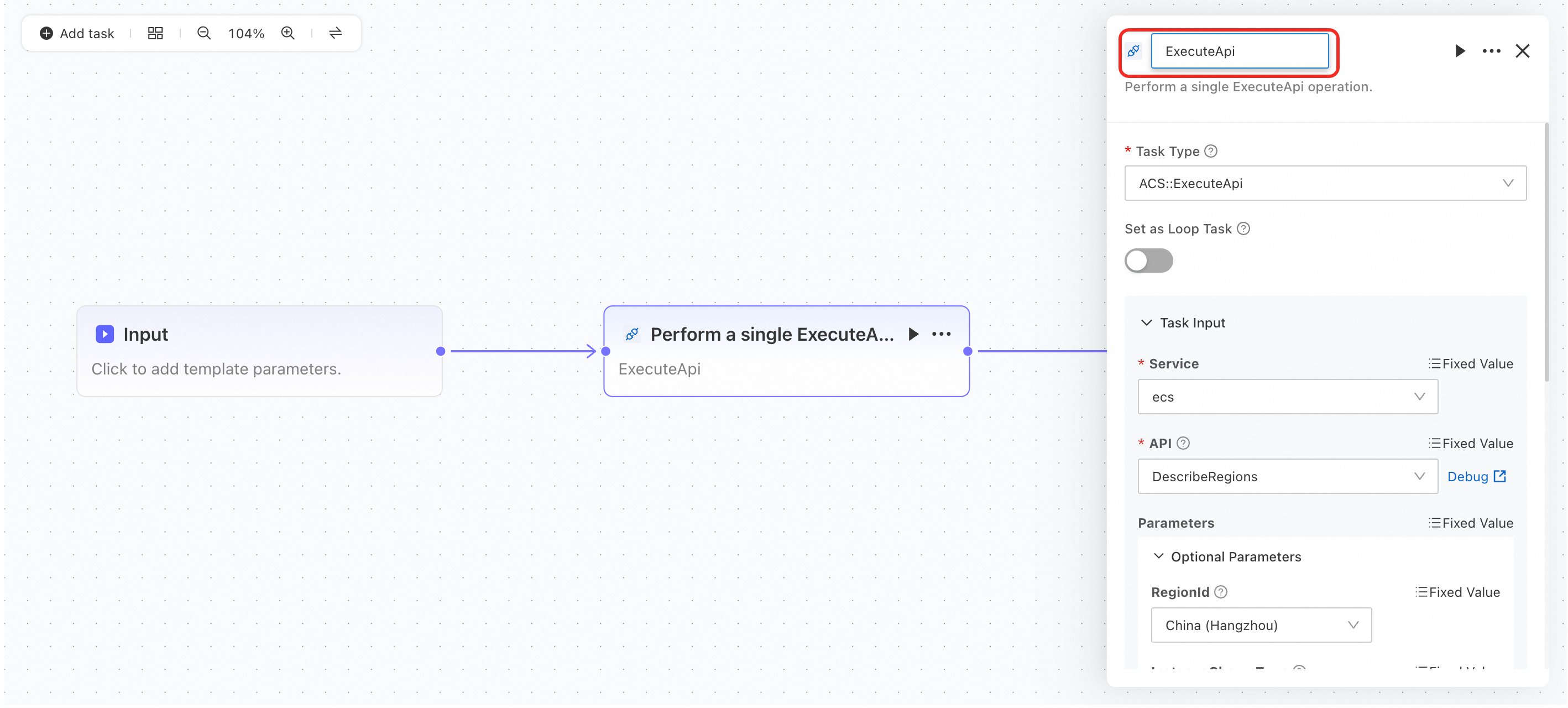
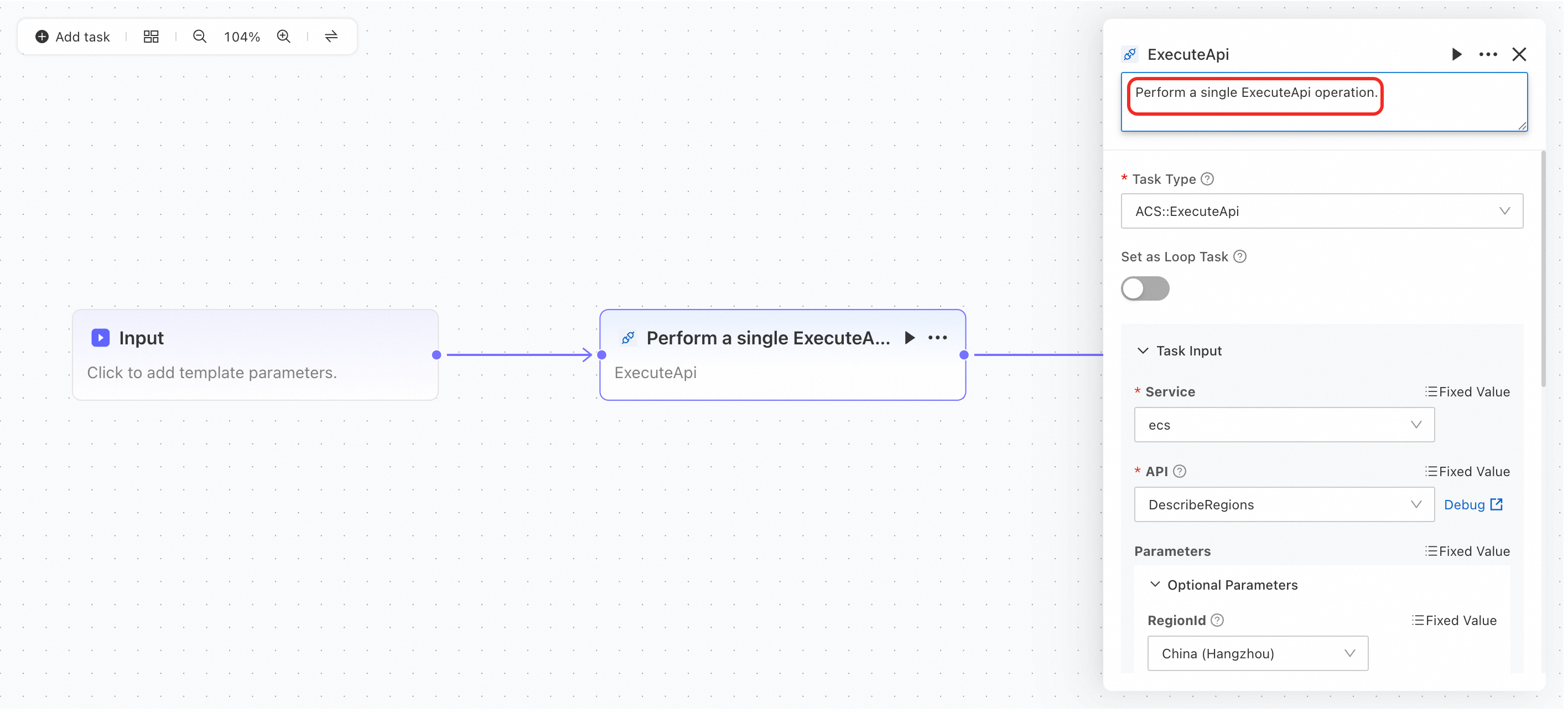
Edit task properties in the pop-up menu:
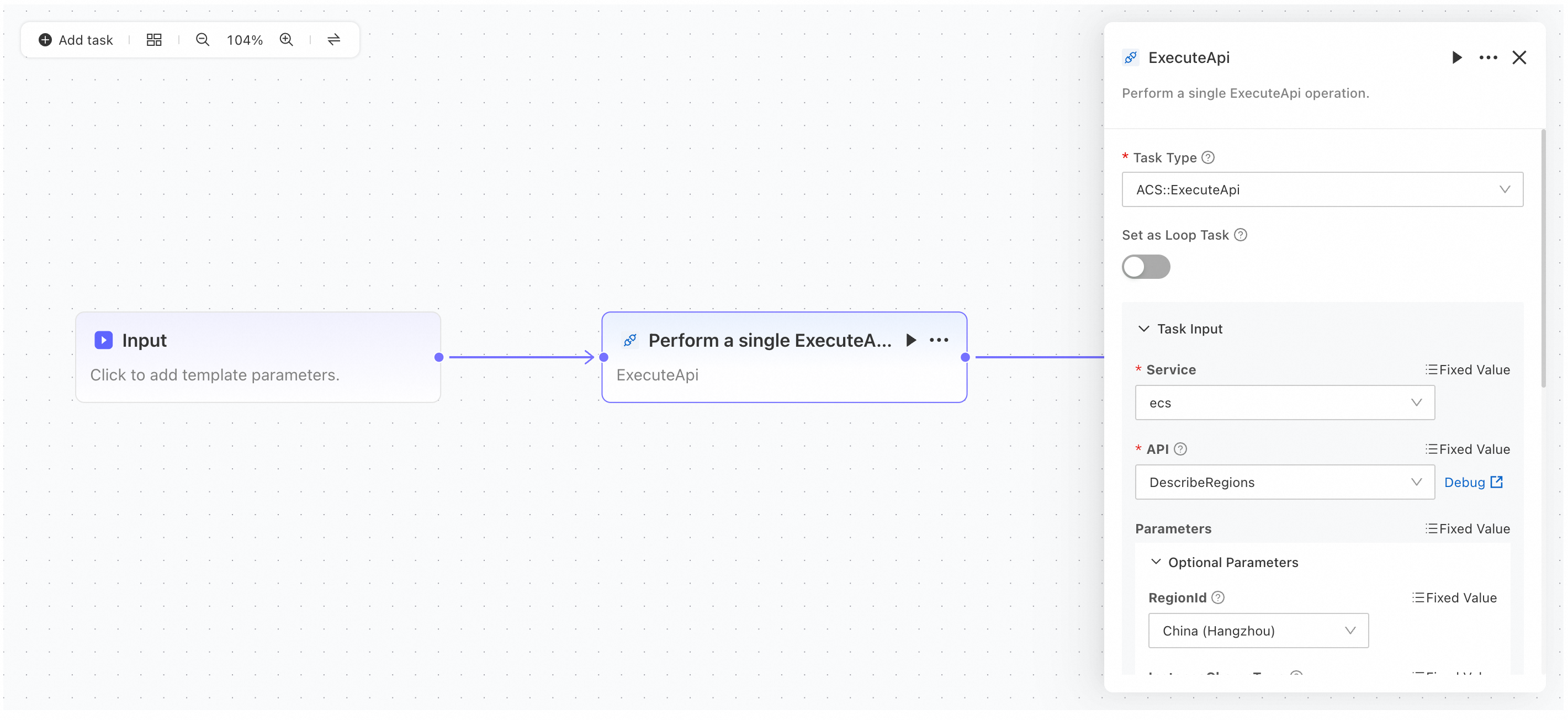
Modify the task name and description (click to edit):
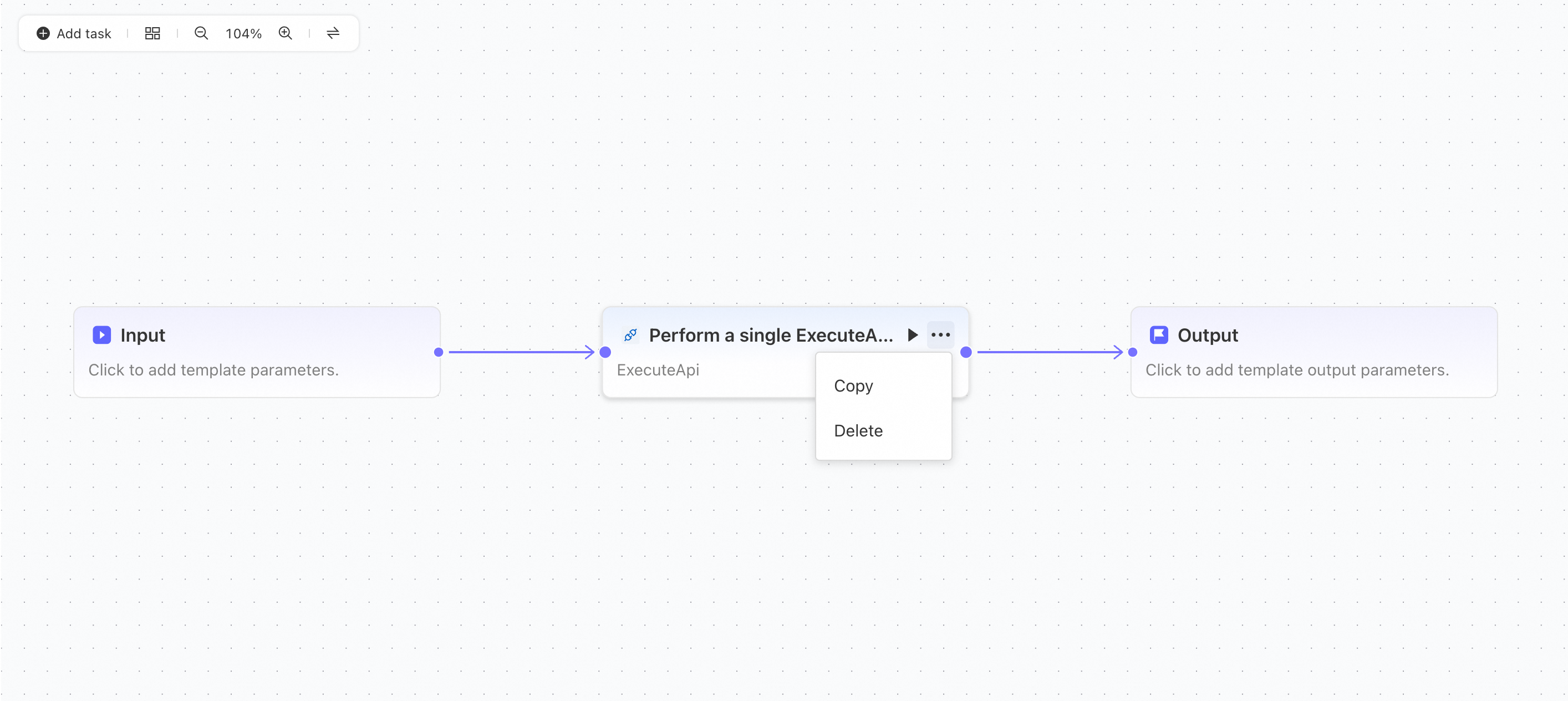
Delete and copy task nodes, and adjust connections:
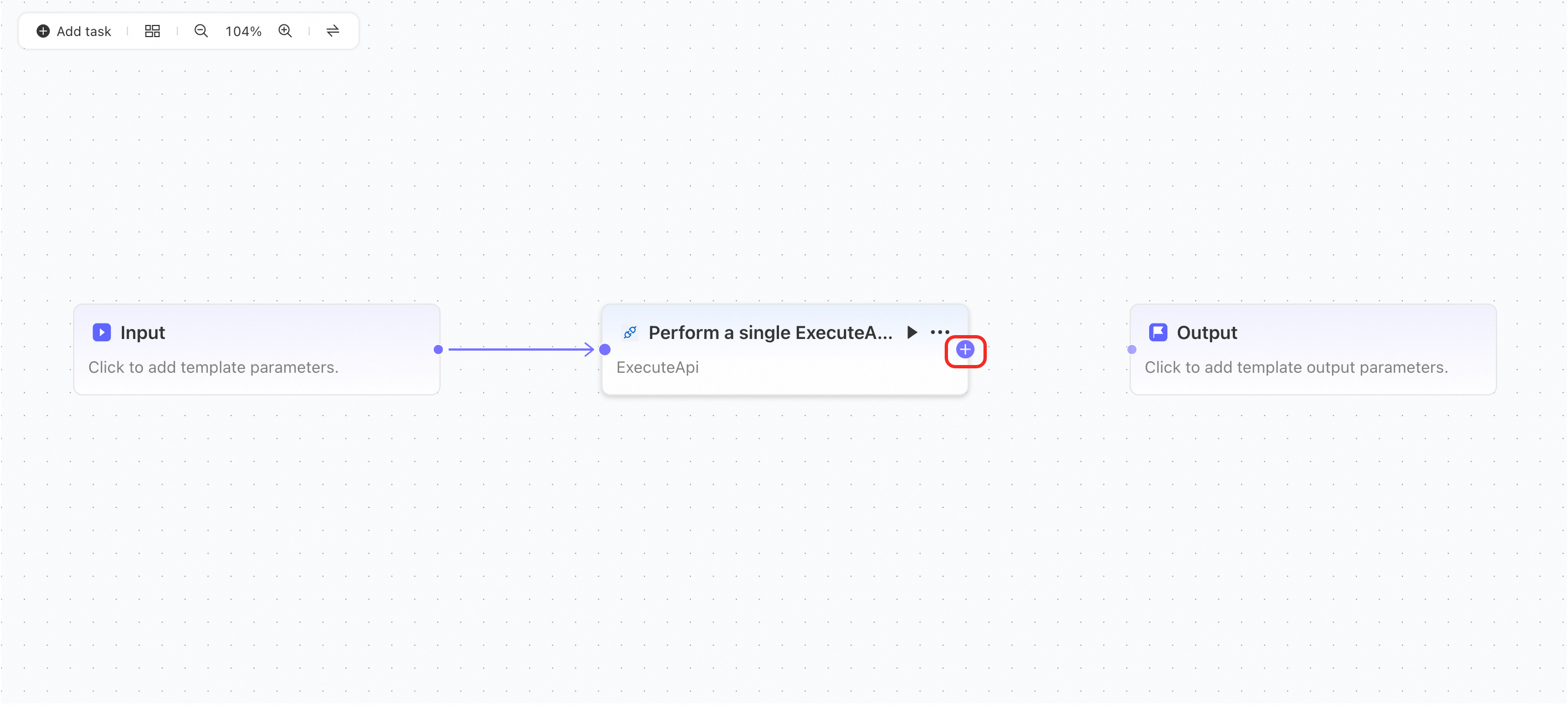
Drag from the tail of a node to create a connection to another node.
Task node types
Each task type has different syntax. Refer to the Action Catalog for details.
-
Cloud product action: Pre-integrated actions for Alibaba Cloud products.
-
Cloud product API call: Invoke OpenAPI operations of cloud products directly.
-
Basic action: Atomic operations provided by OOS.
Outputs
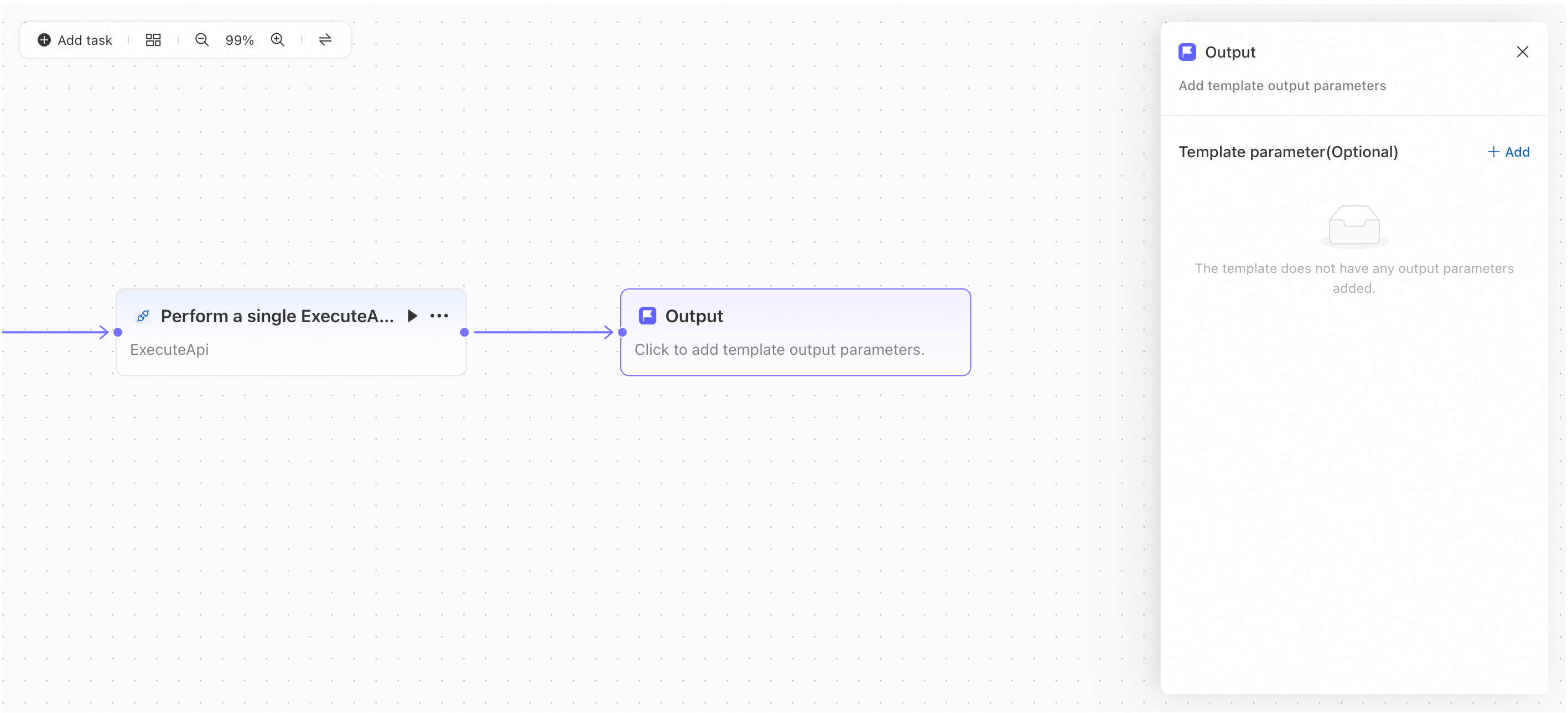
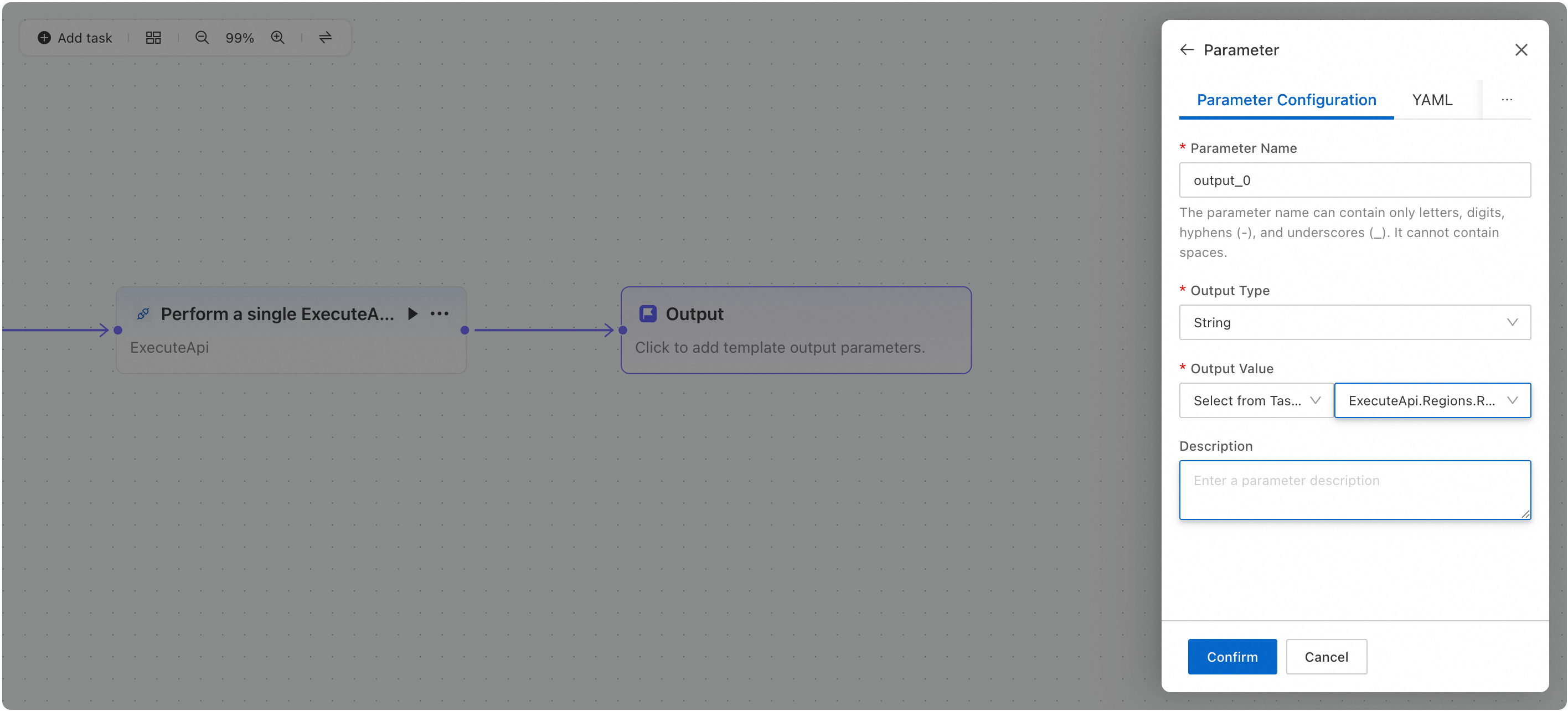
Enter the parameter name, output type, and output value.
Switch to YAML/JSON editor mode
For complex workflows where visual configuration is inconvenient, switch to YAML/JSON editor mode for specific template elements.