Rich text feature
This topic describes how to configure the rich text feature of OpenSearch LLM-Based Conversational Search Edition and the results it produces.
In the current online retrieval-augmented generation (RAG) process of OpenSearch, all rich text elements (images, tables, and code) are extracted when documents are split into chunks. These elements are stored as rich text tags together with the body text chunks. After you enable the rich text generation feature, the large language model (LLM) can include rich text content from the retrieved documents in its answers.
Enable the rich text feature
The rich_text_strategy parameter in Q&A Test>Other Parameters controls the rich text feature. In the application operation API, configure this parameter to enable the feature, or leave it empty to keep the feature disabled.
The rich_text_strategy drop-down list provides two values: inside_response (embeds rich text content in the response body) and extend_response (returns rich text content in an extended form).
Parameter description:
Text-based QA adds the following parameter:
|
options.chat.rich_text_strategy |
String |
No |
The post-processing method for rich text in the LLM output. If this parameter does not exist or is left empty, the rich text feature is disabled. This is the default behavior.
|
inside_response:
The answer is presented in Markdown format and may contain rich text content such as tables, images, and code.
The DataWorks wizard for configuring sensitive data identification rules consists of three steps: Basic Information, Hit Conditions, and Marking. In the Hit Conditions step, select a Sensitive Field Type and configure the hit condition rules. Then, click Start Testing Rule to verify the rules.
extend_response:
The answer remains in plain text format, but the rich text tags are clickable. When you click a tag, a dialog box appears and displays the rich text content. The content is not rendered; its raw content is displayed.
Configure sensitive data identification rules: Click +Sensitive Field Type to add a type, and configure its category, level, and description.
Configure identification rules: On the rule configuration tab, configure the hit conditions and test the accuracy of the rules.
Publish data identification rules: Click the Publish button.
Authorize and start the sensitive data identification task: Configure the task type, scan method, and scope.
Priority when multiple rules are matched: field name identification > data content identification > field comment identification.
Sample request
{
	"question": {
		"text": "How do I configure sensitive data identification rules?",
		"type": "TEXT"
	},
	"options": {
		"chat": {
			"rich_text_strategy": "inside_response"
		}
	}
}
Sample response for extend_response
You must parse the rich text tags in data.rich_text_ref on your own and develop the corresponding logic to replace the rich text tags in data.answer.
{
  "request_id": "0bb16ed4-6eec-4ae4-b1dd-0650289b45b3",
  "status": "OK",
  "latency": 11421.663139,
  "result": {
    "data": [
      {
        "answer": "Based on the available information, the steps to configure sensitive data identification rules are as follows:\n\n1. Go to the data identification rules page:\n   - Log on to the DataWorks console and go to the DataStudio page.\n   - Choose Data Governance > Data Security Guard to go to the Data Security Guard page.\n   - In the left-side navigation pane, choose Rule Configuration > Sensitive Data Identification to go to the data identification rules page.\n\n2. Configure the category of sensitive fields:\n   - If you are a new user, you can search for or add categories in the left-side area.\n   - If you are an existing user, you can create data categories as needed.\n   - Note that category names must be unique, can contain only Chinese characters, English letters, and digits, and must be 1 to 30 characters in length.\n\n3. Configure sensitive data identification rules:\n   - On the data identification rules page, click \"+Sensitive Field Type\" to add a sensitive field type.\n   - Configure the basic information of the sensitive field type, including the type, category, level, and description.[^Table-16134^]\n   - Click \"Next\" to go to the rule configuration page.\n   - On the rule configuration tab, configure the sensitive field identification rules and their hit conditions, and test the accuracy of the rules.[^Figure-19933^]\n   - Publish the data identification rule by clicking \"Publish\".\n\n4. Authorize and start the sensitive data identification task:\n   - Authorize the sensitive data identification task: click \"Enable Task\" and follow the on-screen instructions to complete authorization.\n   - Configure the sensitive data identification task, including the task type, scan method, and scope.[^Figure-41464^]\n   - Click \"Enable\" to start the scan task.\n\nNote:\n- If you do not need to use a rule for now, you can click \"Save Draft\".\n- If a column of data matches the identification rules of multiple sensitive field types, the rules take effect in the following order: field name identification > data content identification > field comment identification.\n- To trigger a new task in real time, you must start the task manually.\n- After an identification rule is modified, the new rule takes effect in the next automatic task.\n\nIn addition, you can perform the following management operations:\n- Copy rules\n- Edit rules\n- Delete rules\n- Publish rules in batches\n- Unpublish rules in batches\n\nThese operations help users manage sensitive data identification rules more flexibly.",
        "type": "TEXT",
        "reference": [
          {
            "tokenNum": 1814,
            "id": "8d89d16d8e73658ee12ea0b9e70a5ee2",
            "title": "How to configure sensitive data identification rules and run sensitive data identification tasks_DataWorks-Alibaba Cloud Help Center",
            "url": "https://xxx.com"
          }
        ],
        "rich_text_ref": [
          {
            "id": "Table-16134",
            "content": "<table><tbody>\n <tr>\n  <td><b>Parameter</b></td>\n  <td><b>Description</b></td>\n </tr>\n <tr>\n  <td><b data-tag=\"uicontrol\" id=\"uicontrol-a5j-bxo-9a3\" class=\"uicontrol\">Sensitive Field Type</b></td>\n  <td>The name of the custom sensitive field type, such as name, ID card number, or mobile phone number. The name must be unique.</td>\n </tr>\n <tr>\n  <td><b data-tag=\"uicontrol\" id=\"uicontrol-80t-1ey-cbs\" class=\"uicontrol\">Category</b></td>\n  <td>Select the category to which the sensitive field type belongs. If the existing categories do not meet your requirements, go to the <b data-tag=\"uicontrol\" id=\"uicontrol-5sa-eit-jzt\" class=\"uicontrol\">Data Classification and Grading</b> page to configure them. For more information, see <a href=\"https://xxx.dataworks/user-guide/mange-data-sensitivity-levels#concept-ohj-1s3-r2b\" id=\"21566a9cceiv9\" title=\"\" class=\"xref\">Configure sensitive data classification and grading</a>.</td>\n </tr>\n <tr>\n  <td><b data-tag=\"uicontrol\" id=\"uicontrol-o8f-oek-vx3\" class=\"uicontrol\">Level</b></td>\n  <td>Select the level to which the sensitive field type belongs. A larger number indicates a higher sensitivity level. If the existing levels do not meet your requirements, go to the <b data-tag=\"uicontrol\" id=\"3a552504f1aui\" class=\"uicontrol\">Data Classification and Grading</b> page to configure them. For more information, see <a href=\"https://help.xxx.dataworks/user-guide/mange-data-sensitivity-levels#concept-ohj-1s3-r2b\" id=\"39588a781b9hn\" title=\"\" class=\"xref\">Configure sensitive data classification and grading</a>.</td>\n </tr>\n</tbody></table>"
          },
          {
            "id": "Figure-19933",
            "content": "https://help-static-aliyun-doc.aliyuncs.com/assets/img/zh-CN/9017816461/p339261.png"
          },
          {
            "id": "Figure-41464",
            "content": "https://help-static-aliyun-doc.aliyuncs.com/assets/img/zh-CN/5947660271/p819013.png"
          }
        ]
      },
      {
        "answer": "https://help-static-aliyun-doc.aliyuncs.com/assets/img/zh-CN/5947660271/p339229.png",
        "type": "IMAGE",
        "reference": [
          {
            "tokenNum": 179,
            "id": "8d89d16d8e73658ee12ea0b9e70a5ee2",
            "title": "How to configure sensitive data identification rules and run sensitive data identification tasks_DataWorks-Alibaba Cloud Help Center",
            "url": "https://xxx.com"
          }
        ]
      }
    ]
  }
}
Sample response for inside_response
You only need to parse the data.answer field as Markdown. You do not need to process the rich_text_ref field.
{
"request_id": "b1f59cc0-daad-45e2-bc41-f01e1c2ff5d7",
"status": "OK",
"latency": 9828.389664,
"result": {
"data": [
{
"answer": "Based on the available information, the steps to configure sensitive data identification rules are as follows:\n\n1. Go to the data identification rules page:\n - Log on to the DataWorks console and go to the DataStudio page.\n - Select the corresponding workspace and go to DataStudio.\n - In the left-side navigation pane, click \"All Products > Data Governance > Data Security Guard\" to go to Data Security Guard.\n - In the left-side navigation pane, choose \"Rule Configuration > Sensitive Data Identification\" to go to the data identification rules page.\n\n2. Configure the category of sensitive fields:\n - If you are a new user, you can search for or add categories in the left-side area.\n - If you are an existing user, you can create data categories as needed.\n - Note that category names must be unique, can contain only Chinese characters, English letters, and digits, and must be 1 to 30 characters in length.\n\n3. Configure sensitive data identification rules:\n - On the data identification rules page, click \"+Sensitive Field Type\" to add a sensitive field type.\n - Configure the basic information of the sensitive field type:\n - Set the sensitive field type\n - Select the category\n - Select the level\n - Enter the description\n - Click \"Next\" to go to the rule configuration page.\n - On the rule configuration tab, configure the sensitive field identification rules and their hit conditions, and test the accuracy of the rules.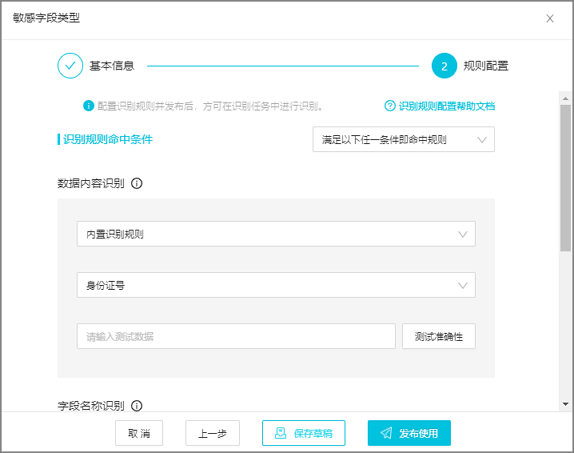\n - Publish the data identification rule: click \"Publish\" to publish the current data identification rule.\n\n4. Authorize and start the sensitive data identification task:\n - Authorize the sensitive data identification task: click \"Enable Task\" in the upper-left corner of the Sensitive Data Identification page and follow the on-screen instructions to complete authorization.\n - Start the sensitive data identification task:\n - Configure the task type, scan method, and scope.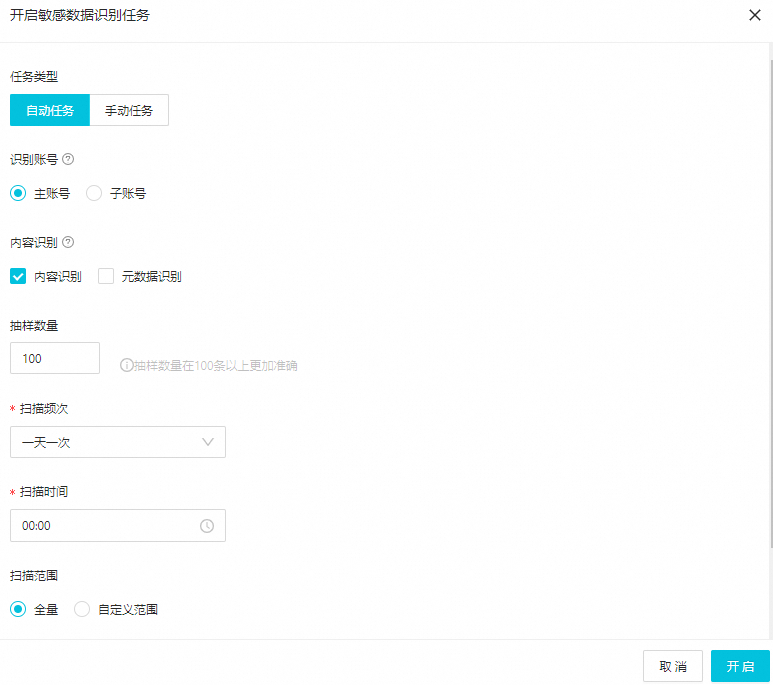\n - Click \"Enable\" to start the scan task.\n\n5. Manage data identification rules:\n - You can copy, edit, and delete rules.\n - You can publish and unpublish rules in batches.\n\nNote that a rule can be used to identify the corresponding sensitive data in identification tasks only after the rule is published. If you have many rules, you can publish or unpublish them by using the batch operations.",
"type": "TEXT_MARKDOWN",
"reference": [
{
"tokenNum": 1814,
"id": "8d89d16d8e73658ee12ea0b9e70a5ee2",
"title": "How to configure sensitive data identification rules and run sensitive data identification tasks_DataWorks-Alibaba Cloud Help Center",
"url": "https://xxx.com"
}
],
"rich_text_ref": [
{
"id": "Figure-3873",
"content": "https://help-static-aliyun-doc.aliyuncs.com/assets/img/zh-CN/9017816461/p339261.png"
},
{
"id": "Figure-19511",
"content": "https://help-static-aliyun-doc.aliyuncs.com/assets/img/zh-CN/5947660271/p819013.png"
}
]
},
{
"answer": "https://help-static-aliyun-doc.aliyuncs.com/assets/img/zh-CN/5947660271/p339229.png",
"type": "IMAGE",
"reference": [
{
"tokenNum": 179,
"id": "8d89d16d8e73658ee12ea0b9e70a5ee2",
"title": "How to configure sensitive data identification rules and run sensitive data identification tasks_DataWorks-Alibaba Cloud Help Center",
"url": "https://xxx.com"
}
]
}
]
}
}Note
In the returned data list, the items whose "type" is "IMAGE" are some of the image results from the retrieval stage. These images are unrelated to the rich text feature and can be obtained regardless of whether the rich text feature is enabled. The images output by the rich text feature are more relevant than the images from the retrieval stage.