Vector query
After the engine index is rebuilt, you can start searching. OpenSearch Vector Search Edition provides a built-in Query Test feature in the console for testing queries. Three query methods are supported: vector query, primary key query, and hybrid vector and text query. This topic describes vector query.
Entry point
Choose Query Test > Vector Query and select the table that you want to query. Two modes are supported: Form Mode and Developer Mode. You can switch between them from the drop-down list in the upper-right corner. The default mode is Form Mode.
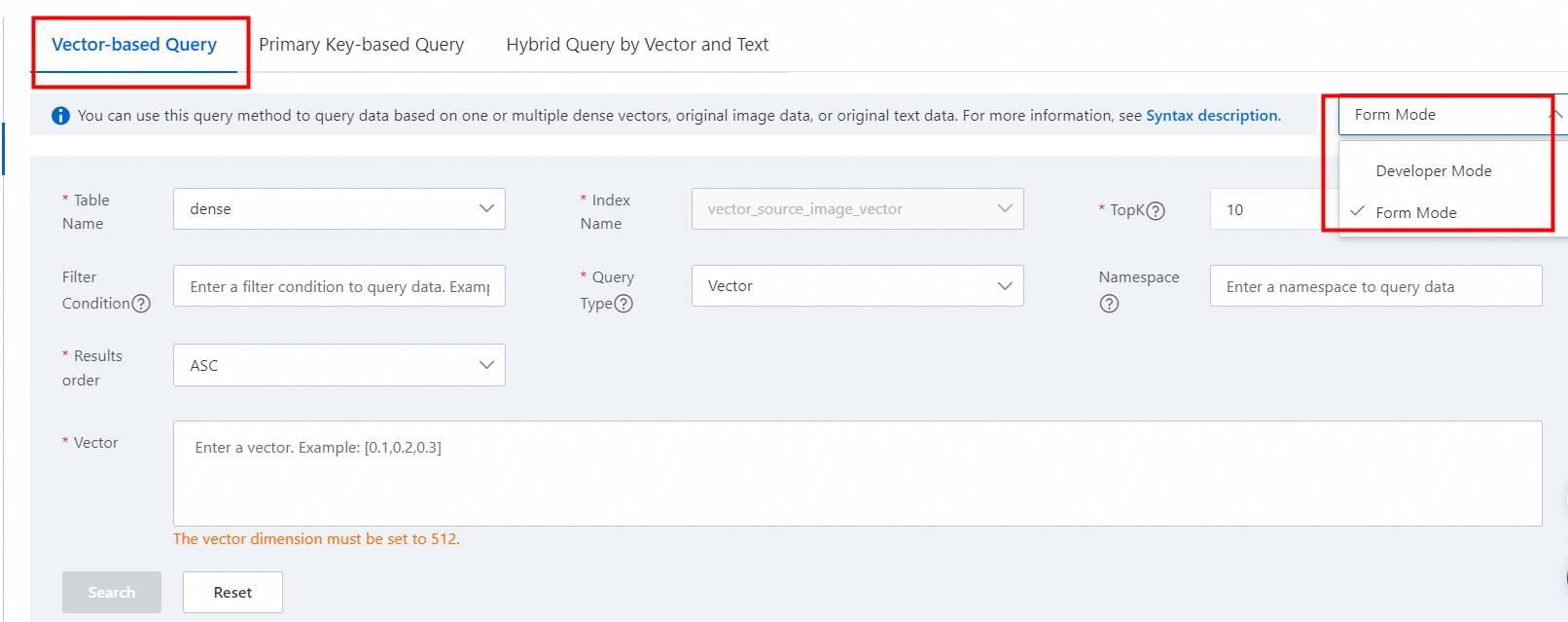
Form mode
Query parameters are edited in a form, and query results are displayed in the list below. Some query features are not supported in this mode.
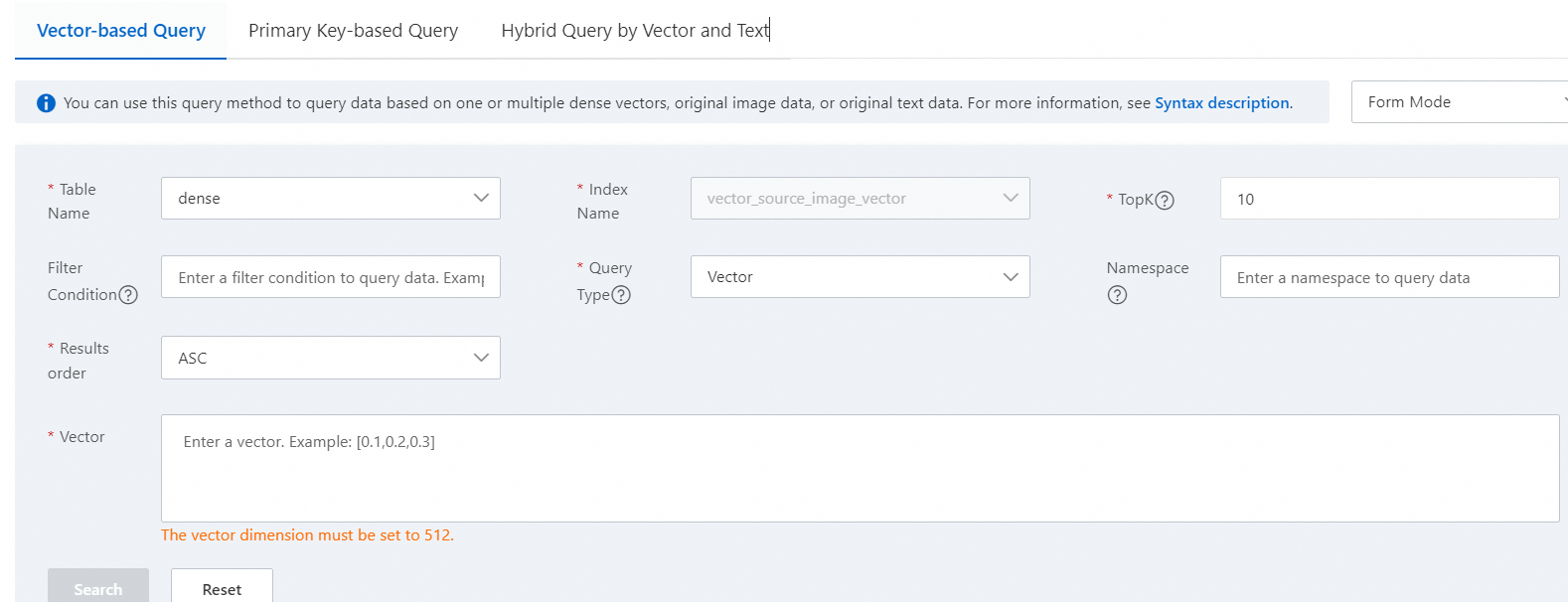
Query parameters:
Table Name: Required. The table from which results are retrieved. Select a table in the In Use state in the instance from the drop-down list.
Index Name: Required. After you select a table of the instance, the index name is automatically filled in. You do not need to select it.
TopK: Required. The maximum number of search results that can be returned. Default value: 10. You can enter an integer greater than 0.
Filter Condition: Optional. Supported operators are
>, <, =, <=, >=, !=. Multiple conditions can be connected by usingAND, OR, and (). For more information, see the Filter expressions syntax.Query Type: Required. The data type of the query used for the search, such as vector, image, or text.
Namespace: Optional. Uses namespaces to query partitions of the vector index.
Result Sort Order: Required. Valid values: ASC (ascending) and DESC (descending). Default value: ASC. If the distance type of the table is inner product, a higher score indicates higher relevance, so select DESC for the query. If the distance type is Euclidean distance, a lower score indicates higher relevance, so select ASC.
Text or vector value input box: If Query Type is set to vector, enter vector values in array format. If Query Type is set to image, you can upload a local image or enter a Base64-encoded string. If Query Type is set to text, enter the text content.
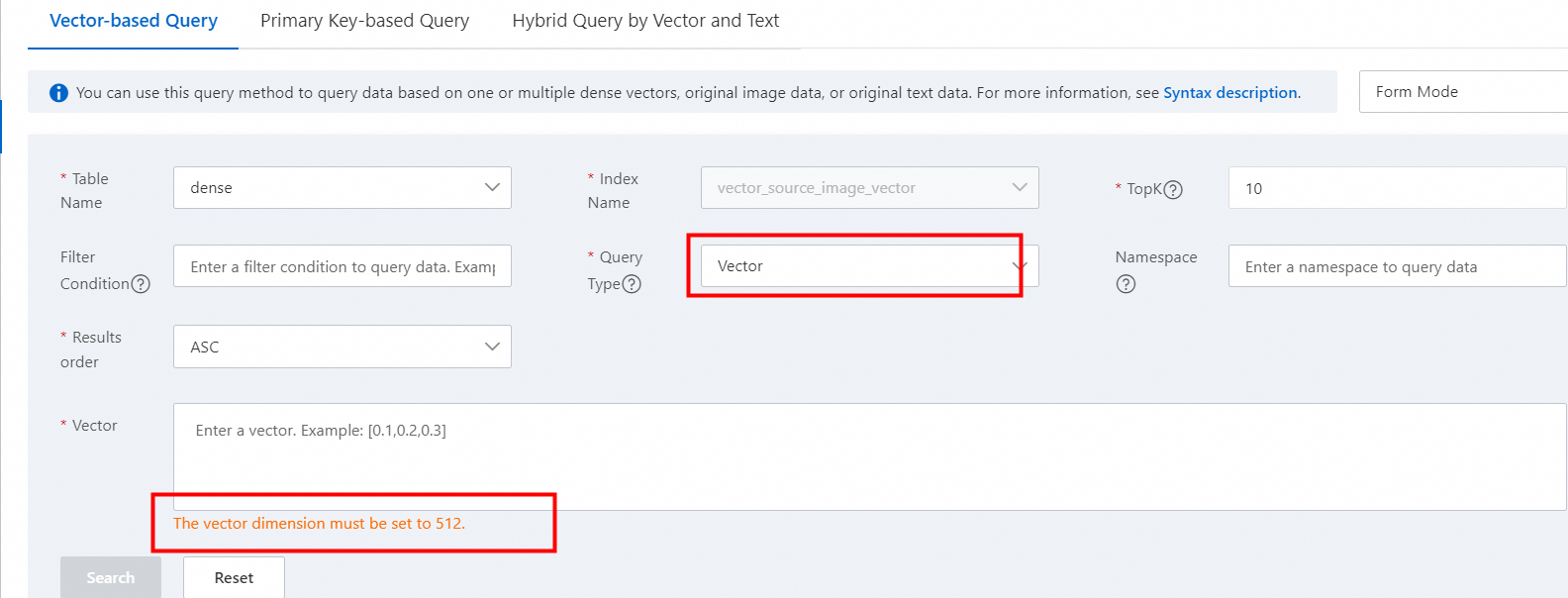
Query type: vector
After you select a table, the index name is automatically displayed, and you do not need to select it. If Query Type is set to vector, the input box below displays a hint about the dimension of the vector to enter:
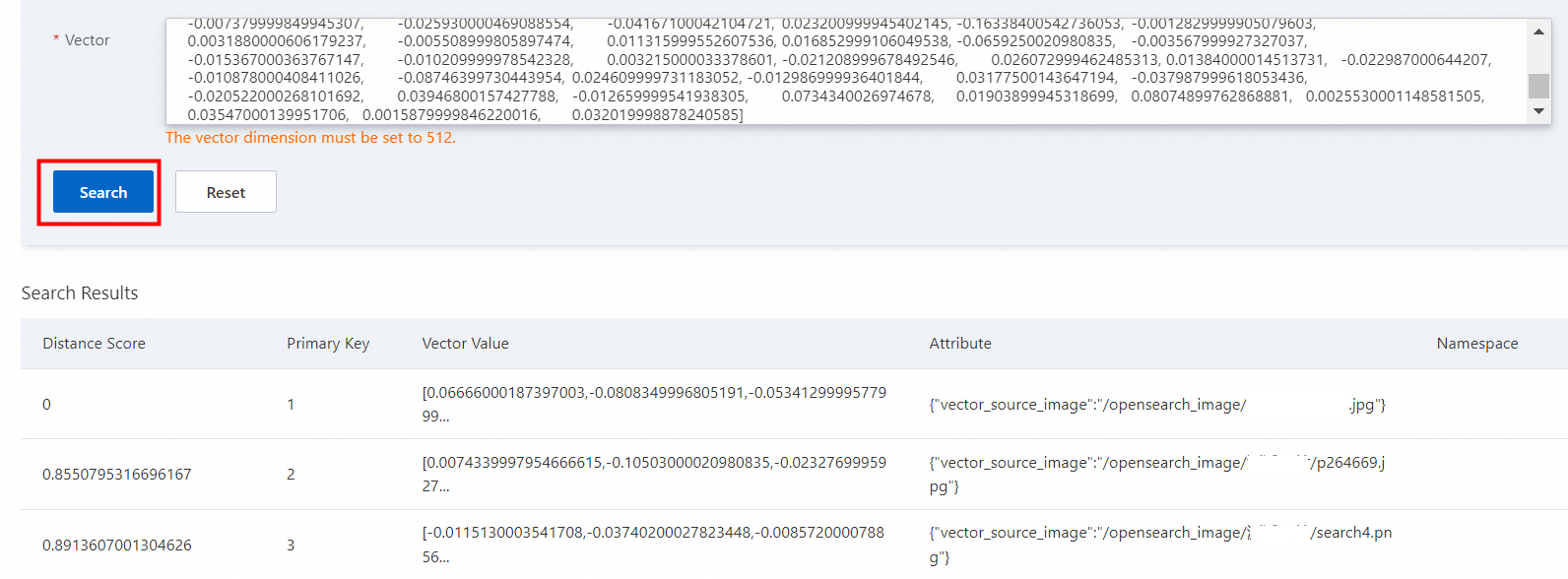
Enter vector data of the corresponding dimension and click Search. The list of search results is displayed below, as shown in the following figure:
Query type: image
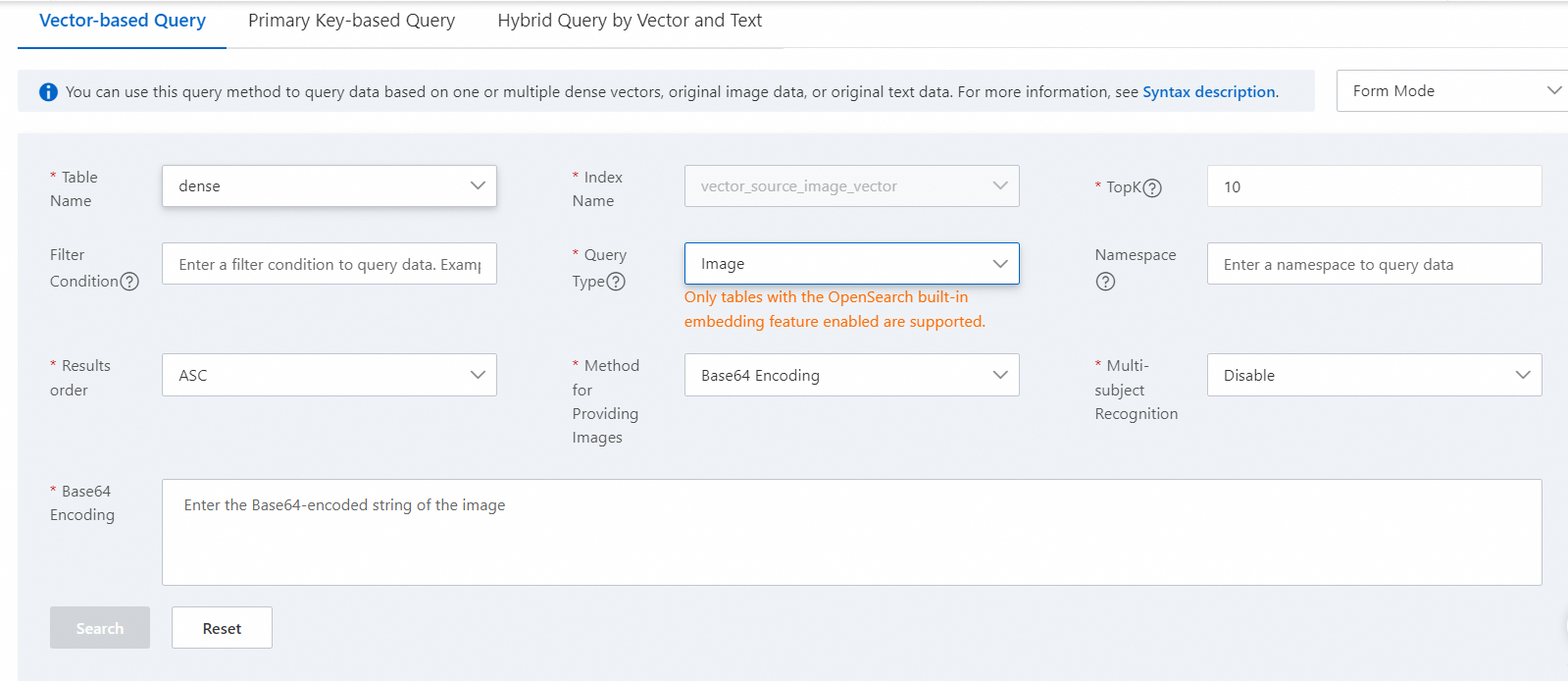
After you select a table, the index name is automatically displayed, and you do not need to select it. If Query Type is set to image (available only for tables that use the built-in embedding capability of OpenSearch), an image type option appears. Two methods are supported: uploading an image and Base64 encoding. The default method is Base64 encoding, as shown in the following figure:
Upload an image
When Query Type is Image, set Image Provision Method to Upload Image File, set Multi-subject Recognition to Enabled if needed, upload the local image in the Upload Image area (a re-upload option is available on the preview), and then click Search. Reset clears the form.
Click to upload an image and select a local image. You can enable multi-subject recognition. Then click Search.
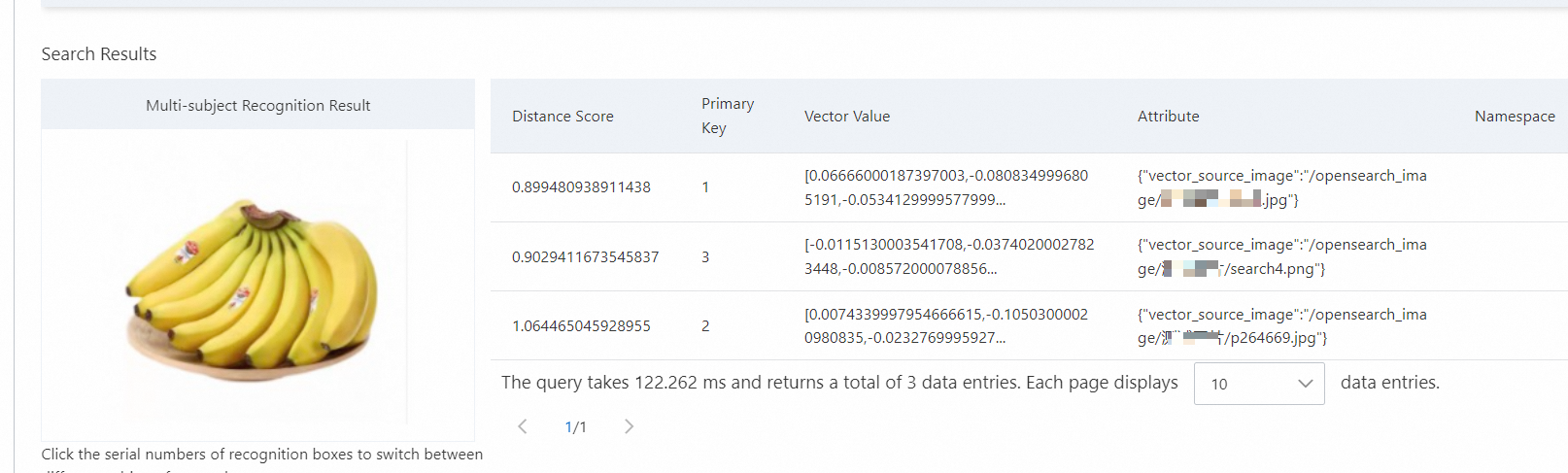
The result list shows one row per hit with the columns Distance Score, Primary Key, Vector Value, Attributes (for example a vector_source_image path pointing to the source image file), and Namespace. Below the list, the console reports the query latency and the total number of matching records, together with a page-size selector and pagination controls. A hint under the image states that you click a recognition box number to switch the search to a different subject.
Multi-subject recognition results:
All recognized subjects are outlined with boxes and numbered.
By default, the search results of the subject with the largest pixel area are displayed, and the area of that subject is highlighted in the image.
You can manually click a subject number to switch the search to that subject. The search results and the highlighted area in the image change accordingly.
Image upload rules:
Supported image formats: PNG, JPG, and JPEG.
The image size cannot exceed 2 MB.
Base64 encoding
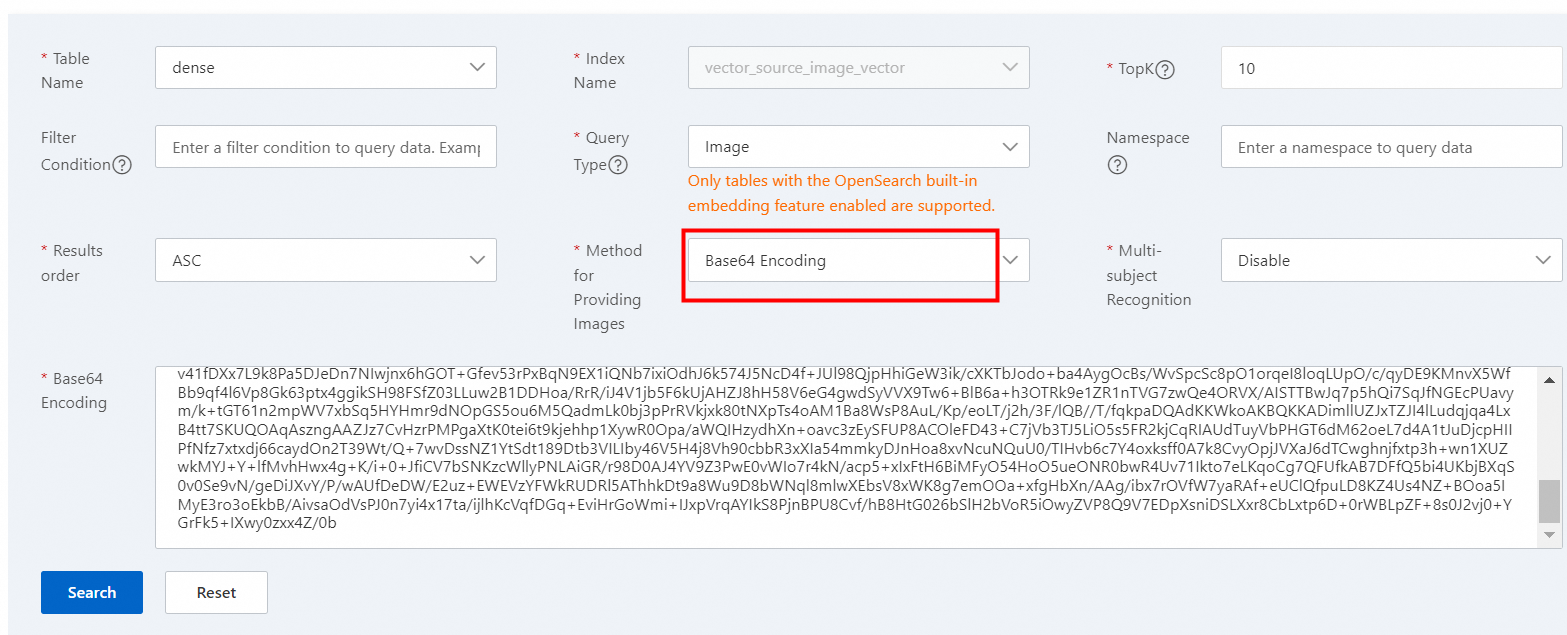
If you select Base64 encoding, enter the corresponding Base64-encoded value and click Search. The result is shown as follows:
Query type: text
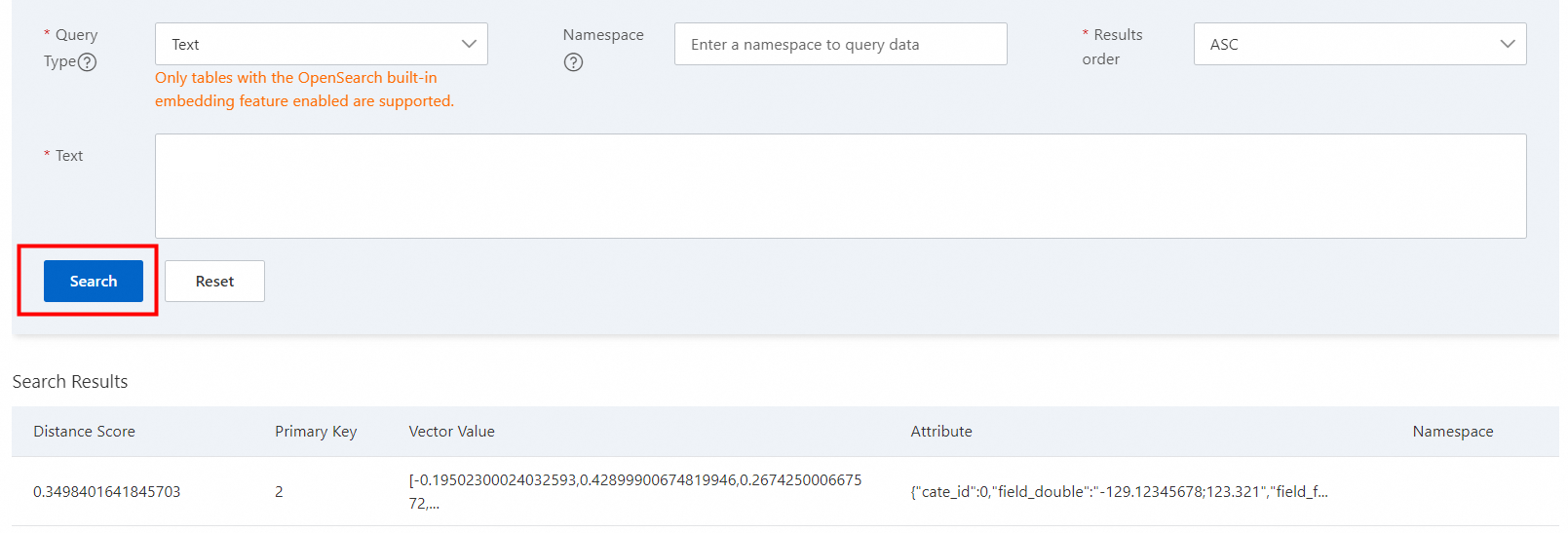
After you select a table, the index name is automatically displayed, and you do not need to select it. If Query Type is set to text, the input box below displays a hint for entering text content. Text search is available only for tables that have the embedding capability.
Enter the text content and click Search. The list of search results is displayed below, as shown in the following figure:
Developer mode
Both queries and results are displayed as raw statements. All query features are supported.
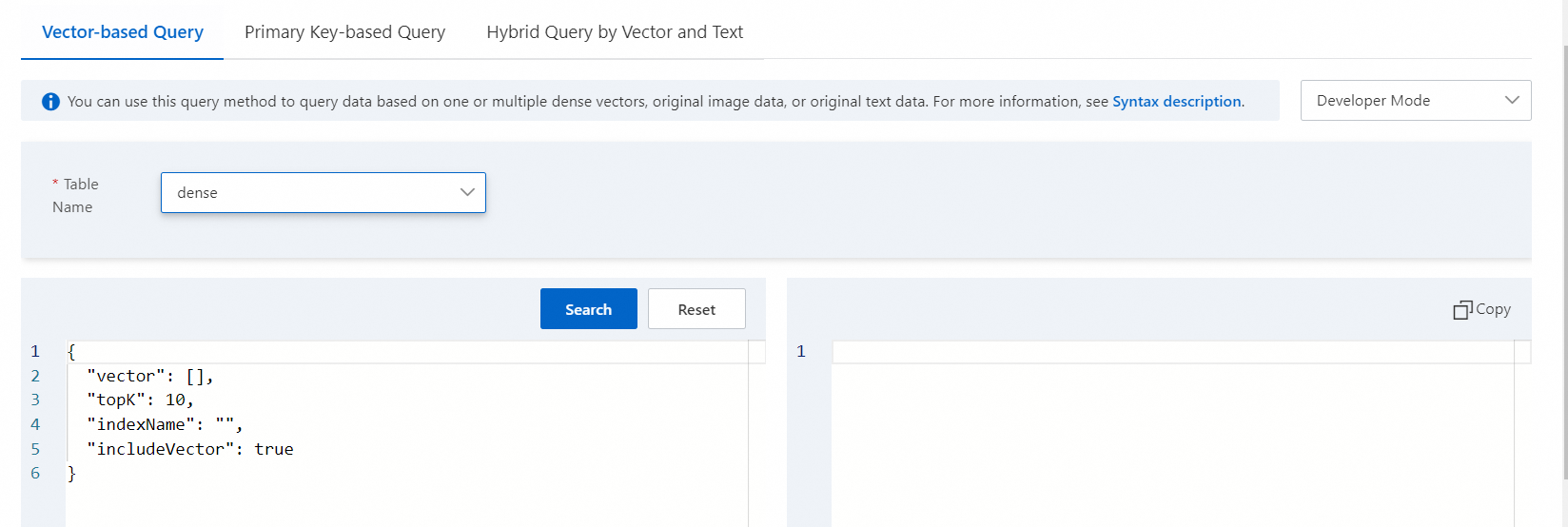
Enter the query parameters in the search box and click Search. The search results are displayed in the box on the right, as shown in the following figure:
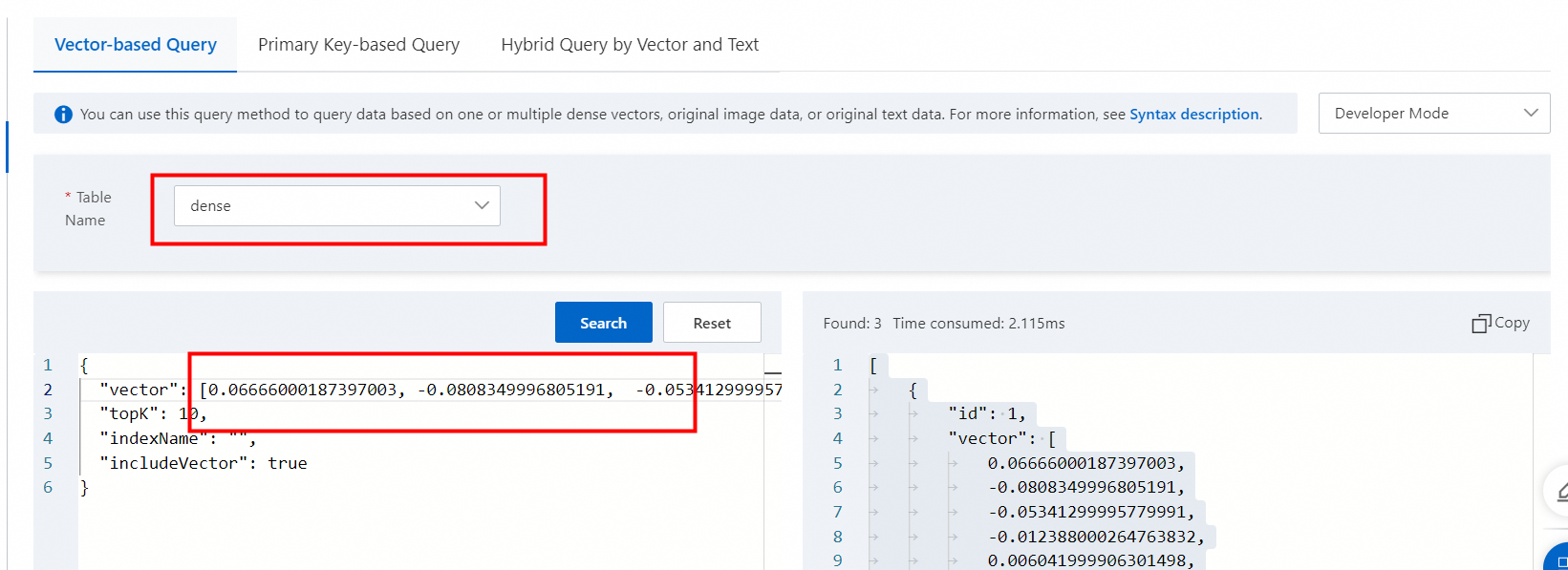
Example of a single-vector query:
{
  "vector": [0.345263,0.346272,0.33663.....],
  "topK": 10,
  "indexName": "",
  "includeVector": true,
  "namespace":"test1"
}
vector: The format is
list[float]. Enter the vector values. Note that the dimension must be the same as the dimension configured when the engine was built.topK: The number of results to return. You can set it as needed. Default value: 10.
indexName: Optional. The name of the vector index.
includeVector: Specifies whether to return the vector information in documents. Default value:
true. You can change this setting.namespace: Optional. If categories are configured for the instance, this parameter is required. Otherwise, you can ignore it.
Example of a query with multiple vectors and multiple namespaces:
{
  "tableName": "gist",
  "indexName": "vec_index",
  "queries": [
    {
      "vector": [0.1, 0.2, 0.3],
      "namespace": "space_a"
    },
    {
      "vector": [0.4, 0.5, 0.6],
      "namespace": "space_b"
    }
  ]
  "topK": 3,
  "includeVector": true
}
For more parameters, see the Vector query topic.
Usage notes
Limits on queries in form mode:
Queries across multiple namespaces are not supported.
Querying multiple vector indexes at the same time is not supported.
Querying multiple vectors is not supported.
The vector information in documents is returned by default.
All fields and their values of the corresponding documents are returned by default.
Results are filtered by score by default.