Using Terraform tools in OpenAPI MCP Server
Terraform is an infrastructure as code tool. It uses a declarative configuration language, the HashiCorp Configuration Language, to define cloud resources and automates infrastructure creation and management by running Terraform commands. By integrating Terraform's automation capabilities, OpenAPI MCP Server lets you configure Terraform code as tools in the MCP system. This approach combines AI agent autonomy with Terraform's deterministic orchestration.
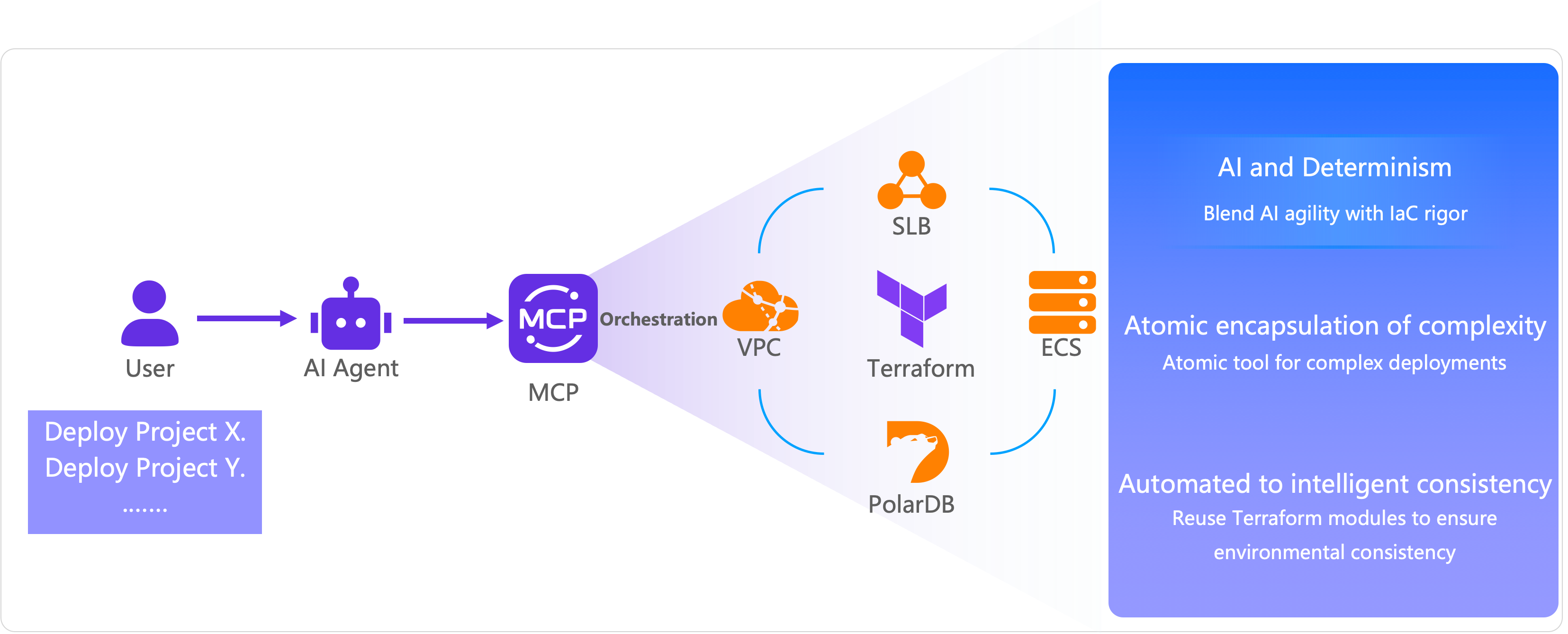
Create a Terraform tool
-
Go to the Alibaba Cloud OpenAPI MCP service page to create an MCP service, and then click Add Terraform Tools.
-
On the Add Terraform Tool page, enter the information for your tool.
Parameter
Description
Terraform tool name
The name of the tool.
Terraform tool description
Describes the tool's function and any special notes.
Terraform tool
The field for your Terraform code. You can use the provided Terraform AI assistant to generate the code or write it manually based on your requirements.
Asynchronous execution
-
No: The AI agent waits for the task to complete and then returns the execution results.
-
Yes: OpenAPI MCP Server automatically adds the
QueryTerraformTaskStatussystem tool. After the AI agent calls the Terraform tool, the server immediately returns aTaskId. Use thisTaskIdto call the system tool and query the task's execution status.
NoteIf your Terraform code is complex or takes a long time to run, select Yes to avoid large language model (LLM) invocation timeouts.
Deletion policy
-
Never Delete: Created resources are not released, regardless of whether the task succeeds or fails.
-
Always Delete: All created resources are immediately released, regardless of whether the task succeeds or fails.
-
Delete on Failure: Created resources are released only if the task fails.
NoteWith the other options, you cannot use the Terraform tool to delete resources after they are created. Running the Terraform tool again recreates the resources.
This document provides sample Terraform code to deploy Dify. For more Terraform examples, see the tutorial.
In the Add Terraform Tool panel, set Terraform Tool Name to
deploydifyand Terraform Tool Description toDeploy Dify in a CentOS ECS instance. Paste the preceding Terraform code into the code editor. For Asynchronous Execution, select Yes. For Deletion Policy, select Delete on Failure. -
Test the Terraform tool in a client
This section describes how to test the Terraform tool in Tongyi Lingma.
-
Follow the instructions in Configure MCP in Tongyi Lingma to set up OpenAPI MCP Server. After configuration, the tools included in the MCP are displayed.
The terraform-dify service is enabled. The tool list includes three tools: Ecs-20140526-DescribeInstances (queries ECS instances), terraform/deploydify (deploys Dify in a CentOS ECS instance), and system-QueryTerraformTaskStatus (queries Terraform task status).
-
Enter a natural language command to run the MCP. For example, "Help me deploy Dify in China (Hong Kong)."
Click the AI agent tab in the lower-left corner of the input box to switch to agent mode, then enter the natural language command and send it.
-
Because you chose asynchronous execution, the AI agent returns a
TaskId. You can use thisTaskIdto repeatedly call the system tool (QueryTerraformTaskStatus) to check the task's execution status.The AI agent first runs the
terraform-dify/terraform/deploydifytool to start the deployment task. After receiving theTaskId, it repeatedly callsQueryTerraformTaskStatusto poll the status, which isApplyingduring the process. After the deployment succeeds, it returns the deployment information: the region is China (Hong Kong) (cn-hongkong), the availability zone is cn-hongkong-b, the instance name is dify-deployment-instance, the instance type is ecs.c9i.xlarge (4 vCPUs and 8 GB of memory), and a public IP address has been assigned. -
You can verify that Dify is deployed successfully by entering
http://<Public IP address>in your browser. If the deployment is successful, the following page appears, which indicates that the Terraform tool was executed successfully.The page displays the Set up your Admin account interface for the Dify Community Edition. It includes fields for Email, Username, and Password. The password must contain letters and numbers and be at least 8 characters long. After you enter the information, click Set to complete the setup.