Develop and analyze data using DataWorks Notebook
After the environment is initialized, a DataWorks workspace named `OpenLake Solution Experience` is automatically created in the current region. This workspace is configured with the environment required to run the OpenLake solution, such as an attached resource group for task execution and OpenLake-related engines. You can experience the OpenLake solution in this workspace in the following ways.
To experience the capabilities of the OpenLake solution, a DataWorks workspace is required to Use Data Studio (New Version). For more information, see Create an OpenLake workspace.
Method 1: Use the built-in example in the workspace
After the environment is initialized, the OpenLake Solution Experience Workspace includes a built-in getting-started Notebook sample. You can use this sample to directly experience the capabilities of the OpenLake product.
View the built-in use case
On the DataWorks console > OpenLake Solution page, click Go to Notebook. You will be redirected to the OpenLake Solution Experience DataStudio page to experience the built-in use case.
Run the use case
The Trial Space automatically initializes the runtime environment for Notebook jobs, such as a personal development environment. Before you run an example, you only need to replace the required environment variables with the parameters for your actual OpenLake environment. You can obtain information about the OpenLake environment variables in the following ways:
For information about Computing Resources, navigate to the DataWorks console. In the left-side navigation pane, click Work space to open the Workspaces page. Click the workspace name to open the Workspace Details page. Then, click the Computing Resources tab to view the associated compute resources, or click Associate Computing Resources to associate new ones.
For information about DLF, click this link.
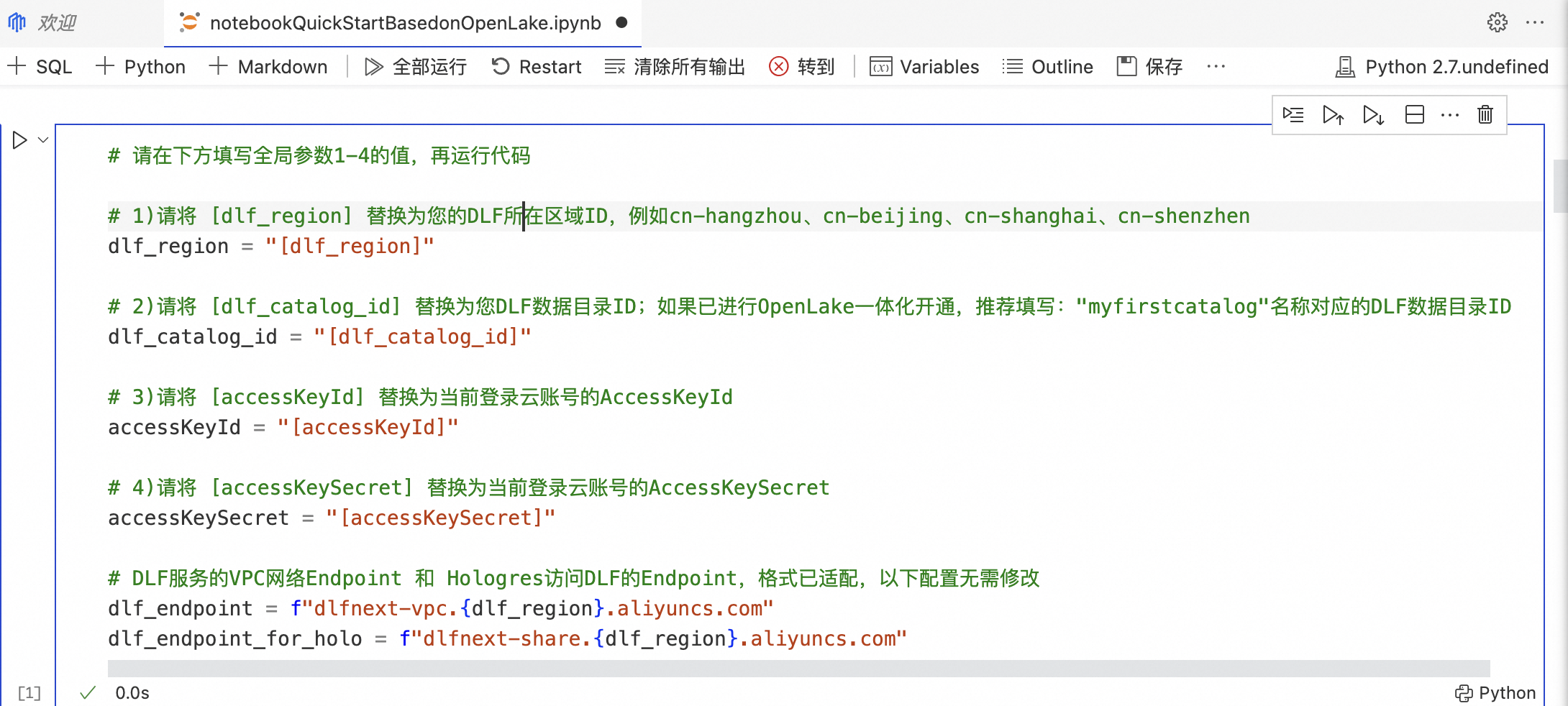
Method 2: Import an example
DataWorks Gallery provides notebook tutorials. You can run these tutorials directly in DataWorks or customize them to suit your business scenarios.
Import from Gallery
On the OpenLake Solution page, click View Practice Cases to go to the DataWorks Gallery page.
On the DataWorks Gallery page, search for
OpenLake Solution Quick Startin All Categories.Method 1: After finding the case, click the Load Case button in the lower-right corner. In the window that appears, configure the Work space and Personal Development Environment Instance, and then click OK to import.
Method 2: Click the case title to view its details. On the details page, click Load Case. In the window that appears, configure the Work space and Personal Development Environment Instance, and then click OK to import.
Go to DataStudio
When you load the case, you are automatically redirected to the DataWorks DataStudio (Data Development) page. You can also go to DataStudio by using the following method.
On the DataWorks console > OpenLake Solution page, click Go to Notebook. You will be redirected to the OpenLake Solution Experience DataStudio page.
Run the use case
Follow Step 2 in Method 1: Use the built-in use case to replace the variables in the use case with the actual values for your OpenLake environment. Then, you can run the use case.