Application details
The Application details page displays key performance metrics, a call topology graph, and call traces for the application on each machine where it is deployed.
Access the feature
-
Log on to the Managed Service for OpenTelemetry console. In the left-side navigation pane, click Applications.
-
On the Applications page, select a region in the top navigation bar and click the name of the application.
In the navigation pane on the left, click Application Details.
NoteYou can click the arrow next to the Response Time, Requests, or Exceptions tab to sort all machines where the application is deployed. In the search box, you can enter a keyword to filter for machines that match your search.
Application overview
The Overview tab on the Application details page lists all machines where the application is deployed. You can sort this list by response time, number of requests, or number of errors. Select a machine from the list to view its detailed call topology and the time series curves for requests, response time, and errors on the Overview tab.
View traces
The Traces tab displays up to 100 traces that consume the most amount of time on the specified host within the specified period of time.
Figure 1. Traces page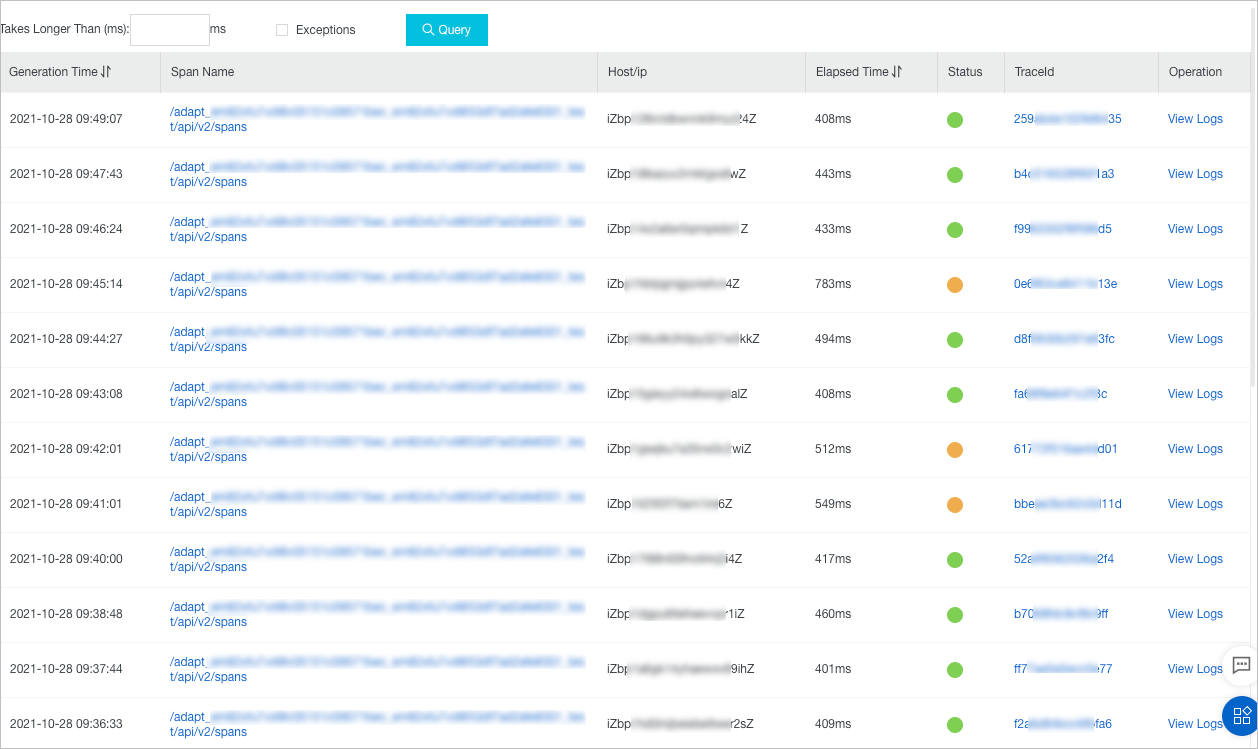
In the Status column, the green icon indicates that the time consumed is less than 500 milliseconds. The yellow icon indicates that the time consumed ranges from 500 milliseconds to 1,000 milliseconds. The red icon indicates that the time consumed is greater than 1,000 milliseconds or that one of the tag keys of the trace is set to error.
On the Traces tab, you can perform one of the following operations based on your business requirements:
-
Enter a value that is accurate to milliseconds in the Takes Longer Than (ms) field and click Query. Then, the traces whose time consumed is greater than the specified value are displayed on the Traces tab.
-
Select Exceptions and click Query. Then, abnormal traces are displayed on the Traces tab.
-
Click the up or down arrow next to Generation Time or Elapsed Time to sort the traces in descending or ascending order.
-
Click the ID of a trace to go to the Traces page. The page displays the waterfall chart of the trace.
View the waterfall chart of a trace
The Traces tab displays the span name, timeline, application name, start time, server IP address, and status of each trace.
The IP Address column may display IP addresses or server names. The information displayed depends on the display settings that are configured on the Application Settings page. For more information, see Manage applications and tabs.
Figure 2. Traces page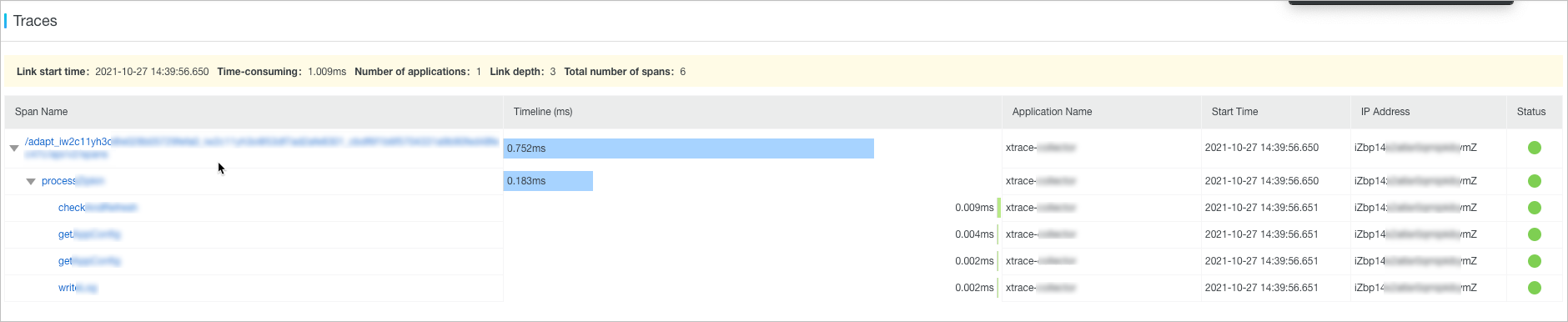
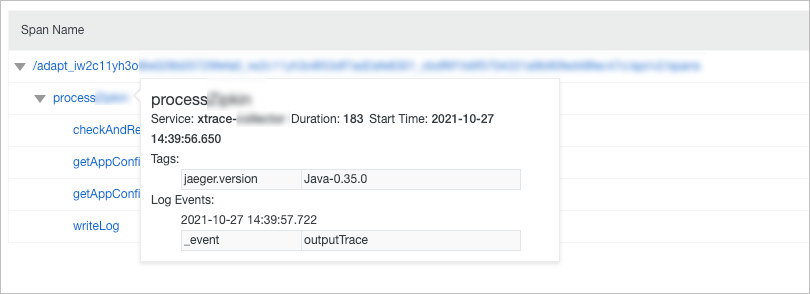
Move the pointer over the name of a span to view the information about the span. The information includes the duration, start time, tags, and log events.
Specify a time range
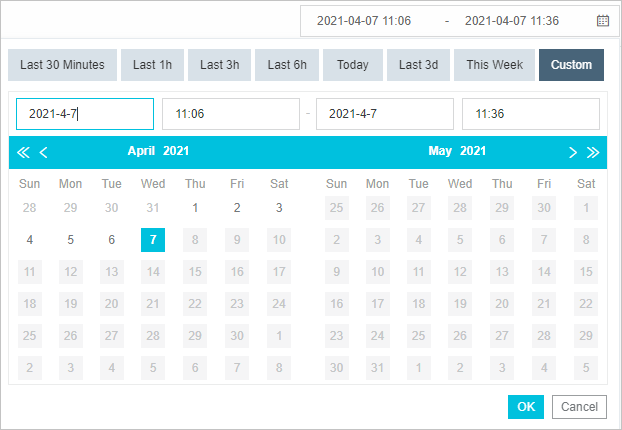
You can select a predefined time range or specify a custom time range.
-
In the upper-right corner of the page, click the date and time picker and select a predefined time range, such as Last 30 Minutes, Today, or This Week.
-
If no predefined time ranges meet your business requirements, select Custom. Select a start time and an end time in the calendar or enter a start time and an end time, and then click OK.
NoteThe date format is
YYYY-MM-DDand the time format isHH:MM.
Figure 3. Date and time picker