Resource Orchestration Service (ROS) lets you define required Alibaba Cloud resources, such as ECS instances and their dependencies, in a template. The ROS orchestration engine then automatically provisions and configures all the resources based on the template, enabling automated deployment and maintenance. This topic shows you how to deploy an Nginx application using Object Storage Service (OSS) and ROS.
Prerequisites
-
You have created a bucket and set its access control list (ACL) to private. For more information about how to create a bucket, see Create buckets.
-
You have downloaded the Nginx installation package.
Step 1: Upload the Nginx package to a bucket
Log on to the OSS console.
In the left-side navigation pane, click Buckets. On the Buckets page, find and click the desired bucket.
-
In the left-side navigation pane, choose
-
Upload the Nginx installation package that you downloaded.
When you upload the object, set its ACL to Public Read and keep the default settings for other parameters. For more information, see Upload objects.
-
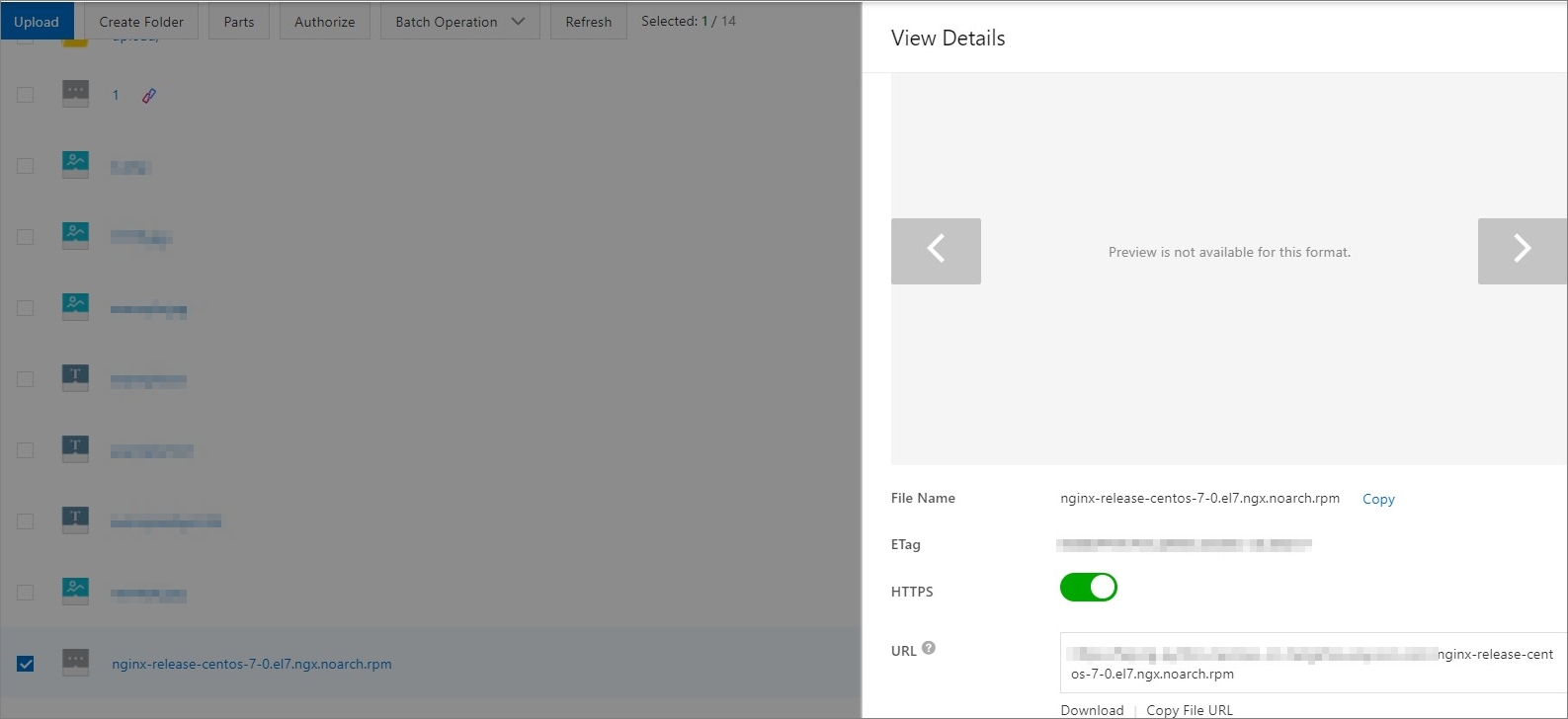
Obtain the object URL.
After the file upload is complete, click View Details to the right of the Nginx installation package file, and then click Copy Object URL.
Step 2: Create a stack with ROS
-
Select a template.
-
Log on to the ROS console.
-
In the left-side navigation pane, click Stacks.
-
In the top navigation bar, select China (Hangzhou) from the region drop-down list.
-
On the Stacks page, click Create Stack. Set Specify Template to Select an Existing Template and Template Import Method to Enter Template Content. On the JSON tab, paste the following template content and then click Next.
{
  "ROSTemplateFormatVersion": "2015-09-01",
  "Description": "",
  "Parameters": {
    "NginxDownloadUrl": {
      "Type": "String",
      "Description": {
        "zh-cn": "nginx-*.rpm的下载路径",
        "en": "The download URL of the nginx-*.rpm package."
      },
      "Label": {
        "zh-cn": "Nginx下载地址",
        "en": "Nginx Download URL"
      }
    },
    "ZoneId": {
      "AssociationProperty": "ALIYUN::ECS::Instance:ZoneId",
      "Type": "String",
      "Description": {
        "zh-cn": "可用区ID。<br><b>注: <font color='blue'>选择前请确认该可用区是否支持创建ECS资源的规格,建议选择与其他交换机不同的可用区</font></b>",
        "en": "The ID of the availability zone. <br><b>Note:</b> <font color='blue'>Before you make a selection, confirm that the required instance type is available in the selected availability zone. We recommend that you select an availability zone different from where your other VSwitches reside.</font>"
      },
      "Label": {
        "zh-cn": "交换机可用区",
        "en": "VSwitch Availability Zone"
      }
    },
    "ImageId": {
      "Default": "centos_7",
      "Type": "String",
      "Description": {
        "zh-cn": "请使用Centos7的镜像ID。详见:<b><a href='https://help.aliyun.com/document_detail/112977.html' target='_blank'><font color='blue'>查找镜像</font></a></b>",
        "en": "The ID of the image. <br><b>Note:</b> <font color='blue'>You must use a CentOS 7 image. For more information, see <a href='https://www.alibabacloud.com/help/en/doc-detail/112977.html' target='_blank'>Find images</a>.</font>"
      },
      "Label": {
        "zh-cn": "镜像",
        "en": "Image"
      }
    },
    "InstanceType": {
      "AssociationProperty": "ALIYUN::ECS::Instance::InstanceType",
      "AssociationPropertyMetadata": {
        "ZoneId": "ZoneId"
      },
      "Label": {
        "zh-cn": "实例规格",
        "en": "Instance Type"
      },
      "Type": "String",
      "Description": {
        "zh-cn": "<font color='blue'><b>1.选择机型前请先确认当前可用区下是否存在该机型,部分机型需要提前报备</b></font><br><font color='blue'><b>2.可选机型列表</font><br></b></font>[ecs.c5.large <font color='green'>2vCPU 4GiB 内网带宽1Gbps 内网收发包30万PPS</font>]<br></b>[ecs.c5.xlarge <font color='green'>4vCPU 8GiB 内网带宽1.5Gbps 内网收发包50万PPS</font>]<br></b>[ecs.c5.2xlarge <font color='green'>8vCPU 16GiB 内网带宽2.5Gbps 内网收发包80万PPS</font>]",
        "en": "<font color='blue'><b>1. Before you select an instance type, confirm that it is available in the selected availability zone. Some instance types require you to submit a ticket in advance.</b></font><br><font color='blue'><b>2. Available instance types:</b></font><br>[ecs.c5.large: <font color='green'>2 vCPUs, 4 GiB, 1 Gbit/s internal bandwidth, 300,000 PPS</font>]<br>[ecs.c5.xlarge: <font color='green'>4 vCPUs, 8 GiB, 1.5 Gbit/s internal bandwidth, 500,000 PPS</font>]<br>[ecs.c5.2xlarge: <font color='green'>8 vCPUs, 16 GiB, 2.5 Gbit/s internal bandwidth, 800,000 PPS</font>]"
      }
    },
    "SystemDiskCategory": {
      "Default": "cloud_efficiency",
      "Label": {
        "zh-cn": "系统盘类型",
        "en": "System Disk Type"
      },
      "Type": "String",
      "Description": {
        "en": "<font color='blue'><b>Valid values:</b></font><br>[cloud_efficiency: <font color='green'>Ultra Disk</font>]<br>[cloud_ssd: <font color='green'>Standard SSD</font>]<br>[cloud_essd: <font color='green'>ESSD</font>]<br>[cloud: <font color='green'>Basic Disk</font>]<br>[ephemeral_ssd: <font color='green'>local SSD disk</font>]",
        "zh-cn": "<font color='blue'><b>可选值:</b></font><br>[cloud_efficiency: <font color='green'>高效云盘</font>]<br>[cloud_ssd: <font color='green'>SSD云盘</font>]<br>[cloud_essd: <font color='green'>ESSD云盘</font>]<br>[cloud: <font color='green'>普通云盘</font>]<br>[ephemeral_ssd: <font color='green'>本地SSD盘</font>]"
      },
      "AllowedValues": [
        "cloud_efficiency",
        "cloud_ssd",
        "cloud",
        "cloud_essd",
        "ephemeral_ssd"
      ]
    },
    "InstancePassword": {
      "Type": "String",
      "Description": {
        "zh-cn": "服务器登录密码。长度为8~30字符,必须包含三项(大写字母、小写字母、数字、 ()`~!@#$%^&*_-+=|{}[]:;'<>,.?/ 中的特殊符号)。",
        "en": "The logon password of the ECS instance. The password must be 8 to 30 characters in length and contain at least three of the following character types: uppercase letters, lowercase letters, digits, and special characters. Special characters include ()`~!@#$%^&*_-+=|{}[]:;'<>,.?/"
      },
      "MinLength": 8,
      "Label": {
        "zh-cn": "实例密码",
        "en": "Instance Password"
      },
      "AllowedPattern": "[0-9A-Za-z\\_\\-\\&:;'<>,=%`~!@#\\(\\)\\$\\^\\*\\+\\|\\{\\}\\[\\]\\.\\?\\/]+$",
      "NoEcho": true,
      "MaxLength": 30,
      "ConstraintDescription": {
        "zh-cn": "长度为8~30字符,必须包含三项(大写字母、小写字母、数字、 ()`~!@#$%^&*_-+=|{}[]:;'<>,.?/ 中的特殊符号)。",
        "en": "The password must be 8 to 30 characters in length and contain at least three of the following character types: uppercase letters, lowercase letters, digits, and special characters. Special characters include ()`~!@#$%^&*_-+=|{}[]:;'<>,.?/"
      }
    },
    "SecurityGroup": {
      "Type": "String",
      "AssociationProperty": "ALIYUN::ECS::SecurityGroup::SecurityGroupId",
      "Description": {
        "zh-cn": "现有业务安全组的实例ID,可通过ECS控制台-网络与安全-安全组进行查询。",
        "en": "The ID of an existing security group. You can go to the ECS console and choose Network & Security > Security Groups to view the security group ID."
      },
      "Label": {
        "zh-cn": "安全组ID",
        "en": "Security Group ID"
      }
    },
    "VPC": {
      "AssociationProperty": "ALIYUN::ECS::VPC::VPCId",
      "Type": "String",
      "Description": {
        "zh-cn": "现有虚拟专有网络的实例ID,可通过VPC控制台-专有网络进行查询。",
        "en": "The ID of an existing VPC. You can go to the VPC console to view the VPC ID."
      },
      "Label": {
        "zh-cn": "现有VPC的实例ID",
        "en": "Existing VPC Instance ID"
      }
    },
    "VSwitch": {
      "AssociationProperty": "ALIYUN::ECS::VSwitch::VSwitchId",
      "Type": "String",
      "Description": {
        "zh-cn": "现有业务网络交换机的实例ID,可通过VPC控制台-专有网络-交换机进行查询。",
        "en": "The ID of an existing VSwitch. You can go to the VPC console and choose Resources > VSwitches to view the VSwitch ID."
      },
      "Label": {
        "zh-cn": "网络交换机ID",
        "en": "VSwitch ID"
      }
    }
  },
  "Metadata": {
    "ALIYUN::ROS::Interface": {
      "ParameterGroups": [
        {
          "Parameters": [
            "VPC",
            "VSwitch",
            "SecurityGroup"
          ],
          "Label": {
            "default": {
              "zh-cn": "基础资源配置",
              "en": "Basic Resource Configuration"
            }
          }
        },
        {
          "Parameters": [
            "ZoneId",
            "ImageId",
            "InstanceType",
            "SystemDiskCategory",
            "InstancePassword",
            "NginxDownloadUrl"
          ],
          "Label": {
            "default": {
              "zh-cn": "ECS云服务器配置",
              "en": "ECS Instance Configuration"
            }
          }
        }
      ],
      "TemplateTags": [
        "acs:example:Linux application service:Create Nginx application with ROS and OSS"
      ]
    }
  },
  "Resources": {
    "WebServer": {
      "Type": "ALIYUN::ECS::Instance",
      "Properties": {
        "InternetMaxBandwidthOut": 80,
        "IoOptimized": "optimized",
        "VpcId": {
          "Ref": "VPC"
        },
        "UserData": {
          "Fn::Join": [
            "",
            [
              "#!/bin/bash \n",
              "NginxUrl=",
              {
                "Ref": "NginxDownloadUrl"
              },
              "\n",
              "yum -y install aria2 \n",
              "aria2c $NginxUrl \n",
              "rpm -ivh nginx-*.rpm \n",
              "yum -y install nginx \n",
              "systemctl enable nginx.service \n",
              "systemctl restart nginx.service \n"
            ]
          ]
        },
        "SecurityGroupId": {
          "Ref": "SecurityGroup"
        },
        "VSwitchId": {
          "Ref": "VSwitch"
        },
        "ImageId": {
          "Ref": "ImageId"
        },
        "InstanceType": {
          "Ref": "InstanceType"
        },
        "SystemDiskCategory": {
          "Ref": "SystemDiskCategory"
        },
        "Password": {
          "Ref": "InstancePassword"
        }
      }
    }
  },
  "Outputs": {
    "NginxUrl": {
      "Value": {
        "Fn::Join": [
          "",
          [
            "http://",
            {
              "Fn::GetAtt": [
                "WebServer",
                "PublicIp"
              ]
            },
            ":80"
          ]
        ]
      }
    }
  }
}
-
-
Configure parameters.
-
On the Configure Parameters tab, specify a Stack Name.
-
In the Configure Template Parameters section, set the parameters as described in the following table.
Section
Parameter
Description
Basic Resource Configuration
Existing VPC Instance ID
Select your VPC ID from the drop-down list.
VSwitch ID
Select your VSwitch ID from the drop-down list.
Security Group ID
Select your security group ID from the drop-down list.
ECS Instance Configuration
VSwitch Availability Zone
Select an availability zone. For example, Zone G.
Image
Enter centos_7.
Instance Type
Select an instance type.
System Disk Type
Select cloud_ssd.
Instance Password
Enter a password for the instance.
Nginx Download URL
Enter the object URL of the Nginx installation package from Step 1.
-
In the Configure Stack Settings section, keep the default settings.
-
Click Create.
-
-
Verify the deployment.
-
Click the name of the created stack.
-
Click the Outputs tab, and then click the URL displayed for NginxUrl.

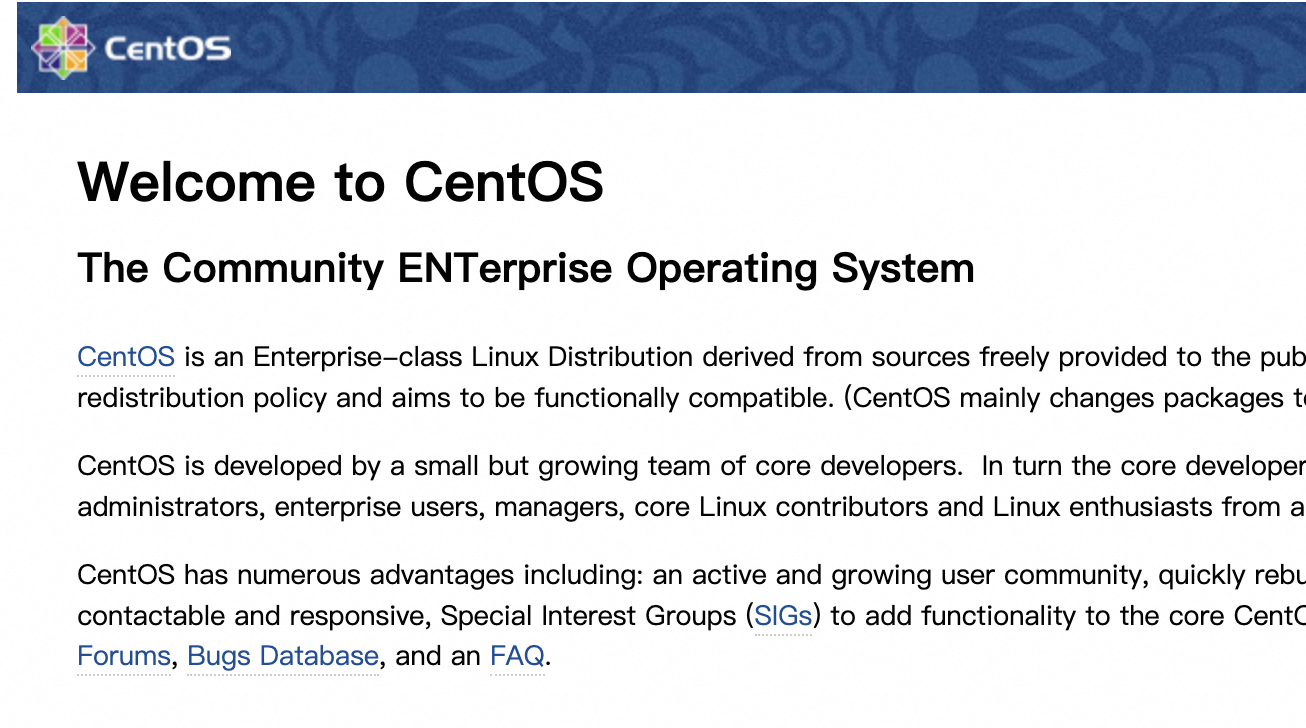
When you click the URL, the Nginx welcome page appears. This confirms that Nginx is running.
If you cannot access the page, add a rule to the security group to allow inbound traffic on HTTP port
80. For more information, see Add a security group rule.
-