Store remote attachments for Discuz! forums
The remote attachment feature lets you store user-uploaded files on a remote FTP server. Many platforms, such as Discuz! forums, PHPWind forums, and WordPress websites, support this feature. This topic describes how to configure a Discuz! forum to store its remote attachments in Object Storage Service (OSS).
Prerequisites
You have created a bucket with public-read permissions. For more information, see Create buckets.
This topic uses a bucket named test-hz-jh-002 in the China (Hangzhou) region as an example.
You have installed ossftp. For more information, see Install ossftp.
You have set up a Discuz! forum. To download the software, visit the Discuz!ᵂ official website.
This topic uses Discuz! X3.1 as an example.
Procedure
Log in to your Discuz! site as an administrator.
In the admin console, click Global, and then click Upload Settings.
Click Remote attachment, and then configure the remote attachment parameters.
Parameter
Example value
Description
Enable remote attachment
Yes
Enables remote attachments.
Enable SSL connection
Select No.
Enables an SSL connection.
FTP server address
127.0.0.1
The IP address of the server where ossftp is running. If ossftp is running on the local machine, enter 127.0.0.1.
FTP server port
2048
The port on which ossftp listens for requests. The default port is 2048.
FTP username
Y6IoUOZReouXvWaXuwjvDch9******/examplebucket
The username for connecting to ossftp consists of an AccessKey ID that has permissions to access the bucket and the bucket name. The format is
AccessKey ID/BucketName. For information about how to obtain an AccessKey ID, see Create an AccessKey.NoteYou can customize the logon username. For more information, see Create a custom logon user.
FTP password
sRaQg0i3SH9EqYXJSL1hlaR******
The password for the ossftp connection. Use the AccessKey Secret that corresponds to the AccessKey ID. For information about how to obtain an AccessKey, see Create an AccessKey.
NoteYou can customize the logon password. For more information, see Create a custom logon user.
passive (PASV) connection
Yes
Select Yes to enable passive mode.
Remote attachment directory
.
The directory in the OSS bucket where the remote attachments are stored. A period (.) indicates the root directory of the bucket.
remote access URL
https://test-hz-jh-002.oss-cn-hangzhou.aliyuncs.com
The access URL of the Bucket is in the format
https://BucketName.Endpoint.FTP transfer timeout
0
Enter 0 to use the server's default timeout value.
Click Test remote attachment to verify the configuration.
Create a new post to verify the configuration.
When you create a post, upload an image attachment.
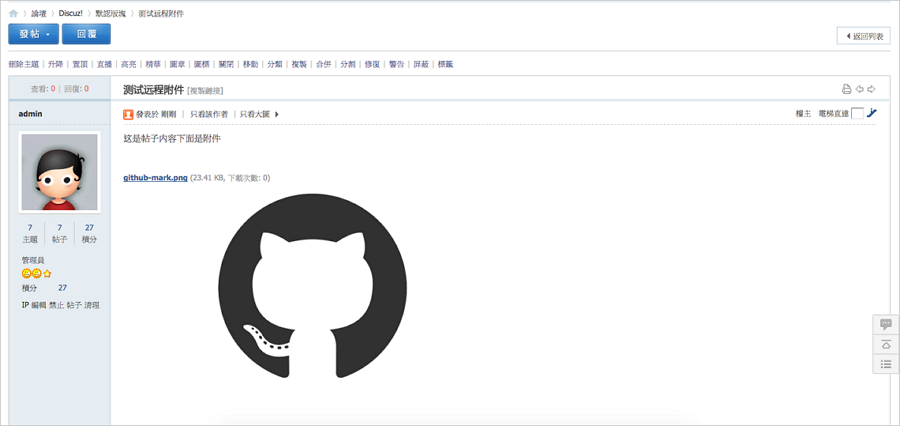
Right-click the image and select Open link in new tab.
If the image URL is in the format
http(s)://BucketName.Endpoint/path/filename, the attachment has been uploaded successfully.For example, the image URL is
https://test-hz-jh-002.oss-cn-hangzhou.aliyuncs.com/forum/201512/18/171012mzvkku2z3na2w2wa.jpg.