What do I do if the "Please set the etag of expose-headers in OSS" error message appears when I use multipart upload to upload an object?
Resolve the "Please set the etag of expose-headers in OSS" error that occurs during multipart upload by adding ETag to your CORS Exposed Headers configuration.
Problem
When using multipart upload to upload objects to OSS, the following error occurs:
Please set the etag of expose-headers in OSSCause
The client cannot retrieve the ETag value after uploading a part. The ETag is required to complete the multipart upload. Common causes:
-
Missing ETag in Exposed Headers: The CORS rule does not include
ETagin Exposed Headers. The client cannot access the ETag response header required for multipart upload completion. -
Conflicting CORS rules: Multiple CORS rules exist with conflicting configurations, preventing proper header exposure.
Solution
Add ETag to Exposed Headers
Configure your bucket's CORS rule to expose the ETag header.
-
Configure the CORS rule parameters:
-
Source: Set to
*to allow all origins, or specify your application's domain. -
Allowed Methods: Select GET, PUT, DELETE, POST, and HEAD.
-
Allowed Headers: Set to
*to allow all request headers. -
Exposed Headers: Add
ETagto allow the client to read the ETag from the response.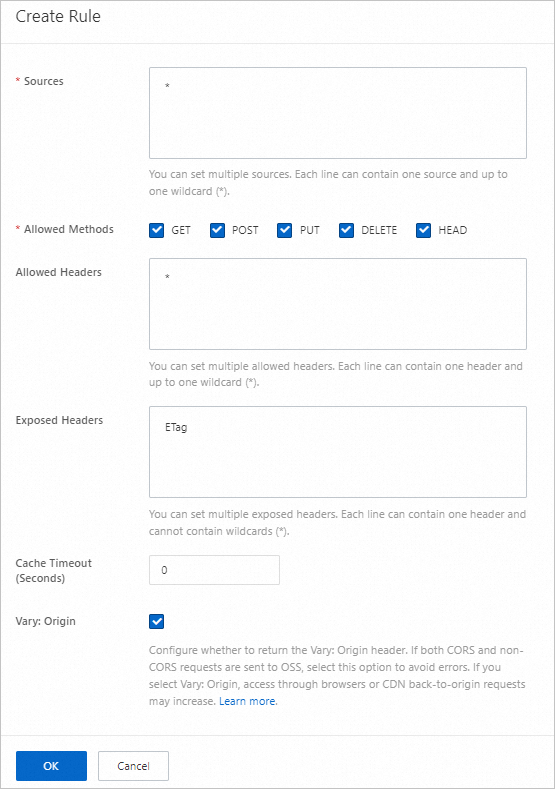
-
Remove Conflicting CORS Rules
If multiple CORS rules exist, review each rule and delete any that conflict or are no longer needed. Conflicting rules can override the ETag exposure configuration.
Verify the Solution
After updating the CORS configuration, verify the fix.
-
Wait a few moments for the configuration to take effect.
-
Retry the multipart upload operation.
-
The upload should complete successfully without the error.