Workflow configuration mode
Learn how to configure large language model scenarios by using the workflow configuration mode.
Feature access
Go to the Intelligent Outbound Bot console, select the desired instance, and navigate to the large model scenario list page. Click New Scenario. In the dialog box, select workflow configuration mode.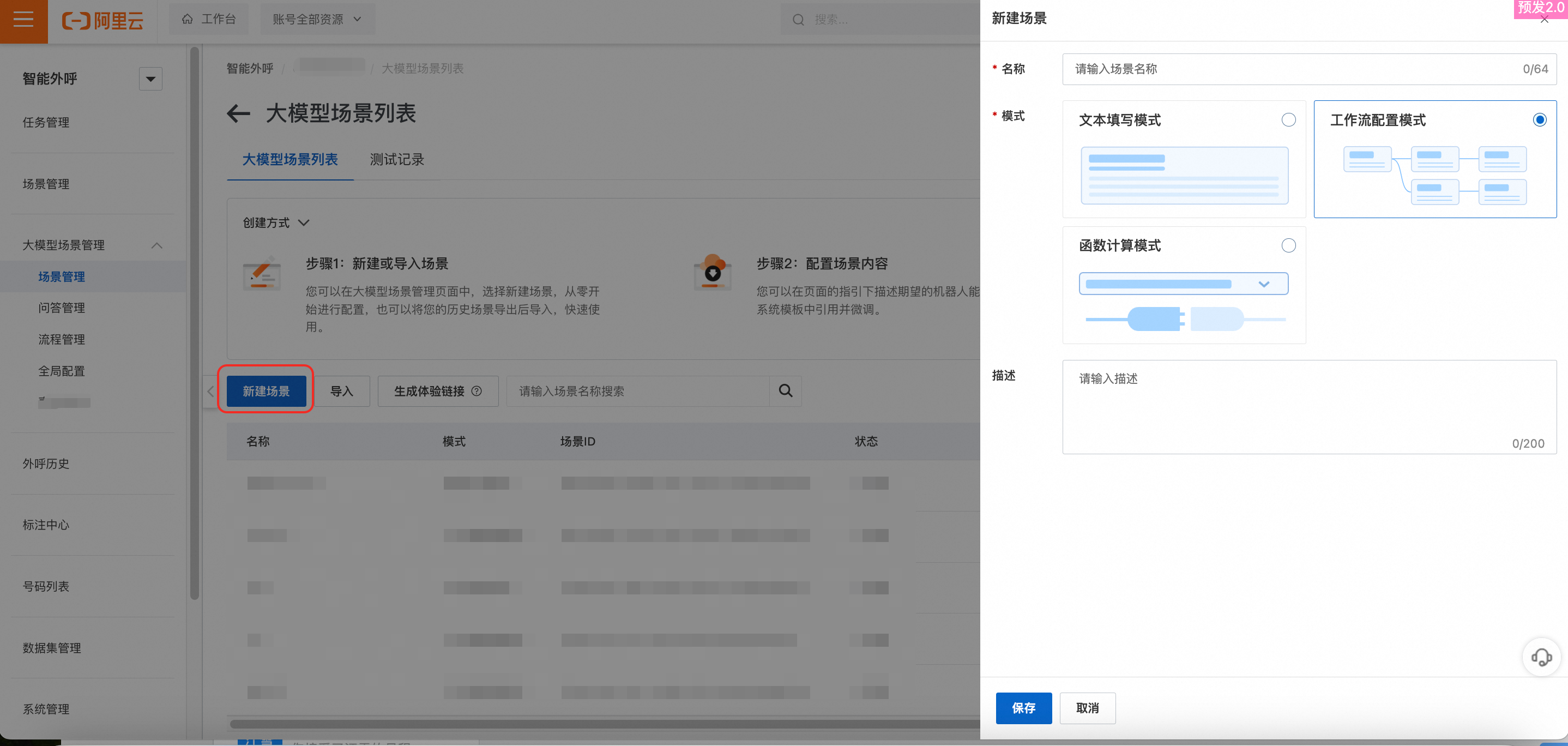
Configuration
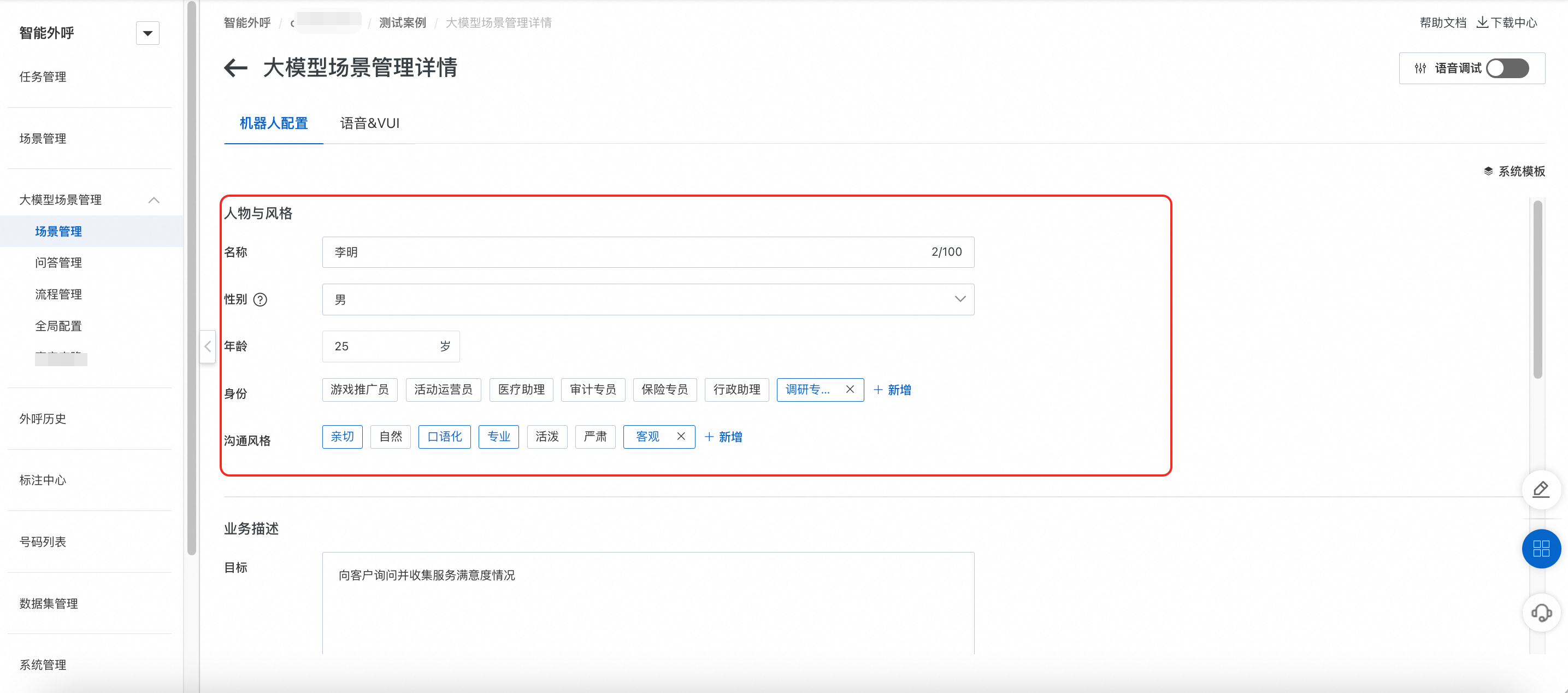
Persona and style
This section is optional. You can configure the bot's response style and characteristics for this scenario. You can select from system-recommended tags or define your own to meet your business requirements.
Note: Gender settings do not change the voice timbre. To change the voice, modify the TTS voice template in Voice & Intelligent VUI.
Business description
The business description defines the actions the bot must perform during an outbound call. Follow the prompts in the input boxes to write the description.
You do not need to fill in all the input boxes. A clear description is sufficient.
You can find examples in the system templates or by referring to the prompts in the input boxes.
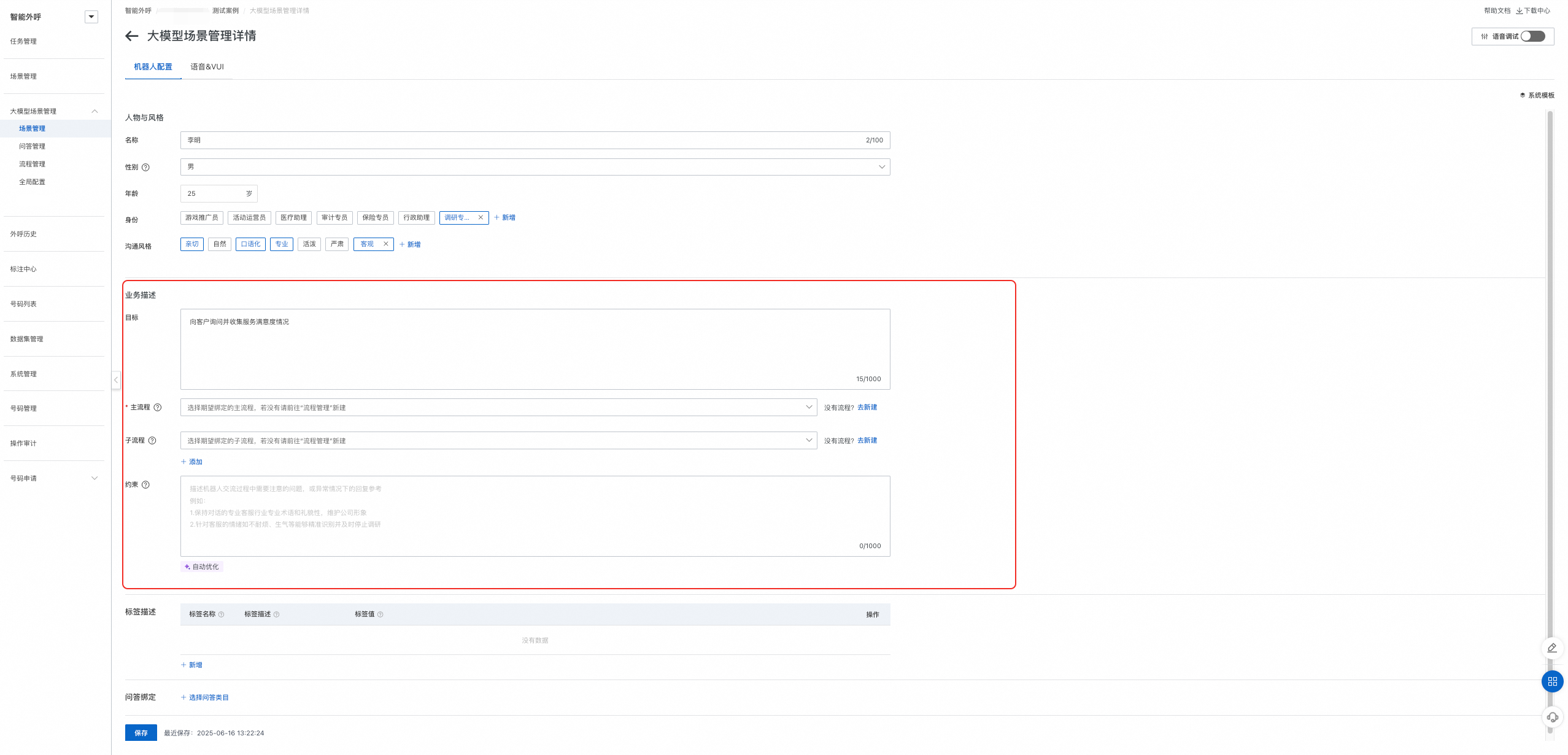
Objective: Use a single sentence to describe the primary goal of the dialing task.
Main process: Required. This process automatically triggers when a call connects. You can configure it in Process Management.
Subprocess: Triggered by customer intent during the conversation. You can configure it in Process Management.
NoteA scenario can have only one main process but multiple subprocesses. Main processes and subprocesses can be bound to multiple scenarios.
Constraint: Defines the rules or overall requirements the bot must follow during the conversation.
Tag description
If you want the bot to collect information based on the conversation content, you can configure tags.
You can view and download collected tags in the task details.

Tag name: Enter the business data or result metrics you need to collect. For example, Can Visit or Is Satisfied.
Tag description: Providing a description improves tag collection accuracy. If you want to collect a tag whose values cannot be exhaustively listed (such as a time), provide only a description without specifying tag values.
Tag value: The system matches information based on the defined tag values.
FAQ binding
Prerequisite: First, create an FAQ category and configure frequently asked questions in FAQ Management.
Then, go to the bot configuration and select the FAQ category to bind.
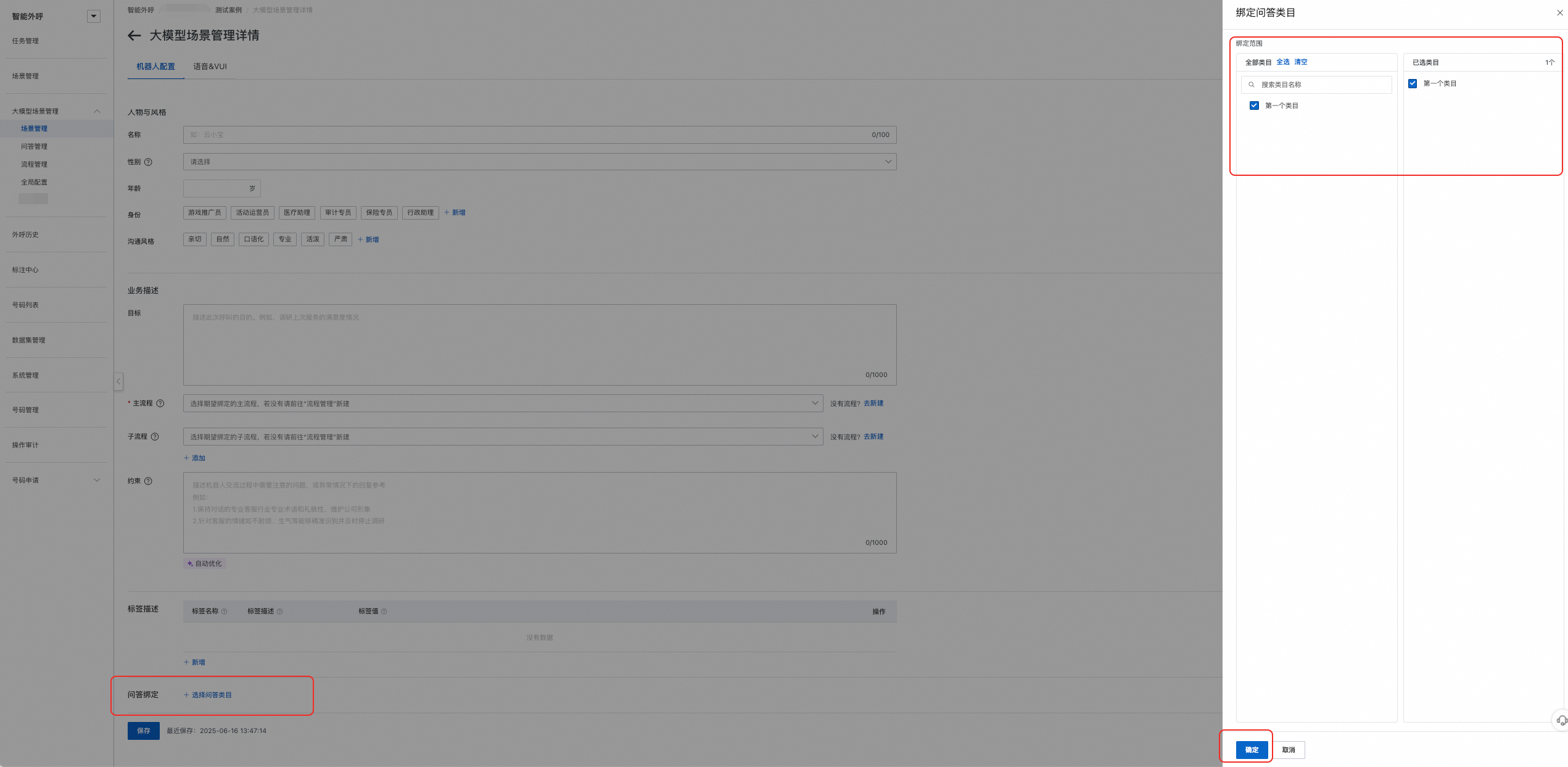
After you complete the binding, you can test the frequently asked questions in a simulation test.
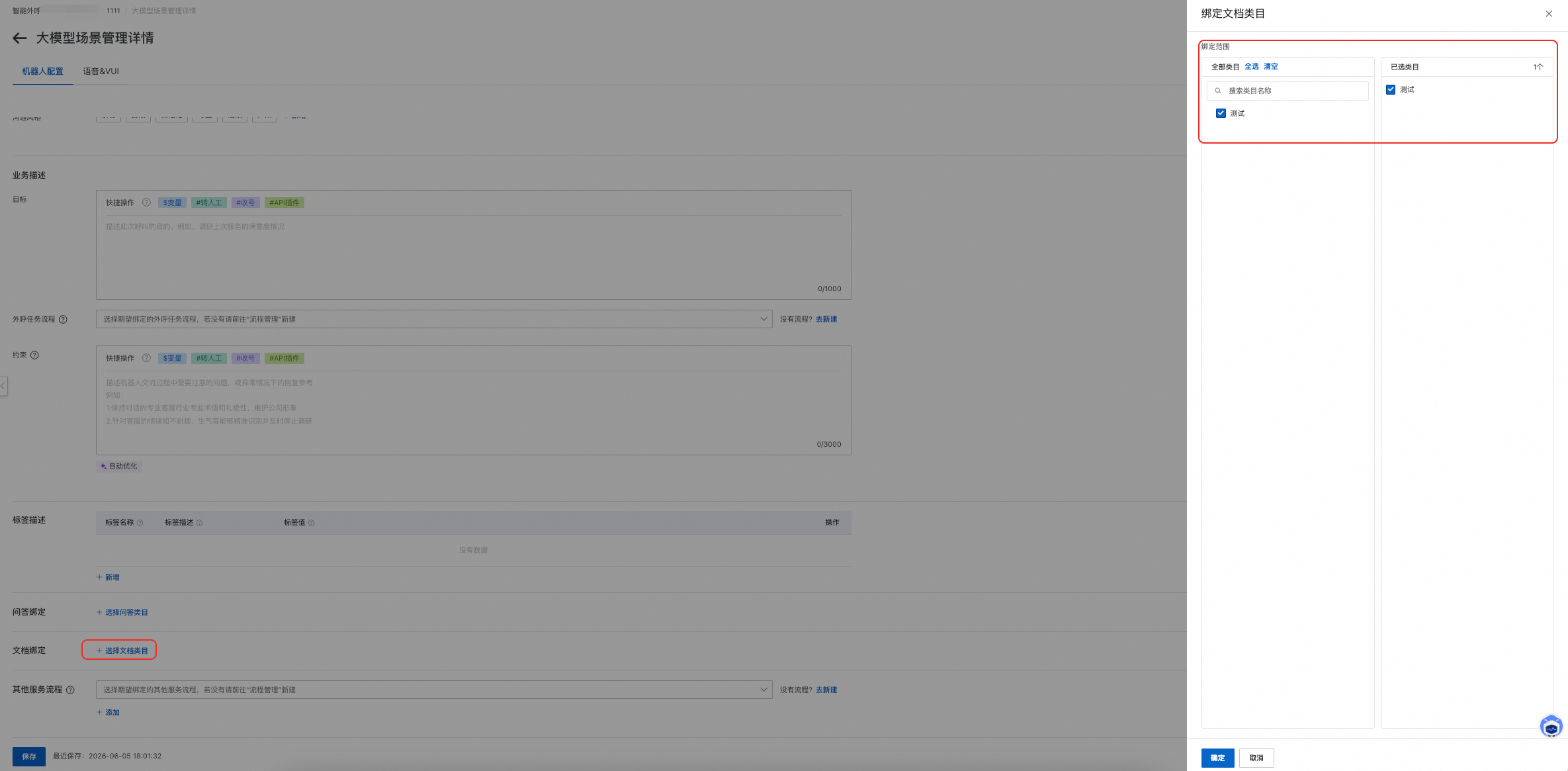
Document binding
Prerequisite: First, create a document category and configure documents in Document Management.
Then, go to the bot configuration and select the corresponding document category to bind.

After you complete the binding, you can test document-based Q&A in a simulation test.
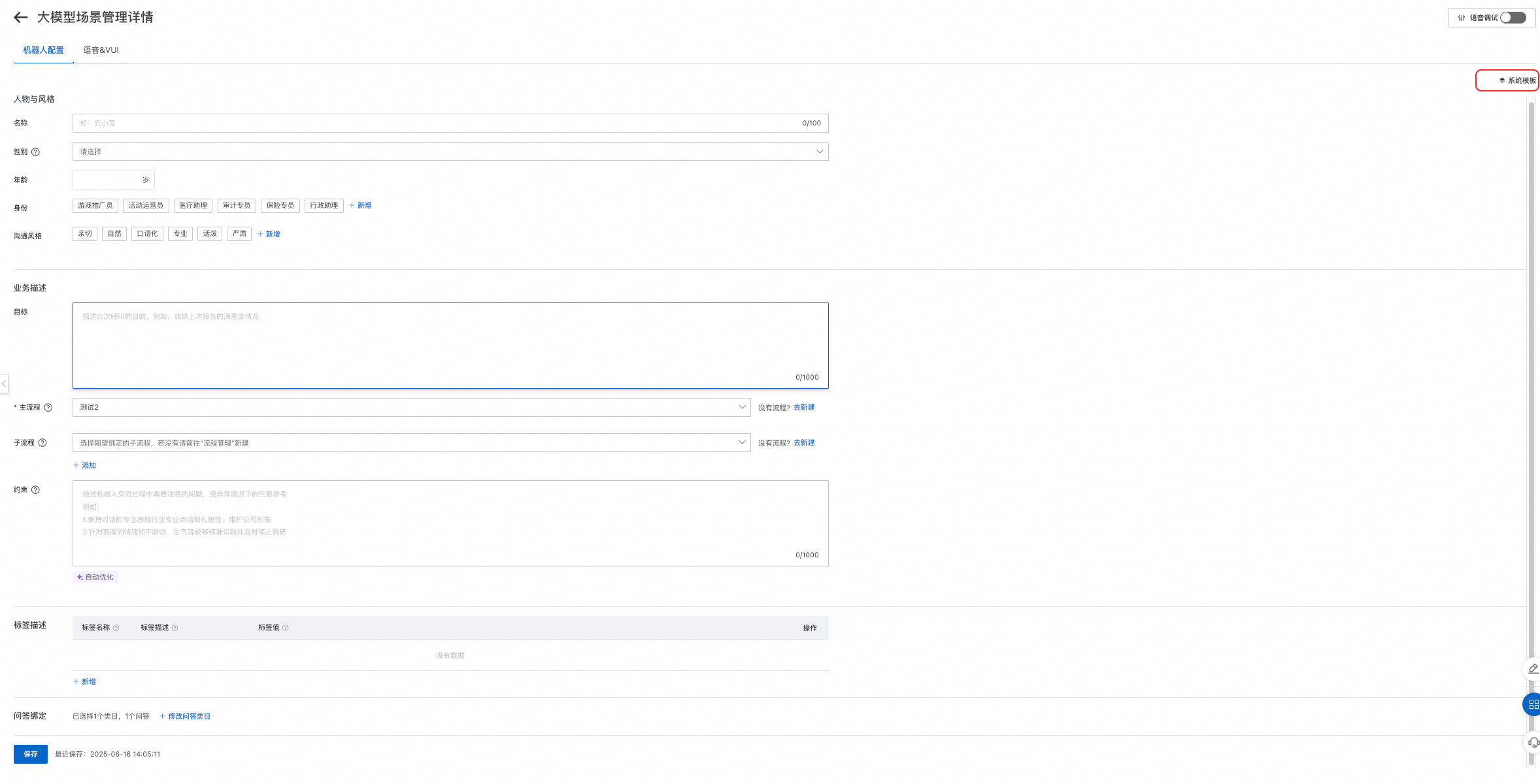
System templates
The platform provides system templates. Click the System Template button to view and apply template information.
Note: When you apply a system template, it only presets the persona and style, objective, constraint, and tag description. It does not preset the process or FAQ.
Variable configuration
If you use variables in a skill or constraint (for example, to address the called party by name), you must first add them in the Variable Configuration section under Global Configuration. These variables can then be referenced in skills and constraints, and are populated with the called party's information during a call.
How to use: After configuring variables, you can use them in the business description. Type the "$" symbol in an input box to open the variable list and select the desired variable.

Test window
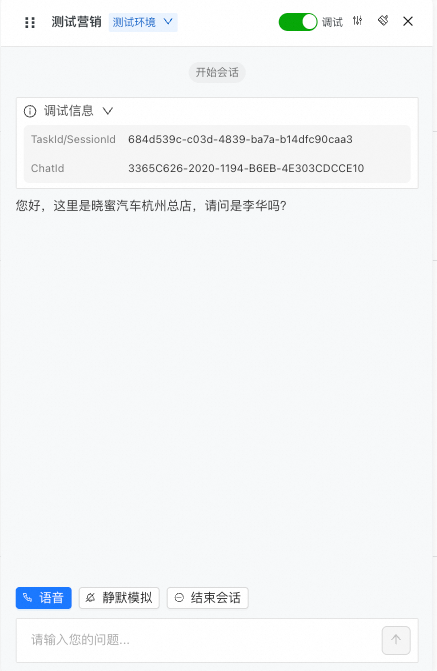
After you complete the bot configuration, click the Voice Debugging button in the upper-right corner of the console to start debugging.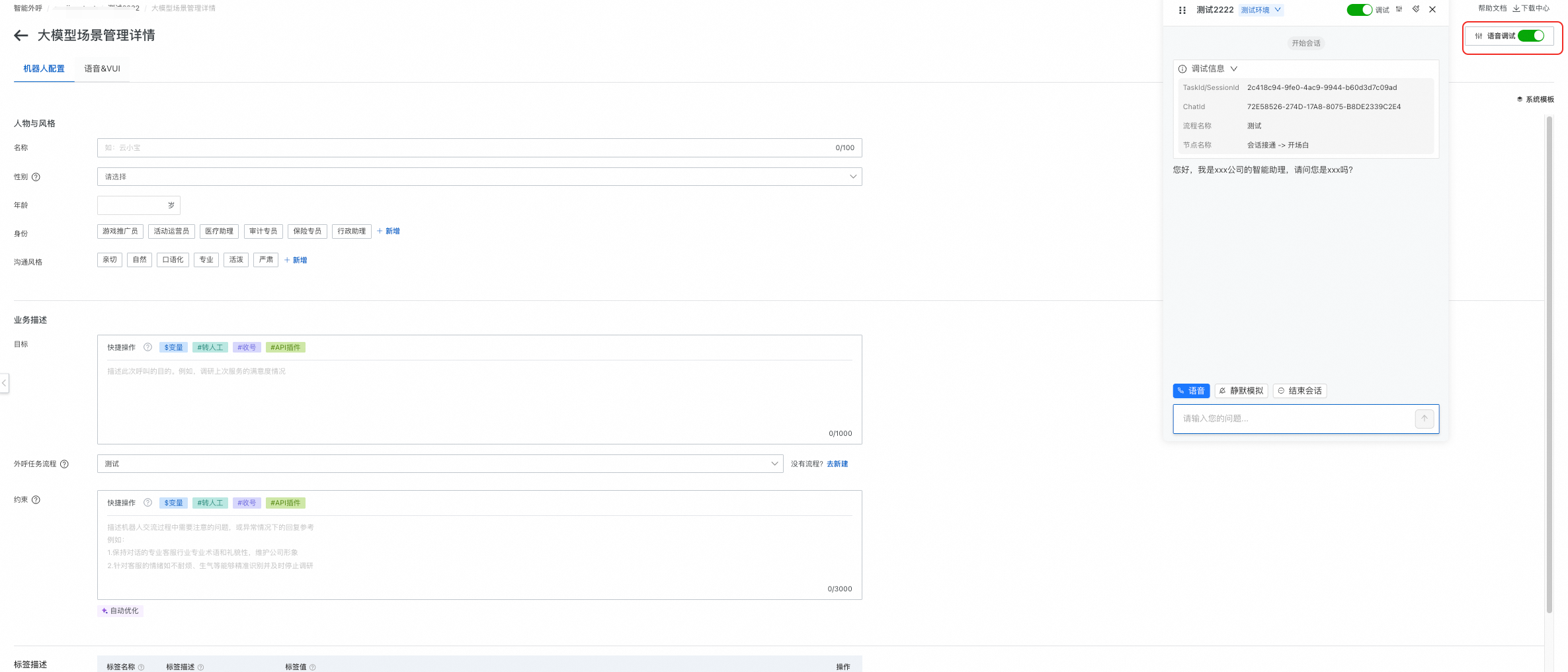
Features: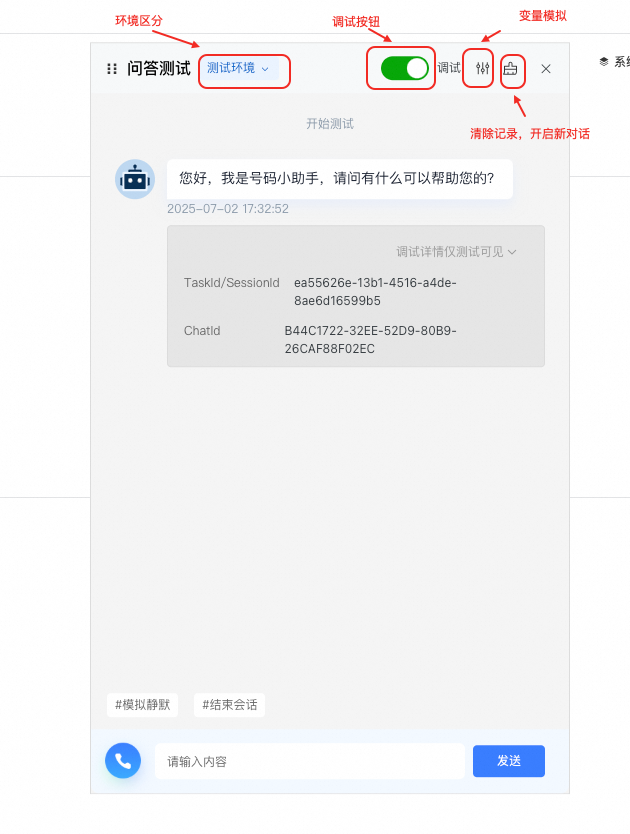
Environment selection:
Production environment: Select this option to test the published scenario.
Test environment: Select this option to test the saved draft of your scenario.
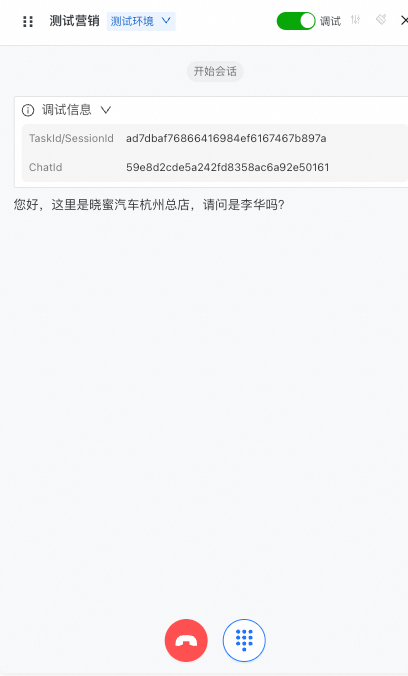
Test window debug button: When enabled, you can retrieve the TaskId, SessionId, and ChatId for the test conversation. The TaskId is the unique identifier for the current session, and the ChatId is the unique identifier for the current turn in the conversation.
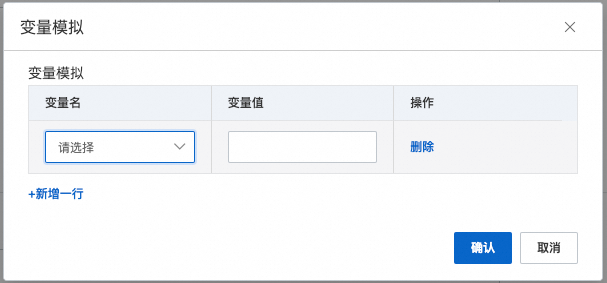
Variable simulation: If you use variables from the Variable Configuration in your prompts, you can simulate their values before starting a test conversation for a more realistic test.
Clear screen: Clears the current conversation history and starts a new session.
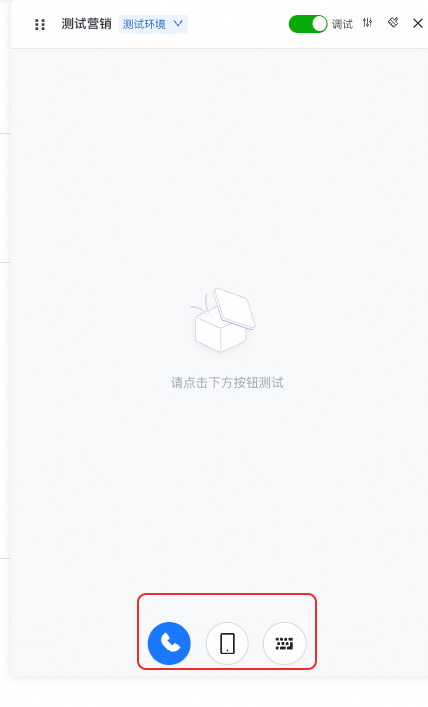
Test mode selection:
Voice test in the test window: Click the first button to start a voice debugging session with the bot.
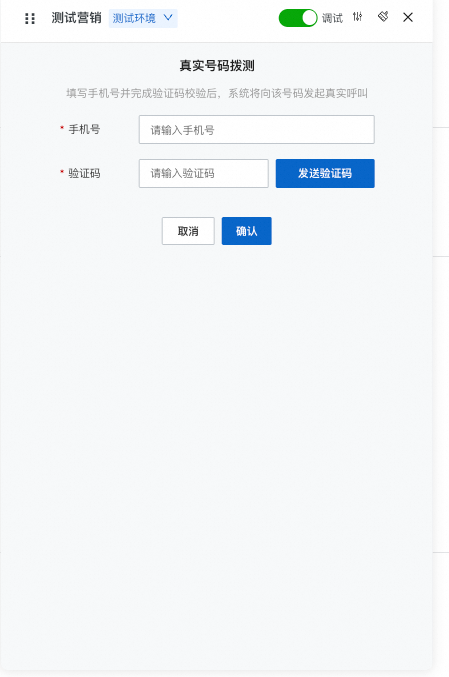
Test with a real called number: Click the second button to place a test call to a real phone number. You must verify the number with an SMS verification code.
Text mode test: Click the third button to test the scenario using text input.