AIMaster: An elastic and automatic fault tolerance engine
AIMaster improves the stability and continuity of large-scale distributed deep learning jobs. It addresses issues such as software and hardware exceptions, job hangs, and instance failures by providing job monitoring, fault-tolerance decisions, and resource control.
Background
Deep learning is widely used. As models and data scale up, distributed training becomes a common practice. As the number of job instances grows, software and hardware exceptions can cause job failures.
To ensure stable operation for large-scale distributed deep learning jobs, DLC provides an AIMaster-based fault tolerance monitoring feature. AIMaster is a job-level component. When you enable this feature, an AIMaster instance runs alongside your job's other instances to provide job monitoring, fault-tolerance decisions, and resource control.
Limitations
AIMaster currently supports the following frameworks: PyTorch, MPI, TensorFlow, and ElasticBatch.
Step 1: Enable fault tolerance monitoring
You can enable the fault tolerance monitoring feature in the console or by using an SDK when you submit a DLC training job.
In the console
When you submit a DLC training job in the console, go to the Fault Tolerance and Diagnosis section, turn on the Automatic Fault Tolerance switch, and configure additional parameters. For more information, see Create a training job. DLC then starts an extra AIMaster role to monitor the job throughout its lifecycle and perform fault tolerance when errors occur.

Details:
You can configure additional parameters in the Other Cofiguration text box. For parameter details, see Appendix: Fault tolerance parameters.
After you enable Hanging Detection, you can enable the C4D Detection feature. C4D (Calibrating Collective Communication over Converged ethernet - Diagnosis) is a diagnostic tool developed by Alibaba Cloud for diagnosing slow or hung jobs in large model training. For more information, see Use C4D.
NoteC4D depends on ACCL (Alibaba Cloud high-performance collective communication library). Ensure that ACCL is installed. For more information, see ACCL: Alibaba Cloud high-performance collective communication library.
Currently, C4D detection is available for DLC jobs that use Lingjun AI Computing Service.
After you enable Hanging Detection, you can use the function call stack snapshot analysis tool to locate the exact line of code where a job hang occurs. You must configure the hang detection threshold for this tool to work correctly. For more information, see "Use the function call stack snapshot analysis tool".
Via the DLC SDK
Step 2: Configure advanced features
Select from the following advanced features based on your monitoring needs.
Configure fault tolerance notifications
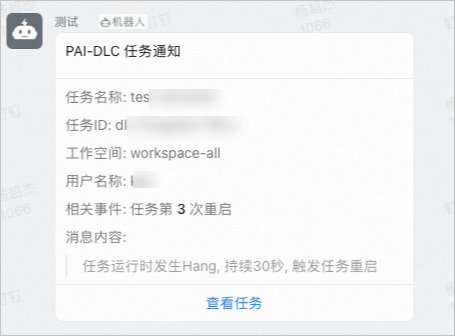
After you enable fault tolerance monitoring for a job, you can configure notifications for fault tolerance events. In the Workspace Details page, choose Configure Workspace > Configure Event Notification. Then, click Create Event Rule and set the event type to DLC task > Automatic Fault Tolerance. For more information, see Workspace Event Center.
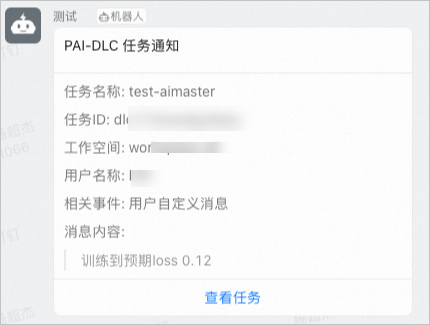
When a training job encounters an exception, such as a NaN loss, you can use the AIMaster SDK in your code to send a custom notification message:
To use this feature, you must install the AIMaster wheel package. For more information, see FAQ.
from aimaster import job_monitor as jm

job_monitor_client = jm.Monitor(config=jm.PyTorchConfig())

...

if loss == Nan and rank == 0:
  st = job_monitor_client.send_custom_message(content="The training loss of the job is NaN.")
  if not st.ok():
      print('failed to send message, error %s' % st.to_string())
The following figures show sample notifications sent to a DingTalk group:
|
|
Configure custom retryable error keywords
Fault tolerance monitoring includes built-in detection for common retryable errors. If you want AIMaster to perform fault tolerance when specific keywords appear in the logs of a failed instance, you can configure them in your code. After configuration, the monitoring module scans the end of the failed instance's log for these keywords.
The fault tolerance policy must be set to ExitCodeAndErrorMsg.
Example of configuring custom retryable error keywords for a PyTorch job
from aimaster import job_monitor as jm

jm_config_params = {}
jm_config = jm.PyTorchConfig(**jm_config_params)
monitor = jm.Monitor(config=jm_config)
monitor.set_retryable_errors(["connect timeout", "error_yyy", "error_zzz"])
The parameters configured in monitor.set_retryable_errors are the custom retryable error keywords.
Example of configuring custom retryable error keywords for a TensorFlow job
from aimaster import job_monitor as jm

jm_config_params = {}
jm_config = jm.TFConfig(**jm_config_params)
monitor = jm.Monitor(config=jm_config)
monitor.set_retryable_errors(["connect timeout", "error_yyy", "error_zzz"])
Configure staged job hang detection
By default, the hang detection configuration applies to the entire job. However, jobs often run in distinct stages. For example, node communication during initialization may take longer than during the training stage, where logs update more frequently. To quickly detect a job hang during the training process, DLC provides a staged hang detection feature. This allows you to configure different hang detection intervals for different stages of the job. Configure it as follows:
monitor.reset_config(jm_config_params)

# Example:
#     monitor.reset_config(job_hang_interval=10)
#     or
#     config_params = {"job_hang_interval": 10, }
#     monitor.reset_config(**config_params)
The following is an example of staged hang detection for a PyTorch job.
import torch
import torch.distributed as dist
from aimaster import job_monitor as jm

jm_config_params = {
    "job_hang_interval": 1800 # Global 30-minute detection.
}
jm_config = jm.PyTorchConfig(**jm_config_params)
monitor = jm.Monitor(config=jm_config)

dist.init_process_group('nccl')

...

# impl these two funcs in aimaster sdk
# user just need to add annotations to their func
def reset_hang_detect(hang_seconds):
    jm_config_params = {
        "job_hang_interval": hang_seconds
    }
    monitor.reset_config(**jm_config_params)

def hang_detect(interval):
    reset_hang_detect(interval)
    ...

@hang_detect(180) # Reset hang detection to 3 minutes, for this function's scope only.
def train():
    ...

@hang_detect(-1) # Disable hang detection temporarily, for this function's scope only.
def test():
    ...

for epoch in range(0, 100):
    train(epoch)
    test(epoch)
    self.scheduler.step()
Use C4D
C4D (Calibrating Collective Communication over Converged ethernet - Diagnosis) is a tool developed by Alibaba Cloud for diagnosing slow or hung jobs in large model training. C4D depends on the Alibaba Cloud high-performance collective communication library (ACCL). Ensure that ACCL is installed and that the environment variables are correctly configured. For more information, see ACCL: Alibaba Cloud high-performance collective communication library. Currently, you can use the C4D detection feature when you select Lingjun AI Computing Service for a DLC job.
Feature overview
C4D aggregates status information from all nodes in a job to determine whether a node has issues at the communication layer or elsewhere.

All parameters
After you enable the C4D detection feature, you can configure the following parameters in the Other Configurations text box:
Parameter | Description | Example value |
--c4d-log-level | Sets the C4D output log level. Valid values:
The default value is Warning, which outputs logs at the Warning and Error levels. We recommend using the default value for normal operation. To troubleshoot performance issues, you can set the level to Info. |
|
--c4d-common-envs | Set the environment variables for C4D execution. The format is
|
|
For error-level logs, AIMaster automatically isolates the corresponding node and restarts the job. The handling logic for each log level is as follows:
Error level | Description | Actions |
Error | By default, a communication-layer job hang that exceeds three minutes causes the job to fail. You can modify this default by configuring the C4D_HANG_TIMEOUT and C4D_HANG_TIMES parameters. | AIMaster automatically isolates the node reported in the log. |
Warning | By default, a communication-layer job hang that exceeds 10 seconds affects performance but does not cause the job to fail. You can modify this default by configuring the C4D_HANG_TIMEOUT parameter. | No automatic node isolation. Manual confirmation is required. |
A non-communication-layer job hang that exceeds 10 seconds might cause the job to fail. | No automatic node isolation. Manual confirmation is required. | |
Info | Communication-layer and non-communication-layer slowness. | These diagnostic logs are primarily for performance issues and require manual confirmation. |
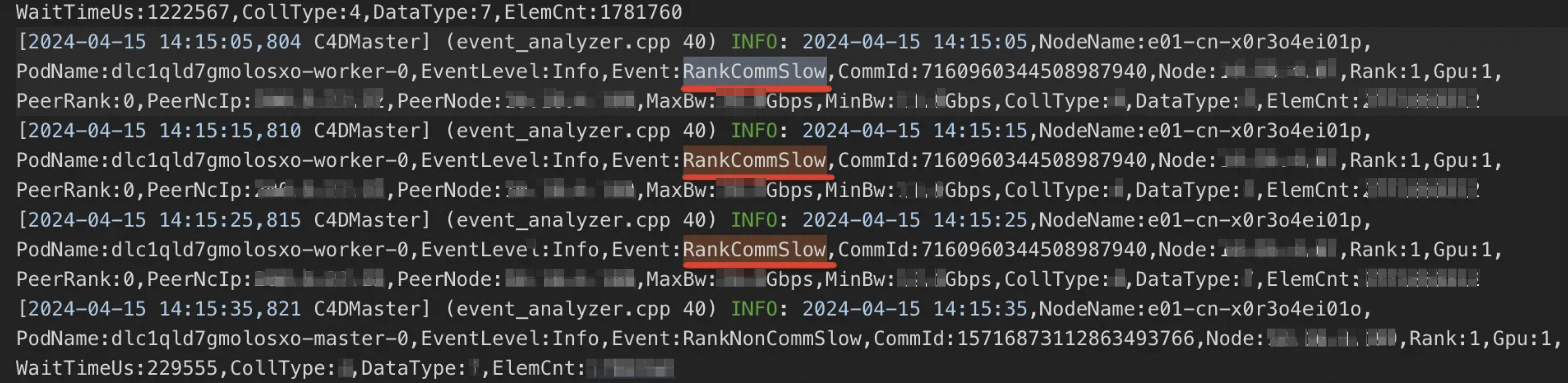
If you find that a DLC job is running slowly or is hung, go to the DLC job list and click the job name to open the job overview page. In the Instances section, view the AIMaster node log to see the C4D diagnostic results. For more information about the diagnosis results, see Diagnostic result examples.
Diagnostic result examples
RankCommHang: indicates that a node has a hang in the communication layer.

RankNonCommHang: indicates that a node has a hang outside the communication layer, such as a hang in the compute process.
RankCommSlow: indicates that a node is slow in the communication layer.
RankNonCommSlow: indicates that a node is slow outside the communication layer.



Analyze call stack snapshots
A common failure in large model training is a job hang. One frequent type is an NCCL hang, which typically generates a log entry like "Watchdog caught collective operation timeout". To help you quickly identify the root cause of job hangs, we developed the function call stack snapshot analysis tool. Follow these steps to use it:
Step 1: Install pystack or py-spy
First, confirm whether pystack or py-spy is installed in your container image. If not, you must install one. For example, use the following command to install pystack:
pip install pystack -i https://mirrors.cloud.aliyuncs.com/pypi/simple/ --trusted-host mirrors.cloud.aliyuncs.comStep 2: Enable hang detection
For instructions on how to enable hang detection, see In the console. For the function call stack snapshot analysis tool to work correctly, you must also set an appropriate value for the hang detection threshold. First, determine the timeout value for your model job. You can usually find this in the error log after a job hangs. For example:
Watchdog caught collective operation timeout: WorkNCCL(SeqNum=2143, OpType=ALLREDUCE, NumelIn=659, NumelOut=659, Timeout(ms)=600000) ran for 600535 milliseconds before timing outFrom the Timeout field in this error log, you can see the job's timeout is 600,000 milliseconds (600 seconds or 10 minutes). In this case, we recommend setting the hang detection threshold to 450 seconds. If the Timeout value in your log is 1,800 seconds, we recommend setting the threshold to 1,500 seconds. As a general rule, the hang detection threshold should be about 150 to 200 seconds less than the job's timeout value.
After you correctly configure hang detection, AIMaster automatically collects and analyzes the function call stack of the job process when a hang occurs. You can view the analysis result in the AIMaster node log. The following is a sample analysis result from the tool after a job hang:

In the analysis result, the stack field shows the function call stack, the threads field lists the threads where this stack occurred, and the count field indicates the number of threads with this stack. Stacks with a count of 1 are highly likely to be the cause of the job hang and should be investigated first.
Step 3: View restart reasons
View restart rounds: Job restart information is organized by round. On the job details page, you can expand a round's details to view information such as the time spent in each stage. This helps you understand the job's execution status more accurately.
View restart history: You can click the number of restarts or the Restart records tab to view relevant restart information, including the restart reason, result, and duration.
Procedure:
In the Restart records list, click Description to view detailed information for a specific restart, including the Restarts, Restart Time, Node Name, Instance Name, Error Code, Error Message, and Error Source.
Click View Aggregation Fault Details to expand the full list of details for all restart records.


Appendix: Fault tolerance parameters
This section describes all parameters for the fault tolerance monitoring feature. You can refer to the common parameter configuration examples to plan your settings. When you enable fault tolerance monitoring, you can configure these parameters in the Other Cofiguration section as needed.
All parameters
General configuration
Feature | Parameter | Description | Default |
Job execution mode | --job-execution-mode | The execution mode of the job. Valid values:
Fault tolerance behavior differs by job type for retriable errors:
| Sync |
Job restart settings | --enable-job-restart | Specifies whether to allow the job to restart when fault tolerance conditions are met or a runtime exception is detected. Valid values:
| False |
--max-num-of-job-restart | The maximum number of times the job can restart. If this number is exceeded, the job fails. | 3 |
Runtime configuration
Applies to scenarios where no instances have failed.
Feature | Parameter | Description | Default |
Job hang detection | --enable-job-hang-detection | Specifies whether to enable runtime hang detection for the job. This feature supports only synchronous jobs. Valid values:
| False |
--job-hang-interval | The duration in seconds that a job can be suspended. This must be a positive integer. If the suspension duration exceeds this value, the job is considered abnormal and restarts. | 1800 | |
--enable-c4d-hang-detection | Specifies whether to enable C4D detection to quickly diagnose and locate slow nodes and faulty nodes that cause a job hang during execution. Note This parameter takes effect only when the --enable-job-hang-detection parameter is also enabled. | False | |
Job exit hang detection | --enable-job-exit-hang-detection | Specifies whether to enable hang detection during job exit. This feature supports only synchronous jobs. Valid values:
| False |
--job-exit-hang-interval | The duration in seconds that a job can be suspended during exit. This must be a positive integer. If the exit duration exceeds this value, the job is considered abnormal and restarts. | 600 |
Fault tolerance configuration
Applies to scenarios where at least one instance has failed.
Feature | Parameter | Description | Default |
Fault tolerance policy | --fault-tolerant-policy | The fault tolerance policy. Valid values:
| ExitCodeAndErrorMsg |
Maximum occurrences of the same error | --max-num-of-same-error | The maximum number of times the same error can occur on a single instance. If the error count exceeds this value, the job fails. | 10 |
Maximum tolerated failure rate | --max-tolerated-failure-rate | The maximum tolerated failure rate. If the proportion of failed instances exceeds this value, the job fails. The default value of -1 disables this feature. For example, a value of 0.3 means the job fails if more than 30% of workers encounter an error. | -1 |
Parameter configuration examples
The following examples show common parameter configurations for different training jobs.
Synchronous training job (common for PyTorch jobs)
When an instance fails and meets the fault tolerance conditions, the job restarts.
--job-execution-mode=Sync --enable-job-restart=True --max-num-of-job-restart=3 --fault-tolerant-policy=ExitCodeAndErrorMsgAsynchronous training job (common for TensorFlow jobs)
For retryable errors, failed Worker instances are restarted. If a PS or Chief instance fails, the job is not restarted by default. To enable job restarts, set --enable-job-restart=True.
--job-execution-mode=Async --fault-tolerant-policy=OnFailureOffline inference job (common for ElasticBatch jobs)
Instances are independent, similar to an asynchronous job. When an instance fails, only that instance restarts.
--job-execution-mode=Async --fault-tolerant-policy=OnFailure
FAQ
Q: How do I install the AIMaster SDK?
Use the command that corresponds to your Python version to install the wheel package.
# Python 3.6
pip install -U http://odps-release.cn-hangzhou.oss.aliyun-inc.com/aimaster/pai_aimaster-1.2.1-cp36-cp36m-linux_x86_64.whl

# Python 3.8
pip install -U http://odps-release.cn-hangzhou.oss.aliyun-inc.com/aimaster/pai_aimaster-1.2.1-cp38-cp38-linux_x86_64.whl

# Python 3.10
pip install -U http://odps-release.cn-hangzhou.oss.aliyun-inc.com/aimaster/pai_aimaster-1.2.1-cp310-cp310-linux_x86_64.whl