Message notifications
In a PAI workspace, you can create event notification rules to track and monitor the status of Deep Learning Containers (DLC) jobs. This topic explains how to use this feature.
Configure message notifications
-
On the Workspace Details page, choose Configure Workspace > Configure Event Notification and click Create Event Rule.
-
In the Create Event Rule panel, configure the following parameters and click Submit.
Parameter
Description
Rule Name
Enter a name for the rule.
Event Type
Set Event Source to DLC Job and select one or more events. You can receive notifications for the following events:
-
Job Progress
-
Enter Queue: The job enters the queuing state.
-
Start Bidding: The job enters the bidding state.
-
Start Environment Preparation: The job enters the environment preparation state.
-
Start Run: The job enters the running state.
-
Retained upon Success: The job enters a retained state after successful completion.
-
Retained upon Failure: The job enters a retained state after it fails.
-
Job Failure: The job execution fails.
-
Job Completed (Succeeded or Failed): The job execution completes, regardless of the outcome.
-
-
Automatic Fault Tolerance: Get notified when a DLC job encounters an error and triggers automatic fault tolerance.
-
Job Timeout: This option requires you to first configure timeout rules on the scheduling configuration page of the PAI workspace. For details, see Configure timeout alert rules.
-
Queue Timeout: The job queuing duration exceeds the configured maximum queuing duration.
-
Environment Preparation Timeout: The job environment preparation duration exceeds the configured maximum preparation duration.
-
Wait Timeout: The waiting duration from job creation to the start of execution exceeds the configured maximum waiting duration.
-
Run Timeout: The job runtime exceeds the configured maximum runtime, which triggers an automatic stop.
-
-
Other Events
-
Job Preempted: Get notified when an idle instance job or a spot instance job is preempted.
-
Job Manually Stopped
-
Job Priority Modified
-
Event Scope
Supported values:
-
Created by Me: Jobs that you created.
-
In the current workspace: All DLC jobs in the current workspace.
-
Specify Task: Select specific jobs from a list or by searching for their names.
Event Target
Supported channels include DingTalk, WeCom, Lark, voice call, text message, and email.
-
After you create a rule, the system automatically sends a message to the specified contacts when a job triggers it. When you receive a notification, go to the Deep Learning Containers (DLC) page to check whether the job is running as expected. You can also troubleshoot issues by checking the job's monitoring status and logs. For more information, see View training details.
Configure timeout alert rules
To configure timeout rules for specific event types:
-
On the Configure Workspace page, switch to the Configure Scheduling tab. In the DLC section, configure timeout rules for the maximum job waiting duration and maximum runtime duration.
Policy
Description
Resource Quota
Configure the maximum waiting duration for jobs that use specific resources. The following options are available:
-
Public Resource Group
-
Resource Quota: Select a resource quota that is bound to the PAI workspace.
Timeout Rule Configuration
Set the timeout duration for a specified event type. The supported event types are:
-
Job Wait Time (queuing duration + environment preparation duration)
-
Queuing Time
-
Environment Preparation Time
You can also click Add to configure multiple timeout rules.
-
-
After you configure the parameters, click Save.
Go to Configure Event Notification, select the DLC Jobs type, and configure the corresponding timeout event notifications. For more information, see Configure message notifications.
For example, to track environment preparation timeouts for pay-as-you-go DLC jobs in a PAI workspace, configure the rules as follows:
-
Timeout alert rule configuration: Turn on the Allow use of public resources switch. In the Maximum job waiting duration section, set Resource quota to Public resource group and set Timeout rule configuration to Environment preparation duration exceeds 30 minutes. Then, select the Allow sending notifications checkbox.
-
Message notification configuration: On the Event Notification Configuration tab, click Modify for the target event rule. In the Modify Event Rule panel that opens, set Rule name to a custom name, such as
test. For Event Type, select DLC Job and Job Timeout/Environment Preparation Timeout. For Event Scope, select All in current workspace. For Event Target, select DingTalk and enter the Webhook URL and signing key. You can click Test Connectivity to verify the configuration. Finally, click Submit.
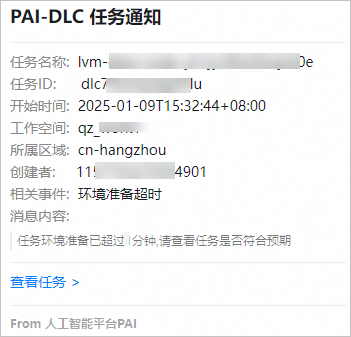
When the environment preparation duration for a matching DLC job exceeds 30 minutes, you will receive a notification like the one shown below.