Manage Lingjun Connection Instances
Lingjun connections enable compute nodes to connect to a VPC directly or to multiple VPCs through Cloud Enterprise Network (CEN). They support on-demand provisioning, multi-tenant isolation, minute-level deployment, cloud-native high reliability, and dynamic bandwidth adjustment.
Note: This document applies only to node instance types that require configuring Lingjun connection instances when creating a cluster.
Limits
-
If the bandwidth of a Lingjun connection is 400 Gbit/s or less, the maximum single-stream bandwidth is one-fourth of the total bandwidth.
-
If the bandwidth of a Lingjun connection exceeds 400 Gbit/s, the maximum single-stream bandwidth can reach 100 Gbit/s.
Manage a configured Lingjun connection instance
-
After a Lingjun connection instance is created, four virtual border routers (VBRs) are automatically created for the Lingjun connection instance. For more information, see Virtual Border Router (VBR). The name of each VBR is in the following format:
VBRX_ID of the Lingjun connection instance_Do-not-delete-it_Created-by-System. X represents a specific digit from one to four. Do not modify the configurations of these four VBRs. Otherwise, the Lingjun connection instance may become invalid. -
The
169.254.128.0/23CIDR block is used as the interface IP addresses for interconnected devices. Therefore, IP addresses within the169.254.128.0/23CIDR block and its subnets cannot communicate with each other over Lingjun connections.
-
Log on to the Lingjun console.
-
In the left-side navigation bar, choose Network Resources > Lingjun Connection.
-
Search for configured Lingjun connection instances by instance ID or instance name.
-
View information about the configured Lingjun connection instance, including the Instance ID/Name , CIDR Block, Bandwidth, and other info.
You can also click Purchase Lingjun Connection to purchase a new Lingjun connection instance.
-
Click the icon in the Lingjun Connection Traffic column
 to view the traffic rate of the configured Lingjun connection instance.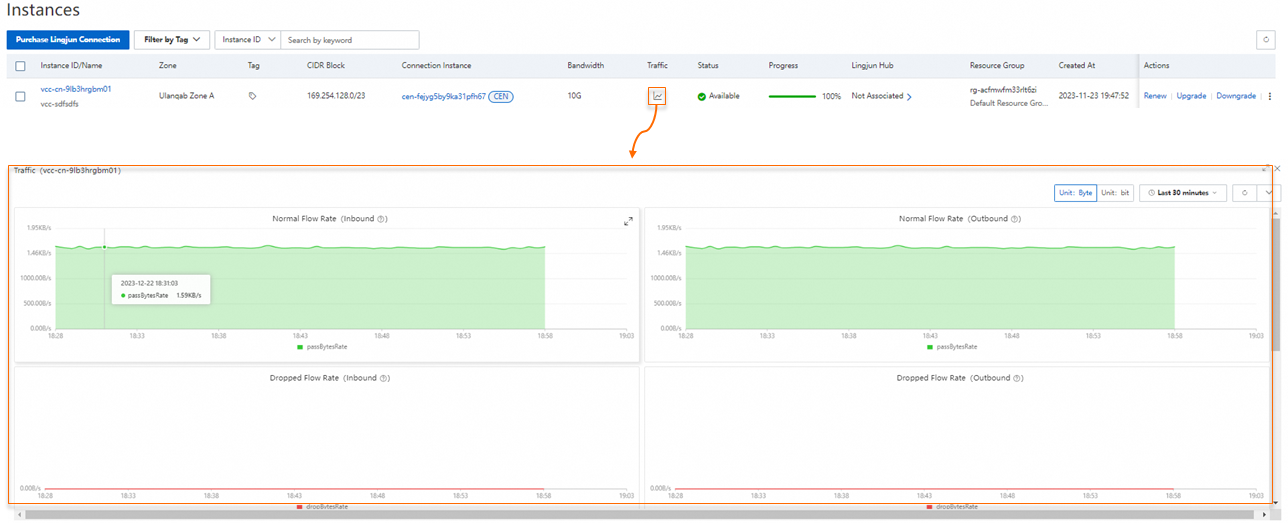
-
In the Instances area, perform the following operations in the Actions column to dynamically upgrade or downgrade the configuration within the Lingjun connection bandwidth range:
-
Renew.
-
Upgrade. You must complete payment before the upgrade takes effect. The fee is prorated based on the remaining days of your current order.
-
Downgrade. A refund is issued immediately when you downgrade. The refund is prorated based on the remaining days of your current order.
-
Manage Lingjun connection instances pending configuration
A Lingjun connection instance pending configuration has been purchased but not yet associated with a cluster.
-
In the left-side navigation bar, choose Network Resources > Lingjun Connection.
-
Find the target Lingjun connection instance in the Instances to Be Configured section.
-
Click Configure Lingjun Connection in the Actions column of the target Lingjun connection instance.
-
Configure the Lingjun connection parameters such as Name and Connection Mode.
Direct VPC Connection
The Lingjun connection instance is directly connected to a single VPC.
ImportantIf you select Direct Connection to VPC as the connection mode, note the following items:
-
If the maximum bandwidth required by the Lingjun connection instance exceeds 10 Gbit/s, we recommend that you select Direct Connection to VPC to avoid performance impact from the transit router of CEN. For the bandwidth limitations of CEN transit routers, see CEN limits.
-
You must configure route entries from the VPC to the Lingjun connection instance. For more information, see Create and manage route tables.
-
需要针对灵骏连接对应的4个VBR,配置VBR健康检查。具体操作,请参见配置VBR健康检查。
-
You must configure route entries from the Lingjun connection instance to the VPC. For more information, see Create static route entries.
CEN
Lingjun connection instances can connect to multiple VPCs through CEN. For more information about CEN billing, see Billing rules.
If you select CEN as the connection mode, Alibaba Cloud services are automatically configured for the corresponding CEN instance.
To view routes:
-
Log on to the CEN console.
-
On the Instances page, click the ID of the target CEN instance.
-
On the Basic Info > Transit Router tab, click the ID of the transit router instance in the destination region.
-
Click the Transit Router Route Table > Route Entry tab.
-
View the static route entry whose destination CIDR block is
100.64.0.0/10.
-
-
Configure the Network Information Monitoring section. Select an existing VPC or create a new VPC to monitor the network connectivity of Lingjun connection instances. Make sure that the vSwitches in the VPC have at least one idle IP address.
-
Click Yes to complete the creation.
Create Static Route Entries
Static route entries are required only for Lingjun connection instances directly connected to a VPC. These entries allow the instance to reach VPC routes.
-
In the left-side navigation bar, choose Network Resources > Lingjun Connection.
-
In the Instances area, click the Instance ID/Name of the target Lingjun connection instance.
-
Click the Route Entry tab, then click Create Route Entry.
-
In the Create Route Entry to VPC panel, configure the Destination CIDR parameter.
-
Click Yes. The route entry is created.
View route entries of a Lingjun connection instance
-
In the left-side navigation bar, choose Network Resources > Lingjun Connection.
-
In the Instances area, click the Instance ID/Name of the target Lingjun connection instance.
-
Click the Route Entry tab to view the route entry information of the Lingjun connection instance.
Field
Description
Destination CIDR Block
The destination CIDR block of a Lingjun connection instance route.
Next Hop Type
The next hop type of a Lingjun connection instance route. Valid values:
-
Lingjun CIDR block
-
Lingjun connection instances
-
Lingjun Hub
Next Hop Instance
The next hop instance of a Lingjun connection instance ingest endpoint.
Ingest Endpoint Type
The ingest endpoint type of a Lingjun connection instance ingest endpoint.
-
SYSTEM (system route): The destination CIDR block of the route is the CIDR block of the current Lingjun connection instance.
-
BGP (BGP route): Routes automatically learned by the current Lingjun connection instance through the Border Gateway Protocol (BGP) dynamic routing protocol.
Status
The status of the Lingjun connection route.
Updated At
The last update time of the Lingjun connection route entry.
-
Delete static route entries
Only manually created route entries can be deleted.
-
In the left-side navigation bar, choose Network Resources > Lingjun Connection.
-
In the Instances area, click the Instance ID/Name of the target Lingjun connection instance.
-
Click the Route Entry tab.
-
Find the target route entry and click Delete in the Actions column.
-
In the dialog box, click OK.