Export labeling results
After you complete a labeling task, you can export the labeling results to a specified OSS directory. You can also simultaneously create a dataset from the results for model training. This topic explains how to export labeling results, monitor the export, and view the output files.
Prerequisites
You have completed the labeling task. For more information, see Process labeling tasks.
Limitations
Only administrators or annotation administrators can perform annotation operations. If your account does not have the required permissions, contact an administrator to grant the annotation administrator permissions to your account. For more information, see Manage workspace members.
Procedure
-
Go to iTAG.
-
Log on to the PAI console.
-
In the left-side navigation pane, click Workspaces. On the page that appears, click the name of the workspace you want to manage.
-
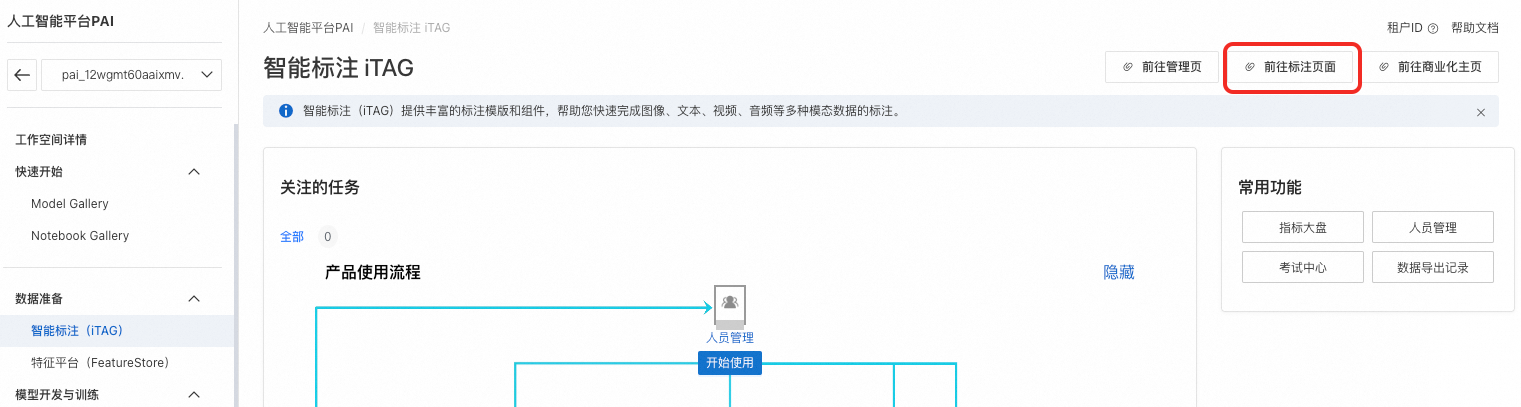
In the left-side navigation pane, choose Data Preparation > iTAG.
-
-
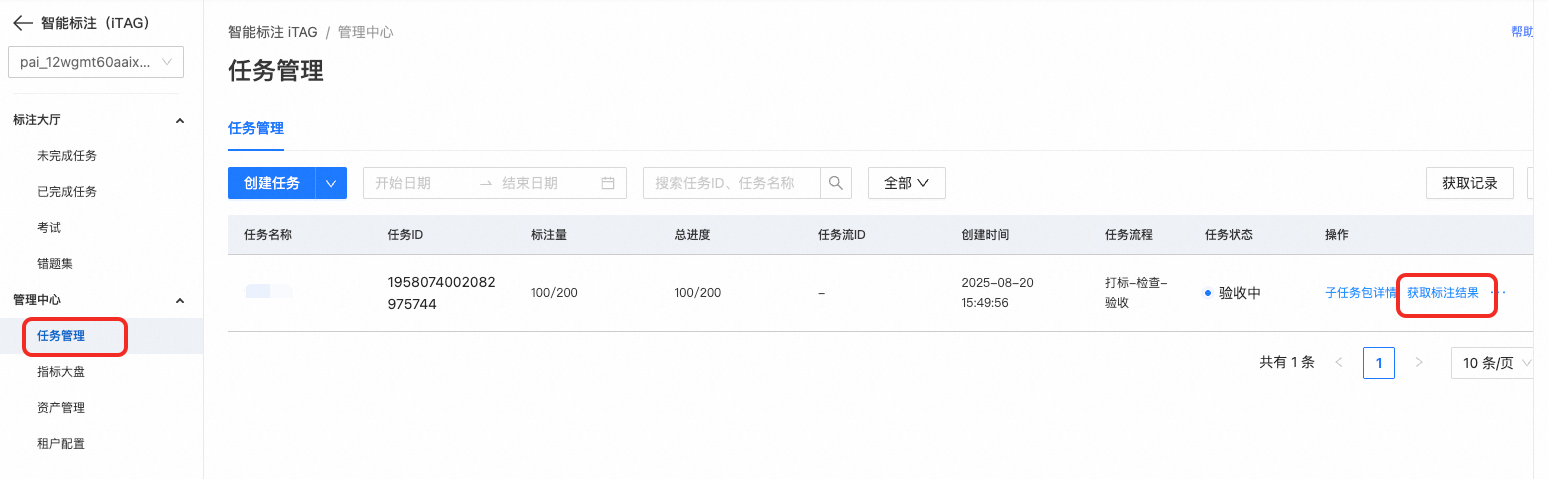
Click Go to the iTAG Page, then in the left-side navigation pane, choose Management Center > Task Management.
-
Find the target task and click Actions in the Export Labeling Result column.
-
In the Export Labeling Result dialog box, configure the following parameters and click OK.
Parameter
Description
Data format
The format of the exported data. You can select
.csv,.jsonl,.manifest, or.coco.Export to Dataset
Specifies whether to create a dataset from the labeling results. A dataset can be used directly for model training.
If you plan to use PAI for model training, we recommend that you select Yes.
Output OSS Directory
The OSS path to store the exported results. If you also create a dataset, this path becomes the dataset's storage path.
-
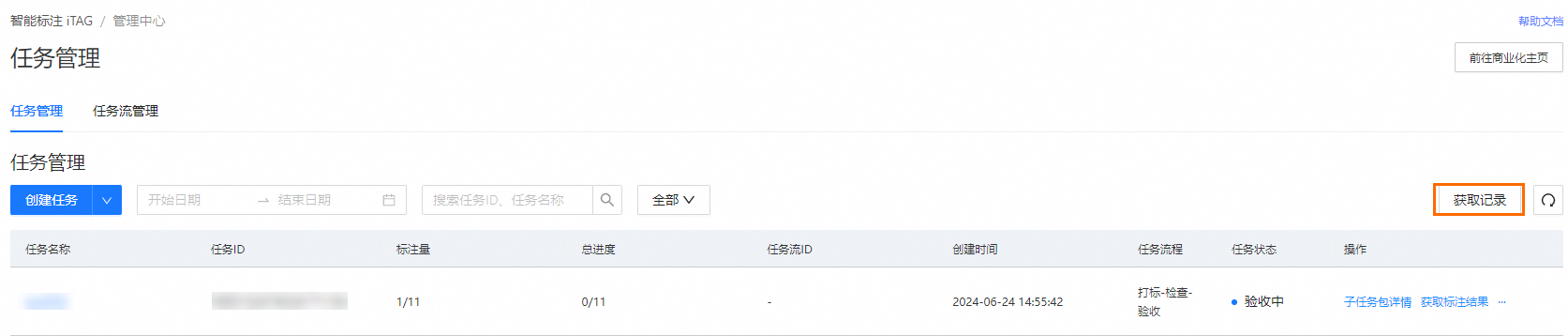
After a message indicates that the export is complete, click Obtain Data Record in the upper-right corner. In the panel that appears, you can view the export progress and access the result files.
-
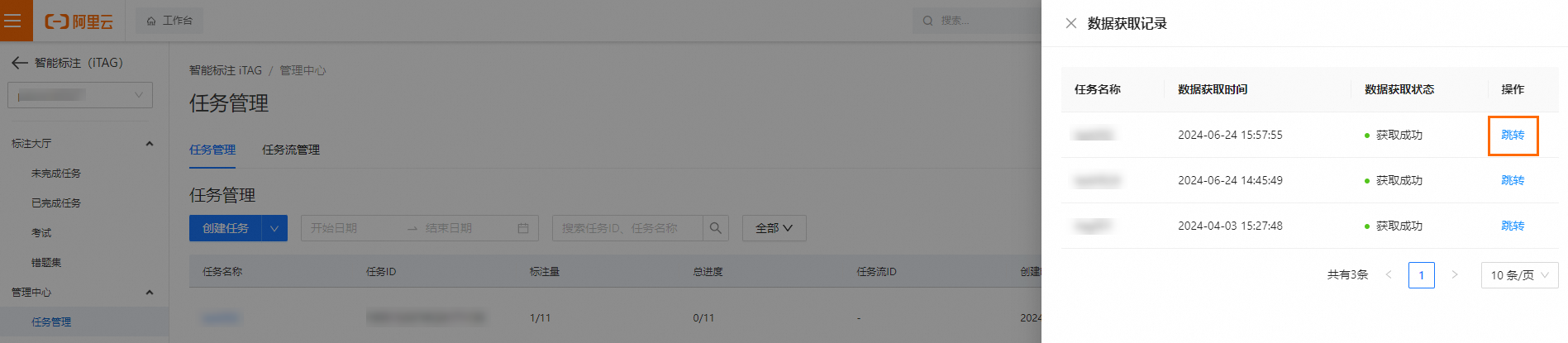
For a successful export, click Redirect to open the OSS bucket page that contains the exported files.
If you also created a dataset from the results, you can go to the PAI console and choose AI Asset Management > Dataset to view the synchronized dataset.
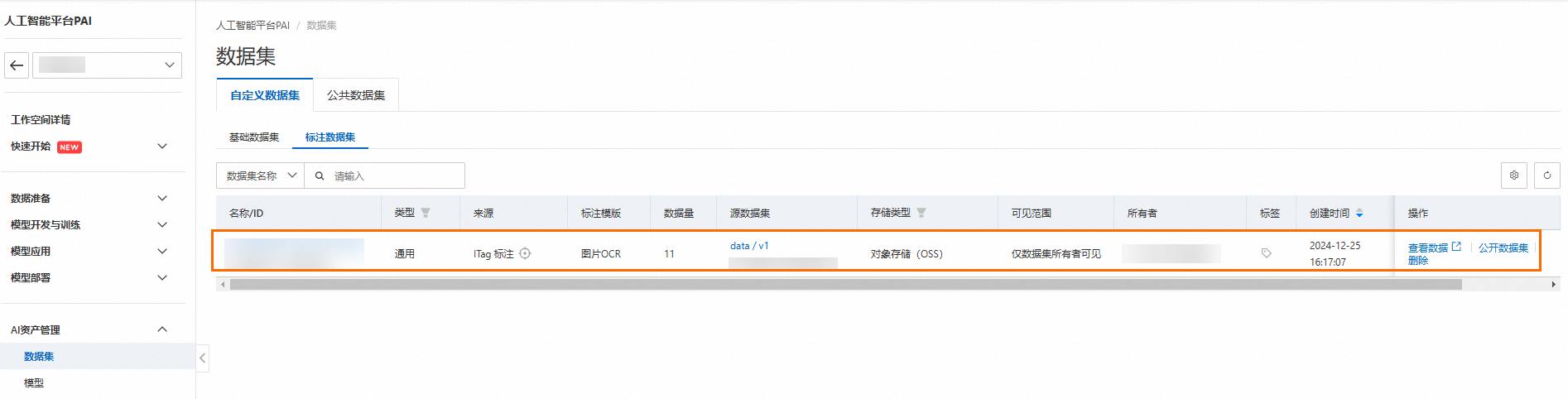
Alternatively, navigate to Management Center > Asset Management. On the Dataset Management tab, select Labeled Dataset to find the resulting dataset.


Next steps
You can use the exported dataset for visual modeling, interactive modeling, and model training.