DSW FAQ
Find answers to common questions about DSW.
Ask PAI Agent first
Click the  icon in the upper-right corner of the PAI console to launch the PAI AI Assistant (Agentic PAI). Agentic PAI provides user manuals and operational guidelines for end-to-end PAI products. It supports O&M diagnostics for DSW instances, DLC tasks, and EAS services, automatically identifying the root causes of failures and providing troubleshooting recommendations.
Instance startup
Q: DSW instance fails to start
Troubleshooting: Click the instance name and check the error message on the Events tab.
Common errors and solutions:
Other startup failure causes:
Account arrears
If your account is in arrears, DSW instance creation will fail. Vouchers cannot offset arrears. Log in to the Billing and Cost console to check your account balance.
Q: Insufficient resource quota or compute resource quota — what should I do?
Common error messages:
"Your requested resource type [ecs.] is not enough currently" (out of stock)
"Your resource usage has exceeded the default limitation" (exceeded the 2-GPU-per-region limit)
"The cluster resources are fully utilized" (all compute resources are in use)
Root cause analysis:
Shared resource shortage
Shared resources are used by multiple users and may run out during peak hours.
High-end GPU types are more likely to sell out.
Each account is limited to 2 GPUs per region.
Dedicated resource quota exhausted
You've purchased dedicated resource quota, but it's been fully used.
Quota allocation is uneven — a particular workspace doesn't have enough quota.
Solutions:
Switch resource type: if the current GPU type is out of stock, try another.
Switch region: use the region selector in the upper-left of the PAI console to try a different region.
Raise your GPU quota: to use more than 2 shared GPU cards, submit a ticket.
Purchase dedicated resources: for stable resource availability, consider purchasing dedicated resource quota. For details, see Purchase general compute resources and Manage resource quotas.
Q: My DSW instance is pending and shows a GPU resource cache message — what does this mean?
A GPU resource cache message means the requested GPU resource is currently occupied by another task, and your instance is queued waiting for the resource to be released. While waiting, the system caches the instance’s state (shown as pending), and the instance automatically resumes once the resource becomes available.
This is a normal part of the platform’s resource scheduling mechanism, not a sign of a user error or a system fault.
Q: How do I check the inventory or restock time for a specific DSW instance type?
The PAI-DSW console doesn’t support directly querying the real-time inventory or exact restock time for a specific instance type (such as
ecs.gn7ior A100) in a given region.Public resources are shared across multiple users, and inventory changes dynamically, so an exact restock time can’t be provided.
If instance creation reports “out of stock” or insufficient resources, try switching to a different region, choosing another available instance type, or retrying during off-peak hours.
For guaranteed resource availability, consider purchasing dedicated resources quota.
Q: Can I change the resource type of a DSW instance after it’s created?
No. Changing the resource type (for example, from dedicated resources to public resources, or vice versa) isn’t supported. If you need a feature such as SSH configuration that’s only available on public resources while your instance currently uses dedicated resources, use the proxyclient method to access the instance instead, or create a new instance with a public resource type that meets your requirements.
Q: Can DSW run a Python script automatically on startup?
When creating a DSW instance, or when changing the instance configuration, find the Custom Startup Script parameter and configure it.
This parameter lets you customize the environment or run initialization tasks during instance startup. The custom script runs after the image and resources are ready, but before JupyterLab, Code Server, and other development tools launch.
Timeout is 3 minutes: custom scripts extend instance startup time. Don't run long-running tasks such as image downloads in custom scripts.
Script logs are available at
/var/log/user-command/after the instance starts.
Q: The DSW page is unresponsive or behaving abnormally — what should I do?
If you see a blank page, an endlessly loading notebook, a terminal that won't accept input, or browser errors like "504 Gateway Timeout", the issue is typically related to your local environment or the instance state. Try the following:
Clear your browser cache and retry.
Use your browser's incognito or private mode.
Switch networks — for example, from a corporate network to a mobile hotspot — to rule out firewall restrictions.
Try a different browser (Chrome or Firefox).
If you see a 504 Timeout error, stop and restart the DSW instance from the PAI console. Access the instance after its status changes to Running.
Q: Will stopping, restarting, changing the type, or changing the image of a cloud-disk DSW instance cause data loss?
DSW instances with a cloud disk system disk include: instances created in the shared resource group, and general-resource instances where Disk is selected as the system disk type. Data loss behavior differs by operation:
Stop instance: Data may be lost. If the cloud disk hasn't been expanded and the instance has been stopped for more than 15 days, the data is cleared and cannot be recovered. If the disk has been expanded, or the instance has been stopped for less than 15 days, data is preserved.
Restart instance: No data loss. After stopping or restarting, all packages installed via
pip, code files, and other data stored on the system disk are retained.Change instance type: No data loss. Changing the resource configuration (CPU, memory, GPU, and so on) doesn't affect system disk data.
Change instance image: Data may be partially lost. Changing the image doesn't affect mounted datasets or OSS storage, but system disk contents may be reset. Back up your data before changing the image — for example, copy it to a dataset or OSS. For details, see Mount a dataset, OSS, NAS, or CPFS.
For general-resource instances where Temporary Storage is selected as the system disk type — regardless of whether the AI resource group has prepaid cloud disks — stopping, restarting, changing the type, or changing the image will cause system disk data loss.
Q: Can data be recovered from a shared-resource DSW instance that was released after 15 days of inactivity?
For DSW instances created in the shared resource group: if the system disk hasn't been expanded and the instance hasn't been started for more than 15 consecutive days after being stopped, the system disk is automatically cleared and can't be recovered.
Q: DSW instance startup time is getting longer each time
Progressively longer startup times are likely caused by a large saved custom image.
Q: Why is the first startup of a DSW instance slower than subsequent ones?
The first startup requires a full image pull, which can take more than 10 minutes depending on the image size and network conditions. Subsequent startups are faster because the image is cached.
If startup times are getting progressively longer, the saved custom image may have grown too large. Clean up unnecessary files and re-save the image, or switch to a lightweight official image.
Instance stop, delete, and release
Q: How do I release a DSW instance?
In the DSW instance list, use the Stop or Delete actions in the right-hand operation column.
Important: If you expanded the system disk, it continues to incur storage charges even when the instance is stopped. To stop all DSW-related billing, delete the instance.
Q: I can't find my DSW instance — what should I do?
Try switching to a different region or workspace.
Q: How do I release a free-trial credit package?
Free-trial credit packages don't need to be released or stopped.
Q: How do I stop all DSW billing? What's the difference between "Stop" and "Delete"?
Stop: Releases the compute resources (CPU/GPU) and pauses compute charges. Note: An expanded system disk continues to incur charges.
Delete: Permanently deletes the instance and all its resources, including the system disk. All related billing stops completely.
When to choose:
Stop: You're temporarily done but want to keep your data and environment for a future restart.
Delete: You no longer need the instance and want to stop all billing. Back up your data before proceeding.
Q: My DSW instance has been in "Stopping" or "Deleting" state for a long time — what's happening?
When you stop a DSW instance, the system automatically builds an image cache by saving the current container read-write layer, which speeds up the next startup. This is expected behavior, not a system failure. If a large amount of data was written to the container layer, the cache build takes longer — potentially from several minutes up to a few hours.
DSW instances created in the shared resource group don't incur compute charges while in "Stopping", "Saving", or "Deleting" state.
If the instance takes a long time to stop, common causes include:
Large container read-write layer: This is the most common cause. Installing many packages, downloading model files, or saving datasets to the system disk all increase the layer size and extend stop time.
A process inside the instance didn't terminate cleanly.
High memory usage is preventing the instance from responding to the shutdown command.
Tips to speed up stopping:
Before stopping, use the Save image feature to set exclusion paths for large files or directories you don't need to save (such as model files and datasets). This can significantly reduce stop time. For details, see the topic on saving DSW instance images.
Store large data in a mounted OSS or NAS path rather than on the system disk. This fundamentally reduces the container read-write layer size.
If you don't need the instance and don't care about preserving data, Delete it to release resources immediately.
If stopping is taking too long, wait patiently. If it hasn't completed after 2 hours, submit a ticket for technical support.
Q: Will my data and code be lost after stopping or deleting a DSW instance?
Whether data is retained depends on the operation and the resource group type.
Stop instance:
Data retention depends on the resource group type.
Instances with a cloud disk system disk (most pay-as-you-go types, and general-resource instances with Disk selected): if the disk hasn't been expanded and the instance has been stopped for more than 15 days, data is cleared and cannot be recovered. If the disk has been expanded, or the instance was stopped for less than 15 days, data is preserved.
Instances using Temporary Storage as the system disk: data is stored in ephemeral storage. Stopping the instance deletes the data and it cannot be recovered.
Delete instance:
All system disk data is permanently erased and cannot be recovered. Back up all important data before deleting.
Q: Why did my running DSW instance stop automatically?
The instance has an idle auto-shutdown policy configured. This policy is designed to conserve resources and is enabled by default for free-trial instances.
Trigger condition: CPU and GPU utilization both stay below the configured threshold for 3 consecutive hours.
Recommendations:
Stop manually: to reliably save resources, stop the instance manually when you're not using it. The auto-shutdown policy isn't guaranteed to trigger every time.
Modify the policy: for long-running tasks, modify or disable this policy. Steps:
Go to the workspace details page and click Configure Workspace > Scheduling Settings.
Find the DSW configuration section. Here you can modify the DSW shutdown policy and exclusion policy. For example, to disable auto-shutdown for specific instances, add them to the exclusion policy by instance name.
Q: I've stopped or deleted all my DSW instances, but they still show as "Running" or I'm still receiving billing notifications — why?
Check the following common causes:
You may be confusing a resource package with an instance. The "Running" status you see may refer to a resource package (such as "250 compute hours/month"), not an instance. Resource packages remain active throughout their validity period, regardless of instance state.
An expanded system disk is still being billed. Stopping an instance only pauses compute charges. An expanded system disk continues to incur storage charges.
Billing is delayed. Billing isn't real-time — charges generated in the morning may not appear in your bill until the afternoon.
Q: Can I use an API, Python code, or a post-task trigger to automatically stop a DSW instance?
The following automatic control methods aren't supported:
Starting a training process in DSW or controlling instance start/stop via API calls from external environments such as ECS.
Running a shutdown command from within the instance using Python code, such as
os.system.Setting the instance to stop automatically after a task completes.
DSW supports only the idle auto-shutdown policy (minimum idle duration: 1 hour), which determines idle state based on CPU/GPU utilization. This policy can't guarantee 100% trigger reliability. Stop the instance manually after your task completes to avoid unexpected charges.
Free trial
Q: I'm using the free trial, but my account is still being charged — why?
Free-trial charges typically occur for one of the following reasons:
Free quota exhausted: Your monthly free quota (for example, 250 compute hours) has been used up, and additional usage is billed on a pay-as-you-go basis.
Unsupported instance type: The DSW instance type you created isn't covered by the free trial.
Trial expired without releasing the instance: After a pay-as-you-go trial product expires, if you didn't stop or delete the instance, the service automatically switches to pay-as-you-go billing and charges are deducted from your account balance.
Expanded system disk: If you expanded the system disk when creating the instance, that storage capacity continues to be billed even when the instance is stopped.
Q: I received a notice that my DSW free trial is about to expire — what do I need to do to avoid charges?
The "DSW free trial credit package" expires and becomes invalid automatically — no action needed on your part. However, to avoid charges, you must manually stop or delete any DSW instances you created. For details, see Release an instance or service. If you also used Object Storage Service (OSS) during the trial, see Delete a bucket to clean up OSS data.
Q: I've already deleted my DSW instance, but it still shows "Running" on the "My Trial" page — why?
This status typically refers to the "free trial credit package" itself still being within its validity period — not to a running DSW instance. Resource packages remain active until they expire. As long as you've confirmed in the PAI console that no DSW instances are running, no compute charges will be incurred.
Q: I can't find my DSW, EAS, or DLC instance — where do I look?
Check the overview page, which shows instances of all types across all regions. Try switching regions.
Instance types include Distributed training (DLC), Interactive modeling (DSW), Model online service (EAS), and Visual modeling (Designer). Switch between the corresponding tabs to view each type.
Q: What are "compute hours" and how do I check my remaining free quota?
"Compute hours" are the unit used to measure DSW resource consumption — they're not equivalent to clock hours. Different instance types (especially GPU instances) consume different amounts of compute hours per hour. Check the My Trial page in the Alibaba Cloud Billing Center to see your quota, usage progress, and expiration date for all trial instances.
Using a 250-compute-hour monthly allowance as an example, the actual usable time varies by instance type:
Instance type | Compute hours per clock hour | Usable time with 250 compute hours |
ecs.g6.xlarge (CPU only) | 0.573 | ~436 hours |
ecs.gn7i-c8g1.2xlarge (1 × A10 GPU) | 6.991 | ~35.8 hours |
ecs.gn6v-c8g1.2xlarge (1 × V100 GPU) | 14.553 | ~17.2 hours |
Q: Why does the free-trial instance shut down automatically, and how do I disable the idle shutdown policy?
Free-trial instances have an idle auto-shutdown policy enabled by default. If the instance's CPU and GPU usage stays below a threshold for a sustained period, the system may determine the instance is idle and stop it automatically. To modify the auto-shutdown policy:
Go to the workspace details page and click Workspace configuration > Scheduling configuration.
Find the DSW configuration section. Modify the DSW shutdown policy or exclusion policy here. For example, to prevent automatic shutdown for specific instances, click the Exclusion policy tab, add a filter condition with Instance name contains the target value (for example,
test_ui), and click Save.
Q: Does calling a model from within a free-trial DSW instance incur charges?
Yes. Calling Tongyi Qianwen (Bailian) or PAI-EAS models from within a free-trial DSW instance incurs charges separately. The DSW free trial covers only DSW instance compute costs — any other services you call are billed individually.
Q: I've deleted my DSW instance, but "My Trial" still shows "Running" and I see trial records in my bill — what's going on?
The "Running" status refers to the "free trial credit package" still being within its validity period — not to a running DSW instance. Resource packages remain active until they expire.
Note the following:
The "free trial credit package" record itself isn't billed. As long as you've confirmed in the PAI console that no DSW instances are running, the resource package record showing as active won't generate compute charges.
If the DSW instance list shows no instances, the instances have been successfully released and won't continue to incur charges.
PAI-DSW free trials don't require linking to a specific account.
Q: How is the free quota (such as "250 compute hours") calculated? Why does it run out so quickly?
"Compute hours" are the unit for measuring DSW resource consumption and don't directly equal clock hours. Different instance types consume different amounts of compute hours per hour. For example, a high-performance GPU instance (such as V100) consumes far more compute hours per hour than a basic CPU instance. Check the instance creation page to see how many compute hours each type consumes per hour.
Q: What happens when my free quota or resource package runs out? Does the service stop automatically?
When the free quota or resource package is exhausted, DSW instances don't stop automatically — the system switches to pay-as-you-go billing.
If you keep the instance running, charges will be deducted from your account balance. To avoid unexpected charges, monitor your resource package usage and stop or delete instances when you're not using them.
For details, see Claim, use, and release a free trial.
Q: Why does the free-trial instance shut down automatically, and how do I disable the idle shutdown policy?
Free-trial instances have an idle auto-shutdown policy enabled by default. If the instance's CPU, GPU, and other resources stay below a threshold for a sustained period, the system may determine the instance is idle and stop it automatically. To modify the auto-shutdown policy:
Go to the workspace details page and click Workspace configuration > Scheduling configuration.
Find the DSW configuration section. Modify the DSW shutdown policy or exclusion policy here. For example, to prevent automatic shutdown, add the instance name to the exclusion policy.
Billing
Q: Why am I still being charged after stopping my DSW instance?
Charges after stopping are typically caused by one of the following:
System disk expansion charges: If you expanded the system disk when creating the instance, storage capacity beyond the free tier continues to be billed even when the instance is stopped. To stop these charges, back up your data and delete the instance.
OSS storage charges: If the instance had OSS Standard Storage (locally redundant) or similar resources mounted, those storage costs continue even after the DSW instance is stopped. Check and clean up any associated storage resources.
Billing delay: DSW pay-as-you-go bills have a 2–3 hour delay. Charges appearing shortly after you stop an instance are normal and don't indicate ongoing billing.
Troubleshooting tip: Switch between different workspaces and regions to confirm that all running instances and associated storage resources have been stopped or released.
Q: How is the NAT gateway and EIP used for DSW public network access billed?
The NAT gateway and EIP required for DSW public network access are independent products with separate billing — they're not included in DSW instance charges. NAT gateway pricing varies by region. Check the NAT gateway pricing documentation for your region and select a suitable low-cost plan. For more information on public network access configuration, see Access services in an instance over the public network.
Q: Can I use a GPU ECS instance instead of PAI-DSW?
Yes, you can use a GPU ECS instance for AI workloads instead of PAI-DSW.
Key difference: ECS requires you to set up the AI development environment yourself (installing drivers, frameworks, and so on). PAI-DSW provides pre-built images and a ready-to-use development environment, reducing setup effort.
Billing considerations: When using ECS, be aware that the instance type, public bandwidth, cloud disk storage, and NAT gateway are each billed separately — unlike DSW's integrated billing model. Evaluate the total cost carefully.
Q: Does a PAI savings plan need to be manually released after it expires?
No. PAI savings plans are prepaid spending products that automatically expire — no manual release or deletion is needed, and no extra charges are incurred. If you receive an expiration reminder but no longer need the service, no action is required. If you still have running DSW instances in the PAI console that you no longer use, stop or delete them to avoid pay-as-you-go charges.
Q: How do I check whether my savings plan or free-trial quota has been exhausted?
Log in to the Billing and Cost console and go to "My Subscriptions" to view the remaining balance and expiration date of your savings plan. If the balance is exhausted or the plan has expired, subsequent usage of shared DSW resource group resources will be billed at the standard pay-as-you-go rate.
Q: How is DSW billed? Why am I charged even when my instance is running but not executing code?
DSW supports both subscription and pay-as-you-go billing. For billing details, see DSW billing overview.
Pay-as-you-go billing is based on how long the instance runs. Because a running instance continuously occupies compute resources, billing starts as soon as the instance enters Running state — regardless of whether you have a browser open, are logged in to the console, or are running code. Closing your browser or logging out doesn't stop the instance. To stop billing, go to the PAI console and manually stop or delete the instance.
Q: How do I view my DSW bill?
Pay-as-you-go users can go to the Billing and Cost page and view itemized billing details. For details, see View billing details.
Q: How do I stop all DSW billing completely?
The most complete way to stop all DSW billing is to delete the instance. Back up all data before deleting — it cannot be recovered after the instance is deleted.
Switch between workspaces and regions to make sure all instances have been deleted.
Q: How are charges calculated if I use a pay-as-you-go DSW instance for less than one hour?
Pay-as-you-go instances are billed by the minute. The formula is: Charge = (unit price ÷ 60) × actual service duration (minutes).
Q: I'm getting an "insufficient balance" error when creating a DSW instance — what should I do?
Activating pay-as-you-go billing requires a minimum cash balance of CNY 100 in the account. The actual charges are deducted from the managed primary account's quota.
Model pull
Q: Model pull fails with: Failed to pull image "crpi-****-vpc.cn-hangzhou.personal.cr.aliyuncs.com/apo/cat:full"
When creating a DSW instance using a private image registry URL, enter both the registry username and password when specifying the image address.
Q: Model pull fails with a 1005 error
Due to network restrictions in mainland China, pulling models or plugins from Hugging Face may result in a "1005" connection error. Try the following:
Pull from a domestic mirror source.
Configure a proxy for your local network.
Switch to a non-mainland-China region and use DSW from there.
Upload the model locally. For details, see Upload and download files.
Image management
Q: Image creation fails with "insufficient capacity of ephemeral storage"
Cause: The image creation process checks whether the remaining available space on the system disk is greater than the size of the write layer. If there isn't enough space, this error occurs.
Solution: In the DSW Terminal, run df -h to check disk usage. Make sure the used space of the overlay doesn't exceed the available space of /dev/vda4. If it does, configure Custom Excluded Path when saving the image to exclude large files.
/mnt/workspace> df -h
Filesystem      Size  Used Avail Use% Mounted on
overlay          98G   82G   17G  84% /
tmpfs            64M     0   64M   0% /dev
tmpfs            16G     0   16G   0% /sys/fs/cgroup
/dev/vda4        99G   31G   68G  32% /tmp
/dev/vdb         98G   82G   17G  84% /mnt/workspace
overlay          99G   31G   68G  32% /etc/dsw
tmpfs            16G     0   16G   0% /dev/shm
/dev/vda3       8.8G  4.4G  4.0G  53% /usr/bin/nvidia-smi
tmpfs            16G   12K   16G   1% /proc/driver/nvidia
overlay          98G   82G   17G  84% /usr/lib/x86_64-linux-gnu/libcuda.so.465.19.01
devtmpfs         16G     0   16G   0% /dev/nvidia0
tmpfs            16G     0   16G   0% /proc/acpi
tmpfs            16G     0   16G   0% /sys/firmware
In this example, overlay has used 82 GB while /dev/vda4 has 68 GB of free space. Since overlay usage exceeds the free space available on /dev/vda4, you need to configure a custom exclusion path to reduce the write-layer size.
Q: How do I use a Docker image with DSW?
Start a DSW instance with a Docker image: push your Docker image to Alibaba Cloud Container Registry (ACR), add it as a custom image in the PAI workspace, and then select it when creating a DSW instance.
To push a Docker image to ACR, see Push and pull images in a Personal Edition instance.
To add a PAI custom image, see Custom images.
To package the current DSW environment into an image for starting other instances or deploying models, see Create a DSW instance image.
To install and use Docker in the DSW cloud IDE (nested container): this feature is only supported for DSW instances created from a "Lingjun resource group" or a "general resource group". For details, see Manage sub-containers with DockerBoard and Use Docker in DSW.
Q: Why does DSW image creation fail or time out?
Image too large: a single image layer saved in DSW must not exceed 10 GiB. If it does, the build fails. Reduce the image size and try again.
Region mismatch: the DSW instance and the ACR instance must be in the same region. If they're in different regions, image creation can't find the target registry.
Insufficient system disk space: if the remaining available space on the system disk is less than the data to be written to the image layer, you'll get the "insufficient capacity of ephemeral storage" error.
Network issues: with a personal ACR instance, images are pushed over the public network. Large images may time out due to network instability or long transfer times. An enterprise ACR instance in the same VPC as the DSW instance supports internal network push, which is faster and more reliable.
Q: Why is the "Save image" button grayed out, or why can't I find my image registry when saving?
Wrong instance state: the Save image feature is only available for instances in Running state. If the instance is stopped or in another state, the button is grayed out.
Prerequisites not met or misconfigured:
An ACR instance in the same region as the DSW instance must already exist, with a namespace and image repository created inside it.
Confirm that the DSW instance and ACR instance are in exactly the same region.
Q: Image creation fails with: Push image registry-vpc.cn-**.aliyuncs.com//lm-mirrors:** Failed: Push container failed, Container Name: dsw-notebook
When saving an image, make sure a single image layer doesn't exceed 10 GiB — otherwise the build will fail. For shared resource group DSW instances, configure custom exclusion paths to exclude files or directories from the final image. Alternatively, mount a storage path (such as an OSS path) and store data there to keep it out of the image.
Q: The DSW instance stays in "Saving" state during image creation
This is typically caused by a hung instance — possibly because the image is too large for the current instance type, causing the machine to overload.
Q: Image creation fails with: failed to push image registry-vpc.cn-shenzhen.aliyuncs.com/mystu/stu:eas-service, please try again later, failed to commit image, error: different registry for base images and commit image
Check the image information. Images with the _accelerated suffix are accelerated images, which can't be saved to a user registry.
Q: How do I check the Python version of an image?
Run python -V to check the Python version. Different images may include different Python versions. For image details, see Custom images.
Q: Where are images saved from a Notebook stored?
A Notebook corresponds to a DSW instance, which has dedicated compute resources and supports code editing and training. Images saved from a DSW instance are stored in the custom image list under the user's Custom images. When creating a new DSW instance, you can select these custom images. If no custom images have been created, only the default official images are available.
Custom images aren't affected by updates to official images. Even when an official image is updated, your custom images retain their original configuration.
Q: Image creation to enterprise ACR fails with "Failed to login" — what should I do?
This error is typically caused by incorrect ACR permissions or invalid credentials. Troubleshoot with the following steps:
Temporarily change the image repository type to "Public" and test again.
If the push succeeds after switching to public, the issue is a permissions problem. Check and fix the private repository access control policy and account authorization.
If it still fails with a public repository, check whether the current account has write access to the ACR instance.
Q: While rebuilding an instance from an image, how is the original instance handled, and does it keep being billed?
The system disk of a PAI-DSW instance doesn’t support shrinking. If you need to change the configuration (for example, to shrink the disk), you must first create a custom image from the original instance.
(Recommended) Stop the original instance after the image is created to avoid incurring further compute charges.
After creating a new instance from the new image and verifying that the environment works as expected, release (delete) the original instance to stop billing completely.
Q: Does a custom image need to include an IDE package such as VS Code or Jupyter?
No. A custom image isn’t required to include IDE packages such as VS Code or Jupyter. Even if these aren’t installed in the image, the IDE environment built into the DSW web console still works normally.
If you want a specific IDE or dependency pre-installed by default in your image, add the relevant software to the image before saving it, or install it manually after the instance starts.
System disk expansion
Q: How large is the system disk on a DSW instance, and what should I do when it's full?
DSW instance files and data are stored on the system disk by default, and a free storage quota is provided.
Check the free quota
Instances created in public resource groups include a 100 GiB free quota. General-purpose compute resources receive the free system disk only after meeting the required resource specifications. Lingjun AI Computing resources don't include a free cloud disk. To see the exact free quota, check the system disk option on the instance configuration page:
Click the instance name in the instance list.
In the upper-right corner, click Change Settings, then scroll down to find System Disk.
Check system disk usage
Click the DSW instance name and check the system disk usage in the Environment information section.
Expand the system disk when it's full
If system disk usage exceeds the free quota, expand the system disk or mount a dataset.
Q: Can the system disk be scaled down after expansion?
DSW system disks can't be scaled down after expansion. If an existing DSW instance has more system disk than needed and you want to back up important data, use Mount a dataset, OSS, NAS, or CPFS to back up your data to OSS. You can then delete the instance to stop billing and create a new one with an appropriate disk size.
Mount configuration
Q: How do I mount and use my own file system in a DSW instance?
Mount OSS, NAS, CPFS, or Lingjun CPFS when creating the instance, then use DSW Terminal to navigate to the mount directory and access your files.
DSW only supports mounting file systems in the same region at instance creation time. For details, see Create a DSW instance.
Q: Mounting a NAS dataset to PAI-DSW fails with "The specified MountTarget 3b79d4a2ac-xmk97.cn-shanghai.nas.aliyuncs.com is not in VPC vpc(VPC instance)"
Cause: a mount target was configured when the NAS dataset was created.
Solution: leave the mount target blank when creating the dataset.
Q: Mounting NAS to an ECS-based FTP server fails with "mount: wrong fs type, bad option, bad superblock"
Symptom
[root@iZufxxx file]# sudo mount -t nfs -o vers=4.0  3f8axxx-lfc99.cn-shanghai.nas.aliyuncs.com:/ /usr/sftp/file
mount: wrong fs type, bad option, bad superblock on 3f8axxx-lfc99.cn-shanghai.nas.aliyuncs.com:/,
       missing codepage or helper program, or other error
       (for several filesystems (e.g. nfs, cifs) you might
       need a /sbin/mount.<type> helper program)

       In some cases useful info is found in syslog - try
       dmesg | tail or so.
[root@iZufxxx file]#
Solution
Install the nfs-utils package before running the
mountcommand.yum install nfs-utils
Q: After mounting an OSS dataset, accessing the mount directory returns an "Input/output error"
root@dsw-xxx:/mnt/workspace# cd /mnt
root@dsw-xxx:/mnt# ls -ll
total 9
drw-rw-r--  0   99   99  512 Jan  1  1970 data
drwxr-xr-x  5 root root 4096 Dec 13 02:42 systemDisk
drwxr-xr-x  5 root root 4096 Dec 13 02:42 workspace
root@dsw-xxx:/mnt# cd data
root@dsw-xxx:/mnt/data# ls -ll
ls: reading directory '.': Input/output error
total 0
root@dsw-xxx:/mnt/data#
The error is caused by the role not having OSS access permission (AliyunPAIDLCAccessingOSSRole). For authorization steps, see Authorize the PAI service account.
Q: How do I reduce out-of-memory (OOM) risk when mounting an OSS dataset with Jindo?
After mounting an OSS dataset, configure advanced parameters to reduce OOM risk:
Option 1: Use Jindo 6.8.1, which includes memory optimizations.
{
    "fs.jindo.fuse.pod.image.tag":"6.8.1"
}
Option 2: Use ossfs.
Specify the following when submitting the task:
{
    "mountType": "ossfs"
}
To further reduce OOM risk, disable the
readdirplusoptimization to reduce metadata cache consumption when listing directory contents:{ "mountType": "ossfs", "fs.ossfs.args": "-oreaddirplus=false" }
Q: I mounted OSS successfully, but why can't I see it in the JupyterLab file browser?
The DSW file browser shows the instance's working directory, which is /mnt/workspace by default. The mount path you specified for OSS (for example, /mnt/data) is outside the default working directory, so it doesn't appear in the file list.
To access the mounted files:
Access via code: the files are mounted successfully. In your code, use the full mount path, for example
open('/mnt/data/my_file.csv').Change the mount point: set the mount path to a subdirectory under the working directory, for example
/mnt/workspace/my_oss_data. After mounting, themy_oss_datafolder appears in the file browser.Access via Terminal: run
cd /mnt/datain the DSW Terminal to navigate to the mount directory, then uselsand other commands to view and manage files.
Q: When using a mounted OSS path, my program returns "Transport endpoint is not connected" or "Input/output error"
These errors indicate that the connection between the DSW instance and the OSS mount has dropped. Common causes and troubleshooting steps:
RAM role permissions: check whether the RAM role configured for the DSW instance has OSS access permission (for example,
AliyunPAIDLCAccessingOSSRole). Insufficient permissions are a common cause of OSS read failures.Insufficient mount service resources: under heavy random read/write workloads or large numbers of small files, the
ossfsorJindoFuseprocess may crash due to out-of-memory (OOM) conditions. In the mount configuration's Advanced settings, disable the metadata cache or increase the memory allocation. For details, see JindoFuse.Restore the connection:
For mounts configured at startup, restart the DSW instance. The system re-mounts automatically.
Use the PAI SDK to run a dynamic mount command and re-mount the path without restarting the instance.
Q: What storage types does DSW support for mounting? Can I mount Alibaba Cloud Drive or MaxCompute tables?
DSW supports OSS, NAS, and CPFS via dataset creation or direct path mounting.
Alibaba Cloud Drive is not supported: DSW doesn't support mounting personal Alibaba Cloud Drive. Store data in OSS instead.
MaxCompute tables are not supported for direct mounting: MaxCompute (formerly ODPS) table data can't be mounted as a file system directory. Access it from DSW code using the PAI SDK or API. For details, see Read and write MaxCompute tables with PyODPS.
Q: Will my code and data be lost if I stop or delete a DSW instance? How do I persist and migrate data?
The DSW instance system disk is temporary storage. For public resource groups, data is cleared if the instance is stopped for more than 15 days. For dedicated resource groups, data is cleared when the instance is stopped or deleted.
To persist data and code and migrate between instances, use external mounted storage.
Persistence: save all important data, code, and models to a mounted OSS or NAS path. Even if the DSW instance is deleted, your assets remain safe in your own OSS or NAS.
Migration: to move data from one DSW instance to another, mount the same OSS or NAS path on the new instance. This is the most straightforward migration approach.
Q: I mounted OSS successfully, but files in my working directory don't appear in OSS
The default OSS mount path is /mnt/data, while the DSW default working directory is /mnt/workspace. Files in the working directory aren't visible in OSS because they're in a different path. Copy the files from the working directory to /mnt/data to make them visible in OSS:
cp -r /mnt/workspace/. /mnt/data/Q: Mounting NAS shows "Assume role failed"
If NAS mounting fails with an "assume role failed" error when creating a DSW instance, follow these steps and try again:
Q: All files are gone after restarting the DSW instance
Data can't be recovered after a DSW instance is stopped or deleted without a mounted dataset. Before stopping the instance, make sure you have mounted a dataset. If no dataset is mounted, back up your data before stopping the instance to avoid data loss.
Q: How do I copy all data from /mnt/workspace to a mounted dataset directory?
Run the following command in the DSW instance Terminal:
cp -r /mnt/workspace/ /mnt/data//mnt/data is the default dataset mount path. This command preserves the original file structure and content. After copying, verify the mount status and check OSS data with:
mount | grep ossData reading, uploading, and downloading
Q: How do I use DSW to read OSS data?
Read OSS data using the Python SDK or API. For details, see Read and write data in OSS.
Q: How do I upload or download a folder?
DSW doesn't support uploading or downloading folders directly. Compress the folder into an archive file first. The DSW Terminal provides a Linux environment with standard tools like tar, gzip, and unzip. The following example uses tar.
Run
tar --versionto check whether tar is installed. If it isn't, install it:# For Debian-based systems (e.g., Ubuntu) sudo apt install tar # For Red Hat-based systems (e.g., CentOS, Fedora) sudo yum install tarCompress or extract the folder:
# Compress a folder (/path/to/directory is the folder to compress)
tar -cvf archive_name.tar /path/to/directory

# Extract a folder
tar -xvf archive_name.tar
Q: How do I transfer or share data between two DSW instances?
Two approaches are available:
Mount a dataset, OSS, NAS, or CPFS: mount the same dataset or OSS path on both instances and store the shared data there.
Upload and download files: download the data from the source instance, then upload it to the target instance.
Q: Clicking "Download" has no effect or the download fails
This is typically caused by network congestion or browser issues. Try the following:
Wait a moment. Large files take longer to respond.
Switch to a different browser or use your browser's private (incognito) mode.
For files larger than 200 MB or on unstable networks, download via a mounted OSS path instead.
Q: The file transfer staging area is out of space
The file transfer staging area has a total capacity of 10 GB. Go to the staging area management page and clear staging area files to free up space. If the page doesn't refresh, try refreshing the browser.
Q: Why does uploading always redirect to the file transfer staging area?
This is expected behavior. To ensure upload stability and speed, all files larger than 10 MB are automatically routed through the file transfer staging area before being saved to your instance.
Q: The progress bar gets stuck or is unresponsive when uploading a large file through the file transfer staging area — what should I do?
Cause: This is usually caused by an unstable local network environment, which can leave the upload stuck and the progress bar not moving, and sometimes cause a transfer failure.
Solution: Upload the file to Object Storage Service (OSS) first, then mount or read the OSS data from the DSW instance. For guidance, see Mount and manage data sources.
Q: How do I upload a large file (such as a model over 5 GB) or large volumes of data to DSW?
The DSW instance system disk is limited and temporary. Rather than uploading large files directly, upload your data to Alibaba Cloud Object Storage Service (OSS) first, then mount OSS to the DSW instance. For details, see Mount a dataset, OSS, NAS, or CPFS.
Q: Why does DSW instance creation fail with the FAIL_TO_INIT_DATASET error?
When the OSS mount path points to a file instead of a directory, DSW detects during the instance creation stage that the path cannot be recognized as a directory. Consequently, it refuses to initialize the dataset and returns the FAIL_TO_INIT_DATASET error.
To resolve this, please check whether a file with the same name exists at the same level as the mount path in OSS. If so, delete the file or modify the mount directory path to ensure it points to a valid directory, and then recreate the instance.
Q: When training a model in DSW, reading data warehouse data via ODPS is limited to 10,000 records. How do I work around this?
The default ODPS query limit is 10,000 records. This limit doesn't affect write or insert operations. Contact your ODPS administrator to request a configuration change that allows downloading or reading the full dataset.
Remote instance connection
Q: ProxyClient connection to a DSW instance drops with "client_loop: send disconnect: Broken pipe"
When connecting to a DSW instance via SSH, an idle connection may be dropped and the following prompt appears:
Welcome to PAI DSW!

(base) [root@dsw-367946-867cc4957c-phxnp ~]$FATA[0245] proxy-read:websocket: close 1006 (abnormal closure): unexpected EOF
                        client_loop: send disconnect: Broken pipe
For a more reliable connection, use Remote connection: Direct SSH connection instead.
Q: Remote connection via VS Code fails to open a local folder
This is typically caused by the VS Code client. Upload the local files to DSW in the cloud instead. For instructions, see Upload and download files.
Q: SSH direct connection configuration fails with "Failed to update private zone items: Failed to add zone"
The error indicates that the internal DNS resolution service isn't enabled. Enable it by following the steps in Activate Private DNS.
Q: VS Code connection to DSW fails with "the input device is not a TTY"
This error is typically caused by a missing TTY configuration in the SSH server. To fix it:
In the DSW instance Terminal, edit
/etc/ssh/sshd_configand add or confirm the presence ofPermitTTY yes.Save the file and run
sudo service ssh restartto restart the SSH service.Reconnect using VS Code.
Q: Can I directly call PAI GPU resources from an external IDE to run code?
No. Both DSW and DLC require code to run in the cloud environment. Calling PAI GPU resources directly from a local external IDE via API isn't supported.
Use SSH direct connection to connect a local IDE (such as VS Code or PyCharm) to the DSW instance for development, or upload code to DSW or DLC to run it. For SSH connection instructions, see the "Remote instance connection" section in this topic.
For more remote connection issues, see FAQ.
Network issues
Q: Network download speed is too slow
DSW and DLC instances use a shared gateway by default. Bandwidth limits may make the download speed insufficient for large files. To improve download speed:
For domestic resources: create a public NAT gateway for the VPC where the instance runs, bind an Elastic IP (EIP), and configure SNAT. For details, see Improve internet access with a private gateway.
When using this method, check whether the Rate Limit for Internet Access toggle is enabled in your workspace. To check: go to the workspace details page > Configure a workspace > General settings, and check the Rate Limit for Internet Access toggle.
For overseas resources: use Global Accelerator (GA) to pull overseas models or container images.
Alternatively, download the resource locally and upload it to the DSW instance, or upload it to OSS first and then mount it to the DSW instance.
Q: Does a DSW instance have a public IP address?
DSW instances don't have a public IP address by default. To access the internet or allow external access to your DSW instance, configure a NAT gateway or use an Elastic IP (EIP). For details, see Network configuration.
Q: When exposing a DSW instance via NAT gateway, can multiple services share the same public port?
When using DSW custom services to expose APIs, all custom services routed through the same NAT gateway must use unique public ports — including services across different DSW instances.
Q: Why can't my DSW instance access the internet?
DSW instances use Public Gateway to access the internet by default. If internet access isn't working, check the instance configuration page to see whether Internet Access Gateway is set to Private Gateway. If a private gateway is selected, you must configure an Elastic IP (EIP) and SNAT entry. For details, see Improve internet access with a private gateway. Otherwise, switch to the public gateway.
Q: Accessing Hugging Face returns a "Network is unreachable" error
Pulling overseas models (such as models from huggingface.co) from a DSW instance may fail due to cross-border network restrictions. To resolve this, create a Global Accelerator (GA) instance to enable cross-border network access for your DSW instance. For details, see Pull models or container images from overseas regions.
Q: Creating a DSW instance with a VPC binding fails with "ErrorCode: InternalError — Failed to get user VPC list"
Cause: The PAI service account is missing the AliyunPAIDSWDefaultRole permission. This permission is granted by default when PAI is activated, but may have been deleted or modified later.
Solution: Use the primary account to click the authorization link to grant AliyunPAIDSWDefaultRole to the PAI service account.
Third-party library installation
Q: How do I use third-party libraries in DSW?
DSW supports third-party library installation. For details, see Manage third-party libraries.
Q: Will packages installed with pip and code I wrote be lost after stopping a DSW instance?
No, if the instance uses a cloud disk as the system disk. Disk data — including the /mnt/workspace and /root environments — is preserved when the instance is stopped. All environments and files are available when the instance restarts. Data is only fully deleted when the instance is deleted.
Q: Why doesn't an installed third-party package take effect?
After installing a package with pip, if import fails to find it, restart the service or kernel first. If the error persists, check the active Python environment. DSW installs packages into the Python 3 environment by default. To install into a different environment, switch to that environment first:
# Install into the Python 2 environment
source activate python2
pip install --user xxx

# Install into the TensorFlow 2.0 environment
source activate tf2
pip install --user xxx
Replace xxx with the name of the package to install.
Q: A pip install command in DSW fails with a dependency conflict or version error
This is typically caused by environment incompatibility. Troubleshoot in the following order:
Switch images (recommended): stop the current instance, create a new DSW instance, and select a different official image. For example, if PyTorch 2.1 doesn't work, try the PyTorch 2.3 image or the
modelscopeseries, which generally has better compatibility.Install a specific version: check the package's documentation for a version compatible with your DSW environment (Python/CUDA version), then run
pip install package_name==x.y.z.Switch the download source: try a mirror such as Tsinghua University's PyPI mirror:
pip install -i https://pypi.tuna.tsinghua.edu.cn/simple <yourLibraryName>.
Dedicated vs. general-purpose image environment differences: dedicated images (such as the isaaclab series) are customized for specific scenarios and may cause inconsistencies between Terminal and Notebook environments, missing modules, or different command behavior. If you encounter such issues, switch to a general-purpose official image recommended in the documentation (such as
modelscope:1.26.0-pytorch2.6.0-gpu-py311-cu124-ubuntu22.04).Installing the novnc plugin fails with "exit status 100": this error is typically caused by a turbovnc version conflict. Stop the current instance and switch to an official image with compatible pre-installed dependencies (such as
modelscope:1.34.0-pytorch2.3.1tensorflow2.16.1-gpu-py311-cu121-ubuntu22.04) to avoid system instability from manual package downgrades.
Q: I installed a library in the DSW Terminal, but Jupyter Notebook can't import it
The Terminal and Jupyter may be using different Python environments. Run which python to confirm which Python environment is active, or install the library directly in the Notebook, for example:
!which python
/usr/local/bin/python

!pip install bottle
Looking in indexes: https://mirrors.aliyun.com/pypi/simple/
Collecting bottle
  Downloading https://mirrors.aliyun.com/pypi/packages/83/f6/b55...
                                            103.8/103.8 kB 6.7 ...
Installing collected packages: bottle
Successfully installed bottle-0.13.4
WARNING: Running pip as the 'root' user can result in broken per...

[notice] A new release of pip is available: 23.3.2 -> 25.1.1
[notice] To update, run: pip install --upgrade pip
Q: My code says the CUDA driver version is too low. Should I manually upgrade the NVIDIA driver in DSW?
Don't upgrade the driver. DSW instance drivers and CUDA are pre-installed and locked. Manual modification can corrupt the instance beyond recovery. The correct approach is to switch the DSW image: stop the current instance, create a new one, and select an official image with a higher CUDA version and driver.
For example, the official image modelscope:1.9.4-pytorch2.0.1tensorflow2.13.0-gpu-py38-cu118-ubuntu20.04 includes CUDA 11.8 (indicated by cu118).
Q: The image supports GPU, but my code can't use it (torch.cuda.is_available() returns False)
This is a runtime invocation issue, not a CUDA driver version incompatibility. Troubleshoot with the following steps:
Check the code logic to confirm that the model or tensor explicitly targets the GPU device using
.to('cuda')ortorch.device('cuda').Run
nvidia-smiin the Terminal to verify that the system detects the GPU device.Restart the DSW instance to reset GPU resource allocation.
(For Alibaba Cloud Linux 3) If the above steps don't resolve the issue and the system is Alibaba Cloud Linux 3, a systemd version issue may be preventing cgroups from correctly allocating GPU devices. Run
sudo yum upgrade systemdin the Terminal to upgrade systemd, then restart the instance.
Q: Can I use Docker to deploy applications inside a DSW instance?
For Lingjun resources, submit a ticket to be added to the allowlist for Docker usage. For non-Lingjun DSW instances, running Docker inside the instance container isn't supported.
Q: The DSW instance doesn't have unzip or 7z. How do I extract files?
Install them using apt-get:
Install
unzip: runapt-get update && apt-get install -y unzipin the Terminal, then extract withunzip your_file.zip.Install
p7zip(for 7z): runapt-get update && apt-get install -y p7zip-fullin the Terminal, then extract with7z x your_file.7z.
Q: Package installation hangs or times out
Installation hangs, timeouts, or very slow speeds are typically caused by network issues. Troubleshoot with the following steps:
Step 1: Check network connectivity
Run ping www.aliyun.com in the Terminal to test internet access. If the network is unreachable, proceed to step 2.
Step 2: Check gateway configuration
In the instance configuration page, check the Internet Access Gateway type:
Public gateway: DSW uses Public Gateway by default. Check the gateway type in the instance configuration page. The public gateway has bandwidth limits that may be insufficient for large files — consider switching to a private gateway.
Private gateway: the private gateway provides higher network speeds, but requires a public NAT gateway with an EIP and SNAT entry configured in the VPC. Without this, the instance can't access the internet. For details, see Improve internet access with a private gateway.
Step 3: Switch the pip download source
DSW uses the Alibaba Cloud mirror by default, which may be slow during peak hours or network fluctuations. Try switching to another domestic mirror:
# Tsinghua University mirror (recommended)
pip install -i https://pypi.tuna.tsinghua.edu.cn/simple --trusted-host pypi.tuna.tsinghua.edu.cn <yourLibraryName>

# USTC mirror
pip install -i https://pypi.mirrors.ustc.edu.cn/simple --trusted-host pypi.mirrors.ustc.edu.cn <yourLibraryName>

# Douban mirror
pip install -i https://pypi.doubanio.com/simple --trusted-host pypi.doubanio.com <yourLibraryName>
To permanently change the default pip source, see View or change the pip source.
Step 4: Use offline installation
If the network is unavailable or highly unstable, install packages offline:
On a local machine with a good network connection, download the
.whlpackage:# Run on the local machine pip download <yourLibraryName> -d ./packagesUpload the
.whlfile to the DSW instance. For upload instructions, see Upload and download files.Install the package offline in DSW:
pip install /path/to/your-package.whl
Q: How do I get root access in the DSW WebIDE?
Most official DSW images run as root by default. If the Terminal prompt shows root@..., you're already running as root. The "not recommended to run as root" warning from pip can be safely ignored. If your image doesn't use root login, that's an image-specific setting — switch to an image that supports root access.
Q: How do I start an X server in DSW?
DSW doesn't support starting an X server.
Model deployment
Q: How do I deploy a model generated by DSW?
Deploy with EAS
After completing model training, deploy it as an online service using PAI-EAS. For details, see Deploy a model as an online service.
Download the model for local deployment
Right-click the model generated by DSW to download it to your local machine.
Instance running
Q: Why am I prompted to log in again after leaving the page idle for a while?
For security, the login session for DSW expires after 3 hours. You'll need to log in again after it expires, but this doesn't affect any running tasks. For long-running tasks, run them in the DSW Terminal using the nohup command to keep them running in the background.
The session timeout duration is currently not configurable and defaults to 3 hours, so you can’t modify the session timeout or set a disconnect duration.
Q: If I close the browser or shut down my computer, will training jobs in DSW keep running?
Yes. DSW instances run in the cloud, so closing your local device doesn't affect their state. However, some instances — especially free trial instances — may have an idle auto-stop policy configured. If CPU or GPU utilization stays below a certain threshold for a period of time, the system may treat the instance as idle and stop it automatically, interrupting your tasks.
Q: Does DSW support model distillation?
DSW only provides a cloud-based development environment and does not offer a one-click model distillation feature. If you want to perform one-click model distillation, you can use PAI Model Gallery. For details, see Model Distillation.
Q: Why isn't tab completion and other bash features available in the Terminal?
Some images have usage restrictions. Type bash in the Terminal and press Enter to enable bash features.
# bash
root@dsw-xxx-rxdxg:/mnt/workspace# ls
demos  lingxitest.tar
root@dsw-xxx-rxdxg:/mnt/workspace#
Q: What should I do if the DSW instance type doesn't meet my requirements?
Update the instance type by following these steps:
In the DSW instance list, click the instance name to open the instance details page.
On the Instance Settings tab, click Change Settings.
In the Change Instance Settings panel, update the instance type.
NoteIf the instance is running when you update the type, the instance restarts immediately. Make sure you've saved all work in the instance before proceeding.
Q: Memory utilization is high — how do I free up memory?
 If memory usage is affecting normal operations, use one of these approaches:
If memory is so high that you can no longer interact via the command line, click Stop Instance in the upper-right corner, or go back to the DSW console and click Stop next to the instance. Wait for the instance to stop, then reopen it.
If you can still interact via the command line, run the
topcommand in the instance Terminal to view memory usage by process.%MEMshows the memory percentage, andPIDshows the process ID.top – 10:40:20 up 22 min, 0 users, load average: 0.95, 0.40, 0.15 Tasks: 21 total, 2 running, 19 sleeping, 0 stopped, 0 zombie %Cpu(s): 12.9 us, 0.6 sy, 0.0 ni, 86.4 id, 0.0 wa, 0.0 hi, 0.0 si, 0.0 st MiB Mem : 16000.0 total, 5889.6 free, 8838.5 used, 1271.9 buff/cache MiB Swap: 0.0 total, 0.0 free, 0.0 used. 5889.6 avail Mem PID USER PR NI VIRT RES SHR S %CPU %MEM TIME+ COMMAND 360 root 20 0 8992776 8.0g 17096 R 100.0 51.1 2:12.54 python 207 root 20 0 11.2g 304160 50372 S 4.0 1.9 0:44.11 node 106 root 20 0 288712 104764 18316 S 1.0 0.6 0:03.11 jupyter-lab 122 root 20 0 638252 104652 32672 S 1.0 0.6 0:17.24 app 244 root 20 0 648536 54848 37924 S 0.3 0.3 0:01.22 node 1 root 20 0 10416 3828 3464 S 0.0 0.0 0:00.04 bash 90 root 20 0 15420 3856 2240 S 0.0 0.0 0:00.00 sshd 99 root 20 0 34500 25712 10688 S 0.0 0.2 0:00.48 supervisord 100 root 20 0 16280 8612 5140 S 0.0 0.1 0:00.01 supervisor_stdo 101 root 20 0 10420 3632 3300 S 0.0 0.0 0:00.00 launch_dswagent 102 root 20 0 10420 3724 3384 S 0.0 0.0 0:00.00 launch_jupyterl 103 root 20 0 10420 3628 3280 S 0.0 0.0 0:00.00 launch_code_ser 105 root 20 0 29632 28416 1668 S 0.0 0.2 0:01.51 app 154 root 20 0 721936 63232 37132 S 0.0 0.4 0:00.59 node 172 root 20 0 995584 131364 41032 S 0.0 0.8 0:05.36 node 218 root 20 0 848572 50384 37464 S 0.0 0.3 0:00.24 node 256 root 20 0 10684 4468 3768 S 0.0 0.0 0:00.00 bash 311 root 20 0 134328 50316 10432 S 0.0 0.3 0:00.93 python 312 root 20 0 138020 54140 11004 S 0.0 0.3 0:01.06 python 3670 root 20 0 10656 4368 3704 S 0.0 0.0 0:00.09 bash 3694 root 20 0 13224 3980 3400 R 0.0 0.0 0:00.08 topTo end a process with high memory usage, run:
kill PIDReplace
PIDwith the process ID you want to end. Memory utilization should drop after the command runs.C 0.9% M 4.3%
Q: RuntimeError: CUDA error: too many resources requested for launch
Cause: This error means a CUDA kernel is requesting more resources than are available. It's typically related to GPU hardware limits.
Solution: Restart the instance and rerun the program. If the error persists, switch to a higher-spec GPU instance.
Q: Can I create a swap space to use virtual memory when DSW runs out of memory?
DSW runs as a container and doesn't support creating or managing swap space for the following reasons:
Permission restrictions: Containers have limited kernel permissions and can't mount swap files. Even with root access inside the container, host-level resource policies can't be bypassed.
Platform policy: The platform manages and limits resources centrally to ensure stability and security in a multi-tenant environment.
If you're running low on memory, optimize your code or upgrade the instance type.
Q: How do I troubleshoot and resolve an out-of-memory (OOM) error while a DSW instance is running?
When a DSW instance reports an out-of-memory (OOM) error or the kernel OOM killer terminates a process, troubleshoot in the following order:
In Terminal, run
top, pressMto sort processes by memory usage, and use the%MEMcolumn to identify high-memory processes and theirPIDvalues.Confirm that the high-memory process is not required, then run
kill -9 <PID>to terminate it. Replace<PID>with the process ID identified in the previous step.If the instance is frozen or cannot accept commands because memory is exhausted, use the PAI console to Stop, then start it again. Stopping the instance does not delete data.
If memory remains insufficient, upgrade the instance type. Call
ListEcsSpecsto query available instance types, then callUpdateInstanceto change the instance type. Alternatively, on the DSW instance details page, open the Instance Settings tab, click Change Settings, and update the instance type in the Change Instance Settings panel. Before you change configuration for a running instance, save your work because changing the instance type immediately restarts it.Reduce peak memory use in your code by lowering the batch size, using gradient accumulation to preserve the effective batch size, deleting unneeded variables with
del, and callinggc.collect()to reclaim memory.
Q: Can the VRAM of multiple GPU cards be combined? What’s the limit on a single GPU’s VRAM?
No, the VRAM of multiple GPU cards (for example, 2 x A10) can’t simply be added together. GPU VRAM is physically isolated — your program sees multiple independent VRAM spaces, not one large combined pool.
In standard training mode, each GPU must independently load the full set of model parameters, gradients, and optimizer states. Whether a job can run is therefore determined by the VRAM limit of a single GPU. If the VRAM required by your model exceeds the capacity of a single GPU (for example, 24 GB on a single A10), the job runs out of memory (CUDA out of memory) even if multiple GPU cards are attached.
Q: Does PAI support a PHP runtime environment?
PAI doesn't support PHP runtime environments. To use PAI with a different runtime, see DSW overview.
Q: How do I debug code?
Debug Notebook code: Notebooks are naturally suited for debugging. Run each cell individually to see its output immediately. Use
print()to inspect key variable values.Debug Python code: In WebIDE, use the standard VS Code breakpoints and debugging workflow.
Q: Nacos connection fails when integrating with Microservices Engine
When creating a DSW instance, select the same VPC as your Nacos configuration center. This ensures the DSW instance VPC is connected to the Nacos VPC.
Q: Memory is full and the instance page is unresponsive — how do I clear processes?
If the instance has SSH configured, connect via SSH first and clear the processes. 2. If
sshdis also stuck, click the Restart with Resources button in the console. This sends a bash command to restart the container without releasing compute resources. 3. If a reboot with resource retention doesn't work, the instance can no longer accept commands. In this case, stop the instance through instance management operations directly. Note that this releases compute resources.
Q: Notebook can't be saved: "File Save Error for *.ipynb"
Clear the Notebook output. Notebooks larger than 5 MB can't be saved.
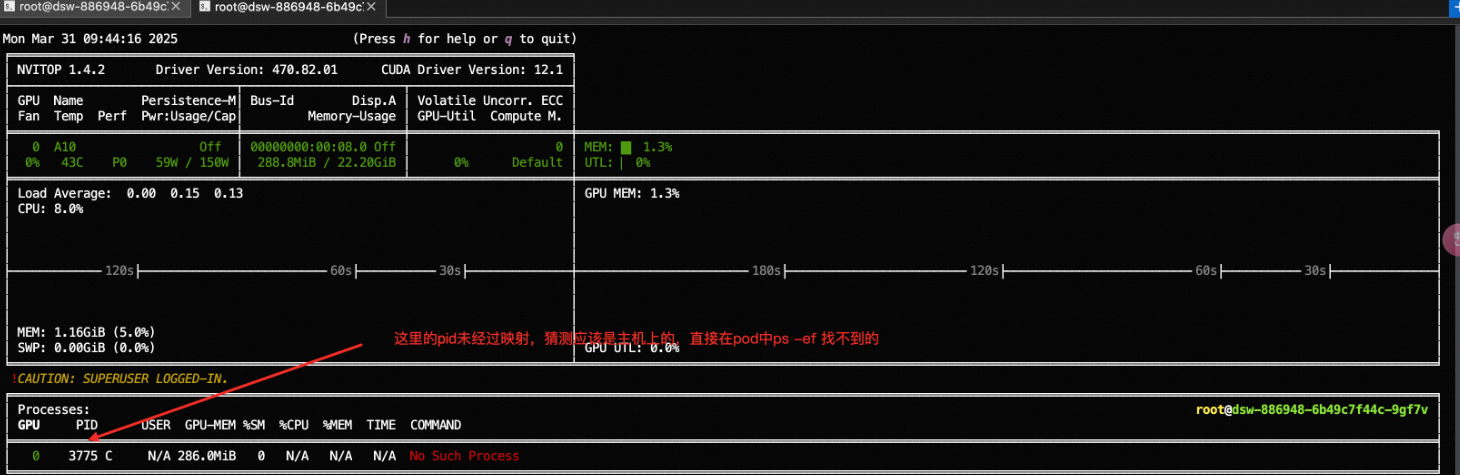
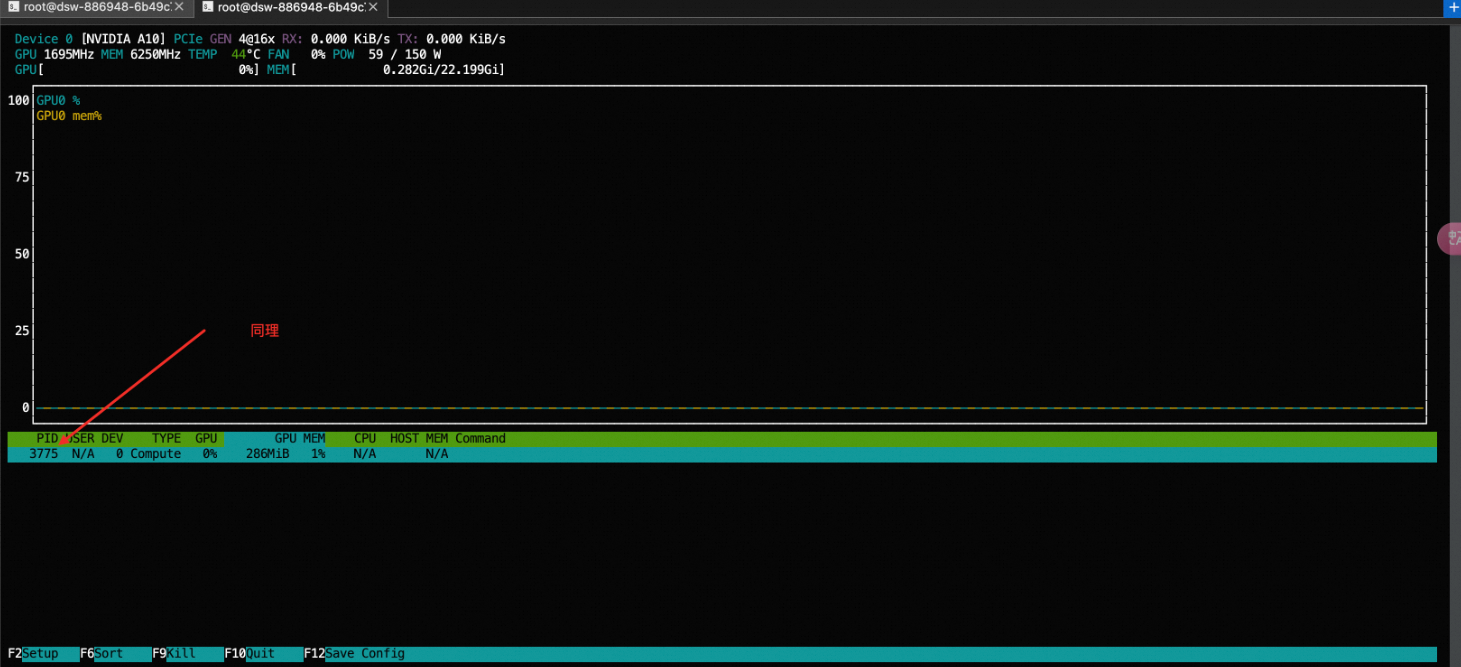
Q: Why doesn't nvidia-smi show running processes in DSW?
DSW uses container isolation, so nvidia-smi can't see process IDs (PIDs). See this GitHub issue for an explanation: https://github.com/NVIDIA/nvidia-docker/issues/179
This is a current limitation of the NVIDIA driver. The driver doesn't understand PID namespaces, so nvidia-smi inside a container can't see any running processes.
To check GPU usage by PID, run: lsof /dev/nvidia*
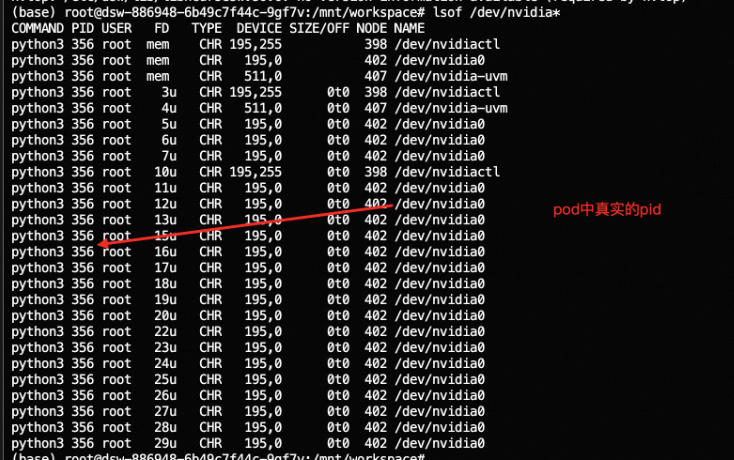
Note: Neither nvitop nor nvtop can retrieve accurate PIDs in this environment.
Q: Does DSW support GPU passthrough, loading the nvidia-drm module, or enabling P2P communication?
DSW has the following limitations in this area:
DSW container instances don’t support loading the
nvidia-drmkernel module or GPU passthrough. GPU resources are mounted only through--gpus=all.P2P communication between GPU cards is determined by the underlying hardware. The platform doesn’t provide a user-level switch to enable it. If
nvidia-smishowsNS, the current hardware doesn’t support P2P communication, and it can’t be enabled through software.PAI is a managed service. It doesn’t support installing custom drivers or patches to enable P2P communication — GPU drivers and the underlying communication capability are managed uniformly by the platform.
Q: VS Code shows red squiggly lines on Python code in DSW — what should I do?
Red squiggly lines may appear in the DSW WebIDE (VS Code) even when the syntax is correct. This is typically a parsing issue specific to the cloud IDE environment. Follow these steps to diagnose the problem:
Cut and paste the code into a local VS Code editor to check whether the errors appear there. This confirms whether the issue is specific to the cloud IDE environment.
If the local check is clean, re-upload or paste the code back into DSW.
If the problem persists and is affecting your development, submit a ticket for further investigation by PAI technical support.
Q: Can I change the region of a DSW instance? Will data migrate automatically?
DSW instances don't support changing regions or availability zones, and data doesn't migrate automatically.
To use DSW in a different region, create a custom image from the current instance in the original region to back up your data, then create a new instance from that image in the target region.
If instance creation fails due to insufficient resources, try a different instance type or wait for resources to become available. This doesn't involve a region change and your data won't be lost.
Q: How do I preserve data when switching a DSW instance to a different region?
The approach depends on your storage setup:
No external storage (system disk only): Creating a new instance in a different region without a backup will result in data loss. Create a custom image from the running instance in the original region first, then create a new instance from that image in the target region to restore your environment and data.
NAS/OSS storage mounted: Your data exists independently of the instance and doesn't require an image backup. Migrate the data in NAS/OSS directly to the target region.
Q: Does PAI-DSW support one-click cross-region workspace migration?
DSW doesn't support one-click import across regions. As an alternative, upload files from the source workspace to a file transfer staging area or OSS, then download or mount them in a DSW instance in the target region.