Image and text explanation
You can use the image and text explanation template to associate image selections with text entities.
Data format examples
For the CSV and XLSX formats, each column represents a field in the dataset. For the Manifest format, each sub-field within the data object corresponds to a field in the dataset. You can customize the field names and select them during dataset configuration. Common image formats such as JPG and PNG are supported.
The sam_embedding_url field contains embedding data for Segment Anything Model (SAM) segmentation. You must pre-process this data before you can use it. If you do not perform pre-processing or do not require this feature, you can delete this field. Deleting this field does not affect the functionality of the template.
CSV and XLSX formats
url | caption | sam_embedding_url |
oss://****.oss-cn-hangzhou.aliyuncs.com/iTAG/pic/1.jpg | "caption1xxxxx" | https://xxxxx |
oss://****.oss-cn-hangzhou.aliyuncs.com/iTAG/pic/1.jpg | "caption2xxxxx" | https://xxxxx |
Demo file: Image and text explanation data demo.csv
Manifest format (JSONL format)
{"data":{"url":"oss://****.oss-cn-hangzhou.aliyuncs.com/iTAG/pic/1.jpg","caption":"caption1xxxxxx","sam_embedding_url":"https://xxxxx"}}
{"data":{"url":"oss://****.oss-cn-hangzhou.aliyuncs.com/iTAG/pic/10.jpg","caption":"caption1xxxxxx","sam_embedding_url":"https://xxxxx"}}
{"data":{"url":"oss://****.oss-cn-hangzhou.aliyuncs.com/iTAG/pic/11.jpg","caption":"caption1xxxxxx","sam_embedding_url":"https://xxxxx"}}
Demo file: Image and text explanation demo.manifest
Configuration
Annotation area (Image) (Required)
You can use the Annotation area (Image) to configure the URL field for the images that you want to annotate.
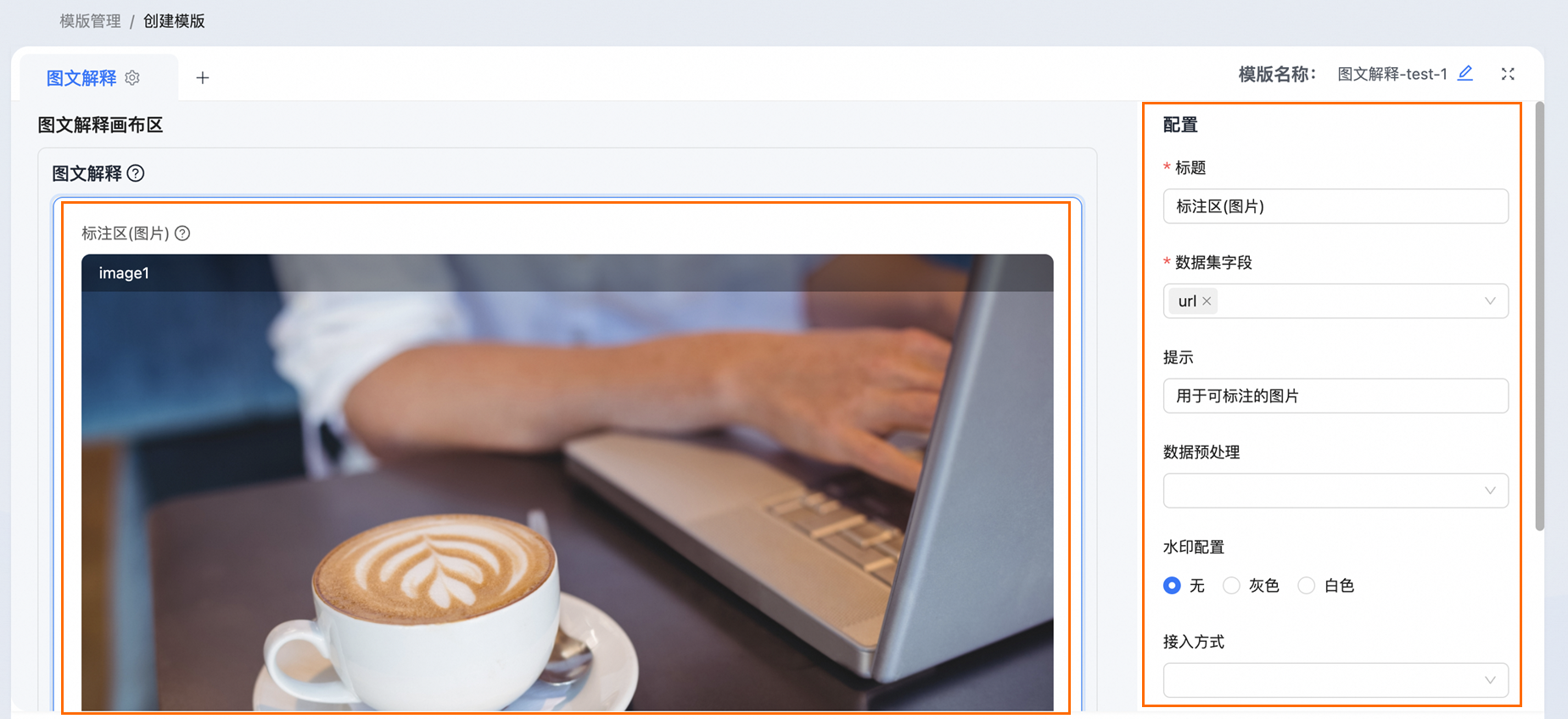
You can select Annotation area (Image) and choose a dataset. Then, you can configure the parameters in the Configuration area on the right. The following table describes the parameters.
Parameter | Description |
Title | You do not need to modify the default title. |
Dataset field | Select the image URL field to annotate. You can customize the field name. |
Prompt | You do not need to modify the default prompt. |
Data pre-processing | No configuration is required. This parameter does not take effect. |
Connection type | No configuration is required. This parameter does not take effect. |
Card style configuration | No configuration is required. This parameter does not take effect. |
Annotation area (caption) (Required)
You can use the Annotation area (caption) to configure the text field for annotation and parsing.
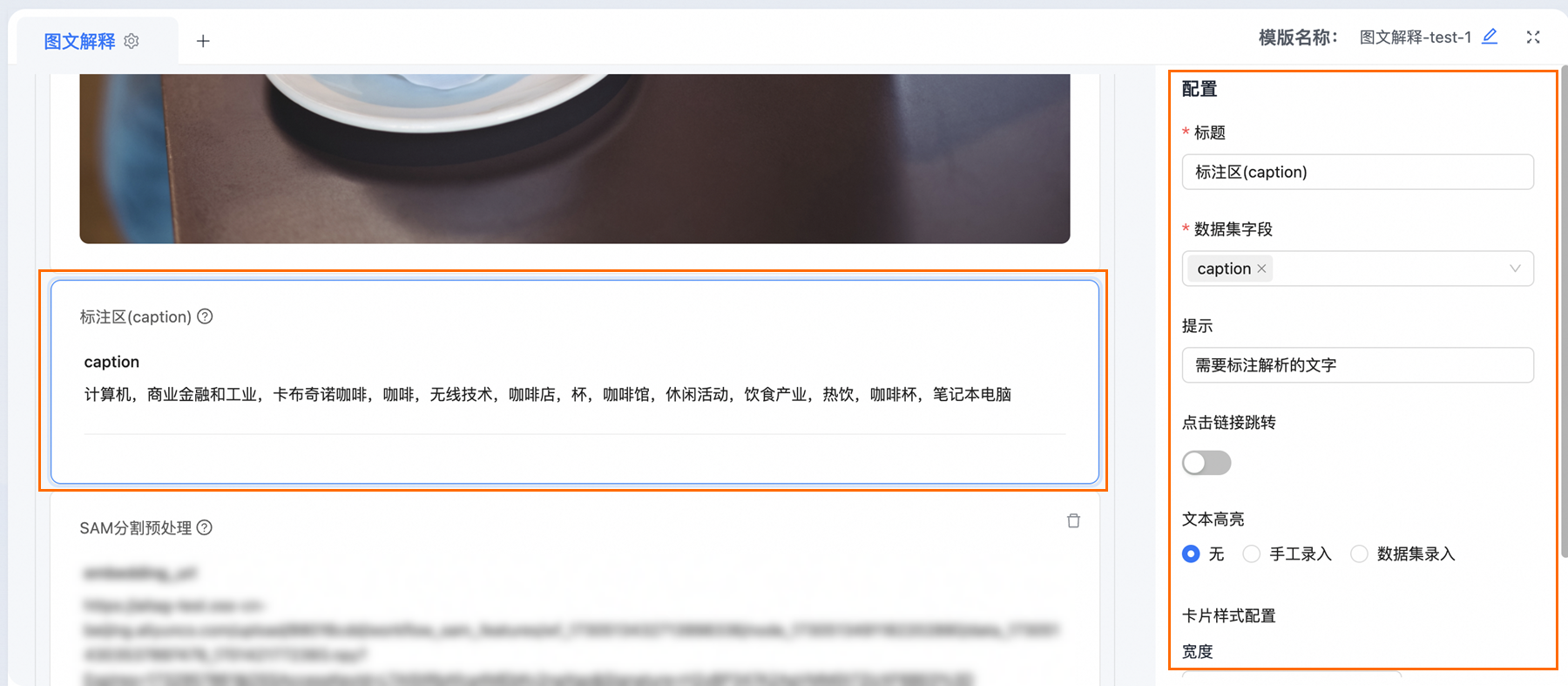
You can select Annotation area (caption). Then, you can configure the parameters in the Configuration area on the right. The following table describes the parameters.
Parameter | Description |
Title | You do not need to modify the default title. |
Dataset field | Select the text field to annotate and parse. |
Prompt | You do not need to modify the default prompt. |
Click link to navigate | No configuration is required. This parameter does not take effect. |
Text highlight | No configuration is required. This parameter does not take effect. |
Card style configuration | No configuration is required. This parameter does not take effect. |
SAM segmentation pre-processing area (Optional)
You can use SAM segmentation pre-processing to retrieve the embedding field for SAM segmentation from the dataset. If you do not need this feature, you can click  to delete this partition.
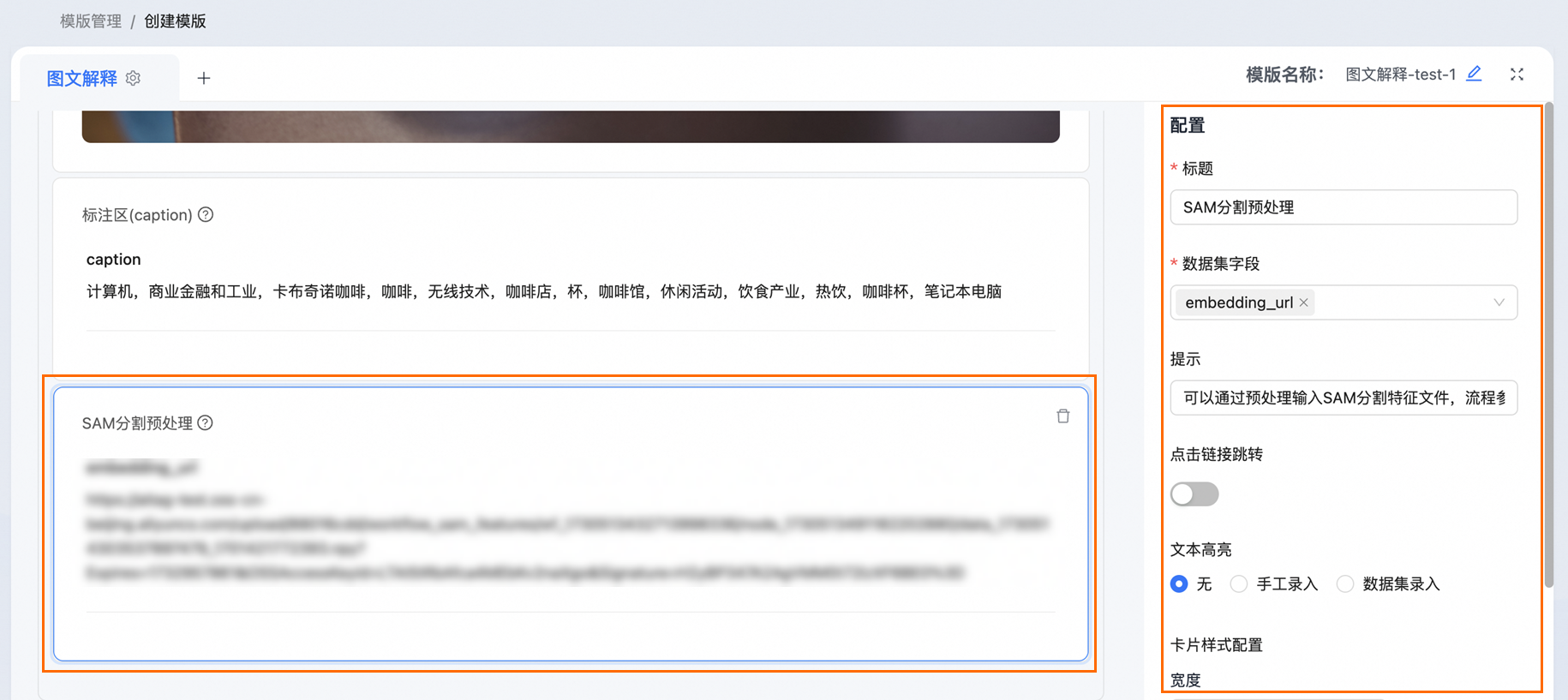
You can select SAM segmentation pre-processing. Then, you can configure the parameters in the Configuration area on the right. The following table describes the parameters.
Parameter | Description |
Title | You do not need to modify the default title. |
Dataset field | Select the embedding field for SAM segmentation. Configuring this field can improve the loading speed of the SAM segmentation tool. If you do not configure this field, click Delete. |
Prompt | You do not need to modify the default prompt. |
Click link to navigate | No configuration is required. This parameter does not take effect. |
Text highlight | No configuration is required. This parameter does not take effect. |
Card style configuration | No configuration is required. This parameter does not take effect. |
Demo
You can use the image-and-text explanation template to annotate.
Annotate the text
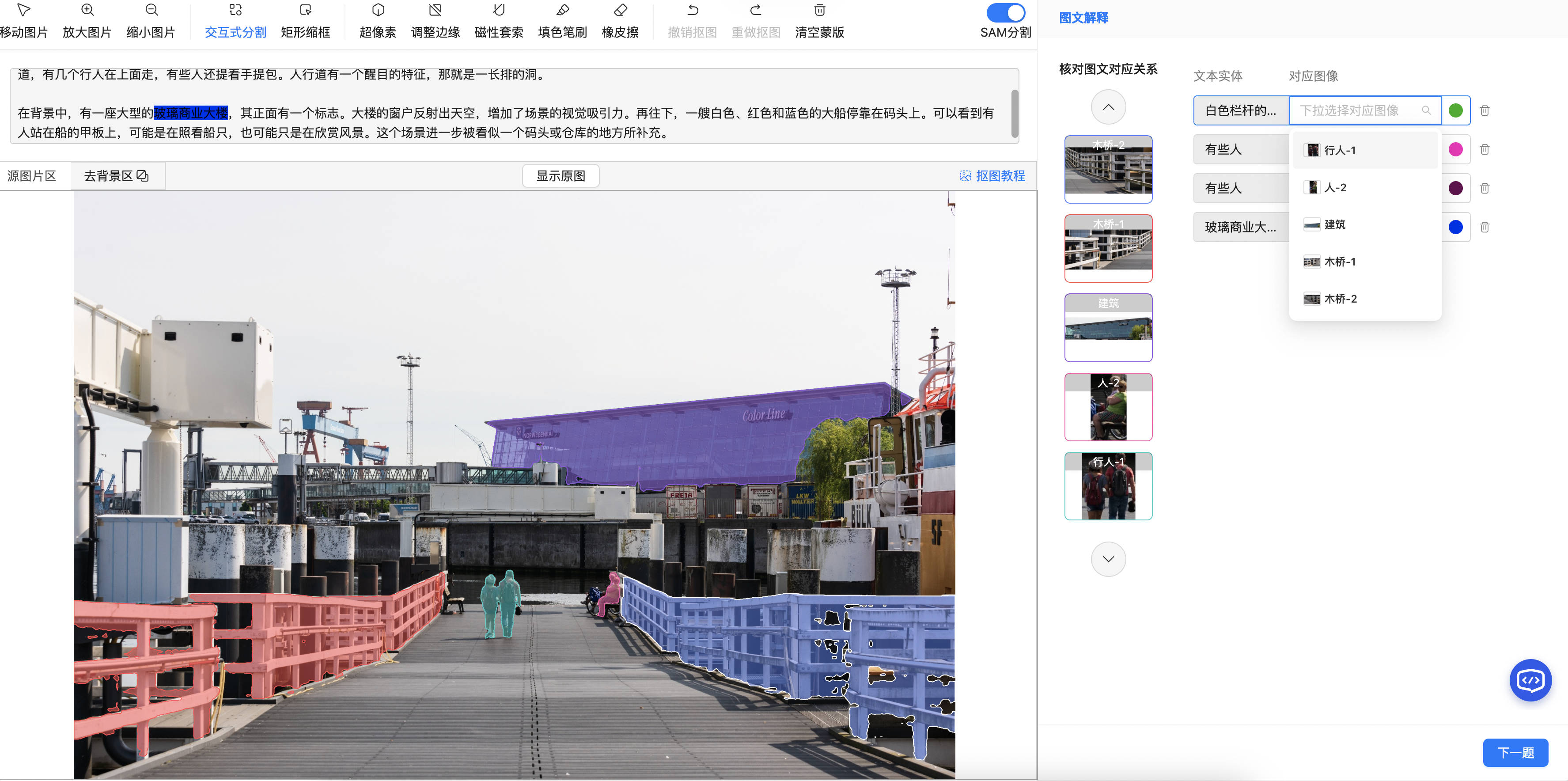
In the caption text annotation area, you can select the text to annotate and click Confirm. A text entity object is then generated.
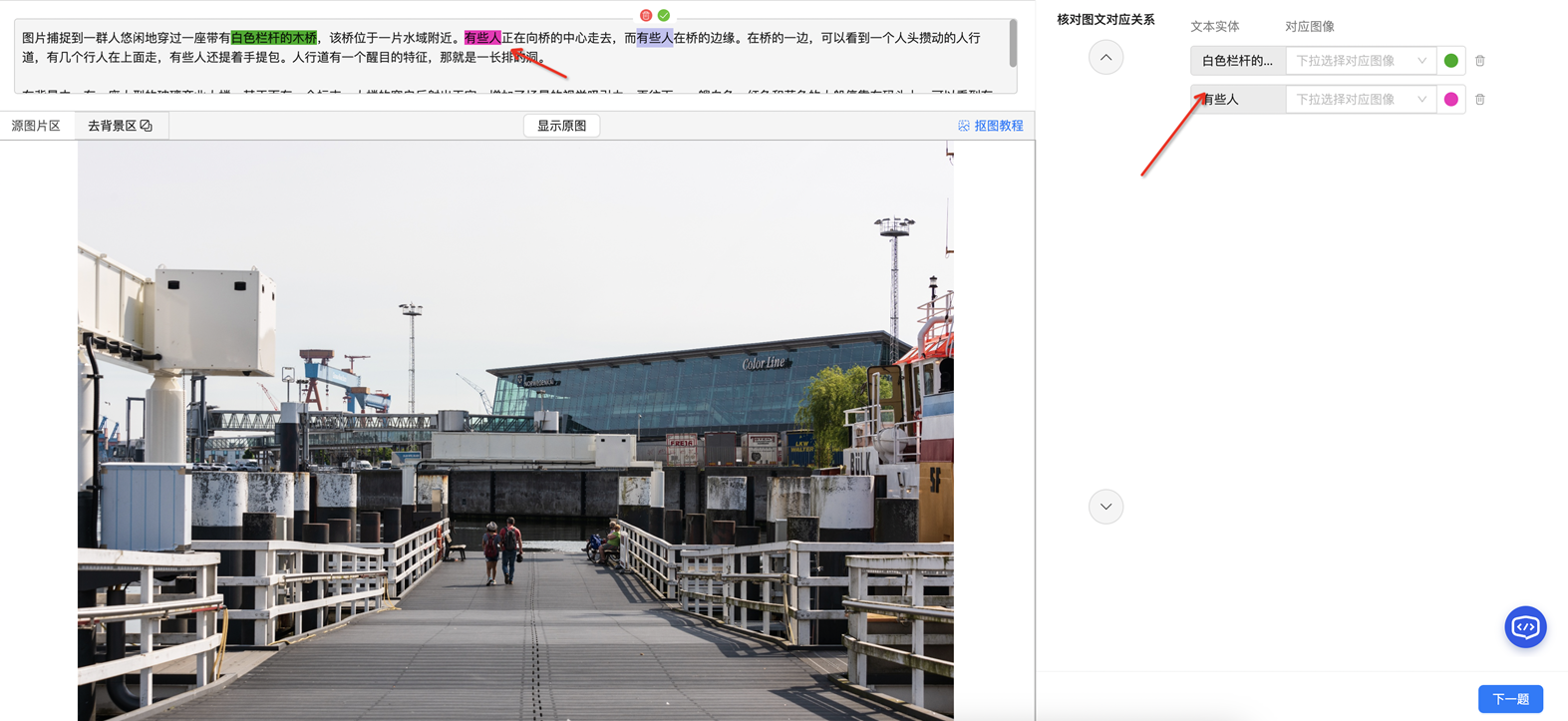
In the text entity area, you can change the annotation color or delete the entity. In the text annotation area, you can click an annotated word to delete it.
Annotate the image
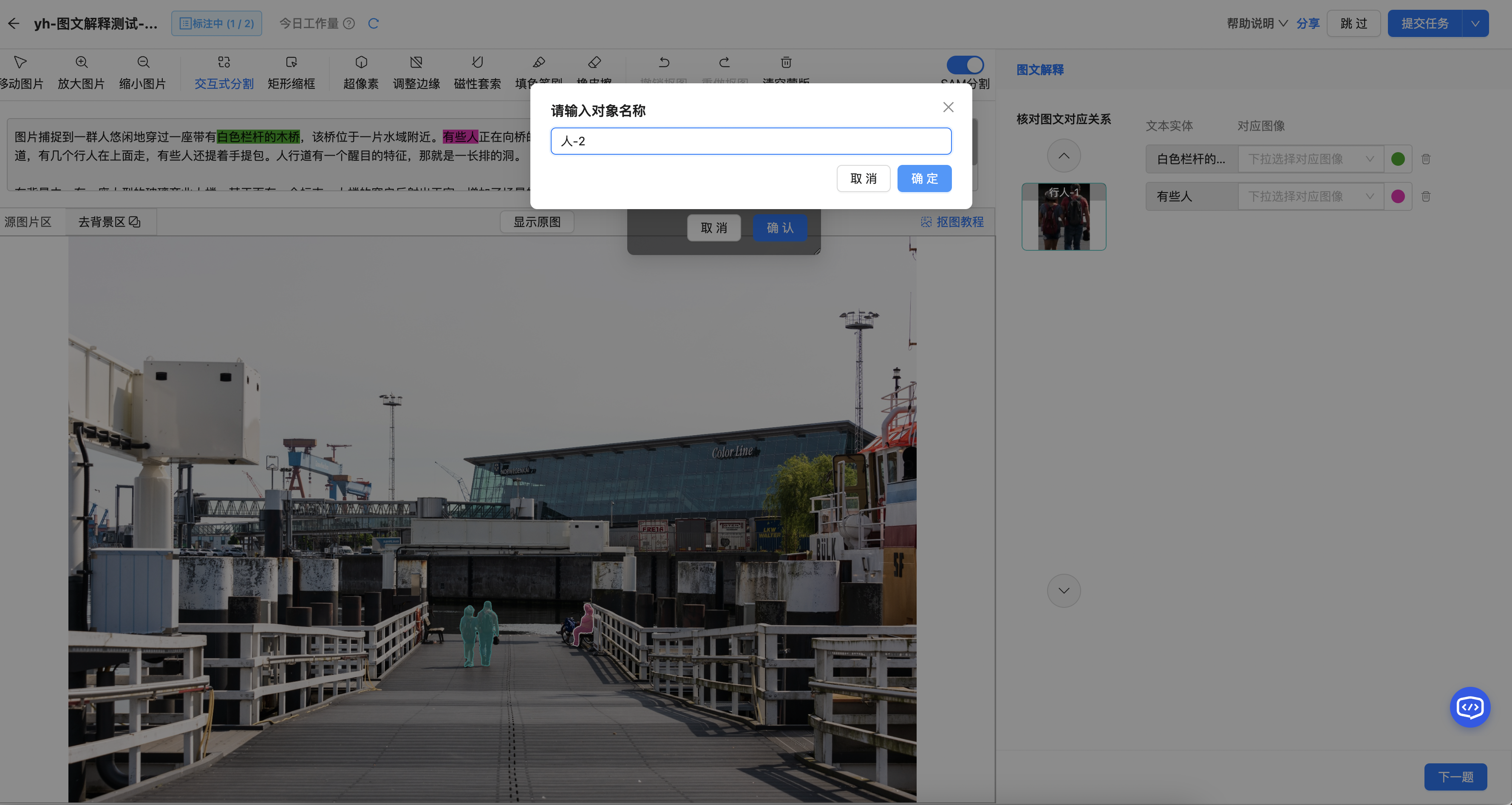
In the image tool area, you can select the segmentation tool to segment the image. After you create a new selection and enter a name for the object, the object appears in the segmentation list on the right.

You can select a segmented object from the list on the right to update it.
Associate the text and image
On the right, you can select a segmented object from the drop-down list to associate it with the text entity.