The image cutout component separates specific objects from an image. It is suitable for use in image semantic segmentation, image-to-text, and image and text explanation templates.
Function introduction

| Area |
Feature |
Description |
Keyboard shortcut |
| ① |
Move/Zoom in/Zoom out image |
|
|
| ② |
Interactive segmentation |
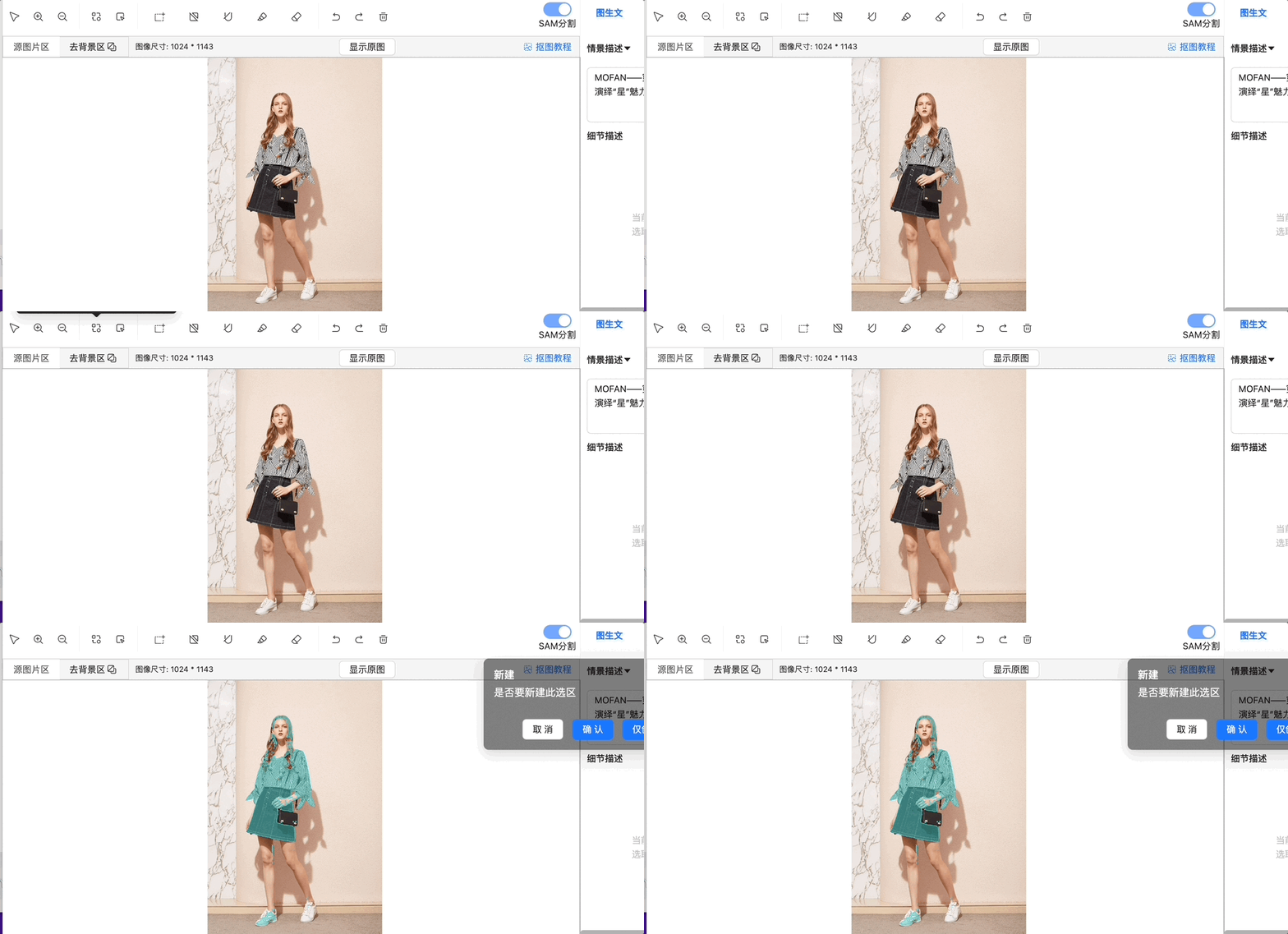
Smart segmentation with a point-and-click operation. It uses the Segment Anything Model (SAM) by default. Left-click to add a positive point and right-click to add a negative point. For best results, use continuous operations. Add positive points to areas you want to keep and negative points to areas you want to remove. The points are cleared if you switch to another operation or undo the cutout. |
None |
| ③ |
Bounding box |
Smart segmentation with a box selection operation. It uses SAM by default. After you draw a box, the tool automatically detects and segments the object inside it. |
None |
| ④ |
Rectangle selection |
The Marquee Selection operation fills the area within the selection box, and you can Merge Or Subtract this area with other segmented areas of the same color. |
None |
| ⑤ |
Adjust edge |
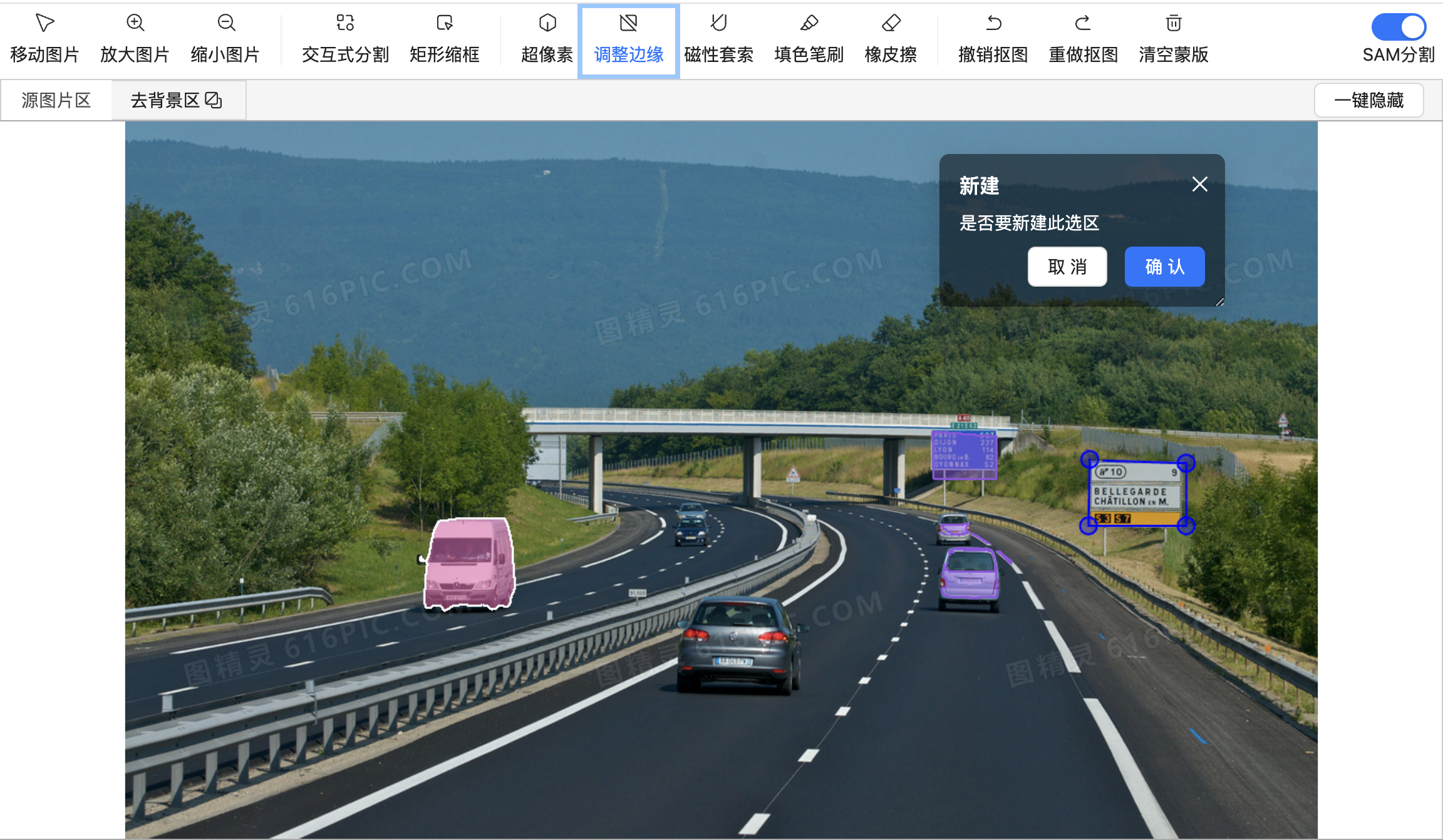
Draw a polygon for fine-grained matting and Close The Area to create a shape. You can then Merge Or Subtract this shape with other segmented areas of the current color. |
|
| ⑥ |
Magnetic lasso |
Creates a precise cutout in Lasso Form by drawing a shape and Closing The Area. You can choose to Merge With Or Subtract From other segmented areas of the current color. |
|
| ⑦ |
Fill brush |
Use a brush to fill the current operation mask with color. You can adjust the brush size. |
None |
| ⑧ |
Eraser |
Erases only the colored area of the current operation mask. Other colors are not affected. You can adjust the brush size. |
None |
| ⑨ |
Undo/Redo cutout |
Undo or redo a cutout operation. |
None |
| ⑩ |
Clear mask |
Clears all masks and related data.
Note
When you clear the masks, data such as the masks and detail descriptions are cleared together. |
None |
| ⑪ |
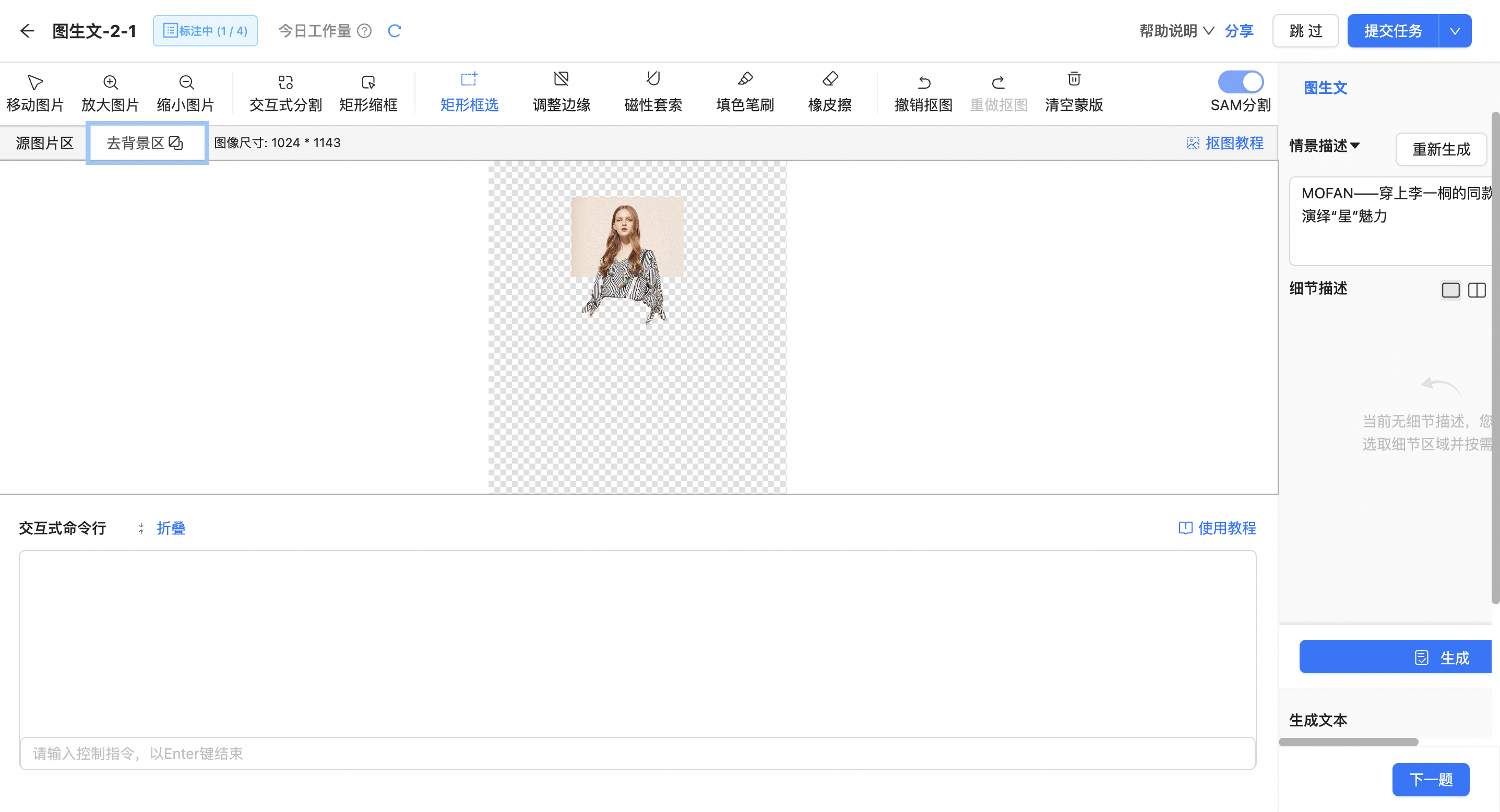
Remove background area |
Removes the background and displays all currently segmented objects. Click the |
None |
| ⑫ |
One-click hide (show original image)/Show all (show masks) |
Hides or shows all current masks, letting you view the original image at any time. |
None |
 icon to switch between a background color and a checkerboard pattern.
Demonstrations
Interactive segmentation
Bounding box
Adjust edge
Magnetic lasso
Background Removal
Annotation example
The following video demonstrates how to combine features such as interactive segmentation, bounding box, magnetic lasso, rectangle selection, adjust edge, fill brush, and eraser on a single image.