The Model Prediction component runs offline batch inference on a trained EasyRec model in Machine Learning Designer. It reads records from a MaxCompute table, scores each record using the model, and writes the predictions to a new output table.
Use this component when you need to:
Score a large dataset without a persistent online endpoint
Generate embeddings or predicted scores for downstream ranking or filtering steps
Prerequisites
Before you begin, ensure that you have:
A trained EasyRec model produced by the Model Training component. See Model Training.
An input MaxCompute table containing the feature data to score
Configure the component in Machine Learning Designer
Input ports
| Port (left to right) | Data type | Supported upstream components | PAI command parameter | Required |
|---|---|---|---|---|
| Input model | Model stored in OSS | Model Training | saved_model_dir | Yes |
| Input table | MaxCompute table | SQL Script, Read Table | input_table | Yes |
Parameters setting tab
| Parameter | Required | Default | Description | PAI command parameter |
|---|---|---|---|---|
| Input Feature Columns | No | — | Feature columns selected from the input table for inference. Mutually exclusive with Excluded Columns. | selected_cols |
| Excluded Columns | No | — | Columns to drop from the input table before inference. Mutually exclusive with Input Feature Columns. | excluded_cols |
| Reserved Columns | No | — | Columns copied as-is from the input table into the output table. Use this to preserve ID columns (such as user_id or item_id) so you can join predictions back to the original dataset in downstream pipeline steps. | reserved_cols |
| Output Columns | No | probs double | Names and data types of the prediction columns written to the output table. Separate multiple columns with commas. | output_cols |
| miniBatch size | No | 1024 | Number of samples processed in each mini-batch. Increase for higher throughput on large datasets; decrease if workers run out of memory. | batch_size |
| Specify the algorithm version | Yes (under Advanced Options) | — | OSS path of the EasyRec TAR package to run. To set this parameter: (1) Generate a TAR package — see Release & Upgrade in the EasyRec documentation. (2) Upload the TAR package to OSS — see Upload objects. (3) Select the uploaded TAR package. | script |
Tuning tab
All four tuning parameters are combined into the cluster parameter in the PAI command.
| Parameter | Required | Default | Description | When to adjust |
|---|---|---|---|---|
| Worker Count | No | 1 | Number of worker nodes. | Increase for larger datasets to parallelize inference across multiple workers. |
| Worker CPU | No | 6 | CPU cores per worker (1 = one core). | Increase if CPU utilization is consistently high during a run. |
| Worker Memory | No | 30000 | Memory per worker in MB (100 = 100 MB). | Increase if workers are killed due to out-of-memory errors. |
| Worker GPU | No | 0 | GPUs per worker. | GPUs are not required for most EasyRec inference jobs; set to 0 unless the model was trained with GPU-specific operators. |
Output ports
| Port (left to right) | Data type | PAI command parameter |
|---|---|---|
| Output table | MaxCompute table | output_table |
PAI command and parameters
The following command shows a complete example. All worker resource settings are encoded in the cluster parameter as a JSON string.
PAI -project algo_public -name easy_rec_ext
    -Darn="acs:ram::xxx:role/aliyunodpspaidefaultrole"
    -Dbatch_size="1024"
    -Dbuckets="oss://rec_sln_demo/"
    -Dcluster="{\"worker\": {\"count\": 1, \"cpu\": 600, \"gpu\": 0, \"memory\": 30000}}"
    -Dcmd="predict"
    -Dinput_table="odps://pai_hangzhou/tables/pai_temp_flow_inpwi02on49ooub78p_node_dn3y3lvucm862jr71n_outputTable"
    -Dlifecycle="28"
    -DossHost="oss-cn-hangzhou-internal.aliyuncs.com"
    -Doutput_cols="item_emb string"
    -Doutput_table="odps://pai_hangzhou/tables/pai_temp_flow_da1nuzwmbdfyw5kajy_node_5jgko0vlrjiwawp6y8_outputTable"
    -Dreserved_cols="item_id"
    -Dsaved_model_dir="oss://rec_sln_demo/EasyRec/deploy/rec_sln_demo_dssm_recall_v1/20230425/export/final/item"
-Dscript="oss://rec_sln_demo/easy_rec_ext_0.6.1_res.tar.gz";| Parameter | Required | Description |
|---|---|---|
saved_model_dir | Yes | Directory of the exported model files in OSS. |
input_table | Yes | Full path of the input MaxCompute table. |
arn | Yes | RAM role ARN that grants access to OSS and MaxCompute. To get the value, go to the PAI console, choose Activation & Authorization > Dependent Services, find the Designer section, then click View Authorization next to OSS. |
buckets | Yes | OSS bucket(s) containing the model files. Separate multiple buckets with commas, for example: oss://bucket-a/,oss://bucket-b/. |
ossHost | Yes | OSS endpoint for the region where the model is stored. See Regions and endpoints. |
output_table | No | Output MaxCompute table. Created automatically. |
reserved_cols | No | Columns copied from the input table to the output table. Separate multiple columns with commas. |
output_cols | No | Names and data types of the prediction columns, for example: item_emb string. Separate multiple columns with commas. |
batch_size | No | Mini-batch size for inference. Default: 1024. |
script | No | OSS path of the EasyRec TAR package. See Release & Upgrade in the EasyRec documentation. |
Example
Create a pipeline as shown in the following figure.
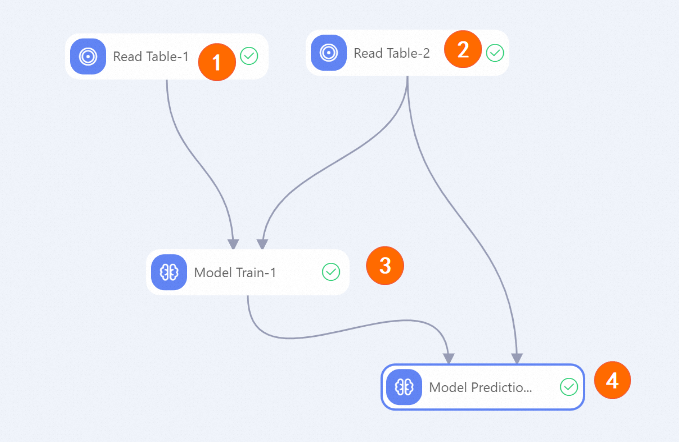
Section Description ① ② ③ Configure the upstream components. See Examples in the Model Training documentation. ④ Connect the Model Training output to the left input port of Model Prediction. Connect Read Table-2 to the right input port. Set Excluded Columns to clkand set Reserved Columns touser_id, pid.After the pipeline run completes, right-click the Model Prediction component and choose View Data > Output Table.

What's next
For an end-to-end example that uses Model Prediction as part of a DSSM vector recall pipeline, see 13_rec_sln_demo_dssm_recall_item_embedding_v1 in Vector Recall.