Naive Bayes
Based on Bayes' theorem, Naive Bayes is a probabilistic classification algorithm that assumes all features in the input data are independent. The Naive Bayes component in Machine Learning Designer (formerly Studio) handles a wide range of classification problems. This topic describes how to configure the Naive Bayes component.
Limitations
The supported computing engine is MaxCompute.
Component configuration
You can configure the Naive Bayes component parameters in one of the following ways.
Method 1: Designer
Configure the component parameters on the Visualized Modeling (Designer) pipeline page.
|
Tab |
Parameter |
Description |
|
Fields Setting |
Feature column |
By default, all columns except the label column are used as feature columns. The supported data types are DOUBLE, STRING, and BIGINT. |
|
Excluded columns |
The columns to exclude from training. This parameter cannot be used together with Feature column. |
|
|
Forced conversion column |
The data parsing rules are as follows:
Note
To parse a BIGINT column as a CATEGORICAL type, you must use the forceCategorical parameter. |
|
|
Label column |
Specifies the label column in the input table. You can select only a non-feature column. The supported data types are STRING, DOUBLE, and BIGINT. |
|
|
Input is in sparse format |
Select this option if the input data is sparse and represented in key-value (KV) format. |
|
|
Key-value pair delimiter for sparse input |
The delimiter that separates key-value pairs. The default value is a comma (,). |
|
|
Key and value delimiter for sparse input |
The delimiter that separates a key from its value. The default value is a colon (:). |
|
|
Whether to generate PMML |
Select this check box to generate a Predictive Model Markup Language (PMML) model. If a data storage path is not configured for the pipeline, click Create Now to set a path. |
|
|
Tuning |
Number of cores |
Automatically allocated by the system. |
|
Memory per core (MB) |
Automatically allocated by the system. |
Method 2: PAI commands
You can use the SQL Script component to run PAI commands to configure the component parameters. For more information, see SQL Script.
PAI -name NaiveBayes -project algo_public
    -DinputTablePartitions="pt=20150501"
    -DmodelName="xlab_m_NaiveBayes_23772"
    -DlabelColName="poutcome"
    -DfeatureColNames="age,previous,cons_conf_idx,euribor3m"
-DinputTableName="bank_data_partition";|
Parameter |
Required |
Description |
Default |
|
inputTableName |
Yes |
The name of the input table. |
None |
|
inputTablePartitions |
No |
The partitions in the input table to use for training. |
All partitions |
|
modelName |
Yes |
The name of the output model. |
None |
|
labelColName |
Yes |
The name of the label column in the input table. |
None |
|
featureColNames |
No |
The names of the feature columns in the input table that are used for training. |
All columns except the label column. |
|
excludedColNames |
No |
Specifies the columns to exclude from being used as features. This parameter cannot be used together with featureColNames. |
Empty |
|
forceCategorical |
No |
The data parsing rules are as follows:
Note
To parse a BIGINT column as a CATEGORICAL type, you must use the forceCategorical parameter. |
BIGINT is treated as a continuous type. |
|
coreNum |
No |
The number of cores to use for computation. |
System-allocated |
|
memSizePerCore |
No |
The memory size per core in MB. Valid values: 1 to 65536. |
System-allocated |
Example
-
Prepare the training data and test data.
-
Use the MaxCompute client to create the
train_dataandtest_datatables to store the training and test data, respectively. Both tables must have the following column names and data types:id bigint, y bigint, f0 double, f1 double, f2 double, f3 double, f4 double, f5 double, f6 double, f7 double. For instructions on installing and configuring the MaxCompute client, see MaxCompute client (odpscmd). For instructions on creating a table, see Create tables. -
Import the following training and test data into the
train_dataandtest_datatables, respectively. For instructions on importing data, see Import data.-
Training data
id
y
f0
f1
f2
f3
f4
f5
f6
f7
1
-1
-0.294118
0.487437
0.180328
-0.292929
-1
0.00149028
-0.53117
-0.0333333
2
+1
-0.882353
-0.145729
0.0819672
-0.414141
-1
-0.207153
-0.766866
-0.666667
3
-1
-0.0588235
0.839196
0.0491803
-1
-1
-0.305514
-0.492741
-0.633333
4
+1
-0.882353
-0.105528
0.0819672
-0.535354
-0.777778
-0.162444
-0.923997
-1
5
-1
-1
0.376884
-0.344262
-0.292929
-0.602837
0.28465
0.887276
-0.6
6
+1
-0.411765
0.165829
0.213115
-1
-1
-0.23696
-0.894962
-0.7
7
-1
-0.647059
-0.21608
-0.180328
-0.353535
-0.791962
-0.0760059
-0.854825
-0.833333
8
+1
0.176471
0.155779
-1
-1
-1
0.052161
-0.952178
-0.733333
9
-1
-0.764706
0.979899
0.147541
-0.0909091
0.283688
-0.0909091
-0.931682
0.0666667
10
-1
-0.0588235
0.256281
0.57377
-1
-1
-1
-0.868488
0.1
-
Test data
id
y
f0
f1
f2
f3
f4
f5
f6
f7
1
+1
-0.882353
0.0854271
0.442623
-0.616162
-1
-0.19225
-0.725021
-0.9
2
+1
-0.294118
-0.0351759
-1
-1
-1
-0.293592
-0.904355
-0.766667
3
+1
-0.882353
0.246231
0.213115
-0.272727
-1
-0.171386
-0.981213
-0.7
4
-1
-0.176471
0.507538
0.278689
-0.414141
-0.702128
0.0491804
-0.475662
0.1
5
-1
-0.529412
0.839196
-1
-1
-1
-0.153502
-0.885568
-0.5
6
+1
-0.882353
0.246231
-0.0163934
-0.353535
-1
0.0670641
-0.627669
-1
7
-1
-0.882353
0.819095
0.278689
-0.151515
-0.307329
0.19225
0.00768574
-0.966667
8
+1
-0.882353
-0.0753769
0.0163934
-0.494949
-0.903073
-0.418778
-0.654996
-0.866667
9
+1
-1
0.527638
0.344262
-0.212121
-0.356974
0.23696
-0.836038
-0.8
10
+1
-0.882353
0.115578
0.0163934
-0.737374
-0.56974
-0.28465
-0.948762
-0.933333
-
-
-
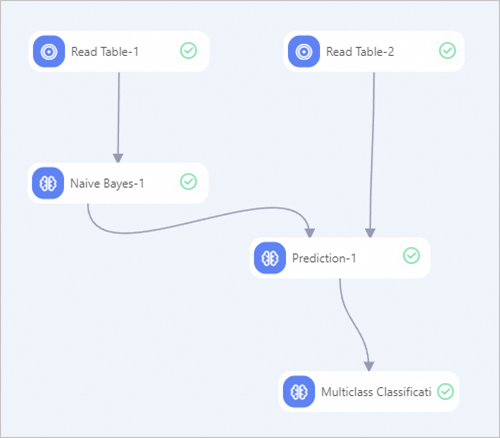
Build and run the pipeline by following these steps. For more information, see algorithm modeling.
-
From the component list in Designer, drag the following components onto the canvas: two Read Table components, one Naive Bayes component, one Prediction component, and one Multiclass Classification Evaluation component.
-
Connect the nodes to build the pipeline.
-
Configure the component parameters.
-
Click the Read Table-1 component on the canvas. In the right-side pane, on the select table tab, set table name to train_data.
-
Click the Read Table-2 component on the canvas. In the right-side pane, on the select table tab, set table name to test_data.
-
Click the Naive Bayes-1 component on the canvas. In the right-side pane, set the parameters as follows. Leave the other parameters at their default values.
Tab
Parameter
Description
field settings
feature column
Select the f0, f1, f2, f3, f4, f5, f6, and f7 columns.
label column
Select the y column.
-
Click the Prediction-1 component on the canvas. In the right-side pane, on the field settings tab, set reserved columns to id and y. Leave the other parameters at their default values.
-
Click the Multiclass Classification Evaluation-1 component on the canvas. In the right-side pane, on the field settings tab, set original classification result column to y. Leave the other parameters at their default values.
-
-
Once the components are configured, click the Run button
 to run the pipeline.
-
-
After the pipeline runs, right-click the Prediction-1 component and select from the shortcut menu. The prediction result table contains the id, y (original label), prediction_result (prediction label, with a value of 1 or -1), prediction_score (prediction score), and prediction_detail (class probability details in JSON format) columns. For the 10 test samples, the prediction scores are close to 1, indicating high model confidence and good performance.
References
-
After you run the Naive Bayes component to generate a PMML model, you can deploy the model as an online service. For more information, see Deploy a model as an online service.
-
For more information about Machine Learning Designer, see Overview of Machine Learning Designer.
-
Machine Learning Designer includes multiple preset algorithm components. You can select one that best suits your use case. For more information, see Component reference: Overview of all components.