Sequence features and real-time features
This topic describes the key concepts, use cases, and how to register and use sequence features and real-time features.
Sequence features
Key concepts
A sequence feature is a time-ordered sequence of user behaviors or events, such as clicks, purchases, and browsing activities, or metrics like access intervals and dwell times. The temporal nature of these features shows the order of actions and reflects users' dynamic interests, helping to capture their behavior patterns and preference shifts.
Use cases
Sequential recommendation predicts a user's next action by analyzing their historical behavior sequence. Unlike traditional recommendation tasks that model preferences statically, sequential recommendation can identify stage-based shifts in interest over time, such as a user periodically alternating between sports equipment and books. By inferring current preferences from the time-ordered sequence of implicit user-item feedback, the system improves recommendation accuracy, enhances the user experience, and improves future engagement.
In an e-commerce recommendation scenario, a user's sequence features include all items they have interacted with. In the following diagram, the user's behavior sequence is shown below the arrow, while the different weights assigned to each interacted item are shown above. The final recommended sequence is derived from all these features combined.
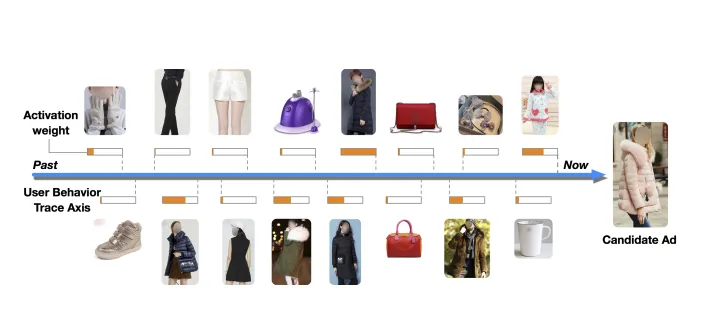
Source: Deep Interest Network for Click-Through Rate Prediction (Guorui Zhou, Chengru Song, Xiaoqiang Zhu, Ying Fan, Han Zhu, Xiao Ma, Yanghui Yan, Junqi Jin, Han Li, Kun Gai)
Sequence FeatureView
To support both offline training and real-time online serving of sequence features, FeatureStore provides a specialized object called a Sequence FeatureView. When you register a Sequence FeatureView, the platform automatically handles the export of offline sample tables and associates primary keys with request IDs. You can then query real-time sequence features directly by using the FeatureStore SDK. A Sequence FeatureView supports writing to an offline sequence feature table and querying real-time behavioral data from an online store.
In a typical recommendation scenario, an offline sequence feature table (F1) is initially generated from simulated data and later replaced with online logs. When querying for online real-time features, the system merges data from two behavior tables: a historical behavior table from the previous day (T-1) (B1), and a real-time behavior table updated on the current day (T) (B2). FeatureStore automatically synchronizes data from the offline T-1 behavior table (A1) to create B1 and performs preprocessing tasks like deduplication. You are responsible for writing data to B2 in real time by using an API or tools such as Flink.
To register a Sequence FeatureView, provide the offline sequence feature table (F1) and the offline T-1 behavior table (A1). FeatureStore handles the online synchronization and deduplication of A1 and generates the schema and table name for the online behavior table (B2). You only need to write data to B2 using the generated table name.
-
Sequence feature production
The production of sequence features involves two parts: generating the behavior sequence for the previous day (T-1) and for the current day (T). After both sequence tables are constructed, they are merged into a single real-time behavior sequence table. The schema for a real-time behavior sequence table typically looks like this:
CREATE TABLE IF NOT EXISTS home_feed_userid_all_seq_feat
(
    userid bigint
    ,timestamp bigint
    ,req_id string
    ,expo_100_seq__itemid string
    ,expo_100_seq__ts string
    ,home_click_100_seq__itemid string
    ,home_click_100_seq__price string
    ,home_click_100_seq__ts string
)
PARTITIONED BY
(
    ds string
)
LIFECYCLE 30
;
In this table,
useridis the primary key,timestampis the timestamp, andreq_idis the request ID. The table contains the following two sequence features:-
Exposure sequence (expo_100_seq): Contains an item ID field (
expo_100_seq__itemid) and a time-interval field (expo_100_seq__ts). -
Home page click sequence (home_click_100_seq): Contains an item ID field (
home_click_100_seq__itemid), a price field (home_click_100_seq__price), and a time-interval field (home_click_100_seq__ts).
After the sequence feature table is generated, you can register the feature table, export training samples, train the model, and deploy it.
-
-
Sequence FeatureView registration
You can register a Sequence FeatureView in two ways:
Console
-
Log on to the PAI console. In the left-side navigation pane, click Data Preparation > FeatureStore. Select a workspace and click Enter FeatureStore.
-
Click your project name to open the project details page.
-
On the Feature View tab, click Create Feature View. Configure the following key parameters and leave the others at their default settings or configure them as required.
Parameter
Description
Type
Select Behavior Sequence.
Feature Entity
Select user.
Store
Select a bound data source. For more information, see Create a data source.
Behavior Table
Select an existing behavior table. For more information, see Prepare data.
Behavior Feature Field
Select the user ID checkbox next to the User ID field.
item_id
Select itemid.
event
Select event.
timestamp
Select event_unix_time.
Deduplication Method
Select user_id + item_id + event.
Offline Sequence Feature Table
Select the created real-time behavior sequence table.
Primary Key Field
Select userid.
Event Time Field
Select timestamp.
Partition Field
Select ds.
Sequence Feature Read Configuration
Configure the parameters as follows:
For the
expoevent, the offline fields areexpo_100_seq__itemidandexpo_100_seq__ts, the sequence length is 100, and the online sequence feature name isexpo_100_seq. For thehome_clickevent, the corresponding records have a sequence length of 100 and an online sequence feature name ofhome_click_100_seq. Select the Online Behavior Table Fields based on your needs.-
Offline Sequence Feature Field: The name of the sequence feature field in the offline sequence table.
-
Event Name: The name of the behavior field.
-
Sequence Length: The sequence length for online queries. This is usually the same as the offline length. Sequences longer than this value are truncated.
-
Online Sequence Feature Name: When the FeatureStore online Go SDK retrieves the sequence of item IDs for a user, it assigns this name to the sequence. You can then use this name to access the sequence for post-processing.
-
Online Behavior Table Fields: Optional. If the sequence feature uses fields from the behavior table, you can specify them here to have them queried online and built into the sequence. For example, if a sub-feature of the sequence is the
pricefield from the behavior table, you can enterpricehere. The full online sequence feature name is formatted as: ${Online Sequence Feature Name}__price.
Feature Lifecycle
Set the value to 30 days.
-
-
Click Submit.
Python SDK
For more information, see Use FeatureStore in recommendation systems.
-
-
Offline behavior data synchronization
For example, after registering the Sequence FeatureView with the Python SDK, you can synchronize data from the
20231023partition of therec_sln_demo_behavior_table_preprocess_v3table in the offline data source to the online data source. During synchronization, the system checks for data from the previous N days. If data is missing, it is automatically backfilled. N is specified by thedays_to_loadparameter, which defaults to 30.seq_task = seq_feature_view.publish_table({'ds':'20231023'}, days_to_load=30) seq_task.wait()In DataWorks, you can use the following script. This script is intended for use as a recurring task in DataWorks and cannot be run directly. Similar to the user table, create a Python 3 script in DataWorks, copy the following code into it, and then go to Scheduling Settings. Set the Input parameter name to
dtand its value to $[yyyymmdd-1]. Set the Resource Group for Scheduling to an exclusive resource group and set the dependency to the corresponding behavior table. After submitting, you can backfill data for the latest day.from feature_store_py.fs_client import FeatureStoreClient import datetime from feature_store_py.fs_datasource import MaxComputeDataSource import sys cur_day = args['dt'] print('cur_day = ', cur_day) access_key_id = o.account.access_id access_key_secret = o.account.secret_access_key fs = FeatureStoreClient(access_key_id=access_key_id, access_key_secret=access_key_secret, region='cn-beijing') cur_project_name = 'fs_demo' project = fs.get_project(cur_project_name) feature_view_name = 'home_feed_userid_all_seq_feat' batch_feature_view = project.get_feature_view(feature_view_name) task = batch_feature_view.publish_table(partitions={'ds':cur_day},days_to_load=30) task.wait() task.print_summary() -
Real-time behavior feature writing
In addition to writing offline behavior data (from day T-1), you must write real-time behavior data for the current day (T). Data is streamed from DataHub, preprocessed, and then written to FeatureStore by using a custom Flink connector.
CREATE TEMPORARY TABLE behavior_table_test ( userid bigint ,itemid bigint ,req_id string ,event string ,event_unix_time bigint ) WITH ( 'connector' = 'datahub' ,'subId' = '' ,'endPoint' = 'http://dh-cn-beijing.aliyuncs.com' ,'project' = '' ,'topic' = '' ,'accessId' = '{access_id}' ,'accessKey' = '{access_key}' ) ; CREATE TEMPORARY TABLE rec_sln_seq_feature_v1_seq ( userid bigint ,itemid bigint ,event string ,event_unix_time bigint ) WITH ( 'connector' = 'featurestore' ,'region_id' = 'cn-beijing' ,'project' = 'test' ,'feature_view' = 'home_feed_userid_all_seq_feat' ,'username' = 'featuredb_username' ,'password' = 'featuredb_password' ,'aliyun_access_id' = '{access_id}' ,'aliyun_access_key' = '{access_key}' ) ; INSERT INTO rec_sln_seq_feature_v1_seq SELECT userid ,itemid ,event ,event_unix_time FROM behavior_table_test WHERE event IN ('comment','discover_click','follow','popular_click','praise') ; -
Data query
After the data is synchronized, go to the page for the relevant FeatureView and click Online Query. Enter a primary key value to view the returned features.
-
Model creation, export, and deployment
For more information, see Use FeatureStore to manage features in recommendation systems and FeatureStore best practices.
Real-time features
Key concepts
Real-time features are features whose values change frequently, often with millisecond precision. The system must capture this data immediately after it is generated and use it for real-time decision-making. These features are computed in real time by stream processing systems like Flink, which requires the entire pipeline to have low latency and high performance. Real-time features are updated dynamically as the system continuously recalculates them.
Use cases
Common use cases for real-time features include:
-
Online advertising: Adjust ad content in real time based on a user's current browsing behavior.
-
Fraud detection: Detect suspicious activities in financial transactions in real time to trigger alerts or block transactions.
-
Personalized recommendation: Update recommendation lists in real time based on a user's current activities and historical data.
-
IoT systems: Monitor and control devices in real time, generating and using real-time features to respond to environmental changes.
The following example shows how real-time features are used in machine learning systems for applications like recommendation and advertising:
-
Feature writing process
After you create a Real-time FeatureView in FeatureStore, the system automatically generates a table with the same schema in the online data engine for writing and reading real-time features. If the data source is FeatureDB, Tablestore, or Hologres, you can use DataHub to transfer data to Flink for real-time feature processing and computation. The results are then written to the corresponding table in the online data source. You can find the table name on the FeatureView details page.
-
Feature reading process
The EasyRec Processor has a built-in FeatureStore Cpp SDK that can automatically identify and read real-time features by specifying the model feature name. The Go and Java SDKs read features based on configuration parameters.
-
Offline sample export
FeatureStore automatically exports data by joining the tables in the offline data engine that correspond to the offline views. For a Real-time FeatureView, if you use FeatureDB, the online data is automatically written to the corresponding offline table in the offline data engine. If you do not use FeatureDB, you must build your own task to write the data to the offline table. Alternatively, you can use PAI-REC to generate simulated real-time data and use it as the offline table data for the Real-time FeatureView.
Real-time FeatureView
A Real-time FeatureView in FeatureStore handles frequently changing features. You can write features in real time by using a message queue like DataHub and Flink. Then, you can use the EasyRec Processor to poll for features or use the FeatureStore SDK to read them in real time. This allows downstream applications to detect feature changes with millisecond-level latency.

-
Real-time FeatureView registration
Typically, when you create a FeatureView, the system automatically creates two tables: an online feature table in the online storage engine and an offline feature table in MaxCompute.
-
Log on to the PAI console. In the left-side navigation pane, click Data Preparation > FeatureStore. Select a workspace and click Enter FeatureStore.
-
Click your project name to open the project details page.
-
On the Feature View tab, click Create Feature View. Configure the following key parameters and leave the others at their default settings or configure them as required.
Parameter
Description
Type
Select Real Time.
Feature Entity
Select user.
Feature Field
Select Table and configure the fields as follows:
Field configuration: user_id (STRING, select primary key), gender (STRING), age (INT32), city (STRING), follow_cnt (INT32), follower_cnt (INT64).
Feature Lifecycle
Set the value to 30 days.
-
Click Submit.
-
-
Real-time feature export
You can select multiple real-time and offline FeatureViews to create model features. After the model features are created, you can export them. FeatureStore supports automatic export. The source of the offline data table corresponding to a Real-time FeatureView varies depending on the use case:
Data source
Recommendation engine
Export method
FeatureDB
All are supported
Export directly using FeatureStore.
Hologres/Tablestore
PAI-REC
Import the simulated data generated by the recommendation algorithm into the offline table of the Real-time FeatureView, and then export it by using FeatureStore.
Others
Manually write data to the offline table of the Real-time FeatureView, then export it using FeatureStore.
-
Synchronization
The following methods are supported:
-
Integration
For more information, see Use FeatureStore to manage features in recommendation systems.