Task comparison
Compare multiple training tasks side by side to analyze metrics, troubleshoot abnormal runs, and trace the root cause of performance differences. Configuration and runtime differences are displayed together so you can quickly pinpoint issues.
Procedure
-
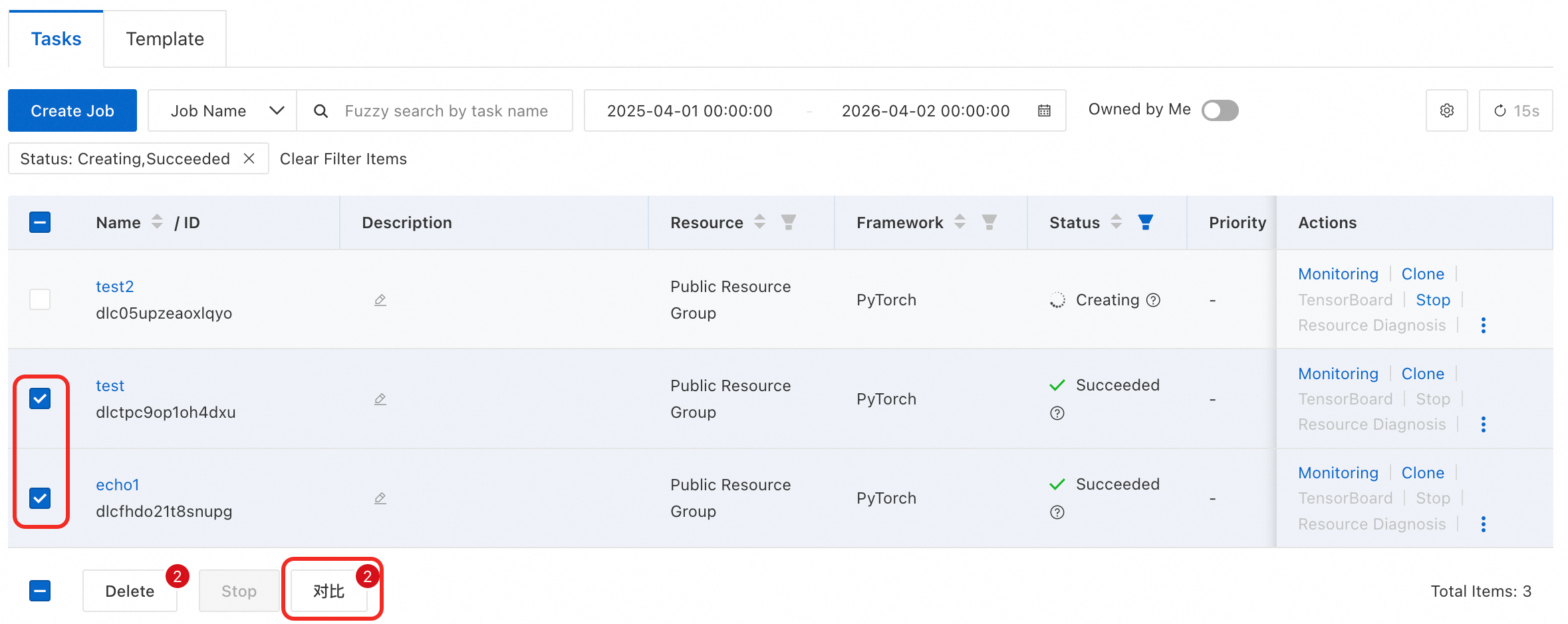
Select tasks to compare. On the task list page, select two tasks to compare, and then click the Compare button at the bottom of the page.
-
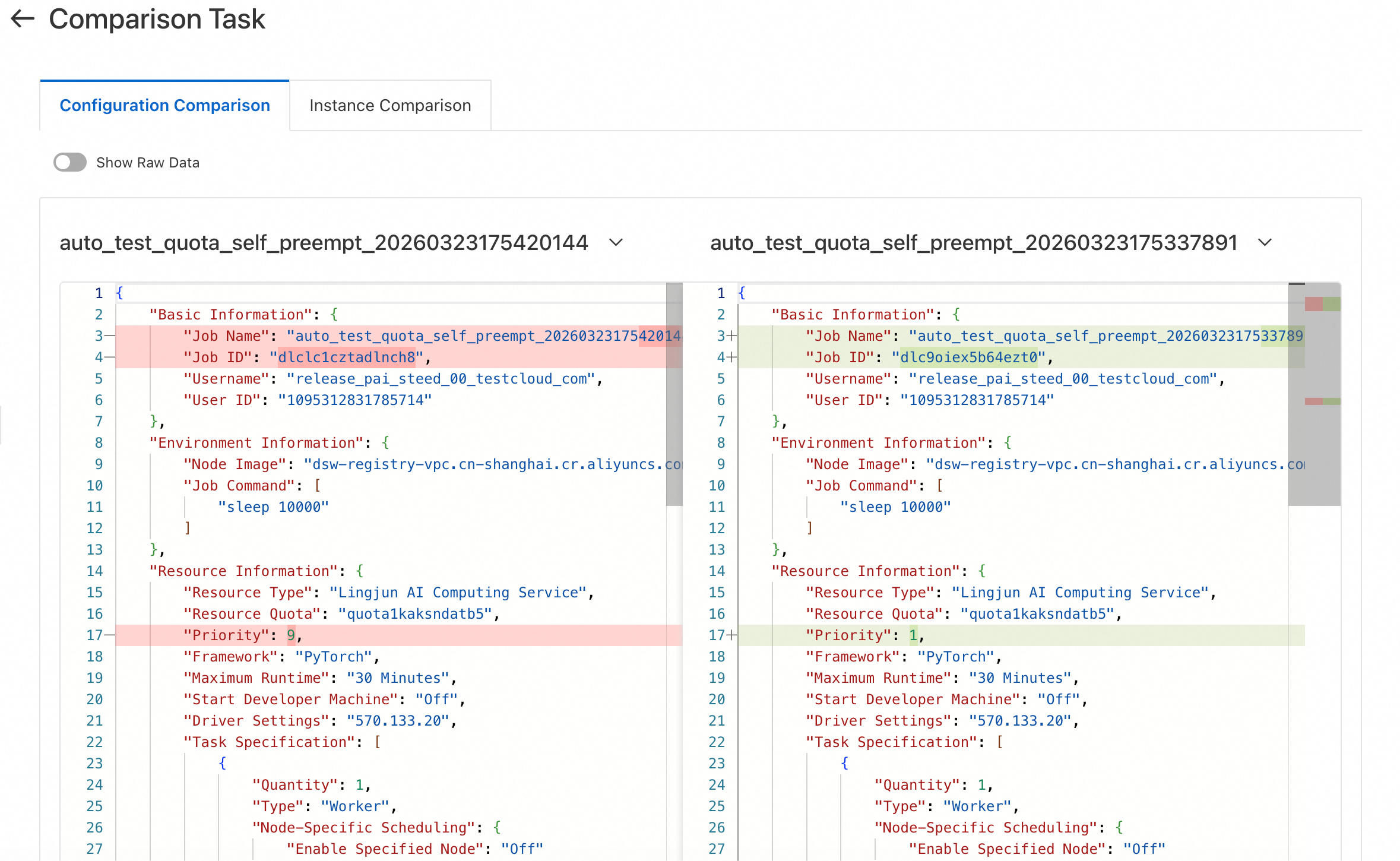
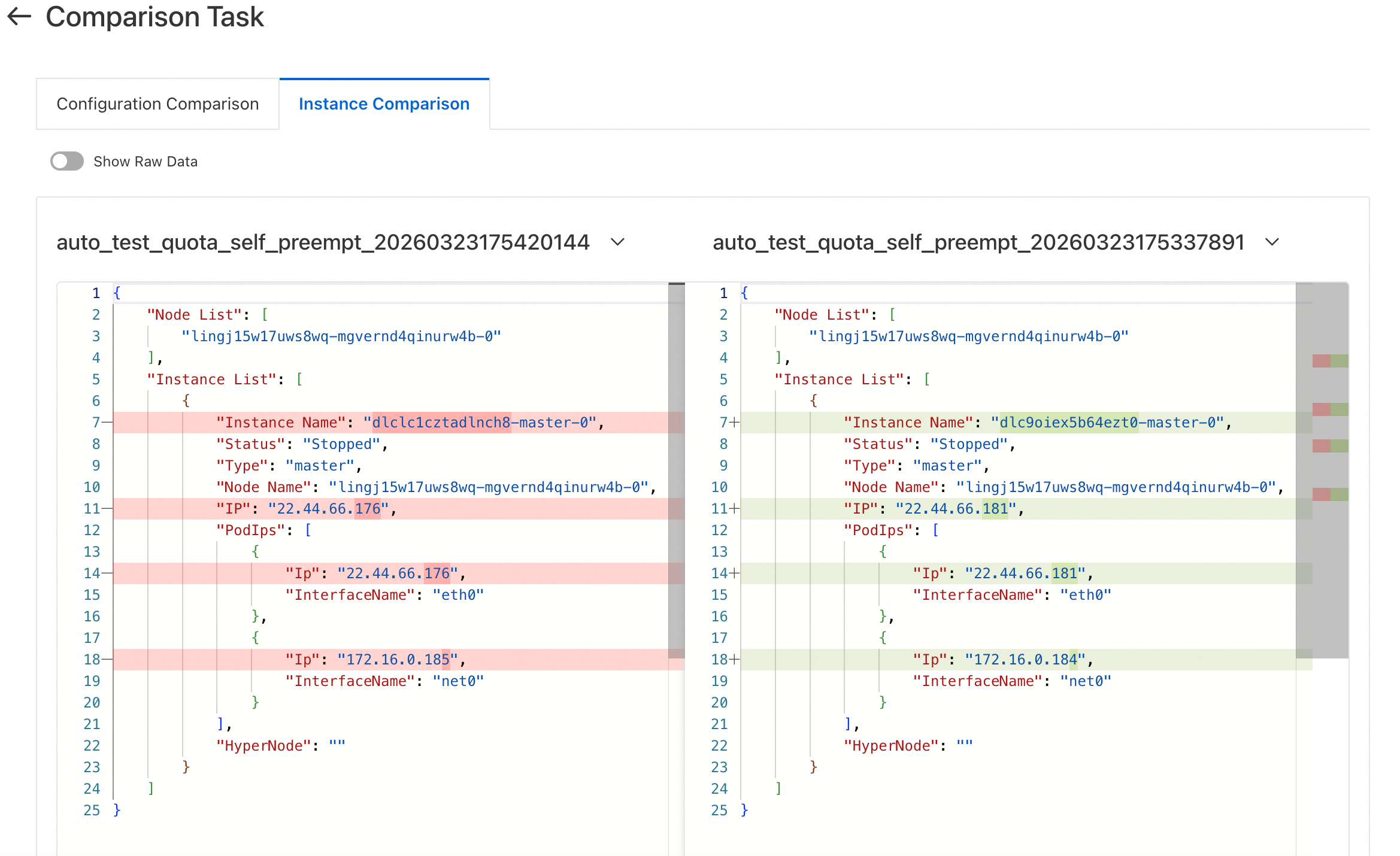
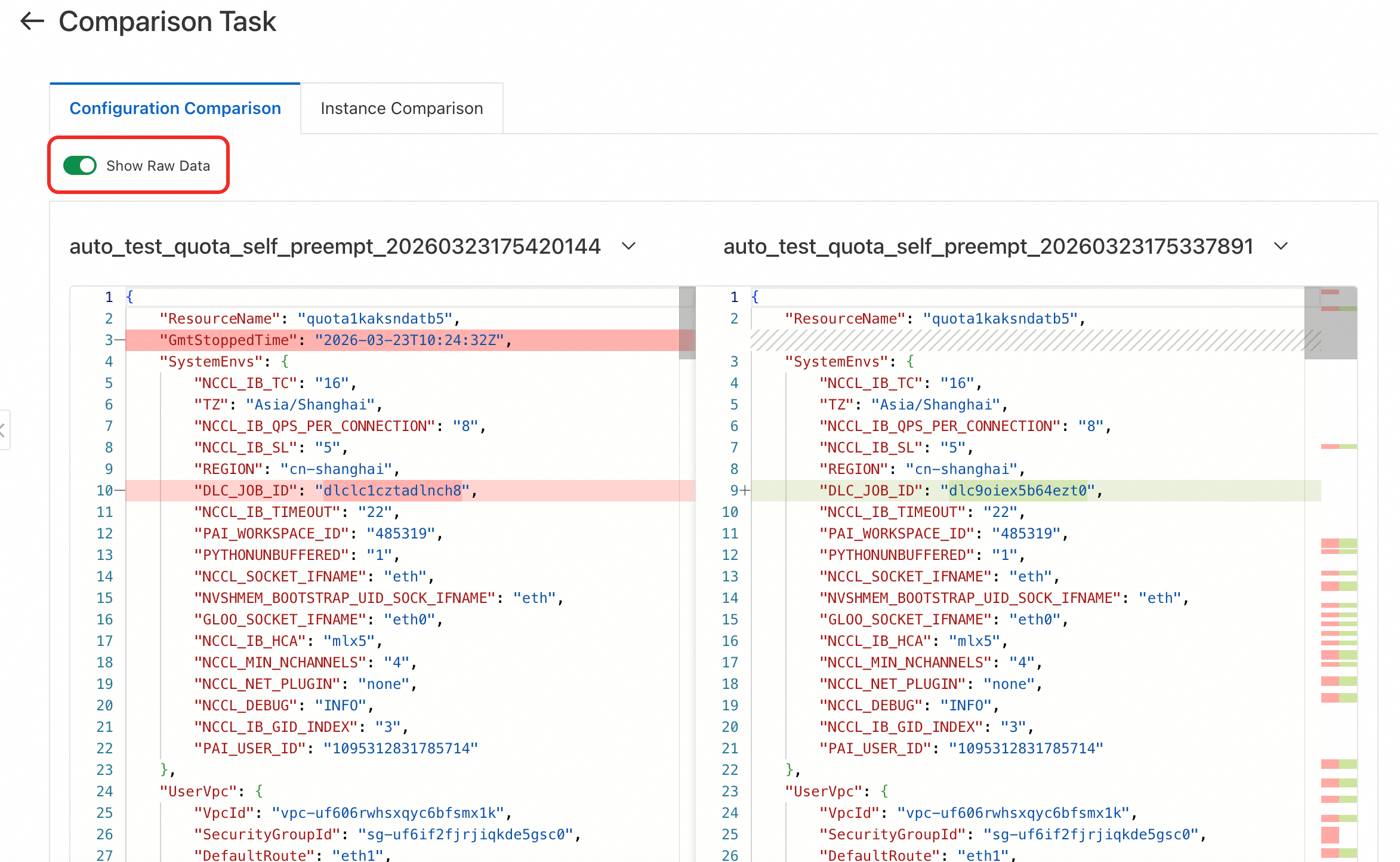
Analyze configuration and runtime differences. The comparison page displays the Configuration Comparison and Instance Comparison sections side-by-side.
-
Configuration Comparison: Differing configuration items, such as environment variables and startup commands, are highlighted in red and green for quick identification.
-
Instance Comparison: Shows the node list, instance status, and other runtime details to help you troubleshoot issues caused by environment changes.
-
-
Tips:
-
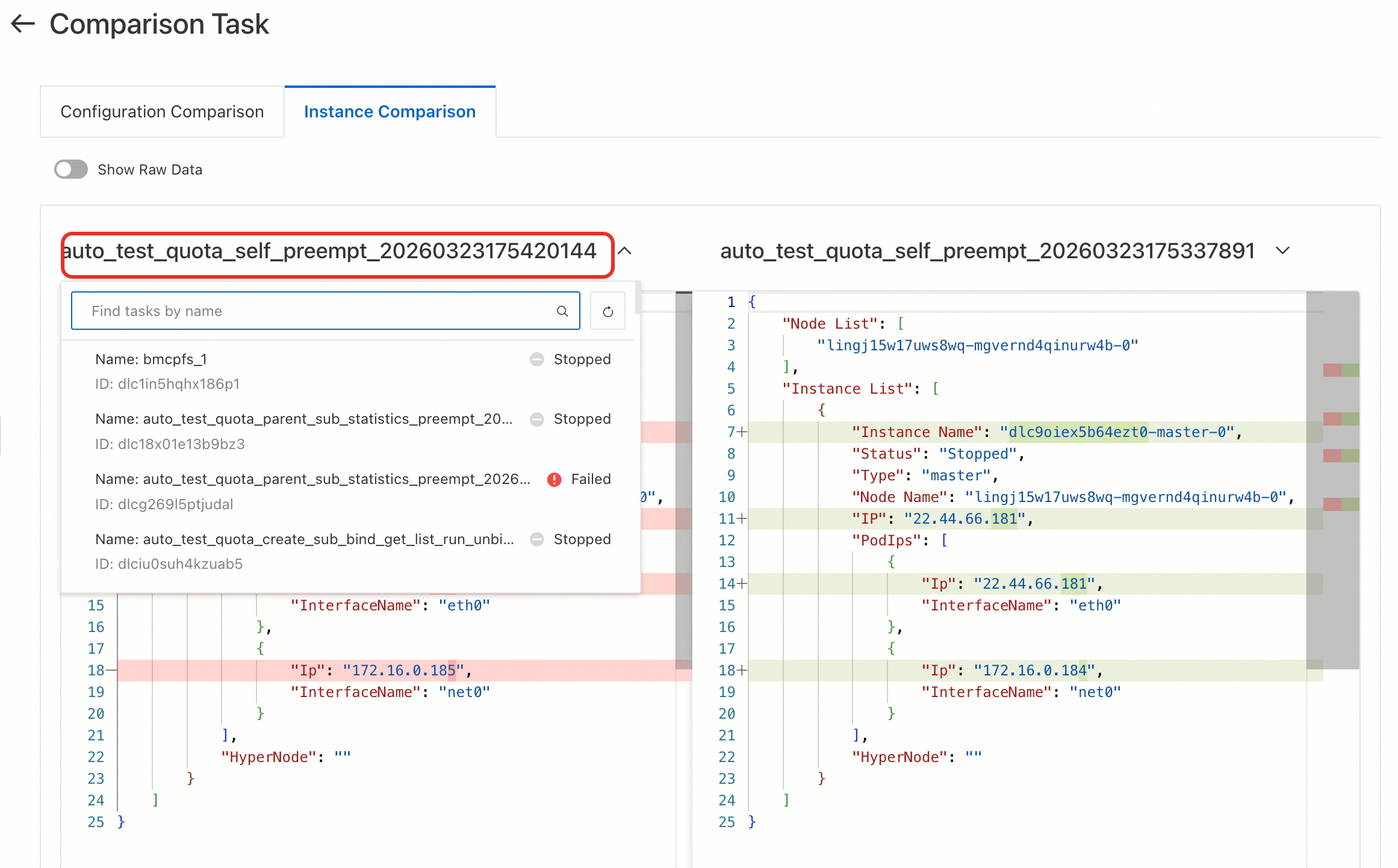
Quickly switch tasks: At the top of the comparison page, click a task name to select a different task for comparison without returning to the task list page.
-
View raw data: For a detailed comparison of API request parameters, enable the Show Raw Data switch in the upper-left corner.
-