Prerequisites
Before you use PPUs in PAI to develop and deploy models, you must first activate PAI and purchase PPU resources.
Important
Use a dedicated base image. The ml.gp7vf.40xlarge instance type uses the Zhenwu 810E as its accelerator chip and features a proprietary high-performance network card. You must use it with a dedicated PPU SDK, a high-performance networking suite, and other specific components. These components are available only through private channels, and their installation and configuration require specialized knowledge. Therefore, we strongly recommend using the dedicated base image for your development and training environment. For details about the dedicated images, see PAI-PPU official image overview.
Deploy a model service with PAI-EAS
EAS (Elastic Algorithm Service) is PAI's online model serving platform. It allows you to deploy models as online inference services or AI web applications with a single click. It provides features such as autoscaling, resource group management, version control, and resource monitoring. These features help you run high-concurrency, stable online model services at a lower cost. The following steps describe how to deploy a service by using EAS. For more details, see Model Serving (EAS).
Log on to the PAI console. In the upper-left corner, select a region that supports PPU resources. This topic uses China (Ulanqab) as an example.
NoteCurrently, the regions that support PPU resources include China (Ulanqab), China (Beijing), China (Shanghai), and China (Hangzhou).
In the left-side navigation pane, click Workspaces and select a workspace that has a PPU resource quota.
In the left-side navigation pane, choose Elastic Algorithm Service (EAS) > Deploy Service > Custom Deployment.
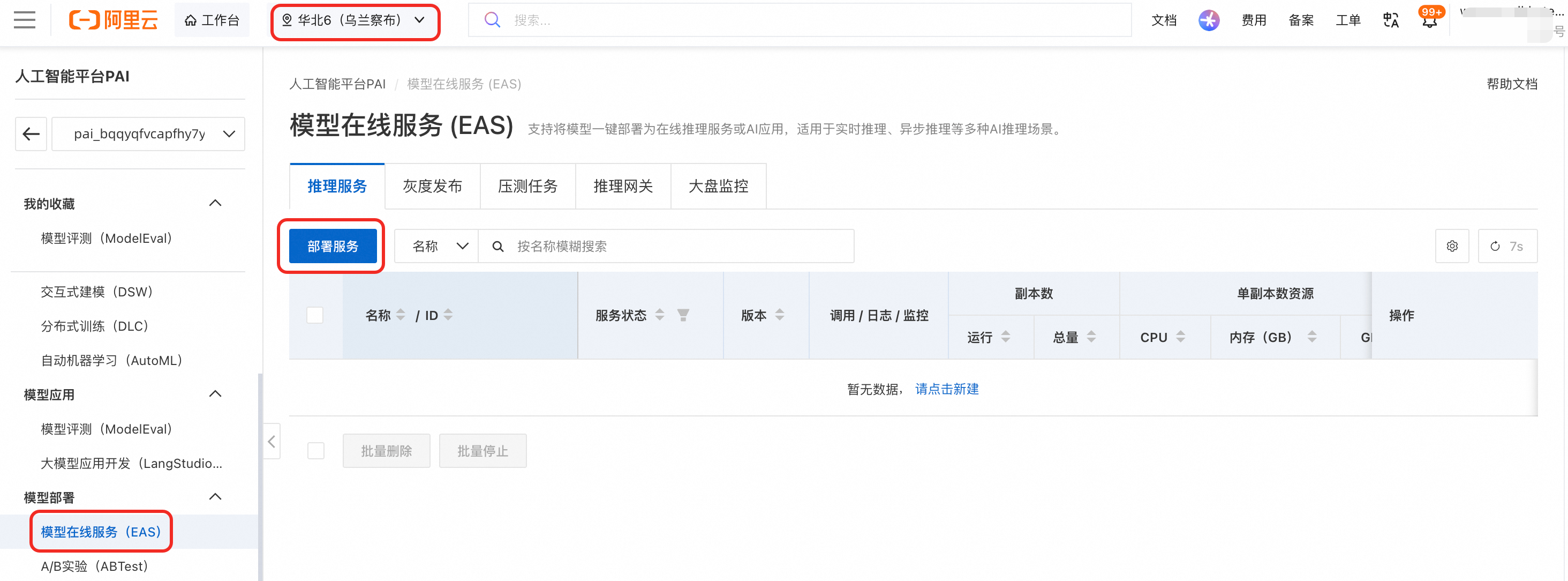
Configure the following key parameters. For a complete list of parameters, see Parameter reference for custom deployments in the EAS console.
Deployment Method: Select Image-based Deployment.
Image Configuration: Use a PPU-dedicated image. For example, select Alibaba Cloud Image, then search for and select
vllm:0.10.0-xpu1.6.1. For more details about the images, see PAI-PPU official image overview.Storage Mount: Specify the path to your model. For example, you can run the following code locally to download a model, upload it to OSS, and then configure the following parameters:
Uri: The OSS path to the model, such as
oss://ai4d-ri3iy******/modelscope_qwen/.Mount Path: Keep the default value
/mnt/data/.
Command to Run: Enter the command to start your model script. Using the preceding mount path as an example, the startup command is:
vllm serve /mnt/data/Qwen/Qwen3-8B --port 9000.Port Number: 9000
Resource Type: Select Resource Quota.
Resource Quota: Select the PPU resource quota that you created.
Deployment: Configure the GPU, CPU, and memory specifications as needed. For example, set GPU to 1 and CPU to 16.
After you configure the parameters, click Deploy. The service is deployed when its status changes to Running.
For online debugging and model invocation, see Online debugging and model invocation. Update the model name to "model": "model/mnt/data/Qwen/Qwen3-8B".
Create a PPU development environment with PAI-DSW
DSW (Data Science Workshop) is PAI's cloud-based IDE for machine learning. It integrates development environments such as Notebook, VSCode, and Terminal. DSW eliminates the need to manually purchase, install, and start ECS instances. DSW lets you quickly write, debug, and run AI model code. The following steps describe how to create a DSW instance. For more details, see DSW overview.
Log on to the PAI console. In the upper-left corner, select a region that supports PPU resources. This topic uses China (Ulanqab) as an example.
NoteCurrently, the regions that support PPU resources include China (Ulanqab), China (Beijing), China (Shanghai), and China (Hangzhou).
In the left-side navigation pane, click Workspaces and select a workspace that has a PPU resource quota.
In the left-side navigation pane, choose Interactive Modeling (DSW) > Create Instance.
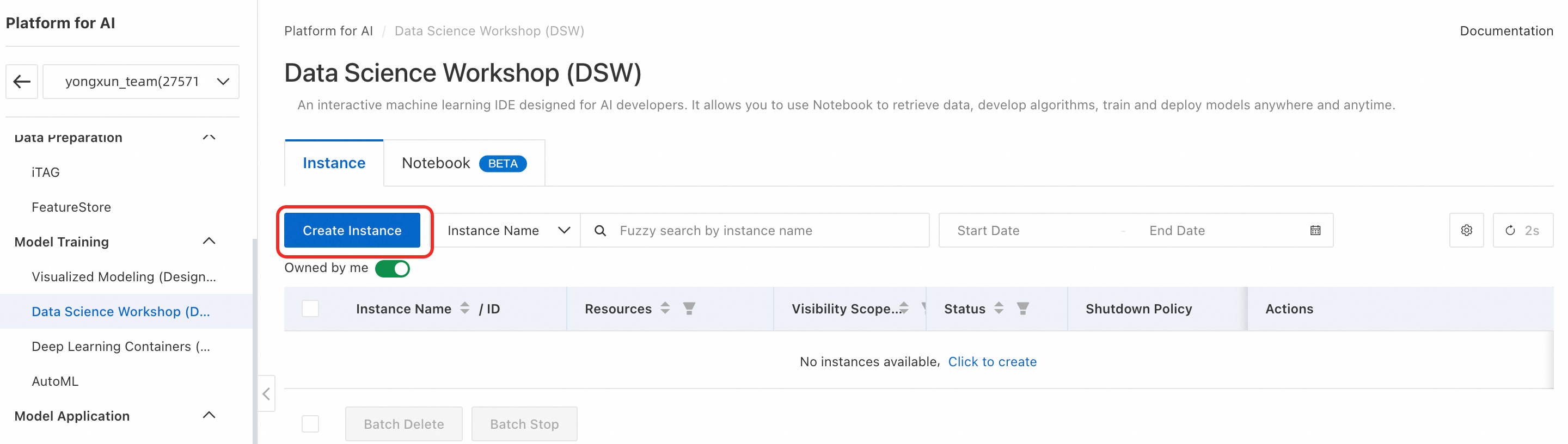
Configure the following key parameters. For a full list of parameters, see Create a DSW instance.
Resource Type: Select Resource Quota.
Resource Quota: Select the PPU resource quota that you created.
Instance Type: Configure the GPU, CPU, and memory specifications as needed.
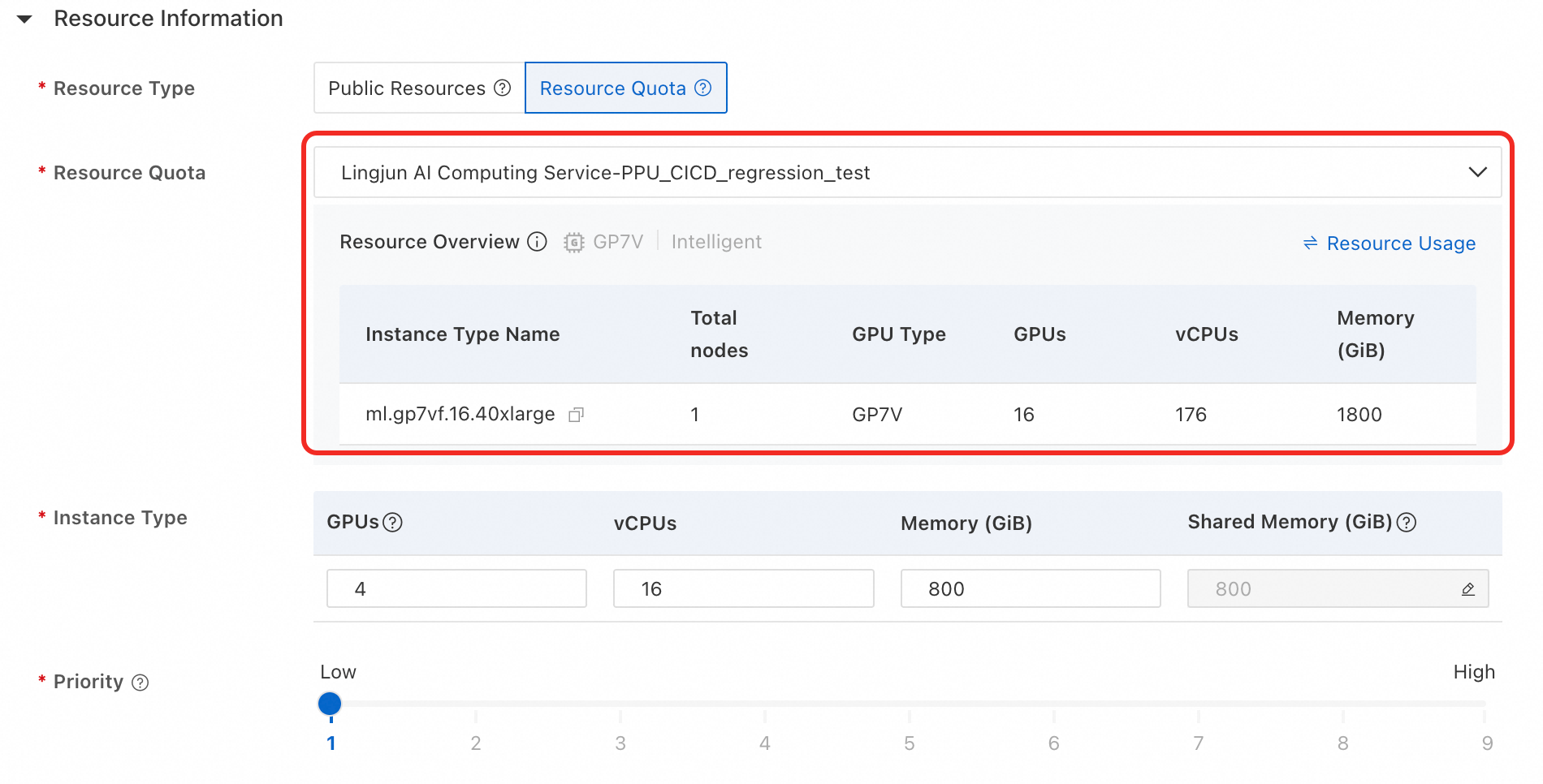
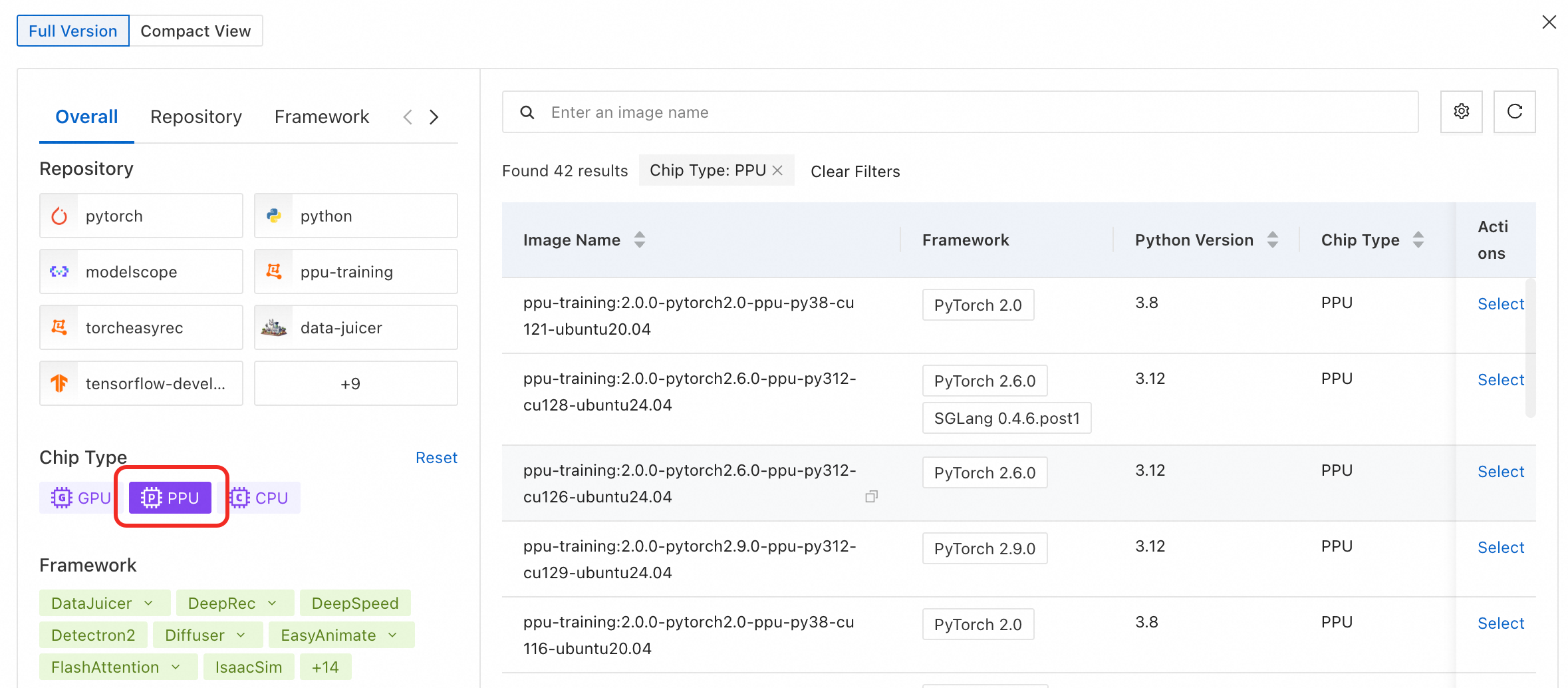
Image Configuration: Select Alibaba Cloud Image, then filter and select a PPU image. For more details about images, see PAI-PPU official image overview.
After you finish the configuration, click OK.
To learn how to use DSW and perform other PAI-DSW operations, see DSW core features.