Manually deploy a Stable Diffusion WebUI service
Stable Diffusion is an open source deep learning model that efficiently generates images from text prompts with low computing requirements. Alibaba Cloud offers Stable-Diffusion-WebUI, an AI model application built on Stable Diffusion that features a simple, easy-to-use UI. This topic describes how to manually deploy a Stable-Diffusion-WebUI service.
Solution overview
This solution shows how to use Platform of AI (PAI) Elastic Algorithm Service (EAS) to deploy Stable-Diffusion-WebUI and use it for AI art generation. The estimated cost to deploy and test this solution is no more than CNY 15. This estimate assumes you select the minimum PAI-EAS resource specifications and run the resources for no more than 60 minutes. If you change the resource specifications, the actual price on the console and your final bill will prevail.
This solution uses PAI Elastic Algorithm Service (EAS) to easily deploy Stable-Diffusion-WebUI (SD WebUI) in the cloud for AI art generation. The advantages and features are as follows:
Easy to use: Provides quick, out-of-the-box deployment. You can dynamically switch underlying resources, such as GPUs, as needed.
Enterprise-level features: A separate frontend and backend supports multi-user scheduling for multi-GPU clusters. It also supports user isolation and bill splitting.
Plugins and optimizations: Supports the PAI-Blade performance optimization tool. It includes the FileBrowser plugin, which lets users upload and download cloud models and images from their desktops. It also provides a self-developed ModelZoo plugin to accelerate open source model downloads.
Deployment types
PAI SD WebUI can be deployed in Basic, Cluster, or API editions. All three editions use the same deployment process.
Basic Edition: For individual users. This solution provides a cloud-based WebUI service with the same user experience as a desktop application. It supports a purely interface-driven operation and a simple deployment method.
Cluster Edition: For enterprise customers. This solution provides a WebUI cluster service that supports multi-GPU scheduling, user identification, and isolation. The Cluster Edition is suitable for users with dedicated IT or Operations and Maintenance (O&M) support. It offers more configurable parameters for IT and O&M staff. Art or design users can also deploy and use the Cluster Edition after a brief introduction. For more information, see Deploy a Stable Diffusion API service in 5 minutes using EAS.
API Edition: Recommended for building business systems on the WebUI and for custom development. You can deploy using the asynchronous API mode and access it through APIs to achieve horizontal scaling of multiple instances. Combined with EAS asynchronous inference, you can use features such as request queuing, asynchronous inference, load balancing, and automatic scaling. The community WebUI provides standard text-to-image and image-to-image interfaces. PAI has customized and optimized these interfaces for distributed cloud scenarios.
Solution architecture
During deployment, you can use the default settings provided in this solution or modify them based on your resource planning. After deployment, the architecture is as follows:
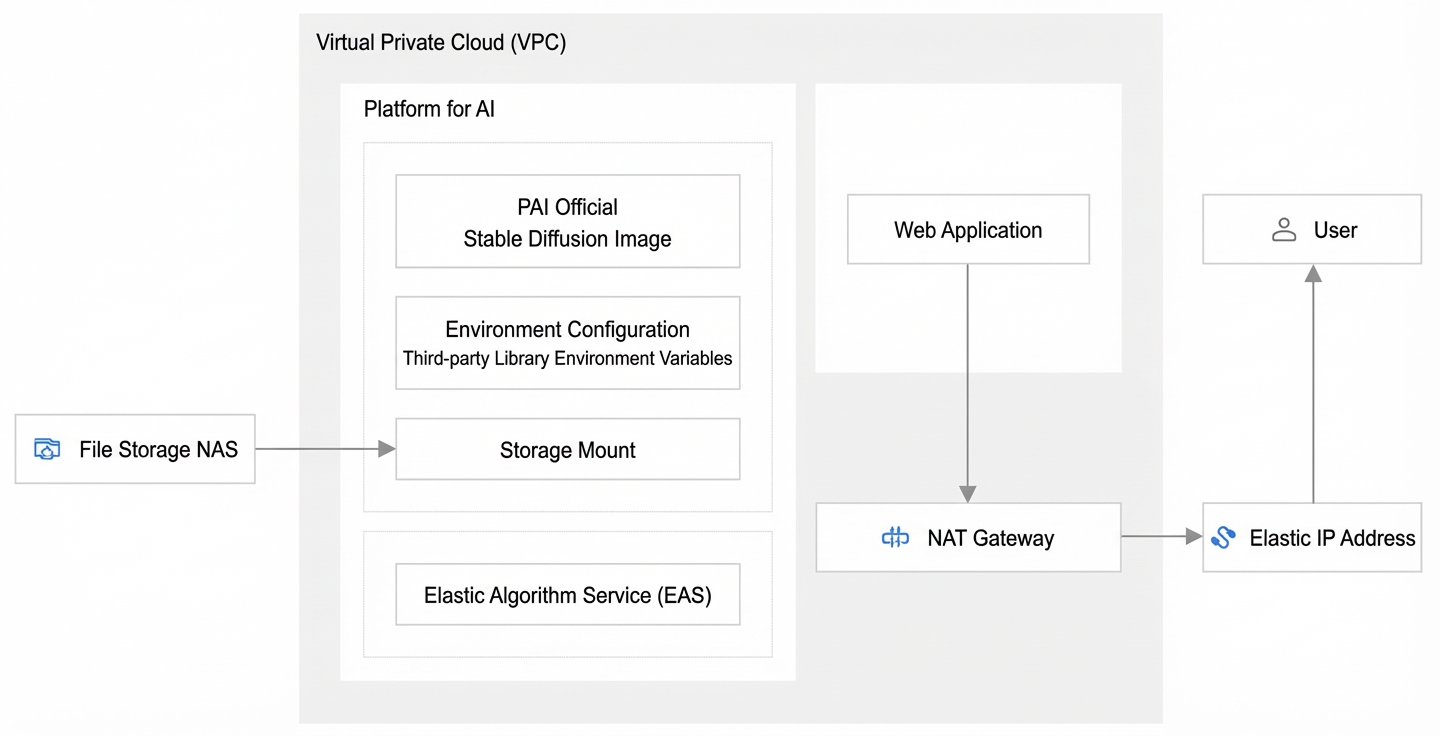
The technical architecture of this solution includes the following infrastructure and Alibaba Cloud services:
Virtual Private Cloud (VPC): Forms a private network in the cloud.
vSwitch: Provides basic network segmentation and isolation.
Internet NAT gateway: Forwards requests from resources in a private network to the internet. This allows private resources to provide services to external users.
Elastic IP Address: Used with a NAT gateway to help users manage and use public network resources more flexibly. It enables features such as outbound traffic forwarding, inbound address translation, and public network access.
Security group: Used to control inbound and outbound network traffic for cloud resources in the VPC.
Storage system: File Storage NAS is recommended. It offers large capacity, cost-effectiveness, and scalability. It is suitable for general-purpose file sharing and for storing results generated by SD WebUI.
PAI EAS instance: Used to deploy SD WebUI.
Plan network and resources
When planning your network and resources, you can make adjustments based on your actual environment. The planning items are described as follows:
Plan network
Planning item | Description |
Region | This solution uses the Singapore region. For the basic principles of selecting a region, see Regions and zones. After you enable an Elastic IP Address in the Singapore region, you can access Civitai and GitHub with high and stable network speeds. You can download plugins and Civitai models directly through the WebUI. The WebUI experience is consistent with deployments in mainland China regions. For these reasons, the Singapore region is recommended. |
VPC | This solution creates one VPC to serve as a private network. You can create your own dedicated virtual network in Alibaba Cloud for isolation and privacy. VPC also provides flexible features such as IP address management, subnetting, and network access control. |
vSwitch | This solution creates one vSwitch when creating the VPC. Forwards data packets and connects network resources in a subnet within a VPC. |
Internet NAT gateway | This solution creates one Internet NAT gateway in the VPC. Alibaba Cloud provides this network forwarding device to forward requests from private network resources to the internet. This allows private resources to provide services externally. |
Elastic IP Address | This solution creates one Elastic IP Address along with the Internet NAT gateway. Alibaba Cloud provides this public network access service. It can be used with a NAT gateway to help you implement features such as outbound traffic forwarding, inbound address translation, and public network access. This lets you manage and use public network resources more flexibly. |
Security group | This solution creates one security group. A security group is used to define inbound and outbound network traffic rules for ECS instances in a VPC. |
Plan cloud resources
Planning item | Description |
PAI Elastic Algorithm Service (EAS) | This solution deploys SD WebUI on PAI Elastic Algorithm Service (EAS). |
File Storage NAS (Recommended) | This solution recommends using NAS for shared storage. A standalone, high-performance storage product on Alibaba Cloud that is integrated with the PAI SD WebUI solution. After mounting a File Storage NAS file system, you can quickly and conveniently store and use the various results generated by SD WebUI. |
Deploy resources
After planning your resources, follow the steps below to deploy all resources for the solution. For more information about deploying resources, see the Appendix.
Create a VPC and vSwitch
In this solution, you need to create one VPC and one vSwitch.
Log on to the VPC console.
In the top navigation bar, select the Singapore region.
In the navigation pane on the left, click Virtual Private Cloud.
On the Virtual Private Cloud page, click Create VPC to create one VPC and one vSwitch. Configure the key parameters as follows and keep the default values for the rest:
Parameter
Example value
Description
VPC
Name
vpc_SDWebUI
VPC name. Create a new VPC during deployment to use as the virtual private cloud (VPC) for this solution.
IPv4 CIDR block
192.168.0.0/16
When you create a VPC, you must specify a private CIDR block for it in Classless Inter-Domain Routing (CIDR) format. For information about the CIDR blocks supported by Alibaba Cloud VPC, see VPC components.
When planning your network, it is important to organize your CIDR blocks, for example, by management, development, testing, and production networks. Adjusting CIDR blocks after they are in use is a complex process, so careful planning is crucial.
vSwitch
Name
vswitch_SDWebUI
The name of the virtual switch.
Zone
Singapore Zone A
Select a zone within the planned region. The vSwitch is deployed in this zone.
We recommend selecting a zone that appears later in the list, as these are typically newer. Newer zones have more abundant resources, and new instance types are often launched there first.
IPv4 CIDR block
192.168.0.0/24
Configure the IPv4 CIDR block for the vSwitch. It must be a true subset of the VPC's CIDR block.
Click OK to create the VPC and vSwitch.
Create an Internet NAT gateway and an Elastic IP Address
You have created a vSwitch in a zone within your VPC. Next, create an Internet NAT gateway and an Elastic IP Address.
Log on to the VPC console.
In the top navigation bar, select the Singapore region.
In the navigation pane on the left, select .
On the Internet NAT Gateway page, click Create NAT Gateway to create one Internet NAT gateway and one Elastic IP Address. Configure the key parameters as follows and keep the default values for the rest:
Parameter
Example value
Description
Tag Key
WebUI
An identifier for the resource. The name of the category.
Tag Value
SD_WebUI
The specific value associated with the tag key.
Network and Zone
VPC: vpc_SDWebUI/****
vSwitch: vswitch_SDWebUI/****
The VPC to which the NAT gateway belongs.
This solution uses the VPC created in the previous step.
The vSwitch associated with the NAT gateway.
This solution uses the vSwitch created in the previous step.
Instance Name
nat_SDWebUI
The name of the NAT gateway instance.
Elastic IP Address
Purchase New EIP
You can select an existing Elastic IP Address or purchase a new one.
Peak Bandwidth
200 Mbps
Set the peak bandwidth. You can adjust the peak bandwidth at any time.
Click Buy Now to create the Internet NAT gateway and Elastic IP Address.
After the Internet NAT gateway is created, return to the Internet NAT Gateway page. Click the ID of the target instance, switch to the SNAT Management tab, and create an SNAT entry. Set SNAT Entry Granularity to VPC.
Create a security group
You have created a vSwitch in a zone within your VPC. Next, create a security group to control network traffic to and from the cloud resources in this VPC.
In the navigation pane on the left, select .
In the top navigation bar, select the Singapore region.
On the Security Groups page, click Create Security Group to create a security group. Configure the key parameters as follows and keep the default values for the rest:
Parameter
Example value
Description
Security Group Name
sg_SDWebUI
Set the name for the security group.
Network
****/vpc_SDWebUI
Select the VPC created in the previous step.
Security Group Type
Basic Security Group
This solution uses a basic security group to allow outbound access to all public network addresses. For actual deployments, we recommend using an enterprise security group for higher security.
Inbound
80and443This solution uses the default open ports 80 and 443. Delete other port numbers.
Click Create Security Group to create the security group.
Create a File Storage NAS file system
When deploying the model service, we recommend mounting a Performance NAS file system to improve the speed of model switching and image generation. Therefore, you need to create a General-purpose NAS file system.
In the navigation pane on the left, select .
In the top navigation bar, select the Singapore region.
On the File Systems page, click Create File System, and select Create General-purpose NAS. Configure the key parameters as follows and keep the default values for the rest:
Parameter
Example value
Description
Storage Type
Performance
Select the type for the General-purpose NAS file system. We recommend selecting Performance for faster model switching and image generation.
VPC
vpc_SDWebUI
Select the VPC created in the previous step.
vSwitch
vswitch_SDWebUI
Select the vSwitch created in the previous step.
Click Buy Now to create the File Storage NAS file system.
After the creation is complete, on the File System List page, click the
 icon next to the File System ID/Name to rename the file system. In this solution, rename it to nas_SDWebUI.
Deploy the PAI-EAS model service
After deploying the resources, you can deploy the SD WebUI model service. This solution uses the deployment of a Cluster Edition model service as an example. The procedure is as follows:
Log on to the PAI console.
In the top navigation bar, select the Singapore region.
In the navigation pane on the left, click Workspace List. On the Workspace List page, click a workspace name to enter the corresponding workspace. If no workspaces are available, see Create and manage workspaces.
On the workspace page, in the navigation pane on the left, select to go to the Elastic Algorithm Service (EAS) page.
On the Inference Services tab, click Deploy Service. Select Custom Deployment. On the Custom Deployment page, configure the following key parameters and keep the default values for the rest:
Parameter
Example value
Description
Basic Information
Service Name
sdwebui
A custom service name. It must be unique within the same region.
Environment Information
Deployment Method
Select Deploy with Image and select Enable Web Application.
The deployment method for the service.
Image Configuration
Image Type: Alibaba Cloud Image
Image Name: stable-diffusion-webui > stable-diffusion-webui:4.2-cluster-webui.
NoteWe recommend selecting the latest cluster version.
Select the image for SD WebUI. This solution uses the deployment of a Cluster Edition model service as an example.
Storage Configuration
Configuration Type: General-purpose NAS
Select File System: Select the NAS file system.
File System Mount Target: nas_SDWebUI and the corresponding mount target
File System Path:
/Mount Path:
/code/stable-diffusion-webui/data-nas
Select the shared storage to mount, the mount target, and the mount path.
Run Command
./webui.sh --listen --port 8000 --skip-version-check --no-hashing --no-download-sd-model --skip-install --api --filebrowser --cluster-status --sd-dynamic-cache --data-dir /code/stable-diffusion-webui/data-nasAfter you complete the preceding configurations, the system automatically generates the corresponding run command. You need to modify it based on the example value:
After mounting the NAS file system, add the following command to the run command:
--data-dir /code/stable-diffusion-webui/data-nas.(Optional) You can also add the
--bladeparameter to the command to enable Blade acceleration and increase image generation speed. For more parameter descriptions, see Appendix.
Port Number
8000
After you complete the preceding configurations, the system automatically generates the corresponding port number.
Resource Information
Resource Type
Public Resources
Select the resources used to deploy and run the service.
Number of Instances
1
The number of service instances.
Deployment Resources
Resource Type: GPU
Specifications: ecs.gn6i-c16g1.4xlarge
We recommend using a GPU type, such as the ecs.gn6i-c16g1.4xlarge instance type.
Service Access
VPC
vpc_SDWebUI (auto-matched)
The system automatically matches the VPC and vSwitch of the NAS file system. No extra configuration is needed. You must manually select the security group name.
vSwitch
vswitch_SDWebUI (auto-matched)
Security Group Name
sg_SDWebUI (manual selection required)
After you complete the preceding configurations, a corresponding JSON file is automatically generated in the Service Configuration area.
Click Deploy. The model deployment takes about 5 to 10 minutes to complete.
Solution validation
After you complete the preceding operations, you have successfully deployed the SD WebUI Cluster Edition. You can start the WebUI page to verify the model inference.
On the Elastic Algorithm Service (EAS) page, click the name of the model service you deployed in the previous step. In the upper-right corner of the page, click View Web App.
When you log on for the first time, wait about 5 minutes on your workspace home page, and then click Enter Stable Diffusion WebUI to go to the WebUI page.
On the SD WebUI page, on the txt2img tab, enter a positive prompt, such as
a monkey is eating a green banana. Then, click Generate to create the AI art.After you go to the WebUI page, the txt2img tab is displayed by default. At the top of the page, you can select a Stable Diffusion model and a VAE model. The main area contains positive prompt and negative prompt input fields. In the lower-left area, you can configure generation parameters such as the sampling method, sampling steps, image size, and CFG scale. Click Generate to generate images based on the prompts.
You can then use SD WebUI to perform tasks such as text-to-image and image-to-image generation. You can also use it for post-processing, model merging, and training. In addition, you can use FileBrowser for file management. FileBrowser supports uploading and downloading cloud models and images from your desktop.
Clean up resources
In this solution, you deployed one PAI-EAS service and created one VPC, one vSwitch, one Internet NAT gateway, one Elastic IP Address, one security group, and one File Storage NAS file system (if you used NAS for storage). After you test the solution, you can release the instances of the corresponding products as described below to avoid further charges:
Release the PAI EAS model service:
Log on to the PAI console. In the top navigation bar, select the destination region and the target workspace. Then, click Go to EAS. On the Inference Services tab, find the target service and click Delete in the Actions column. Follow the on-screen instructions to delete the service.
Release the Internet NAT gateway:
Log on to the VPC console. On the page, click the target gateway instance ID and switch to the SNAT Management tab. Then, in the Actions column, click Delete to delete the SNAT entry.
Switch to the Associated EIPs tab. In the Actions column of the target Elastic IP Address, click Unbind.
Return to the Internet NAT Gateway page. In the Actions column of the target Internet NAT gateway, click Delete.
Release the Elastic IP Address:
Log on to the VPC console, and on the page, find the target Elastic IP Address and click Release in the Actions column.
Delete the File Storage NAS file system:
Log on to the File Storage NAS console. On the page, find the target File Storage NAS file system and click Delete in the Actions column.
Release the vSwitch:
Log on to the VPC console. On the vSwitches page, find the target vSwitch, and then click Delete in the Actions column. Follow the on-screen instructions to release the vSwitch.
Release the security group:
Log on to the ECS console, select , find the target security group, and then click Delete in the Actions column.
Release the VPC:
Log on to the VPC console. On the VPCs page, find the target VPC, and then click Delete in the Actions column. Follow the on-screen instructions to release the VPC.
References
EAS provides a scenario-based deployment method for Stable Diffusion. You only need to configure a few parameters to deploy a service based on Stable Diffusion WebUI with one click. For more information about the supported deployment types, deployment process, invocation methods, and FAQ, see AI Art - SDWebUI Deployment.
Appendix
Deployment and usage tips
Deployment region: We recommend deploying the service in Singapore
After you enable an Elastic IP Address in the Singapore region, you can access Civitai and GitHub with high and stable network speeds. You can download plugins and Civitai models directly through the WebUI. The WebUI experience is consistent with deployments in mainland China regions.
Because of network issues in mainland China regions, you cannot download Civitai models or plugins directly in the WebUI. You must download them locally and then upload them to the cloud service.
Shared storage: We recommend using NAS for shared storage and using the
--data-dirparameter during deploymentThis operation places core content, such as models and images, in shared storage. This ensures that service restarts, deletions, and recreations do not affect your data.
You can choose OSS or NAS for shared storage. We recommend NAS (General-purpose NAS, Performance type). In scenarios such as model switching and using the image gallery browser, NAS is more than four times faster than OSS.
If you use an Object Storage Service (OSS) bucket, performance is low when switching models, which affects the user experience. To store all images in OSS, you can configure the service to store models in NAS and generated images in OSS.
Version and deployment method selection: We recommend selecting the latest version
x.x-standard: Recommended for single-user testing and verification. This is a standard, single-instance deployment in UI mode. It can only deploy a single instance, has no distributed capabilities, and is basically the same as the community WebUI.
x.x-cluster-webui: Recommended for scenarios with multi-person teams, such as art and design departments, where cost savings are a priority. This is a multi-tenant cluster mode with a UI. It supports multiple users using the frontend interface simultaneously, but resources are isolated. This includes models, LoRA, plugins, and output images. Each user's frontend supports personalized settings, and shared model settings are also available. The backend inference service can be scaled like a normal EAS service, supporting scheduled and automatic scaling. It can scale based on the actual number of online users and requests, minimizing service running costs.
x.x-api: Recommended for building business systems on the WebUI and for custom development. You can deploy using the asynchronous API mode and access it through APIs to achieve horizontal scaling of multiple instances. Combined with EAS asynchronous inference, you can use features such as request queuing, asynchronous inference, load balancing, and automatic scaling. The community WebUI provides standard text-to-image and image-to-image interfaces. PAI has customized and optimized these interfaces for distributed cloud scenarios.
If you have questions about selecting a scenario, contact your account manager.
Model upload
Upload using the FileBrowser plugin. This is suitable for uploading smaller files, such as LoRA files. Batch uploading multiple large base models over 4 GB has a higher failure rate. Suitable for daily use by art teams.
Upload using ossutil or by mounting NAS on an ECS instance. This is suitable for batch uploading large base models and requires some IT knowledge. Suitable for O&M or technical teams to perform a one-time upload for art teams.
Model download
After installing the Civitai Helper plugin, you can download Civitai models directly. Suitable for use by art teams.
Use the SSH feature provided by EAS to log on to the container and download using commands. Suitable for O&M or technical teams to assist art teams.
Service startup parameters
Common parameters
Common parameter
Feature description
Usage recommendation
--blade
Enables PAI-Blade acceleration to improve image generation speed.
Recommended.
--filebrowser
A plugin that lets you upload and download models or images.
Enabled by default.
--data-dir /code/stable-diffusion-webui/data-oss
The mount path for persistent storage.
Use when mounting persistent storage. The default starting path is
/code/stable-diffusion-webui/. You can also use a relative path.--api
The API invocation mode for the WebUI.
Enabled by default.
--enable-nsfw-censor
Disabled by default. If you have security and compliance requirements, you can enable the pornography detection and filtering feature.
Adjust as needed.
--always-hide-tabs
Specifies that some tabs are hidden.
Adjust as needed.
--min-ram-reserved 40 --sd-dynamic-cache
Caches the Stable Diffusion large model in memory.
None.
Cluster Edition parameters
NoteThe large ckpt models and ControlNet models automatically load files from the public directory and your custom files.
Cluster Edition parameter
Feature description
Usage recommendation
--lora-dir
Specifies the public LoRA model directory. Example:
--lora-dir /code/stable-diffusion-webui/data-oss/models/Lora.By default, this is not configured. All user LoRA directories are isolated, and only LoRA models in the user's folder are loaded. When a specific directory is specified, all users will load both the LoRA models in this public directory and the LoRA models in their own folders.
--vae-dir
Specifies the public VAE model directory. Example:
--vae-dir /code/stable-diffusion-webui/data-oss/models/VAE.By default, this is not configured. All user VAE directories are isolated, and only VAE models in the user's folder are loaded. When a specific directory is specified, all users will only load the VAE models from this public directory.
--gfpgan-dir
Specifies the public GFPGAN model directory. Example:
--gfpgan-dir /code/stable-diffusion-webui/data-oss/models/GFPGAN.By default, this is not configured. All user GFPGAN directories are isolated, and only GFPGAN models in the user's folder are loaded. When a specific directory is specified, all users will only load the GFPGAN models from this public directory.
--embeddings-dir
Specifies the public embeddings model directory. Example:
--embeddings-dir /code/stable-diffusion-webui/data-oss/embeddings.By default, this is not configured. All user embeddings directories are isolated, and only embeddings models in the user's folder are loaded. When a specific directory is specified, all users will only load the embeddings models from this public directory.
--hypernetwork-dir
Specifies the public hypernetwork model directory. Example:
--hypernetwork-dir /code/stable-diffusion-webui/data-oss/models/hypernetworks.By default, this is not configured. All user hypernetwork directories are isolated, and only hypernetwork models in the user's folder are loaded. When a specific directory is specified, all users will only load the hypernetwork models from this public directory.
--root-extensions
Uses a shared directory for plugins. After using this parameter, all users see the exact same plugins.
Use this parameter when you need to install or manage plugins centrally.