Raw GitHub code data contains privacy risks, noise, and near-duplicate files that degrade large language model (LLM) training quality. This tutorial shows you how to use the built-in LLM data processing components in PAI (Platform for AI) to clean 5,000 samples from the open source RedPajama project — covering sensitive data masking, noise removal, quality filtering, and deduplication.
Prerequisites
Before you begin, ensure that you have:
A workspace. See Create and manage a workspace
MaxCompute resources associated with the workspace. See Manage a workspace
How it works
The LLM Data Processing - GitHub Code preset template builds a nine-stage pipeline. Each component passes its output to the next, so only samples that pass every filter reach the final data table.
| Stage | Component | Problem it solves | What it does |
|---|---|---|---|
| 1 | LLM-MaskSensitiveInfo-1 | Training data contains real personally identifiable information (PII) that the model could reproduce | Replaces email addresses with [EMAIL], phone numbers with [TELEPHONE] or [MOBILEPHONE], and ID card numbers with IDNUM |
| 2 | LLM-RemoveSpecialContent-1 | URLs add noise and skew the model toward learning URL patterns instead of code logic | Deletes all URLs from the content field |
| 3 | LLM-NormalizeText-1 | Scraped code repositories often contain improperly encoded Unicode characters from mixed-encoding environments | Applies Unicode normalization to the content field |
| 4 | LLM-RemoveCopyright-1 | Copyright headers repeat across many files and add redundant tokens that inflate training cost without improving quality | Deletes copyright information from the content field |
| 5 | LLM-CountFilter-1 | Raw GitHub data includes binary files, configuration dumps, and other non-code content | Removes samples where the ratio of letters and digits falls below the threshold. GitHub code is predominantly alphanumeric, so a low ratio indicates binary or non-code data |
| 6 | LLM-LengthFilter-1 | Very short files are often auto-generated stubs; files with very long lines are often minified or obfuscated | Filters by total content length, average line length, and maximum line length. Line lengths are measured by splitting on the newline character (\n) |
| 7 | LLM-FilterByNGramRepetitionRatio-1 | Repetitive code — such as auto-generated getters and setters — degrades training quality | Uses a sliding window of size N to generate character-level and word-level grams. Computes the repetition ratio as (grams appearing more than once) / (all grams) and removes samples above the threshold. Word-level statistics use lowercase comparison |
| 8 | LLM-LengthFilter-2 | Files with too few or too many words are outliers that hurt model generalization | Splits each sample into words on spaces and filters by word count |
| 9 | LLM-DeduplicateByMinHash-1 | Near-duplicate files (for example, copied code with minor formatting edits) inflate the training set and cause overfitting | Removes similar text using MinHash |
Clean and process GitHub code data
Step 1: Open Machine Learning Designer
Log on to the PAI console.
In the left-side navigation pane, click Workspaces. On the Workspaces page, click the name of your workspace.
In the left-side navigation pane, choose Model Training > Visualized Modeling (Designer).
Step 2: Build the workflow from a preset template
On the Machine Learning Designer page, click the Preset Templates tab.
On the LLM tab, find LLM Data Processing - GitHub Code and click Create.
In the Create Workflow dialog box, configure the parameters and click OK. Default values work for this tutorial.
The Workflow Data Storage parameter sets the path of the OSS bucket used to store data that is generated when the workflow runs.
In the workflow list, double-click the workflow to open it. The system automatically assembles the nine-component pipeline from the preset template:

Step 3: Review the component behavior
The following examples show the data transformations applied by key components.
LLM-MaskSensitiveInfo-1 replaces email addresses, phone numbers, and ID card numbers with placeholders:
Before:

After: !Email replaced with [EMAIL]
LLM-RemoveSpecialContent-1 deletes all URLs from the content field:
Before:
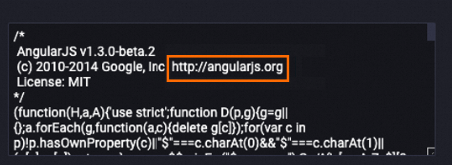
After:

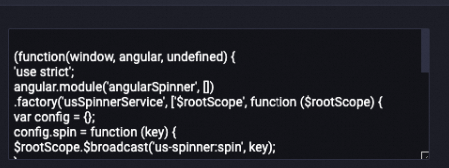
LLM-RemoveCopyright-1 deletes copyright information from the content field:
Before:
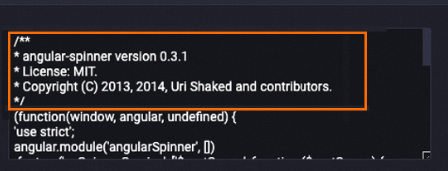
After:

![Email replaced with [EMAIL]](https://help-static-aliyun-doc.aliyuncs.com/assets/img/en-US/3397441171/p767135.png)
LLM-CountFilter-1 removes samples with a low alphanumeric ratio:

LLM-LengthFilter-1 removes samples that are too short or have excessively long lines:

Step 4: Run the workflow
Click the Run button  above the canvas.
Step 5: View the output
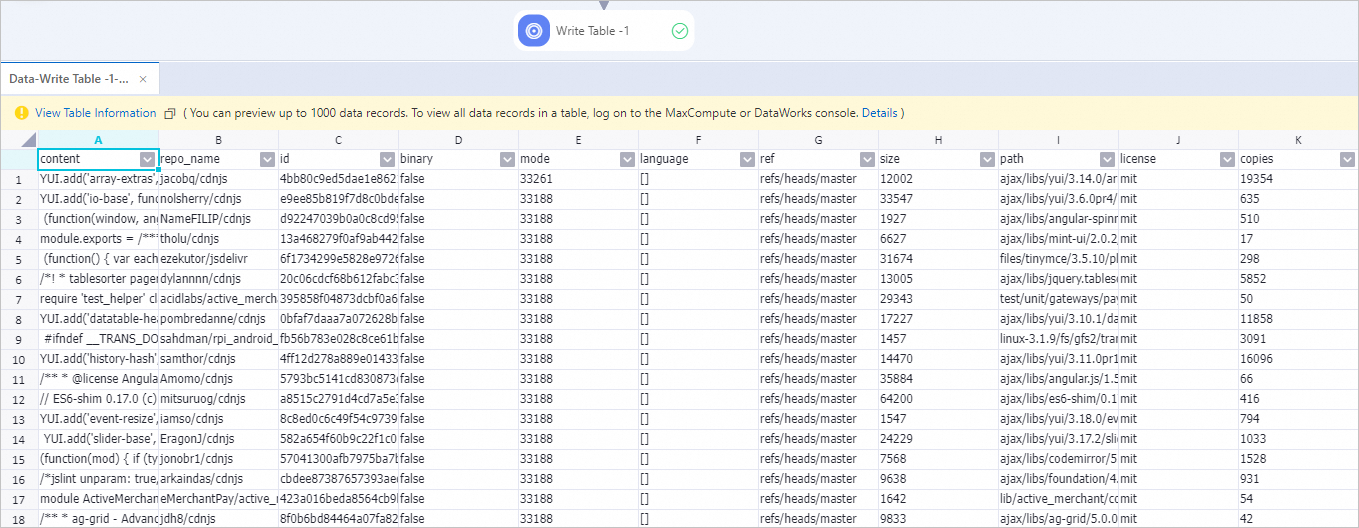
After the workflow completes, right-click the Write to Data Table-1 component and choose View Data > Output from the shortcut menu.
The output table shows the data samples that passed all filters and processing steps.