The k-nearest neighbors algorithm classifies data by finding the K nearest records in the training table for each row in the prediction table. The class that appears most frequently among these K records is assigned as the predicted class for that row.
Component configuration
You can configure the k-nearest neighbors component in one of the following ways.
Method 1: Visual configuration
You can configure the component parameters on the workflow page in Designer.
Tab | Parameter | Description |
Fields setting | Training table feature columns | The feature columns to use for training. |
Training table label column | The target column for training. | |
Prediction table feature columns | If you do not configure this parameter, the feature columns of the prediction table are the same as those of the training table. | |
Append ID columns to output table | Specifies the ID columns to obtain the predicted value for a specific column. By default, the feature columns of the prediction table are used as the ID columns. | |
Input data is in sparse format | Use the key-value pair format for sparse data. | |
Separator for key-value pairs | The default separator is a comma (,). | |
Separator for key and value | The default separator is a colon (:). | |
Parameters setting | Number of neighbors | The default value is 100. |
Execution tuning | Number of cores | By default, the system assigns it automatically. |
Memory size | The system assigns this by default. |
Method 2: PAI command
You can configure the component parameters by running a PAI command in the SQL script component. For more information, see SQL script.
PAI -name knn
    -DtrainTableName=pai_knn_test_input
    -DtrainFeatureColNames=f0,f1
    -DtrainLabelColName=class
    -DpredictTableName=pai_knn_test_input
    -DpredictFeatureColNames=f0,f1
    -DoutputTableName=pai_knn_test_output
    -Dk=2;
Parameter | Required | Description | Default value |
trainTableName | Yes | The name of the training table. | None |
trainFeatureColNames | Yes | The names of the feature columns in the training table. | None |
trainLabelColName | Yes | The name of the label column in the training table. | None |
trainTablePartitions | No | The partitions in the training table to use for training. | All partitions |
predictTableName | Yes | The name of the prediction table. | None |
outputTableName | Yes | The name of the output table. | None |
predictFeatureColNames | No | The names of the feature columns in the prediction table. | Same as trainFeatureColNames |
predictTablePartitions | No | The partitions in the prediction table to use for prediction. | All partitions |
appendColNames | No | The names of the columns from the prediction table to append to the output table. | Same as predictFeatureColNames |
outputTablePartition | No | The partition of the output table. | The entire table |
k | No | The number of nearest neighbors. Valid values: 1 to 1000. | 100 |
enableSparse | No | Specifies whether the input table data is in sparse format. Valid values: {true,false}. | false |
itemDelimiter | No | If the input data is in sparse format, this is the separator between key-value pairs. | Comma (,) |
kvDelimiter | No | If the input data is in sparse format, this is the separator between a key and its value. | Colon (:) |
coreNum | No | The number of nodes. Use this parameter with memSizePerCore. Valid values: 1 to 20,000. | Calculated by the system |
memSizePerCore | No | The memory of a single node. Valid values: 1024 MB to 64 × 1024 MB. | Calculated by the system |
lifecycle | No | The lifecycle of the output table. | None |
Example
Generate training data.
create table pai_knn_test_input as
select * from
(
  select 1 as f0,2 as f1, 'good' as class
  union all
  select 1 as f0,3 as f1, 'good' as class
  union all
  select 1 as f0,4 as f1, 'bad' as class
  union all
  select 0 as f0,3 as f1, 'good' as class
  union all
  select 0 as f0,4 as f1, 'bad' as class
)tmp;
Use a PAI command to submit the parameters for the k-nearest neighbors component.
pai -name knn
    -DtrainTableName=pai_knn_test_input
    -DtrainFeatureColNames=f0,f1
    -DtrainLabelColName=class
    -DpredictTableName=pai_knn_test_input
    -DpredictFeatureColNames=f0,f1
    -DoutputTableName=pai_knn_test_output
    -Dk=2;
View the training results.
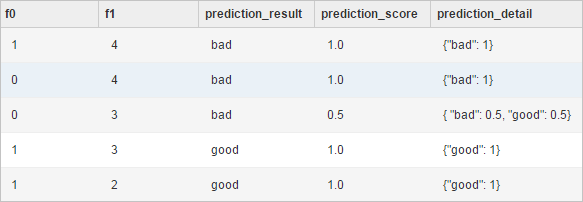 The results include the following information:
f0 and f1 are the appended columns.
prediction_result is the classification result.
prediction_score is the probability of the classification result.
prediction_detail shows the K nearest classes and their probabilities.