You can view and query PAI event logs for the last 90 days by default. For long-term retention and analysis, create a trail to deliver events to Simple Log Service (SLS) or Object Storage Service (OSS).
PAI events
For a list of event names supported by PAI, see the API reference.
Query events
Basic query
By default, ActionTrail records events for the last 90 days. You can query events in the ActionTrail console. For more information, see Query events in the ActionTrail console.
Advanced query
-
Log on to the ActionTrail console.
-
A trail is created, and events are delivered to Simple Log Service. For more information, see Create a single-account trail and Create a multi-account trail.
-
In the left-side navigation pane, click .
-
On the Default tab of the Custom Template page, configure query conditions.
You can perform custom event queries in simple query mode or SQL query mode. In simple query mode, you can query events in a visual manner. In SQL query mode, you can query events based on SQL statements that are converted from conditions in simple query mode.
Simple query
In Simple Query mode, follow the on-screen instructions to configure the query conditions.
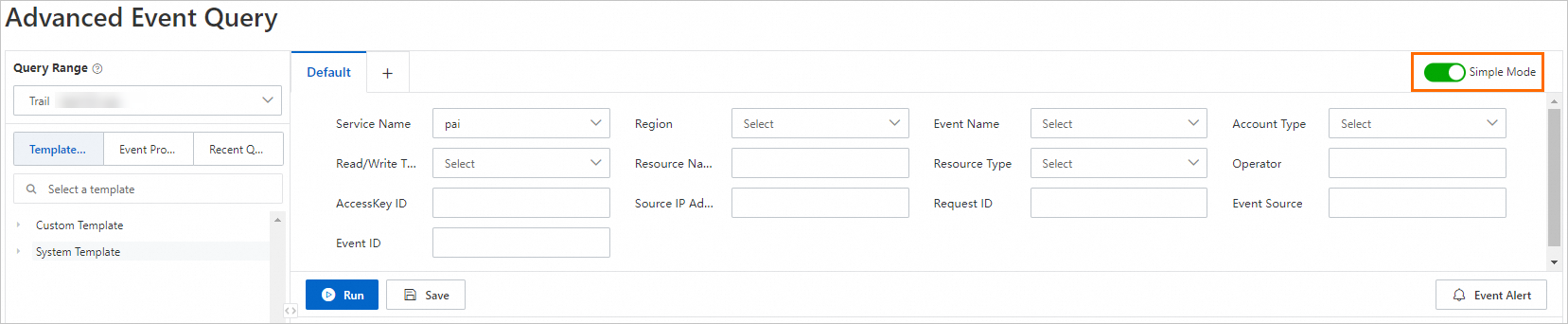
The following table describes the key parameters:
Parameter
Description
Service Name
Select Platform for AI (PAI).
Region
Select the region. For example, China (Hangzhou).
Event name
Select the event. For example, StopJob.
Read/write type
Select a read/write type:
-
Write
-
Read
SQL query
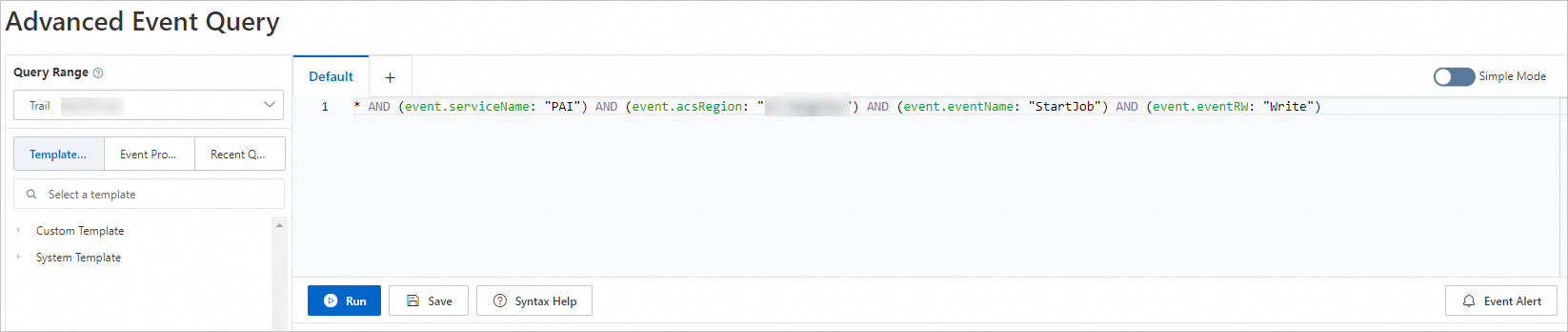
Disable the Simple Query switch and enter your SQL query conditions, as shown in the following figure.
-
If the simple query mode cannot meet your business requirements, use the SQL query mode. In this case, you can configure query conditions as prompted in Simple Mode and turn off Simple Mode. The configured query conditions in Simple Mode are automatically converted into an SQL statement. Then, you can configure a custom SQL statement.
-
For more information about the SQL syntax for advanced event queries and sample queries, see SQL statements in advanced event queries.
-
-
Click Run.
On the Raw Log tab, ActionTrail displays the event logs that match your query.
-
In the event list, click Actions in the Actions column.
In the View Event Details panel, you can view the basic information and the event record.