The Prediction component applies a trained model to new data and writes the results to an output table. Use it when your model was trained with a traditional data mining component that does not have a paired prediction component.
Prerequisites
Before you begin, ensure that you have:
A trained model in Machine Learning Designer
An input table with the feature columns the model expects
Configure the component
Method 1: Configure in Machine Learning Designer
On the pipeline canvas in the Machine Learning Platform for AI (PAI) console, select the Prediction component and configure the following parameters.
Fields Setting tab
| Parameter | Description |
|---|---|
| Feature columns | Feature columns selected from the input table. By default, all columns are selected. |
| Reserved columns | Columns to carry through to the output table. Include the label column to make downstream evaluation easier. |
| Output result column | Output column that contains the top prediction result. |
| Output score column | Output column that contains the probability of the top prediction result. |
| Output detail column | Output column that contains all possible results and their probabilities. |
| Sparse matrix | Enable if the input data is in sparse format (key-value pairs). |
| KV delimiter | Delimiter between keys and values in sparse data. Default: colon (:). |
| KV pair delimiter | Delimiter between key-value pairs in sparse data. Default: comma (,). |
Tuning tab
| Parameter | Description |
|---|---|
| Cores | Number of cores. Must be a positive integer. Use together with Memory size per core. |
| Memory size per core | Memory per core, in MB. Use together with Cores. |
Method 2: Run a PAI command
Run the following command using the SQL Script component:
pai -name prediction
    -DmodelName=nb_model
    -DinputTableName=wpbc
    -DoutputTableName=wpbc_pred
    -DappendColNames=label;
Parameters
| Parameter | Required | Description | Default |
|---|---|---|---|
inputTableName | Yes | Name of the input table. | — |
modelName | Yes | Name of the trained model. | — |
outputTableName | Yes | Name of the output table. | — |
featureColNames | No | Feature columns from the input table, separated by commas. | All columns |
appendColNames | No | Input columns to append to the output table. | None |
inputTablePartitions | No | Partitions to read from the input table. Supported formats: partition_name=value for a single partition, name1=value1/name2=value2 for multi-level partitions. Separate multiple partitions with commas. | Full table |
outputTablePartition | No | Partition to write results to in the output table. | None |
resultColName | No | Output column for the top prediction result. | prediction_result |
scoreColName | No | Output column for the probability of the top prediction result. | prediction_score |
detailColName | No | Output column for all possible results and their probabilities. | prediction_detail |
enableSparse | No | Whether the input data is sparse. Valid values: true, false. | false |
itemDelimiter | No | Delimiter between sparse key-value pairs. | , |
kvDelimiter | No | Delimiter between sparse keys and values. | : |
lifecycle | No | Lifecycle of the output table. | None |
coreNum | No | Number of cores. | Automatically allocated |
memSizePerCore | No | Memory per core, in MB. | Automatically allocated |
Example
This example builds a random forest classifier and runs Prediction on the same data.
Create the test input table:
create table pai_rf_test_input as
select * from
(
select 1 as f0,2 as f1, "good" as class
union all
select 1 as f0,3 as f1, "good" as class
union all
select 1 as f0,4 as f1, "bad" as class
union all
select 0 as f0,3 as f1, "good" as class
union all
select 0 as f0,4 as f1, "bad" as class
)tmp;
Train the model using the random forest algorithm:
PAI -name randomforests
   -project algo_public
   -DinputTableName="pai_rf_test_input"
   -DmodelName="pai_rf_test_model"
   -DforceCategorical="f1"
   -DlabelColName="class"
   -DfeatureColNames="f0,f1"
   -DmaxRecordSize="100000"
   -DminNumPer="0"
   -DminNumObj="2"
   -DtreeNum="3";
Run Prediction against the trained model:
PAI -name prediction
    -project algo_public
    -DinputTableName=pai_rf_test_input
    -DmodelName=pai_rf_test_model
    -DresultColName=prediction_result
    -DscoreColName=prediction_score
    -DdetailColName=prediction_detail
    -DoutputTableName=pai_temp_2283_76333_1
View the output table
pai_temp_2283_76333_1: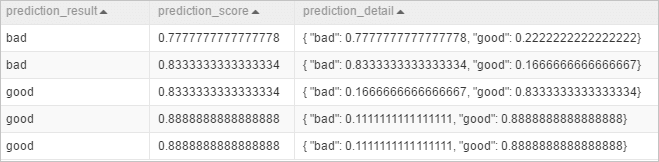
The output table contains three columns:
prediction_result: the top prediction result (the class with the highest probability). In this example, the value isgoodorbad.prediction_score: the probability of the top prediction result. In this example, the prediction result can be good or bad, depending on whose probability is higher;prediction_scorecontains the highest probabilities.prediction_detail: all possible results and their probabilities.