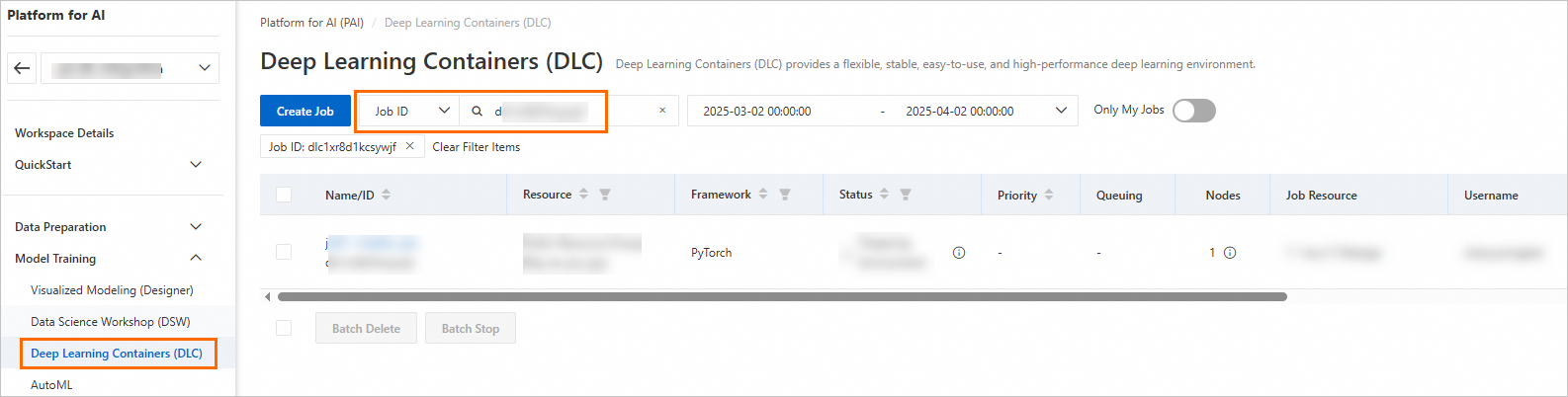
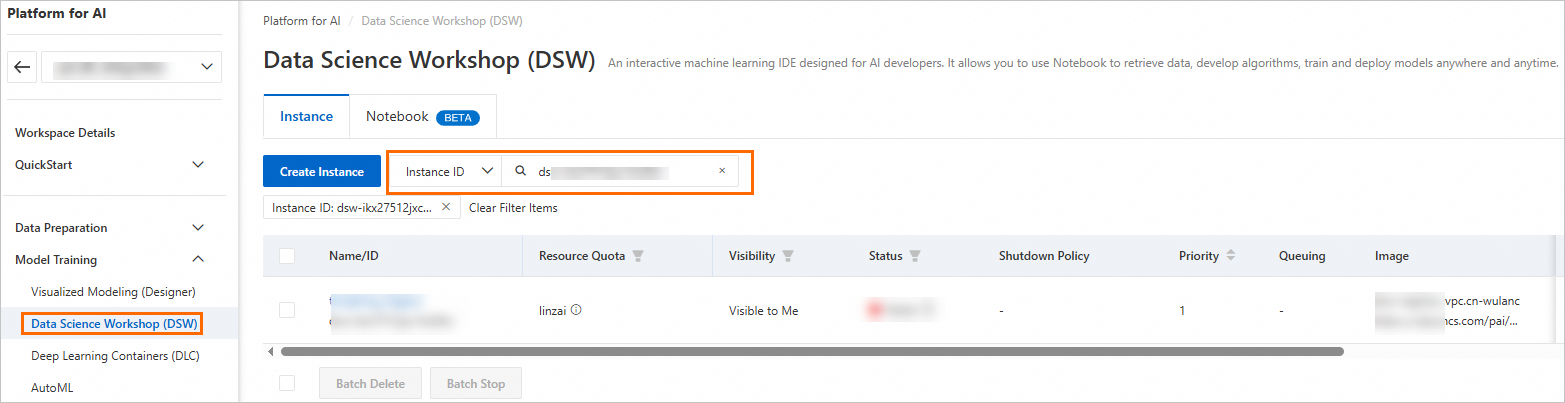
When you troubleshoot network issues in ECS, you may need to trace an Elastic Network Interface (ENI) back to the PAI workspace, Deep Learning Containers (DLC) job, or Data Science Workshop (DSW) instance that created it. For DLC jobs and DSW instances created with Lingjun resource quotas or general computing resource quotas, PAI automatically creates ENIs and tags them with identifying metadata — such as workspace ID and job ID. Use these tags to locate the corresponding PAI resources.
Limitations
PAI adds tags only to ENIs created for DLC jobs and DSW instances that use Lingjun resource quotas or general computing resource quotas. ENIs created for other resource types are not tagged.
To use general computing resource quotas, you must first upgrade the network plug-in to Terway. This upgrade is available only to users in the whitelist. Contact your sales manager to apply for the whitelist.
Prerequisites
Before you begin, ensure that you have:
A DLC job or a DSW instance created using resource quotas
Query ENI tags
Log on to the Elastic Compute Service (ECS) console. In the left-side navigation pane, choose Network & Security > Elastic Network Interfaces.
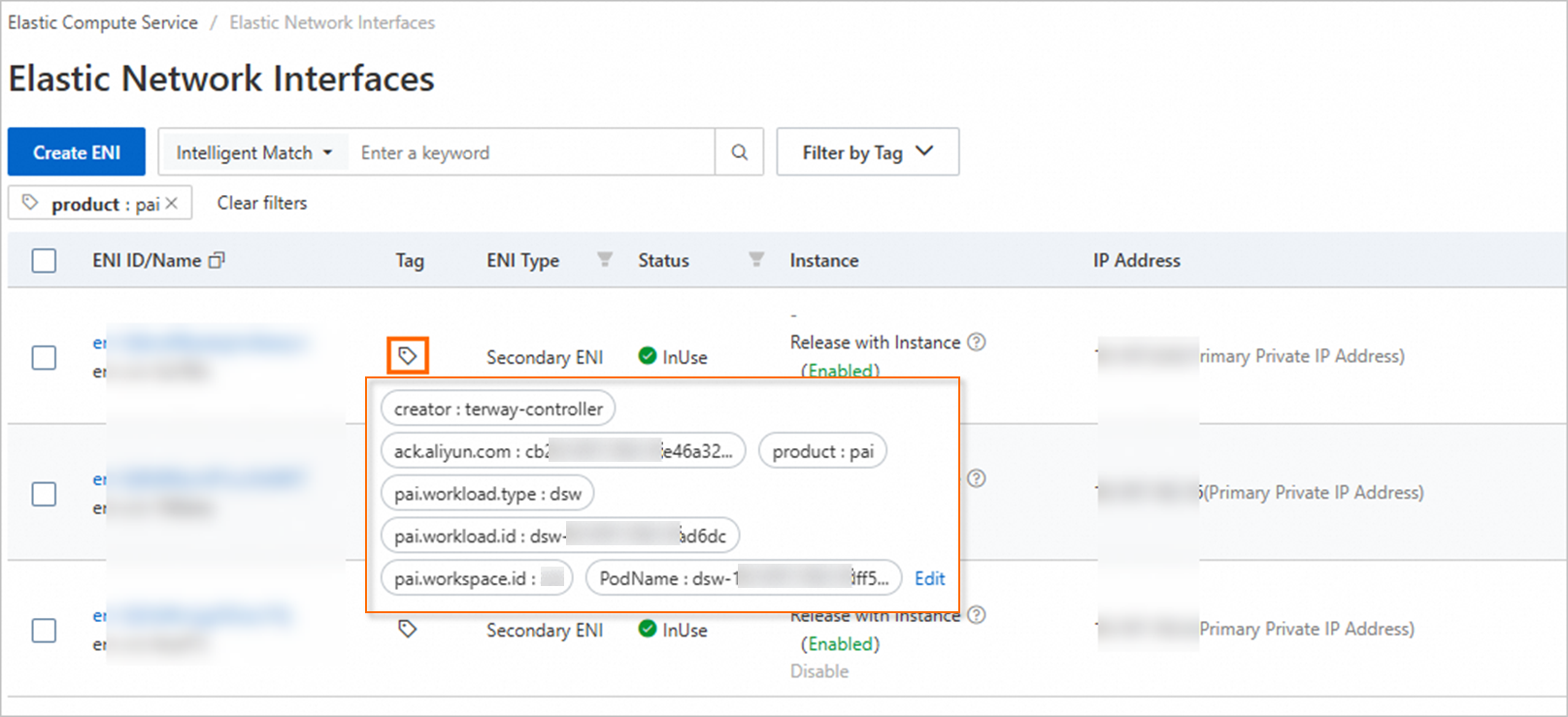
On the Elastic Network Interfaces page, click the Filter by Tag drop-down list and filter by the
product:paitag to show only PAI-related ENIs.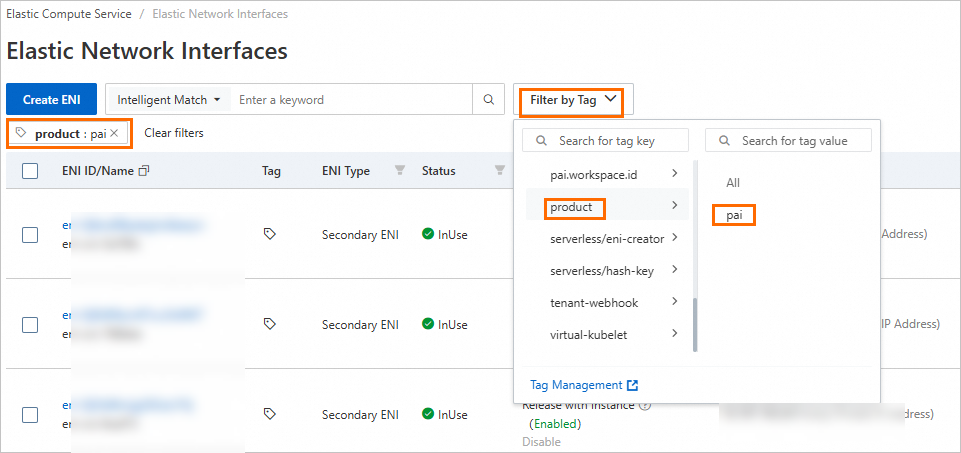
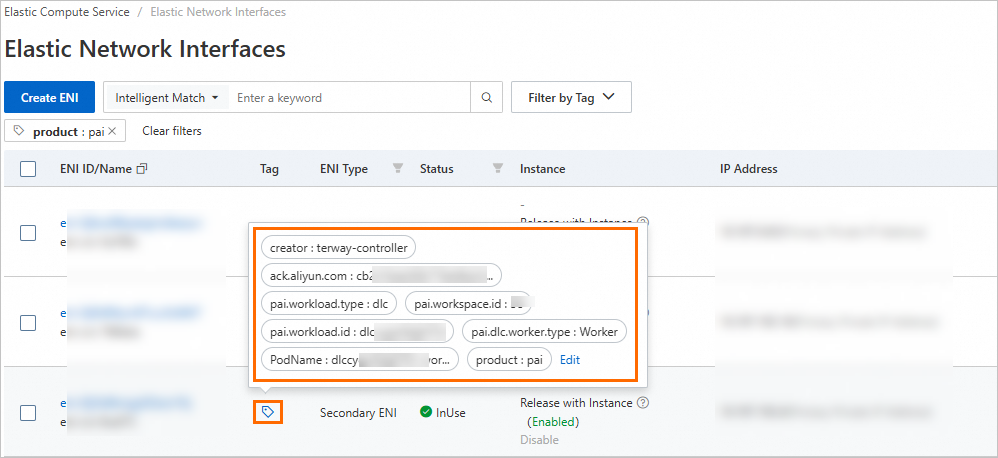
Hover over the
 icon in the Tag column to view the ENI tags.
The following table describes the key tags.
| Tag name | Description |
|---|---|
pai.workspace.id | The PAI workspace ID. |
pai.workload.type | The PAI job type. Values: dlc or dsw. |
pai.workload.id | The ID of the PAI DLC job or DSW instance. |
pai.dlc.worker.type | The role type of the DLC job node. |
PodName | The pod name of the DLC job or DSW instance. |
ENIs related to the DLC job
ENIs related to the DSW instance
Query PAI workspaces and jobs
Use the tag values from the previous step to locate the corresponding workspace, DLC job, or DSW instance in the PAI console.
Query the workspace. In the PAI workspace list, filter by the workspace ID from
pai.workspace.id, then click the workspace name to open the workspace details page.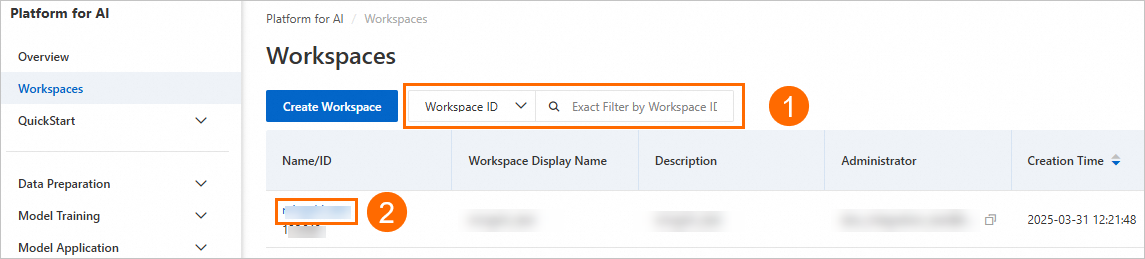
Query the DLC job or DSW instance using the ID from
pai.workload.id. You have two options:On the Deep Learning Containers (DLC) page, filter by Job ID.

On the Data Science Workshop (DSW) page, filter by Instance ID.